

Wil je meer e-books, cursussen of sjablonen verkopen zonder je prijzen permanent te verlagen? Een goed getimede kortingscode kan precies dat doen.
Kortingscodes geven je klanten een reden om nu te kopen in plaats van later. Ze zijn een van de eenvoudigste verkoophefbomen die je hebt als verkoper van digitale producten, en je hoeft geen regel code aan te raken om ze te gebruiken.
In deze gids leer je hoe je kortingscodes voor digitale producten aanmaakt in WordPress met Easy Digital Downloads (EDD). We behandelen ook automatische kortingen, hoe je je codes promoot en hoe je volgt welke daadwerkelijk werken.
- Belangrijkste punten
- Waarom kortingscodes gebruiken voor digitale producten
- Wat je nodig hebt voordat je begint
- Stap 1. Maak je kortingscode aan
- Stap 2. Stel automatische kortingen in met Discounts Pro
- Stap 3. Zie hoe klanten de code inwisselen
- Stap 4. Promoot je kortingscode
- Stap 5. Volg hoe je kortingscodes presteren
- Meer manieren om creatief te zijn met kortingscodes
- Veelgestelde vragen: WordPress kortingscodes voor digitale producten
- Hoe maak ik een kortingscode aan in WordPress?
- Kan ik een kortingscode beperken tot specifieke digitale producten of categorieën?
- Hoe laat ik een korting automatisch toepassen, zonder code?
- Hoe vaak kunnen klanten dezelfde kortingscode gebruiken?
- Waar voeren klanten hun kortingscode in bij het afrekenen?
- Hoe volg ik welke kortingscodes daadwerkelijk werken?
- Gebruik kortingscodes om browsers om te zetten in kopers
Belangrijkste punten
- Maak in een paar minuten een code aan. Geef het een naam, een code en een bedrag, en het is live.
- Bepaal precies wie het kan gebruiken. Beperk codes op product, categorie, datum of minimum bestelling.
- Sla de code volledig over. Kortingen Pro past kortingen automatisch toe op basis van winkelwagenvoorwaarden.
- Verspreid het nieuws. Promoot codes met een shortcode, een speciale pagina of een widget.
- Weet wat werkt. De ingebouwde rapporten van EDD laten zien welke codes hun waarde bewijzen.
Waarom kortingscodes gebruiken voor digitale producten
Een kortingscode is een woord of reeks tekens die een klant bij het afrekenen invoert om een percentage of een bedrag van hun bestelling af te krijgen.
Voor verkopers van digitale producten zijn kortingscodes een risicoarme manier om de verkoop te stimuleren. U beheert geen voorraad en drukt uw marge niet met verzendkosten. U past simpelweg een prijs aan voor een beperkte tijd of een specifiek publiek.
Gebruik ze om een oudere cursus op te ruimen voordat u een nieuwe lanceert, e-mailabonnees te belonen, of kopers die voor het eerst kopen een reden te geven om uw product te proberen. Omdat de kortingscodes van EDD binnen uw eigen winkel leven, behoudt u de volledige controle over de voorwaarden, zonder een marktplaatsgoedkeuringsproces of extra kosten die de deal drukken.
Wat je nodig hebt voordat je begint
Deze handleiding gaat ervan uit dat u Easy Digital Downloads al hebt geïnstalleerd en geactiveerd op uw zelf-gehoste WordPress-site, en dat u het gebruikt om ten minste één digitaal product te verkopen.
Als u nog geen product hebt toegevoegd, ga dan eerst naar Downloads » Download toevoegen. Zodra u iets te verkopen hebt, bent u klaar om uw eerste kortingscode te maken.
Stap 1. Maak je kortingscode aan
Ga naar Downloads » Kortingen en klik op Korting toevoegen.
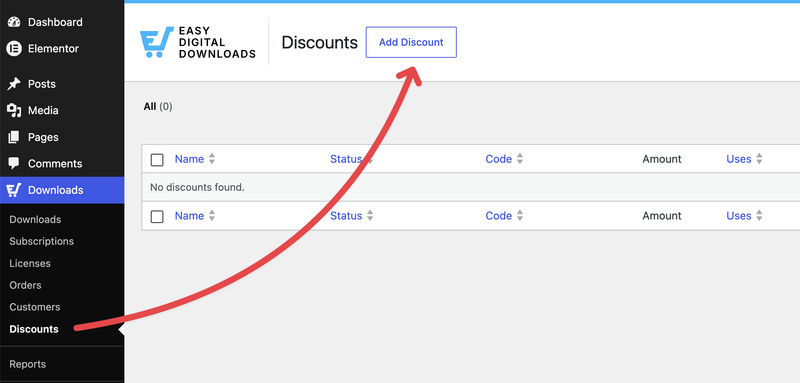
U komt op het kortingsformulier. Drie velden zijn vereist om een werkende code te krijgen:
- Naam: hoe u deze korting intern noemt. Klanten zien dit bij het afrekenen.
- Code: de alfanumerieke code die uw klant invoert. Klik op Code genereren als u liever niet zelf een bedenkt; u kunt een voorvoegsel, lengte en of deze letters, cijfers of beide bevat instellen.
- Bedrag: een vast dollarbedrag of een percentage korting.
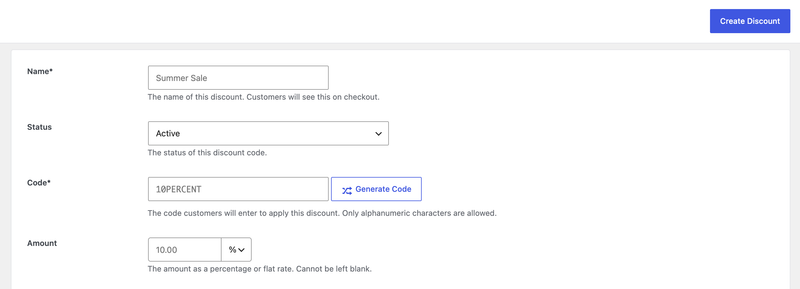
Klik op Korting aanmaken, en dat is alles. Uw code is live en klaar voor gebruik op elk product, zonder limieten, tenzij u er een toevoegt.
Pas de regels en beperkingen van uw kortingscode aan
De meeste verkopers willen ten minste een paar beperkingen op een korting. EDD geeft u er verschillende:
- Downloadvereisten: Beperk de code tot specifieke producten. Laat dit leeg en het is van toepassing op alles.
- Uitgesloten downloads: Blokkeer specifieke producten van het gebruik van deze code.
- Categorieën: Neem producten op of sluit ze uit op categorie in plaats van ze één voor één te kiezen.
- Startdatum en vervaldatum: Voer de korting uit voor een bepaalde periode, zoals een weekenduitverkoop.
- Minimumbedrag: Vereis een minimum winkelwagenbedrag voordat de code werkt.
- Max aantal gebruiken: Beperk hoeveel keer de code kan worden gebruikt, op de hele site.
- Eén keer per klant gebruiken: Beperk elke klant tot één inwisseling. De meeste verkopers schakelen dit in om hun marge te beschermen.
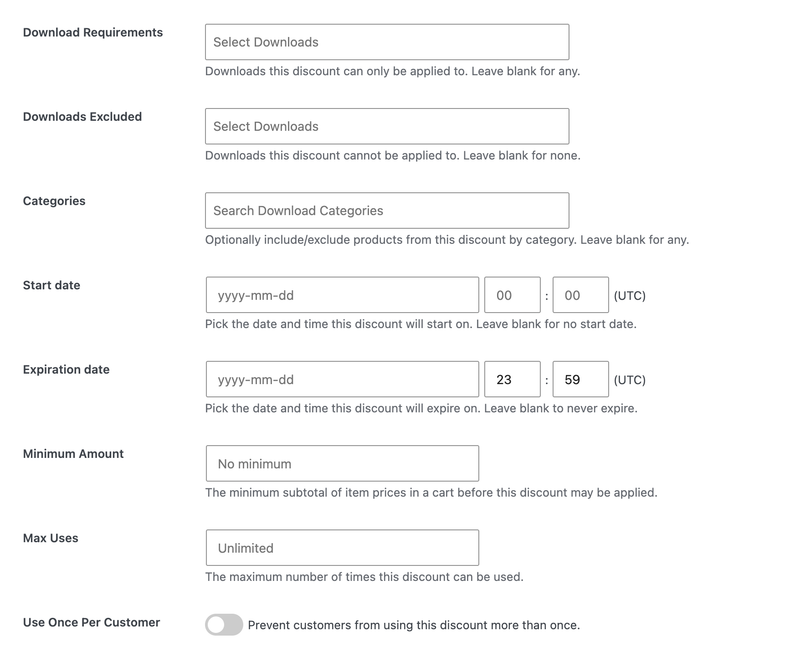
U kunt de Status van de korting ook op elk moment instellen op Actief, Inactief of Gearchiveerd vanuit de Kortingenlijst, zodat u een code die u later opnieuw wilt gebruiken niet hoeft te verwijderen.
Voor de volledige lijst met velden en wat elk veld doet, raadpleeg de documentatie van EDD over het aanmaken en gebruiken van kortingscodes.
Stap 2. Stel automatische kortingen in met Discounts Pro
Een code werkt geweldig wanneer u een specifieke uitverkoop promoot. Maar soms wilt u dat een korting wordt toegepast zonder dat de klant iets hoeft te doen.
Dat is waar Discounts Pro om de hoek komt kijken. Het is een functie die beschikbaar is op een Extended Pass of hoger, en waarmee u kortingen kunt opbouwen die automatisch worden geactiveerd op basis van winkelwagenvoorwaarden in plaats van een code.
Nadat u het op uw site hebt ingeschakeld, gaat u naar Downloads » Kortingen Pro » Nieuwe Korting Toevoegen.
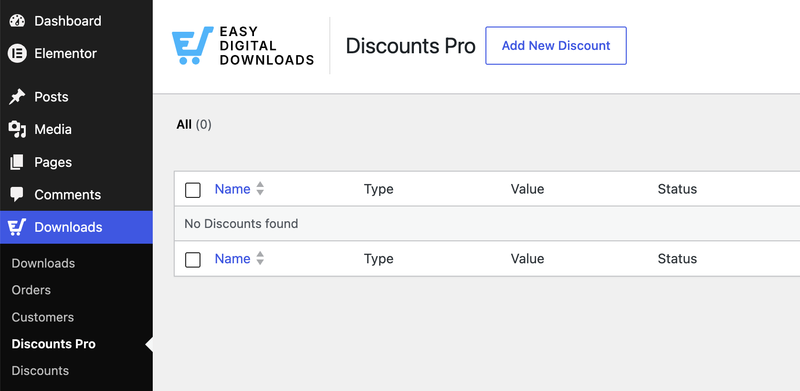
Kies vervolgens een Kortingstype:
- Vaste Prijs: Vast bedrag eraf.
- Percentage Prijs: Percentage eraf.
- Product Aantal: Korting gebaseerd op het aantal artikelen in de winkelwagen.
- Elke X producten: Korting die zich herhaalt voor elke ingestelde set items.
- Vanaf X producten: Korting die ingaat zodra een winkelwagen een bepaald aantal artikelen bereikt.
- Producten in winkelwagen: Korting gekoppeld aan specifieke productcombinaties.
- Winkelwagen drempelwaarde: Korting die wordt ontgrendeld zodra het winkelwagertotaal een ingesteld bedrag overschrijdt.
U kunt bijvoorbeeld een korting met een Winkelwagen drempelwaarde instellen die 10% korting geeft op elke bestelling van meer dan $50, zonder dat er een code nodig is.
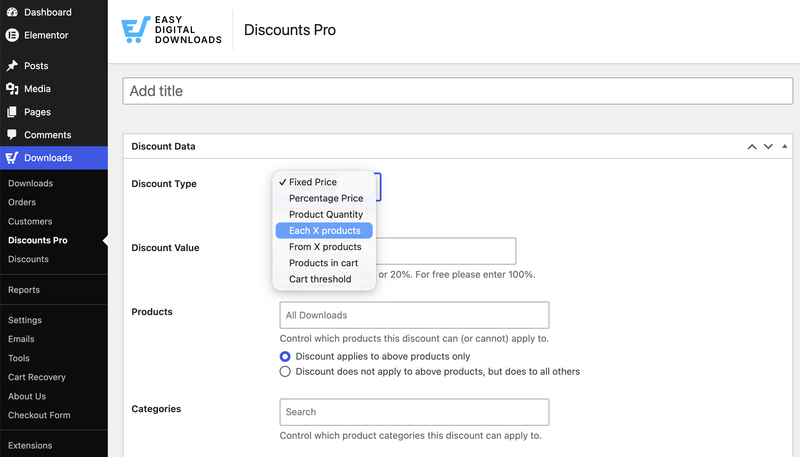
Stel uw voorwaarden in, klik op Publiceren en de korting wordt toegepast op het moment dat de winkelwagen van een klant in aanmerking komt.
Stap 3. Zie hoe klanten de code inwisselen
Zodra een code actief is, zien klanten een optie om deze in te voeren op uw afrekenpagina. Ze typen het in, klikken op Toepassen en het winkelwagertotaal wordt direct bijgewerkt.
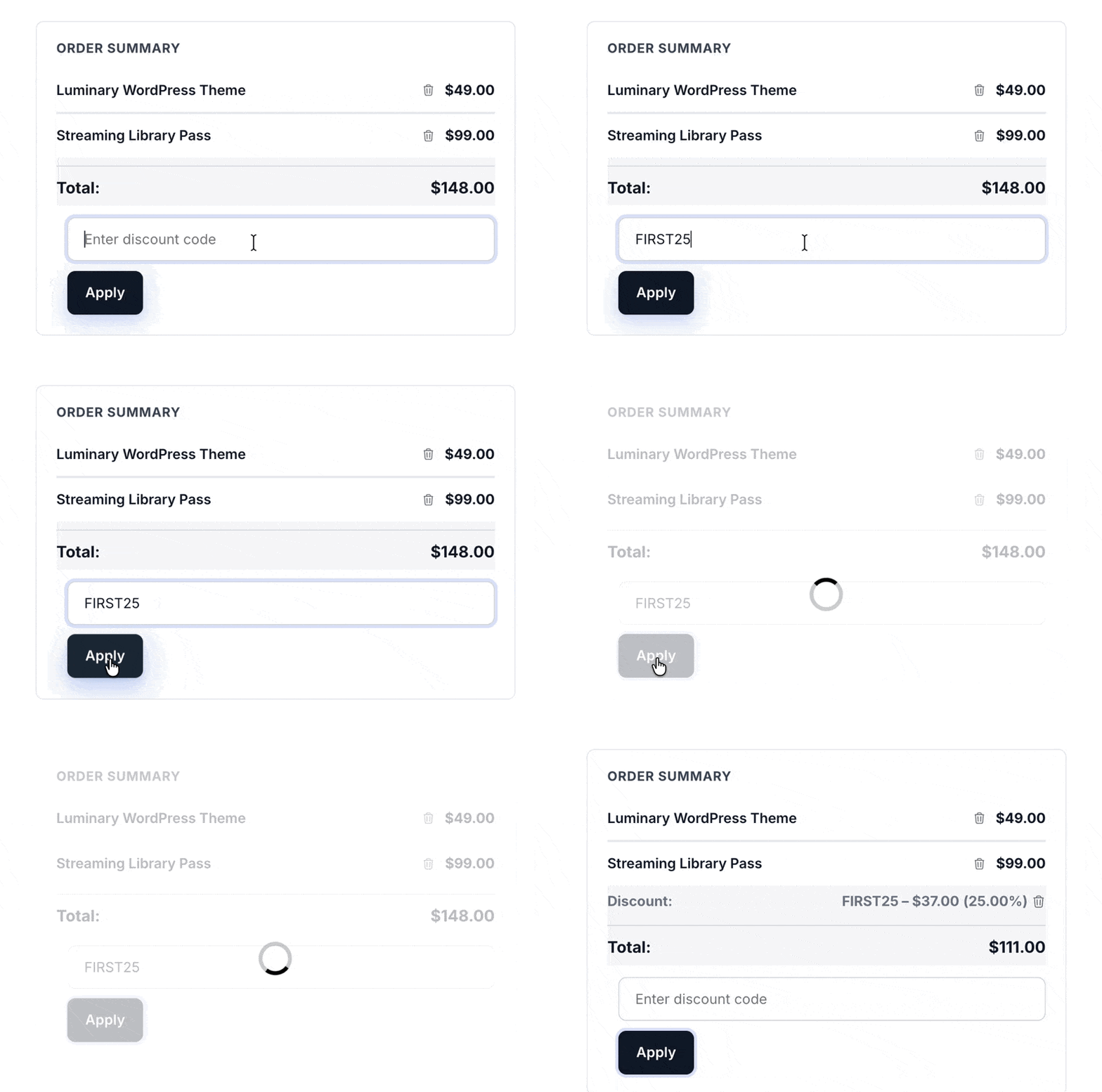
U kunt ook de afrekenstap volledig overslaan door klanten een link te sturen met de ingebouwde code, met behulp van ?discount=UWCODE aan het einde van elke URL op uw site. Dit is handig voor e-mailcampagnes of social posts. De code wordt automatisch toegepast zodra ze de kassa bereiken.
Stap 4. Promoot je kortingscode
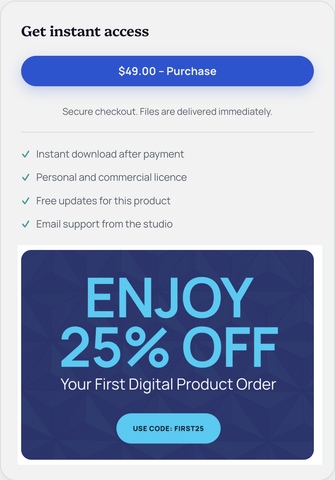
Een kortingscode werkt alleen als mensen weten dat deze bestaat. Een paar eenvoudige manieren om deze onder de aandacht van shoppers te brengen.
- Voeg het toe als shortcode op elke pagina of bericht, zodat het wordt weergegeven waar u het nodig hebt.
- Maak een speciale couponpagina met uw huidige promoties, zodat terugkerende klanten weten waar ze moeten kijken.
- Voeg een widget toe aan uw zijbalk of voettekst om een actieve korting site-breed zichtbaar te houden.
- Deel het via e-mail en sociale media, met een directe link met behulp van de URL-methode uit Stap 3.
Stap 5. Volg hoe je kortingscodes presteren
Zodra uw codes live zijn, houd dan in de gaten hoe ze presteren. Ga naar Downloads » Rapportages » Kortingen om het gebruik en de omzet van elke code die u hebt aangemaakt te bekijken.
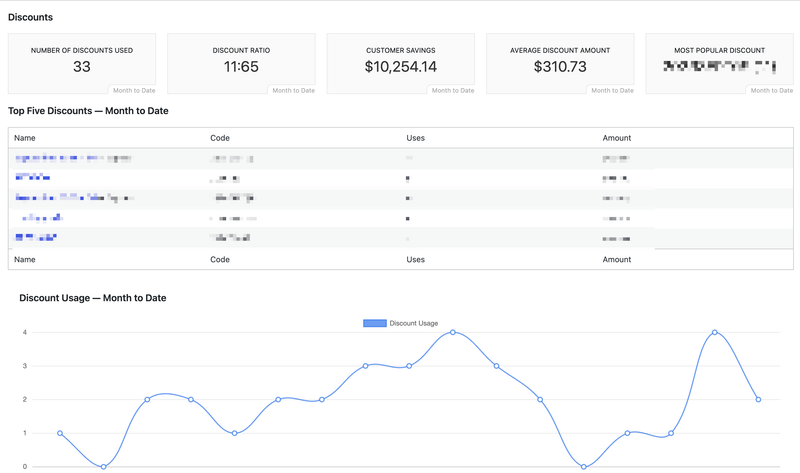
Dit maakt het gemakkelijk om te zien welke promoties de moeite waard zijn om te herhalen en welke hun waarde niet bewijzen, zodat u toekomstige verkopen kunt aanpassen in plaats van te gokken.
Meer manieren om creatief te zijn met kortingscodes
Een paar EDD-functies kunnen uw kortingsstrategie verder brengen:
- Sociale kortingen: beloon klanten met een korting voor het delen van uw product op sociale media.
- Kortingscode-importeur: importeer in bulk bestaande codes uit een CSV-bestand in plaats van ze één voor één toe te voegen.
- Kortingen Widget: laat andere sites uw huidige promoties weergeven.
- Kortingscode-generator: genereer en exporteer grote batches unieke codes tegelijk, handig voor weggeefacties of affiliate partners.
Koop een EDD Pass om toegang te krijgen tot deze functies, samen met al het andere dat EDD biedt.
Veelgestelde vragen: WordPress kortingscodes voor digitale producten
Hoe maak ik een kortingscode aan in WordPress?
Met Easy Digital Downloads actief, ga naar Downloads » Kortingen en klik op Korting toevoegen. Vul een naam, code en bedrag in en klik vervolgens op Korting aanmaken. Uw code is direct live.
Kan ik een kortingscode beperken tot specifieke digitale producten of categorieën?
Ja. Gebruik het veld Downloadvereisten om een code te beperken tot bepaalde producten, of het veld Categorieën om een hele categorie in of uit te sluiten in één keer.
Hoe laat ik een korting automatisch toepassen, zonder code?
Discounts Pro, beschikbaar op een Extended Pass of hoger, laat u voorwaarden instellen zoals een winkelwagen drempel of productaantal die automatisch een korting activeren bij het afrekenen.
Hoe vaak kunnen klanten dezelfde kortingscode gebruiken?
Zoveel keer als u toestaat. Stel Max. Gebruik in om het totale aantal inwisselingen op de hele site te beperken, of schakel Eén keer per klant gebruiken in om elke shopper te beperken tot één gebruik.
Waar voeren klanten hun kortingscode in bij het afrekenen?
Op de afrekenpagina, waar ze een veld zien om een code in te voeren voordat ze hun aankoop voltooien. U kunt ook een directe link sturen met de code erin ingebouwd via de URL-methode.
Hoe volg ik welke kortingscodes daadwerkelijk werken?
Ga naar Downloads » Rapporten » Kortingen om het gebruik en de omzet van elke code die u hebt gemaakt te bekijken.
Gebruik kortingscodes om browsers om te zetten in kopers
Kortingscodes zijn een van de snelste manieren om meer digitale producten te verkopen en aarzelende shoppers om te zetten in betalende klanten, zonder uw reguliere prijzen aan te raken. Begin met één simpele code, kijk hoe deze presteert en bouw van daaruit verder.
Klaar om kortingscodes aan het werk te zetten in uw winkel? Koop een EDD Pass om Discounts Pro te ontgrendelen en begin vandaag nog met het maken van automatische kortingen.
📣 P.S. Vergeet niet om zich te abonneren op onze nieuwsbrief en ons te volgen op Facebook, Twitter/X, of LinkedIn voor meer WordPress-bronnen!