

Wilt u Apple Pay en Google Pay accepteren op uw e-commerce site? Het is een goed idee.
Deze handige mobiele betaalmethoden bieden klanten een veilige en probleemloze manier om online te betalen. Door ze aan te bieden bij het afrekenen, kunt u de verkoop verhogen en de klanttevredenheid verbeteren.
In deze handleiding leid ik u door de stappen om Apple Pay en Google Pay in uw WordPress-winkel in te schakelen met Stripe als uw betaalgateway.
🔎 Ik zal behandelen:
Waarom Apple Pay en Google Pay accepteren?
Mensen gebruiken hun mobiele apparaten meer dan ooit voor online winkelen. Alleen al in 2023 waren mobiele portemonnees goed voor ongeveer de helft van wereldwijde e-commerce betaaltransacties!
Apple Pay en Google Pay zijn twee van de populairste contactloze betaalsystemen. Ze staan ook bekend als digitale portemonnees, of respectievelijk Apple wallet en Google wallet. Ze stellen gebruikers in staat om hun creditcard- of debetcardgegevens veilig op hun mobiele apparaten op te slaan om met een simpele tik te betalen.
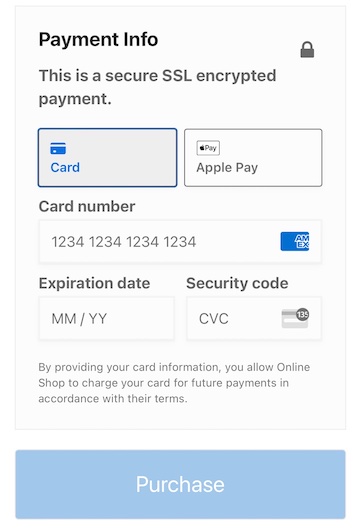
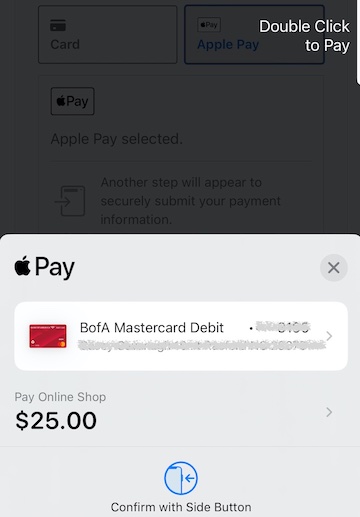
In plaats van al hun gegevens handmatig in te typen, kunnen gebruikers afrekenen met Touch ID, Face ID of met één klik.
Door digitale portemonneebetalingen op uw e-commerce site te ondersteunen, kunt u de gebruikerservaring verbeteren, conversiepercentages verhogen en de beveiliging verbeteren.
Hoe Apple Pay en Google Pay te accepteren
Als u een WordPress-site heeft, is het toevoegen van een betaalgateway die Apple Pay en Google Pay accepteert eenvoudig. Nog geen site? Volg onze stapsgewijze handleiding voor het starten van een e-commerce website met WordPress.
Hieronder laat ik u zien hoe u uw online winkel kunt instellen om Apple Pay en Google Pay te accepteren via Stripe. Als u al een EDD-gebruiker bent, kunt u gerust doorgaan naar Stap 2.
Stap 1. Installeer Easy Digital Downloads
WordPress wordt niet standaard geleverd met e-commerce functionaliteit. U heeft een plugin/betaalgateway nodig om online betalingen te accepteren.
Om digitale producten en downloads te verkopen, is Easy Digital Downloads (EDD) de ideale oplossing.
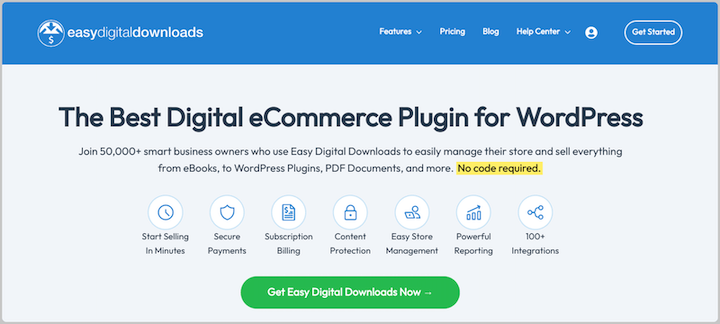
Met meer dan 50.000 gebruikers is het een van de meest vertrouwde WordPress e-commerce plugins. Naast het in enkele minuten opzetten van een online winkel, kunt u deze naadloos integreren met populaire betaalgateways.
🔐 EDD is een geverifieerde Stripe-partner. Alles is volledig veilig en eenvoudig in te stellen.
De gratis EDD-versie bevat Stripe. Maar een Pro pass geeft u toegang tot veel premium extensies en voordelen, zoals het elimineren van transactiekosten.
Na aankoop van uw pass, downloadt u de EDD Pro plugin (of zoekt u naar de gratis versie in de WordPress Plugin Directory). Om deze te installeren, gaat u naar Plugins » Nieuwe Plugin Toevoegen » Plugin Uploaden » Bestand Kiezen.

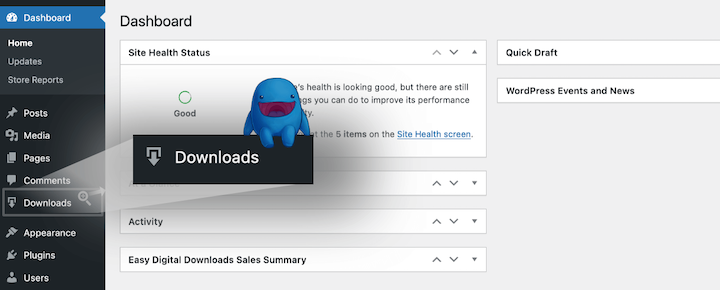
Klik op Nu Installeren gevolgd door Plugin Activeren. Een Downloads menu-item verschijnt in uw WordPress-admingebied.
U kunt op Aan de slag klikken om de onboarding- en installatiewizard te starten. Dit leidt u door de eerste stappen om uw winkel operationeel te maken, zoals het toevoegen van uw eerste product.
⚙️ Voor stapsgewijze begeleiding raadpleegt u onze EDD Quickstartgids of deze videotutorial.
Verkoopt u geen digitale producten? U kunt WooCommerce gebruiken om een online winkel te starten en fysieke goederen te verkopen. Als u geen storefront hoeft te maken, is WP Simple Pay een uitstekend alternatief.
Stap 2. Stripe verbinden en configureren
Als u dit nog niet hebt gedaan in Stap 1, is de volgende stap het verbinden van uw WordPress-site en online winkel met de Stripe-betaalgateway.
Ga vanuit uw WordPress-dashboard naar Downloads » Instellingen » Betalingen » Stripe. Klik vervolgens op Verbinden met Stripe.
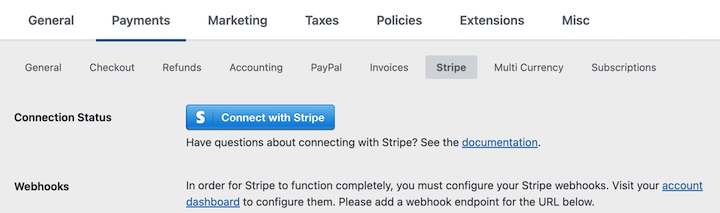
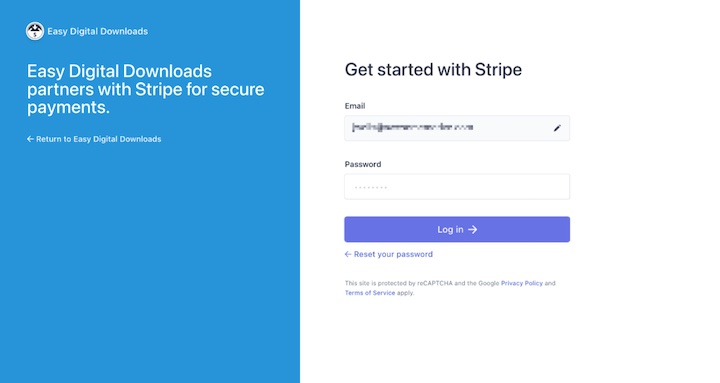
Als u nog geen bestaand Stripe-account hebt, selecteert u de optie om er een aan te maken. Volg anders de instructies om in te loggen en uw account te verbinden.
Eenmaal succesvol verbonden, keert u terug naar uw EDD Stripe-instellingen in WordPress. Selecteer onder Verbindingsstatus de optie Webhooks automatisch instellen om het proces te voltooien.
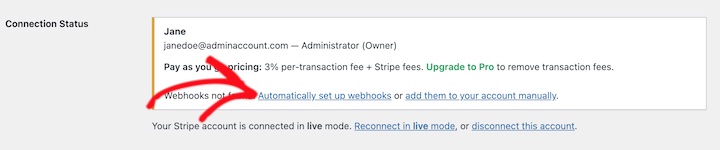
Als u klaar bent, klikt u onderaan op Wijzigingen opslaan.
Blijf vervolgens onder Downloads » Instellingen » Betalingen, maar ga naar het tabblad Algemeen.
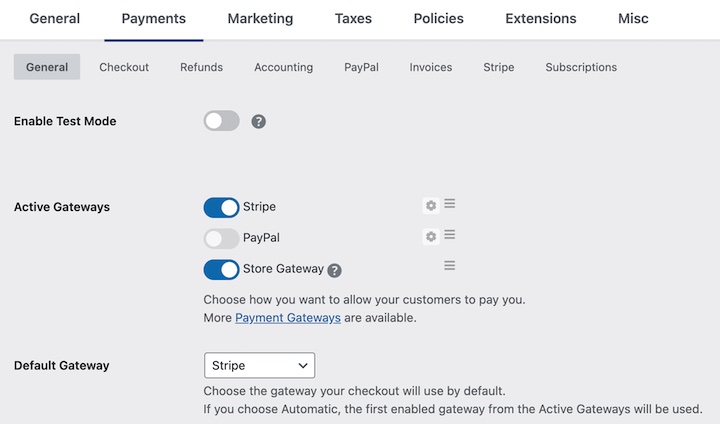
Stel Stripe in als uw Actieve en Standaard Gateway (en schakel eventuele andere betaalopties in die u wilt ondersteunen). Sla uw wijzigingen opnieuw op.
Merk op dat u hier ook Testmodus inschakelen kunt, wat nuttig kan zijn voor de derde en laatste stap.
Stap 3. Apple Pay en Google Pay testen bij het afrekenen
EDD configureert Stripe om u automatisch Apple Pay en Google Pay op uw WordPress-site aan te bieden en te accepteren.
Het enige dat overblijft, is het previewen en testen van uw winkel om te verifiëren dat alles er correct uitziet en functioneert. U hebt producten in uw winkel nodig om dit te doen. Voor hulp bij dit proces raadpleegt u onze handleiding Producten maken.
Bezoek uw site vanaf de voorkant. Voeg een product toe aan uw winkelwagen en ga vervolgens naar de kassa. Uw kassapagina kan er iets anders uitzien, afhankelijk van uw WordPress-thema en de instellingen van uw kassapagina.
Onder Betaalmethode ziet u echter de opties om te betalen met een kaart of via Apple/Google Pay (afhankelijk van de browser/het apparaat dat u gebruikt).
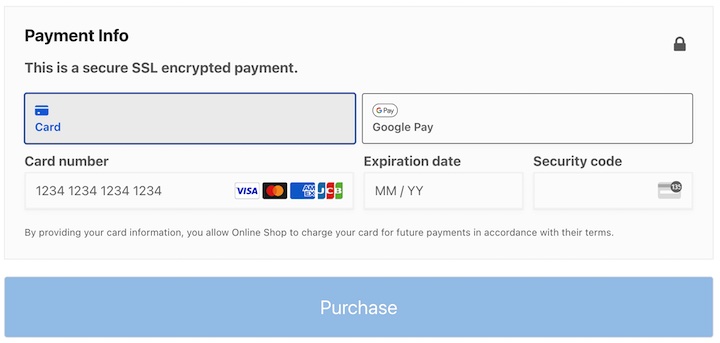
Apple Pay testen
U hebt een actieve kaart in uw Apple Pay-portemonnee nodig om een Apple Pay-test uit te voeren. Maar als u Testmodus inschakelt in de instellingen van de vorige stap, worden er geen daadwerkelijke gelden gebruikt.
Om Apple Pay te zien en te testen, hebt u een Apple-apparaat nodig waarop macOS of iOS draait. Apparaten zijn onder meer een iPhone, iPad en laptop met een Touch ID-sensor.
Google Pay testen
U kunt een Stripe-testkaart instellen in Google Chrome. Ga naar de instellingen van uw Chrome-browser en navigeer vervolgens naar Automatisch invullen en wachtwoorden » Betaalmethoden.
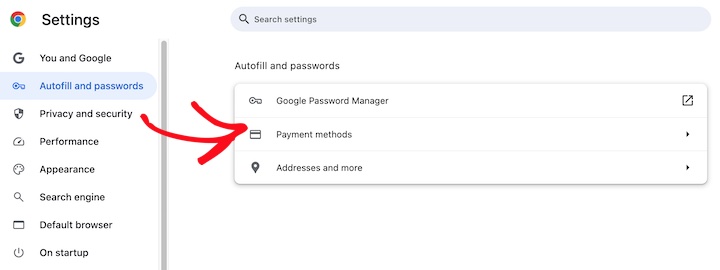
Vervolgens kunt u op Toevoegen klikken en deze informatie invoeren als een nieuwe kaart:
- Kaartnummer: 4242424242424242
- Vervaldatum: Elke datum
- Opmerking: Mogelijk moet u een andere testkaart gebruiken in uw regio/land.
Raadpleeg de testdocumentatie van Stripe als u problemen ondervindt.
Veelgestelde vragen over het accepteren van Apple Pay en Google Pay
Kan ik Apple Pay en Google Pay accepteren zonder Stripe?
Momenteel is Stripe de primaire gateway die Apple Pay en Google Pay ondersteunt voor WordPress. Andere betaalgateways kunnen echter in de toekomst integreren met deze mobiele betaalmethoden. Het is altijd het beste om contact op te nemen met de specifieke gateway die u overweegt om te zien of deze Apple/Google Pay-ondersteuning biedt.
Zijn er kosten verbonden aan Apple Pay en Google Pay?
Zowel Apple Pay als Google Pay brengen doorgaans transactiekosten in rekening. De exacte kosten kunnen variëren afhankelijk van uw locatie, betalingsvolume en andere factoren. Het is essentieel om de kostenstructuur van uw gekozen betaalgateway (zoals Stripe) te bekijken om de totale kosten te begrijpen die gepaard gaan met het accepteren van deze mobiele betaalmethoden.
Heb ik Easy Digital Downloads nodig om Stripe te gebruiken?
Easy Digital Downloads biedt een snelle en gemakkelijke manier om digitale downloads en betalingen te beheren, en het wordt geleverd met ingebouwde Stripe. Stripe is echter een populaire wereldwijde betaalgateway die toegankelijk is om online betalingen te accepteren via andere WordPress-plugins of API-integratie.
Gebruik EDD om Apple Pay en Google Pay in te stellen
Gefeliciteerd! U hebt geleerd hoe u Apple Pay en Google Pay kunt accepteren op uw WordPress e-commerce site! Dit kan u helpen de omzet te verhogen door het gemak van Touch ID, Face ID of betalingen met één klik toe te voegen.
Wilt u nog meer functies om uw online winkel te stroomlijnen en de omzet te verhogen? Koop vandaag nog een EDD Pass.
Er zijn veel andere manieren om Stripe + EDD te gebruiken om uw online winkel te verbeteren. Bekijk hoe u Stripe Early Fraud Warnings kunt benutten.
📣 P.S. Vergeet niet om zich te abonneren op onze nieuwsbrief en ons te volgen op Facebook, Twitter/X, of LinkedIn voor meer WordPress-bronnen!