

Gumroad rekent 10% van elke verkoop die je maakt, plus $0,50 per transactie. Die kosten lopen snel op.
Als je maandelijks $5.000,- aan digitale producten verkoopt, geef je Gumroad ruim $525,- voordat de kosten voor betalingsverwerking überhaupt in beeld komen. Als je de snede van Stripe erbij optelt, zijn de werkelijke kosten voor verkoop op Gumroad dichter bij 13% per verkoop.
Het goede nieuws: migreren van Gumroad naar WordPress geeft je controle over je winkel en je marges. Met Easy Digital Downloads (EDD) betaal je een vast jaarlijks bedrag en houd je 100% van elke verkoop. Deze handleiding leidt je door het volledige proces, inclusief hoe je je producten, klanten en abonnementen verplaatst.
Trek 1-2 uur uit voor een basis productwinkel. Als je actieve abonnementen hebt, geef jezelf dan wat meer tijd.
Belangrijkste punten
- Werkelijke kosten lopen op. Gumroad rekent 10% + $0,50 per verkoop. Na betalingsverwerking zijn de effectieve kosten vaak 13% of meer.
- EDD kost minder op schaal. Easy Digital Downloads rekent een vast jaarlijks bedrag met nul transactiekosten, vanaf $79,60/jaar.
- Er bestaat geen automatische migratie. Gumroad exporteert geen gegevens in een WordPress-compatibel formaat. Elk product moet handmatig opnieuw worden gemaakt in EDD.
- Klanten kunnen worden overgezet. Je kunt je Gumroad-klantenlijst exporteren als CSV en die e-mailadressen importeren in EDD.
- Abonnementen vereisen speciale behandeling. Abonnementsfacturering kan niet automatisch worden overgezet. Abonnees zullen opnieuw moeten abonneren op je nieuwe winkel.
Waarom verkopers Gumroad verlaten
Het vergoedingsmodel van Gumroad is eenvoudig: ze nemen 10% + $0,50 van elke verkoop via je eigen links of profiel. Als een klant je product vindt via de Discover-marktplaats van Gumroad, springt die vergoeding naar 30%.
Tel daar je betalingsverwerker bij op (Stripe rekent ongeveer 2,9% + $0,30 per transactie), en een typische directe Gumroad-verkoop kost je ongeveer 13% van je omzet. Dat aantal daalt niet naarmate je bedrijf groeit.
Hier zie je hoe de kosten van Gumroad eruitzien bij verschillende maandelijkse omzetniveaus, vergeleken met Easy Digital Downloads:
| Maandelijkse omzet | Geschatte Gumroad-kosten (10% + $0,50/verkoop) | EDD-transactiekosten | Maandelijkse besparingen met EDD |
|---|---|---|---|
| $1,000 | ~$105 | $0 | ~$105 |
| $5,000 | ~$525 | $0 | ~$525 |
| $10,000 | ~$1.050 | $0 | ~$1.050 |
Schattingen gaan uit van ongeveer 10 transacties per $1.000 aan inkomsten. Betaalverwerkingskosten zijn van toepassing op beide platforms en zijn niet inbegrepen. EDD-abonnementen beginnen bij $79,60/jaar met nul transactiekosten.
Het kostenverschil is slechts een deel van het verhaal. Op Gumroad bevindt uw klantgegevens zich op hun servers. Uw winkel draait volgens hun regels.
Toen Gumroad in 2023 zijn tariefstructuur wijzigde en in januari 2025 opnieuw een Merchant of Record werd (wat betekent dat zij nu uw belastinginning en -afdracht beheren), hadden verkopers geen inspraak.
Met WordPress en Easy Digital Downloads is uw winkel van u. Uw gegevens blijven op uw eigen server. Geen platformregels, geen commissies op de verkopen waar u voor gewerkt heeft.
Wat u nodig heeft voordat u begint
Zorg dat u dit op orde heeft voordat u iets in WordPress aanraakt:
- Een domeinnaam. Dit wordt het adres van uw nieuwe winkel op internet.
- WordPress hosting. SiteGround’s Managed EDD Hosting is een betrouwbaar startpunt.
- Easy Digital Downloads. Er is de gratis Core plugin en Pro-abonnementen vanaf $99,50/jaar.
- Uw Gumroad productbestanden gedownload. Haal elk bestand uit uw Gumroad-dashboard voordat u begint.
- Uw Gumroad-klantenlijst geëxporteerd. Dit doet u in Stap 1.
- Uw kortingscodes genoteerd. Deze moeten handmatig in EDD worden aangemaakt.
Reken op 1-2 uur voor een eenvoudige productwinkel. Als u abonnementen of een grote catalogus migreert, reserveer dan een hele middag.
Wat handmatig werk vereist
Er is geen tool die uw Gumroad-winkel automatisch naar Easy Digital Downloads verplaatst. Gumroad exporteert uw gegevens niet in een formaat dat WordPress kan lezen.
Hier is een duidelijke uitsplitsing van wat wordt overgezet en wat u opnieuw moet maken:
| Wat u kunt overzetten | Wat u handmatig opnieuw moet maken |
|---|---|
| E-mailadressen van klanten (via CSV-export) | Elke productvermelding (titel, beschrijving, prijs, bestanden) |
| Uw gedownloade productbestanden | Productafbeeldingen en miniaturen |
| Notities over uw bestaande kortingscodes | Kortingscodes |
| Abonnementsfacturering (abonnees moeten zich opnieuw abonneren) |
Dit klinkt als meer werk dan het daadwerkelijk is. Voor de meeste verkopers duurt het opnieuw aanmaken van een product in EDD ongeveer 10-15 minuten zodra uw bestanden georganiseerd zijn.
Hoe te migreren van Gumroad naar WordPress
Klaar om te beginnen met hoe u van Gumroad naar WordPress migreert?
Stap 1: Exporteer je gegevens uit Gumroad
Begin met het ophalen van alles wat u nodig heeft uit Gumroad voordat u uw nieuwe winkel opzet.
Exporteer uw klantenlijst:
- Log in op Gumroad en ga naar de pagina Klanten.
- Klik op het downloadpictogram in de rechterbovenhoek.
- Selecteer Alle gegevens en klik op Download.
- Gumroad stuurt u een downloadlink voor het CSV-bestand per e-mail. Het kan tot 30 minuten duren voordat deze arriveert.
Download uw productbestanden:
Open elk product in uw Gumroad-dashboard en download het bestand/de bestanden naar uw computer. Organiseer ze in mappen per productnaam, zodat u ze niet hoeft te zoeken tijdens de installatie.
Noteer uw kortingscodes:
Ga naar uw Gumroad Kortingen-pagina en schrijf elke code, het kortingsbedrag en eventuele gebruiksbeperkingen op of maak er een screenshot van.
Belangrijk: Verwijder uw Gumroad-account nog niet. Als u onbetaalde tegoeden of actieve abonnementen heeft, behoudt Gumroad elk resterend saldo als u het account verwijdert voordat dit is verwerkt. Publiceer uw producten in plaats van ze te verwijderen.
Stap 2: Stel je WordPress-site in
Als u WordPress nog niet hebt geïnstalleerd, begin hier.
Koop een hostingpakket en domeinnaam. De meeste WordPress-hosts bieden een een-klik-installatie vanuit het controlepaneel. Volg de installatiegids van uw host om WordPress te installeren en te laten draaien.
Zodra WordPress is geïnstalleerd, logt u in op uw WordPress-dashboard. U bent klaar voor de volgende stap.
Stap 3: Configureer Easy Digital Downloads
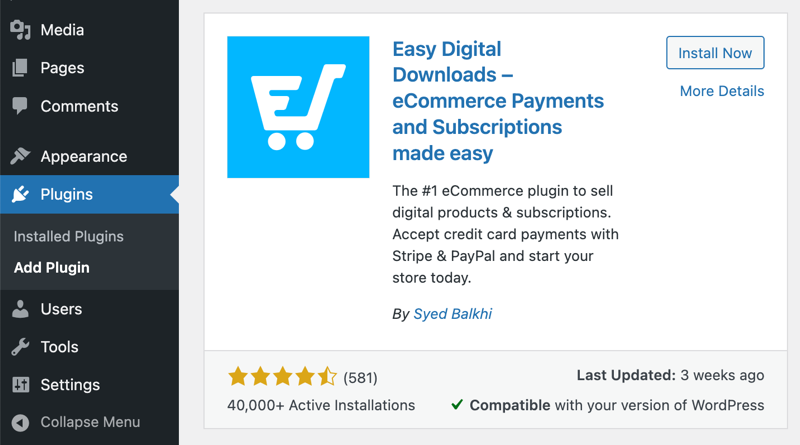
Met WordPress actief, installeert u Easy Digital Downloads.
- Ga in uw WordPress-dashboard naar Plugins » Nieuwe toevoegen.
- Zoek naar "Easy Digital Downloads".
- Klik op Nu installeren, daarna op Activeren.
Na activering leidt Easy Digital Downloads u door een installatiewizard. Doorloop deze om uw winkelnaam, valuta en basisvoorkeuren in te stellen.
Betaalpoorten instellen:
Ga naar Downloads » Instellingen » Betalingen om Stripe en/of PayPal te verbinden.
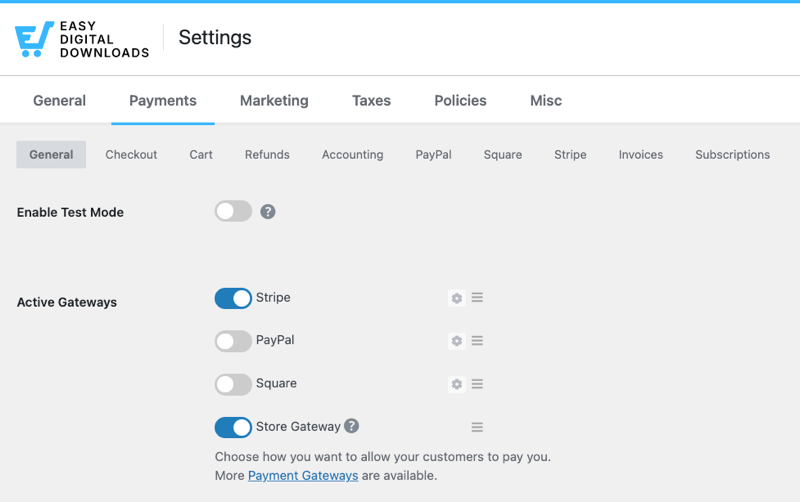
EDD integreert van nature met beide. Volg de aanwijzingen op het scherm om uw accounts te verbinden.
Stap 4: Maak je Gumroad-producten opnieuw in EDD
“Opnieuw maken” is hier het juiste woord. Er is geen import. U bouwt elk product opnieuw op binnen Easy Digital Downloads.
Voor elk product:
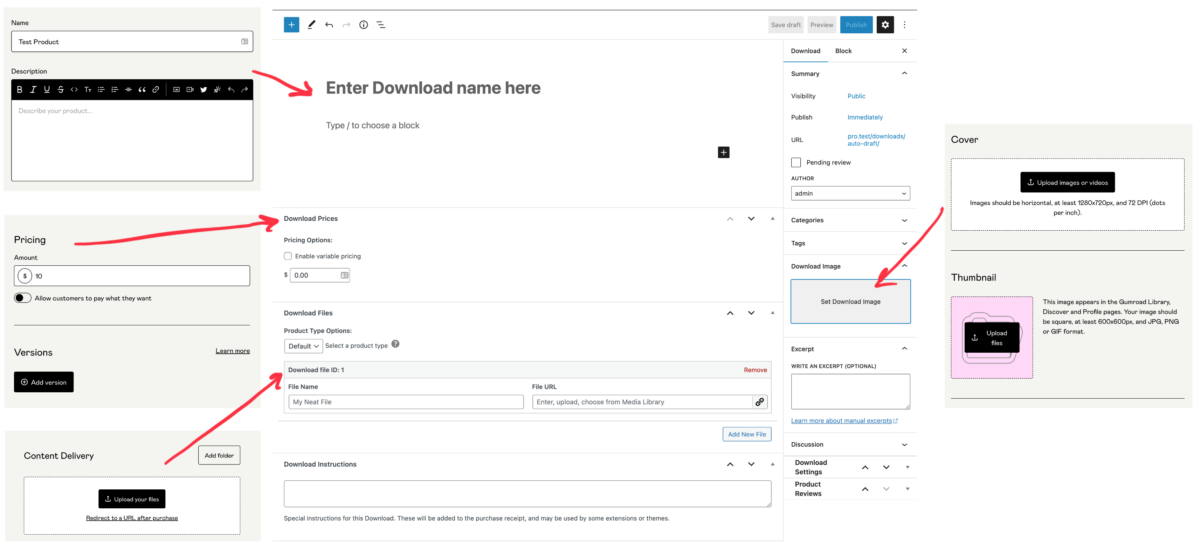
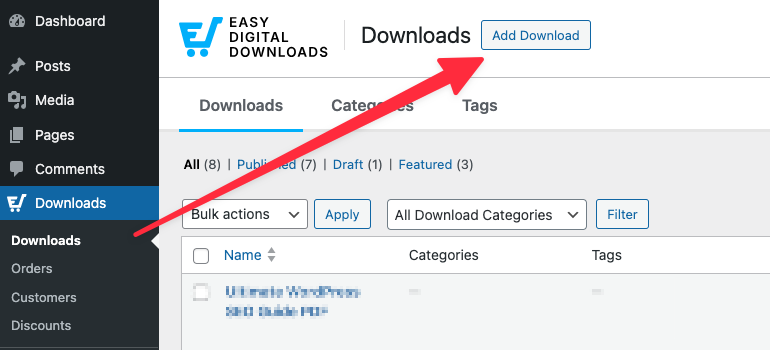
- Ga naar Downloads » Download toevoegen.
- Voeg uw producttitel, beschrijving en uitgelichte afbeelding toe.
- Scroll naar Download Details » Bestanden en upload uw productbestand.
- Stel uw prijs in de sectie Prijs. Als u op Gumroad een 'betaal wat u wilt'-prijs aanbood, schakelt u Aangepaste prijzen in EDD in.
- Configureer eventuele aankooplimieten, downloadlimieten of vervaldatums.
- Klik op Publiceren.
Herhaal dit voor elk product. Zodra uw bestanden zijn georganiseerd, verloopt deze stap snel.
Uw Gumroad-functies in kaart brengen naar Easy Digital Downloads:
| Gumroad-functie | EDD-equivalent |
|---|---|
| Betaal wat u wilt-prijsstelling | Aangepaste Prijzen |
| Genereren van licentiesleutels | Softwarelicenties-functie |
| Lidmaatschappen en abonnementen | Terugkerende betalingen-functie |
| Fysieke productlevering | Simple Shipping-functie |
| Kortingscodes | Downloads » Kortingen » Nieuwe toevoegen |
Stap 5: Importeer je Gumroad-klanten in EDD
De CSV van uw klant uit Stap 1 bevat e-mailadressen en namen. Easy Digital Downloads kan deze lijst importeren, zodat uw bestaande klanten een account hebben in uw nieuwe winkel.
- Ga in uw WordPress-dashboard naar Downloads » Klanten.
- Gebruik de optie Importeren om uw Gumroad CSV te uploaden.
- Koppel de CSV-kolommen aan de klantvelden van EDD: e-mailadres, voornaam, achternaam.
- Voltooi de import.
Stuur uw klanten na het importeren een e-mail om hen op de hoogte te stellen van de verhuizing. Voeg een link naar uw nieuwe winkel en instructies voor het openen van reeds gekochte producten toe.
Sla deze stap niet over. Een stille migratie leidt tot verwarde klanten en terugbetalingsverzoeken. Een korte, vriendelijke heads-up maakt het verschil.
Stap 6: Migreer Gumroad-abonnementen naar EDD
Abonnementsmigratie is het meest ingewikkelde deel van de overgang van Gumroad naar WordPress. Facturering kan niet automatisch worden overgedragen.
Uw huidige abonnees betalen rechtstreeks aan Gumroad. Om ze naar uw nieuwe winkel te halen, moeten ze hun Gumroad-abonnement annuleren en een nieuw abonnement aanmaken via EDD.
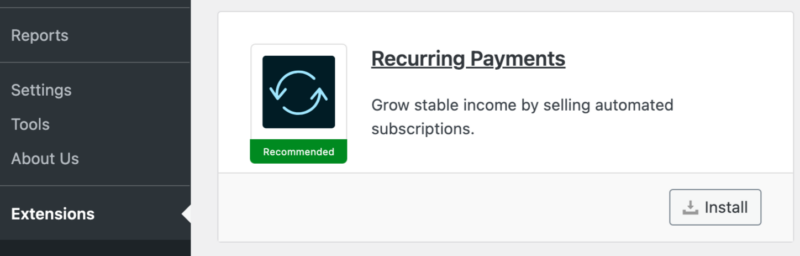
Easy Digital Downloads bevat een Terugkerende betalingen-functie in alle Pro-abonnementen voor het beheren van abonnementsfacturering in uw nieuwe winkel.
Hier leest u hoe u de overgang aanpakt:
- Stel uw abonnementsproducten in EDD in met behulp van de Terugkerende betalingen-functie.
- Stuur uw abonnees minstens twee weken voordat u de Gumroad-versie sluit een e-mail. Leg de wijziging uit, wat ze moeten doen en wanneer het gebeurt.
- Bied een kortingscode aan als dank voor het opnieuw abonneren in uw nieuwe winkel.
- Houd uw Gumroad-abonnementsproducten actief totdat de huidige factureringscyclus van elke abonnee eindigt, zodat niemand halverwege de periode de toegang verliest.
- Zodra alle Gumroad-abonnementen zijn beëindigd of geannuleerd, publiceert u die producten niet meer.
Stap 7: Pas je thema en e-mails aan
Uw nieuwe winkel moet op uw winkel lijken, niet op een standaard WordPress-installatie.
Kies een thema:
Ga naar Uiterlijk » Thema's » Nieuwe toevoegen en zoek naar een thema dat compatibel is met Easy Digital Downloads. Veel thema's zijn ontworpen met EDD in gedachten en geven uw winkel direct een professionele uitstraling.
Pas uw aankoopbonnen aan:
Ga naar Downloads » Instellingen » E-mails om de aankoopbevestiging die uw klanten ontvangen bij te werken.
Stel de Van naam, Van e-mailadres en de inhoud van de bon in om bij uw merk te passen. Een gepersonaliseerde bon bouwt vertrouwen op en vermindert het aantal ondersteuningsvragen.
Wat te doen met je Gumroad-account na het migreren
Zodra uw WordPress-winkel live is, haast u zich dan niet om uw Gumroad-account te verwijderen.
Gumroad houdt onbetaalde gelden aan tot hun standaard uitbetalingsschema. Als u uw account verwijdert voordat die gelden zijn verwerkt, verliest u ze. Publiceer uw producten in plaats daarvan niet meer en wacht tot alles is afgehandeld.
Houd je Gumroad-account actief tot:
- Alle actieve abonnementen zijn beëindigd of geannuleerd
- Alle openstaande uitbetalingen zijn bijgeschreven op je bankrekening
- Je hebt bevestigd dat klanten hun aankopen kunnen openen in de nieuwe winkel
Een opmerking over je oude Gumroad-product-URL's: Gumroad ondersteunt geen doorverwijzingen. Als iemand op een oude productlink klikt, komen ze op een dode pagina terecht. Controleer elke link die je beheert - je website, social media profielen, e-mailcampagnes en eventuele partner- of affiliate-links - en werk ze bij zodat ze verwijzen naar je nieuwe EDD-productpagina's.
Veelgestelde vragen over migreren van Gumroad
Kan ik mijn Gumroad-producten automatisch importeren in Easy Digital Downloads?
Nee. Gumroad exporteert productgegevens niet in een formaat dat Easy Digital Downloads kan importeren. Elk product moet handmatig opnieuw worden aangemaakt in EDD, inclusief titels, beschrijvingen, prijzen en bestandsuploads. Voor de meeste verkopers duurt dit ongeveer 10-15 minuten per product zodra je bestanden georganiseerd en klaar zijn.
Kan ik mijn Gumroad-klanten importeren in EDD?
Ja, met enkele beperkingen. Gumroad laat je een CSV exporteren met klant-e-mailadressen en namen van de Klantenpagina. Je kunt dat bestand importeren in Easy Digital Downloads om bestaande klanten een account te geven in je nieuwe winkel. Aankoopgeschiedenis en originele Gumroad-downloadrecords worden niet automatisch meegenomen.
Wat gebeurt er met mijn Gumroad-URL's nadat ik ben overgestapt?
Je oude Gumroad-product-URL's stoppen met werken zodra je die producten ongepubliceerd maakt. Gumroad ondersteunt geen URL-doorverwijzingen, dus je kunt oude links niet automatisch doorsturen naar je nieuwe EDD-winkel. Werk elke link bij die je beheert: je website, social media profielen, e-mailcampagnes en eventuele affiliate- of partnerlinks.
Hoe lang duurt het om te migreren van Gumroad naar WordPress?
Een basiswinkel met een kleine productcatalogus duurt 1-2 uur om te migreren. Als je een grote catalogus, actieve abonnementen of een klantenlijst hebt die zorgvuldige behandeling vereist, reken dan op een hele middag. De installatie van WordPress en Easy Digital Downloads zelf is snel. De meeste tijd gaat zitten in het opnieuw aanmaken van producten en het configureren van je betaalpoorten.
Moet ik mijn Gumroad-account behouden na de migratie?
Ja, in ieder geval tijdelijk. Verwijder je account niet totdat alle openstaande uitbetalingen zijn verwerkt en alle actieve abonnementen zijn beëindigd. Het verwijderen van het account voordat dit gebeurt, betekent dat je afstand doet van eventuele onbetaalde gelden. Zodra alles is verwerkt, kun je je producten ongepubliceerd maken en het account sluiten wanneer je er klaar voor bent.
Verliezen mijn Gumroad-abonnementsklanten de toegang wanneer ik overstap?
Ze verliezen de toegang tot bestanden die ze al hebben gedownload niet. Maar hun terugkerende facturering is gekoppeld aan het systeem van Gumroad, niet aan je nieuwe winkel. Om abonnementsbetalingen te blijven ontvangen, moet je abonnees verplaatsen naar de functie Recurring Payments van EDD. Dit vereist dat ze zich opnieuw abonneren, dus geef ze ruim van tevoren bericht en overweeg een kortingscode aan te bieden om de overstap gemakkelijk te maken.
Begin met verkopen op jouw voorwaarden
Migreren van Gumroad naar WordPress is een paar uur werk dat elke maand loont. Met Easy Digital Downloads betaal je een vast jaarlijks bedrag, houd je 100% van elke verkoop, en blijven je klantgegevens op je eigen server.
Geen prijsverhogingen van het platform. Geen regels waar je niet mee akkoord bent gegaan. Alleen jouw winkel, jouw producten en jouw klanten.
Nog steeds niet zeker? Bekijk onze volledige EDD vs Gumroad Vergelijking.
📣 P.S. Vergeet niet om zich te abonneren op onze nieuwsbrief en ons te volgen op Facebook, Twitter/X, of LinkedIn voor meer WordPress-bronnen!