

Zoekt u manieren om e-mailabonnees te verhogen en tegelijkertijd de verkoop te stimuleren? Een manier is om klanten toe te voegen aan AWeber tijdens het afrekenen in WordPress.
Als een van de populairste e-mailmarketing serviceproviders kan AWeber u helpen uw e-maillijsten te laten groeien en beheren. Wanneer geïntegreerd met Easy Digital Downloads, kunt u klanten aanmoedigen zich aan te melden voor uw mailinglijst terwijl ze aan het afrekenen zijn!
In dit artikel behandelen we:
Wat is AWeber en waarom zou u het gebruiken?
AWeber is een populaire e-mailmarketing serviceprovider. Het helpt u bij het opbouwen en beheren van uw e-maillijsten en het creëren van gerichte berichten die uw publiek aanspreken.
Met AWeber kunt u ook uw resultaten volgen en elke campagne optimaliseren, zodat deze na verloop van tijd beter wordt. Als u op zoek bent naar een effectieve manier om nieuwe klanten te bereiken of relaties met bestaande klanten te versterken, is AWeber een solide oplossing.
Bovendien, zoals u zult zien, is AWeber-integratie eenvoudig te realiseren met een WordPress-plugin zoals Easy Digital Downloads.
Hoe voegt u klanten toe aan AWeber tijdens het afrekenen (in 3 stappen)
Easy Digital Downloads laat u automatisch klanten toevoegen aan AWeber tijdens het afrekenen in WordPress. Laten we eens kijken hoe u dat in drie snelle stappen kunt doen.
Voor deze tutorial gaan we ervan uit dat u al een AWeber-account hebt. Als u hulp nodig hebt bij het instellen ervan, kunt u hun documentatie voor aan de slag raadplegen.
Stap 1: Installeer en activeer EDD
Easy Digital Downloads is een complete eCommerce-oplossing voor het verkopen van digitale producten en downloads. Als u al een EDD-gebruiker bent, ga dan gerust naar het volgende gedeelte!

Zo niet, dan is de eerste stap om een Easy Digital Downloads-pas aan te schaffen. Er zijn meerdere plannen om uit te kiezen op basis van uw specifieke behoeften.
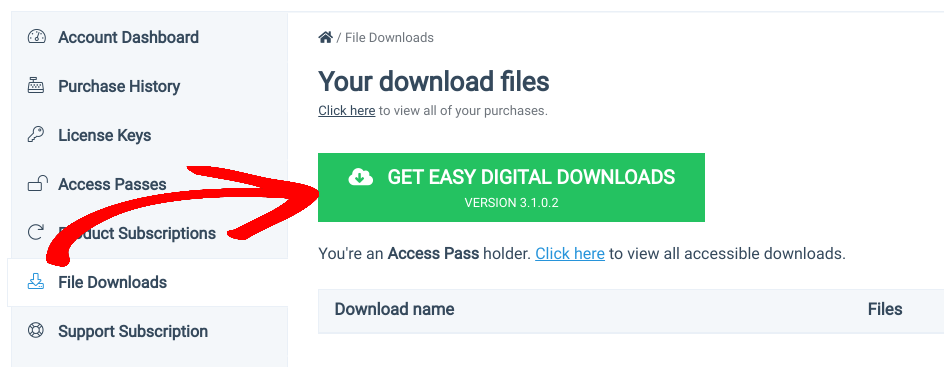
Nadat u uw licentie hebt aangeschaft, kunt u de plugin downloaden onder Bestanden Downloads vanuit uw EDD-accountdashboard:
Vervolgens kunt u naar Plugins » Nieuwe toevoegen » Plugin uploaden » Bestand kiezen gaan:
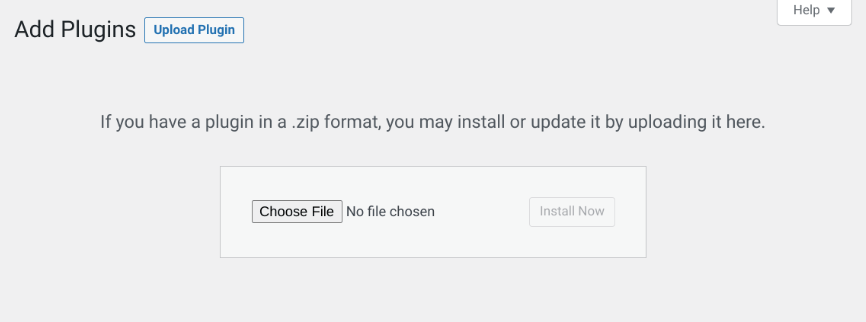
Selecteer het EDD zip-bestand. Klik op Nu installeren, gevolgd door Plugin activeren. Een Downloads-menu-item wordt toegevoegd aan uw WordPress-dashboard:
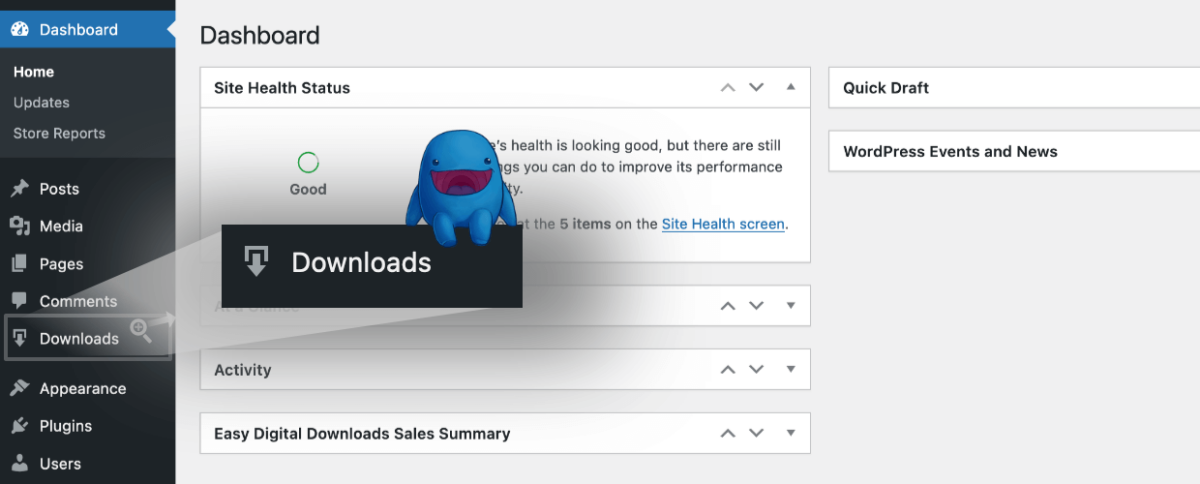
Hier kunt u beginnen met het toevoegen van producten, het configureren van een betalingsgateway en het beheren van alle andere functies en tools voor uw online winkel. Als u meer begeleiding nodig hebt, kijk dan gerust naar de EDD Quickstartgids.
Stap 2: Voeg de AWeber-extensie toe
Zodra u de EDD-plugin hebt ingesteld, is de volgende stap de AWeber-extensie toe te voegen. U kunt deze kopen als een op zichzelf staande add-on of als onderdeel van een premium plan.
Vanuit uw EDD-accountdashboard kunt u navigeren naar Bestanden Downloads » Klik hier. Zoek de AWeber-extensie en klik vervolgens op Nu downloaden:
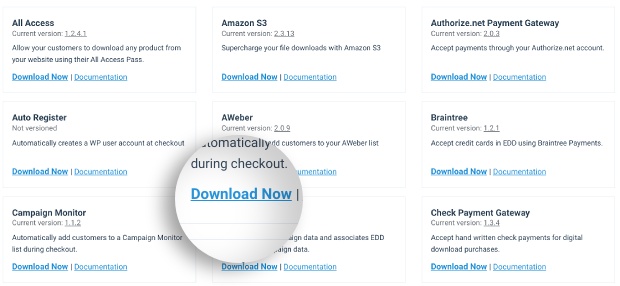
Wanneer het downloaden klaar is, ga naar uw WordPress-beheerdashboard, gevolgd door Plugins » Nieuwe plugin toevoegen » Plugin uploaden » Bestand kiezen. Selecteer het AWeber-extensiebestand, selecteer vervolgens de knoppen Nu installeren en Plugin activeren.
Stap 3: Configureer de AWeber-instellingen in EDD
Zodra u de AWeber-extensie in WordPress hebt toegevoegd, kunt u de instellingen configureren. Om de instellingen te vinden, kunt u naar Downloads » Instellingen » Marketing » AWeber gaan:
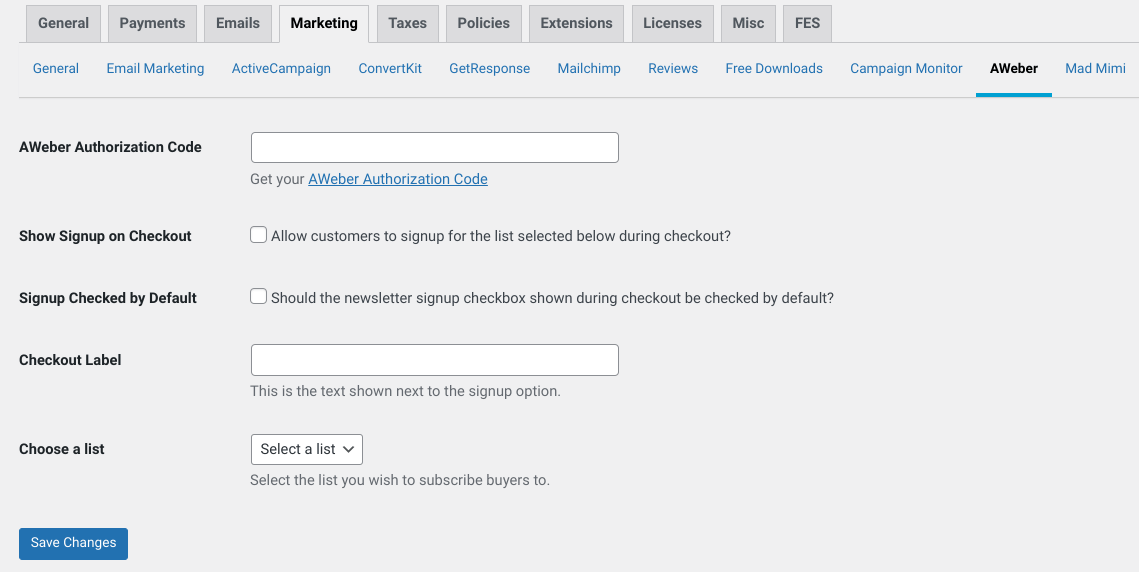
Eerst moet u de Autorisatiecode toevoegen om uw site en AWeber-account te laten communiceren. U kunt op de link naast het veld Autorisatiecode klikken. Dit leidt u naar uw AWeber-pagina waar u de sleutel kunt kopiëren en vervolgens in het veld kunt plakken.
Nadat u uw autorisatiecode hebt toegevoegd, is de volgende stap het inschakelen van de optie Aanmeldingsformulier weergeven bij afrekenen:

Met deze instelling aangevinkt, kunnen klanten zich aanmelden voor uw AWeber-lijst bij het afrekenen. Als de klant ervoor kiest, wordt hun e-mailadres aangemeld bij uw lijst bij AWeber.
Vanaf daar kunt u selecteren aan welke AWeber-lijst u klanten wilt toevoegen wanneer ze deze optie kiezen. U kunt ook de tekst van het Afrekentekst wijzigen (dit is wat er naast het afrekenvak voor aanmelding verschijnt). Als u ooit uw lijsten wilt toevoegen of wijzigen, kunt u dit doen vanuit uw AWeber-account.
Wanneer u klaar bent, vergeet dan niet op de knop Wijzigingen opslaan te klikken.
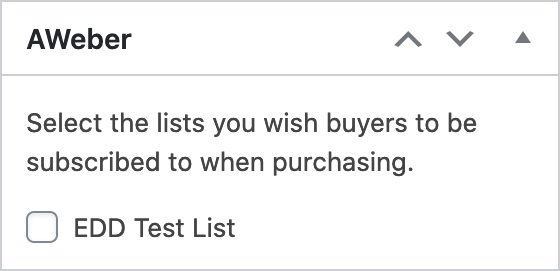
U hebt ook de mogelijkheid om de AWeber-optie toe te voegen bij het afrekenen voor specifieke downloads. Navigeer op de Downloadpagina naar de Downloadinstellingen aan de rechterkant. Klik om het AWeber-paneel uit te vouwen en selecteer vervolgens de lijst(en) waarvoor u de aanmelding wilt inschakelen:
Gebruik EDD en AWeber om uw abonneelijst op te bouwen
Met deze integratie kunt u snel en eenvoudig een sterke abonneebasis opbouwen voor uw e-mailmarketingcampagnes. Dus waarom wachten?
Begin vandaag nog met het gebruik van Easy Digital Downloads en AWeber! Wilt u meer manieren om abonnees te werven? Bekijk onze gids over Hoe u Lead Magnets in WordPress toevoegt om uw e-maillijst te laten groeien. 🧲
Vergeet niet zich te abonneren op onze nieuwsbrief en volg ons op Facebook of Twitter voor meer WordPress- en e-commercebronnen!