

Als je je publiek wilt betrekken en laten groeien, is het belangrijk om hen iets waardevols te bieden. Het maken van content upgrades in WordPress in ruil voor e-mailadressen kan je helpen je e-maillijst snel te laten groeien en een loyale schare lezers op te bouwen.
Naast het verhogen van het aantal abonnees, kunnen content upgrades een geweldige manier zijn om je blogposts te verbeteren. Een plugin zoals Easy Digital Downloads (EDD) laat je dit eenvoudig doen.
In dit artikel behandelen we:
Wat is een Content Upgrade?
Een content upgrade is een opt-in aanbieding die direct gerelateerd is aan de inhoud van je blogpost. Het is ontworpen om de leeservaring te verbeteren door extra waarde te bieden in ruil voor hun e-mailadres.
Content upgrades kunnen vele verschillende vormen aannemen, maar ze hebben allemaal één doel voor ogen: de lezer tot actie aanzetten.
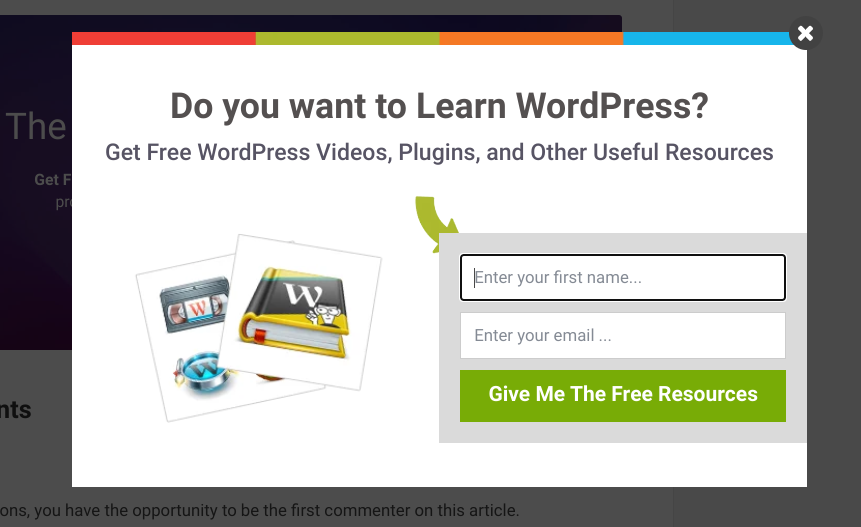
Enkele voorbeelden van content upgrades zijn:
- eBooks
- Checklists
- Cheatsheets
- Lijsten met bronnen
- Afdrukbare bestanden
- Werkbladen
- Sjablonen
- Toolkits
Uiteindelijk zijn de mogelijkheden eindeloos als het gaat om content upgrades. Als je een manier kunt bedenken om je blogpost nog waardevoller te maken voor de lezer, is de kans groot dat je er een content upgrade van kunt maken.
Content upgrades bieden een aantal voordelen. Content upgrades in WordPress bieden een kans om een lijst met gerichte abonnees op te bouwen en je relatie met je lezers te verdiepen.
Daarnaast kunnen ze een uitstekende manier zijn om je blog te monetariseren. Als je producten of diensten te verkopen hebt, kun je content upgrades gebruiken als een leadgeneratietool om de verkoop te stimuleren.
Hoe content-upgrades te maken in WordPress
De eenvoudigste manier om content upgrades in WordPress aan te bieden, is door gebruik te maken van de Easy Digital Downloads en Free Downloads WordPress plugins.
Deze combinatie stelt je in staat om digitale downloads te maken en te beheren, en ze gratis of tegen betaling aan te bieden. De tools zijn eenvoudig te gebruiken, zelfs voor beginners.
In de volgende secties leiden we je stap voor stap door het gebruik van de functionaliteit om content upgrades op je WordPress-site te maken:
- Installeer de EDD Plugin
- Voeg de Free Downloads extensie toe
- Maak je Content Upgrade
- Configureer de Instellingen van de Content Upgrade
- Promoot de Content Upgrade
Stap 1. Installeer de EDD Plugin
Als je dat nog niet hebt gedaan, is de eerste stap het downloaden, installeren en activeren van de Easy Digital Downloads plugin.
We bieden een handvol plannen om uit te kiezen. We raden aan om een EDD All Access Pass aan te schaffen, omdat je hiermee onbeperkte toegang krijgt tot onze uitgebreide lijst met extensies, inclusief de Free Downloads add-on die we in deze tutorial zullen gebruiken.
Nadat je de aankoop hebt voltooid, kun je het .zip-bestand downloaden van je accountpagina, en vervolgens de plugin in WordPress uploaden door naar Plugins » Nieuwe plugin toevoegen » Plugin uploaden » Bestand kiezen te gaan.
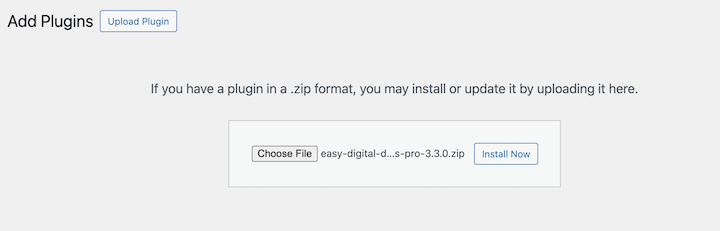
Nadat u het .zip-bestand hebt geüpload, kunt u op de knop Installeren klikken, gevolgd door Activeren.
Stap 2. Voeg de extensie Gratis Downloads toe
Vervolgens voegen we de add-on Gratis Downloads toe. Deze extensie maakt het voor gebruikers eenvoudig om leadmagnets te downloaden via een pop-up venster. Met deze methode kunnen uw lezers het standaard winkelwagen- en afrekenproces overslaan voor snelle downloads.
U kunt naar Downloads » Extensies gaan vanuit uw WordPress-dashboard. Zoek vervolgens naar "Gratis Downloads" en klik op Installeren.
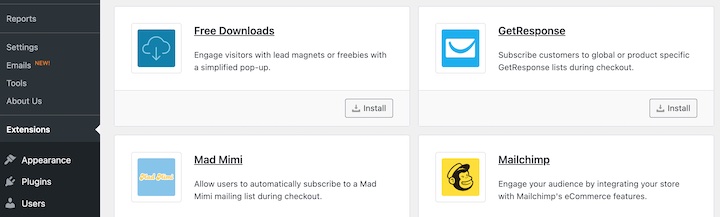
Het wordt automatisch geactiveerd.
Stap 3: Maak uw Content Upgrade
Het maken van een content upgrade in WordPress lijkt veel op het maken van andere digitale downloads in Easy Digital Downloads. Ga eerst naar Downloads » Nieuw toevoegen.
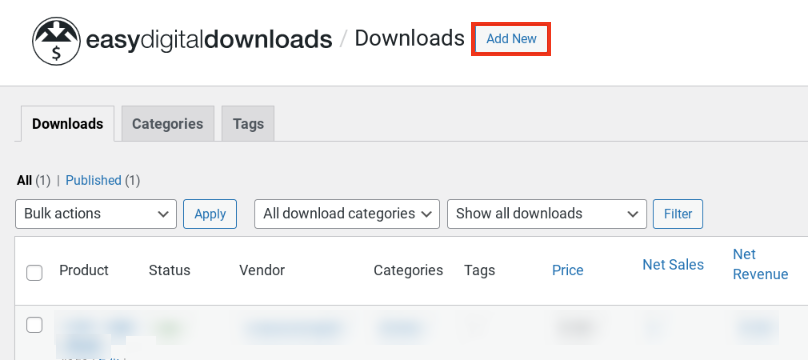
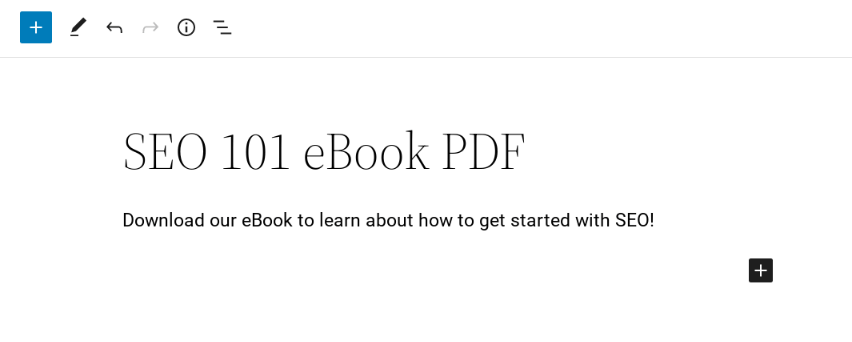
Vervolgens kunt u uw content upgrade een titel en beschrijving geven.
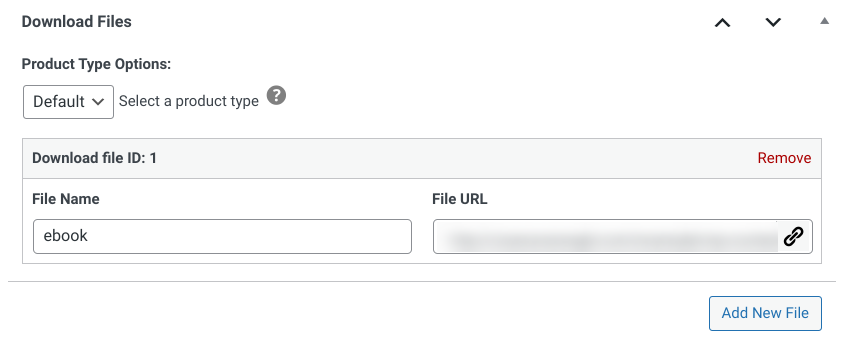
Onder Downloadprijzen kunt u het op nul laten staan om de content upgrade gratis aan te bieden. Vervolgens kunt u uw content upgrade-bestand uploaden onder Downloadbestanden.
Zoals we al vermeldden, zijn er zoveel verschillende soorten content die u als upgrade kunt gebruiken. Voor dit voorbeeld gebruiken we een SEO PDF eBook.
Als u klaar bent, kunt u op Publiceren klikken.
Stap 4: Configureer de instellingen voor Content Upgrade
Nadat u uw content upgrade hebt gemaakt, kunt u de instellingen configureren en aanpassen. Ga hiervoor naar Downloads » Instellingen » Marketing » Gratis Downloads.
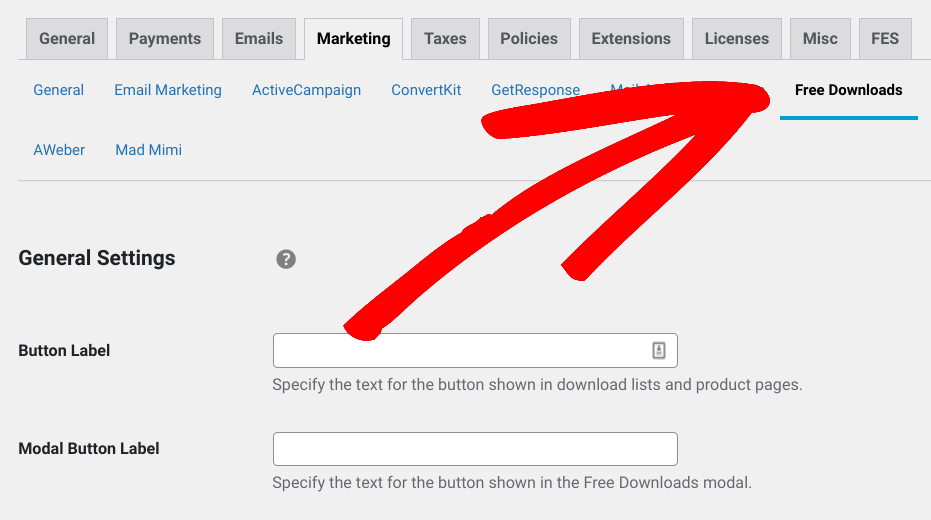
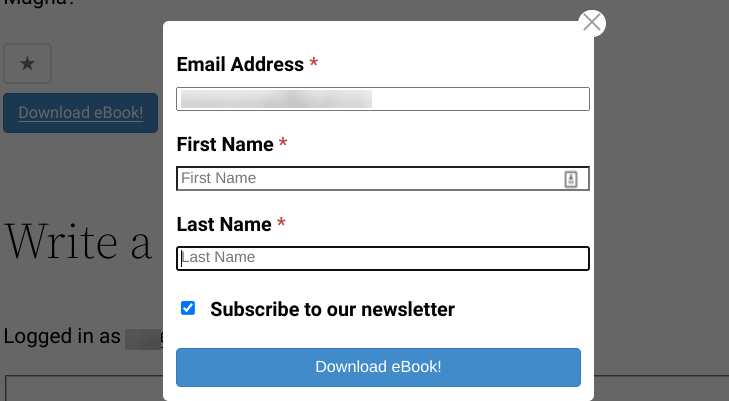
Op dit scherm kunt u de knopteksten aanpassen. Standaard staat deze ingesteld op "Nu downloaden". Maar u kunt deze wijzigen in iets anders dat beter past bij uw content upgrade. We gebruiken bijvoorbeeld "Download eBook!"
In de volgende secties kunt u ervoor kiezen om de optie toe te voegen om het modale venster te sluiten, een e-mailadres te vereisen om de content upgrade te downloaden en de veldinstellingen aan te passen.
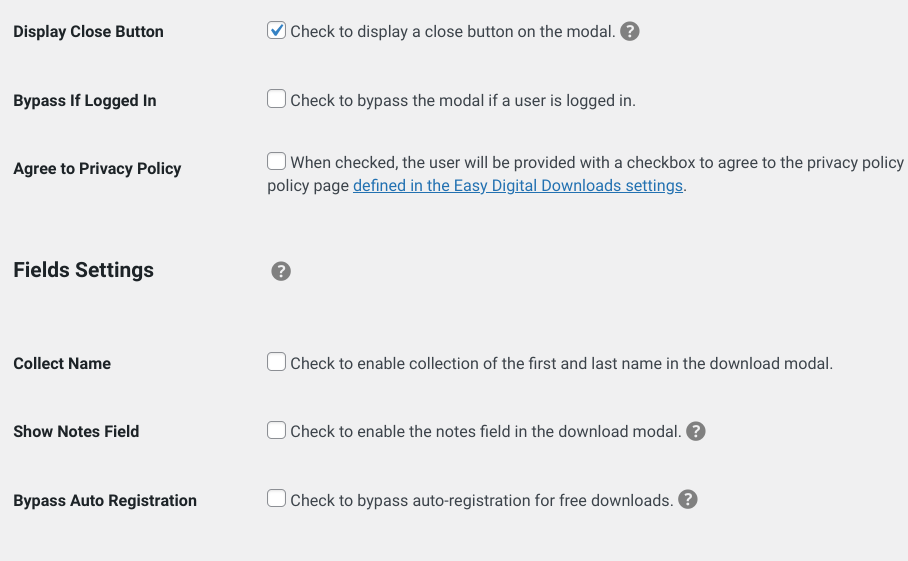
Onder Integratie-instellingen kunt u ook de optie Opt-in weergeven inschakelen.
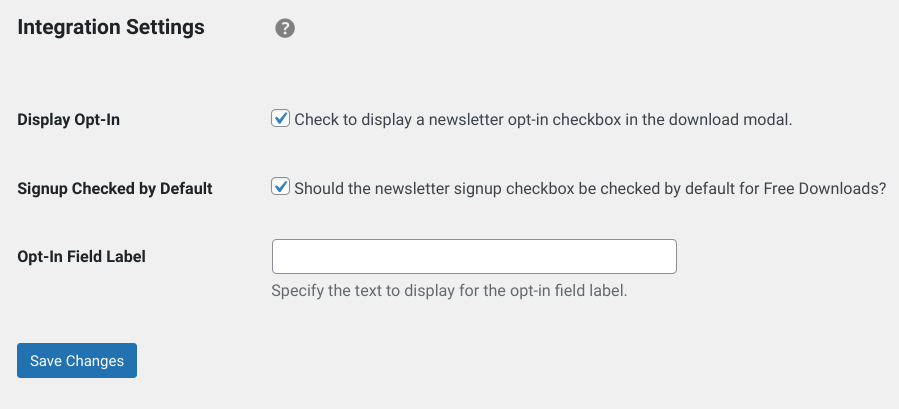
Hiermee kunt u een nieuwsbrief-opt-in vak in het formulier weergeven en deze standaard selecteren. Als u klaar bent, kunt u op Wijzigingen opslaan klikken.
U kunt de content upgrade ook bekijken vanaf de voorkant van uw site om te zien hoe deze aan bezoekers wordt weergegeven.
Als u meer begeleiding wilt bij de instellingen voor Gratis Downloads, kunt u deze documentatie raadplegen.
Stap 5: Promoot uw Content Upgrade
Als u klaar bent met het configureren van de instellingen voor content upgrades en u deze hebt gepubliceerd, hoeft u deze alleen nog maar te promoten!
Om uw content upgrade te promoten, kunt u een aantal tools en strategieën gebruiken. Zorg er eerst voor dat uw content upgrade zeer relevant is voor het bericht waarin deze verschijnt. Als u bijvoorbeeld een blogpost schrijft over eCommerce, kan uw content upgrade een gratis eBook over hetzelfde onderwerp zijn.
Het is ook verstandig om aan het einde van elke blogpost een content upgrade Call To Action (CTA) te maken. Deze CTA kan een knop of een banner zijn die linkt naar de landingspagina voor je content upgrade.
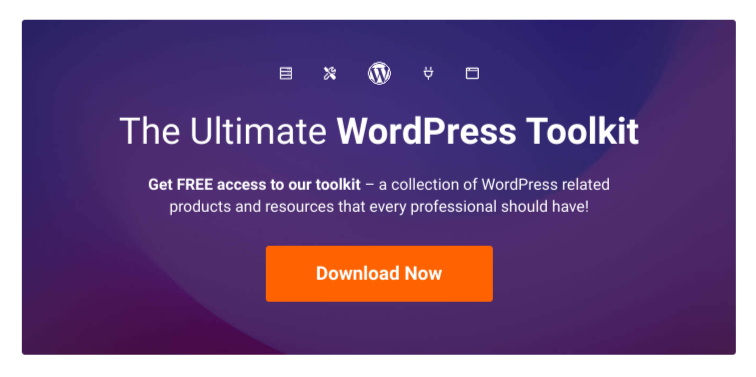
Afhankelijk van uw WordPress-thema of blogindeling kunt u een lijst met content-upgrades in uw zijbalk of voettekst plaatsen.
U kunt uw content-upgrade ook promoten via e-mail. Als u een bestaande e-maillijst heeft, kunt u hen op de hoogte stellen van uw content-upgrade in een speciale e-mailuitzending. Er zijn tal van manieren om EDD te integreren met e-mailmarketingdiensten.
Ten slotte kunt u het promoten op social media. Deel een link naar uw content-upgrade op Twitter, Facebook of LinkedIn, en zorg ervoor dat u relevante hashtags gebruikt, zodat uw bericht wordt gezien door mensen die geïnteresseerd zijn in dat onderwerp.
Begin met het maken van content-upgrades in WordPress
Als u op zoek bent naar manieren om uw e-maillijst te laten groeien, kan het maken van content-upgrades in WordPress een eenvoudige maar effectieve oplossing zijn. Bovendien maken Easy Digital Downloads en de extensie Free Downloads het proces moeiteloos.
Als u klaar bent om te beginnen, schaf dan vandaag nog een EDD All Access Pass aan.
U kunt ook ons artikel lezen over Hoe u Lead Magnets in WordPress toevoegt om uw e-maillijst te laten groeien voor meer ideeën.
📣 P.S. Vergeet niet om zich te abonneren op onze nieuwsbrief en ons te volgen op Facebook, Twitter/X, of LinkedIn voor meer WordPress-bronnen!