

Wil je leren hoe je een coupon- of kortingscodeveld toevoegt aan je afrekenpagina in WordPress?
In de competitieve wereld van e-commerce is het belangrijk om manieren te zoeken om de verkoop en klantloyaliteit te verhogen. Een manier om dit te bereiken is door kortingen en coupons aan te bieden aan shoppers. Klanten waarderen een goede deal. Bovendien is de kans groter dat ze een aankoop doen als ze het gevoel hebben dat ze een koopje krijgen.
Coupons en kortingen kunnen uitstekende marketinginstrumenten zijn om nieuwe klanten aan te trekken en herhaalaankopen aan te moedigen.
Als je een winkelier bent die WordPress en Easy Digital Downloads gebruikt, kun je in een mum van tijd coupon-/kortingscodevelden toevoegen aan je afrekenpagina.
🔎 In dit artikel behandelen we:
Waarom coupons & kortingen aanbieden voor je online winkel?
Er zijn verschillende redenen waarom het accepteren van coupons een slimme zet is voor e-commerce sites. Ten eerste zijn coupons en kortingen krachtige marketinginstrumenten. Ze kunnen nieuwe klanten aantrekken, loyale klanten belonen en specifieke producten of diensten promoten. Door kortingen aan te bieden aan nieuwe klanten, kun je hen aanmoedigen om hun eerste aankoop bij jouw winkel te doen en hopelijk loyale klanten te worden.
Ten tweede kunnen coupons en kortingen de verkoop en conversies verhogen. Door een korting aan te bieden op een specifiek product, kun je shoppers aanmoedigen om een aankoop te doen die ze anders misschien niet hadden gedaan. Bovendien kunnen coupons helpen om de gemiddelde bestelwaarde te verhogen door shoppers aan te moedigen meer items te kopen om te profiteren van een korting.
Coupons en kortingen kunnen worden gebruikt om de voorraad op te ruimen. Als je overtollige voorraad hebt die je snel wilt verkopen, kan het aanbieden van een korting een effectieve manier zijn om dit te doen.
Het kan ook helpen om buzz rond je winkel te genereren en shoppers te motiveren om je aanbod te bekijken. Je kunt bijvoorbeeld kortingsboncodes en andere promoties delen en promoten op sociale media, e-mailcampagnes, enz.
Hoe voeg je een kortingscodeveld toe bij het afrekenen
Nu we hebben besproken waarom het accepteren van coupons slim is voor e-commerce sites, gaan we duiken in de stapsgewijze tutorial om coupons in te schakelen en een kortingscodeveld toe te voegen aan je afrekenpagina in WordPress met behulp van Easy Digital Downloads.
Stap 1: Verkrijg Easy Digital Downloads
Voordat je een kortingscodeveld (ook bekend als het couponcodeveld) aan je afrekenpagina kunt toevoegen, moet je de Easy Digital Downloads plugin installeren en activeren:

Deze plugin is speciaal ontworpen voor e-commerce sites en maakt het eenvoudig om digitale producten en diensten te verkopen. Het is een uitstekend alternatief voor de WooCommerce plugin als je geen fysieke goederen verkoopt. Het maakt het ook super eenvoudig om coupons en coupongegevens toe te passen op digitale producten.
Om de Easy Digital Downloads plugin te installeren, ga je naar je WordPress-dashboard en klik je op Plugins » Nieuwe plugin. Typ in de zoekbalk "Easy Digital Downloads" en klik op Nu installeren naast de plugin.
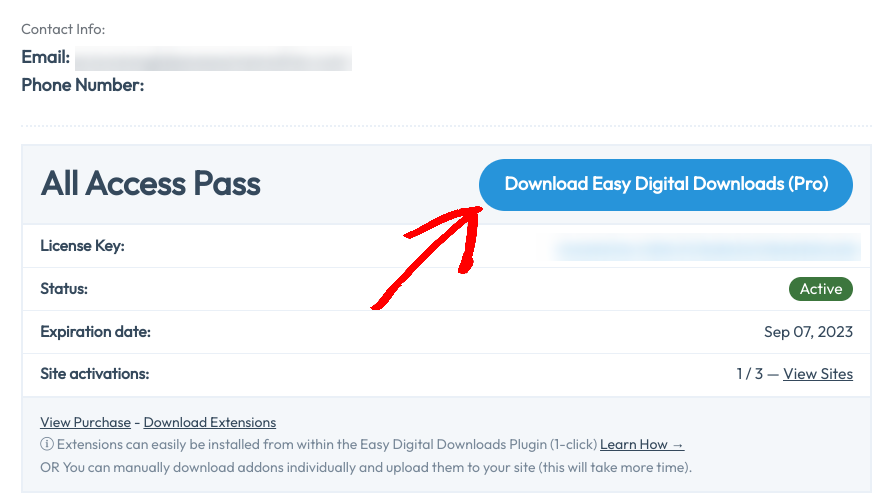
Zodra de plugin is geïnstalleerd, klik op Plugin activeren om deze te activeren. Er zijn twee versies beschikbaar: gratis en Pro. Als u een premium abonnement hebt gekocht, kunt u Easy Digital Downloads Pro downloaden vanuit uw EDD-accountdashboard:
De gratis plugin bevat functionaliteit voor het toevoegen en aanbieden van kortingscodes. Maar als u een premium licentie hebt, kunt u ook de Discounts Pro-extensie installeren voor meer geavanceerde mogelijkheden en toegang tot vele andere functies die alleen beschikbaar zijn voor Pro-gebruikers.
Er zijn veel instellingen te configureren bij het opzetten van uw winkel. U moet bijvoorbeeld een standaard betaalpoort selecteren, uw winkelwagenpagina aanpassen, productcategorieën toevoegen, enzovoort. Als u hulp nodig hebt, kunt u onze EDD Quickstartgids bekijken.
Stap 2: Maak een nieuwe coupon/kortingscode aan
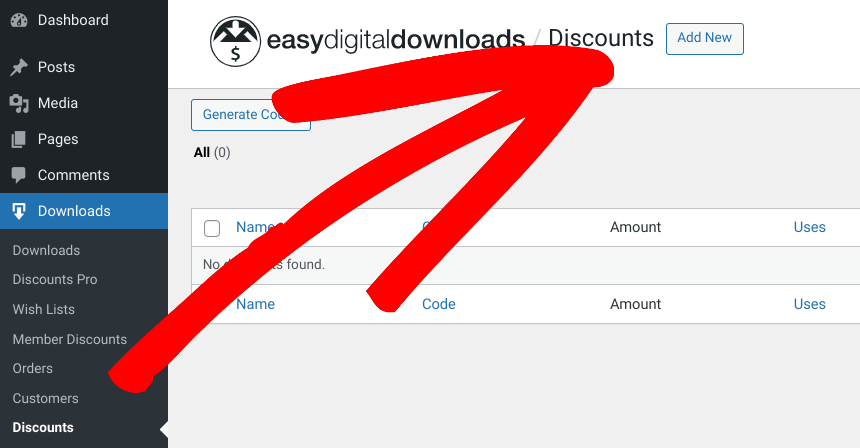
De volgende stap is het aanmaken van een coupon/kortingscode die klanten kunnen gebruiken om korting te krijgen op hun aankoop. Om een kortingscode aan te maken, navigeert u naar uw WordPress-dashboard en klikt u op Downloads » Kortingen » Nieuwe toevoegen:
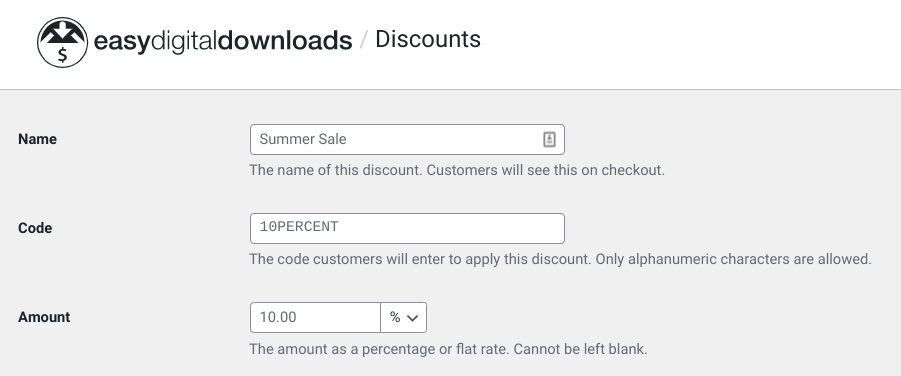
Op het volgende scherm wordt u gevraagd de details van de kortingscode in te voeren, inclusief het couponbedrag, het kortingstype (percentagekorting of vaste winkelwagenkorting) en de vervaldatum (indien van toepassing):
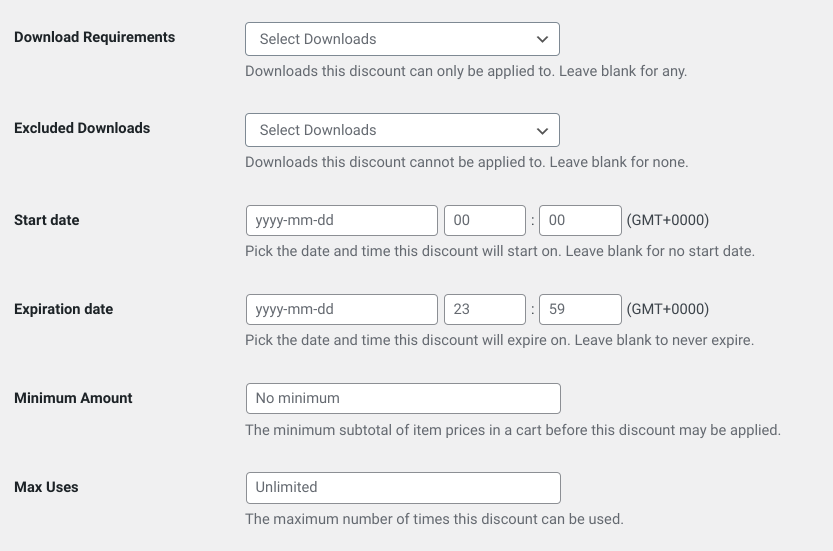
U kunt ook couponinstellingen invoeren, zoals de voorwaarden en gebruiksbeperkingen, minimale besteding, gebruiksbeperkingen en nog veel meer:
Zodra u alle details hebt ingevoerd, klikt u op de knop Kortingscode toevoegen onderaan.
Stap 3: Publiceer het kortingscodeveld op de afrekenpagina
De laatste stap is het toevoegen van het kortingscodeveld aan uw afrekenpagina, zodat klanten hun couponcode kunnen invoeren en korting krijgen op hun aankoop. EDD maakt automatisch een afrekenpagina voor u aan.
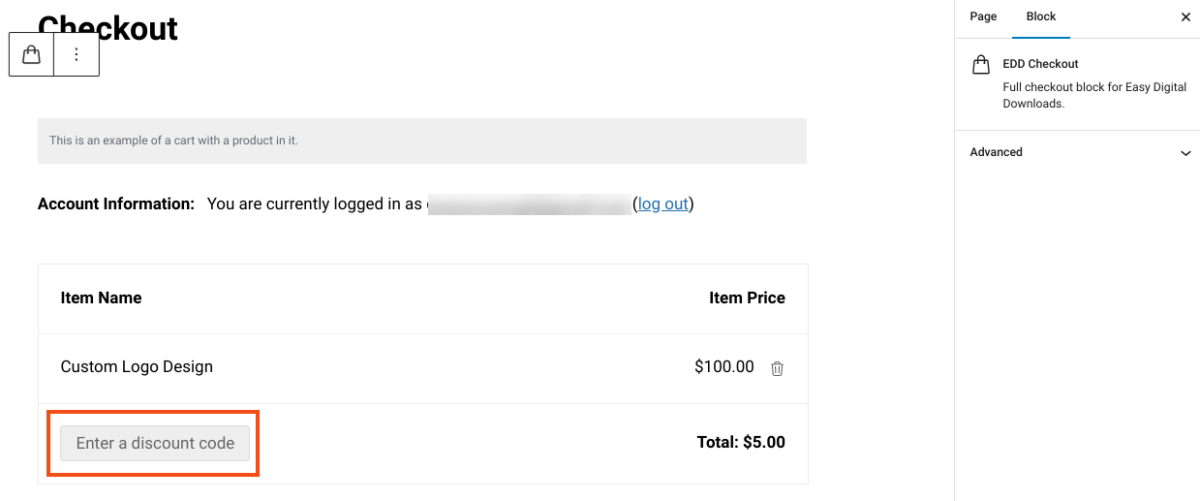
U kunt naar Pagina's gaan en vervolgens op Bewerken klikken onder de bestaande Afrekenpagina. Standaard ziet u de optie voor kortingscodes onder de sectie Artikelnaam:
Nadat u uw wijzigingen hebt aangebracht, klikt u op Publiceren om uw instellingen op te slaan.
Nu kunt u uw site aan de voorkant bekijken om te zien hoe het kortingscodeveld eruitziet op de afrekenpagina:
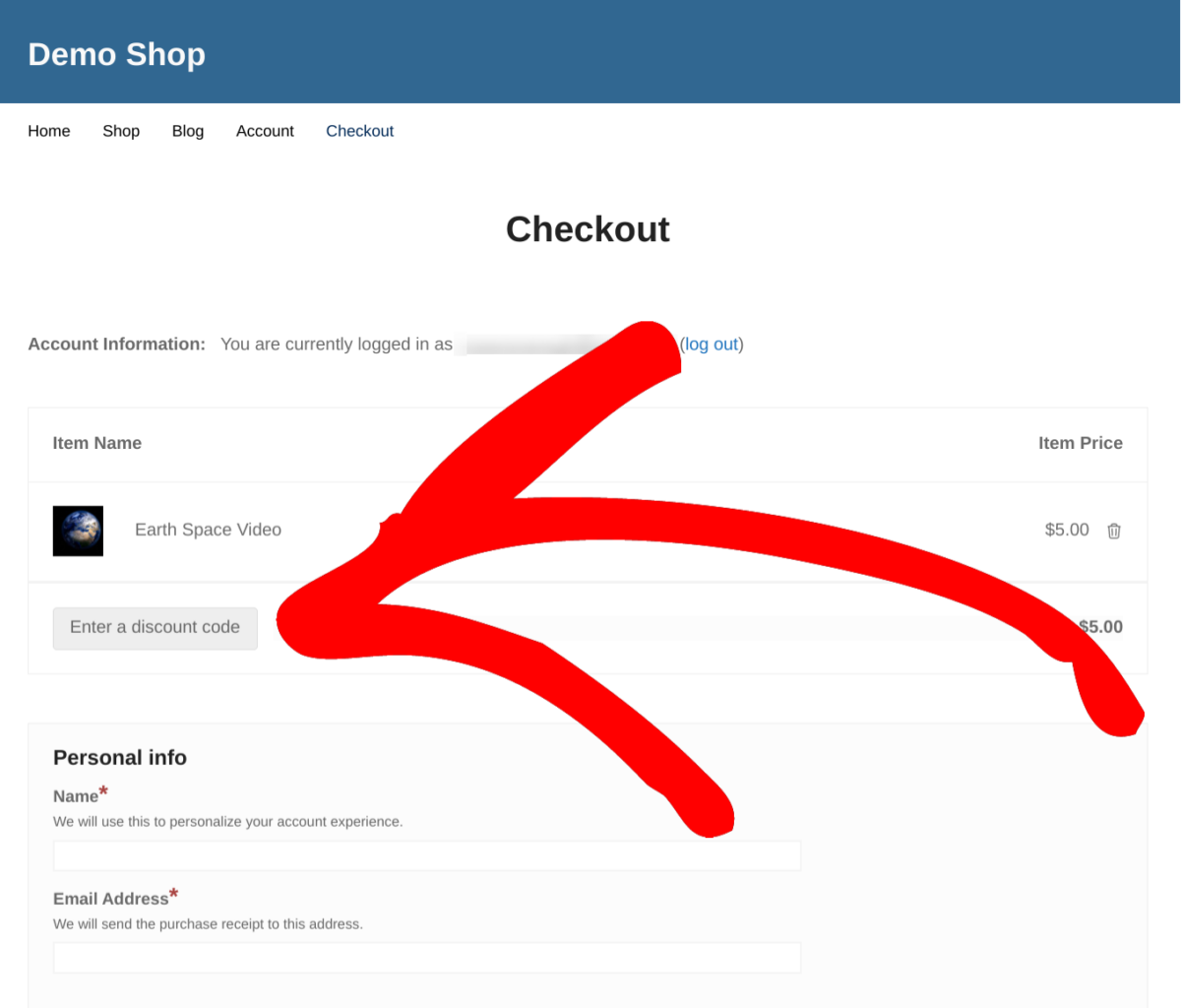
Gefeliciteerd, u hebt nu succesvol een kortings-/couponveld toegevoegd aan uw afrekenpagina in WordPress met behulp van Easy Digital Downloads! Uw klanten kunnen nu hun couponcode invoeren en korting krijgen op hun aankopen.
Gebruik EDD om een kortingscodeveld toe te voegen in WordPress
Het toevoegen van een coupon- of kortingscodeveld aan uw afrekenpagina in WordPress is een eenvoudig proces dat een grote impact kan hebben op uw verkoop en klantloyaliteit. Door strategisch kortingen en coupons aan te bieden, kunt u nieuwe klanten aantrekken, loyale klanten belonen en de verkoop verhogen.
Download vandaag nog Easy Digital Downloads om te beginnen!
eCommerce zonder grenzen!
Dat is onze belofte. De meeste eCommerce-oplossingen beperken uw creativiteit
…niet Easy Digital Downloads!
Wilt u meer weten over tips en trucs voor het gebruik van kortingen en coupons op uw e-commerce site? Bekijk deze berichten:
- Richt u op specifieke soorten klanten met uw coupons
- Houd uw kortingscodes nauwkeurig bij
- Gebruik kortingen om klanten te stimuleren uw producten te delen
- Bulkimport van bestaande coupons
📣 PS. Vergeet niet u aan te melden voor onze nieuwsbrief en volg ons op Facebook of Twitter voor meer WordPress-bronnen!