

Wilt u leren hoe u pre-orders kunt plaatsen voor digitale producten in WordPress?
Pre-orders kunnen uw e-commercebedrijf helpen bij het plannen van de vraag en het effectiever volgen van klantvoorkeuren. Het kan ook marketing- en prijsstrategieën informeren, opwinding en buzz vóór de lancering genereren en uiteindelijk helpen de verkoop te verhogen.
Easy Digital Downloads (EDD) maakt het snel en eenvoudig om pre-orders in te stellen en digitale producten in WordPress te verkopen.
🔎 In dit artikel behandelen we:
Waarom pre-orders plaatsen op uw WordPress-site?
Pre-orders zijn aankopen die worden gedaan voor producten die nog niet zijn uitgebracht. Deze promotiestrategie laat uw klanten het product reserveren voordat het wordt gelanceerd en op de markt beschikbaar is. Het kan worden gebruikt voor virtuele en fysieke producten.
Er zijn veel redenen om pre-orders te plaatsen voor digitale producten op uw WordPress-site. Ze kunnen helpen om hype rond uw product te creëren en anticipatie op te bouwen bij potentiële kopers. Deze buzz kan leiden tot een hogere verkoop zodra het nieuwe product wordt gelanceerd.
Pre-orders zijn een tactiek die wordt gebruikt door winkel eigenaren, makers, verkopers en merken in alle sectoren. Beschouw bijvoorbeeld een populaire muzikale artiest die u leuk vindt. De kans is groot dat ze fans en luisteraars de mogelijkheid hebben geboden om een album/nummer te pre-orderen (of 'pre-save') vóór de officiële release.
Pre-order campagnes bieden vaak aanvullende prikkels, zoals:
- Kortingen
- Exclusieve inhoud
- Vroege toegang
- Speciale edities
Het is een geweldige manier om opwinding te genereren en ervoor te zorgen dat klanten hun handen zo snel mogelijk op het product kunnen krijgen. Vanuit zakelijk oogpunt bieden pre-sales en pre-order items waardevolle klantgegevens voor marketing- en prijsstrategieën.
Hoe pre-orders voor digitale producten in te stellen
Klaar om te beginnen? In deze stapsgewijze tutorial laten we u zien hoe u pre-orders voor digitale producten in WordPress kunt instellen:
- Installeer Easy Digital Downloads
- Stripe Pro Betaling Toevoegen
- Maak uw digitale productpagina
- Configureer de pre-orderinstellingen
- Voorbeeld & Test uw pre-orderproces
- Deel & Promoot uw digitale product pre-order
Stap 1: Installeer Easy Digital Downloads (EDD)
Voordat u begint met het plaatsen van pre-orders en het lanceren van uw digitale producten, is het belangrijk om een manier te hebben om ze te verkopen. Als u een WordPress-gebruiker bent, is de beste e-commerce plugin Easy Digital Downloads (EDD):

Dit is een complete oplossing voor het verkopen van digitale producten, downloadbare producten en abonnementen. U kunt het gebruiken voor e-books, software, sjablonen/thema's en nog veel meer.
De gratis versie van EDD heeft een breed scala aan e-commercefuncties. Hiermee kunt u verbinding maken met Stripe om online betalingen te accepteren. Maar ik raad aan om een Extended Pass te pakken.
Een van de (vele) redenen is dat het u toegang geeft tot de Stripe Pro Payment Gateway. U kunt deze premium extensie gebruiken om pre-orders voor digitale producten op uw site te accepteren.
🏷Meer informatie over Easy Digital Downloads: Gratis vs. Betaald
Nadat u uw EDD-abonnement hebt aangeschaft, gaat u naar uw accountdashboard en gaat u naar Bestandsdownloads. Selecteer vervolgens Easy Digital Downloads ophalen:
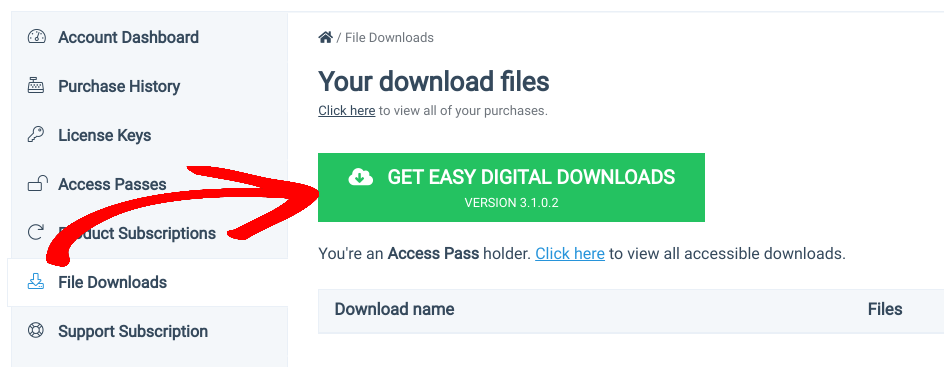
Zodra de plugin is gedownload, voegt u deze toe aan uw WordPress-website (Plugins » Nieuwe toevoegen » Plugin uploaden). Nadat u de plugin hebt geïnstalleerd en geactiveerd, verschijnt er een Downloads-menu-item in het WordPress-beheerpaneel:
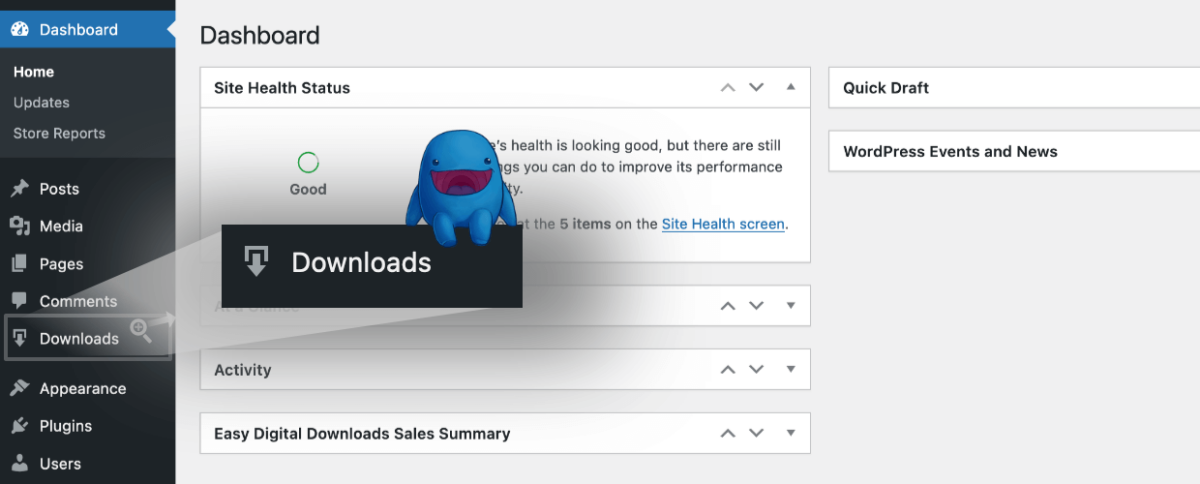
Hier beheert u alle aspecten van uw online winkel. Digitale producten worden aangeduid als 'downloads'.
⚙️ Gebruik deze handleidingen als u hulp nodig hebt bij het instellen:
Stap 2: De Stripe Pro-betaalpoort toevoegen
Om digitale producten te verkopen en vooruitbestellingen te accepteren, moet u een betaalpoort instellen. De Stripe-poort is standaard inbegrepen bij EDD en stelt u in staat creditcardbetalingen te accepteren. U kunt onze installatiedocumentatie volgen om Stripe Standard te configureren.
➡️ Leer hoe u EDD + Stripe Snel Verbindt. Om het te gebruiken, hebt u een Stripe-account nodig, dat gratis kan worden aangemaakt.
Maar voor deze tutorial gaan we Stripe Pro Payment toevoegen. Naast het accepteren van alternatieve betalingen (en zonder de extra transactiekosten), kunt u met Stripe Pro vooruitbestellingen voor digitale producten accepteren.
U kunt betalingsinformatie verzamelen en verifiëren zonder de transactie pas later te verwerken. Uw klanten voltooien het normale afrekenproces en de betalingsstatus van de bestelling wordt ingesteld als vooraf goedgekeurd. Vervolgens kunt u betalingen handmatig goedkeuren/verwerken of weigeren, indien nodig bij de productrelease.
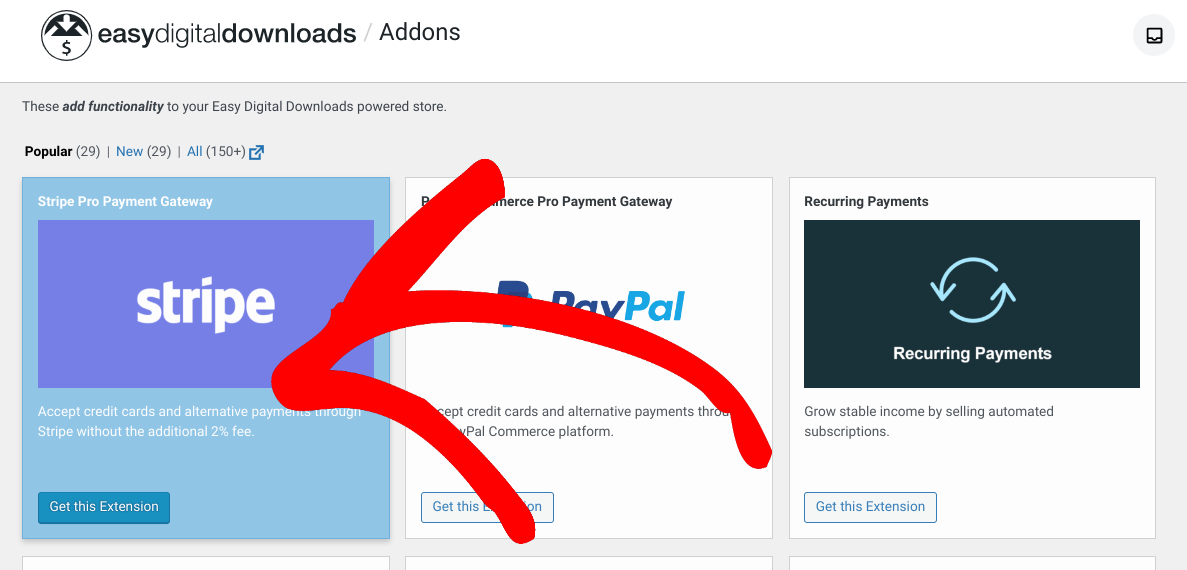
Om te beginnen, navigeert u naar Downloads » Extensies en klikt u op Deze extensie ophalen onder Stripe Pro Payment Gateway:
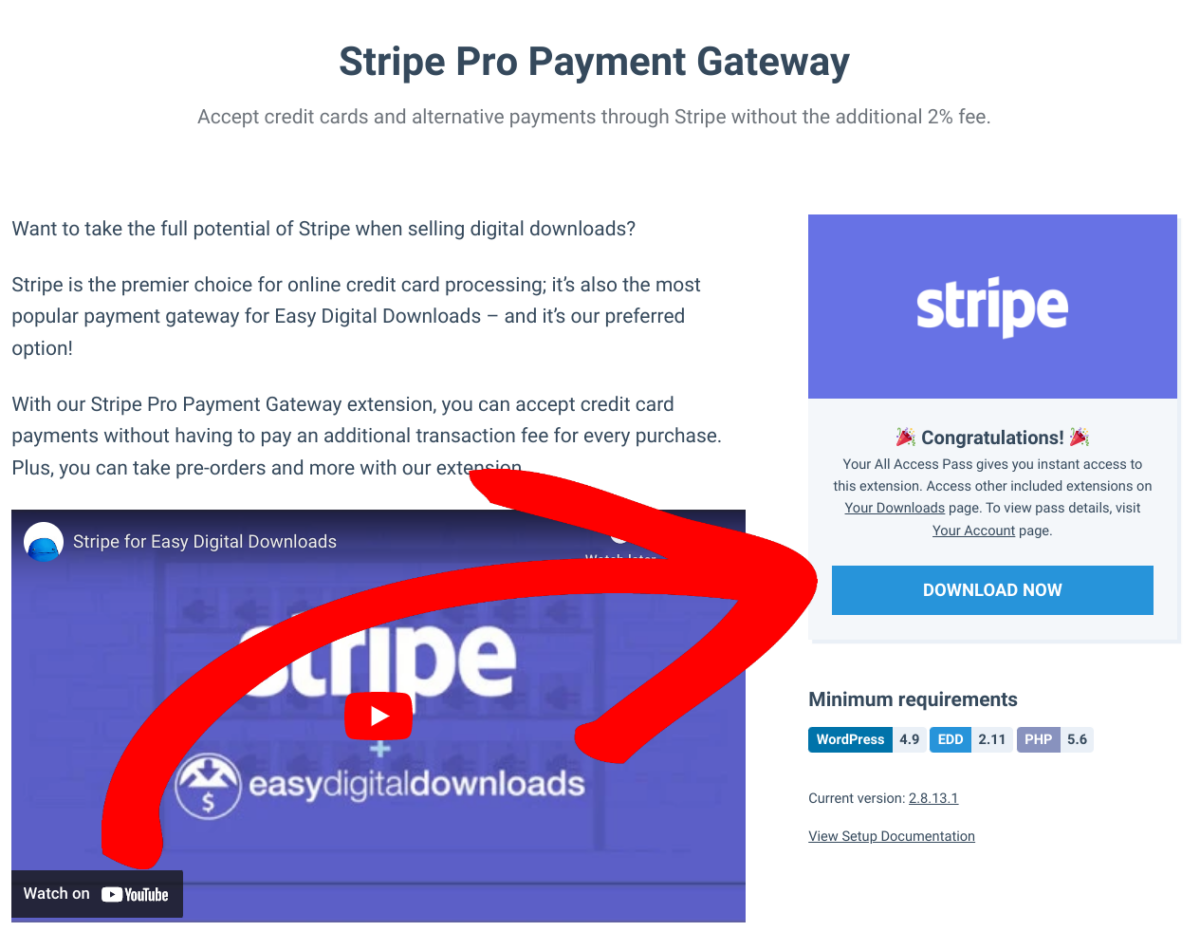
Selecteer op de Stripe-extensiepagina Nu downloaden:
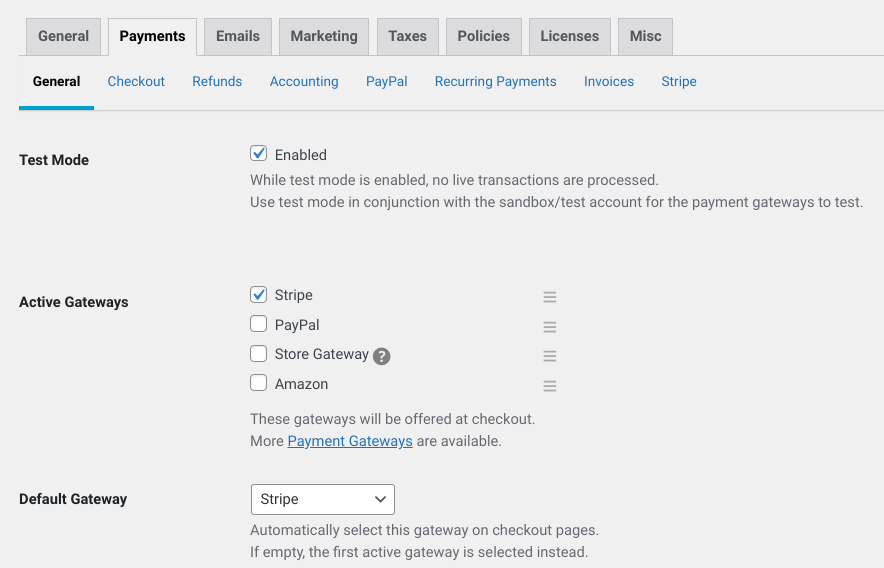
Upload het naar uw WordPress-site en activeer het. Ga vervolgens naar Downloads » Instellingen » Betalingen en selecteer Stripe voor de Actieve en Standaard Poorten:
Klik vervolgens op hetzelfde Betalingen-scherm over naar het tabblad Stripe:
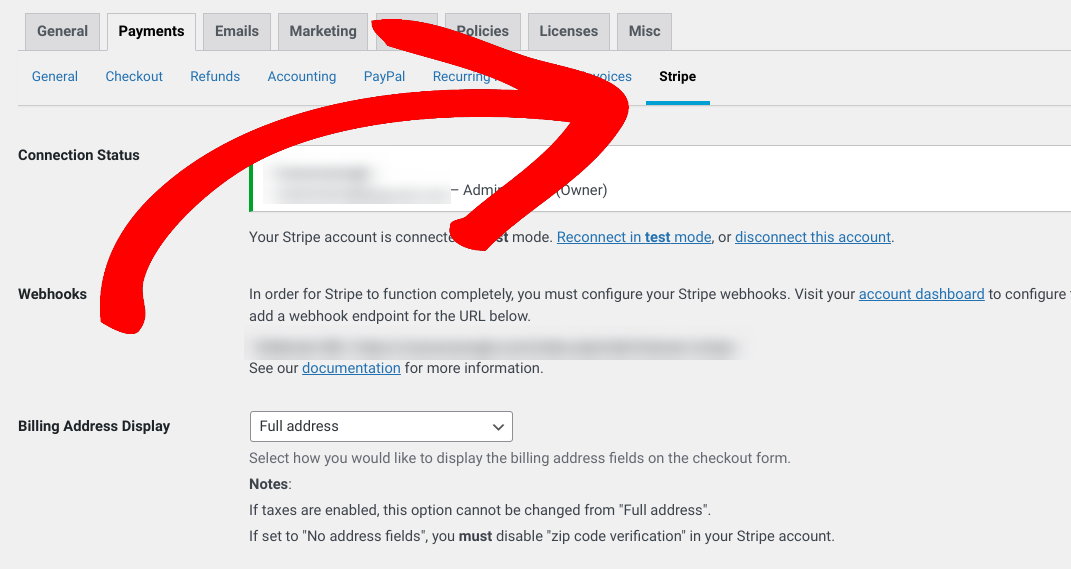
Hier vindt u aanvullende betalingsopties en instellingen. Zoek en selecteer het selectievakje Vooraf goedgekeurde betalingen:
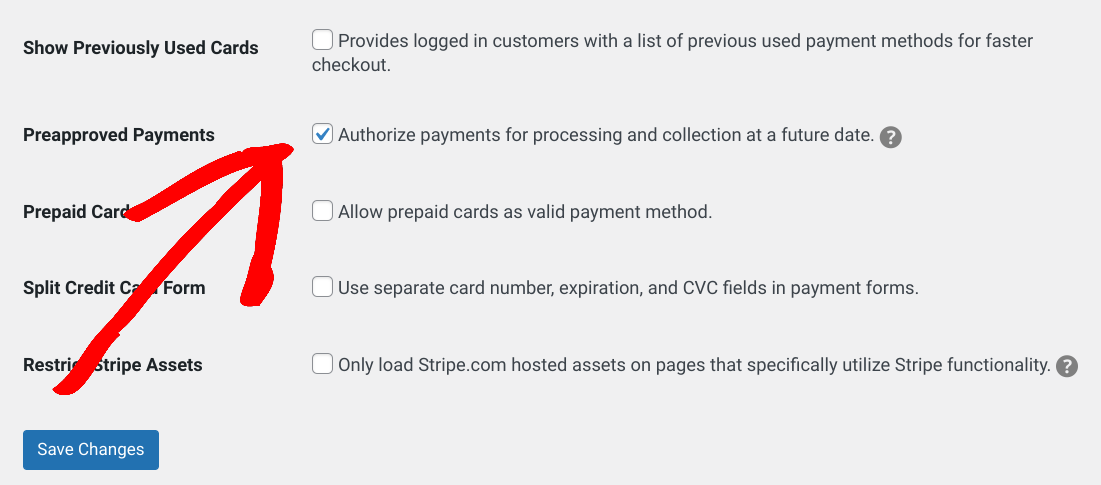
Als u klaar bent, klikt u op Wijzigingen opslaan.
Stap 3: Uw digitale product maken
Als u dat nog niet hebt gedaan, wilt u een digitaal product ('download') voor de vooruitbestelling aan uw e-commerce winkel toevoegen. Afgezien van een standaard productpagina, kunt u een geoptimaliseerde landingspagina maken om de vooruitbestellingscampagne te promoten.
Laten we zeggen dat u van plan bent een e-boek te lanceren. Om te beginnen, gaat u naar Downloads » Nieuwe toevoegen:
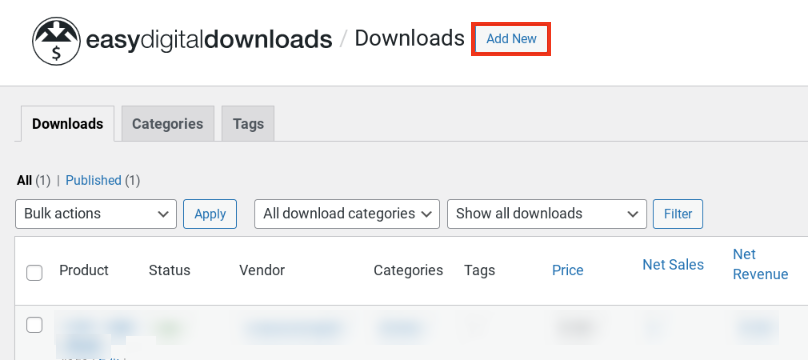
Maak er een naam voor, voeg een beschrijving en afbeelding toe, en voer de vooruitbestellingsprijs van het product in:
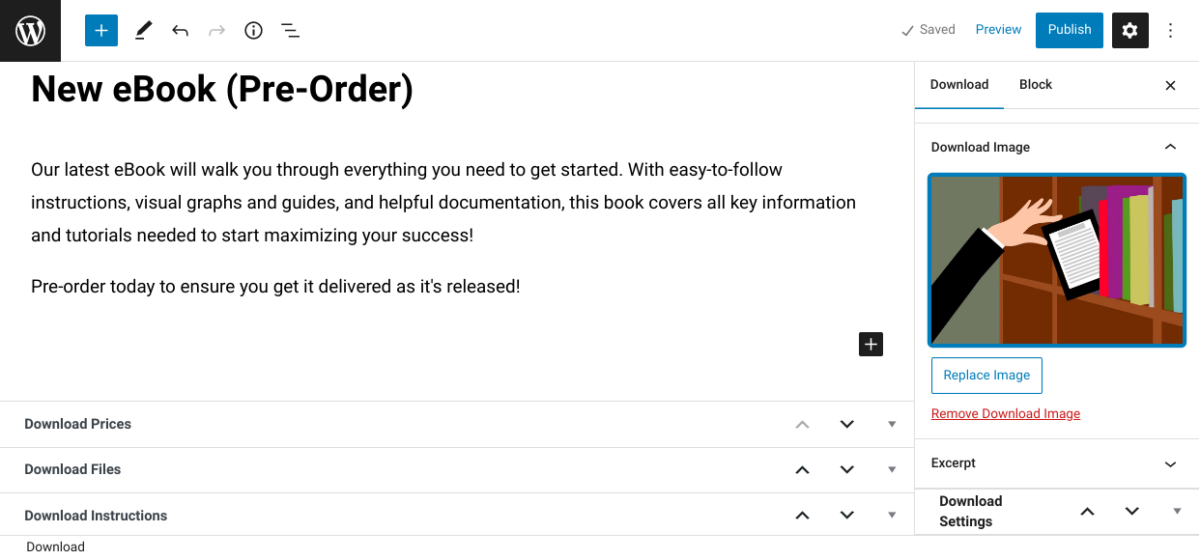
Aan de rechterkant staan diverse aanvullende instellingen. Onder Downloadinstellingen » Knopopties kunt u selecteren welk type aankoopknop (Nu kopen of Toevoegen aan winkelwagen) u wilt weergeven op de pre-order productpagina:
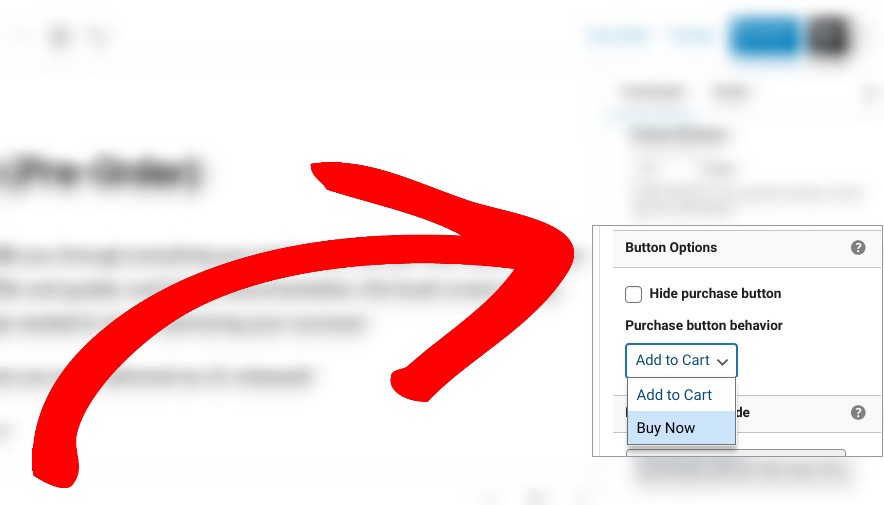
U kunt de tekst en het gedrag van deze knoppen wijzigen.
Stel dat u de knop Nu kopen wilt wijzigen in Nu pre-orderen. Ga naar Downloads » Instellingen » Diversen » Aankoopknoppen:
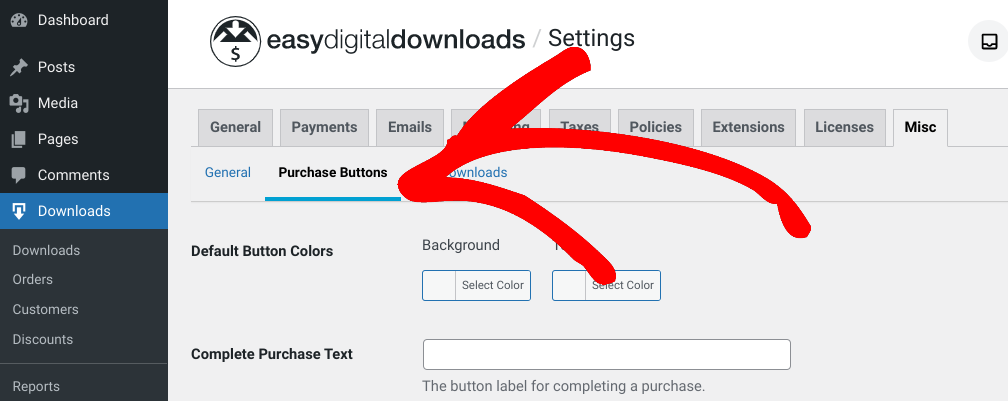
In het tekstveld Nu kopen kunt u Nu pre-orderen invoeren en uw wijzigingen opslaan:
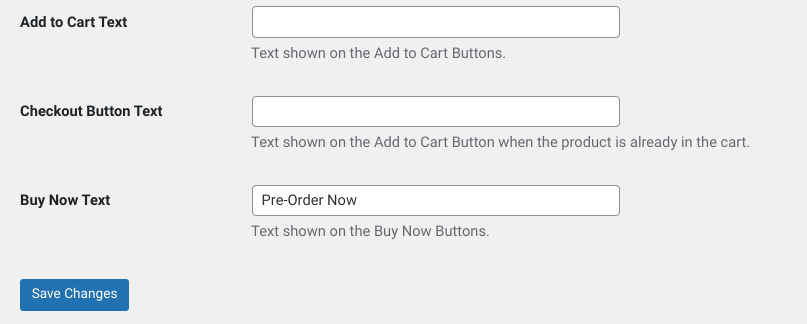
Houd er rekening mee dat de knopinstellingen op deze pagina van toepassing zijn op alle producten (niet alleen op het artikel dat beschikbaar is voor pre-order).
Als u de standaardinstellingen wilt behouden, is een andere optie om handmatig een Knopblok op de pre-order productpagina in te voegen. Selecteer eerst onder de sectie Knopopties het selectievakje Aankoopknop verbergen:
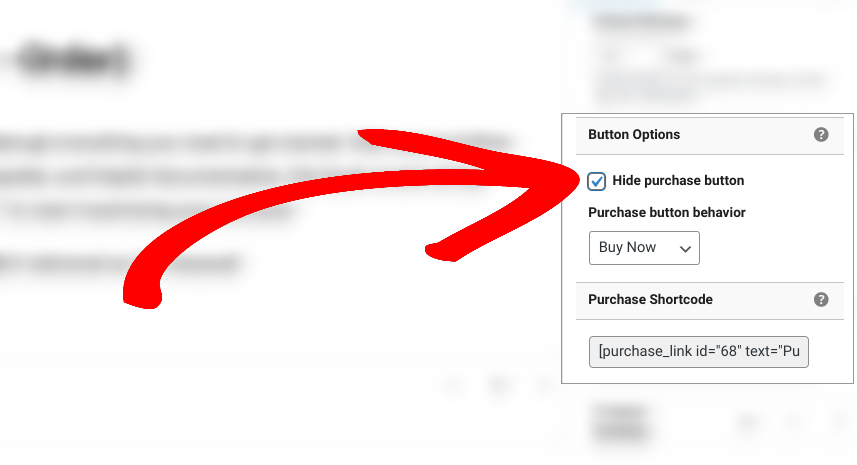
Klik vervolgens op de knop Blok toevoegen (icoon +) in de editor en zoek naar "Knoppen":
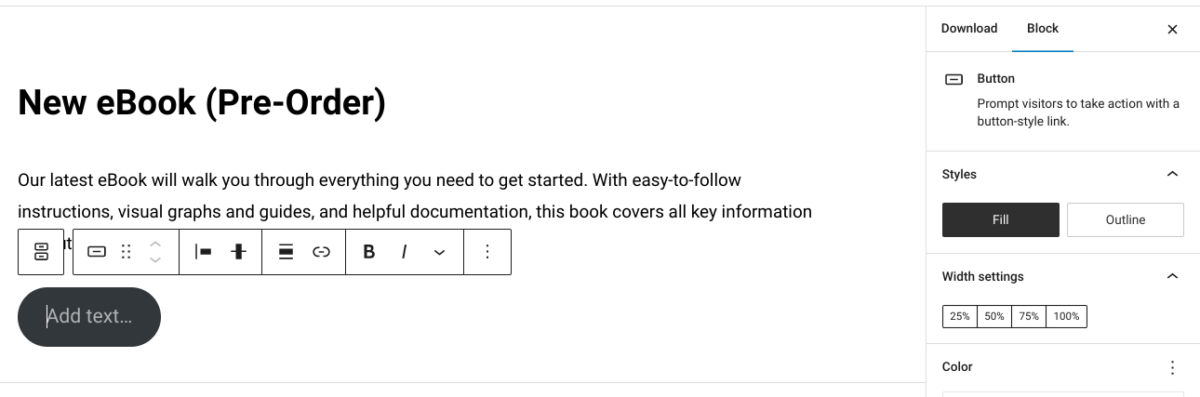
U kunt de knoptekst rechtstreeks binnen het blok aanpassen en de werkbalk bovenaan het blok gebruiken om deze naar een andere pagina te linken. U kunt ze bijvoorbeeld naar een landingspagina met een bestelformulier sturen. Rechts staan opties voor het wijzigen van kleuren, afmetingen, enz.

Als je klaar bent, klik je op Publiceren.
Stap 4: Configureer (Optionele) Pre-order Instellingen
Easy Digital Downloads biedt een overvloed aan manieren om downloads en digitale producten te beheren, aan te passen en te configureren. Dit omvat uw pre-orders. U kunt bijvoorbeeld:
- Kies een beschikbaarheidsdatum om bestellingen te accepteren
- Specificeer een start- en vervaldatum voor de productrelease/verkoop
- Stel order-/aankoop-/downloadlimieten in voor digitale producten
💡Voor gedetailleerde instructies kunt u onze gids over Hoe aankooplimieten in te stellen voor digitale producten gebruiken
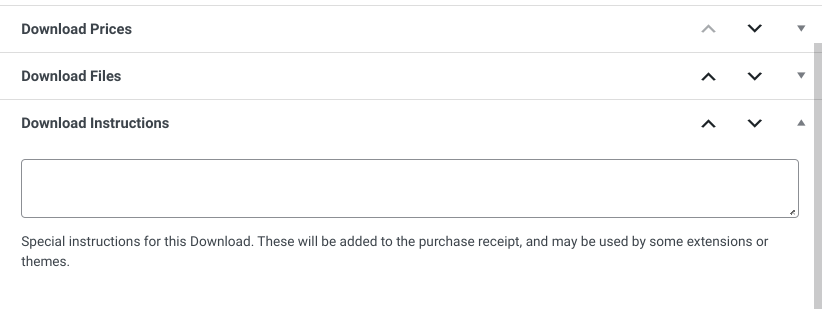
U kunt de standaard aankoopbewijs e-mails aanpassen om klanten na het plaatsen van hun bestelling te informeren over belangrijke pre-order details. Op de productpagina kunt u informatie over de pre-order/instructies toevoegen in het vak Downloadinstructies:
Daarnaast kunt u aangepaste pre-order e-mailmeldingen instellen per product.
De Per Product E-mails add-on stelt u in staat om e-mails specifiek af te stemmen op klanten die pre-orders voor digitale producten kopen, naast het standaard aankoopbewijs. U kunt bijvoorbeeld informatie opnemen zoals de releasedatum, wanneer ze verwacht worden te worden gefactureerd, hoe ze toegang krijgen tot het digitale product, enz.
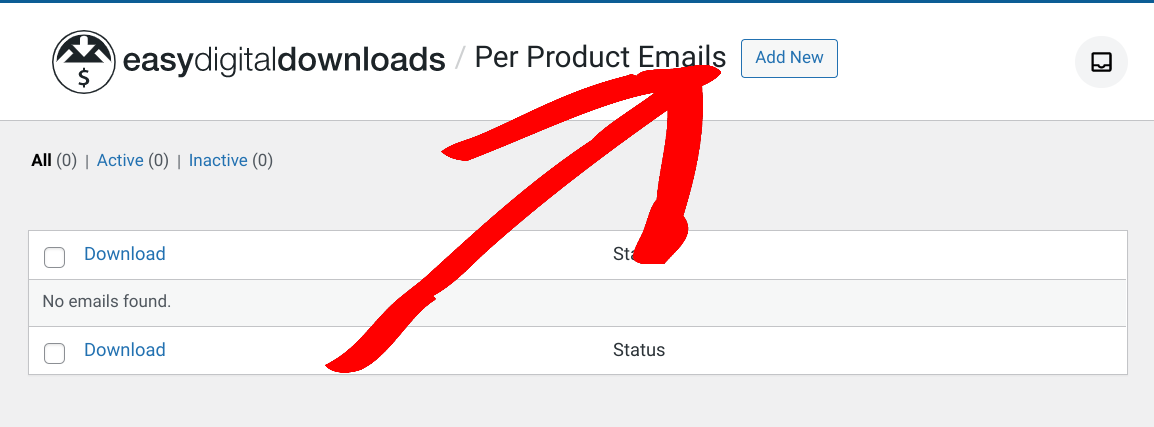
Na installatie en activering kunt u naar Downloads Per » Product E-mails » Nieuw toevoegen gaan:
Vervolgens kunt u de download selecteren uit het keuzemenu, een onderwerpregel en uw e-mailtekst toevoegen:
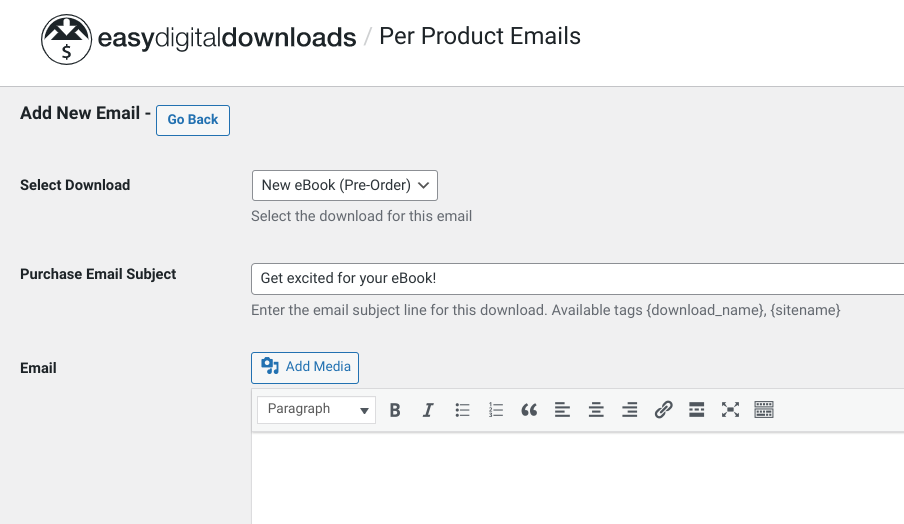
Als u klaar bent, selecteert u E-mail toevoegen onderaan.
Stap 5: Voorbeeld & Test Uw Digitale Product Pre-order Proces
Nadat u de pre-orderinstellingen vanuit de backend hebt geconfigureerd, kunt u deze publiceren en bekijken op de frontend van uw site. Zo kunt u visualiseren wat klanten zullen zien.
Als u bijvoorbeeld uw winkel- of productpagina bezoekt, ziet u waarschijnlijk iets vergelijkbaars met dit:
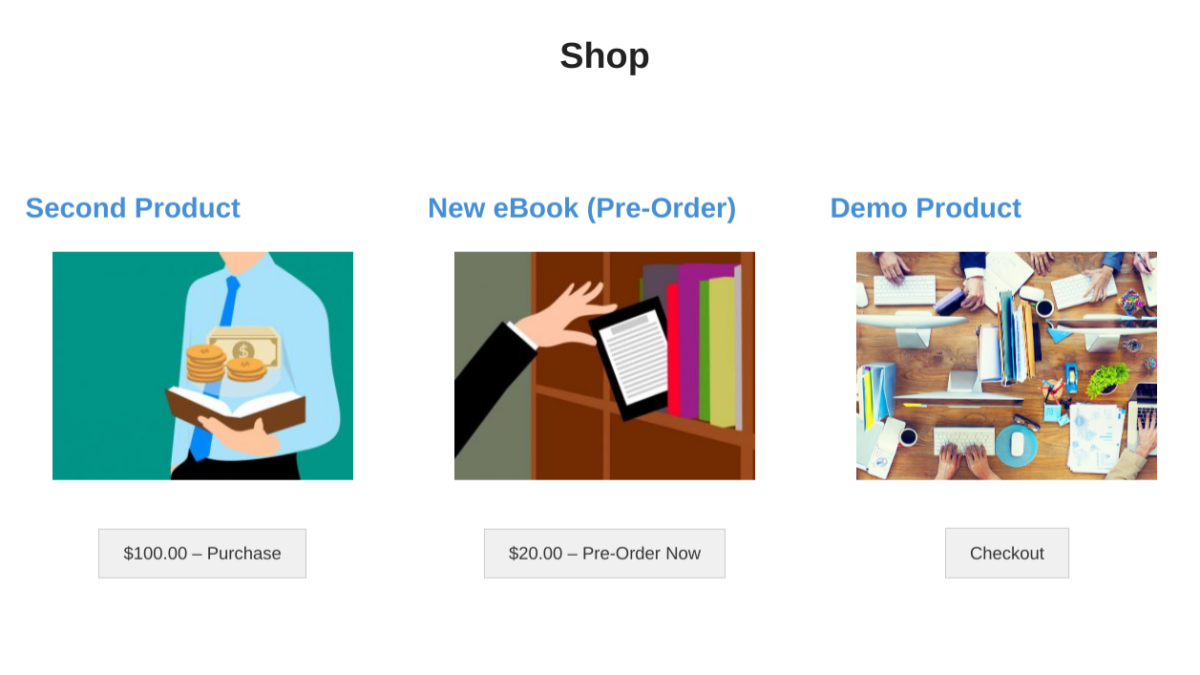
Afhankelijk van uw instellingen voor de aankoopknop en het afrekenproces, kunnen uw klanten hun betalingsgegevens invoeren en hun pre-order bevestigen. Plaats een testbestelling. Als u hulp nodig heeft, kunt u deze instructies volgen.
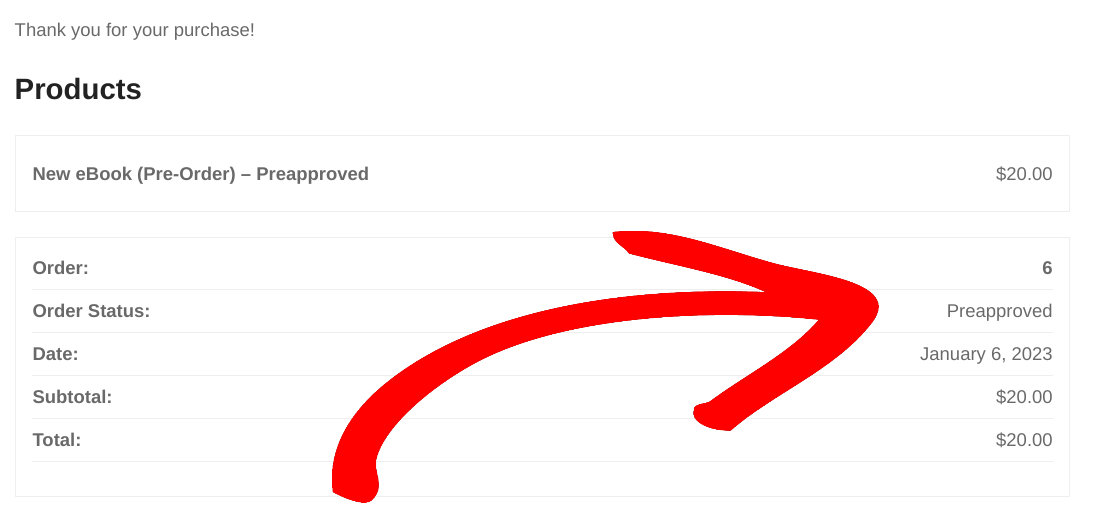
Zoals ik eerder al zei, verwerkt Stripe Pro automatisch bestellingen als vooraf goedgekeurd:
Om uw pre-orders te beheren, gaat u naar het tabblad Downloads » Bestellingen. De kolom Status informeert u over welke bestellingen zijn goedgekeurd, in behandeling, geweigerd, enz.:
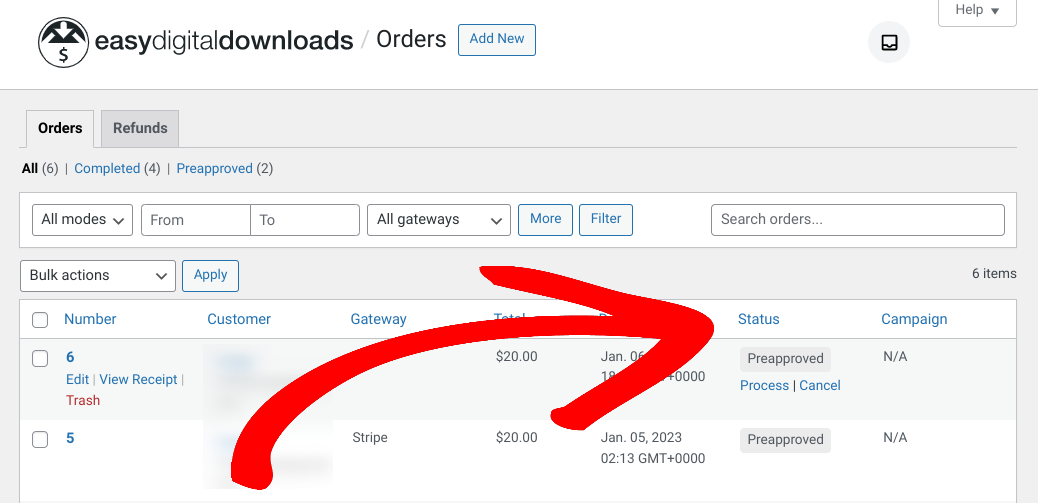
Als u klaar bent om het product vrij te geven en de lopende betalingen uit te voeren, klikt u op Verwerken in de kolom Status. Zo makkelijk is het!
Stap 6: Deel en promoot uw pre-orders voor digitale producten
Tot slot hoeft u alleen nog maar uw pre-order campagne te delen en te promoten! Easy Digital Downloads biedt een breed scala aan social media, marketing en e-mail tools die u kunnen helpen uw bereik te vergroten en verkeer naar uw site te leiden.
U kunt uw pre-order campagne delen via sociale kanalen en deze onderdeel maken van uw e-mail nieuwsbrieven. U kunt ook een 'binnenkort beschikbaar' of landingspagina maken met een page builder zoals SeedProd. Bovendien kunt u een afteltimer aan de pagina toevoegen om klanten op de hoogte te houden van de pre-order status.
WPForms is ook een krachtige formulierbouwer plugin die u kunt gebruiken om bestelformulieren op uw site toe te voegen en aan te passen.
💡 Wilt u meer ideeën voor het promoten van pre-orders voor digitale producten in WordPress? Bekijk Hoe u uw digitale product succesvol lanceert!
Accepteer pre-orders voor digitale producten in WordPress
Mits correct gebruikt, zijn pre-orders een uitstekende manier om opwinding rond een productlancering te genereren en de verkoop te verhogen wanneer het wordt uitgebracht. Om pre-orders voor digitale producten in WordPress in te stellen, heeft u alleen de juiste eCommerce plugin en betaalgateway nodig.
Klaar om uw online winkel te maken en te beginnen met het accepteren van pre-orders voor uw digitale producten? Download Easy Digital Downloads vandaag nog om te beginnen!
📣 PS. Vergeet niet u aan te melden voor onze nieuwsbrief en volg ons op Facebook of Twitter voor meer WordPress-bronnen!