

Dit document legt uit hoe de shortcodes te gebruiken die beschikbaar zijn in de EDD All Access extensie voor Easy Digital Downloads.
Geef All Access Pass details aan klanten
Shortcode: [edd_aa_customer_passes]
Deze shortcode toont een lijst van de All Access Passes van de klant samen met alle relevante details. We raden aan deze op hun Klantaccountpagina te plaatsen.
Voorbeeld van de uitvoer van de [edd_aa_customer_passes] shortcode:

Zodra de klant op "Bekijk volledige details" klikt, zien ze meer details over die All Access Pass:
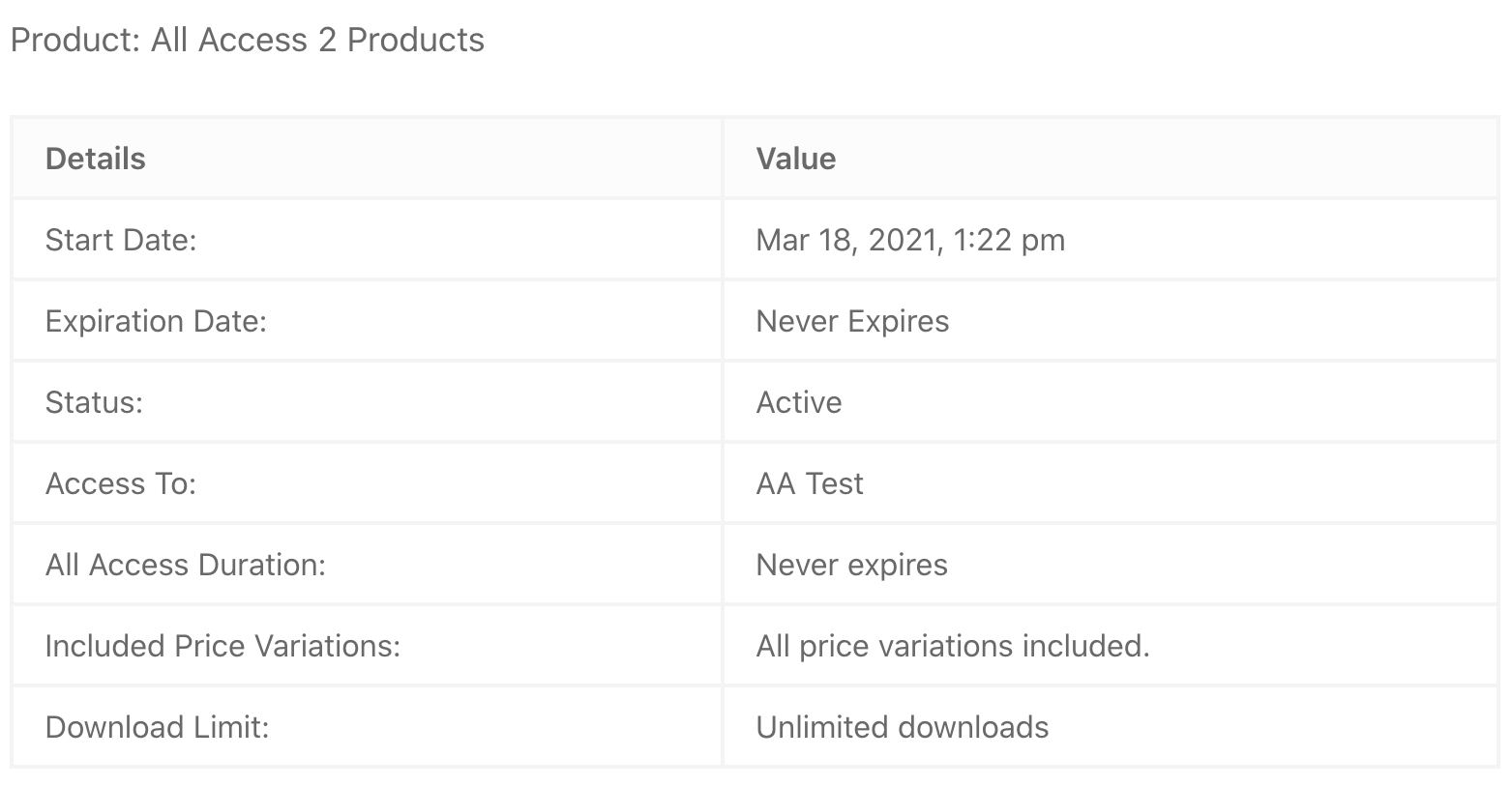
Opmerking: Als de All Access Pass een downloadlimiet heeft, ziet de klant aanvullende informatie over wanneer hun downloadlimietperiode afloopt en opnieuw begint.
Laat gebruikers zien hoeveel downloads ze nog hebben
Shortcode: [edd_aa_download_limit]
Deze shortcode toont hoeveel downloads een pass-klant nog heeft en de datum waarop ze verlopen.
Er zijn drie optionele parameters:
- download_id=”123,654″ hiermee kunt u specifieke All Access Downloads specificeren die u wilt laten verschijnen in de shortcode-uitvoer. Als de klant de opgegeven download niet bezit, verschijnt er geen uitvoer.
- message=”berichttekst hier”
- %1$s is de naam van de pass.
- %2$d is de placeholder voor het aantal resterende downloads
- %3$d is de placeholder voor het totale aantal downloads
- expiration=”vervaldatum tekst hier”
- %1$s is de placeholder voor de vervaldatum
Voorbeeld van shortcode met parameters:
[edd_aa_download_limit download_id="123" message="%1$s heeft nog %2$d van %3$d downloads over." expiration="Resterende downloads verlopen %1$s."]
Voorbeeld van de uitvoer van de [edd_aa_download_limit] shortcode:

All Access Pass Aankoop & Login knoppen
Shortcode: [edd_aa_all_access]
Deze shortcode is krachtig voor het geven van een geweldige gebruikerservaring aan uw klanten. Het biedt u een snelle en gemakkelijke manier om klanten in te laten loggen en/of een specifieke All Access Pass te laten kopen. Het is perfect voor een pagina waar u een All Access Pass adverteert, maar ook wilt dat bestaande All Access Pass-klanten kunnen inloggen.
Deze shortcode toont een van de 3 verschillende dingen:
1. Uitgelogd: Als de klant is uitgelogd, zien ze zowel de "Login" als de "Koop nu" knoppen.
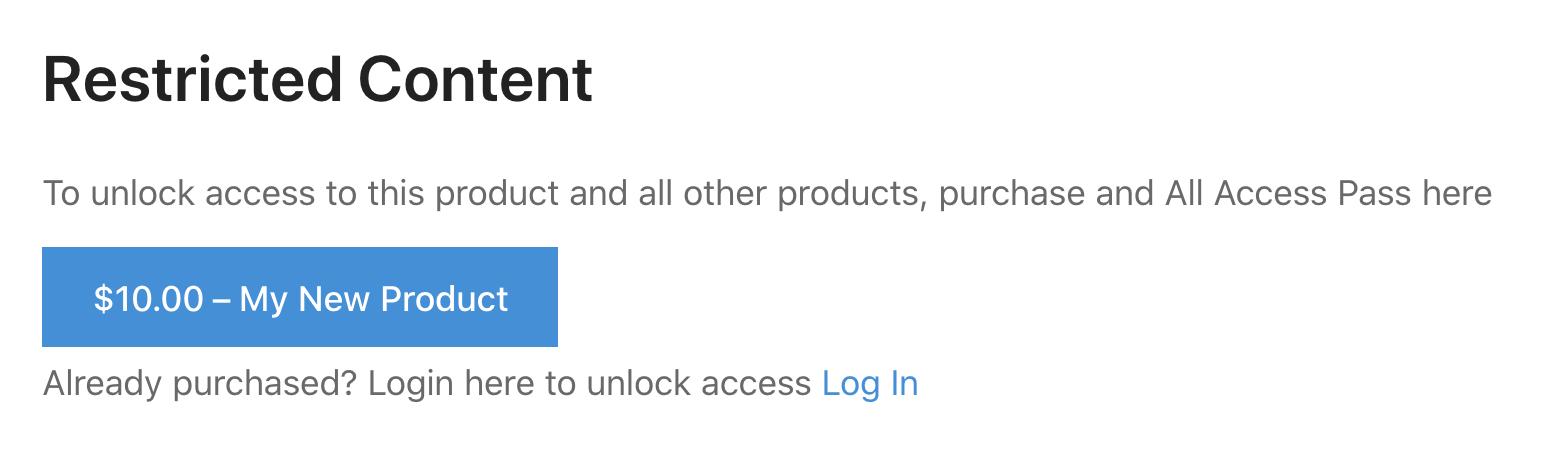
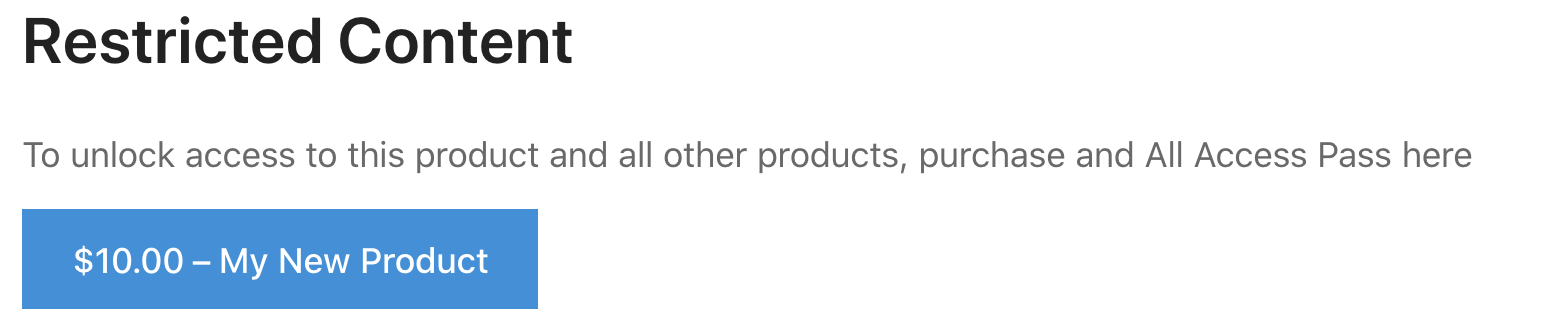
2. Ingelogd zonder toegang: Als ze zijn ingelogd maar de All Access Pass niet hebben gekocht, zien ze alleen de "Koop nu" knop voor de All Access Pass.
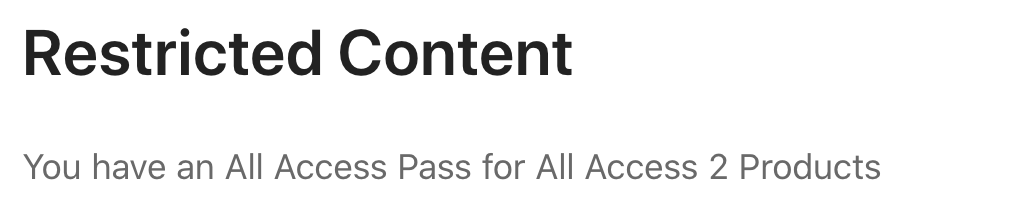
3. Ingelogd met toegang: Als ze zijn ingelogd EN de All Access Pass hebben gekocht, zien ze een "succes" bericht. Standaard is dat bericht:
“Je hebt een All Access Pass voor Product X”. Je kunt het ook zo instellen dat ze automatisch worden doorgestuurd naar een andere pagina (zoals een “VIP Welkomst” pagina). Als alternatief kun je het ook zo instellen dat het beperkte HTML-inhoud toont aan gebruikers die deze All Access Pass hebben. Opmerking: In het onderstaande voorbeeld is “All Access 2 Products” de download/productnaam.
Deze shortcode kan de volgende parameters accepteren:
- id – het ID-nummer van de vereiste All Access download
- price – of de productprijs wel of niet moet worden weergegeven. 1 om het te tonen, 0 om het te verbergen.
- text – de tekst die wordt weergegeven op de Koop Nu knop
- style – de stijl van de aankooplink, ofwel “button” of “text”
- color– de kleur van de knop (bij gebruik van de “button” stijl”:
- grijs
- blauw
- groen
- donkergrijs
- geel
- class – een of meer aangepaste CSS-klassen die je wilt toepassen op de All Access Koop knop
- popup_login – Of het inlogformulier in een pop-up modal moet worden geopend. Als je wilt dat dit gebeurt, gebruik dan hier “true”. Laat anders leeg.
- buy_instructions – Tekstinstructies boven de Koop Nu knop. Indien leeg wordt dit niet weergegeven.
- login_instructions – Tekstinstructies boven de Inlog knop. Indien leeg wordt dit niet weergegeven.
- login_btn_style – de stijl van de inloglink, ofwel “button” of “text”. Standaard is “text”.
- direct – of de aankoopknop de klant rechtstreeks naar PayPal moet sturen of naar het afrekenscherm.
- preview_image – Een URL naar een afbeelding die wordt getoond als de gebruiker geen toegang heeft.
- success_redirect_url – De URL waar de gebruiker naartoe moet worden gestuurd als hij is ingelogd en de All Access Pass heeft.
- success_text – Het bericht dat aan een gebruiker wordt getoond voordat deze wordt doorgestuurd na succesvolle inlog en aankoop. Standaard is dit “Je hebt een All Access Pass voor Product X”.
Voorbeeld van gebruik:
Om een inlogknop en een aankoopknop weer te geven en de gebruiker door te sturen als hij is ingelogd met een All Access Pass, gebruik de shortcode als volgt:
[edd_aa_all_access id="94" price_id="0" text="Add to Cart" style="button" popup_login="true" success_redirect_url="https://mywebsite.com/vip-welcome" success_text="Great! You have All Access"]Inhoud beperken met [edd_aa_all_access]
In plaats van success_text te gebruiken, kun je ook succesinhoud tonen. Dit is perfect voor enkele pagina's waar je exclusieve inhoud wilt beperken tot All Access Pass-houders. Om exclusieve, beperkte inhoud te tonen aan All Access Pass-houders, gebruik de shortcode als volgt:
[edd_aa_all_access id="YOUR_ALL_ACCESS_PRODUCT_ID_HERE"]
Your restricted content goes here. It can be HTML.
[/edd_aa_all_access]
Inhoud beperken met [edd_aa_all_access] met een voorbeeldafbeelding en instructietekst
Om een voorbeeldafbeelding weer te geven en aangepaste instructies aan de gebruiker te tonen, gebruikt u de shortcode als volgt:
[edd_aa_all_access id="YOUR_ALL_ACCESS_PRODUCT_ID_HERE" preview_image="https://url-to-image.jpg" buy_instructions="Buy Now to unlock access" login_instructions="Already purchased? Login here to unlock access"]
Your restricted content goes here. It can be HTML.
[/edd_aa_all_access]
U kunt ook andere shortcodes in het beperkte gebied plaatsen. U wilt bijvoorbeeld mogelijk de aankoopgeschiedenis van een gebruiker weergeven op dezelfde plek waar ze inloggen of kopen. Om dat te doen, gebruikt u zoiets als dit:
[edd_aa_all_access id="YOUR_ALL_ACCESS_PRODUCT_ID_HERE" buy_instructions="Buy Now to unlock access" login_instructions="Already purchased? Login here to unlock access"]
[purchase_history]
[/edd_aa_all_access]
Beperk inhoud [edd_aa_restrict_content]
Shortcode: [edd_aa_restrict_content]
Deze shortcode is heel eenvoudig en kan worden gebruikt om inhoud alleen weer te geven als de klant een specifieke all-accesspas heeft. Het is een vereenvoudigde versie van [edd_aa_all_access]. Voorbeeldgebruik:
[edd_aa_restrict_content id="YOUR_ALL_ACCESS_PRODUCT_ID_HERE"]
Restricted content goes here. It can be anything you'd like - even HTML.
[/edd_aa_restrict_content]
Inhoud weergeven voor degenen zonder toegang tot een specifieke pas
Shortcode: [edd_aa_no_access_pass]
Deze shortcode is heel eenvoudig en kan worden gebruikt om inhoud alleen weer te geven als de klant GEEN specifieke all-accesspas heeft. U wilt bijvoorbeeld "verkoop" informatie alleen weergeven als de klant nog niet heeft gekocht. Voorbeeldgebruik:
[edd_aa_no_access_pass id="YOUR_ALL_ACCESS_PRODUCT_ID_HERE"]
Sales content goes here. It can be anything you'd like - even HTML.
[/edd_aa_no_access_pass]
Producten tonen die bij een klantpas horen
Shortcode: [downloads all_access_customer_downloads_only="yes"]
De [downloads] shortcode (die deel uitmaakt van Easy Digital Downloads zelf), kan worden aangepast om alleen producten weer te geven waartoe de klant toegang heeft via All Access. Voeg hiervoor simpelweg dit toe aan de shortcode: all_access_customer_downloads_only=”yes”.
Bijvoorbeeld:
[downloads all_access_customer_downloads_only="yes"]Wijzig de tekst van [purchase_link] voor klanten die een pas bezitten
Shortcode: [purchase_link all_access_download_now_text="Download Nu"]
De [purchase_link] shortcode (die deel uitmaakt van Easy Digital Downloads zelf), stelt u in staat de tekst die aan uw All Access-klanten wordt getoond aan te passen, zodat u de tekst "Download Nu" kunt wijzigen. Voeg hiervoor simpelweg dit toe aan de shortcode: all_access_download_now_text=”Download Nu”. Vervang vervolgens "Download Nu" door uw eigen aangepaste bericht.
Bijvoorbeeld:
[purchase_link all_access_download_now_text="YOUR CUSTOM TEXT HERE"]


