

Deze tutorial laat je zien hoe je de Square-betaalintegratie instelt met Easy Digital Downloads.
Square verbinden met je WordPress-site
Zorg ervoor dat de Easy Digital Downloads-valuta is ingesteld op dezelfde valuta als uw bedrijfslocatie in Square. Als deze niet overeenkomen, kunt u geen Square-betalingen verwerken.
Easy Digital Downloads stelt u in staat om uw site met een paar klikken te verbinden met Square.
Ga eerst naar Downloads » Instellingen in uw WordPress-beheergebied en klik op het tabblad Betalingen en selecteer Square uit de lijst met secties.

Zodra u hebt bevestigd dat uw valuta correct is geconfigureerd, kunt u doorgaan met verbinden met Square door op de knop Verbinden met Square te klikken.

Opmerking: Voor Easy Digital Downloads-betaalintegraties worden de testmodus en livemodus afzonderlijk geconfigureerd. Zorg ervoor dat de optie Testmodus is uitgeschakeld in Downloads » Instellingen » Betalingen om ervoor te zorgen dat u transacties kunt verwerken zodra uw producten zijn gepubliceerd.
Vervolgens wordt u gevraagd om in te loggen op uw Square-account. Voer uw e-mailadres en wachtwoord in en klik vervolgens op Inloggen.

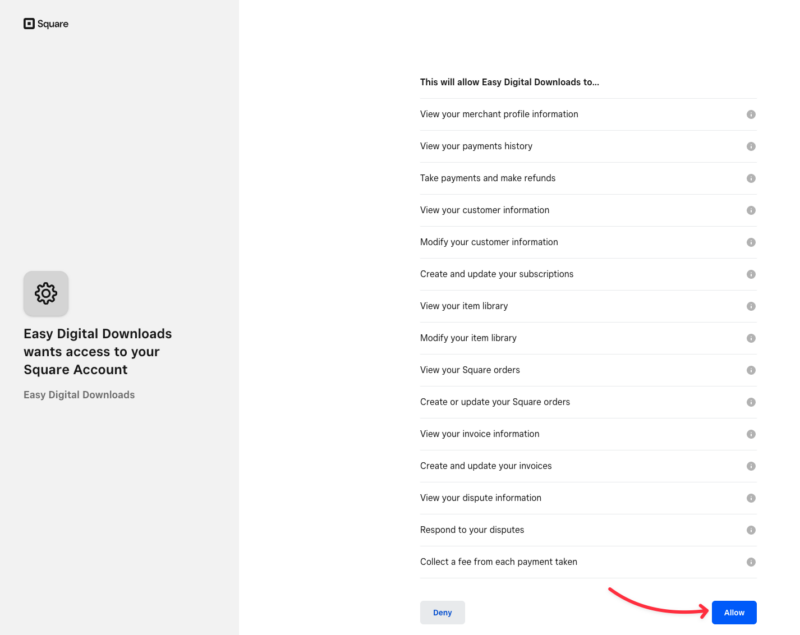
Square zal u vervolgens vragen of u Easy Digital Downloads bepaalde machtigingen met betrekking tot uw account wilt verlenen. Klik op Toestaan om door te gaan.
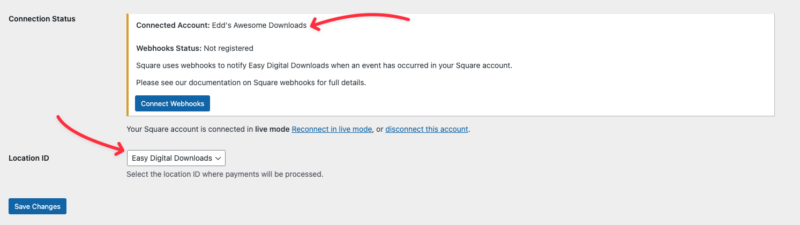
Dit brengt u terug naar de Square-betaalinstellingen van uw Easy Digital Downloads. Als de verbinding succesvol was, ziet u een sectie met het verbonden account en informatie over eventuele verdere stappen die u moet nemen.
De primaire locatie van uw bedrijf wordt ook geïmporteerd in uw Easy Digital Downloads-instellingen vanuit Square. Als uw bedrijf meerdere actieve locaties heeft, kunt u selecteren welke u wilt gebruiken in de vervolgkeuzelijst Locatie-ID.
Opmerking: Locaties worden beheerd binnen uw Square-account. Voor hulp bij het toevoegen, verwijderen of bewerken van locaties, raadpleeg de documentatie van Square over dit onderwerp.
Zorg er ten slotte voor dat u uw instellingen opslaat voordat u dit scherm verlaat.
Square Webhooks Instellen
Webhooks stellen Easy Digital Downloads in staat om realtime updates van Square te ontvangen wanneer een betaling is voltooid, terugbetaald of bijgewerkt. Met ingeschakelde Square-webhooks blijven uw formulieren automatisch gesynchroniseerd, zodat u betalingswijzigingen niet handmatig hoeft bij te houden.

Volg onze gids voor het instellen van Square-webhooks om te leren hoe u Square-webhooks verbindt met Easy Digital Downloads.
Verbinden in testmodus
Om uw Easy Digital Downloads-winkel te verbinden met Square terwijl u zich in de Testmodus bevindt, moet u eerst een gratis Square-ontwikkelaarsaccount aanmaken. Hiermee kunt u een Sandbox-testaccount instellen en live transacties gescheiden houden van testtransacties.
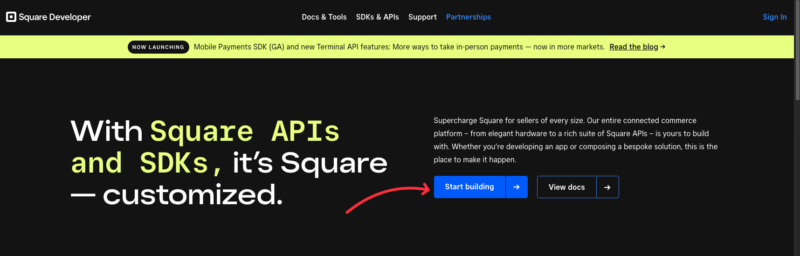
Ga naar het Square Developer-platform en klik op Beginnen met bouwen.
Als u nog geen bestaand Square-account hebt, maakt u er hier een aan. U kunt het later activeren wanneer u live betalingen wilt accepteren door de instructies in de activeringsmail te volgen die naar het e-mailadres van uw account is verzonden.
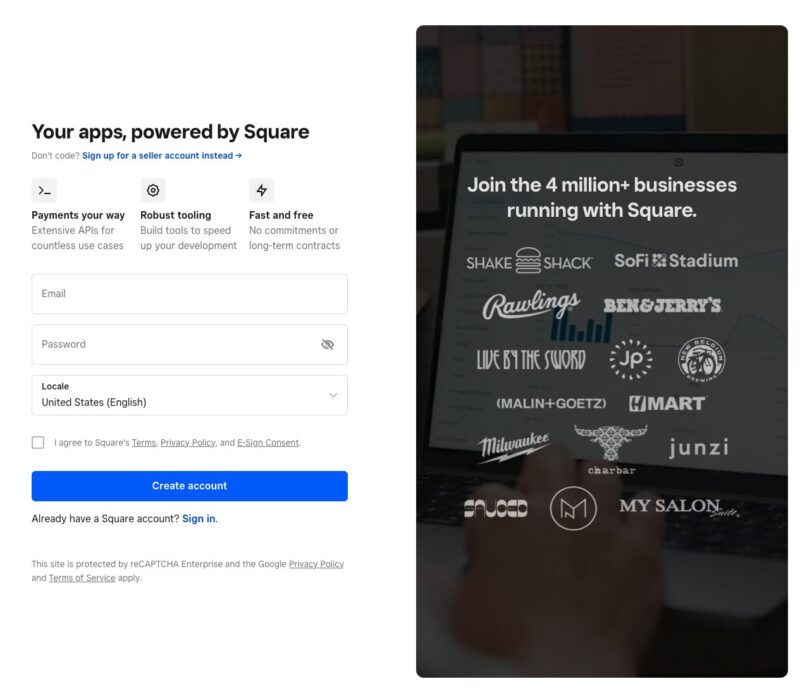
Als u al een Square Seller-account hebt, kunt u zich aanmelden bij Square Developer met uw bestaande gegevens. Mogelijk wordt u omgeleid naar het Square Seller Dashboard. Voor de volgende stappen moet u zich aanmelden bij het Developer Dashboard.
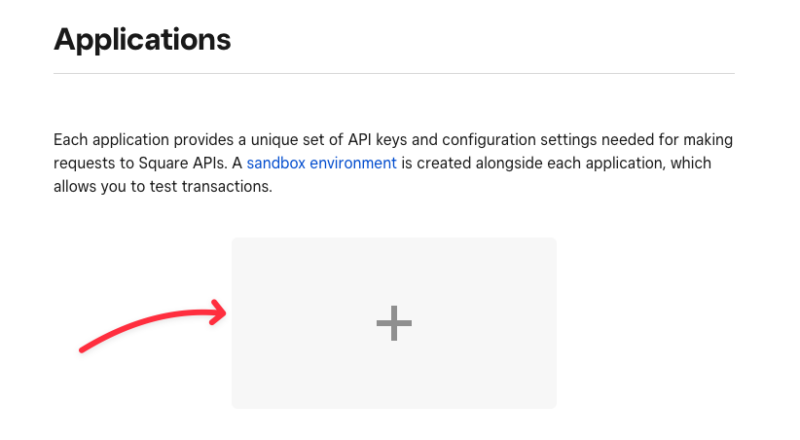
Om te beginnen klikt u op de blauwe plus (+) knop om uw eerste applicatie te maken.
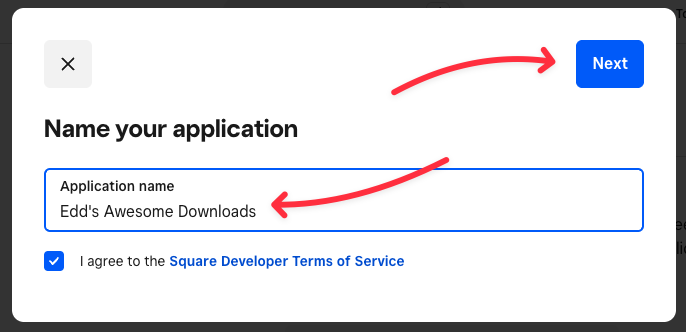
Dit opent een pop-upvenster waar u deze applicatie een naam kunt geven (alleen voor uw referentie), akkoord kunt gaan met de Developer Terms of Service en op de knop Volgende kunt klikken.
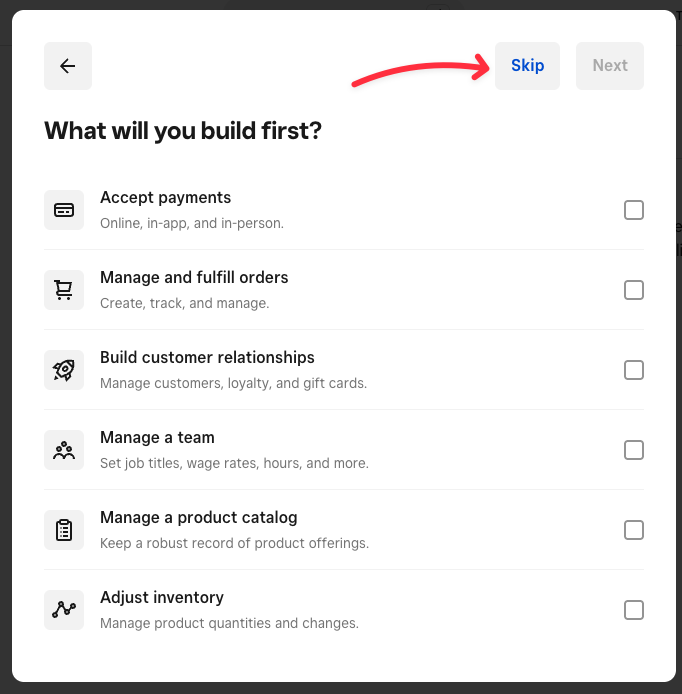
Wanneer u wordt gevraagd welk type applicatie u bouwt, klikt u op Overslaan. Dit is alleen voor uw intern gebruik.
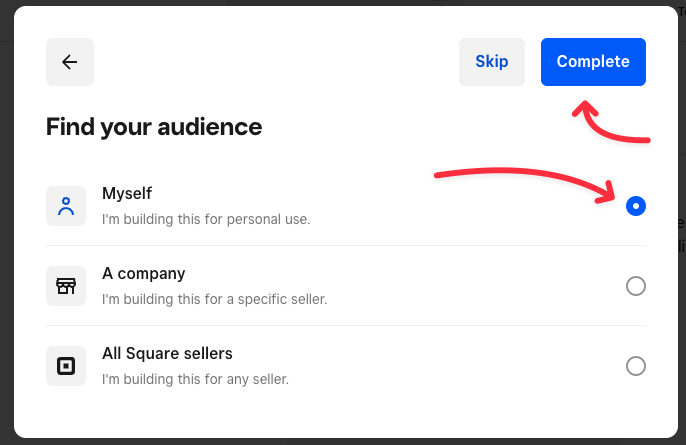
Wanneer u de keuze krijgt voor wie de applicatie is, selecteert u Ikzelf en klikt u op Voltooien.
Testaccount authenticeren
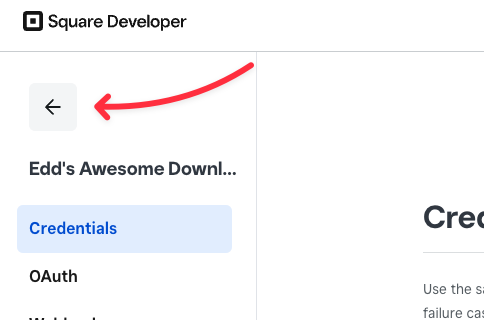
U hebt nu met succes uw persoonlijke applicatie aangemaakt die u kunt gebruiken om Square te testen. Klik op de pijl naar achteren om terug te keren naar het Developer Dashboard, waar we ons zullen authenticeren in uw Sandbox Testaccount, voordat we verbinding maken met Easy Digital Downloads.
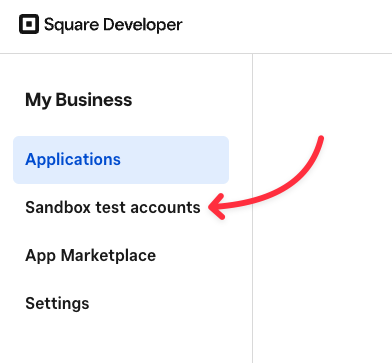
Klik op het menu-item Sandbox-testaccounts, waar u uw beschikbare Sandbox-accounts te zien krijgt.
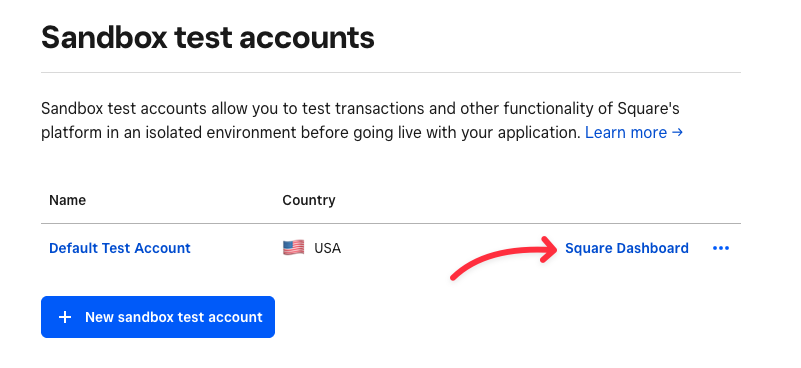
Square maakt automatisch een Standaard Testaccount aan in het land waar u uw account hebt aangemaakt. Als u een Sandbox-testaccount met een andere valuta nodig hebt, kunt u op de knop Nieuw sandbox-testaccount klikken. Klik op de link Square Dashboard om het Seller Dashboard voor dit Sandbox-testaccount te openen.
Zodra het Seller Dashboard voor uw Sandbox-testaccount is geladen, bent u klaar om Easy Digital Downloads te verbinden in testmodus.
Veelgestelde vragen: Square-betalingen + EDD
Dit zijn enkele van de meestgestelde vragen over de Easy Digital Downloads Square-integratie.
Worden er kosten in rekening gebracht voor het gebruik van Square-betalingen op mijn site?
Easy Digital Downloads brengt u geen kosten in rekening voor het gebruik van Square om uw downloads te verkopen. De transactiekosten van Square zijn echter wel van toepassing op transacties die via uw winkel lopen.
Om de huidige transactiekosten van Square voor externe online transacties te bekijken, raadpleegt u de Paginapagina.
Heeft Easy Digital Downloads een partnerschap met Square?
Ja, dat hebben we! Door rechtstreeks met Square samen te werken, kunnen we ervoor zorgen dat uw Square-betalingen betrouwbaar en veilig worden verwerkt, volgens de best practices van het platform.
Slaat Easy Digital Downloads de betalingsgegevens van gebruikers op?
Nee, we slaan de betalingsgegevens van uw gebruikers niet op. In plaats daarvan worden de betalingsgegevens rechtstreeks naar Square verzonden om zowel u als uw gebruikers te beschermen tegen de risico's die gepaard gaan met het opslaan van creditcardgegevens op uw site.
Dat is alles! Nu kunt u creditcardbetalingen accepteren met Square!



