

Belangrijke opmerking
Deze documentatie is niet nodig als u de Software Licensing API Updater gebruikt. Raadpleeg dit document alleen als u de updater niet gebruikt of als dit ter referentie is:
Bekijk onze documentatie over hoe u automatische upgrades voor uw WordPress plugins integreert.
Bekijk onze documentatie over hoe u automatische upgrades voor uw WordPress thema's integreert.
Inhoudsopgave
Activeren
Met Software Licensing moet een licentiesleutel geactiveerd zijn om volledig te kunnen worden gebruikt. Dit kan op een van de volgende twee manieren:
- Een sitebeheerder kan handmatig op de link "Activeren" voor de licentie klikken op de pagina Downloads → Licenties
- De koper kan de licentie op afstand activeren via een systeem in uw plugin/thema/software dat de API gebruikt om de activering te starten
Opmerking: de voorbeeldplugin en de implementatie die in dit document worden getoond, zijn puur voorbeelden. De beste implementaties van Software Licensing nemen deze voorbeelden en integreren ze naadloos in de bestaande instellingenpagina van uw plugin.
In deze documentatie laten we zien hoe u een licentie op afstand activeert via een systeem dat aan uw WordPress plugin is toegevoegd. De voorbeeldcode die we in dit voorbeeld laten zien, is exact dezelfde code die is opgenomen in de voorbeeldplugin en thema's, beschikbaar voor download na aankoop van de extensie.
Er zijn twee hoofdonderdelen voor het op afstand activeren van een licentie:
- Het opslaan van de licentiesleutel in de gegevens (een thema- of pluginoptie)
- Het verzenden van de opgeslagen licentiesleutel via de API naar de winkelwebsite voor verificatie en activering
Wanneer een licentie op afstand wordt geactiveerd, wordt de status van de licentie in het dashboard van uw site bijgewerkt van "inactief" (de standaardstatus) naar "actief".
Laten we eerst kijken naar het maken van een eenvoudige optiepagina om onze licentie op te slaan.
Deze code stelt een sub-menupunt in het menu Plugins in, genaamd "Plugin Licentie". We gebruiken in dit voorbeeld een pluginpagina, maar de code is identiek voor thema's.
Er zijn twee regels bovenaan de code:
De eerste is de licentie zelf en de tweede is de status van de licentie. Zodra we onze licentie hebben geactiveerd, veranderen we de status (op onze lokale site) naar "actief". Dit is zodat we een knop "Licentie Activeren" kunnen tonen als de licentie nog niet is geactiveerd, en de knop kunnen verbergen als dat wel het geval is. Zie de onderstaande schermafbeelding:
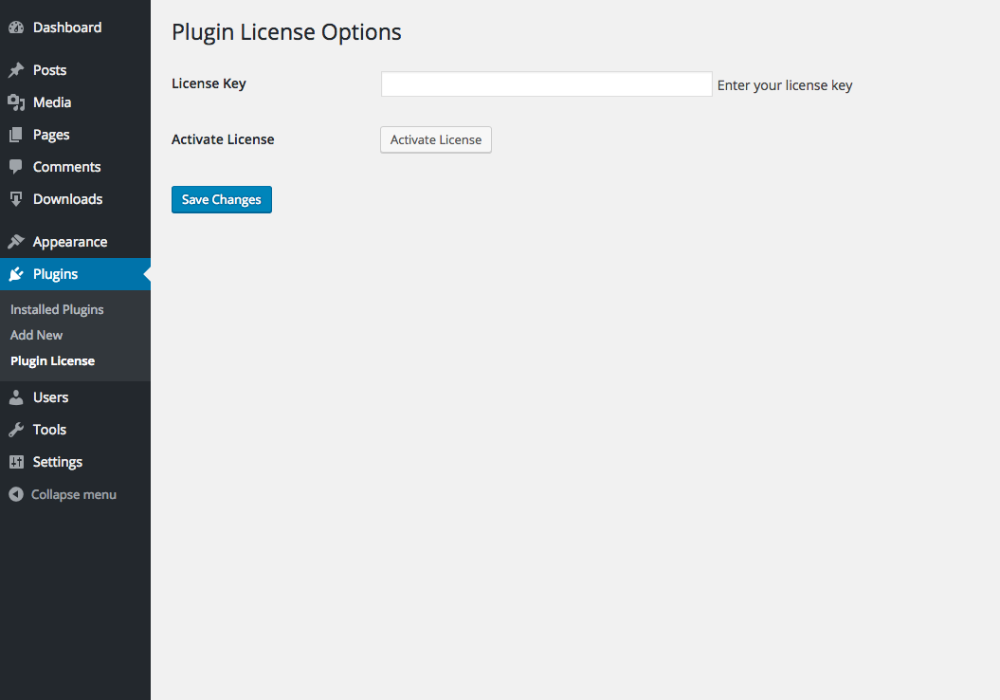
Het idee hier is dat we eerst een licentiesleutel invoeren en op "Wijzigingen opslaan" klikken, waardoor de licentiesleutel wordt opgeslagen in onze plugin/thema-opties. Zodra de optie is opgeslagen, klikken we op de knop "Licentie Activeren" om de API-aanroep te starten.
De activeringsknop is slechts een eenvoudig invoerveld met een type "submit" en een naamattribuut dat verschilt van onze opslagknop. De namen *moeten* verschillend zijn, zodat we kunnen weten wanneer op de knop "Licentie Activeren" is geklikt.
Om de licentie te activeren, hoeven we alleen maar te
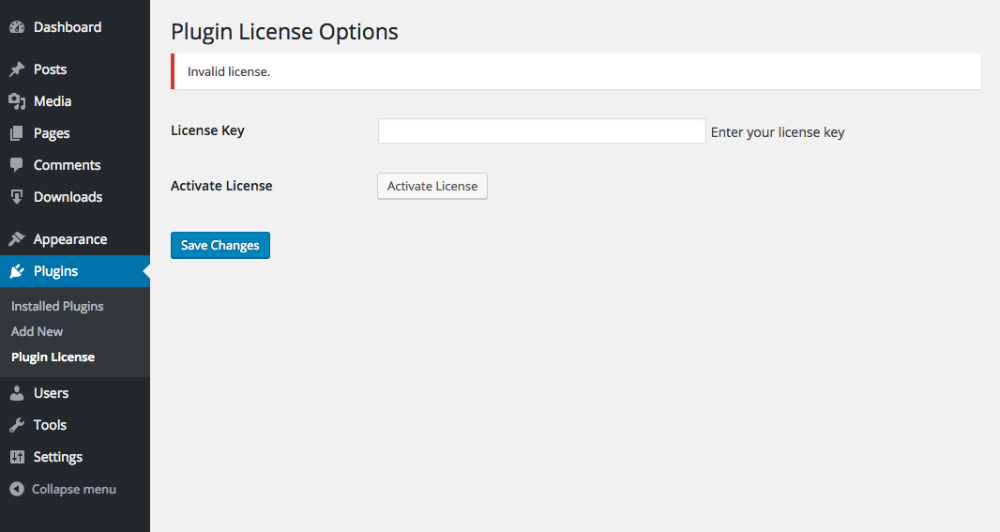
Als alles goed werkt na het klikken op de knop "Licentie activeren", wordt de activeringsknop vervangen door het woord "actief" en de licentiestatus weerspiegelt de nieuw geactiveerde status in het dashboard van uw EDD-winkel. Als er een fout optreedt bij het activeren van de licentiesleutel, wordt de pagina opnieuw geladen en worden de parameters "error" en "message" toegevoegd aan de URL. We kunnen dan de admin_notices hook (of een andere toepasselijke methode) gebruiken om de fout aan de klant weer te geven:
Als een klant bijvoorbeeld een ongeldige licentiesleutel invoert, wordt er een foutmelding weergegeven:
Controleren
Met Software Licensing kunt u op elk moment eenvoudig controleren of een licentiesleutel geldig is. Mogelijk wilt u dit doen om bepaalde functionaliteit in het thema of de plugin te beperken tot alleen gebruikers met een geldige licentiesleutel.
Het controleren van de geldigheid van een licentiesleutel is vrij eenvoudig; het vereist alleen dat we een externe aanvraag uitvoeren naar onze winkelwebsite met een paar specifieke parameters. Zie de onderstaande functie:
function edd_sample_theme_check_license() {
	$store_url = 'https://yoursite.com';
	$item_name = 'Your Item Name';
	$license = '834bbb2d27c02eb1ac11f4ce6ffa20bb';
	$api_params = array(
		'edd_action' => 'check_license',
		'license' => $license,
		'item_name' => urlencode( $item_name ),
		'url' => home_url(),
                'environment' => function_exists( 'wp_get_environment_type' ) ? wp_get_environment_type() : 'production',

	);
	$response = wp_remote_post( $store_url, array( 'body' => $api_params, 'timeout' => 15, 'sslverify' => true ) );
  	if ( is_wp_error( $response ) ) {
		return false;
  	}

	$license_data = json_decode( wp_remote_retrieve_body( $response ) );

	if( $license_data->license == 'valid' ) {
		echo 'valid';
		exit;
		// this license is still valid
	} else {
		echo 'invalid';
		exit;
		// this license is no longer valid
	}
}
Opmerking: als u consequent de geldigheid van een licentiesleutel controleert, bijvoorbeeld om het gebruik van de plugin of het thema te blokkeren wanneer de licentie verloopt, MOET u de resultaten van de controle cachen, zodat de aanvraag niet bij elke paginaload wordt uitgevoerd. De Transients API is een uitstekende manier om API-antwoorden te cachen.
Deactiveren
Met Software Licensing kan een licentie, nadat deze is geactiveerd, ook op afstand worden gedeactiveerd (sinds v1.3). Meestal is de reden om een licentie te deactiveren om een licentie op een extra site te kunnen activeren zodra de activeringslimiet is bereikt.
Het deactiveringsproces is vrijwel identiek aan het activeringsproces. We voeren een externe aanvraag uit en sturen de details van de licentiesleutel die we deactiveren. De externe aanvraag wordt als volgt gedaan:
// data to send in our API request
$api_params = array(
	'edd_action' => 'deactivate_license',
	'license'    => '2ec66bae356be570236531ccba06a45b',
	'item_name'  => 'Sample Plugin', // the name of our product in EDD
	'url'        => home_url(),
        'environment' => function_exists( 'wp_get_environment_type' ) ? wp_get_environment_type() : 'production',
);
// Send the remote request
$response = wp_remote_post( 'https://yoursite.com', array( 'body' => $api_params, 'timeout' => 15, 'sslverify' => true ) );
De $response var zal een json-object zijn dat ons vertelt of het deactiveringsverzoek succesvol was of niet. Als het succesvol is, zal het antwoord zijn:
Opmerking: De datum/tijd is een timestamp, in tegenstelling tot andere json-antwoorden die datum/tijd zijn.
{
	"success": true,
	"license": "deactivated",
	"item_name": "Sample Plugin",
	"expires": 1556150399,
	"payment_id": 2444,
	"customer_name": "John Doe",
	"customer_email": "[email protected]"
}
Als de licentie niet kan worden gedeactiveerd, zal het antwoord zijn:
{
	"success": false,
	"license": "failed",
	"item_name": "Sample Plugin",
	"expires": 1556150399,
	"payment_id": 2444,
	"customer_name": "John Doe",
	"customer_email": "[email protected]"
}
Nadat een licentie succesvol is gedeactiveerd, wordt de kolom Site Count in Downloads → Licenses gedecodeerd en wordt er een vermelding in het logboek vastgelegd, zodat beheerders kunnen zien waar een licentie is gedeactiveerd.



