

Cart Preview
The Cart Preview feature creates a better shopping experience for your customers by showing a convenient slideout panel whenever they add items to their cart. Instead of redirecting to the checkout page or forcing customers to navigate away from what they’re viewing, a sleek panel slides in from the side, displaying their current cart contents.
Why Use Cart Preview?
Cart Preview reduces friction in the purchasing process by allowing customers to:
- Quickly see what’s in their cart without leaving the current page.
- View product thumbnails, names, and prices at a glance.
- Adjust item quantities or remove unwanted items instantly.
- Proceed to checkout with a single click.
- Continue shopping without interruption.
This streamlined experience helps reduce cart abandonment and makes it easier for customers to complete their purchases.
Enabling Cart Preview
To enable the Cart Preview feature on your store:
- In your WordPress admin, navigate to Downloads » Settings » Payments.
- Click on the Cart tab.
- Find the Enable Cart Preview toggle and enable it.
- Click Save Changes at the bottom of the page.
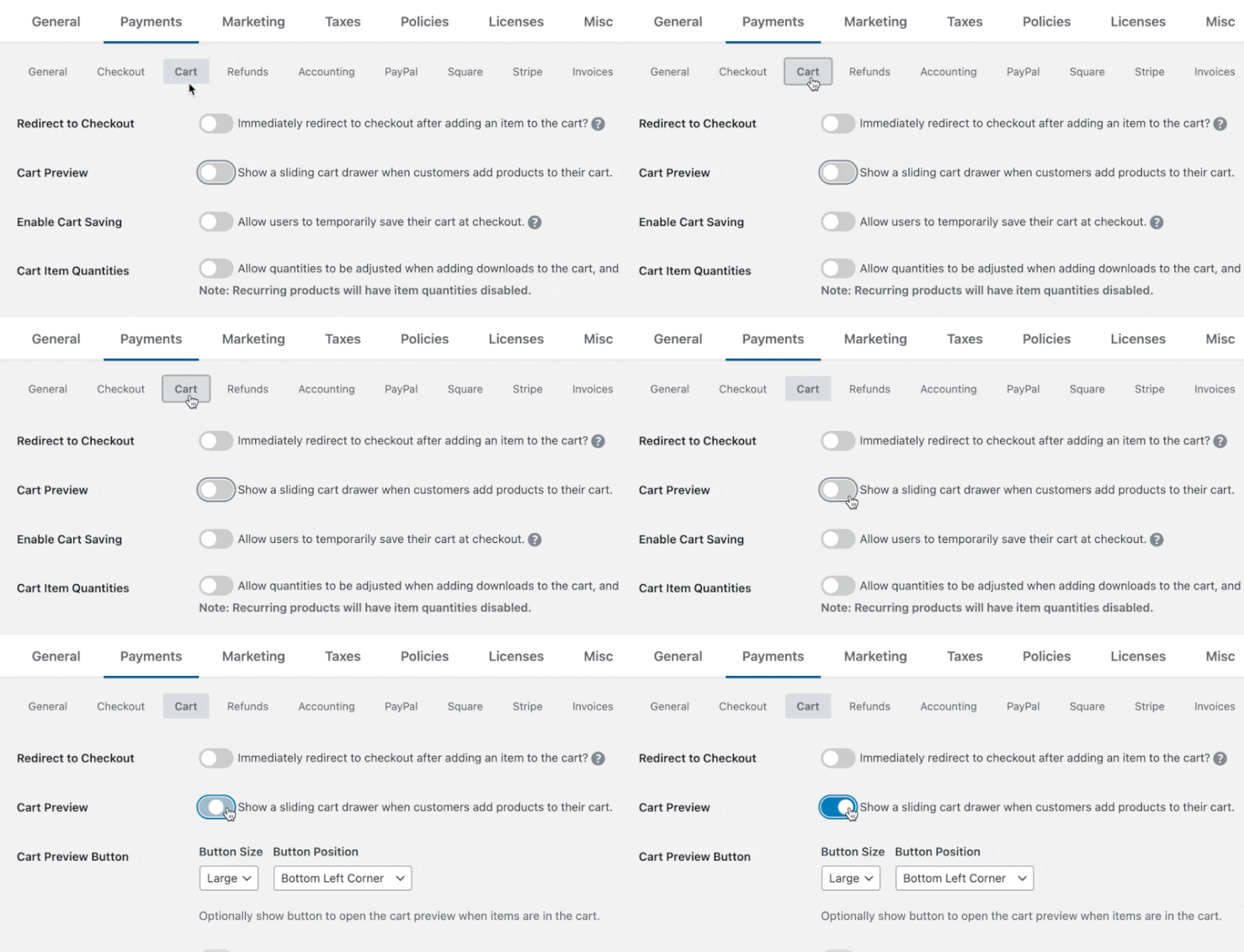
Once enabled, the cart preview will automatically appear when customers add products to their cart.
Configuring Cart Preview Settings
Floating Cart Button
The floating cart button gives customers a way to open their cart preview at any time, even after they’ve closed it. The button displays when customers currently have items in the cart and “floats” in a corner of the screen as customers browse your site.

To enable and configure:
- Navigate to Downloads » Settings » Payments » Cart.
- Find the Cart Preview Button Settings section.
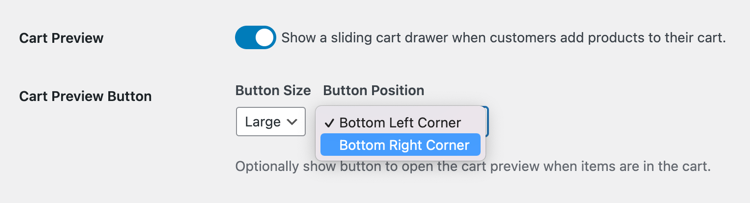
Button Size
Choose how large you want the floating button to appear:
- None: No button is displayed (customers can only see the cart preview when adding items).
- Small: A compact button that takes up minimal screen space.
- Large: A larger, more prominent button that’s easier to spot (recommended for most stores)
Recommended: Use Large for the best visibility, especially on mobile devices. Choose Small if you have limited screen space or want a more subtle appearance. Select None if you only want the cart preview to appear when customers add items.
Button Position
Choose where the floating button appears on the screen:
- Bottom Left Corner: Button appears in the lower left.
- Bottom Right Corner: Button appears in the lower right.
Tip: Consider your site’s layout when choosing position. If you have other floating elements (like a chat widget) in one corner, place the cart button in the opposite corner to avoid overlap.
How Customers Use Cart Preview
Once enabled, here’s how the Cart Preview works for your customers:
- Adding to Cart: When a customer clicks an “Add to Cart” button anywhere on your site, the cart preview panel automatically slides in from the side (or up from the bottom on mobile devices).
- Viewing Cart Contents: The panel displays:
- Product thumbnails (if available)
- Product names
- Individual prices
- Quantities (if item quantities are enabled on your store)
- Cart subtotal
- Managing Items – Customers can:
- Adjust Quantities: Use the plus (+) and minus (-) buttons to change how many of each item they want (if quantities are enabled).
- Remove Items: Click the remove (X) button to delete items from their cart.
- Continue Shopping: Select “Continue Shopping” to close the panel and keep browsing.
- Checkout: Click the “Checkout” button to proceed directly to the checkout page.
- Reopening the Cart: If you’ve enabled the floating cart button, customers can click it at any time to reopen the cart preview and review their items.
Compatibility
The Cart Preview works seamlessly with:
- All EDD purchase buttons and shortcodes
- EDD Blocks (if you’re using the block editor)
- Mobile devices and tablets
- All modern web browsers
- Screen readers and keyboard navigation (fully accessible)
Note: The Cart Preview does not appear on the checkout page itself, as customers can already see their full cart on that page.
Relationship with Other Settings
Redirect to Checkout
The Cart Preview works in conjunction with the Redirect on Add setting found in Downloads » Settings » Payments » Cart.
- When Redirect to Checkout is DISABLED (recommended with Cart Preview): The cart preview automatically opens when customers add items, keeping them on the current page.
- When Redirect to Checkout is ENABLED: Customers are redirected to checkout instead of seeing the cart preview.

Recommendation: Disable Redirect to Checkout when using Cart Preview to provide the best shopping experience.
Item Quantities
If you have Item Quantities enabled in your store settings (Downloads » Settings » Payments » Cart), customers will see quantity adjustment controls (+ and – buttons) in the cart preview for each item.

If quantities are disabled, customers can still add multiple copies of the same item, but they’ll appear as separate line items in the cart preview.
Cart Recommendations (Pro Only)
If you’re using Easy Digital Downloads Pro, you can enable Cart Recommendations to show AI-powered product suggestions within the Cart Preview panel. See the Cart Recommendations documentation for more details.
Frequently Asked Questions
Will the Cart Preview work with my theme?
Yes! The Cart Preview uses advanced styling that prevents your theme’s styles from interfering with the cart preview’s appearance. It will work correctly with any WordPress theme.
Can I customize the appearance of the Cart Preview?
The Cart Preview is designed to work well with all themes out of the box. If you need advanced customization, your developer can use CSS custom properties and part selectors.
What happens if a customer has Javascript disabled?
A: The Cart Preview requires JavaScript to function. If JavaScript is disabled, customers will use the standard cart and checkout process instead.
Does the Cart Preview work on mobile devices?
Yes! The Cart Preview is fully responsive and works beautifully on phones, tablets, and desktop computers.
Q: Can I disable the Cart Preview on specific pages?
The Cart Preview only appears on pages that have EDD purchase buttons or download content. It automatically excludes the checkout page. If you need more control, contact your developer about using filters to customize where it appears.
Will this affect my site’s performance?
No. The Cart Preview is built for performance and only loads its resources on pages where it’s needed. The JavaScript and CSS files are small and optimized for fast loading.



