

Campaign Tracker is a powerful marketing attribution tool in Easy Digital Downloads Pro that automatically captures UTM parameters from visitor URLs and associates them with orders at checkout. This provides valuable insights into which marketing campaigns, traffic sources, and channels are driving revenue for your digital store.
What is Campaign Tracker?
Campaign Tracker monitors the UTM parameters (tracking codes) in the URLs that bring visitors to your site. When someone arrives through a marketing link and makes a purchase, Campaign Tracker records where they came from and which campaign brought them to your store.
Key Benefits
- Track Marketing ROI: See exactly which campaigns generate the most revenue
- Make Data-Driven Decisions: Know which marketing channels deserve more investment
- Understand Customer Journey: Discover which marketing touchpoints lead to conversions
- Optimize Campaign Performance: Identify your top-performing campaigns and improve underperforming ones
- Export for Analysis: Download campaign data for deeper analysis or reporting
What Gets Tracked
Campaign Tracker captures five standard UTM parameters:
| Parameter | What it Tracks | Example Values |
|---|---|---|
utm_campaign | The specific marketing campaign | summer_sale_2024, product_launch |
utm_source | Where the traffic came from | google, facebook, newsletter |
utm_medium | The type of marketing channel | cpc, email, social, organic |
utm_term | Keywords for paid search campaigns | wordpress plugin, digital downloads |
utm_content | Specific ad or link variation | blue_button, header_banner |
Getting Started
Enabling Campaign Tracker
Campaign Tracker is available exclusively in Easy Digital Downloads Pro.
For New Pro Installations
Campaign Tracker is enabled by default on new Pro installations, so you can start tracking campaigns immediately.
For Existing Pro Sites
To enable Campaign Tracker on an existing Pro site:
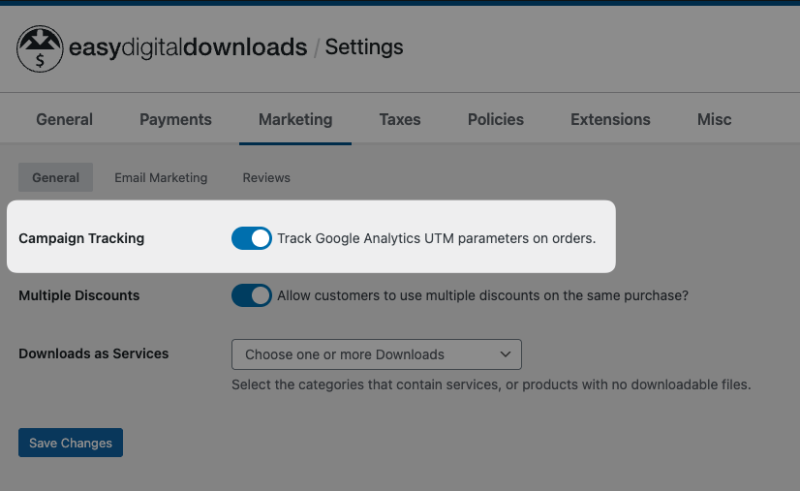
- Navigate to Downloads » Settings.
- Click on the Marketing tab.
- Locate the Campaign Tracking option.
- Toggle the option to Track Google Analytics UTM parameters on orders.
- Click Save Changes.
For Users of the Standalone Plugin
If you were previously using the standalone Campaign Tracker plugin:
- When you update to EDD Pro with built-in Campaign Tracker, the feature will automatically be enabled.
- The standalone plugin will be automatically deactivated.
- All your existing campaign data will remain intact and accessible.
- You can safely delete the standalone plugin after migration.
- The legacy standalone plugin will no longer be updated.
How Campaign Tracking Works
The Tracking Process
- Visitor Arrives: A customer clicks a marketing link with UTM parameters:
https://yourstore.com/?utm_source=facebook&utm_medium=social&utm_campaign=summer_sale - Parameters Captured: Campaign Tracker automatically captures the UTM parameters and stores them in the visitor’s browser session.
- Order Created: When the visitor completes a purchase, the campaign information is permanently saved to that order.
- Data Available: You can now view this campaign data in order details, reports, and exports.
Attribution Model
Campaign Tracker uses a first-touch attribution model:
- The first campaign a visitor arrives through is recorded.
- If they return through different campaigns before purchasing, the original campaign is still credited.
- This helps you understand which campaigns initially attract customers to your store.
Google Analytics Integration
Campaign Tracker can also parse campaign data from Google Analytics cookies (__utmz) as a fallback when UTM parameters aren’t present in the URL. This provides additional coverage for campaign attribution.
Creating UTM Links
To track campaigns, you need to add UTM parameters to your marketing links. Here’s how:
Manual Method
Add parameters to the end of your URL:
https://yourstore.com/downloads/my-product/?utm_source=facebook&utm_medium=social&utm_campaign=summer_saleUsing URL Builders
Most marketing platforms provide URL builders:
- Google’s Campaign URL Builder: Search for “Google Campaign URL Builder”
- Facebook Ads Manager: Automatically adds UTM parameters
- Email Marketing Services: Most have built-in UTM link builders
Best Practices for UTM Links
- Use Consistent Naming: Choose a naming convention and stick to it
- Use lowercase:
summer_sale_2027notSummer Sale 2027 - Use underscores or hyphens:
email_campaignoremail-campaign
- Use lowercase:
- Be Descriptive: Make campaign names meaningful
- Good:
utm_campaign=email_newsletter_june_2027 - Bad:
utm_campaign=email1
- Good:
- Include All Three Core Parameters:
- Always use:
utm_source,utm_medium, andutm_campaign - Use
utm_contentto test different ad variations - Use
utm_termfor paid search keywords
- Always use:
Example UTM Links
Email Newsletter:
?utm_source=newsletter&utm_medium=email&utm_campaign=weekly_digest_2024Facebook Ad:
?utm_source=facebook&utm_medium=social&utm_campaign=product_launch&utm_content=video_adGoogle Search Ad:
?utm_source=google&utm_medium=cpc&utm_campaign=brand_search&utm_term=easy+digital+downloadsTwitter Post:
?utm_source=twitter&utm_medium=social&utm_campaign=feature_announcementViewing Campaign Data
On Individual Orders
Every order that has campaign data will display it in a dedicated Campaign tab.
To view campaign information for a specific order:
- Go to Downloads » Orders.
- Click on any order to view its details.
- Click the Campaign tab.
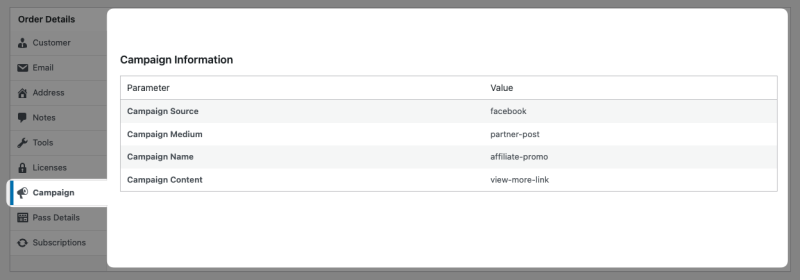
The Campaign tab displays:
- Campaign Name: The
utm_campaignvalue (e.g., “summer_sale_2027”) - Traffic Source: The
utm_sourcevalue (e.g., “facebook”, “google”) - Medium: The
utm_mediumvalue (e.g., “cpc”, “email”, “social”) - Search Terms: The
utm_termvalue (if applicable) - Ad Content: The
utm_contentvalue (if applicable)
If an order doesn’t have campaign data, the tab will show “No campaign information available.”
Campaign Reports
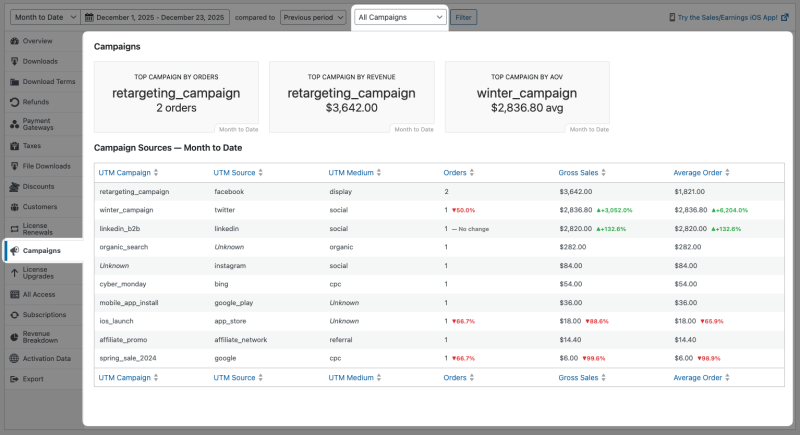
Campaign Tracker includes a comprehensive reports section that provides insights into campaign performance.
Accessing Campaign Reports
- Navigate to Downloads » Reports.
- Click on Campaigns in the left sidebar menu.
Report Components
Performance Tiles
At the top of the reports page, you’ll see three key performance indicators:
- Top Campaign by Orders: Which campaign generated the most orders
- Top Campaign by Revenue: Which campaign generated the most revenue
- Top Campaign by AOV: Which campaign has the highest average order value
These tiles show data for the selected date range and include comparison to the previous period.
Campaign Sources Table
The main table shows detailed performance data for each campaign, broken down by source and medium combinations:
Columns:
- UTM Campaign: The campaign name
- UTM Source: The traffic source (google, facebook, newsletter, etc.)
- UTM Medium: The marketing medium (cpc, email, social, etc.)
- Orders: Number of orders from this campaign/source/medium combination
- Gross Sales: Total revenue generated
- Average Order: Average order value for this combination
Table Features:
- Sortable Columns: Click any column header to sort by that metric
- Percentage Changes: Shows increase/decrease compared to the previous period
- Color Coding: Green for increases, red for decreases
Report Filtering
Use the date picker at the top of the reports page to analyze specific time periods:
- Select a preset range (Today, Last 7 Days, Last 30 Days, Month to Date, etc.).
- Or choose Custom and select specific start/end dates.
- Choose a comparison period (Previous period, Previous year, etc.).
- Click Filter to update the report.
You can also filter the report to show data for a specific campaign:
- Click the All Campaigns dropdown.
- Select a specific campaign name.
- The report will show only data for that campaign.
Exporting Campaign Data
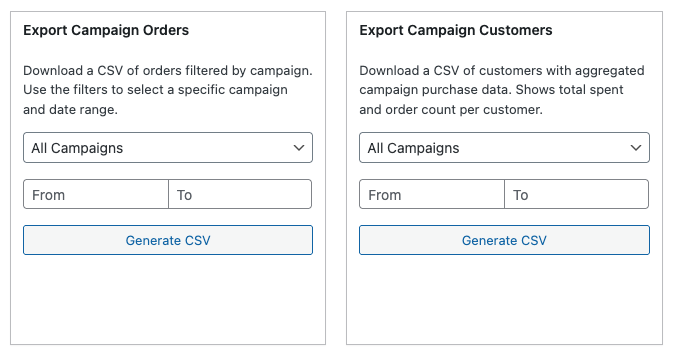
Campaign Tracker provides two CSV export options for deeper analysis or use in external tools.
Accessing Exports
- Navigate to Downloads » Reports.
- Click on Export in the left sidebar menu.
- Scroll down to the campaign export sections.
Export Campaign Orders
Exports a CSV file containing all orders with campaign data.
To export:
- Find the Export Campaign Orders section.
- Select a campaign from the dropdown (or choose “All Campaigns”).
- Set your date range using the From/To fields.
- Click Generate CSV.
The export includes:
- Order number and date
- Customer name and email
- Order total
- Campaign name (
utm_campaign) - Traffic source (
utm_source) - Medium (
utm_medium) - Search terms (
utm_term) - Ad content (
utm_content)
Use cases:
- Calculate ROI by matching revenue to campaign costs
- Import into spreadsheets for custom analysis
- Share campaign performance data with team members
- Create custom reports in BI tools
Export Campaign Customers
Exports a CSV file containing unique customers with aggregated campaign purchase data.
To export:
- Find the Export Campaign Customers section.
- Select a campaign from the dropdown (or choose “All Campaigns”).
- Set your date range.
- Click Generate CSV.
The export includes:
- Customer name and email
- Date of first purchase
- Total number of orders
- Total revenue from this customer
- Campaign information from their first purchase (attribution)
Use cases:
- Identify which campaigns attract the most valuable customers
- Calculate customer lifetime value by campaign
- Build targeted email lists based on campaign attribution
- Analyze repeat purchase behavior by acquisition source
Using Campaign Data in Emails
Campaign Tracker includes an email template tag that allows you to display campaign information in your email notifications.
Add the {campaign_info} tag to any email template to show campaign attribution data.
How to use it:
- Go to Downloads » Settings » Emails.
- Select the email template you want to edit.
- Add
{campaign_info}anywhere in the template. - Save your changes.
Example template usage:
Thank you for your purchase!

Order Details:
{download_list}

Your order total: {price}

Campaign Information:
{campaign_info}
What customers see:
If the order has campaign data:
Campaign Information:
Campaign: summer_sale_2027
Source: facebook
Medium: social
If no campaign data exists, the tag displays nothing (no error message).
Typical use cases:
- Internal order notifications to track marketing performance
- Detailed customer receipts that include attribution
- Administrative reports sent to team members
- Custom order confirmation emails
Troubleshooting
Campaign Data Not Appearing on Orders
Check these items:
- Is Campaign Tracker enabled?
- Go to Downloads » Settings » Marketing
- Verify the Campaign Tracking toggle is enabled and saved.
- Are you using UTM parameters in your links?
- Verify your marketing links include UTM parameters
- Test with:
yoursite.com/?utm_source=test&utm_medium=test&utm_campaign=test
- Clear your browser and test with a fresh session.
- Campaign data is captured on first visit
- Clear cookies and cache
- Visit through a UTM link
- Complete a test purchase
- Check for caching issues.
- Some cache plugins may cache pages with UTM parameters.
- Try temporarily disabling your cache plugin.
- Configure cache to exclude URLs with UTM parameters.
Old Orders Don’t Show Campaign Data
This is expected behavior. Campaign Tracker only tracks orders placed after the feature is enabled.
Exception: If you previously used the standalone Campaign Tracker plugin, those historical orders will have campaign data after migrating to Pro.
Reports Show “No Data Available”
Possible reasons:
- No campaign orders yet: Campaign Tracker only reports on orders with campaign data.
- Date range too narrow: Expand your date range to include campaign orders.
- Feature recently enabled: Wait until customers complete purchases through UTM links.
Empty CSV Exports
Empty exports mean there are no orders with campaign data in the selected:
- Date range
- Campaign filter (if applied)
To resolve:
- Verify orders exist with campaign data in Downloads » Orders.
- Adjust your date range to include known campaign orders.
- Try selecting “All Campaigns” instead of a specific campaign.
Caching and Cookie Issues
Campaign Tracker uses browser sessions to store campaign data. Some configurations can interfere:
Recommended cache settings:
- WP Rocket: Add
(.*)utm_(.*)$to “Never Cache URLs” - W3 Total Cache: Add
utm_to “Rejected URL Strings” - WP Super Cache: Add
utm_to “Rejected URL Strings”
Session limitations
Campaign data may be lost if customers:
- Clear cookies between visits
- Switch devices (mobile to desktop)
- Use private/incognito browsing mode
This is a limitation of session-based tracking, not a bug.
Campaign Tracking Best Practices
Campaign Naming Conventions
- Use Lowercase: Prevents
Summer_Saleandsummer_salebeing treated as different campaigns. - Use Separators: Use underscores (
_) or hyphens (-) instead of spaces. - Be Descriptive:
email_newsletter_june_2027is better thanemail1. - Stay Consistent: Use the same format across all campaigns.
Tracking Strategy
- Track Everything: Add UTM parameters to all marketing links, including:
- Email campaigns
- Social media posts
- Paid advertising
- Affiliate links
- Content marketing
- Test Campaign Links: Before launching campaigns, test your UTM links:
- Click through and make a test purchase
- Verify campaign data appears on the order
- Check that parameters are spelled correctly
- Document Your Campaigns: Keep a spreadsheet of active campaigns:
- Campaign name
- Source/Medium
- Launch date
- Marketing costs
- Target metrics
Analysis Workflow
- Review Weekly: Check Campaign Tracker reports every week.
- Compare Time Periods: Use date filters to compare month-over-month performance.
- Calculate ROI: Export campaign orders and compare revenue to campaign costs.
- Optimize Ongoing: Invest more in high-performing campaigns, adjust or pause low performers.
- Test Variations: Use
utm_contentto test different ad creatives or email subject lines.
Example Campaign Organization
Naming structure: channel_campaigntype_date
utm_source=facebook
utm_medium=social
utm_campaign=fb_product_launch_2027_q1

utm_source=newsletter
utm_medium=email
utm_campaign=email_weekly_digest_2027_jan

utm_source=google
utm_medium=cpc
utm_campaign=google_brand_search_2027
Frequently Asked Questions: Campaign Tracker
Does Campaign Tracker work with Google Analytics?
Yes! Campaign Tracker works alongside Google Analytics. Both can track the same UTM parameters. Campaign Tracker stores data in WordPress (not dependent on external services) and can parse Google Analytics __utmz cookies as a fallback. It also provides store-specific attribution that complements GA data.
Can I track campaigns without UTM parameters?
No. Campaign Tracker specifically monitors UTM parameters in URLs. To benefit from this feature, you need to add UTM parameters to your marketing links.
Most marketing platforms (Facebook Ads, Google Ads, email services) support UTM parameters natively or through their link builders.
What if a customer visits through multiple campaigns?
Campaign Tracker uses first-touch attribution. The first campaign a visitor arrives through is recorded. Even if they return through different campaigns, the original campaign receives credit. This helps identify which campaigns initially attract customers.
Does Campaign Tracker slow down my site?
No. Campaign Tracker is designed for minimal performance impact.
- UTM parameters are captured only on first page load.
- Data is stored in lightweight browser sessions.
- When disabled, no hooks are registered (zero overhead).
- Database queries are optimized and indexed.
Can I use this with affiliate programs?
Campaign Tracker tracks UTM parameters. If your affiliate links include UTM parameters, they will be tracked. However:
- For affiliate-specific tracking, we recommend using AffiliateWP.
- You can use Campaign Tracker alongside affiliate tools.
- Consider using
utm_source=affiliate_namein your affiliate links.
How do I track social media posts?
Add UTM parameters to links in your social media posts:
Facebook:yoursite.com/product/?utm_source=facebook&utm_medium=social&utm_campaign=product_feature
Twitter:yoursite.com/sale/?utm_source=twitter&utm_medium=social&utm_campaign=flash_sale
LinkedIn:yoursite.com/download/?utm_source=linkedin&utm_medium=social&utm_campaign=b2b_outreach
Can I see which specific products sell best through each campaign?
The built-in reports show overall campaign performance (total revenue and orders). To analyze specific products:
- Export campaign orders to CSV
- Open in Excel or Google Sheets
- Filter or pivot by product name
- Analyze which products perform best in each campaign
What happens during the migration from the standalone plugin?
The migration is automatic and seamless:
- EDD Pro detects the standalone plugin
- Verifies data integrity
- Enables Campaign Tracker in Pro
- Deactivates the standalone plugin
- Shows an admin notice confirming migration
All existing data remains intact. Both versions use identical database fields.
Summary
Campaign Tracker provides powerful marketing attribution for your Easy Digital Downloads store:
- Enable it in Downloads » Settings » Marketing.
- Create UTM links for all your marketing campaigns.
- View campaign data on individual orders and in comprehensive reports.
- Export data for deeper analysis and ROI calculation.
- Optimize your marketing based on real revenue data.
By tracking which campaigns drive sales, you can make data-driven decisions about where to invest your marketing budget and focus your efforts on what actually works.
Campaign Tracker is a Pro feature included with Easy Digital Downloads Pro. Requires EDD Pro 3.6.3 or higher.



