

Easy Digital Downloads automatically logs various activities in your store, such as file downloads, payment errors, API requests, and email deliveries. Over time, these logs can accumulate and consume database space.
The Log Retention Settings give you control over how long these logs are kept and when they’re automatically removed.
Overview
Log Retention Settings allow you to:
- Automate log cleanup with scheduled daily pruning
- Customize retention periods for each log type individually
- Control batch processing to balance performance and speed
- Manually prune logs on demand when needed
- Maintain important data while removing outdated information
This feature helps you keep your database lean without losing valuable insights from recent activity.
Log Retention Settings
To access the Log Retention Settings:
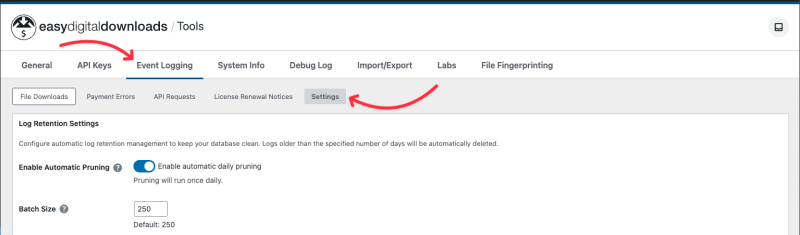
- Navigate to Downloads > Tools in your WordPress admin dashboard.
- Click the Event Logging page.
- Click the Settings tab.
Understanding Log Types
Easy Digital Downloads tracks various store events by log type, with each type serving a different purpose in your store operations. Below are the default log types included with Easy Digital Downloads, though extensions may register additional log types as well.
File Downloads
Default Retention: 90 days
File download logs track every time a customer downloads a purchased file. These logs include the customer, product, file downloaded, IP address, and timestamp.
How you might use this data:
You can review download logs when customers report issues accessing their files, verify that a customer received their download, or track download patterns for your products. These logs can also serve as evidence for payment disputes and chargebacks by proving that a customer successfully downloaded purchased files. Several extensions use this data to provide customer-facing download history pages, enforce download limits, and generate licensing reports. If you regularly reference download history beyond a few months, need evidence for disputes, or use extensions like Software Licensing, All Access, Download Pages, or Recurring Payments, you may want to keep these logs longer.
Payment Errors
Default Retention: 30 days
Payment error logs capture failed payment attempts, including gateway error messages, transaction IDs, and failure reasons.
How you might use this data:
You can review payment errors when troubleshooting checkout issues, identifying patterns in failed transactions, or working with your payment gateway to resolve problems. Most store owners find that recent error logs (within the last 30-60 days) are sufficient for troubleshooting, as older errors have typically already been investigated and resolved.
API Requests
Default Retention: 60 days
API request logs record all requests made to your store’s REST API, including the endpoint, request method, response code, and user.
How you might use this data:
You can review API logs when debugging integrations with third-party services, monitoring API usage patterns, or troubleshooting connection issues. If you actively develop or maintain custom integrations, or if you need to audit API access for security purposes, keeping longer retention periods may be helpful.
Email Logs
Default Retention: 30 days
Email logs track all emails sent by Easy Digital Downloads, including purchase receipts, download links, and administrative notifications.
How you might use this data:
You can review email logs when a customer reports not receiving their purchase receipt or download link, troubleshoot email delivery issues, or verify that administrative notifications were sent. Most customer support inquiries about missing emails involve recent purchases, so shorter retention periods typically provide the information you need.
Configuring Log Retention
Enabling Automatic Pruning

The Enable Automatic Pruning toggle controls whether logs are automatically removed on a daily schedule. When enabled, Easy Digital Downloads will prune logs each day based on your configured retention periods.
To enable automatic pruning:
- Navigate to Downloads > Tools > Event Logging.
- Click the Settings tab.
- Toggle Enable Automatic Pruning to the on position.
The setting saves automatically when you toggle it.
Note: Enabling the global toggle doesn’t automatically enable all log types. You must also enable individual log types (see below).
Setting Batch Size
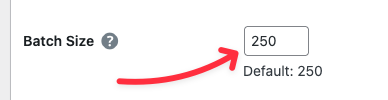
The Batch Size setting determines how many log entries are deleted in each processing cycle during pruning operations.
Available range: 50 to 1,000 entries per batch
Default: 250 entries per batch
How to choose a batch size:
- Smaller batches (50-150): Gentler on server resources, but pruning takes longer. Good for shared hosting or busy stores.
- Medium batches (200-500): Balanced approach suitable for most stores. The default of 250 works well in typical environments.
- Larger batches (600-1,000): Faster pruning, but more server load per cycle. Best for dedicated servers or VPS hosting with ample resources.
To adjust the batch size:
- Locate the Batch Size field in the Log Retention section.
- Enter a number between 50 and 1,000.
- Click or tab away from the field.
The setting saves automatically when you move away from the field.
Configuring Individual Log Types

Each log type has its own configuration panel with three components:
- Enable toggle – Turns automatic pruning on or off for this log type.
- Days to Keep – Sets how long logs are retained before deletion.
- Prune Now button – Manually prunes logs immediately.
Setting Retention Periods
To configure how long logs are kept:
- Navigate to the log type you want to configure.
- Enter the number of days in the Days to Keep field.
- Click or tab away from the field.
The setting saves automatically when you move away from the field.
Available range: 1 to 3,650 days (approximately 10 years)
Choosing retention periods:
Your retention period should balance your operational needs with database efficiency. Consider these factors:
- Customer support needs: How far back do customers typically inquire about orders?
- Extension requirements: Do your extensions need historical log data to function?
- Legal requirements: Do you have data retention obligations?
- Reporting needs: How much historical data do you analyze?
- Database performance: Is your database size affecting site performance?
There’s no one-size-fits-all answer. Store owners commonly keep file download logs longer (60-180 days) to support customer download pages and licensing reports, while keeping payment errors and email logs shorter (30-60 days) since they’re primarily used for recent troubleshooting.
Enabling Automatic Pruning for Log Types
Even with the global Enable Automatic Pruning toggle enabled, you must enable automatic pruning for each log type individually.
To enable automatic pruning for a log type:
- Ensure the global Enable Automatic Pruning toggle is enabled.
- Find the log type you want to automatically prune.
- Toggle its individual enable switch to the on position.
- Set your desired Days to Keep value (if different from the default).
Settings save automatically when you toggle or move away from input fields.
To disable automatic pruning for a specific log type while keeping others enabled:
- Find the log type you want to exclude.
- Toggle its individual enable switch to the off position.
The setting saves automatically, and this log type will no longer be automatically pruned, even though the global toggle remains enabled.
Automatic Pruning Schedule
When automatic pruning is enabled, Easy Digital Downloads runs pruning operations once per day during off-peak hours to minimize impact on your store’s performance.
How Automatic Pruning Works
Timing: Pruning operations run daily between 1:00 AM and 6:00 AM UTC. Each log type is processed at a staggered time, separated by 15 to 45 minutes.
Process: During each pruning operation:
- Easy Digital Downloads identifies logs older than the configured retention period.
- Logs are deleted in batches based on your configured batch size.
- Processing continues until all eligible logs are removed.
- The operation completes and waits until the next scheduled run.
What gets pruned: Only log types with both the global toggle and individual log type toggle enabled are automatically pruned. Disabled log types are skipped entirely.
Monitoring Automatic Pruning
Automatic pruning operations run silently in the background. You won’t receive notifications when pruning completes, but you can verify it’s working by:
- Checking your log counts before and after the scheduled pruning time
- Manually reviewing log entries to confirm old logs are being removed
- Using the manual Prune Now button to test your retention settings
Manual Pruning
Sometimes you need to prune logs immediately rather than waiting for the automatic schedule. The Prune Now button provides on-demand log cleanup.

When to Use Manual Pruning
Manual pruning is useful when you need to:
- Clean up logs immediately after changing retention settings
- Free database space before a major import or update
- Test your retention configuration without waiting for the automatic schedule
- Remove old logs before enabling automatic pruning
- Perform maintenance on a specific schedule outside the automatic timing
Using Manual Pruning
To manually prune logs for a specific log type:
- Navigate to Downloads > Tools > Event Logging.
- Click the Settings tab.
- Find the log type you want to prune.
- Click the Prune Now button for that log type.
- Wait for the operation to complete.
What happens: When you click Prune Now, Easy Digital Downloads immediately begins deleting logs older than the configured retention period for that log type. The operation processes logs in batches based on your configured batch size and continues until all eligible logs are removed.
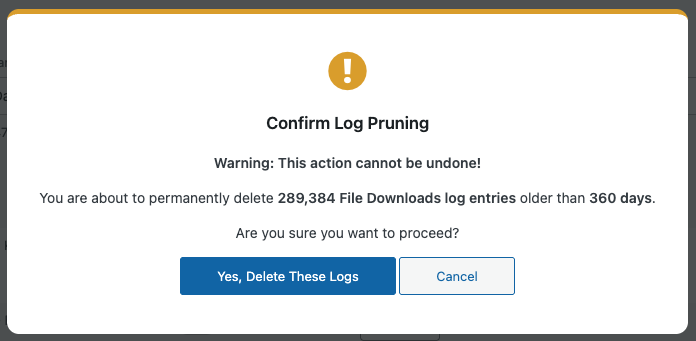
You’ll see progress feedback during the pruning operation. Once complete, you’ll see a confirmation message.
Important: Manual pruning respects your current retention period setting. If you want to prune more aggressively, adjust the Days to Keep setting before clicking Prune Now, then change it back afterward if needed.
Manual-Only Pruning Configuration
If you prefer to prune logs manually rather than automatically, you can configure Easy Digital Downloads for manual-only operation:
- Enable the global Enable Automatic Pruning toggle.
- Disable the individual toggle for each log type.
- Set your desired Days to Keep values.
Settings save automatically. Now you can use the Prune Now buttons to prune logs on your own schedule, and automatic daily pruning won’t occur.
Best Practices
Starting with Log Retention
If you’re configuring Log Retention Settings for the first time:
- Start with defaults – The default retention periods (90 days for file downloads, 30-60 days for other logs) work well for most stores.
- Enable gradually – Enable automatic pruning for one log type at a time to observe the impact.
- Monitor your database – Check database size before and after pruning to understand space savings.
- Test manually first – Use Prune Now to test your configuration before enabling automatic pruning.
Adjusting Retention Periods
When deciding how long to keep logs:
For File Downloads:
- Consider your longest subscription or license term if using Software Licensing or Recurring Payments
- Factor in your customer support window (how far back do customers contact you?)
- Balance customer download page history with database efficiency
For Payment Errors:
- Keep at least 30 days for recent troubleshooting
- Longer retention (60-90 days) helps identify recurring payment gateway issues
For API Requests:
- Match your debugging and monitoring needs
- Consider integration testing cycles and developer access patterns
For Email Logs:
- Keep at least 30 days to support customer “I didn’t receive my email” inquiries
- Longer retention is rarely necessary unless you have specific compliance requirements
Optimizing Batch Size
Your ideal batch size depends on your hosting environment:
Shared Hosting:
- The default 250 entries per batch works well for most shared hosting environments
- If you experience performance issues during pruning, lower the batch size to 100-150
- Monitor server load during pruning times and adjust as needed
Managed, VPS, or Dedicated Hosting:
- Start with the default 250 entries per batch
- Increase to 500-750 if you have large log volumes and good server resources
- Monitor performance and adjust upward for better efficiency
High-Traffic or Enterprise:
- Use 500-1,000 entries per batch for faster pruning
- Monitor database performance during pruning operations
- Consider scheduling manual pruning during maintenance windows for extremely large log volumes
Extension Compatibility
If you use extensions that rely on log data:
Software Licensing:
- File download logs support download limit enforcement and customer download history
- Consider matching retention to your typical license renewal cycle
- Minimum recommended: 90 days
All Access:
- Download logs track file access across multiple products
- Longer retention provides better customer download history
- If you use All Access with Commissions, file download logs are required to determine commission amounts for each Pass billing period
- Minimum recommended: 90 days
Download Pages:
- Creates customer-specific download pages showing download history
- Shorter retention periods limit how far back customers can see
- Consider your customer support window when setting retention
Recurring Payments:
- Download logs associated with subscription products
- Match retention to your subscription billing cycles when possible
- Minimum recommended: 90 days
Troubleshooting
Automatic Pruning Not Running
If logs aren’t being automatically pruned:
- Verify the global Enable Automatic Pruning toggle is enabled.
- Check that the individual log type toggle is enabled.
- Confirm your settings have saved (settings save automatically when you toggle or move away from fields).
- Review your WordPress cron status (automatic pruning uses WordPress cron).
- Check if you have a caching plugin that might affect cron execution.
Testing the schedule: Use the Prune Now button to verify your retention settings are correct. If manual pruning works but automatic pruning doesn’t, the issue is likely related to WordPress cron rather than your Log Retention configuration.
Performance Issues During Pruning
If your site slows down during pruning:
- Reduce your batch size to process fewer logs per cycle.
- Check your server resources during pruning times (1-6 AM UTC).
- Consider using manual pruning during scheduled maintenance windows instead of automatic pruning.
- Review your database indexing (well-indexed log tables prune more efficiently).
Too Much Data Being Deleted
If you’re losing logs you wanted to keep:
- Increase the Days to Keep setting for affected log types.
- Review when the last automatic pruning occurred (it runs daily).
- Use longer retention periods if you need historical data for reporting.
- Consider disabling automatic pruning for specific log types you want to keep indefinitely.
Not Enough Data Being Deleted
If pruning isn’t freeing enough database space:
- Decrease the Days to Keep setting to prune more aggressively.
- Verify logs older than your retention period actually exist (check log dates).
- Use Prune Now to immediately process all eligible logs.
- Check if your database needs optimization after large deletions (consult your hosting provider).
Frequently Asked Questions
Do I lose customer download access if I prune file download logs?
No. Log entries record historical downloads that have already occurred. Pruning these logs doesn’t affect customer download permissions or their ability to download files in the future. Customers can still download their purchased files regardless of log retention settings.
However, download logs do provide historical context that some extensions use for reporting and customer-facing features. See the Extension Compatibility section above for details.
Can I recover logs after they’re pruned?
No. Pruning permanently deletes log entries from your database. Make sure your retention periods are appropriate before enabling automatic pruning. If you’re unsure, start with longer retention periods and gradually decrease them.
How much database space will pruning save?
Individual log entries don’t typically take up much space, but the actual space savings can vary based on your MySQL configuration, database indexes, and table overhead. High-traffic stores with many downloads, frequent API usage, or extensive email logs will see more significant space savings. Low-traffic stores may see minimal impact.
Results may vary depending on your hosting environment’s database configuration. To estimate potential savings for your store, review your log counts before pruning, then compare database size before and after your first pruning operation.
Does pruning affect site performance?
Pruning operations are designed to have minimal impact on site performance. Processing occurs in small batches during off-peak hours (1-6 AM UTC), and each log type is staggered to spread the load.
If you notice performance impacts, reduce your batch size to process fewer logs per cycle.
Can I set different retention periods for different file downloads?
No. Log retention settings apply to all logs of that type. You can’t configure different retention periods for specific products, customers, or other criteria. All file download logs follow the same retention period.
What happens if I disable automatic pruning after enabling it?
Disabling automatic pruning (either globally or for individual log types) stops future scheduled pruning operations. It doesn’t restore previously deleted logs. Your existing logs will remain in the database at their current state until you either re-enable automatic pruning or use manual pruning.
Should I prune logs before backing up my database?
This depends on your backup strategy. If database size is a concern for your backups, pruning before backup can reduce backup file size and storage costs. However, if you want complete historical records in your backups, keep logs until after backup completion.
Many store owners prune logs after backups complete to ensure historical data is preserved in backup archives.
Summary
Log Retention Settings give you flexible control over your Easy Digital Downloads log data. By configuring appropriate retention periods, enabling automatic pruning, and optimizing batch sizes for your hosting environment, you can maintain a lean, efficient database while preserving the log data you need for operations, customer support, and reporting.
Start with the default settings, adjust based on your store’s specific needs, and monitor the results to find the configuration that works best for your store.



