

De Gravity Forms Checkout extensie voor Easy Digital Downloads stelt u in staat om aankoopformulieren voor al uw producten te maken via Gravity Forms.
Installatie
Nadat u de Gravity Forms Checkout extensie heeft geïnstalleerd en geactiveerd, zijn er geen verdere installatiestappen nodig – de extensie is klaar voor gebruik.
Opmerking: Deze instructies vereisen deGravity Forms Checkoutextensie enGravity Forms.
Inhoudsopgave
Verbinden met EDD Download
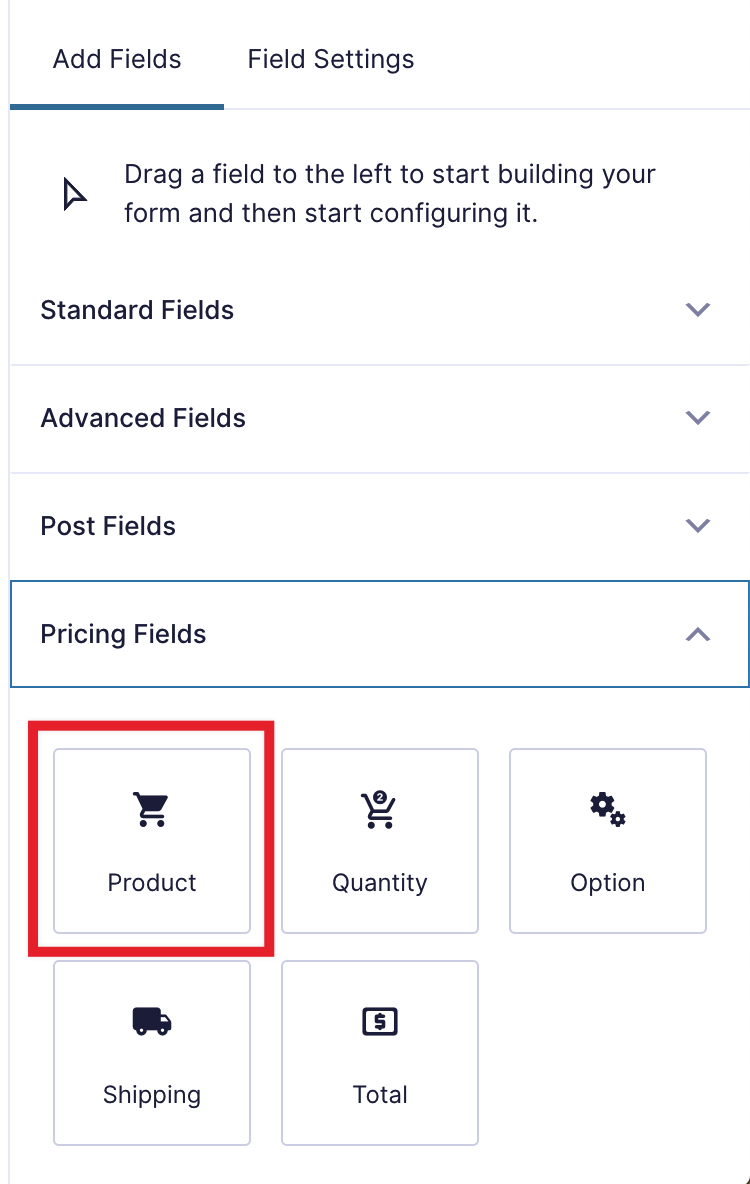
Voeg in de Gravity Forms formuliereditor een Productveld toe aan uw formulier.
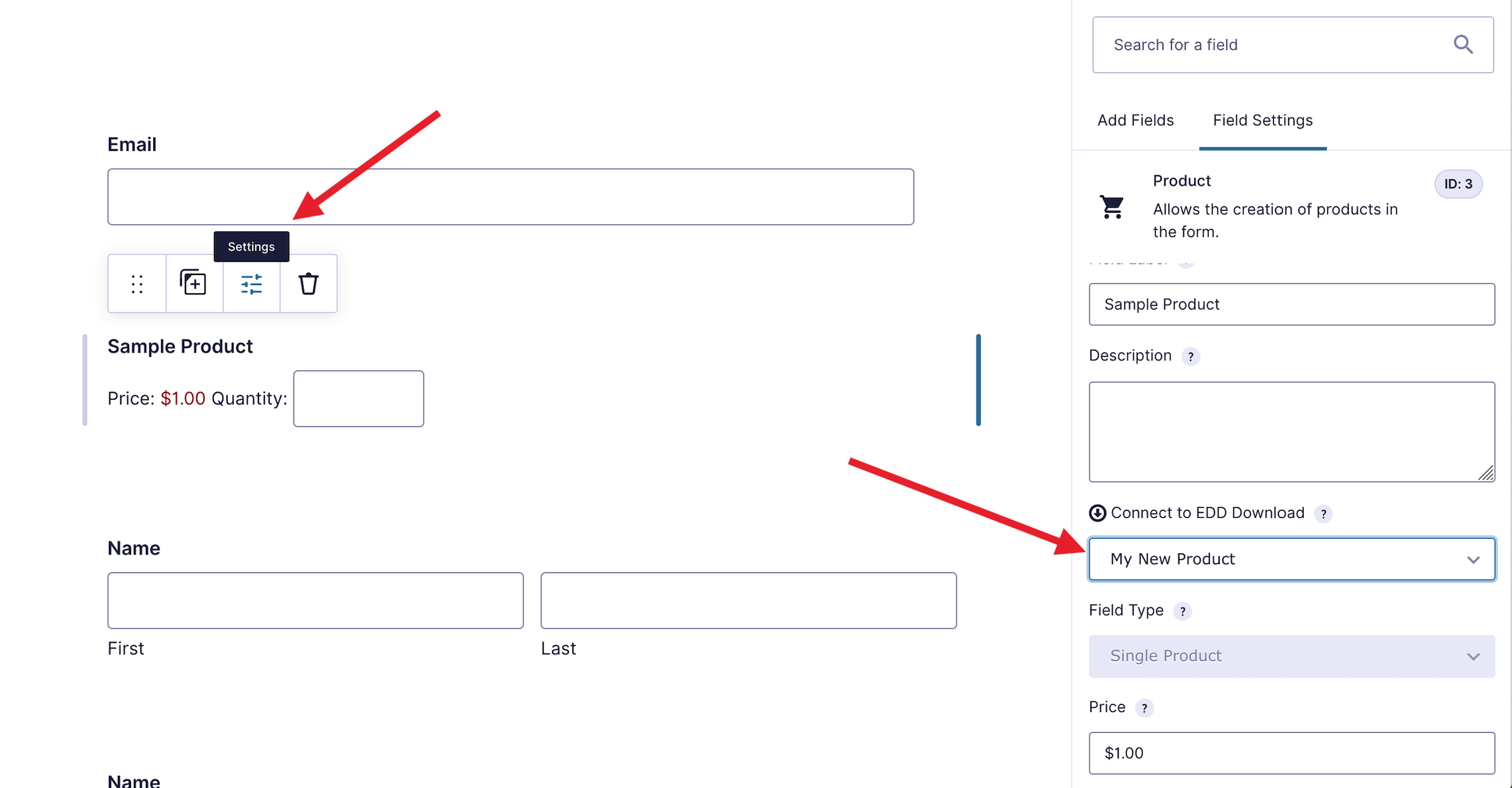
Bewerk het Productveld en geef het een naam die u aan gebruikers wilt tonen. In het onderstaande voorbeeld heeft het product de naam "Productnaam" gekregen.
Dit kan gedaan worden door met de muis over het productveld te gaan en op de knop "Instellingen" te klikken.
Er zal een dropdownveld verschijnen onder de tekst "Verbinden met EDD Download." Selecteer het juiste EDD-product uit de lijst. Als het product variaties heeft, ziet u een bericht dat er variaties zijn (die aanvullende instellingen vereisen). Instructies voor variabele producten kunnen hieronder worden gezien.
Sla nu het formulier op en u bent klaar!
EDD Download verbinden met Variabele Prijzen
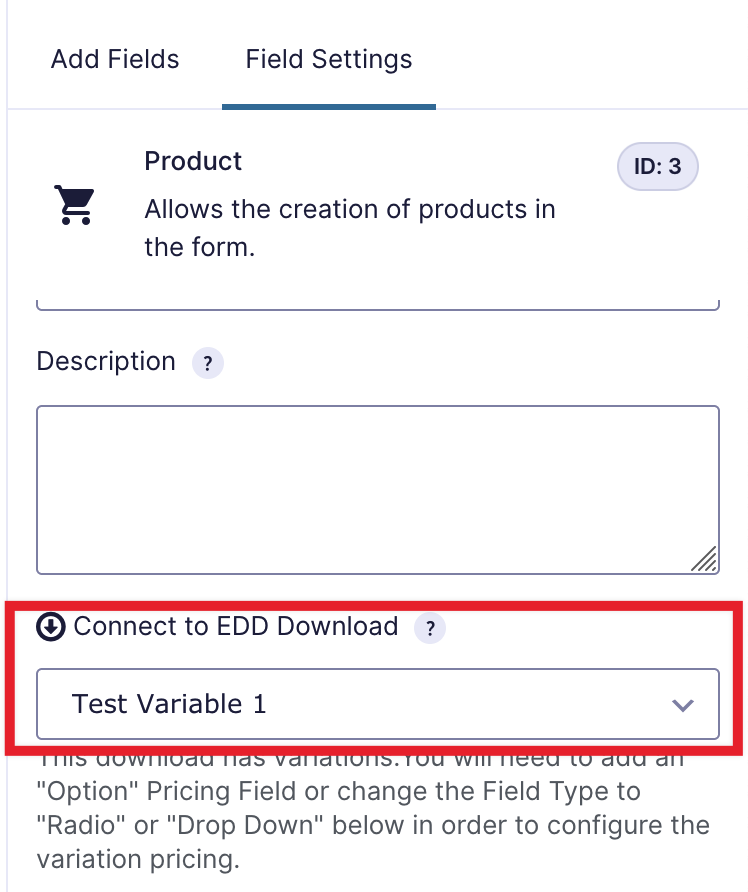
Bij het verbinden van een product met Variabele Prijzen ziet u een extra bericht onder de dropdown "Verbinden met EDD Download" waarin staat dat de download variaties heeft.
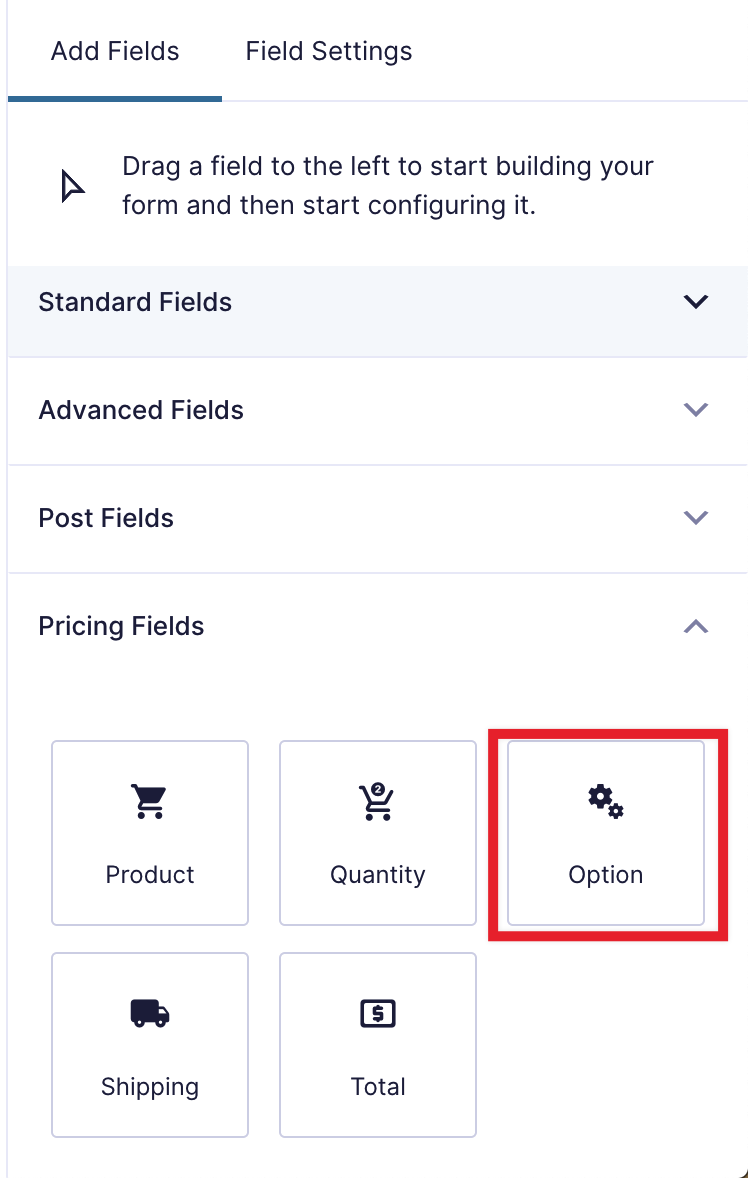
Bij het verbinden van een Download met Variabele Prijzen moet u ook een "Optie"-veld toevoegen aan het formulier.
Zodra het "Optie"-veld op zijn plaats staat, selecteert u een Download uit het dropdownmenu "Product Field Mapping".
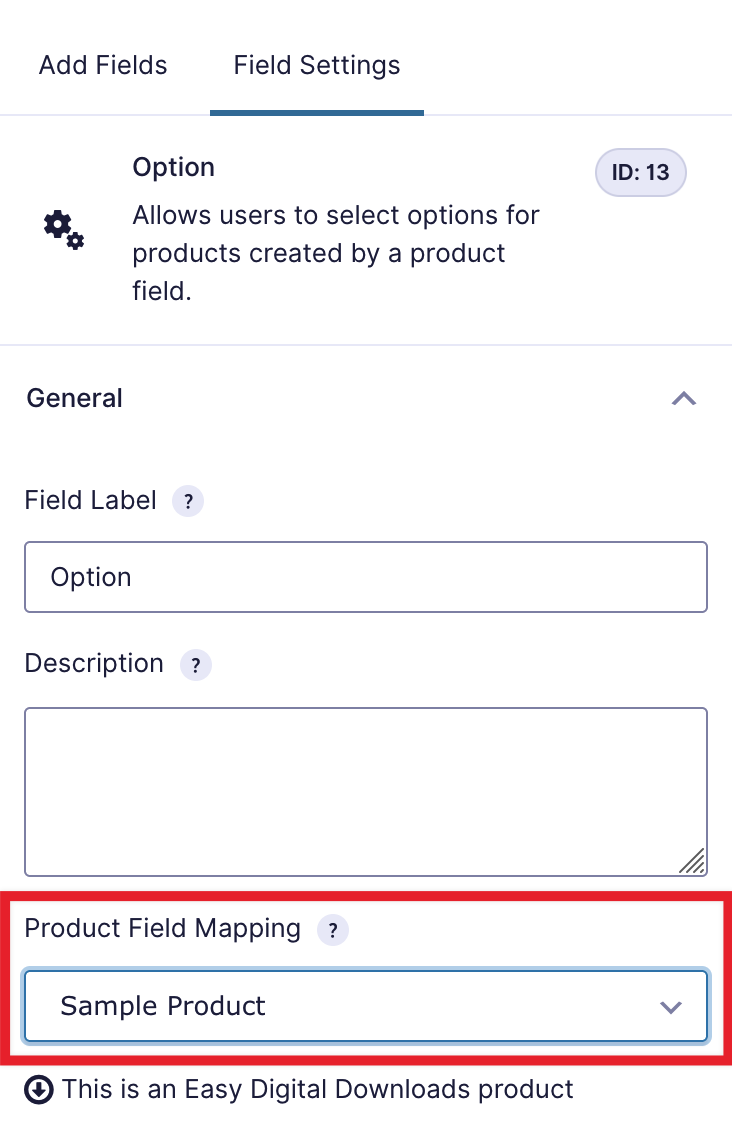
Als het product dat u koos variaties heeft, verschijnt er een knop "Laad EDD Opties & Prijzen voor dit Product":
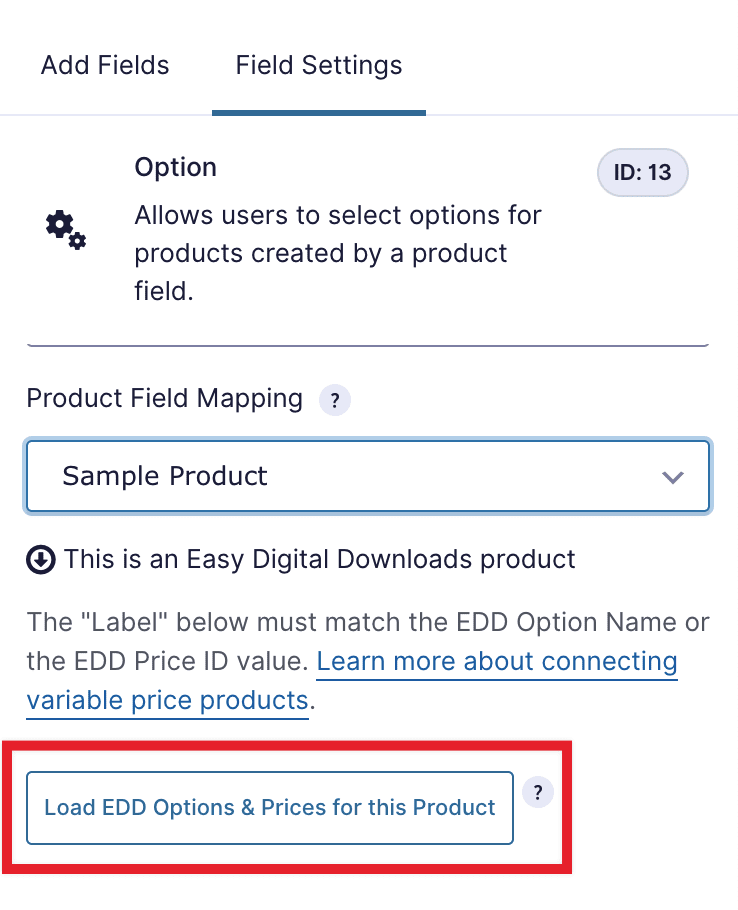
Door op de knop "Laad EDD Opties..." te klikken, worden de prijsvariaties van het geselecteerde Easy Digital Downloads product geladen:
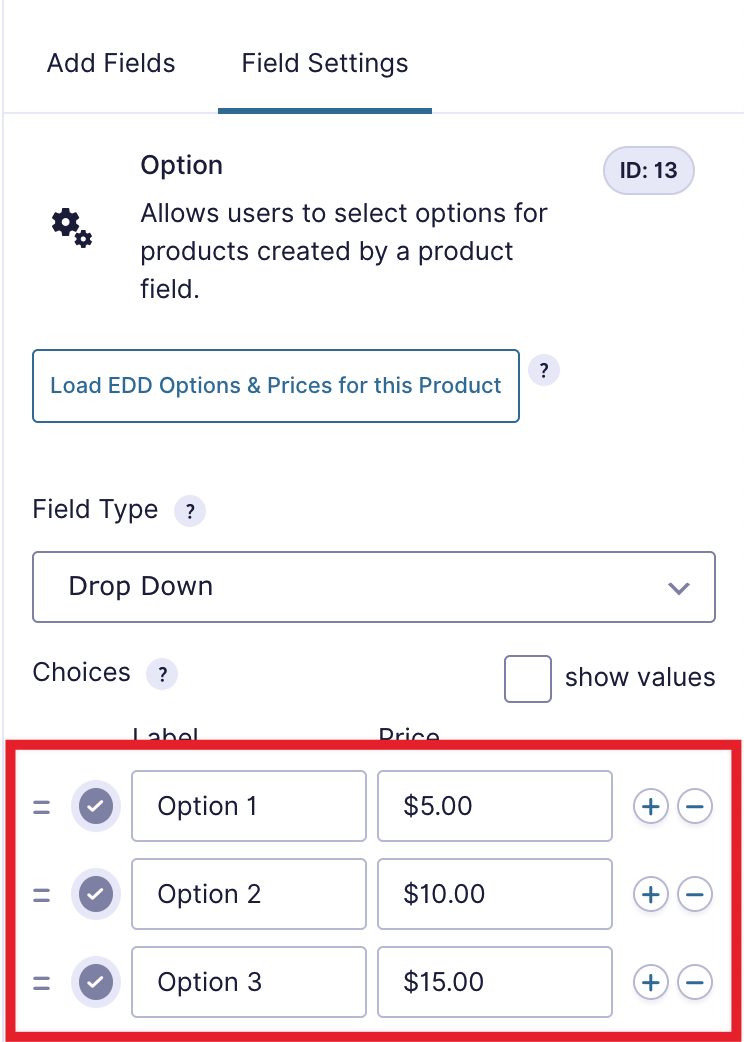
Sla nu het formulier op en u bent klaar.
Geavanceerd: Hoe Gravity Forms Checkout Verbindt met EDD Variaties
Ofwel de Naam van de productvariatie of de Prijs-ID moet hetzelfde zijn als in Easy Digital Downloads.
Verbinden met Variatienaam
De eenvoudigste manier om de Gravity Forms optiekeuzes te verbinden met Easy Digital Downloads prijsvariaties is door ze dezelfde naam te geven. De EDD-namen worden automatisch geladen wanneer u op de knop "Laad EDD Opties & Prijzen voor dit Product" klikt.
Verbinden met Variatie Prijs-ID
Wanneer u variabele prijzen inschakelt in Easy Digital Downloads, gebruik dan de naam van de prijsvariaties.
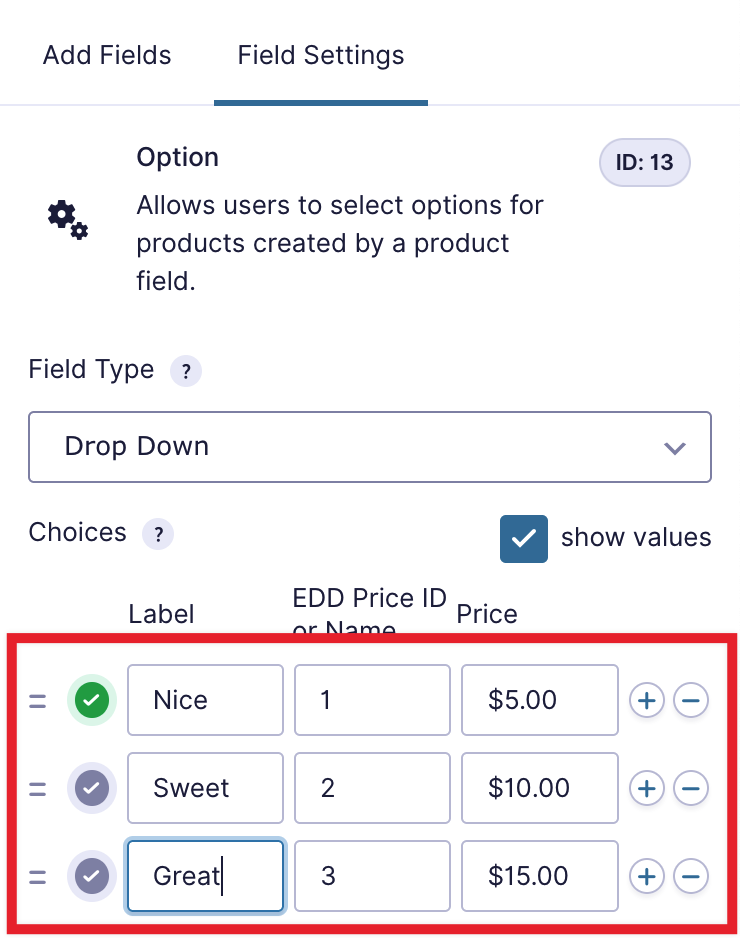
Als u in plaats daarvan een andere naam wilt gebruiken, gebruik dan het getal dat de positie van de optie vertegenwoordigt, beginnend met één. In het onderstaande voorbeeld zou de variatie "Goed" 1 zijn, "Beter" zou 2 zijn, en "Best" zou 3 zijn.
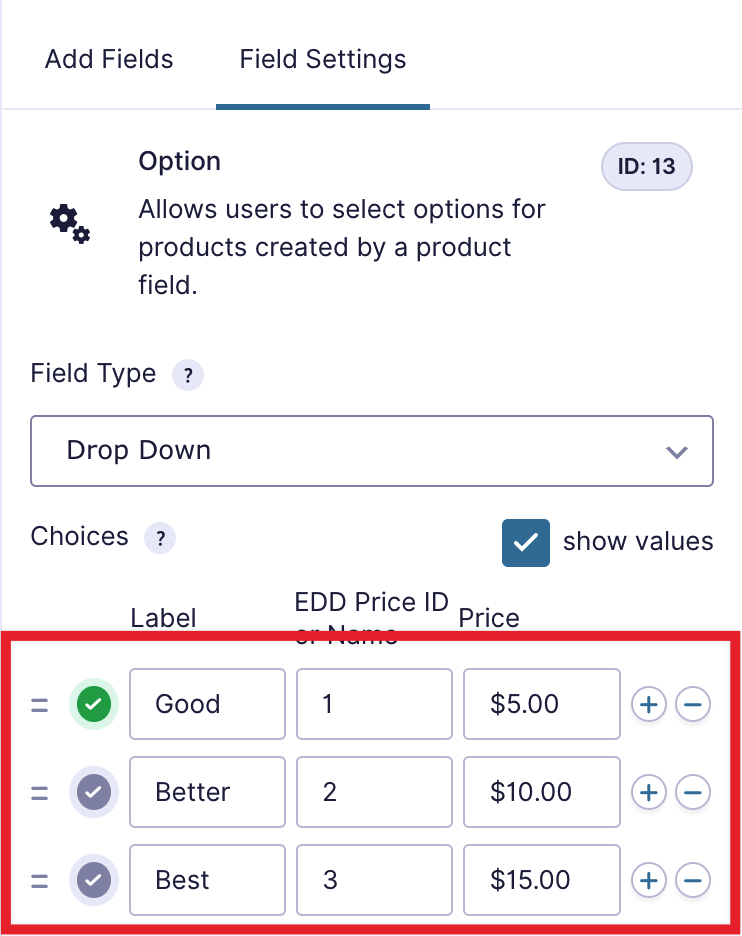
U kunt in de volgende schermafbeelding zien dat de ingestelde waarden 1, 2 en 3 zijn. ook al zijn de namen anders, het zal worden verbonden omdat die nummers overeenkomen met de EDD-variatieposities.
Veelgestelde vragen
Waarom worden aankopen gemarkeerd als "In afwachting"?
Er zijn een paar redenen waarom een Gravity Forms-aankoop in Easy Digital Downloads als "In afwachting" wordt gemarkeerd.
Het Gravity Forms-formulier bevatte geen betaalmethoden.
De status wordt ingesteld op "In afwachting" als:
- Het totaalbedrag van de bestelling is groter dan nul
- Het gekoppelde Gravity Forms-formulier heeft geen geconfigureerde betaalmethode; er wordt geen betaling gedaan op het moment van indiening
Als dit het geval is, moet u de standaard betalingsstatus wijzigen naar "Voltooid".
Gravity Forms heeft nog niet "teruggehoord" van de betalingsverwerker
Het kan enige tijd duren voordat betalingsverwerkers een website ervan op de hoogte stellen dat een betaling is geaccepteerd of geweigerd. Gedurende deze tijd wordt de aankoop gemarkeerd als "In afwachting" totdat de melding binnenkomt.
Ondersteunt Gravity Forms Checkout abonnementbetalingen?
Nee, op dit moment worden abonnementbetalingen niet ondersteund met Gravity Forms Checkout. Als deze functie belangrijk voor u is, laat het ons dan weten.
Hoe de klantvelden worden gedefinieerd die moeten worden gebruikt
Als u een formulier hebt met meerdere naam-, e-mail- of adresvelden, wilt u misschien wijzigen welke velden voor de klant worden gebruikt.
In versie 2.0 ziet u, als uw formulier meerdere velden van dit type heeft, een nieuwe instelling voor het formulier "EDD Velden".
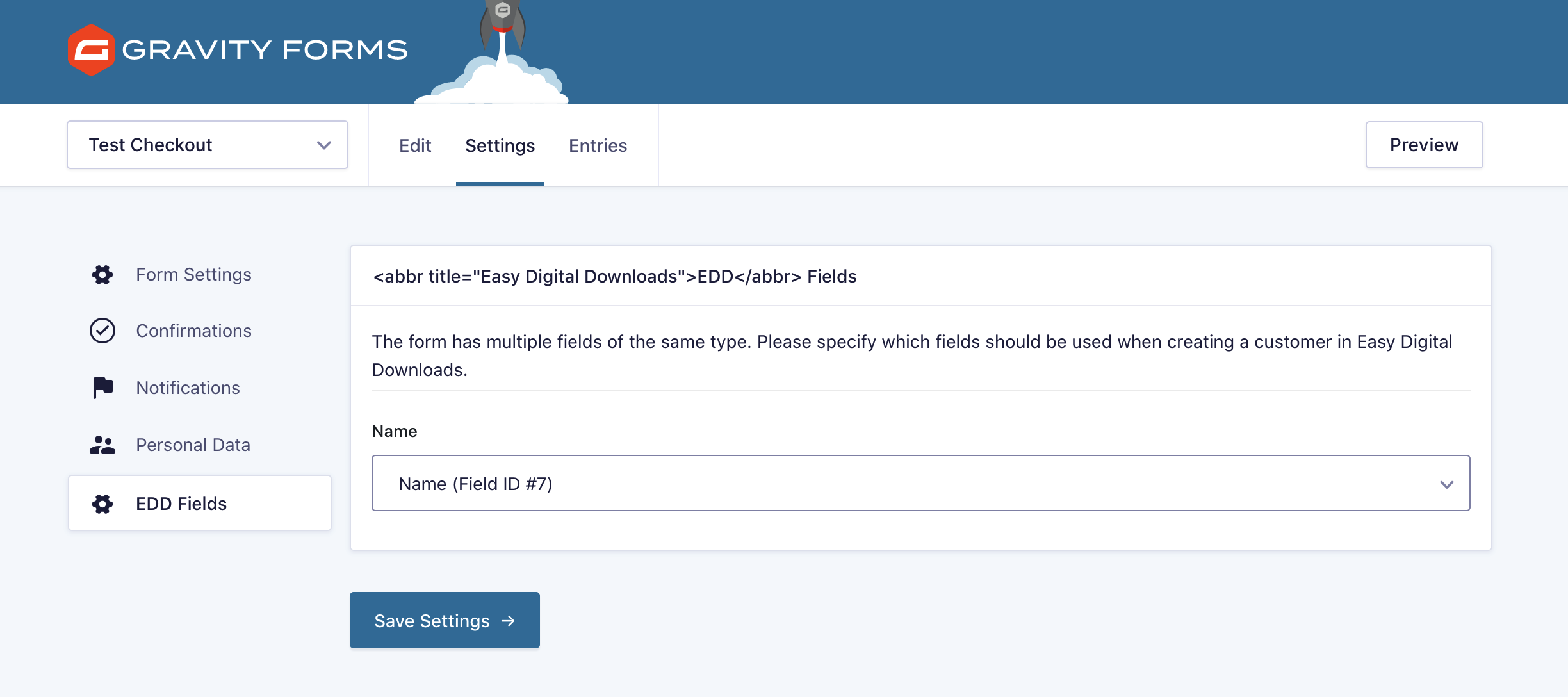
Kies op de instellingenpagina "EDD Velden" het veld dat voor de EDD-klant zal worden gebruikt. Standaard wordt het eerste veld van dat type gebruikt.
Hoe door te verwijzen naar de EDD-betalingsbevestigingspagina
Als u gebruikers een Easy Digital Downloads-ontvangstbewijs wilt laten zien in plaats van een Gravity Forms-ontvangstbewijs, kunt u dat doen door de Gravity Forms-formulierbevestigingen bij te werken. Hier is hoe.
Navigeer in het formulier naar Instellingen → Bevestigingen.
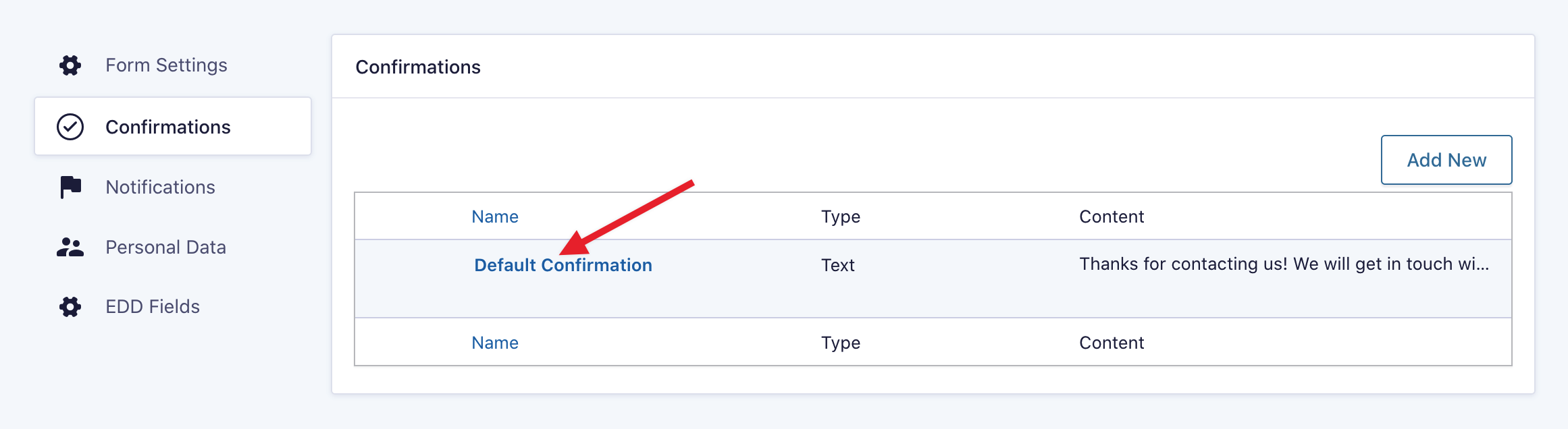
Beweeg de muis over "Standaardbevestiging" en klik op de link "Bewerken".
Wijzig het "Bevestigingstype" naar "Doorverwijzen". Zodra dit is ingesteld op doorverwijzen, werkt u de instelling "Doorverwijzen URL" bij naar de URL van de aankoopbevestigingspagina van Easy Digital Downloads.
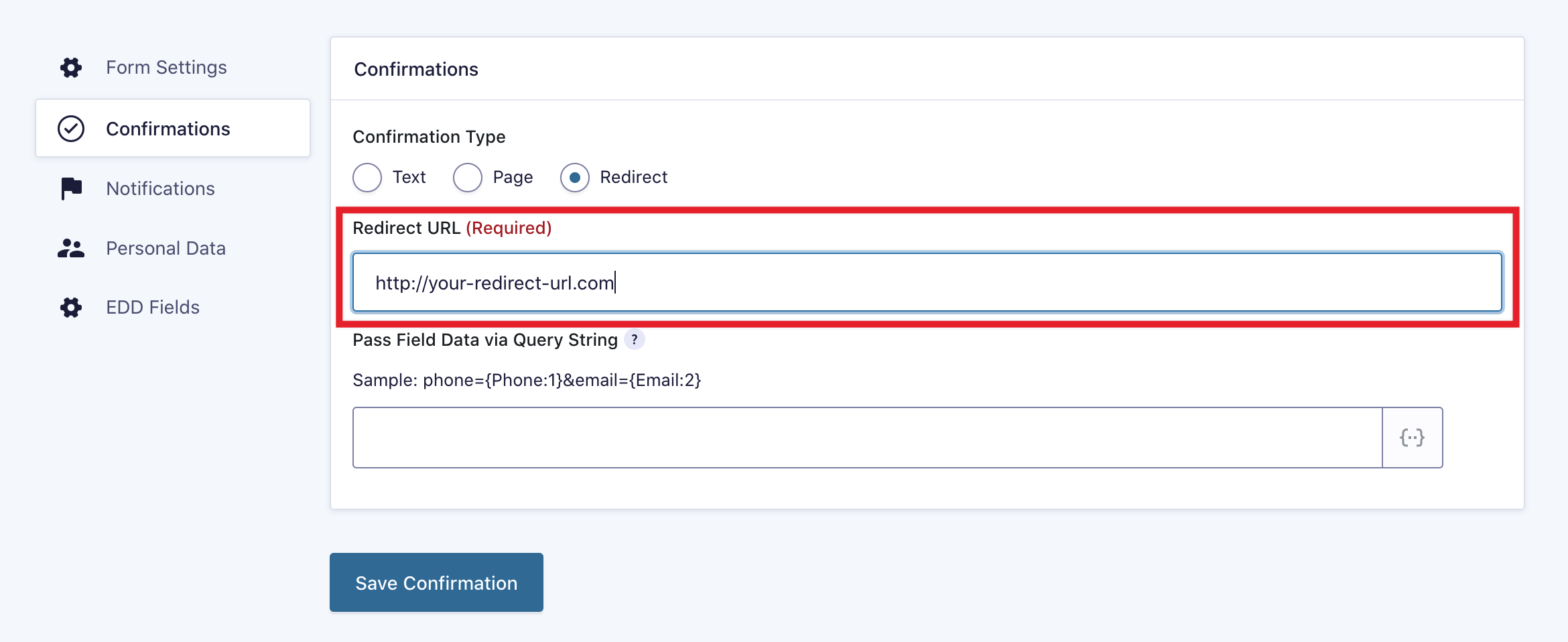
Zodra u de doorverwijzings-URL hebt ingesteld, klikt u op "Bevestiging opslaan" en nieuwe aankopen worden nu doorgestuurd naar de aankoopbevestigingspagina van Easy Digital Downloads. Gebruikers zien een ontvangstbewijs gegenereerd door Easy Digital Downloads.
Wijzigingen
Hoe de standaard betalingsstatus te wijzigen
De standaardstatus van nieuwe bestellingen voordat betaling is toegepast, is "In afwachting". Als u standaard betalingen wilt accepteren, gebruik dan de onderstaande code:
<?php
add_filter( 'edd_gf_default_status', 'modify_edd_gf_default_status', 10, 2 );

/**
 * Modify the default status when there's no status match.
 *
 * @param string $default Default payment status for EDD ("pending" or "publish") (Default: "pending")
 * @param string $status The status of the Gravity Forms entry, set in $entry['payment_status']
 */
function modify_edd_gf_default_status( $default = 'pending', $status = '' ) {
	// Set the default status to be Completed/Paid
	return 'publish';
}
Hoe basis product downloadlinks op te nemen bij aankoop van een product met prijsvariaties
Vóór versie 1.3, als een klant een product met variabele prijzen kocht en het basisproduct ook een download had die eraan was gekoppeld, ontvingen ze een link naar het basisproduct en het variabele product dat ze kochten. In versie 1.3 werd dit gewijzigd zodat klanten alleen een link kregen naar de optie die ze kochten.
Als u deze functionaliteit wilt herstellen, voegt u deze code toe aan het functions.php-bestand van uw thema:
<?php
add_filter('edd_gf_variable_products_include_base', '__return_true');



