

Cart Recommendations (Pro)
Cart Recommendations is a powerful, Pro-exclusive feature that uses our custom AI-powered recommendation engine to automatically suggest relevant products to your customers. When enabled, smart product recommendations appear in the Cart Preview panel, helping customers discover complementary products they might be interested in based on what’s already in their cart.
This feature requires an active Easy Digital Downloads Pro license.
Why Use Cart Recommendations?
Cart Recommendations help you:
- Increase Average Order Value: Customers discover additional products they might need or want.
- Save Time: No need to manually configure related products or cross-sells.
- Provide Better Service: Help customers find relevant products they might have missed.
- Stay Current: Recommendations automatically update as you add, change, or remove products.
The AI-powered recommendation engine analyzes your entire product catalog to understand relationships between your products, then suggests the most relevant items to each customer based on their current cart contents.
How It Works
The Cart Recommendations system uses EDD’s sophisticated AI algorithm to create intelligent product suggestions:
- Learning Your Products: When you enable recommendations, EDD analyzes your product catalog, including titles, descriptions, categories, pricing, and other attributes to understand how your products relate to each other.
- Processing Securely: All analysis happens in an isolated and secure process (not on your website), so there’s zero impact on your site’s performance.
- Generating Recommendations: When a customer adds items to their cart, the system identifies up to 3 complementary products that pair well with what they’re purchasing.
- Displaying Suggestions: Recommendations appear in the Cart Preview panel under a “You might also like” section with product images, names, and prices.
- Continuous Improvement: As you update your product catalog, the AI automatically re-learns and adjusts recommendations to stay current.
Requirements
Before you can use Cart Recommendations:
- Active Pro License: You must have an Easy Digital Downloads Pro license that is currently active.
- Cart Preview Enabled: Cart Preview must be turned on (recommendations appear within the Cart Preview panel).
Enabling Cart Recommendations
To enable Cart Recommendations on your store:
- In your WordPress admin, navigate to Downloads » Settings » Payments.
- Click on the Cart tab.
- Ensure Cart Preview is enabled (required).
- Select the toggle to enable Cart Recommendations.
- Click Save Changes.
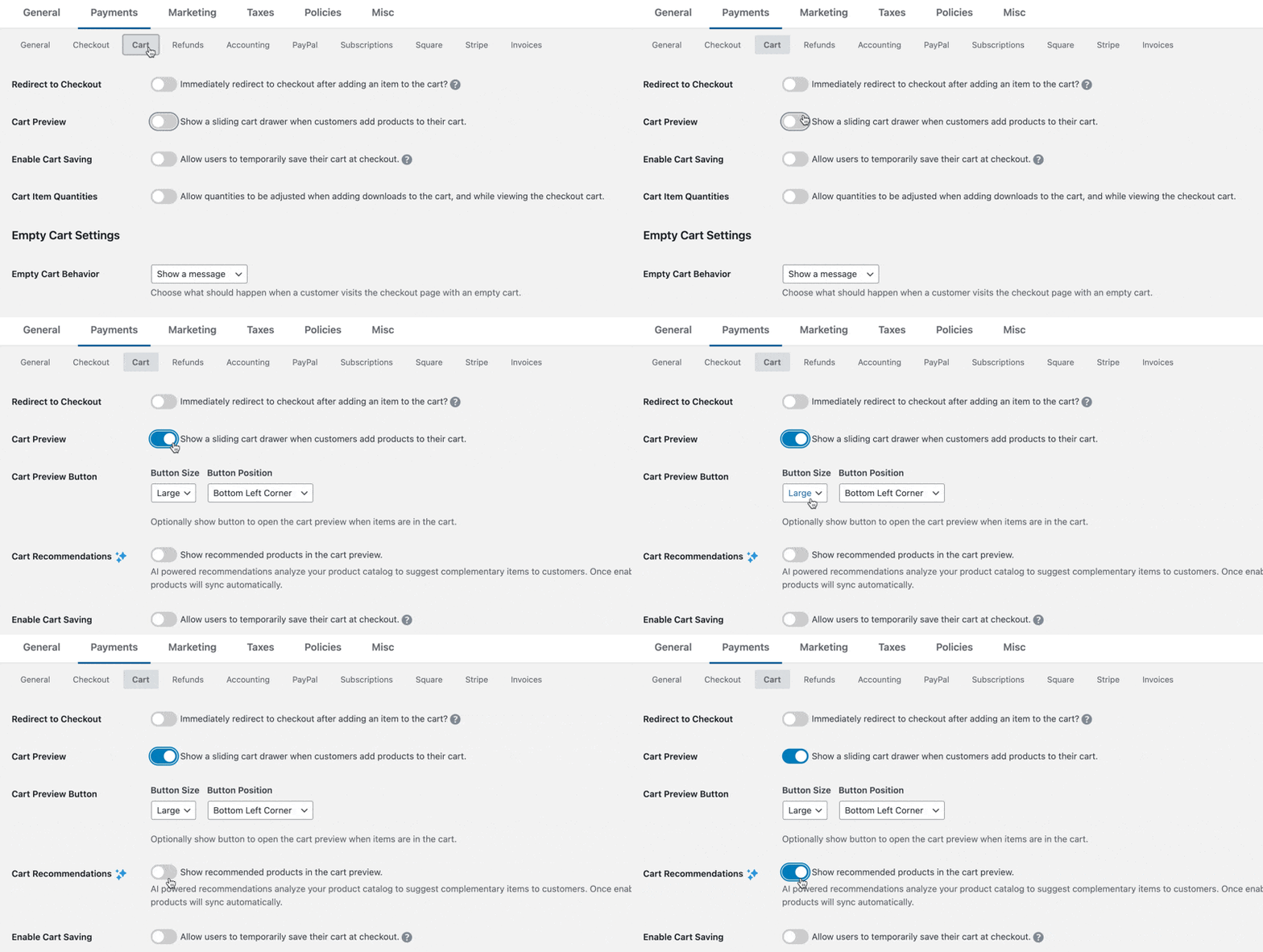
What happens next:
When you first enable Cart Recommendations, EDD automatically begins syncing your product catalog to the recommendation service. This initial sync typically takes just a few minutes, depending on how many products you have. You don’t need to do anything – just wait for the sync to complete.
Once syncing is complete, recommendations will automatically appear in the Cart Preview panel when customers add items to their cart.
Understanding the AI Recommendation Algorithm
EDD’s recommendation engine is designed to provide intelligent, relevant suggestions by analyzing multiple aspects of your products:
What the algorithm considers:
- Product Content: Titles, descriptions, and other text content to understand what each product is about.
- Categories and Tags: How you’ve organized and categorized your products.
- Pricing: Price ranges and tiers to suggest appropriately-priced items.
- Product Relationships: Natural connections between products in your catalog.
The algorithm identifies complementary products – items that logically pair well together or appeal to similar customer interests. For example, if you sell…
- WordPress themes, the AI might recommend compatible plugins.
- Online courses, it might suggest related courses or bonus materials.
- Sell music, it might recommend albums by the same artist or similar genres.
The result: Customers see recommendations that feel natural and helpful, not random or pushy.
Automatic Syncing
Cart Recommendations keeps your product data current through automatic syncing.
Initial Sync
When you first enable the feature, your entire product catalog is synchronized. This happens automatically in the background and typically completes within a few minutes.
Ongoing Updates
After the initial sync, your product data stays current through:
- Individual Product Updates: Whenever you update a product (change the description, price, categories, etc.), that product automatically re-syncs to the recommendation service.
- Weekly Full Refresh: Your entire catalog refreshes once per week to ensure all recommendations stay current and accurate.
- Manual Refresh: You can trigger a manual refresh at any time from the settings page (see below).
You can see when the next automatic refresh is scheduled in the Cart Recommendations settings section.
Managing Recommendations
Viewing Sync Status
To check the status of your recommendations:
- Navigate to Downloads » Settings » Payments » Cart.
- Scroll to the Cart Recommendations section.
- Look for the status information showing when the next refresh is scheduled.

Manually Refreshing Recommendations
If you’ve made significant changes to your product catalog and want to update recommendations immediately:
- Navigate to Downloads » Settings » Payments » Cart.
- Find the Cart Recommendations section.
- Click the Refresh now button (or similar – exact wording may vary).
- Wait a few minutes for the refresh to complete.

When to manually refresh:
- After adding multiple new products
- After reorganizing categories or product structure
- After major pricing changes
- If recommendations seem outdated
Disabling and Deleting Data
To disable Cart Recommendations:
- Navigate to Downloads » Settings » Payments » Cart.
- Deselect the Cart Recommendations toggle.
- Click Save Changes.
Note: Turning off this toggle disables recommendations for customers but keeps your synced data on EDD’s servers. If you re-enable the feature later, recommendations will work immediately without needing to resync.

To permanently delete your recommendation data:
- Navigate to Downloads » Settings » Payments » Cart.
- Turn off the Cart Recommendations toggle.
- Select the toggle to confirm you want to Disconnect Remote Recommendations and have your product recommendation data deleted.
- Click Save Changes.
This permanently removes your product data from the recommendation service. If you enable recommendations again in the future, a full and complete sync will need to be performed before recommendations will be available.
Privacy and Exclusions
Cart Recommendations respects customer privacy and automatically excludes certain products. At no time is any customer data or PII explicitly sent to the recommendation service for consideration. Our recommendation service only uses product information in the process of determining which products to recommend.
Automatic Exclusions
The following products are automatically excluded from recommendations:
- Products Already in Cart: Items the customer has already added won’t be recommended again.
- Products Already Owned: If a customer is logged in, products they’ve already purchased are excluded from their recommendations.
- Hidden Products: If you’re using the Hide Downloads extension, hidden products are excluded from recommendations.
These exclusions happen automatically – you don’t need to configure anything.
How Recommendations Appear to Customers
When a customer adds items to their cart and opens the Cart Preview:
1. They see their cart items at the top of the panel.
2. Below the cart items, a “You might also like” section appears (if recommendations are available).

3. Up to 3 recommended products are shown with:
- Product thumbnail image
- Product name
- Product price
4. Customers can then click:
- The product name or image to view the full product page.
- An Add to Cart button to add the recommended product directly to their cart.
Note: Recommendations only appear when the system has identified relevant products. If no suitable recommendations are available for a particular cart, the section simply doesn’t appear.
Best Practices
To get the most value from Cart Recommendations:
- Write Good Product Descriptions: The AI learns from your product content, so detailed, accurate descriptions help create better recommendations.
- Use Categories Thoughtfully: Organize products into logical categories and tags to help the AI understand relationships.
- Keep Pricing Consistent: Products with similar value or that target similar customer segments work well together in recommendations.
- Monitor and Adjust: Pay attention to which recommendations appear and consider updating product information if recommendations seem off-target.
- Be Patient: The system learns over time. If recommendations don’t seem perfect immediately, give it time to analyze your full catalog.
Frequently Asked Questions
How many recommendations will customers see?
Up to 3 recommended products appear in the Cart Preview panel. The exact number depends on how many relevant products the AI identifies for that specific cart.
Can I manually choose which products are recommended?
No. The AI automatically determines recommendations based on your product catalog. This ensures recommendations stay relevant and up-to-date without manual maintenance. If you need manual control over related products, consider using traditional cross-sell features instead.
Will this slow down my website?
No. All AI processing happens on our secure servers, not on your website. The recommendations are delivered quickly through a simple API call that has negligible impact on performance.
What happens if my Pro license expires?
If your Pro license expires, Cart Recommendations will automatically stop working. Your product data remains on the servers for a period of time in case you renew, but recommendations won’t appear to customers.
Can I see what recommendations are being shown?
The best way to see recommendations is to test your own store by adding products to your cart and viewing the Cart Preview. Recommendations are personalized based on cart contents, so they vary depending on what’s in the cart.
How often should I manually refresh?
Generally, you don’t need to. The automatic weekly refresh handles most needs. Only use manual refresh if you’ve made significant catalog changes and want to update recommendations immediately.
Will recommendations work for variable pricing or price options?
Yes! The AI considers the base product and its variations when generating recommendations.
What if I don’t want certain products to appear in recommendations?
Currently, all public products are eligible for recommendations except those already owned by logged-in customers. If you need to exclude specific products, consider using the Hide Downloads extension, as hidden products are automatically excluded.
Troubleshooting
Recommendations Not Appearing
If recommendations aren’t showing up:
- Verify Pro License: Ensure your Pro license is active in Downloads » Settings » General » Licenses.
- Check Cart Preview: Cart Preview must be enabled for recommendations to appear.
- Confirm Sync Completed: Check the settings page to ensure the initial sync has finished.
- Add Multiple Products: Some product combinations may not have recommendations; try adding different items.
- Wait for Processing: After first enabling, wait 5-10 minutes for initial sync.
Recommendations Seem Irrelevant
If recommendations don’t seem to match well:
- Review Product Descriptions: Ensure products have detailed, accurate descriptions.
- Check Categories: Verify products are categorized logically.
- Trigger a Refresh: Use the manual refresh option to resync your catalog.
- Allow Learning Time: The AI improves as it analyzes more data.
- Consider Your Catalog Size: Very small product catalogs may have fewer relevant matches.
Sync Not Completing
If the sync seems stuck:
- Check Internet Connection: Ensure your server can communicate with EDD’s API.
- Review Error Logs: Check WordPress debug logs for API errors.
- Verify License: Confirm your Pro license is active.
- Try Manual Refresh: Click the manual refresh button.
- Contact Support: If issues persist, contact EDD support with details.
Related Features
Cart Recommendations works alongside other EDD features:
- Cart Preview: Required for displaying recommendations.
- Hide Downloads Extension: Hidden products are excluded from recommendations.
- Variable Pricing: Recommendations consider products with multiple price points.



