

Ben je geïnteresseerd in het bouwen van een WordPress eCommerce website? Of je nu een nieuwe online winkel start vanuit je thuiskantoor of een gevestigde onderneming uitbreidt, WordPress is de krachtigste, meest kosteneffectieve oplossing die er is.
WordPress drijft meer dan 43% van alle websites aan. Hoewel velen het kennen als een blogplatform, is het ook een ongelooflijke motor voor eCommerce. Het mooie van WordPress is dat het elk type product aankan: fysieke goederen die je door het hele land verzendt, digitale downloads zoals e-books en software, abonnementen, en meer.
🚀 TL;DR: 7 Stappen om je Winkel te Bouwen
- Hosting & Domein Kiezen: Beveilig de thuisbasis van je site.
- WordPress Installeren: Stel de kernsoftware van je site in.
- Kies een eCommerce Plugin: Gebruik EDD (voor digitaal) of Woo (voor fysiek).
- Koppel een Betaalprovider: Stel Stripe of PayPal in om betalingen te accepteren.
- Voeg je Producten Toe: Upload je titels, beschrijvingen en prijzen.
- Ontwerp je Site: Kies een hoogwaardig eCommerce thema.
- Testen & Lancering: Voer een testtransactie uit en ga live.
In deze gids laat ik je precies zien hoe je je winkel operationeel krijgt.
- Waarom ik WordPress aanbeveel voor eCommerce
- Kosten van een WordPress eCommerce Website: Wat te Verwachten
- Hoe bouw je een WordPress eCommerce Website (Stap-voor-Stap)
- Beste WordPress Plugins om je Online Winkel te Laten Groeien
- Veelgestelde Vragen over het Bouwen van een WordPress eCommerce Site
- Is WordPress goed voor e-commerce in 2026?
- Wat is de beste manier om een WordPress e-commerce website te bouwen?
- Hoeveel kost het om een WordPress e-commerce website te bouwen?
- Kan ik een e-commerce website maken zonder te coderen?
- Hoe krijg ik verkeer naar mijn nieuwe WordPress winkel?
- Wat is het verschil tussen WordPress.com en WordPress.org voor e-commerce?
Waarom ik WordPress aanbeveel voor eCommerce
Andere oplossingen, zoals online marktplaatsen en SaaS-platforms, rekenen doorgaans hoge kosten. Bovendien zijn ze vaak beperkt als het gaat om aanpassingen en hoe u communiceert met uw klanten.
Zelf-gehoste WordPress.org sites geven u het hoogste niveau van controle en winstgevendheid. Omdat het open-source is, is de software gratis en staat het bekend om zijn eenvoudige interface die gemakkelijk te beheren is voor beginners.
- Eigendom: U bezit uw gegevens, uw klantenlijst en uw winkel.
- Flexibiliteit: Gebruik plugins om functionaliteit uit te breiden (betaalpoorten, e-mailmarketing en meer).
- SEO-Ready: WordPress is ontworpen met SEO in gedachten, zodat uw website direct geoptimaliseerd is voor zoekmachines.
- Community: Krijg toegang tot een oneindige hoeveelheid bronnen en tutorials voor probleemoplossing.
🔎 Lees meer over verkopen op uw eigen site versus marktplaatsen.
Kosten van een WordPress eCommerce Website: Wat te Verwachten
Voordat ik de stappen doorloop, laten we het hebben over de investering. Hoewel WordPress zelf gratis is, zijn er een paar essentiële kosten waarmee u rekening moet houden.
| Kosten | Beschrijving | Geschatte kosten |
|---|---|---|
| Hosting | Betrouwbare servers voor prestaties (bijv. Levamo). | €29-€299/maand |
| Domeinnaam | Uw unieke adres (bijv. .com, .net, .org). | €10 – €20/jaar |
| Thema | Premium thema's bieden betere aanpassing en snelheid. | €50 – €200 |
| Plugins | Tools voor SEO, beveiliging of marketing. | Gratis tot €100+ |
Over het algemeen kunt u verwachten tussen de €100 en €500 uit te geven voor de initiële installatie en €20 tot €100 per maand voor doorlopende kosten.
👉 Bekijk onze volledige kostenoverzicht voor e-commerce websites.
Hoe bouw je een WordPress eCommerce Website (Stap-voor-Stap)
Nu u een idee heeft van de kosten en waarom WordPress de beste keuze is, zal ik u door het daadwerkelijke bouwproces leiden.
Het is niet zo technisch als het lijkt. Als u deze stappen in volgorde volgt, heeft u een volledig functionerende winkel die sneller dan u denkt bestellingen kan accepteren.
Opmerking: Als u WordPress al hebt geïnstalleerd, ga dan verder naar Stap 3.
⚡ De Expert WordPress Winkel Stack
Als u haast heeft, hier is de essentiële set voor een hoogwaardige WordPress-winkel:
- WordPress Hosting: Levamo (Managed hosting gebouwd voor WordPress)
- Platform: WordPress.org (Self-hosted).
- Verkoopmotor: Easy Digital Downloads of WooCommerce.
- Betalingen: Stripe (ondersteunt creditcards, Apple Pay, Google Pay).
- Thema: GeneratePress (Snel en mobiel responsief).
- Totale installatietijd: Ongeveer 45-60 minuten.
Stap 1: Verkrijg je Hosting en Domein
Voordat u uw winkel kunt gaan ontwerpen, moet u twee dingen regelen: een webhostingpakket en een domeinnaam. Zie hosting als de fysieke ruimte waar de bestanden van uw winkel staan, en de domeinnaam als het adres van uw winkel (zoals www.uwwinkel.com).
Uw WordPress-host is de belangrijkste factor voor de snelheid en beveiliging van uw site. Aangezien u een e-commerce site bouwt, heeft u een host nodig die het extra gewicht van een winkelwagentje en beveiligde transacties aankan.
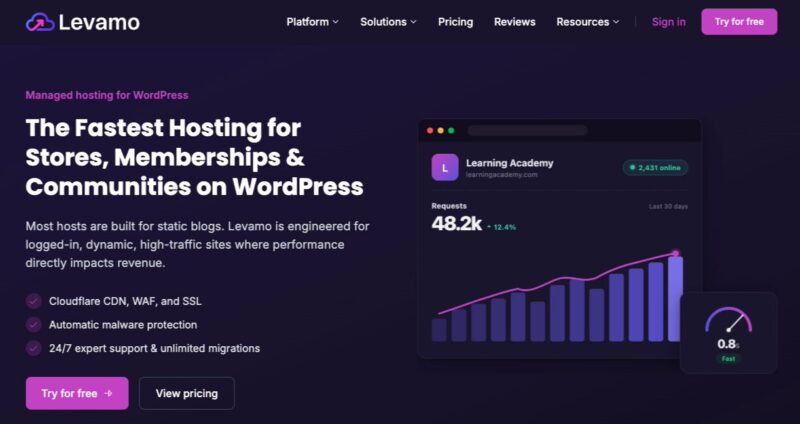
Ik raad Levamo aan voor managed WordPress hosting. Het is speciaal gebouwd voor winkels, lidmaatschappen en communities op WordPress, wat het een natuurlijke keuze maakt voor een e-commerce site.
Belangrijkste functies zijn:
- Cloudflare CDN, WAF en SSL.
- Automatische malwarebescherming om uw winkel en de gegevens van uw klanten veilig te houden.
- 24/7 deskundige ondersteuning en onbeperkte site-migraties.
Uw domeinnaam is de digitale identiteit van uw merk. Het is hoe mensen u zullen vinden en, belangrijker nog, hoe ze u zullen onthouden.
Houd bij het brainstormen over uw domein rekening met deze tips:
- Houd het bij .com: Het is nog steeds de gouden standaard.
- Houd het kort en krachtig: Streef naar maximaal 2-3 woorden.
- Vermijd koppeltekens en cijfers: Dit zijn 'verbaal vertragende factoren'.
Hoe te registreren: U kunt een domein kopen bij een registrar zoals Namecheap, maar het is vaak gemakkelijker om het via uw webhost te regelen. Veel hostingpakketten bevatten de domeinregistratie het eerste jaar gratis, wat betekent dat u zich geen zorgen hoeft te maken over het koppelen van DNS-records van het ene bedrijf naar het andere.
✅ Stap 1 Checklist:
- Kies een Managed WordPress host zoals Levamo voor snelheid en beveiliging.
- Zorg ervoor dat uw host een Gratis SSL-certificaat (HTTPS) biedt.
- Registreer een .com domein dat kort, makkelijk te spellen en zonder koppeltekens is.
Stap 2: Installeer WordPress
Zodra u uw hosting en domein heeft, is de volgende stap de WordPress-software installeren. Dit is de 'motor' die alles zal aandrijven, van uw productpagina's tot uw blogposts.
Vroeger was dit een handmatig proces waarbij bestanden via FTP werden verplaatst, maar tegenwoordig is het veel eenvoudiger.
Gebruik maken van Eén-klik Installaties
De meeste managed WordPress hosts bieden een eenvoudige installatietool direct in hun dashboard.
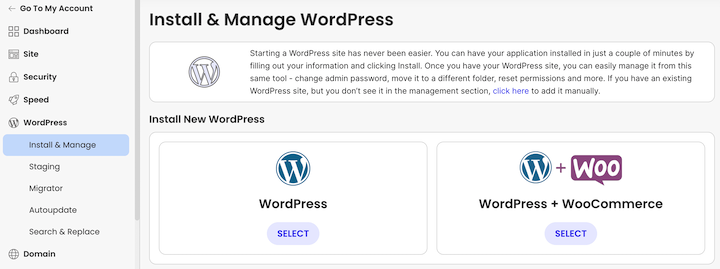
Hier is de algemene procedure:
- Log in op uw hostingaccount.
- Zoek de sectie 'WordPress' of 'Autoinstaller'.
- Selecteer uw domein en klik op Installeren.
- De beheerdersgegevens: Dit deel is belangrijk. U wordt gevraagd om een gebruikersnaam en wachtwoord aan te maken. Gebruik niet "admin" als uw gebruikersnaam. Het is het eerste wat hackers proberen. Gebruik iets unieks en een sterk, complex wachtwoord.
Alternatieve handmatige methode
Als uw host geen "one-click"-tool aanbiedt, hoeft u zich geen zorgen te maken - u kunt het nog steeds handmatig installeren. U moet de WordPress-kernbestanden downloaden van WordPress.org en ze uploaden naar uw server met een tool zoals FileZilla. Het duurt een paar minuten langer, maar het is een geweldige manier om precies te begrijpen hoe uw site is gebouwd.
Uw WordPress-dashboard: De machinekamer
Nadat de installatie is voltooid, kunt u de backend van uw site openen door naar uwdomein.com/wp-admin te gaan.
Ik raad aan om hier even de tijd voor te nemen om naar Instellingen » Permalinks te gaan en ervoor te zorgen dat deze is ingesteld op Berichtnaam.
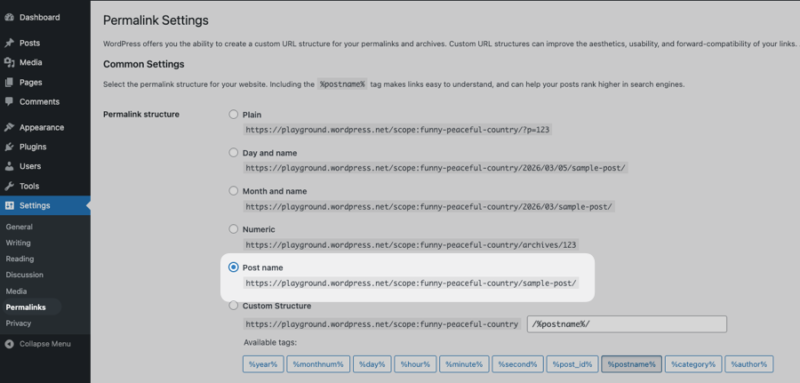
Dit is een kleine technische aanpassing die ervoor zorgt dat uw URL's eruitzien als uwwinkel.com/product-naam/ in plaats van uwwinkel.com/?p=123. Het is een enorme winst voor SEO en maakt uw links veel klikbaarder in zoekresultaten.
✅ Stap 2 Checklist:
- Gebruik een "one-click"-installatieprogramma om tijd te besparen en technische fouten te voorkomen.
- Maak een unieke beheerdersgebruikersnaam (vermijd het gebruik van "admin") voor betere beveiliging.
- Stel uw Permalinks in op "Berichtnaam" zodat uw URL's schoon en SEO-vriendelijk zijn.
Stap 3: Kies en Configureer je eCommerce Plugin
Zodra u een WordPress-site heeft, is het tijd om deze de mogelijkheid te geven om daadwerkelijk dingen te verkopen. Om dit te doen, heeft u een eCommerce-plugin nodig. Ik zie dit als het installeren van de "rekken en kassa" in uw digitale winkel.
Er zijn tientallen opties, maar u hoeft er maar naar twee te kijken. De juiste keuze hangt volledig af van wat u van plan bent te verkopen:
- Easy Digital Downloads (EDD): Als u digitale producten verkoopt - zoals e-books, software, PDF's of digitale kunst - is dit de beste keuze. Het is lichtgewicht, snel en speciaal gebouwd om veilige bestandlevering af te handelen zonder de "bloat" van verzend- en voorraadtools die u niet nodig heeft.
- WooCommerce: Dit is de industriestandaard als u fysieke goederen verkoopt waarvoor verzending, gewichtsberekeningen en magazijnregistratie nodig zijn.
- Lees meer over EDD vs Woo.
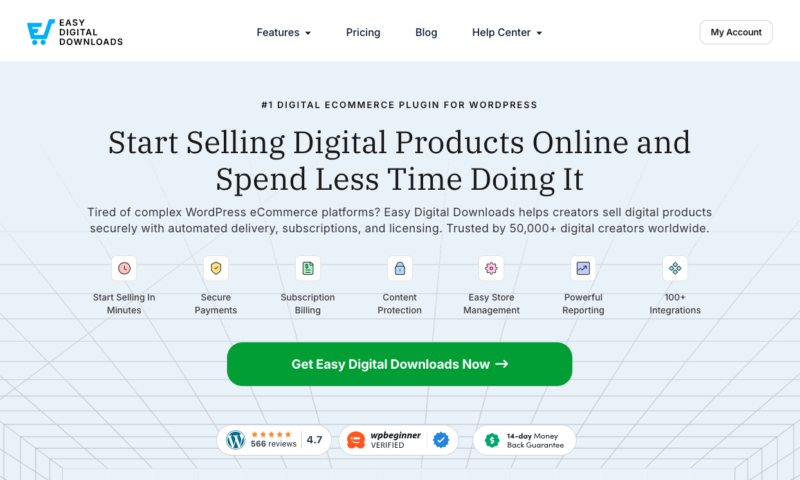
Om te beginnen, gaat u naar uw WordPress-dashboard en navigeert u naar Plugins » Plugin toevoegen.
Typ "Easy Digital Downloads" in de zoekbalk. Klik vervolgens op Nu installeren gevolgd door Activeren.
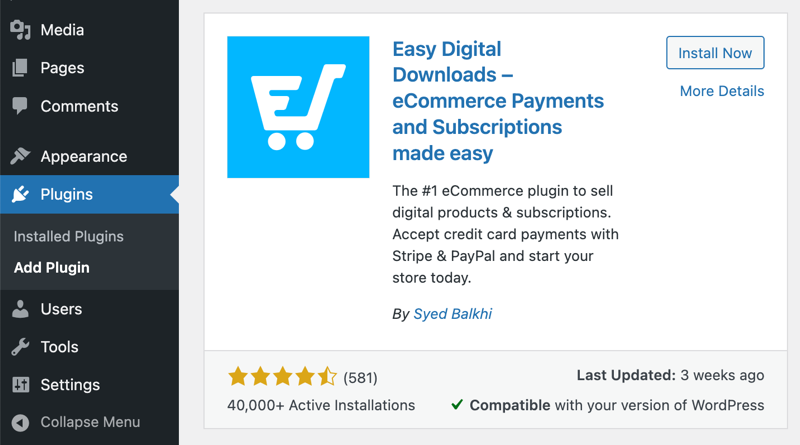
Een Downloads-menu-item verschijnt in uw beheerdersgebied.
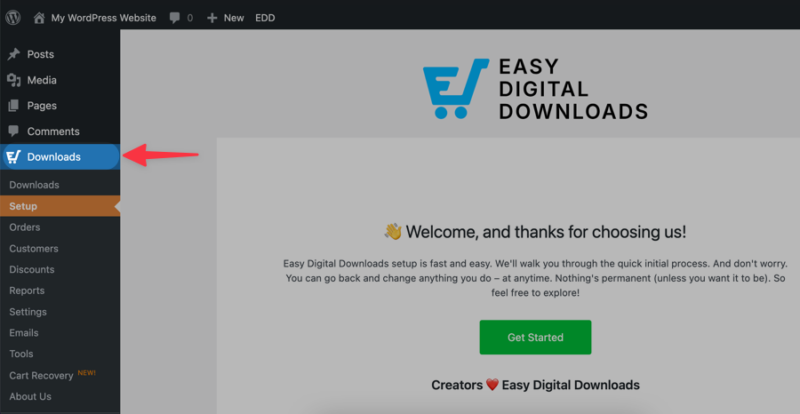
Selecteer Aan de slag onder het tabblad Installatie om de Installatiewizard te starten.
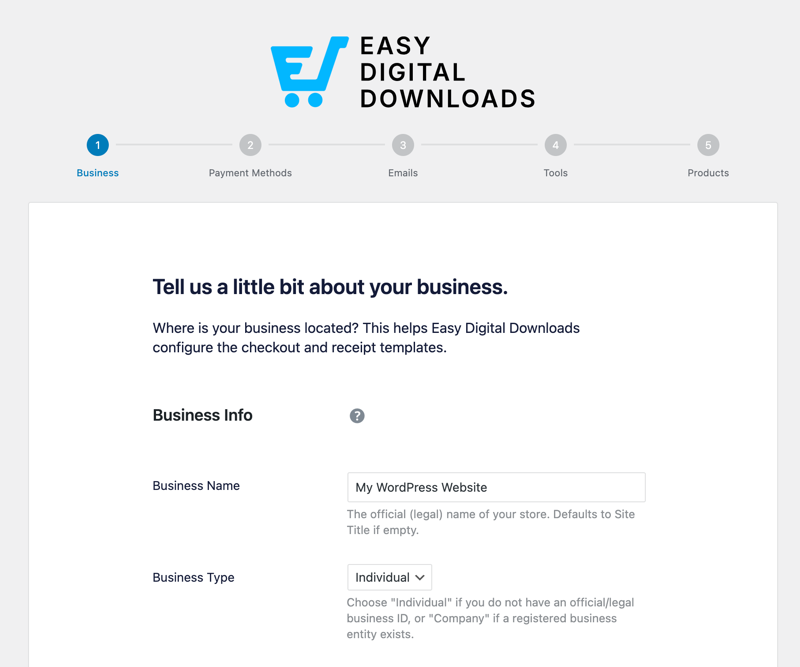
U kunt dit gebruiken om informatie over uw online bedrijf in te voeren, betaalmethoden te selecteren, enz. We zullen de instellingen in de volgende stap dieper behandelen.
✅ Stap 3 Checklist:
- Gebruik Easy Digital Downloads als je bestanden verkoopt (e-books, software, muziek).
- Gebruik WooCommerce als je fysieke goederen verkoopt die verzending vereisen.
- Laat de Installatiewizard automatisch je Checkout- en Succespagina's aanmaken
Stap 4: Stel je Online Winkel in
Nadat je je e-commerce plug-in hebt geactiveerd, is het tijd om de instellingen te verfijnen, inclusief alles wat je tijdens de Installatiewizard hebt overgeslagen.
Algemene Instellingen: De Basis
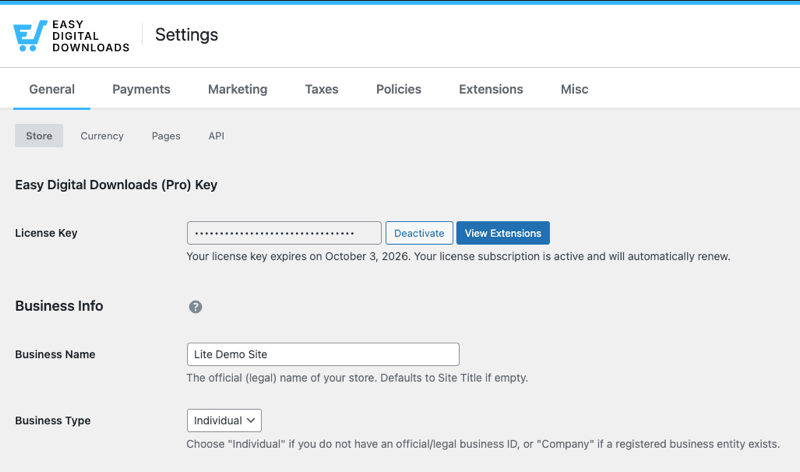
Ga eerst naar Downloads » Instellingen. Vul onder het tabblad Algemeen je bedrijfsgegevens in.
- Bedrijfsinformatie: Voer de naam en het fysieke adres van je winkel in.
- Valuta: Kies je primaire valuta (zoals USD of GBP).
- Belastingtarieven: Als je btw of omzetbelasting moet innen, configureer je hier die tarieven.
Een Betaalprovider Koppelen
Dit is de belangrijkste technische stap. Een betaalprovider is de "brug" tussen je winkel en de bank. Hiermee kunnen je klanten veilig betalen.
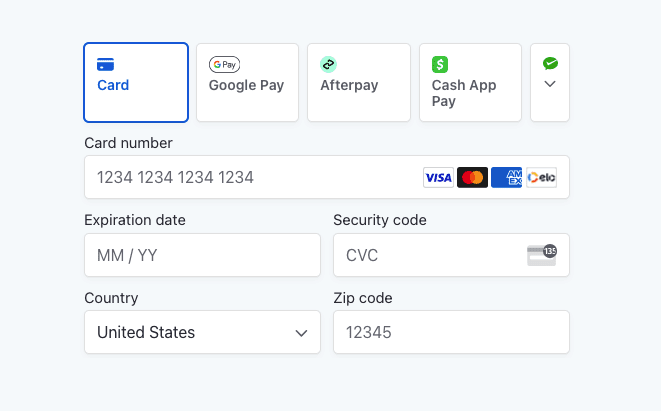
Ik raad Stripe aan. Het is ongelooflijk betrouwbaar, werkt wereldwijd en biedt een naadloze checkout-ervaring.
Om het in te stellen:
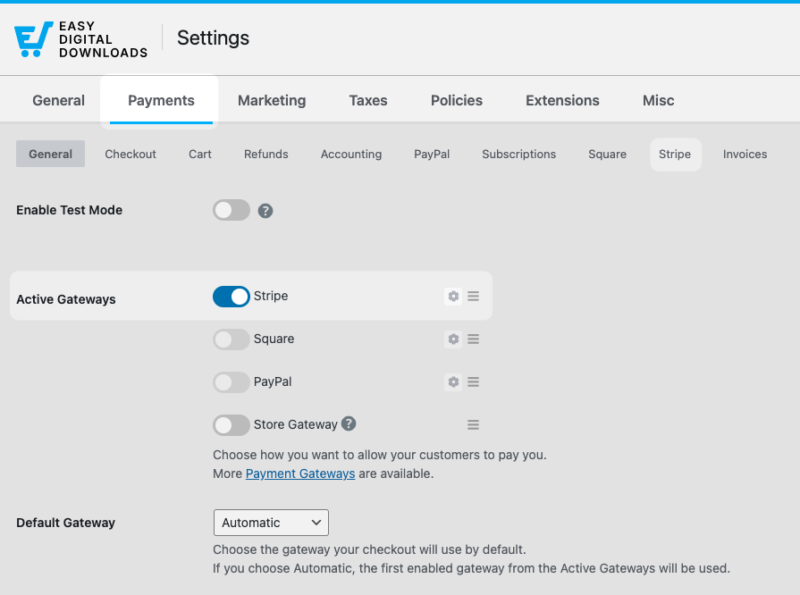
- Ga naar Downloads » Instellingen » Betalingen.
- Navigeer naar het tabblad Stripe en selecteer Connect with Stripe. Je wordt doorgestuurd naar de site van Stripe om in te loggen en de verbinding te autoriseren. Sla je wijzigingen op.
- Ga naar het tabblad Betalingen » Algemeen en selecteer Stripe als je actieve betaalprovider. Sla je wijzigingen op.
Je bent officieel klaar om creditcards, Apple Pay en Google Pay te accepteren.
⚙️ Voor gedetailleerde begeleiding, bekijk onze Stripe-installatiedocumentatie.
✅ Stap 4 Checklist:
- Koppel Stripe om eenvoudig creditcards, Apple Pay en Google Pay te accepteren.
- Controleer je Valuta en Bedrijfsadres in de Algemene instellingen.
Stap 5: Voeg je Producten Toe
Nu het leuke gedeelte: je digitale schappen vullen. Hier maak je individuele vermeldingen voor de dingen die je verkoopt.
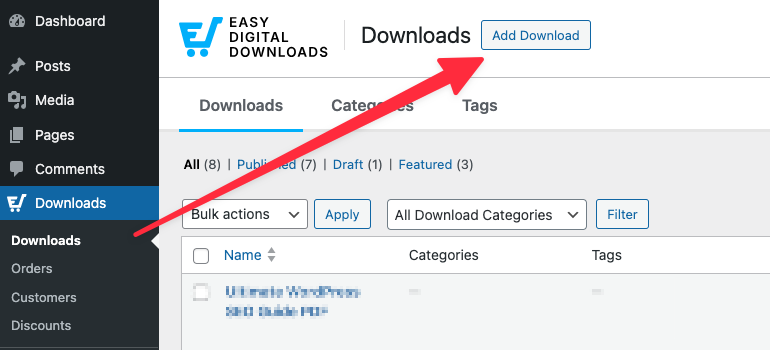
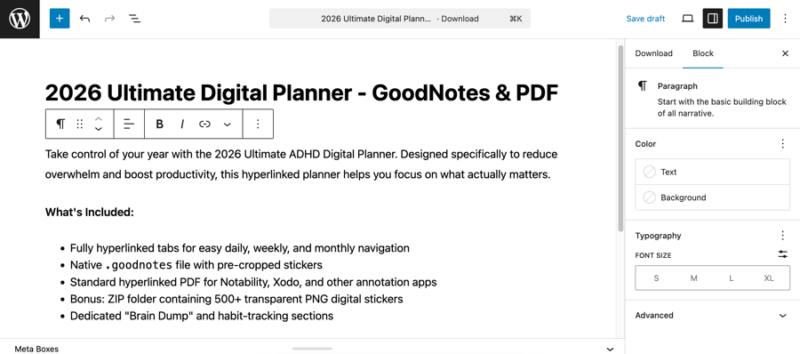
Ga naar Downloads » Download toevoegen om je eerste productvermelding te maken.
- Productnaam: Gebruik een titel die rijk is aan trefwoorden en beschrijvend is. Probeer bijvoorbeeld in plaats van alleen "Budgettracker", "Maandelijkse Persoonlijke Budget Spreadsheet voor Excel".
- Gedetailleerde productbeschrijving: Vermeld niet alleen de technische specificaties. Leg de functies en voordelen duidelijk uit. Vermijd technisch jargon. Leg uit welk probleem je product oplost en maak een lijst met de voordelen in bulletpoints zodat ze scanbaar zijn.
Je Prijs en Bestanden Instellen
Scroll naar beneden naar de metabox Download Details onder de editor.
Binnen het Type tabblad heb je een paar opties voor het instellen van je productprijs. Kies tussen vaste (eenvoudige, eenmalige kosten) of variabele prijzen. Je kunt ook abonnementfacturering configureren.
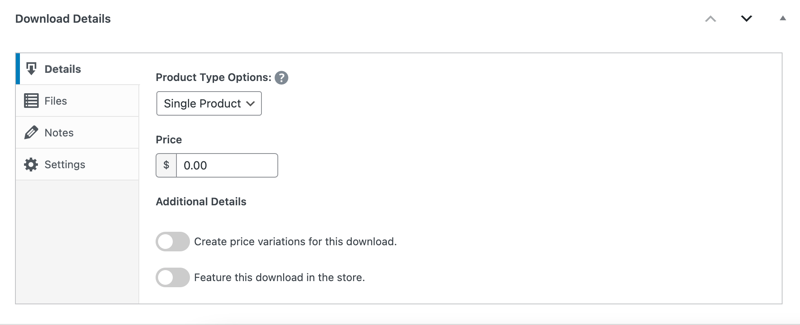
Voer het bedrag in waarvoor je je product wilt verkopen.
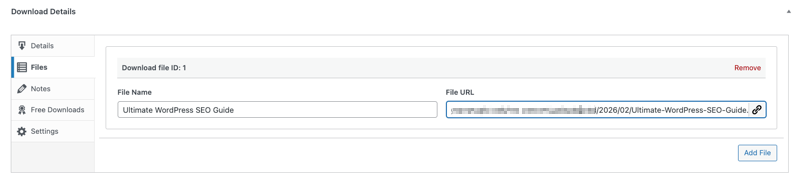
Ga vervolgens naar het tabblad Bestanden. Upload uw digitale productbestand(en) onder Bestands-URL. Voer in het veld Bestandsnaam een beschrijvende en beknopte naam in (bijv. 'Download Uw Gids'). Dit is wat de klant ziet na aankoop.
Een 'High-Click' Productafbeelding Kiezen
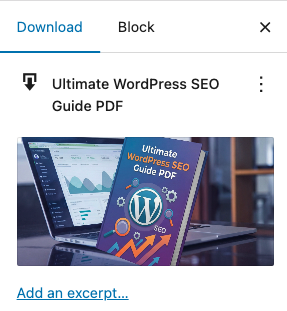
Zelfs als u een digitaal bestand verkoopt, heeft u een visuele weergave nodig. In EDD kunt u klikken op Downloadafbeelding Instellen om er een te uploaden.
Gebruik een hoogwaardige, geoptimaliseerde kenmerkende afbeelding om uw product weer te geven.
SEO-tip: Voordat u uw afbeelding uploadt, geeft u het bestand een relevante naam (zoals budget-spreadsheet-preview.jpg) en zorg ervoor dat u de Alt-tekst in WordPress invult. Dit helpt uw producten te verschijnen in Google Afbeeldingen zoeken.
✅ Stap 5 Checklist:
- Gebruik een titel die rijk is aan zoekwoorden (bijv. "Budget Spreadsheet" versus "Bestand 1").
- Schrijf boeiende productbeschrijvingen gericht op voordelen, niet alleen op functies.
- Geef uw afbeeldingsbestanden een naam en voeg Alt-tekst toe voor Google Afbeeldingen SEO.
- Bonus: Volg de best practices voor AI-zoekopdrachten en -ontdekking.
Stap 6: Kies en Pas je Thema Aan
Uw thema is het "gezicht" van uw bedrijf. Maar in de e-commerce zal een mooie site die traag is u geld kosten. Kies eerst een thema voor snelheid, pas het vervolgens aan voor stijl.
Een E-commerce-Klaar Thema Vinden
WordPress heeft duizenden WordPress-thema's, maar u wilt er een die "e-commerce-bewust" is. Dit betekent dat het al ingebouwde styling heeft voor zaken als winkelwagentjes, afrekenknoppen en productgrids.
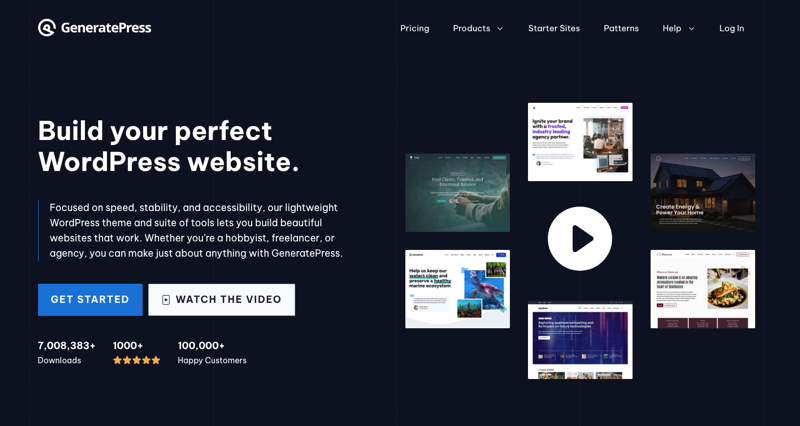
Ik raad aan om te beginnen met een WordPress thema dat speciaal is gebouwd voor e-commerce, zoals GeneratePress (geweldig voor zowel EDD als WooCommerce). Deze zijn lichtgewicht, wat betekent dat ze geen hoop extra code hebben die uw site vertraagt.
Om deze te vinden:
- Ga naar Uiterlijk » Thema's » Nieuwe Toevoegen.
- Klik op de knop Functiefilter.
- Vink het vakje E-Commerce aan en klik op Filters Toepassen.
🔎 Leer hoe u uw EDD online winkel kunt aanpassen.
Uw Branding Aanpassen
Nadat u een thema hebt geïnstalleerd en geactiveerd, gaat u naar Uiterlijk » Aanpassen. Dit is het "Live Voorbeeld"-gebied waar u uw wijzigingen in realtime kunt zien. Om te beginnen kunt u zich concentreren op:
- Koptekst en Logo
- Kleuren
- Typografie
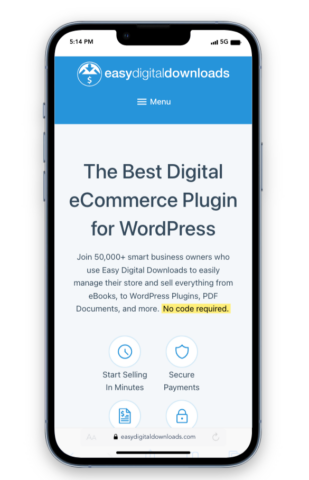
Vergeet niet te optimaliseren voor mobiel. Onderaan de Customizer zie je kleine pictogrammen voor een tablet en een telefoon. Klik op het telefoonpictogram.
Meer dan de helft van je klanten gebruikt waarschijnlijk een mobiel apparaat, dus zorg ervoor dat je Toevoegen aan winkelwagen en Aankoopknoppen groot genoeg zijn om met een duim aan te tikken en je tekst gemakkelijk leesbaar is op een klein scherm.
✅ Stap 6 Checklist:
- Kies een lichtgewicht thema (zoals GeneratePress) om je snelheid hoog te houden.
- Gebruik een "Actiekleur" met hoog contrast voor je afrekenknoppen.
- Controleer altijd je ontwerp in de "Mobiele" voorvertoningsmodus.
Stap 7: Bekijk/Test je WordPress eCommerce Website
Nu alles is gestyled en je producten zijn geüpload, moet je ervoor zorgen dat het daadwerkelijk werkt vanaf de voorkant.
Een Testtransactie Uitvoeren
De meeste betalingsgateways (zoals Stripe en PayPal) hebben een "Testmodus" of "Sandboxmodus". Ik raad ten zeerste aan om dit in te schakelen in je plugininstellingen voordat je live gaat.
Schakel dit in EDD in onder Instellingen » Betalingen » Schakel Testmodus in.
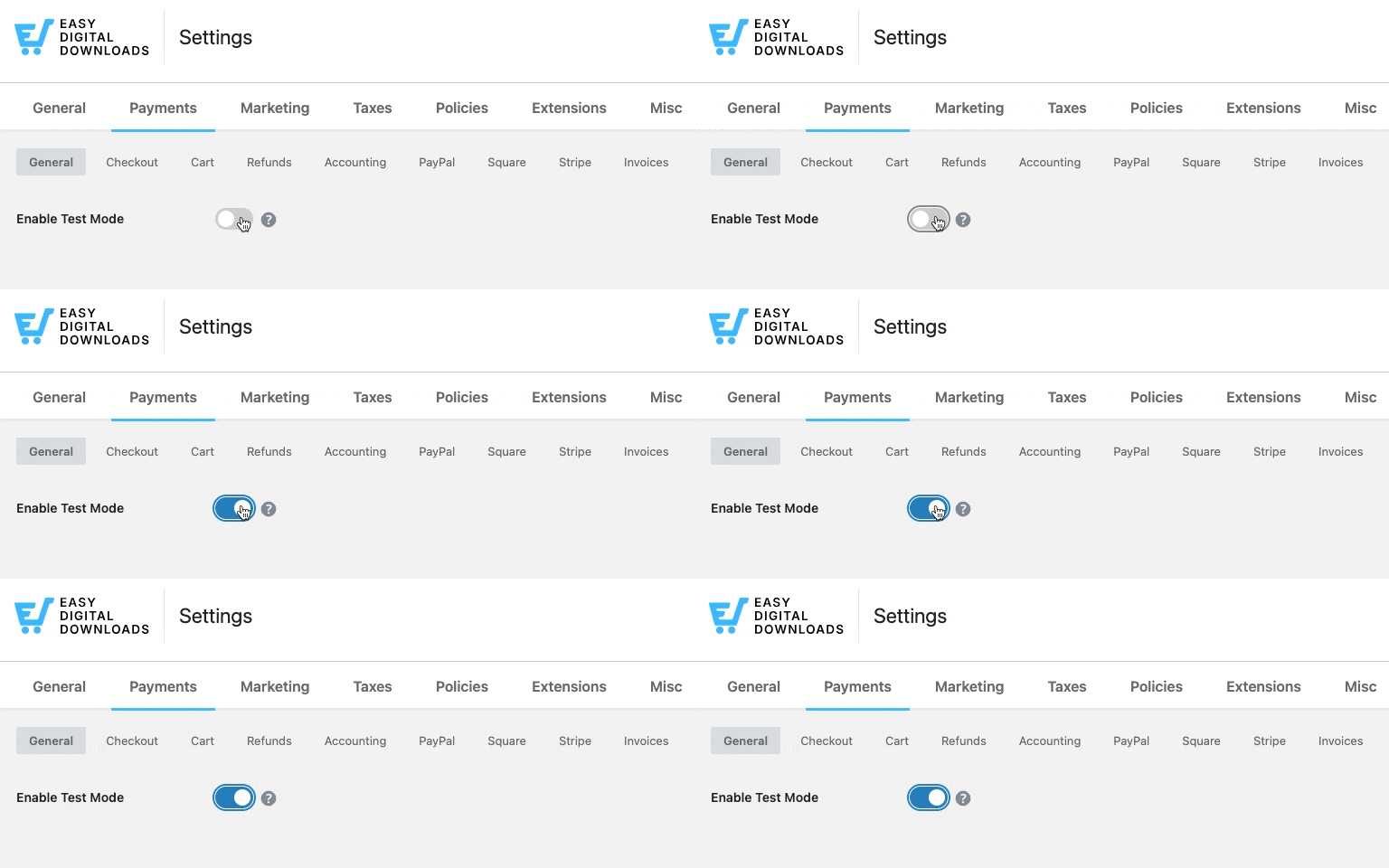
Bezoek de voorkant van je website in een Incognito of Privévenster, zodat je precies kunt zien wat een bezoeker ziet (zonder ingelogd te zijn als beheerder).
Doorloop het proces zoals een shopper dat zou doen om het volgende te bevestigen:
- Toevoegen aan winkelwagen: Wordt het item onmiddellijk weergegeven in de Winkelwagen Voorvertoning?
- Afrekenproces: Is de afrekenpagina gemakkelijk te lezen? Ziet het er veilig uit?
- De "Bedankt"-pagina: Nadat je het item met een testkaart hebt "gekocht", word je dan doorgestuurd naar een succespagina?
- De Levering: Als je een digitaal product verkoopt, controleer dan je e-mail. Kwam de bon aan? Werkt de downloadlink?

Als alles er goed uitziet, snel presteert en de testbetaling succesvol is, ben je klaar om te verkopen.
✅ Stap 7 Checklist:
- Voltooi een volledige aankoop in "Testmodus" om het afrekenproces te verifiëren.
- Controleer je automatische e-mails om er zeker van te zijn dat klanten hun bonnen en links ontvangen.
- Test je site op een mobiele telefoon om er zeker van te zijn dat de knoppen gemakkelijk aan te tikken zijn.
Beste WordPress Plugins om je Online Winkel te Laten Groeien
Een van de beste dingen aan WordPress is hoe gemakkelijk het is om nieuwe functies toe te voegen naarmate je bedrijf groeit. Maar overdrijf het niet. Het installeren van te veel individuele plug-ins van derden kan je site vertragen en beveiligings"gaten" creëren.
Begin in plaats daarvan met een kern "Groei Stack" die is ontworpen om samen te werken.
De Kracht van Easy Digital Downloads Pro
Hoewel de gratis versie van Easy Digital Downloads een uitstekend hulpmiddel is om te beginnen, is een EDD Pro-pas de meest logische stap zodra je serieus bent over de verkoop.
In plaats van te zoeken naar een dozijn verschillende tools van derden, geeft een EDD-pas je directe toegang tot een enorme bibliotheek met premium functies.
Je kunt eenvoudig toevoegen:
- Terugkerende Betalingen: Verander eenmalige downloads in een gestage stroom van maandelijkse inkomsten.
- AI-Powered Slimme Winkelwagenaanbevelingen: Toon relevante productaanbevelingen nadat ze een artikel aan hun winkelwagen hebben toegevoegd.
- E-mailmarketingintegraties: Verbind uw winkel met tools zoals Mailchimp of ConvertKit, zodat u automatisch contact kunt opnemen met klanten.
- Wereldwijde Betalingen en Ondersteuning voor Meerdere Valuta's: Verkoop aan klanten over de hele wereld en maak valutaconversie naadloos.
Andere Essentiële WordPress Plugins
Zodra u uw kernverkoopmotor op orde heeft, zijn er een paar "must-have" WordPress-plugins voor eCommerce:
- All in One SEO (AIOSEO): U kunt een prachtige winkel bouwen, maar mensen moeten hem eerst vinden. AIOSEO regelt het technische zware werk, zoals het instellen van "Product Schema", zodat uw prijzen en sterbeoordelingen direct in Google zoekresultaten verschijnen.
- MonsterInsights: Raad nooit als het op gegevens aankomt. MonsterInsights verbindt uw winkel met Google Analytics en laat u precies zien welke producten uw bestsellers zijn en waar uw verkeer vandaan komt.
- AffiliateWP: Als u uw verkopen wilt laten groeien zonder een fortuin aan advertenties uit te geven, lanceer dan een affiliateprogramma. AffiliateWP laat u andere mensen uw producten voor u laten promoten, en u betaalt hen alleen als ze een succesvolle verkoop doorverwijzen.
✅ Snelle Extensiecontrole:
- Begin Lean: Focus eerst op uw verkoopmotor (EDD Pro) en voeg marketingtools toe naarmate u groeit.
- Consistentie is Cruciaal: Gebruik "First-Party" extensies waar mogelijk om de snelheid van uw site hoog te houden.
- Volg Alles: Geef nooit geld uit aan een marketingplugin, tenzij u MonsterInsights gebruikt om te volgen of het daadwerkelijk werkt.
Veelgestelde Vragen over het Bouwen van een WordPress eCommerce Site
Er zijn veel vragen over de strategieën voor het bouwen van een WordPress eCommerce website en de specifieke details van het runnen van een WordPress winkel. Hier zijn de meest voorkomende van beginners, samen met de antwoorden die u nodig heeft om voorop te blijven lopen.
Is WordPress goed voor e-commerce in 2026?
Ja, WordPress blijft een van de beste platforms voor eCommerce omdat het totale eigendom van uw gegevens en nul "per-transactie" platformkosten biedt. In tegenstelling tot gesloten systemen, kunt u met WordPress uw SEO schalen en uw afrekenervaring aanpassen met behulp van een uitgebreide bibliotheek van plugins zoals Easy Digital Downloads of WooCommerce.
Wat is de beste manier om een WordPress e-commerce website te bouwen?
De beste manier om een WordPress eCommerce website te bouwen, is door een platform te gebruiken dat past bij uw specifieke producttype om onnodige "plugin bloat" te voorkomen. Gebruik Easy Digital Downloads als u digitale producten verkoopt (zoals e-books of software), omdat het lichtgewicht, veilig en specifiek geoptimaliseerd is voor snelle bestandlevering.
Voor fysieke goederen is WooCommerce de industriestandaard. Door een speciale verkoopmotor te kiezen, zorgt u ervoor dat uw site snel blijft, hoger scoort in zoekresultaten en een betere afrekenervaring biedt voor uw klanten.
Hoeveel kost het om een WordPress e-commerce website te bouwen?
Je kunt een basis WordPress-winkel starten voor ongeveer €100 tot €150. Dit omvat je domeinnaam (€15/jaar), professionele beheerde hosting (€35–€100/jaar) en een kern-eCommerce-plugin. Hoewel de WordPress-software gratis is, kun je ervoor kiezen om meer te investeren in premium thema's of geavanceerde marketingextensies naarmate je inkomsten groeien.
Kan ik een e-commerce website maken zonder te coderen?
Absoluut. Moderne WordPress gebruikt "Block Editors" en drag-and-drop pagina-bouwers zoals Elementor of SeedProd die geen enkele codeerkennis vereisen. De meeste eCommerce-plugins, waaronder Easy Digital Downloads, worden geleverd met ingebouwde installatiewizards die de technische configuratie voor je regelen, waardoor het zeer beginnersvriendelijk is.
Hoe krijg ik verkeer naar mijn nieuwe WordPress winkel?
De beste manier om verkeer te krijgen is door een combinatie van SEO (Search Engine Optimization) en contentmarketing. Door een plugin zoals AIOSEO te gebruiken, kun je ervoor zorgen dat je producten verschijnen in de "Shopping"-resultaten van Google en AI Overviews. Ik raad ook aan om een e-maillijst te starten en sociale media te gebruiken om aanvankelijk interesse te wekken.
Wat is het verschil tussen WordPress.com en WordPress.org voor e-commerce?
Voor een professionele winkel geeft zelf-gehoste WordPress.org je volledige vrijheid om eCommerce-plugins te installeren en je code aan te passen. WordPress.com is een gehoste service die veel restrictiever is en vaak duurder als je volledige eCommerce-functies wilt ontgrendelen.
Bouw Vandaag Nog Je WordPress eCommerce Website
Gefeliciteerd! Je hebt de routekaart, de toolset en de strategie om een succesvolle winkel op te bouwen. Het bouwen van een WordPress eCommerce-website is een van de beste manieren om een duurzaam inkomen online te creëren met behoud van 100% controle over je bedrijf.
Als je van plan bent digitale producten te verkopen, is de beste manier om te beginnen met de toonaangevende digitale eCommerce-plugin.
📣 P.S. Vergeet niet om zich te abonneren op onze nieuwsbrief en ons te volgen op Facebook, Twitter/X, of LinkedIn voor meer WordPress-bronnen!