

Wilt u leren hoe u betaalgegevens kunt opslaan in WordPress?
Dit kan het afrekenproces voor uw klanten versnellen en verbeteren. Het geautomatiseerde gemak neemt de noodzaak weg voor shoppers om handmatig hun creditcardgegevens in te voeren telkens wanneer ze iets willen kopen in uw online winkel.
Het opslaan van betaalgegevens is ook gunstig voor uw bedrijf. Het kan het verlaten van winkelwagentjes verminderen, conversiepercentages verhogen en de verkoop stimuleren.
Waarom betaalmethoden opslaan voor klanten?
Er zijn veel redenen om uw eCommerce-afrekenproces zo in te stellen dat gebruikers automatisch hun betaalgegevens kunnen opslaan. Laten we enkele van de grootste voordelen bekijken.
- Vereenvoudigde checkoutervaring met één klik. Door gebruikers betaalgegevens te laten opslaan, kunnen terugkerende klanten de rompslomp vermijden om elke keer hun gegevens in te voeren wanneer ze een aankoop doen. U creëert een gebruiksvriendelijke ervaring die herhaalde aankopen aanmoedigt.
- Tijdbesparend gemak. Tijd is essentieel in de huidige snelle wereld. Het opslaan van betaalgegevens biedt een tijdbesparend gemak dat klanten waarderen.
- Verhoogde conversiepercentages. Een ingewikkeld en langdurig afrekenproces kan leiden tot verlaten winkelwagentjes. Het toevoegen van een functie die betaalgegevens opslaat, vermindert drempels voor aankoop en verhoogt de conversiepercentages.
- Verbeterde beveiligingsmaatregelen. Het opslaan van betaalgegevens moet veilig gebeuren en in overeenstemming met de industriestandaarden. Door vertrouwde en gerenommeerde betaalgateways zoals Stripe te gebruiken, kunt u uw klanten verzekeren dat hun betalingsinformatie veilig is.
Het opslaan van betaalgegevens opent de deur naar het bieden van een gepersonaliseerde klantervaring. Door toegang te hebben tot de eerdere aankopen en betalingsinformatie van klanten, kunt u productaanbevelingen op maat maken, gepersonaliseerde kortingen aanbieden of gerichte promoties bieden.
Stripe gebruiken om betaalinformatie op te slaan in WordPress
Er zijn een handvol populaire betalingsverwerkers die u kunt gebruiken om creditcardbetalingen te accepteren op uw WordPress-website, zoals PayPal en Authorize.net.
Een van de beste betalingsopties om te gebruiken, en een sterk aanbevolen optie voor WordPress en online verkoop, is Stripe. De Stripe-betaalgateway voor EDD/WordPress laat u creditcards en pinpassen, Apple Pay, Google Pay en meer accepteren.

U kunt deze zo configureren dat er een snelle checkout wordt ingesteld die het betalingsformulier vooraf invult voor uw klanten, in plaats van dat zij telkens handmatig hun kaartgegevens moeten invoeren.
Het laat u ook toe om Testmodus in te schakelen, zodat u de gebruikerservaring van het doen van online betalingen op uw eCommerce-platform kunt bekijken zonder daadwerkelijk een echte transactie te hoeven uitvoeren.
Stripe maakt het ongelooflijk eenvoudig voor uw gebruikers om betaalgegevens op te slaan in WordPress. Op de afrekenpagina, na het invoeren van hun kaartgegevens, kunnen ze het selectievakje aanvinken om zich aan te melden voor Link van Stripe:
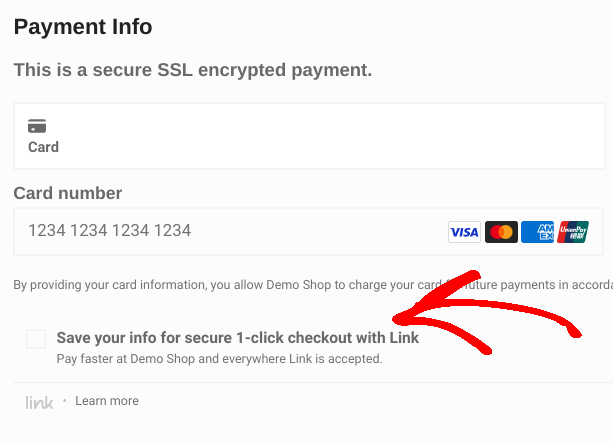
Deze functionaliteit is wat de betaalinformatie voor uw klanten opslaat.
Zodra de creditcard(s) zijn toegevoegd, kunnen gebruikers kiezen welke ze willen gebruiken, bestaande kaarten bijwerken en een Nieuwe betaalmethode toevoegen:
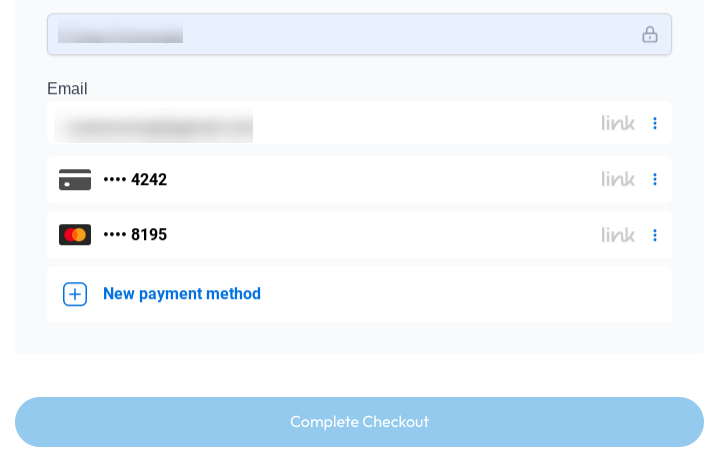
Wanneer betaalgegevens/methoden aan Link worden toegevoegd, kunnen shoppers deze gebruiken op elke website die Link by Stripe ondersteunt (niet alleen de jouwe).
💡Meer informatie over Hoe de Stripe Payment Element-functie in WordPress te gebruiken
Hoe betaalgegevens op te slaan in WordPress
Hier zal ik de stappen onderzoeken voor het instellen en opslaan van betaalgegevens in WordPress voor een snelle checkout met Easy Digital Downloads en Stripe.
Merk op dat ik voor deze tutorial ervan uitga dat je al een WordPress-site en een Stripe-account hebt. Nog steeds een WordPress-site nodig? Bekijk SiteGround’s Managed EDD Hosting. Deze abonnementen bevatten alles wat je nodig hebt om je e-commerce site snel operationeel te krijgen.
Je kunt gratis een Stripe-account aanmaken door stripe.com te bezoeken en te kiezen voor Start nu.
Stap 1. Koop Easy Digital Downloads Pro
Als je dat nog niet hebt gedaan, is de eerste stap het downloaden en installeren van Easy Digital Downloads (EDD) Pro.

Er is een gratis versie van de WordPress-plugin. Maar om Stripe Pro en zijn Payment Element- en Link-functies te benutten, wil je een EDD Extended Pass (of hoger) aanschaffen.
Nadat je je pas hebt aangeschaft, kun je de EDD Pro-plugin downloaden en installeren op je website. Ga vanuit je WordPress-dashboard naar Plugins » Nieuwe toevoegen.
Zodra deze is geactiveerd, kun je op de knop Aan de slag klikken om de Onboarding Wizard te starten.
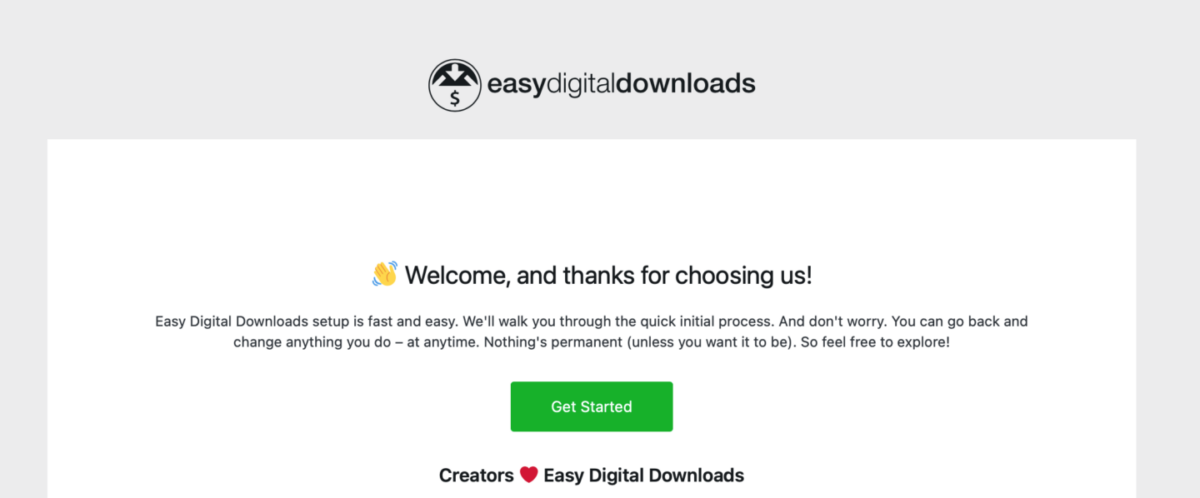
Dit leidt je door de eerste stappen van het opzetten van je EDD-winkel. Je kunt bijvoorbeeld je bedrijfsgegevens invoeren, je eerste product toevoegen en je aanmelden voor conversie- en optimalisatietools. Je krijgt ook de optie om Verbinden met Stripe.
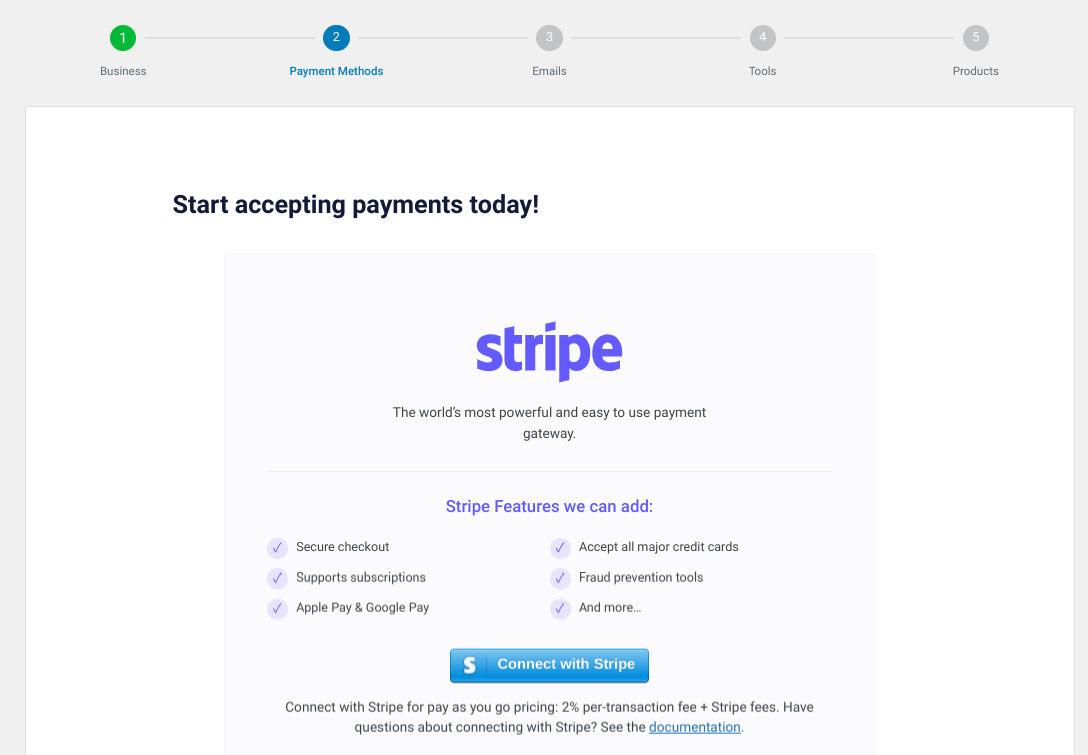
⚙️ Je kunt deze handleidingen gebruiken als je hulp nodig hebt:
Stap 2. Activeer & Verbind Stripe met WordPress
Vervolgens gaan we de Stripe-betaalpoort configureren.
EDD biedt ingebouwde ondersteuning voor Stripe. Maar de Pro-versie geeft je meer geavanceerde functies en mogelijkheden, zoals het accepteren van vooraf goedgekeurde betalingen. Bovendien verwijderen het de transactiekosten waarvoor je anders verantwoordelijk zou zijn.
Als je Stripe nog niet hebt verbonden en geconfigureerd, kun je dit doen onder instellingen.
Ga naar Downloads » Instellingen » Betalingen. Schakel Stripe in onder Actieve Gateways, selecteer vervolgens Wijzigingen opslaan.
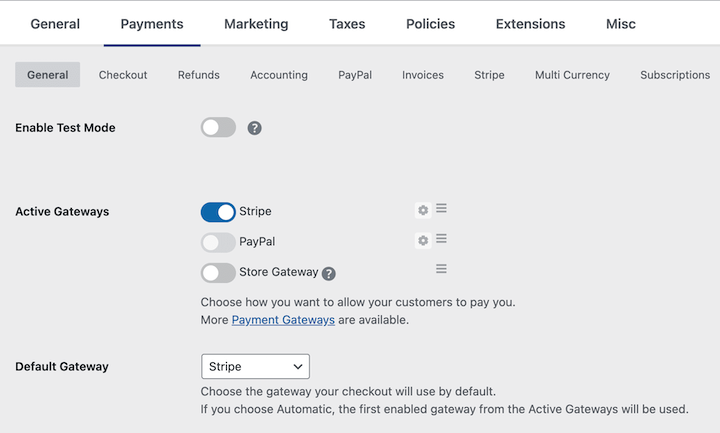
Ga vervolgens naar het Stripe tabblad en klik op Verbinden met Stripe.
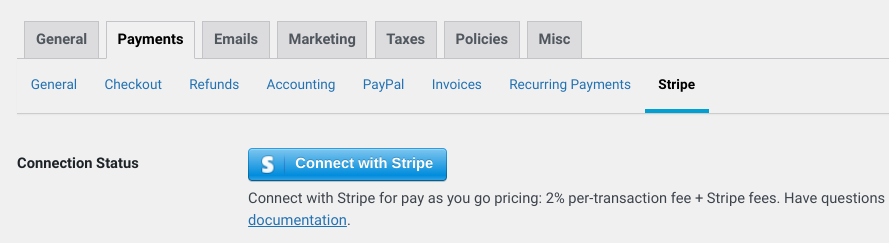
Je kunt je bestaande Stripe-account aanmaken of inloggen.
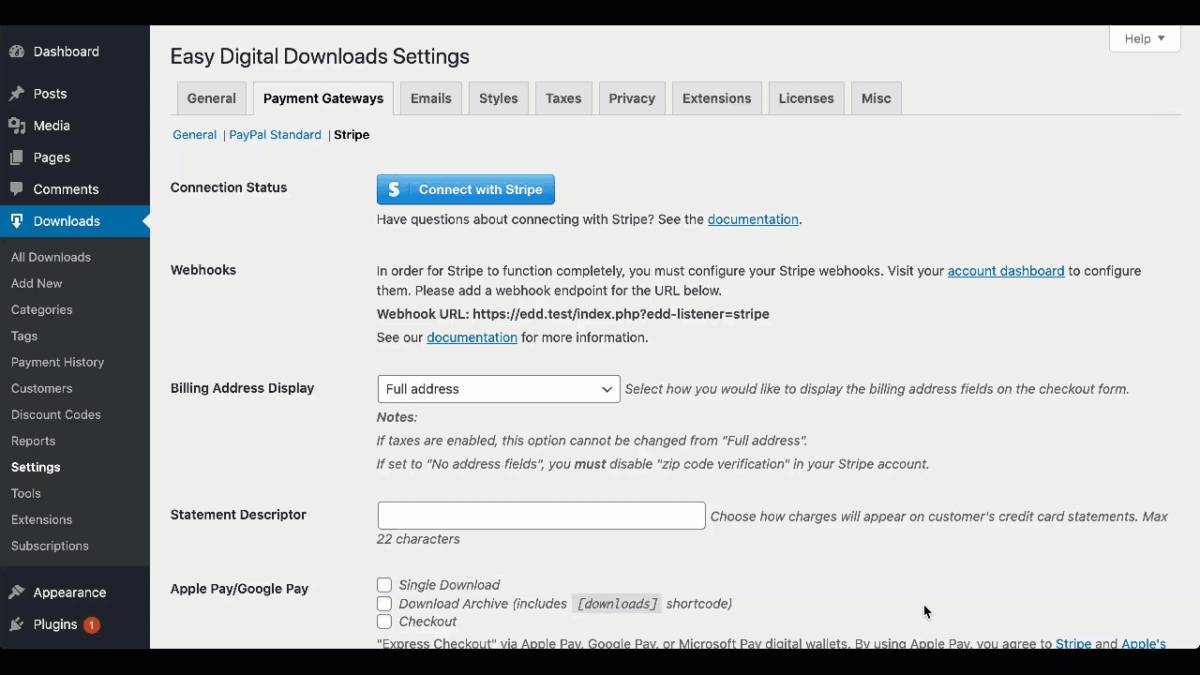
U moet Stripe webhooks configureren om het verbindingsproces te voltooien. Klik op de account dashboard link. Raadpleeg vervolgens onze Stripe-documentatie voor stapsgewijze instructies.
Vergeet niet uw wijzigingen op te slaan als u klaar bent.
Stap 3. Maak & Pas de Checkout Pagina/Formulier Aan
Zodra uw Stripe-account is verbonden met uw online winkel, kunt u uw Checkout-pagina aanpassen. EDD maakt er automatisch een voor u aan.
U vindt deze onder Pagina's » Checkout Pagina.
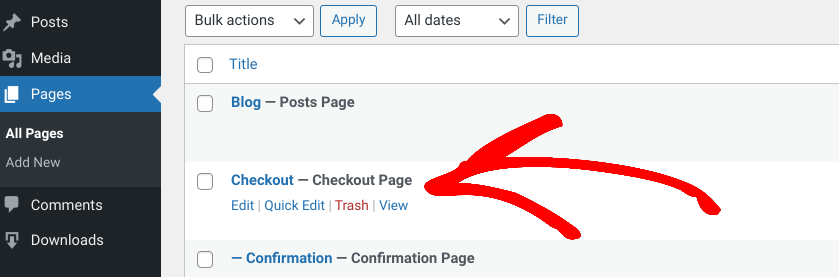
Standaard gebruikt deze pagina het EDD Checkout-blok. Het toont de artikelen in de winkelwagen, plus de formulieren voor het invoeren van klantgegevens, zoals factuuradres en betalingsgegevens.
Ga naar de instellingen van de checkout-pagina onder Downloads » Instellingen » Betalingen » Checkout.
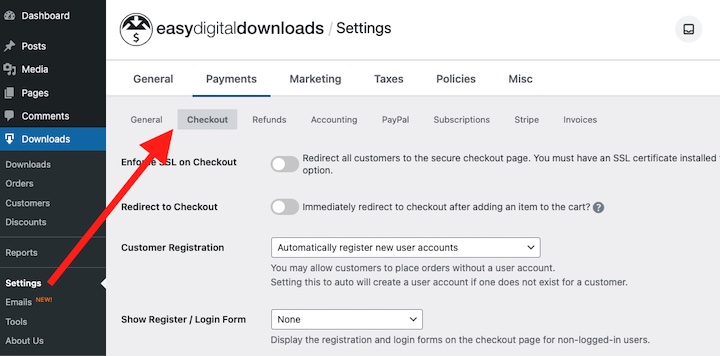
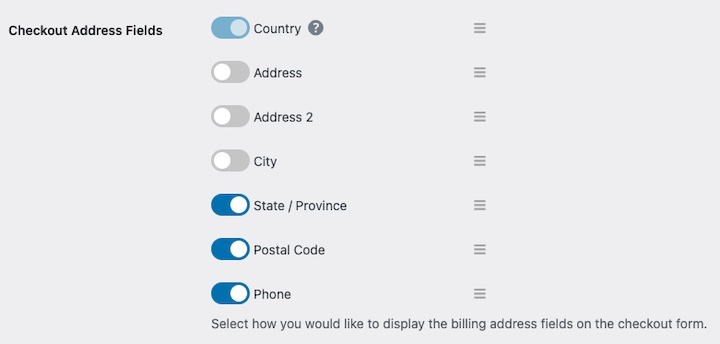
U kunt de checkout-adresvelden aanpassen hier ook.
💡Voor meer informatie, bekijk Hoe WordPress Aangepaste Velden Toe te Voegen aan E-commerce Sites.
Sla uw wijzigingen op als u klaar bent.
Stap 4. Betaalgegevens Opslaan in WordPress
Nu hoeft u alleen nog het afrekenproces te bekijken en te testen om er zeker van te zijn dat alles naar behoren werkt.
Bezoek de voorkant van uw site en voeg een artikel toe aan uw winkelwagen. Ga naar de afrekenpagina.
Selecteer de optie om betaalgegevens op te slaan via Link.
Als u Stripe al hebt ingesteld en een betaalmethode aan Link hebt toegevoegd, wordt u gevraagd om een code in te voeren die is verzonden naar het telefoonnummer dat aan uw account is gekoppeld.
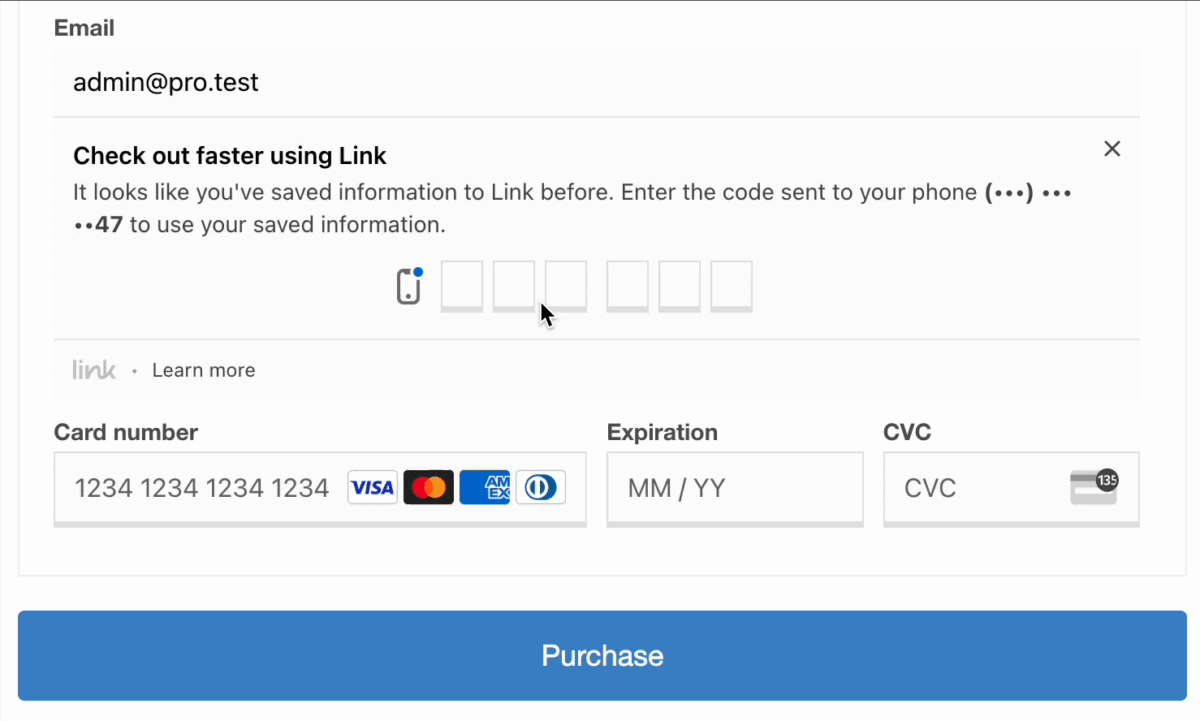
Nadat u de code hebt ingevoerd, kunt u uw opgeslagen betaalmethode selecteren.
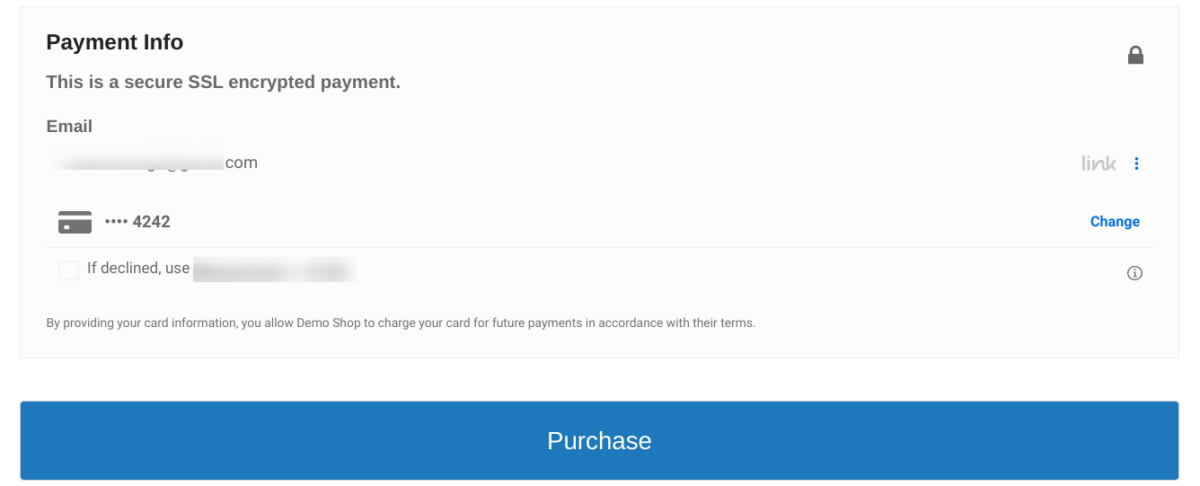
Klik op de knop Kopen. Dat is alles! U zou nu een aankoopbevestigingspagina moeten zien waarop staat dat deze succesvol was.
💡Hoe Stripe-betalingen in WordPress te Testen.
Veelgestelde vragen over het opslaan van betaalgegevens bij het afrekenen
Laten we afsluiten met enkele veelgestelde vragen.
Waarom zou ik betaalmethoden voor klanten opslaan?
Het opslaan van betaalmethoden voor klanten biedt verschillende voordelen. Het vereenvoudigt het afrekenproces doordat terugkerende klanten het gedoe van het elke keer opnieuw invoeren van hun gegevens kunnen overslaan. Het bespaart ook tijd voor klanten en verbetert de conversieratio's door herhaalaankopen.
Kan ik het opslaan van betaalgegevens testen zonder een echte transactie uit te voeren?
Ja, met Stripe kunt u de Testmodus inschakelen om de gebruikerservaring van online betalingen op uw e-commerceplatform te bekijken zonder daadwerkelijk een echte transactie te hoeven uitvoeren. U kunt ook onze handleiding bekijken over Hoe Stripe-betalingen te Testen.
Is het veilig om betaalgegevens op te slaan in WordPress?
Ja. Door vertrouwde en gerenommeerde betalingsgateways zoals Stripe en een e-commerceplugin zoals Easy Digital Downloads te gebruiken, die geavanceerde beveiligingsfuncties bieden, kunt u uw klanten verzekeren dat hun betalingsinformatie veilig is.
Verkrijg EDD om Betaalgegevens op te Slaan in WordPress
Het opslaan van de betaalgegevens van bezoekers op een WordPress e-commerce site biedt tal van voordelen. Het vereenvoudigt het afrekenproces, bespaart tijd voor klanten en verbetert de conversieratio's door herhaalaankopen.
Download Easy Digital Downloads en sla eenvoudig betalingsgegevens op in WordPress met Stripe!
📣 P.S. Vergeet niet om zich te abonneren op onze nieuwsbrief en ons te volgen op Facebook, Twitter/X, of LinkedIn voor meer WordPress-bronnen!