

Cart Recovery is an Easy Digital Downloads Pro feature that helps you recover sales by automatically emailing customers who add items to the cart but don’t complete checkout. This guide covers how to enable it, configure settings and emails, and use the Carts, Analytics, Journey, and Activity screens.
Important: This feature requires an active Easy Digital Downloads (Pro) license key and for the Easy Digital Downloads (Pro) plugin to be installed and activated. Don’t have Easy Digital Downloads (Pro)? Get it today!
Cart Recovery tracks carts that have items and an email (from checkout or customer info), detects when a cart is abandoned after a period of inactivity, and sends a sequence of recovery emails. Customers can restore their cart from a link in the email or unsubscribe from recovery emails. The feature includes analytics, a funnel (Journey) view, and an activity log.
EDD Cart Recovery Activation
- Go to Downloads > Cart Recovery in the WordPress admin menu.
- If you have EDD Pro with an active license, you’ll see an Enable Cart Recovery section with a toggle and feature list.
- Check Enable abandoned cart recovery and click Save Changes.
- The page will reload and show the full Cart Recovery area (Carts, Analytics, Journey, Activity, Settings).
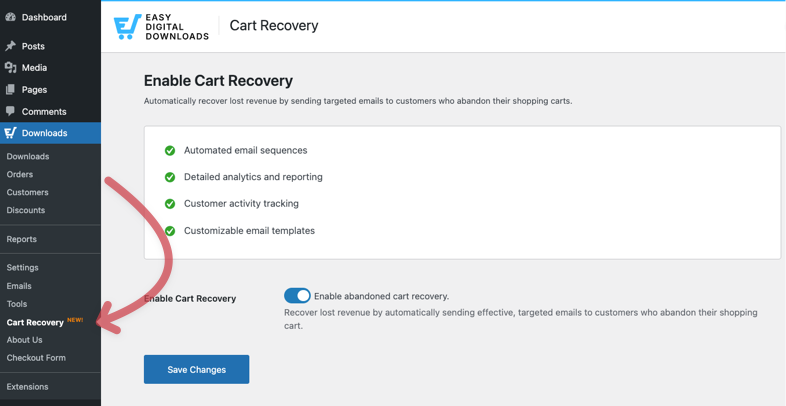
If Cart Recovery is disabled in settings later, the same menu item will show the welcome/enable screen again until you turn it back on.
Cart Recovery Settings
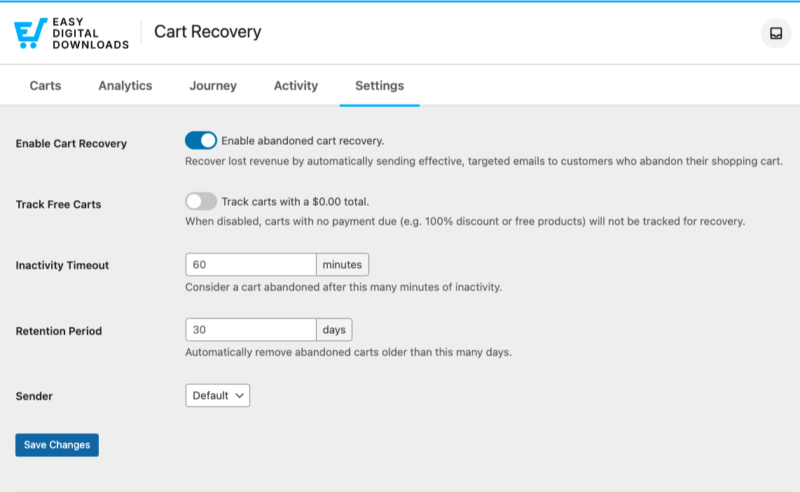
To configure Cart Recovery, head to Downloads > Cart Recovery > Settings. All of these require Cart Recovery to be enabled first.
Enable Cart Recovery
Turn the feature on or off. When off, no new carts are tracked, no carts are marked abandoned, and no recovery emails are sent; existing data remains.
Track Free Carts
Defaults to off. This means that carts with a total price of 0 will not be tracked. Enable it if you wish to track free carts.
Inactivity Timeout
Consider a cart abandoned after this many minutes of inactivity.
- Default: 60 minutes
- Range: 5–1440 (5 minutes to 24 hours)
- After a cart has been inactive for this long, it can be marked abandoned and become eligible for the first recovery email (based on the email’s delay).
Retention Period
Automatically remove abandoned carts older than this many days.
- Default: 30 days
- Range: 1–365
- Older abandoned carts are removed by a scheduled cleanup; they will no longer appear in the Carts list or receive emails.
Sender (Default / Custom)
Choose whether recovery emails use the Default EDD email (Downloads > Emails > Settings) sender or a Custom name and address.
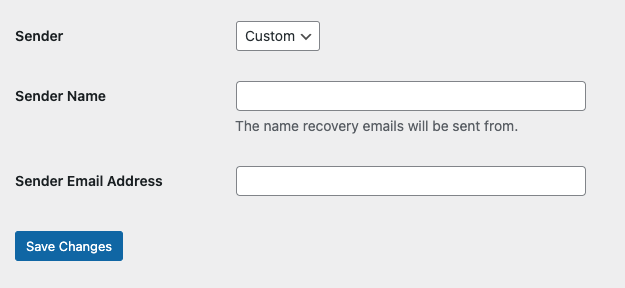
If Custom, set:
- Sender Name – Name shown as the “From” name.
- Sender Email Address – From address (use an address that can send and receive on your domain to avoid deliverability issues).
Email Templates
Recovery emails are sent in a sequence. Each template has a delay (e.g., 30 minutes, 24 hours); emails are ordered by delay and sent one after another until the sequence is finished or the customer unsubscribes or completes the purchase.
- Downloads > Cart Recovery > Settings – Scroll to Email Templates. Here you can see all Cart Recovery templates, their order (by delay), and quick actions (edit, enable/disable, etc.).
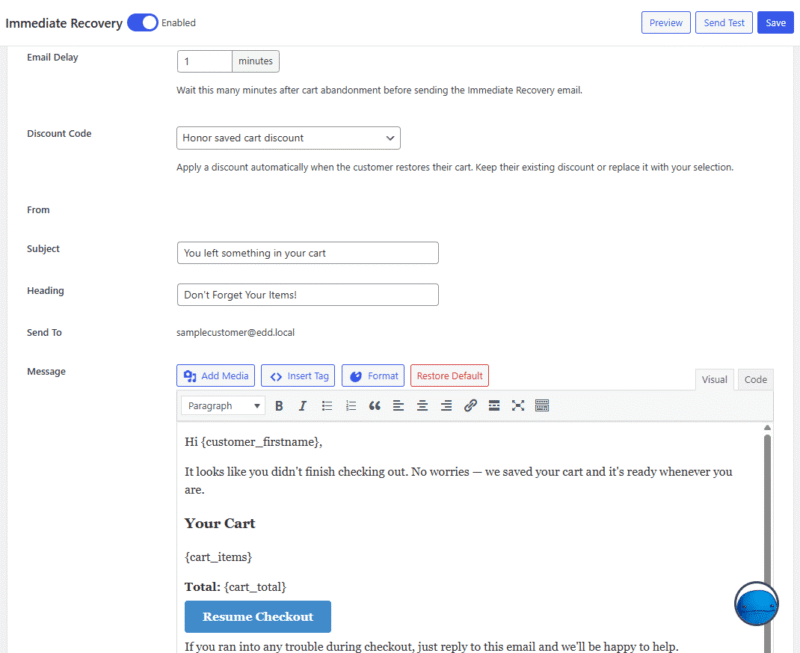
- Edit – Opens the standard EDD email editor for that template (subject, body, delay, optional discount, etc.).
- Preview/Send Test – This will let you see a preview of the email and send a test email to the store admin email.
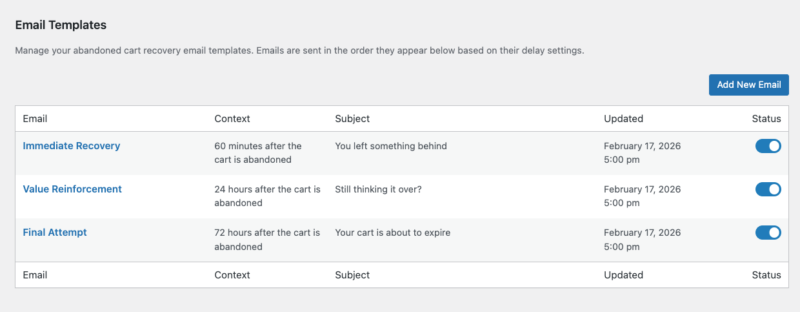
Cart Recovery includes three starter templates (you can enable/disable or customize each):
- Immediate Recovery (IR) – First email, often sent soon after abandonment (e.g., 30 minutes).
- Value Reinforcement (VR) – Follow-up that reinforces the value of the items left in the cart (e.g., 24–48 hours later).
- Final Attempt (FA) – Last email in the sequence (e.g,. 72 hours), after which no more recovery emails are sent for that cart.
The emails are sent in the order they appear based on their delay settings. You can reorder by changing delays, and you can enable only a subset of templates (e.g., only IR and FA).
You can add custom templates as well, at a delay time of your choosing.
Manage Email Template
You can optionally attach a discount code to a template so that the cart link adds an incentive; the recovery URL will include the discount when configured. You can select an existing store discount or honor the discount code the customer initially used in the cart, if any. Please note that only discount codes without restrictions will show in the Discount Code drop-down.
For example, a discount code that is created to work for specific products/categories will not be available.
Required content
- Every Cart Recovery email should include the Unsubscribe link so customers can opt out. The {unsubscribe_link} tag is required for compliance and best practice.
- The Cart Link (e.g., {cart_link}) is the “return to cart” link that restores the cart when the customer clicks it.
Email Tags
Certain tags are available in Cart Recovery email templates. Click the Insert Tag button on the email editor to see which tags can be added to your email’s body.
Carts
Downloads > Cart Recovery (default tab) shows the Carts list—all tracked/abandoned carts that match the current filters.
- Summary bar – For the current view: number of carts, total value, average value.
- Table columns – Customer, Cart Total, Status of tracked cart, Emails Sent, and Last Email sent date. You can sort and filter by cart total and email.
- Actions – Per-cart or bulk actions may be available (e.g., mark recovered, delete). Once a cart is deleted, it will no longer be tracked.
Use this screen to see who has abandoned carts, how many emails they’ve received, and their status (e.g., tracking, abandoned, recovered, converted).
In the Customer column, if you click the View Details link that shows when the mouse is focused will show you additional details regarding that tracked cart such as items in the cart, customer details, and cart history.
Analytics
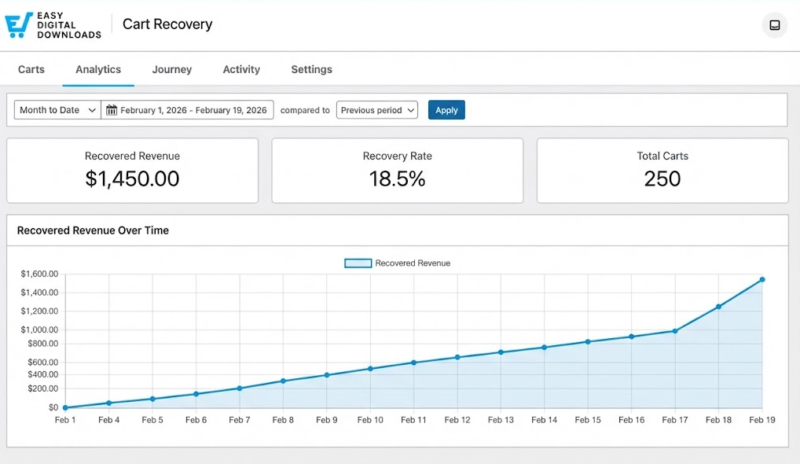
On the Downloads > Cart Recovery > Analytics page, you will find high-level metrics for the selected date range, including tiles such as:
- Carts tracked
- Abandoned carts
- Emails sent
- Recovered (carts and revenue)
- Recovery rate
- Open rate/click rate
Dates can be adjusted with the standard EDD reports date filter. Use this tab to see the overall performance of Cart Recovery over time.
Journey
The Downloads > Cart Recovery > Journey page will show funnel performance. How carts move from creation → abandoned → email sent → opened → clicked → restored → converted.
- Funnel chart – Visualizes progression and drop-off between stages.
- Funnel stage metrics table – Counts and conversion/drop-off at each stage (e.g., Carts Created, Abandoned, Email Sent, Email Opened, Email Clicked, Cart Restored, Converted).
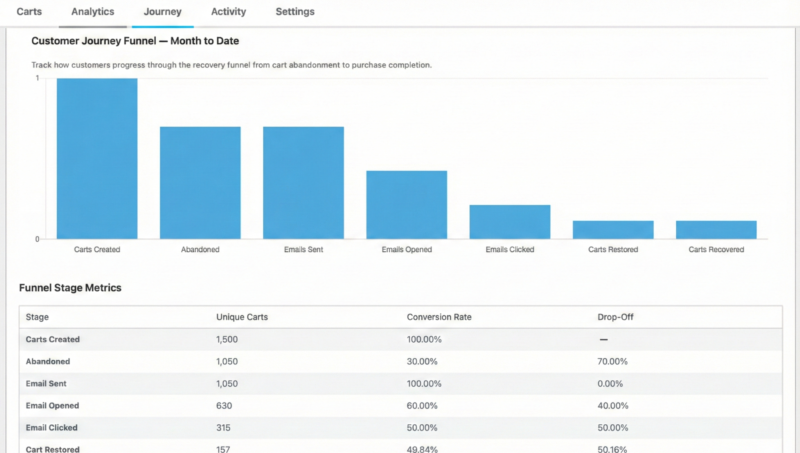
Use this to see where customers drop off and how many eventually convert after receiving recovery emails.
Activity
Downloads > Cart Recovery > Activity shows the email log (activity log) for Cart Recovery: individual recovery emails sent, with details such as cart, template, sent time, and (where applicable) open/click status.
Use this to debug or audit exactly which emails were sent and how contacts were engaged.



