

The Custom Deliverables feature for Easy Digital Downloads (EDD) lets you attach custom files to an individual customer’s order. The customer logs into their account and downloads those files any time, and the files are protected and tracked by the same system that protects your regular product files.
It’s built for stores that sell work rather than a fixed file: design services, custom illustrations, personalized reports, edited audio, or anything a customer pays for before the deliverable exists.
Custom Deliverables requires at least the Professional pass.
This guide covers installing the feature, uploading custom files to an order, controlling which files the customer can access, marking work as fulfilled, and notifying the customer. It also covers the Frontend Submissions vendor workflow, how Amazon S3 changes where your files are stored, and a few limitations worth knowing before you start.
Enabling Custom Deliverables
To install the feature, go to Downloads » Extensions, search for Custom Deliverables, and click Install.
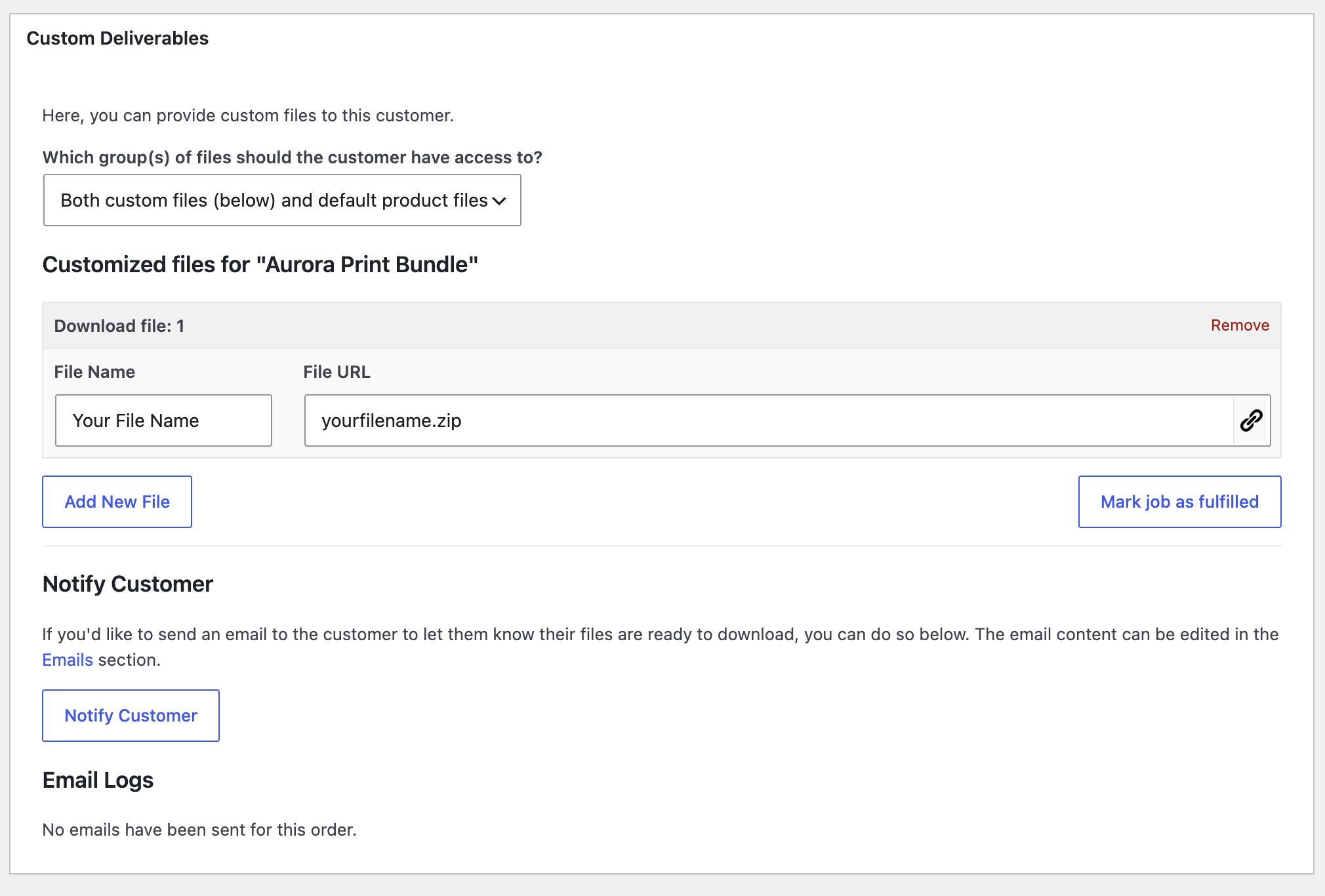
Once it’s active, a Custom Deliverables section appears in every order’s detail view at Downloads » Orders » Order Details. That’s where you upload files and notify the customer.
There are no global settings screens to work through, but there is one thing you’ll want to set up before your first delivery: the email customers receive when you notify them.
You’ll find it at Downloads » Emails » Custom File Delivery, and both the subject line and the body are editable. See Notifying the Customer below.
Attaching Customer Files to an Order
Open the order at Downloads » Orders, click into the order details, and scroll to the Custom Deliverables section.
Uploading files
Click Upload a File and select your file. This works the same way as adding files to a product, so you can upload a new file or pick something already in your Media Library.
You can add more than one file to a single order, and you can add files to different products within the same order. Each product in the order gets its own set of custom files.
Choosing which files the customer can access
Each product in the order has a dropdown labeled Which group(s) of files should the customer have access to? It controls what appears on the customer’s download page.
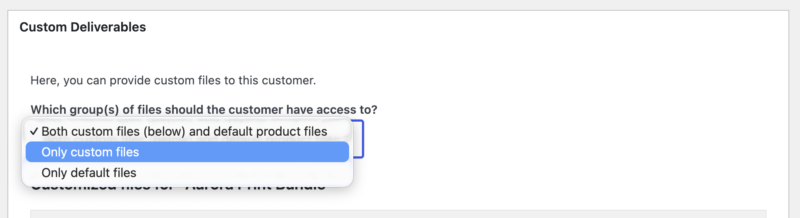
Two terms matter here. Default files are the files attached to the product when you created it in your store. Custom files are the files you attach to this one order.
Your three options:
- Both custom files (below) and default product files.The customer sees everything. Use this when the product ships with something standard, like a style guide or a license PDF, and the custom work is an addition to it.
- Only custom files. The custom files replace the product’s default files entirely. This is the right choice for most deliverable based stores, where the product file is only a placeholder to make the product purchasable.
- Only default files. The custom files are hidden and the customer sees just the standard product files. Useful when you want to hold a deliverable back temporarily, for example while a revision is in progress.
You can change this setting at any time, and it takes effect immediately on the customer’s download page.
Marking Orders as Fulfilled
Each product in an order can be marked as fulfilled independently, which is useful when one order contains several pieces of work at different stages.
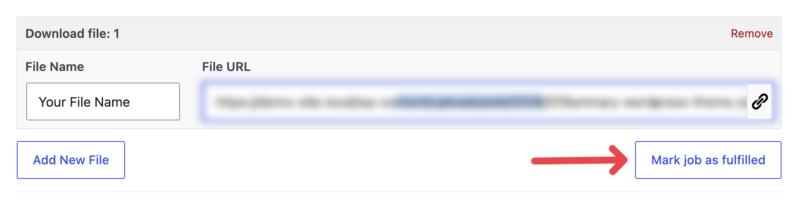
In the Custom Deliverables section, click to mark each product (or “job”) as fulfilled. Once every product in the order is marked fulfilled, the order itself shows as fulfilled.
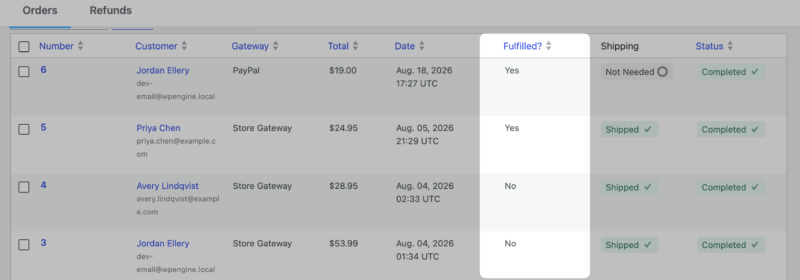
You don’t have to open each order to check status. Custom Deliverables adds a Fulfilled? column to the main orders list at Downloads » Orders, so you can scan your whole queue at a glance and see what’s still outstanding.
Notifying the Customer
When the files are uploaded and the work is ready, click Notify Customer. Easy Digital Downloads emails the customer to let them know their files are available for download.
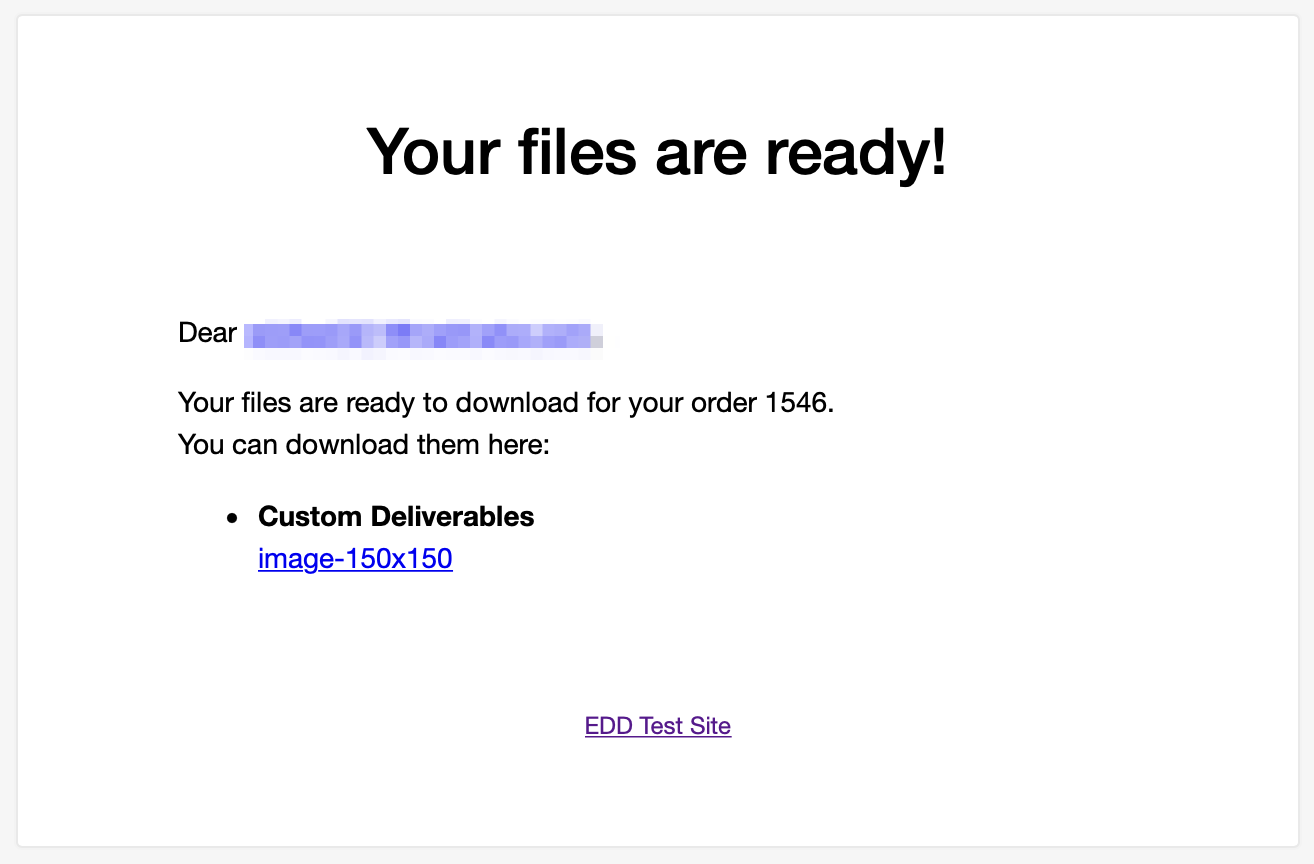
Editing the notification email
You can edit that email at Downloads » Emails » Custom File Delivery.
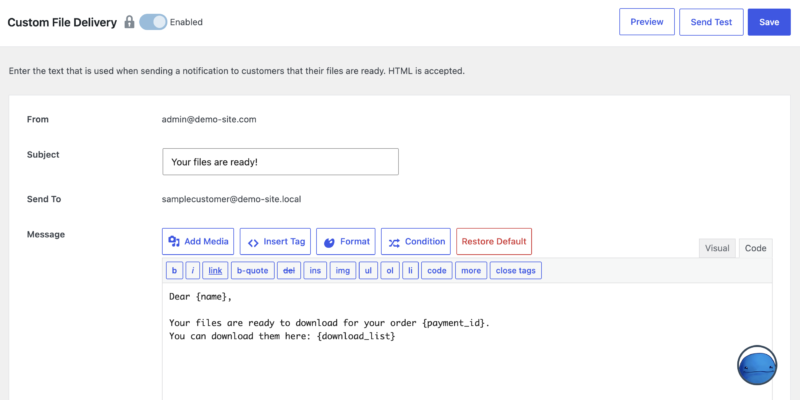
Both the subject line and the body are customizable, so you can match your store’s voice and set expectations about revisions or turnaround.
Confirming the email was sent
Two things happen automatically after the email sends, and both are useful if more than one person works on orders in your store.
First, a note is added to the order record: “[username] sent the customer an email to notify them of custom deliverables being available.” That tells you who triggered the notification and when.
Second, if you’re running Easy Digital Downloads 3.3 or newer, an Email Logs list appears at the bottom of the Custom Deliverables panel, recording each delivery notification sent for that order along with the recipient address, subject line, and timestamp.
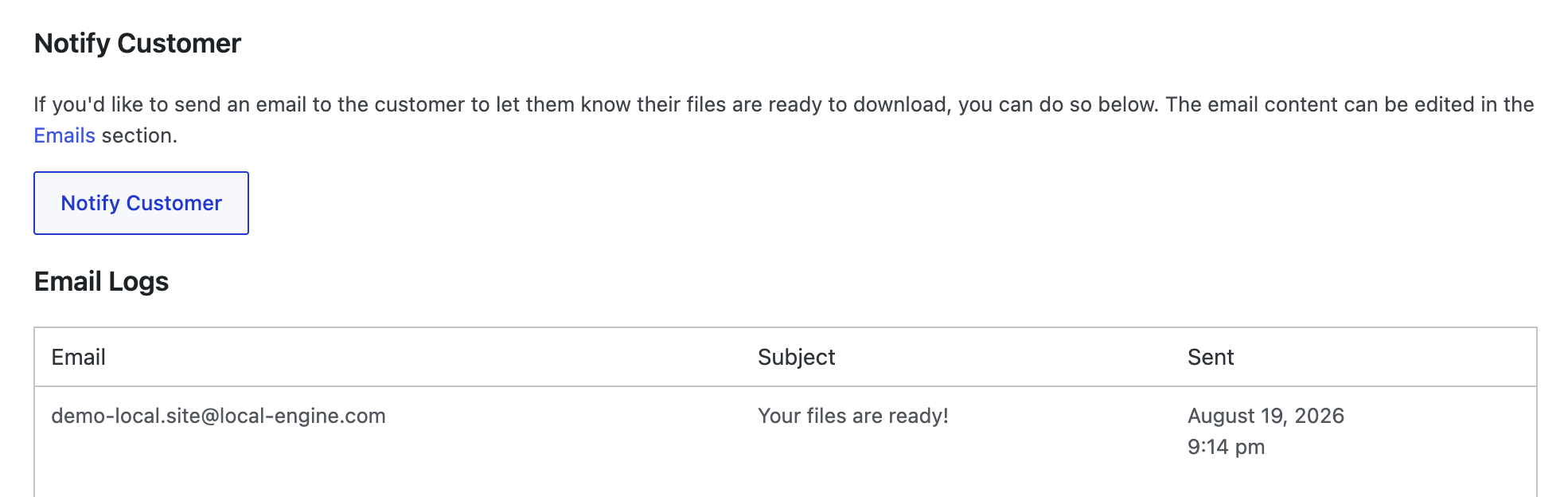
Together they answer the question that comes up constantly on multi admin stores: has this customer already been told their files are ready?
Using Custom Deliverables with Frontend Submissions
If your store runs on Frontend Submissions, your vendors can deliver custom files to their own customers without you handing out WordPress admin access. Vendors upload files from their vendor dashboard, and Frontend Submissions uses its own notification email template rather than the store wide one.
A vendor can only upload files for products they authored. If a vendor can see an order but has no upload option for one of the products in it, that product belongs to a different vendor, and this is working as intended.
For the full vendor workflow, the separate email template, and the {custom_download_list} email tag, see Custom Deliverables and Frontend Submissions Integration.
Using Custom Deliverables with Amazon S3
If the Amazon S3 feature is active on your store, custom deliverable files behave differently from what you might expect.
When you upload a file in the Custom Deliverables section, it’s sent to your S3 bucket, and the local WordPress attachment is deleted once the upload finishes. Your file lives in S3, not in your Media Library.
This is intentional and it’s the point of using S3: large deliverable files stay off your hosting account. It does mean two things worth knowing.
- Don’t go looking for the file in Media » Library afterward. It won’t be there.
- Keep your own copy of any deliverable you might need again. Deleting the file from your S3 bucket removes the customer’s access to it.
Limitations
Two behaviors surprise people, so it’s worth knowing about both before you build a workflow around this feature.
Bundles are not supported
The Custom Deliverables section does not appear for bundle products. If a customer buys a bundle and you open that order expecting to attach a custom file, there will be nothing to attach it to.
If you need to deliver custom work, sell it as a standalone product rather than as part of a bundle.
Unfulfilled orders cannot be anonymized
Custom Deliverables blocks Easy Digital Downloads from anonymizing an order until that order is marked fulfilled.
This protects the delivery workflow: anonymizing an order mid job would cut the vendor off from the information they need to finish it. But it does mean that if you’re processing a data deletion request and the order is still open, you’ll need to mark it fulfilled first.
Custom Deliverables FAQ and Troubleshooting
Why don’t I see the Custom Deliverables section on this order?
The most likely reason is that the order contains a bundle product. Custom Deliverables doesn’t appear for bundles. See Limitations above.
If the order doesn’t contain a bundle, confirm the feature is active at Plugins » Installed Plugins and that your license covers it. Custom Deliverables requires at least the Professional pass.
Where did my uploaded file go? It’s not in the Media Library.
If Amazon S3 is active on your store, that’s expected. Custom deliverable files are sent to your S3 bucket and the local WordPress copy is deleted after the upload completes.
How can I require that the customer be logged in to download customized files?
If you want to require that the customer be logged into your website in order to download their customized files, you can use this code snippet:
https://library.easydigitaldownloads.com/misc/restrict-downloads-to-purchase-email.html
The best way to apply the code snippet to your site is to create a new custom plugin. To do that, install the free plugin called Pluginception, https://wordpress.org/plugins/pluginception/, and use it to create a new custom plugin. Name the plugin something appropriate, paste the provided code snippet into it, and activate the plugin.
Can I tell whether a customer has already been notified?
Yes, in two places. The order record gets an automatic note naming the admin who sent the notification, and on Easy Digital Downloads 3.3 or newer an Email Logs list at the bottom of the Custom Deliverables panel records each delivery notification, with recipient, subject, and timestamp.
Does custom deliverable data show up in a personal data export?
Yes. Custom deliverable data is included when you run a WordPress personal data export for a customer.
Note that the reverse is restricted: an order with unfulfilled custom deliverables cannot be anonymized until it’s marked fulfilled. See Limitations above.
Why can’t I anonymize this order?
Because it has custom deliverables that aren’t marked fulfilled yet. Mark every product in the order as fulfilled, then try again.