

Would you like to access Easy Digital Downloads extensions to extend the functionality of your store? Each EDD pass level comes with its own set of features to help you get the most out of your store.
In this tutorial, we’ll show you how to install and activate extensions/Pro features in Easy Digital Downloads.
Before getting started, you’ll first need to make sure that Easy Digital Downloads Pro is installed and activated on your WordPress site and that you’ve verified your license.
Access Easy Digital Downloads Extensions
In your WordPress admin area, navigate to Downloads » Extensions to view the extensions available with your license level.
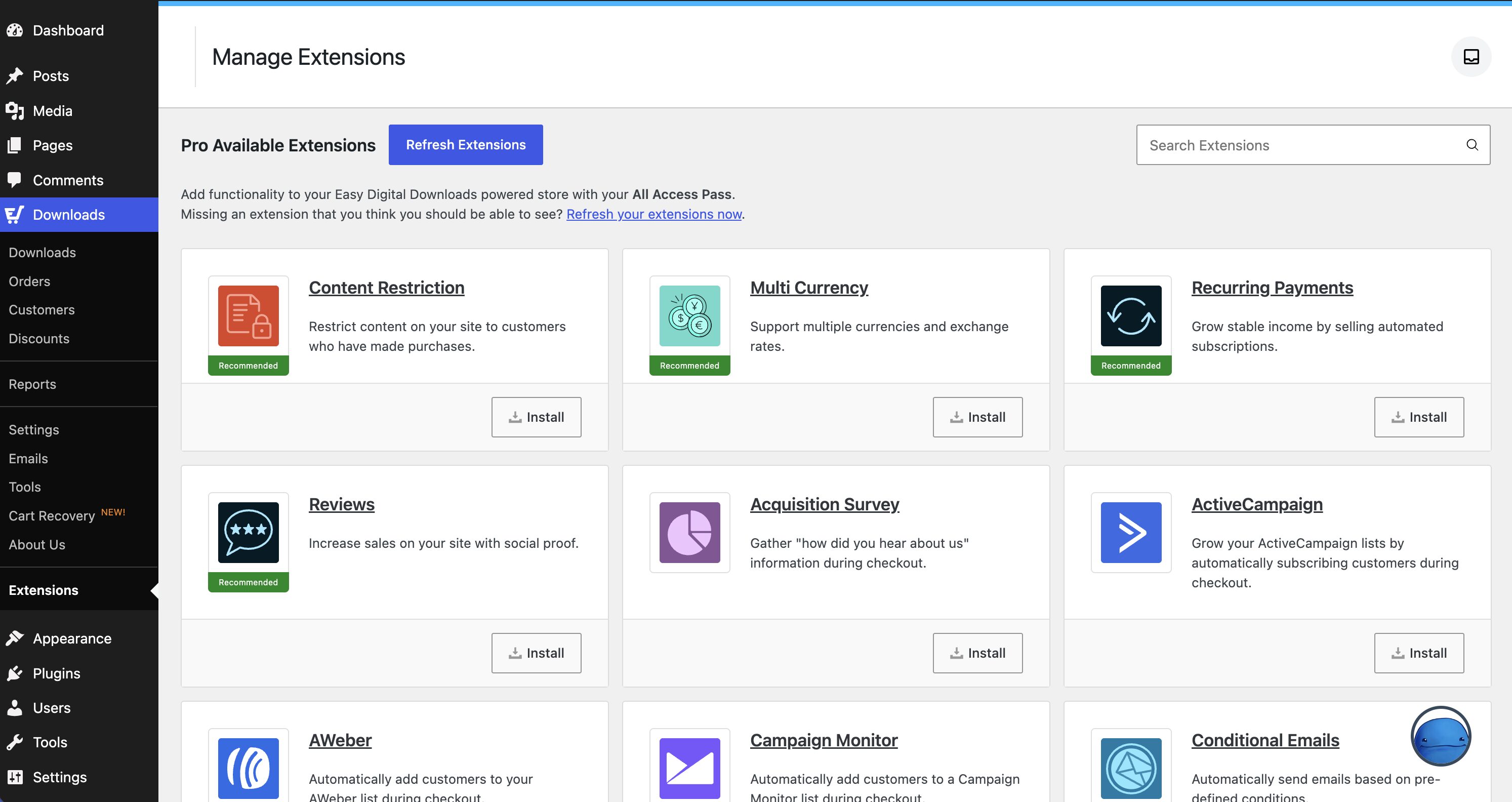
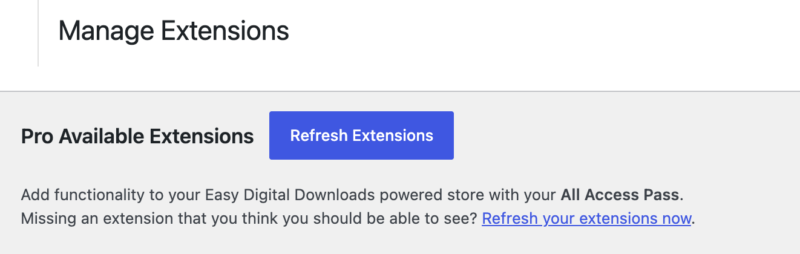
If you don’t see any extensions for your license level, click on the Refresh Extensions button to force a refresh.
To search for a specific addon, you can type its name into the Search Extensions field located in the top-right corner of the page.

Install and Activate Extensions
To install a specific extension to your site, simply click on the Install button.
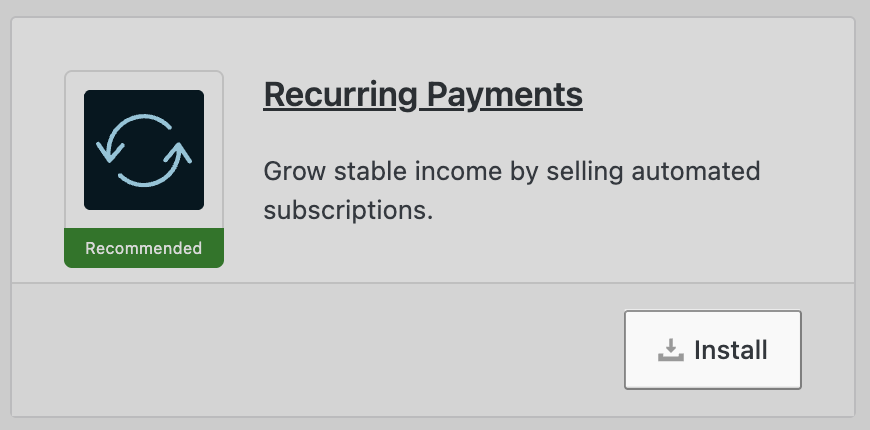
This will automatically install and activate the extension for you. Any extension that’s installed and ready to use will show Activated, with a toggle switch next to it. You may deactivate an extension at any time by clicking that switch. To reactivate it later, click the switch again.
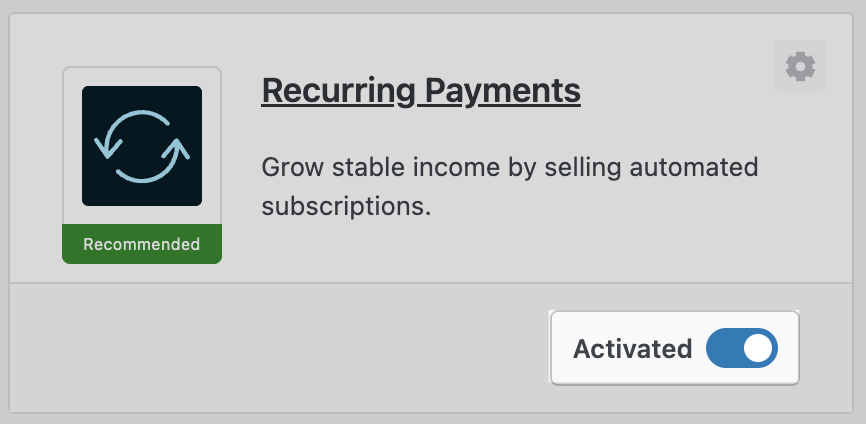
Click the Gear Icon at the top-right of the extension box to open that extension’s settings.
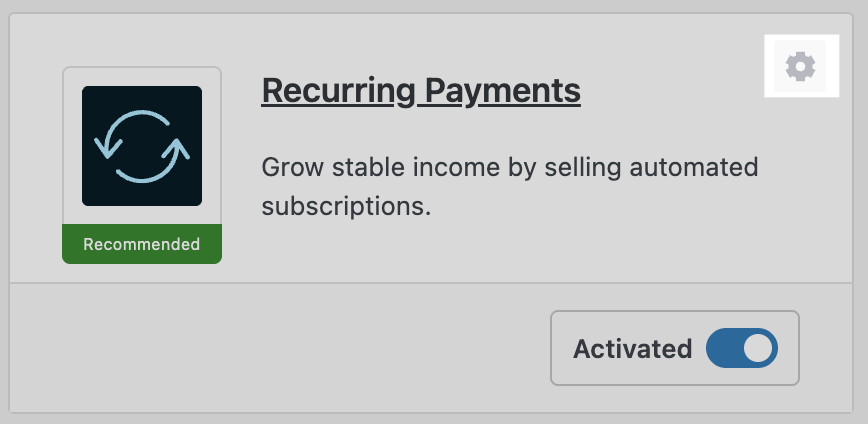
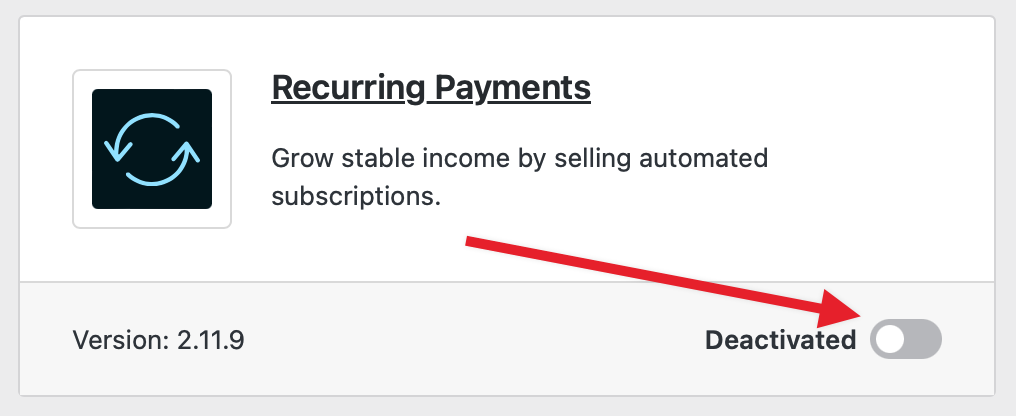
You may deactivate an extension at any time by clicking on the switch next to Activated status. To reactivate an inactive addon, click on the switch next to the Deactivated status.
Install Extensions Manually
In some cases, you may see an error in EDD that says, “Could not install the extension.”
To do so, log in to your EDD account and go to the Downloads. On the page beneath your license details, you’ll see all available addons and Pro features to you, with the the Download link below each extension.
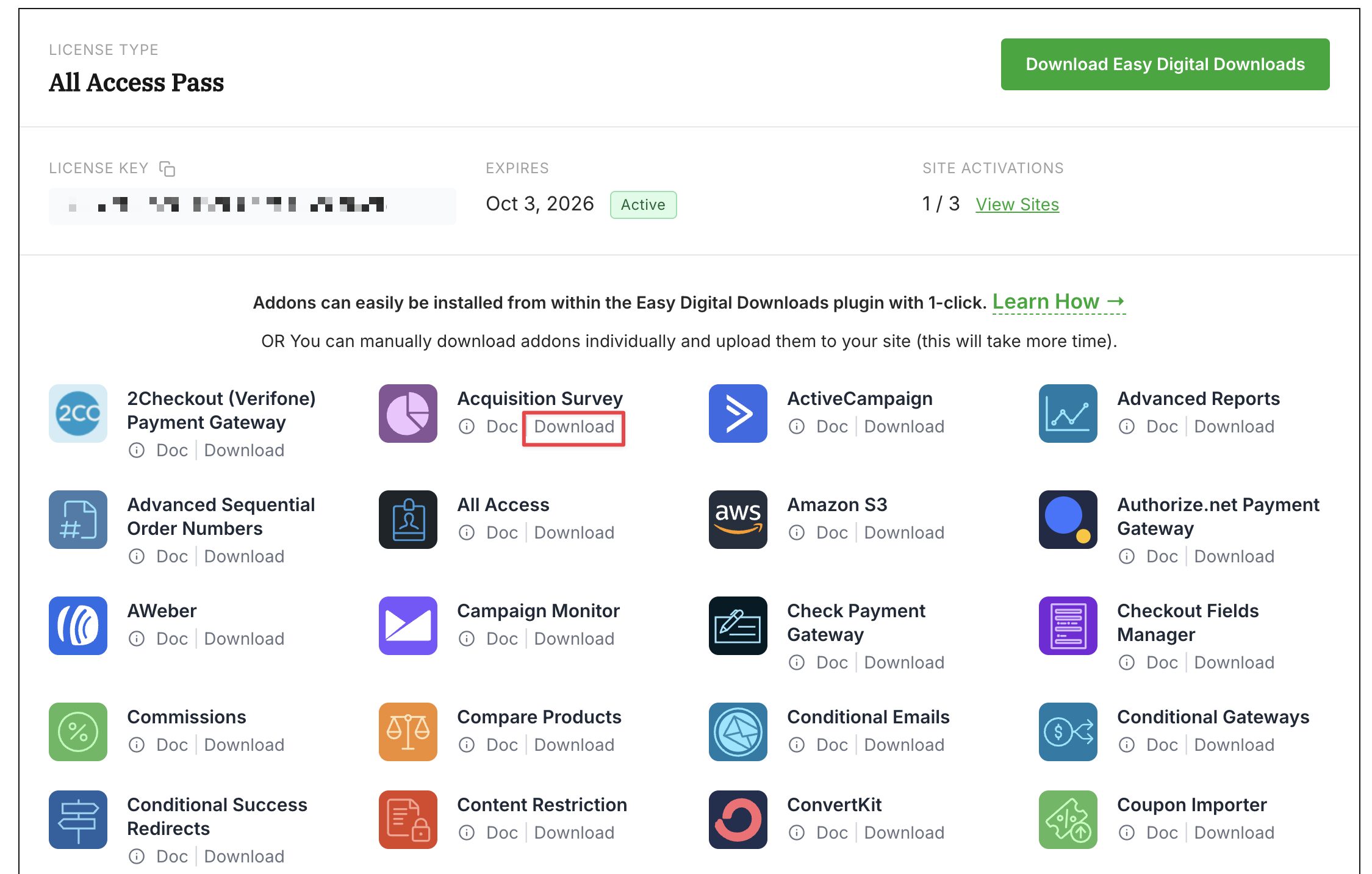
Simply click Download for the extension you want to download.
Then upload the downloaded .zip file to WordPress and activate it like you would a normal plugin. For more information on installing WordPress plugins, check out this WPBeginner tutorial on installing WordPress plugins.
That’s it! You can now install and activate your extensions.
Downloading Extensions
EDD’s paid extensions are not available via the WordPress.org Plugin Directory. They need to be downloaded from our site after you have made a successful purchase. There are several ways to access extension files:
- Your email receipt will either have download links or instructions on how to access our site.
- If you purchased a pass, you can access extensions via your account by following the steps above.
- If you purchased extensions individually, you can access extensions via your account by going to the Downloads tab.
Read the Documentation
Each Easy Digital Downloads Pro feature/extension comes with complete documentation. You can find all our documentation by going to https://easydigitaldownloads.com/docs.