
Are you ready to upgrade from Easy Digital Downloads Lite to the Pro version?
EDD Pro is the paid version of the Easy Digital Downloads plugin, included with any pass, that gives you access to more features and tools. Once you have a pass, you’ll receive a license key that activates EDD Pro and all the features included in your plan.
If you haven’t purchased a pass yet, start with the section below. If you already have your license key, jump straight to Automatic Installation or Manual Installation.
Get Your Pass and License Key
Choose and purchase your Easy Digital Downloads (Pro) pass from the EDD pricing page.
From your WordPress dashboard, click Downloads then Upgrade to Pro. This opens the EDD plans page with a discount applied automatically for existing Lite users.
Choose your plan and complete the checkout. Once your purchase is confirmed, your license key will be available in your EDD account under the Downloads tab.
Choose Your Installation Method
There are two ways to install EDD Pro:
- Automatic installation is faster and works for most WordPress hosts.
- Manual installation is available if your host restricts automatic plugin installs.
Try automatic first. If it fails, use the manual method below.
For a detailed walk-through of the full installation and activation process, see our Install and Activate Easy Digital Downloads doc.
Install EDD (Pro) Automatically
Once you’ve purchased a license, you can upgrade to EDD Pro by adding your license to your download settings. This will install Easy Digital Downloads (Pro) for you.
Step 1: Copy Your License Key
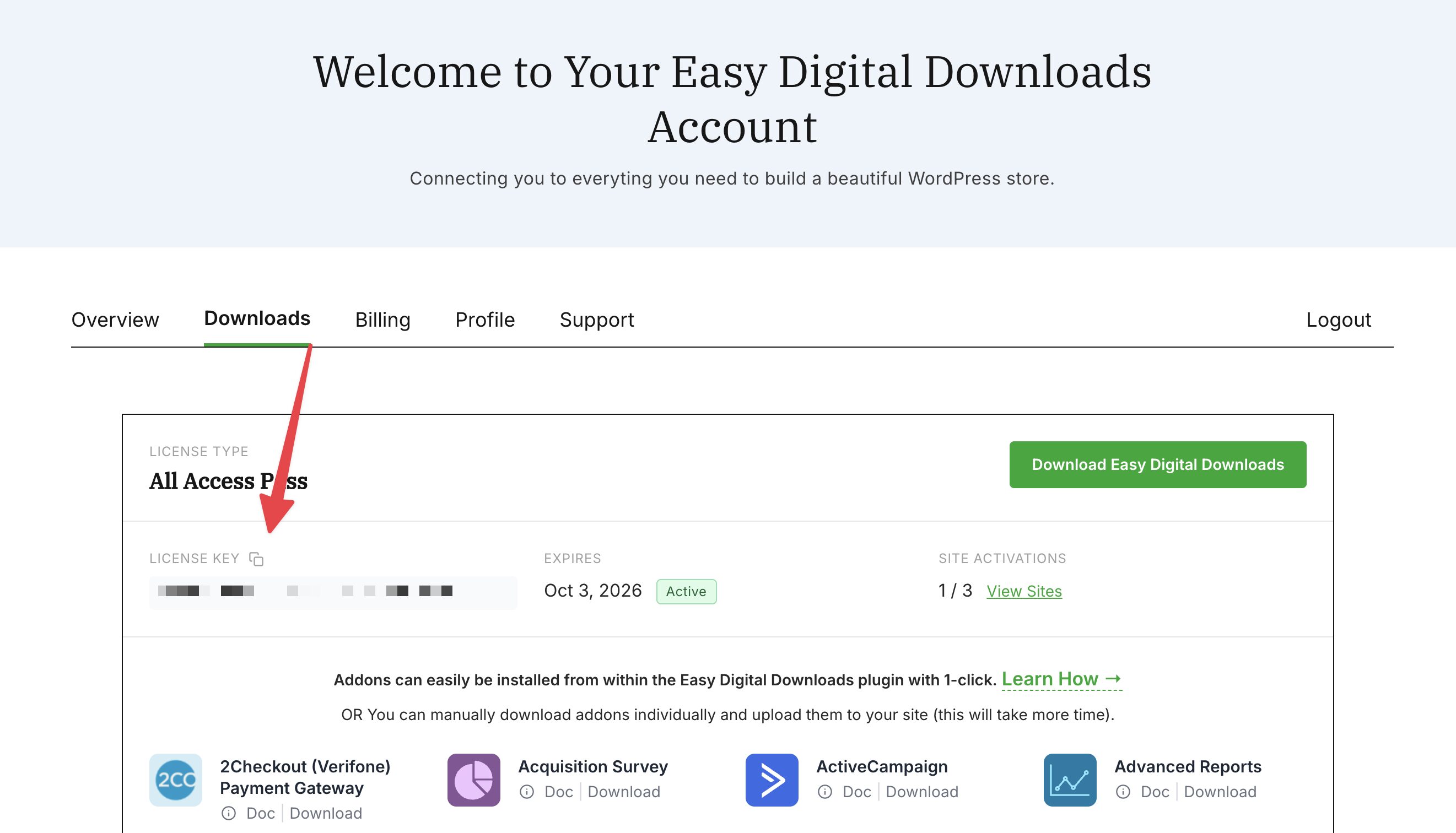
Log in to your Easy Digital Downloads account and click the Downloads tab. Under License Key, click the copy icon to copy your key to your clipboard.
Step 2: Activate Your License Key
Note: Activating your key is the same whether you have the free version of EDD or EDD Pro.
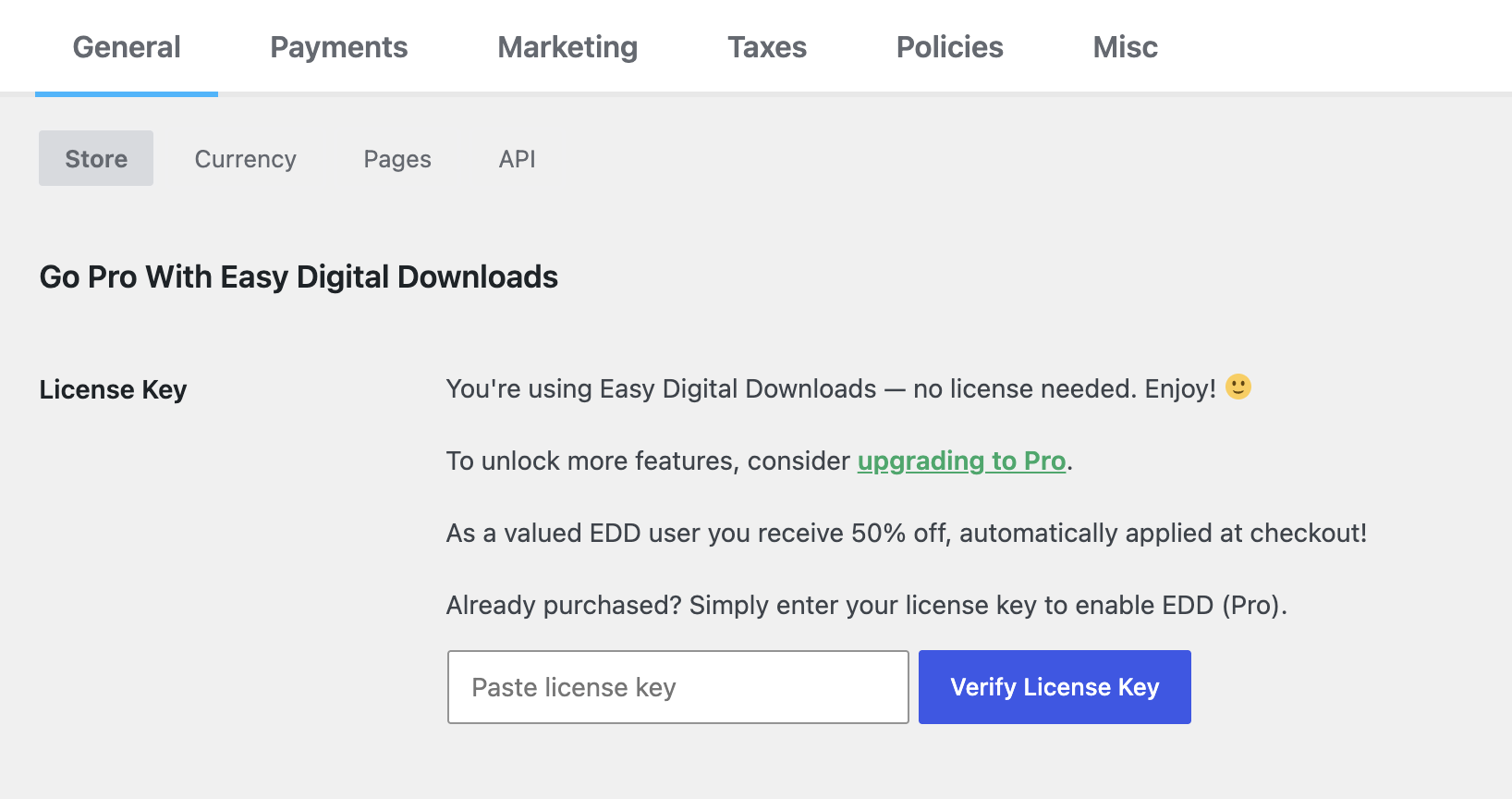
Log into your WordPress site. From your WordPress dashboard, go to Downloads » Settings. Under Go Pro With Easy Digital Downloads, paste your license key into the Paste license key field and click Verify License Key.
Step 3: Connect EDD Pro
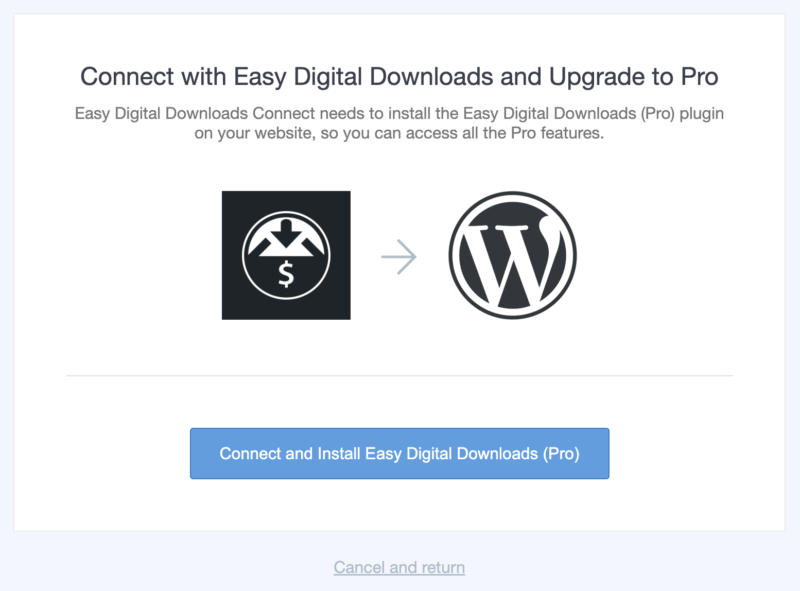
After your key is verified, click Connect and Install Easy Digital Downloads (Pro). EDD Pro installs automatically (this may take a few moments).
When it’s complete, you’ll see a success confirmation and be redirected to your EDD settings with your license data displayed.
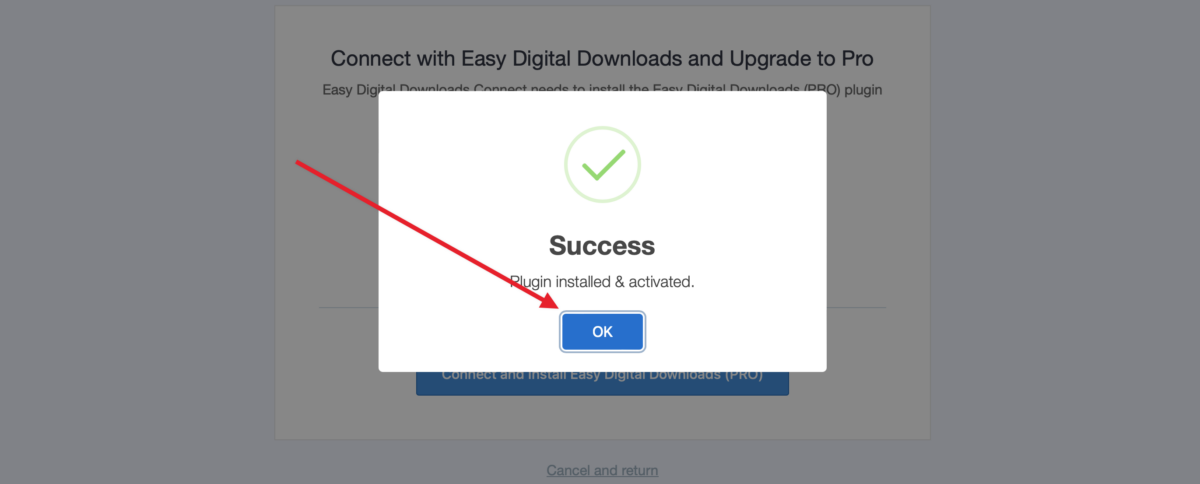
You should see that your license key has already been verified, and the license key data will be displayed.
Note: If the automatic installation fails, your host may have restrictions that prevent it from running. You’ll need to manually install the paid version of the plugin instead.
Install EDD Pro Manually
Log in to your EDD account at easydigitaldownloads.com and click the Downloads tab. Click Download Easy Digital Downloads to save the plugin .zip file to your computer.
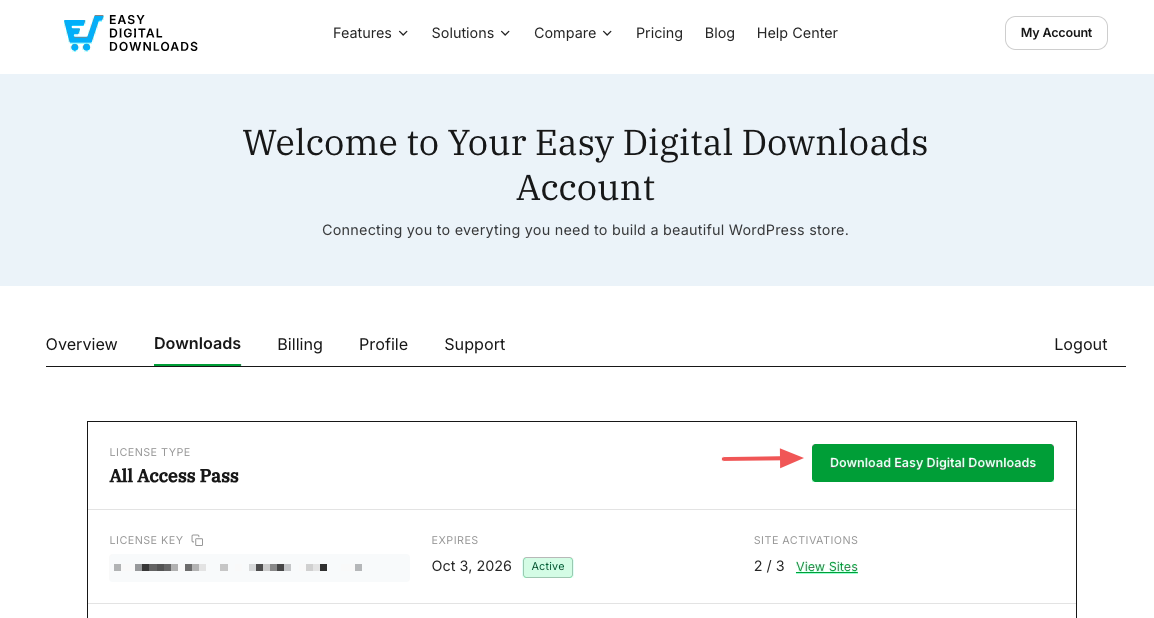
Note: In some cases, this file may unzip as you download it and appear as a regular folder. However, the folder must be zipped to use the WordPress plugin uploader.
For more details on how to zip and unzip files, be sure to check out these guides for Windows and Mac operating systems.
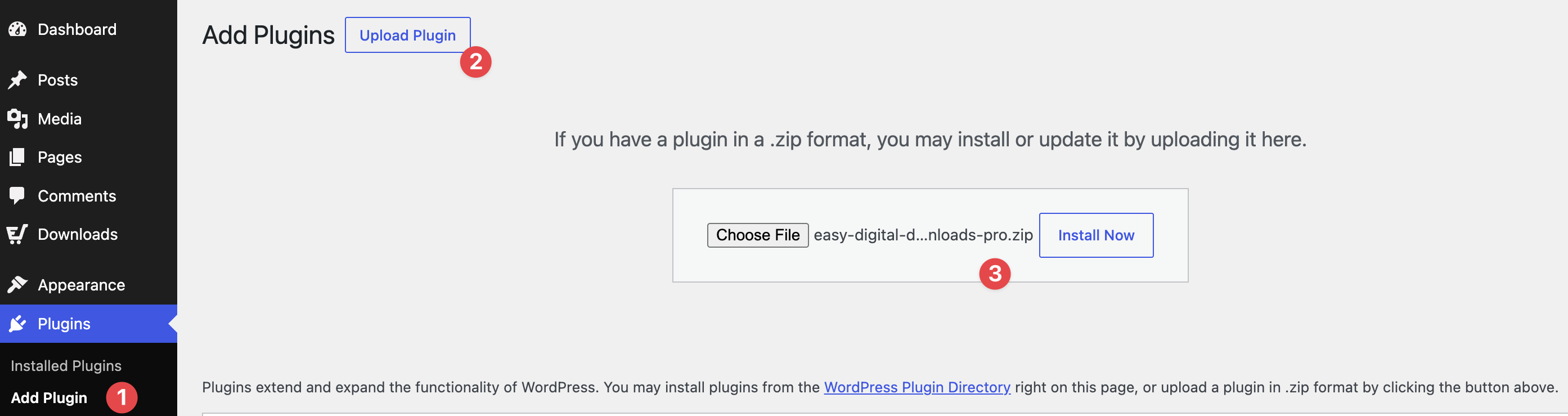
In your WordPress dashboard, go to Plugins » Add Plugin (1), click Upload Plugin » Choose File (2), then select the .zip file you downloaded and click Install Now (3).
Once installed, select Activate Plugin.
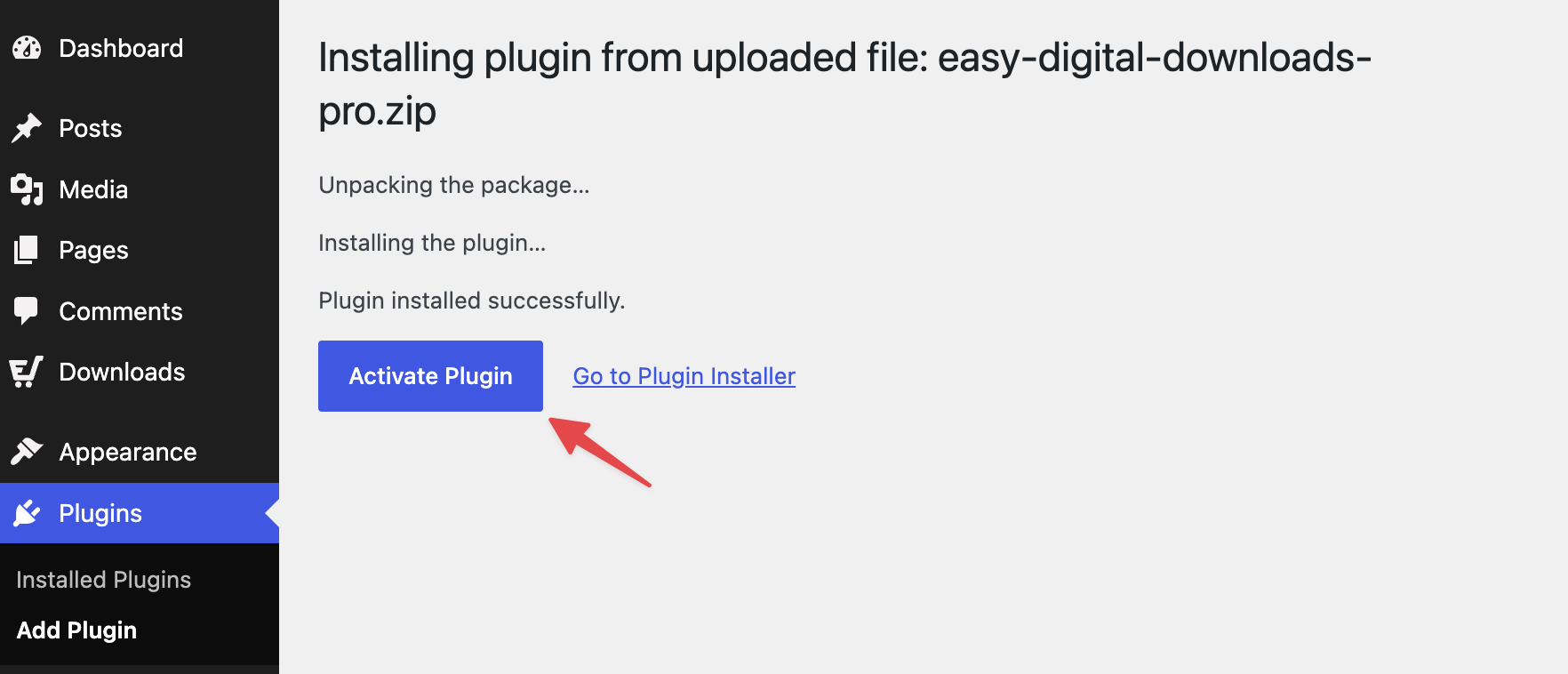
After activation, go to Downloads » Settings. Under Easy Digital Downloads (Pro) Key, paste your license key into the Paste license key field and click Activate License.
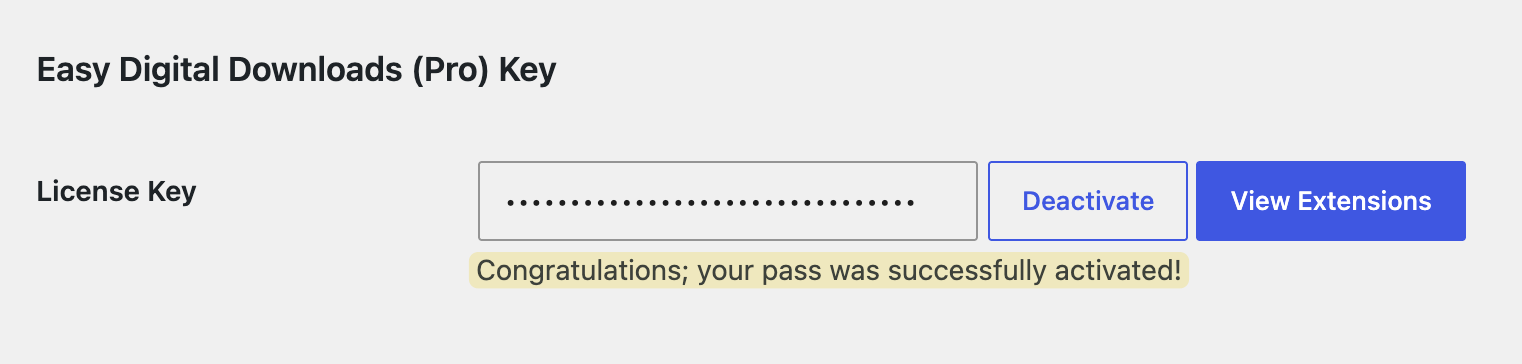
You’ll see a confirmation that your license is active and your site is receiving updates.
After Installing EDD Pro
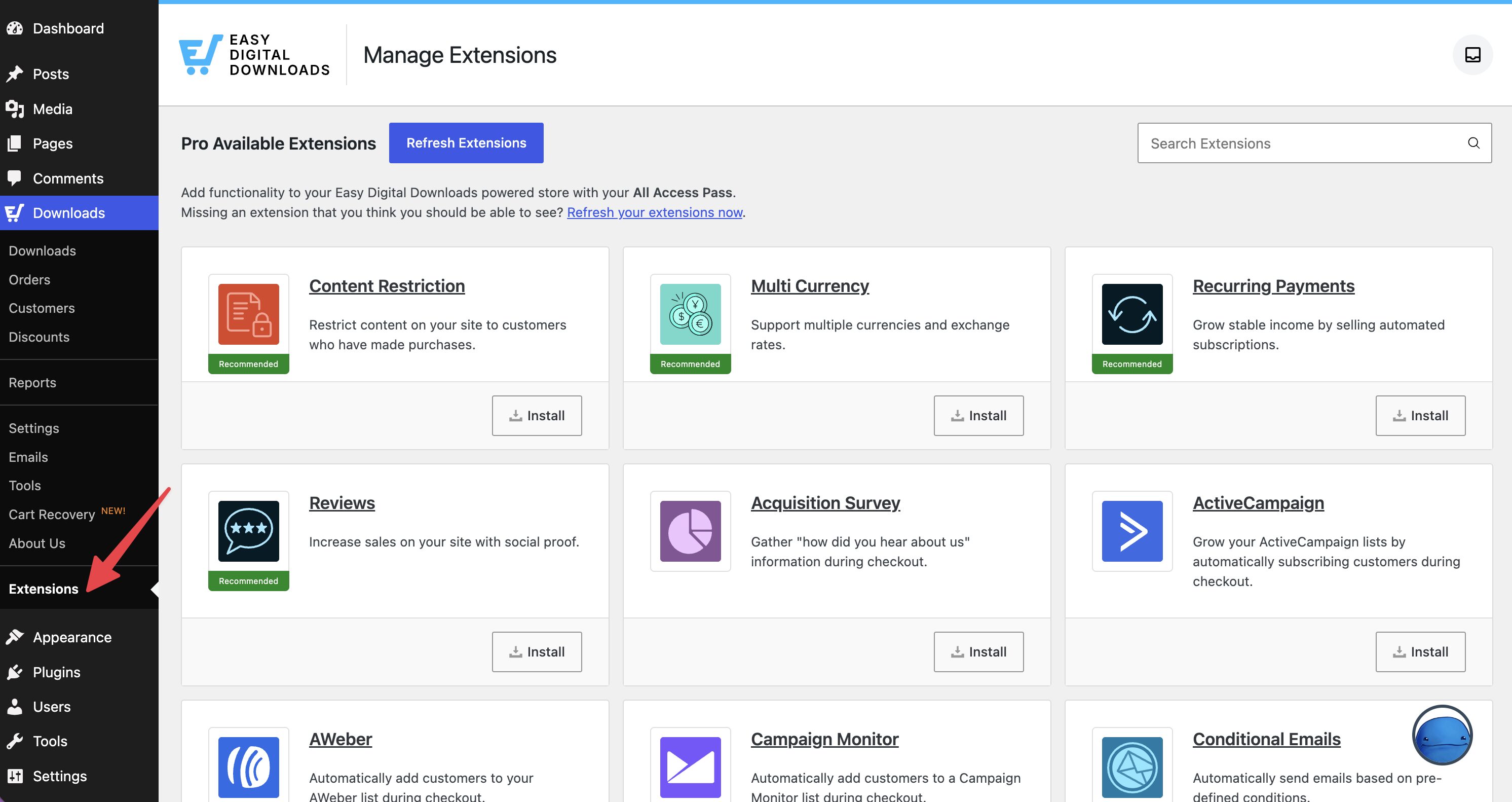
With EDD Pro active, any extension or premium feature included in your pass can be installed from Downloads » Extensions. Each extension in the list includes a one-click install button. You don’t need separate license keys or account logins.
For next steps on setting up your store, see the Easy Digital Downloads Quickstart Guide. If you have any questions about your Pro pass, feel free to explore our docs area or reach out to our support team.
FAQs: Upgrading from EDD Lite to Pro
What is the difference between EDD Lite and EDD Pro?
EDD Lite is the free version of the plugin, available in the WordPress plugin directory. EDD Pro is the paid version, included with any EDD pass. Both run your store. Pro adds the premium features and extensions covered by your plan/pass, and it activates with a license key.
Which pass do I need to get EDD Pro?
Any paid pass (Personal, Extended, Professional, All Access) unlocks EDD Pro. The pass you choose determines which features and extensions are available to you. See the EDD pricing page for a full plan comparison.
What should I do if automatic installation fails?
Some WordPress hosts restrict automatic plugin installs. If you see an error after clicking Connect and Install Easy Digital Downloads (Pro), use the manual installation steps above.
How do I install extensions after upgrading?
Go to Downloads » Extensions in your WordPress dashboard. Pro features included in your pass show a one-click install button. You don’t need to enter individual license keys for extensions covered by your plan.
Can I upgrade or switch between pass tiers?
Yes. You can upgrade or change your pass at any time. Log in to your EDD account, go to Billing, and manage your subscription from there.