The digital planner market is absolutely booming right now. Whether you are designing hyperlinked GoodNotes planners, printable ADHD organizers, or functional Notion templates, there’s never been a better time to be a digital creator.
But if you’re relying solely on third-party marketplaces like Etsy, you’re likely losing a massive chunk of your hard-earned profits to listing fees, transaction costs, and mandatory off-site ads. Even worse, you don’t actually own your customer list. If you want to scale your digital product business, it’s time to take control and move to your own platform.
How to Sell Digital Planners on WordPress: To sell digital planners on WordPress, you need to set up a basic WordPress website, install a dedicated digital eCommerce plugin like Easy Digital Downloads (EDD), and connect a payment gateway like Stripe or PayPal. Once installed, simply upload your planner PDF or GoodNotes files, set your price, and start selling directly to your audience without paying marketplace fees.
In this guide, I’ll walk you through exactly how to set up your own digital planner storefront from scratch. Let’s dive in!
Why Sell Digital Planners on WordPress Instead of Etsy?
Etsy is a fantastic search engine for beginners, but it’s not built for scaling a highly profitable digital product business. When you sell digital planners on your own WordPress site, you unlock three massive advantages:
- Zero Revenue-Sharing Fees: Instead of giving away a percentage of every sale plus listing fees, you keep 100% of your profits (minus standard credit card processing fees).
- You Own Your Customer List: On marketplaces, you cannot easily email your past buyers. On WordPress, you capture the email address of every customer, allowing you to market next year’s planner or new digital sticker packs directly to them.
- No Competing Products: When a customer views your planner on a marketplace, they’re bombarded with ads for cheaper alternatives from competitors. On your own site, your products have the customer’s undivided attention.
How to Sell Digital Planners on WordPress (Step-by-Step)
Follow this simple tutorial to get your digital planner store up and running.
Step 1: Get WordPress Web Hosting
Before you can install any plugins, you need a WordPress website. This requires two things: a domain name (like yourplannerstore.com) and web hosting (the server space where your site lives).
I recommend using a managed WordPress host like SiteGround. These hosts often allow you to install WordPress with a single click during the checkout process, meaning you don’t need to touch a single line of code to get started.
Step 2: Install the Easy Digital Downloads Plugin
When building an online store, a lot of creators automatically default to WooCommerce.
While WooCommerce is great, it’s heavily designed for physical products. If you’re exclusively selling digital planners, you don’t need complex shipping zones, inventory tracking, or physical tax calculators bogging down your site.
This is where Easy Digital Downloads (EDD) shines. It’s a lightweight, purpose-built eCommerce plugin designed specifically for selling digital files.
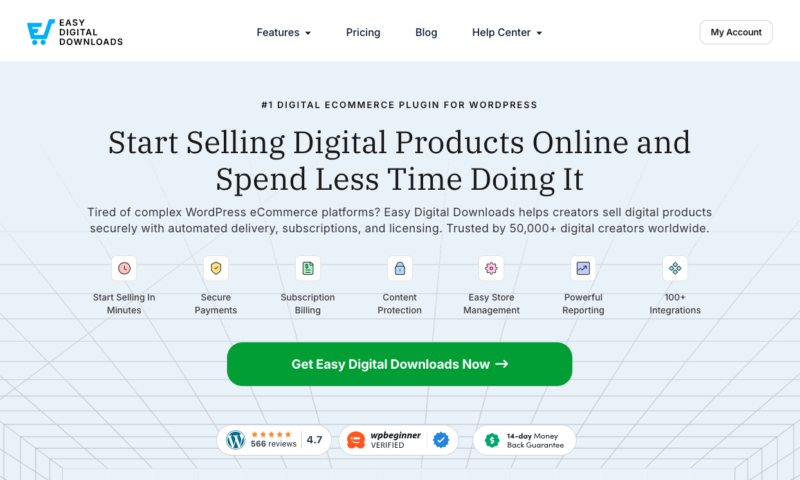
I highly recommend grabbing a Pro pass. This unlocks dozens of premium extensions and eCommerce features. But if you want to try the free version first, you can download it right from your WP dashboard.
Here’s how to get it running:
- From your WordPress dashboard, navigate to Plugins » Add New.
- Search for “Easy Digital Downloads.”
- Click Install Now, and then hit Activate.
Once activated, you will see a new Downloads menu item appear in your left-hand WordPress dashboard sidebar. You’re now ready to build your storefront.
Step 3: Configure Your Store & Payment Gateway
You can click on the Get Started button to launch the Onboarding Setup Wizard. This will take you through the initial setup steps of your store.
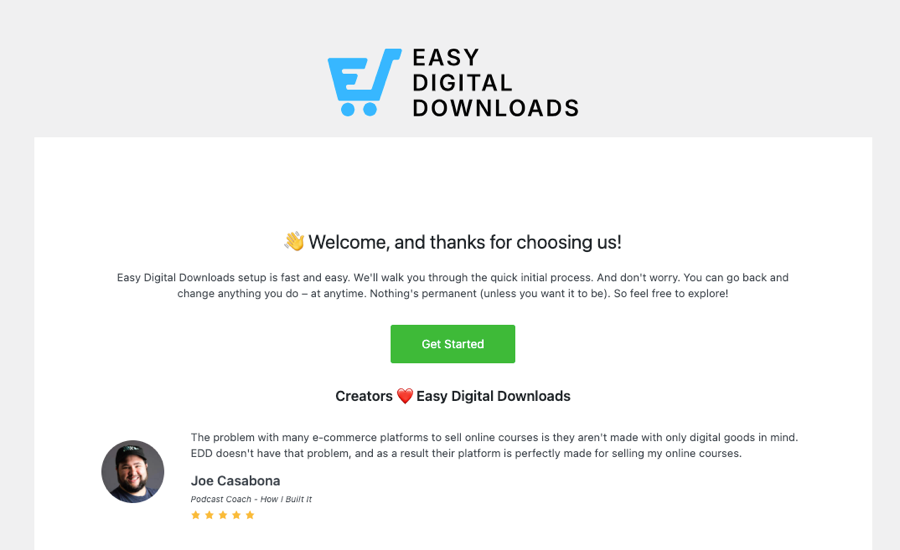
The most important step to take care of as soon as possible is connecting your payment gateway. This ensures you can get paid.
You can connect it during the Setup Wizard. You can also go to Downloads » Settings » Payments.
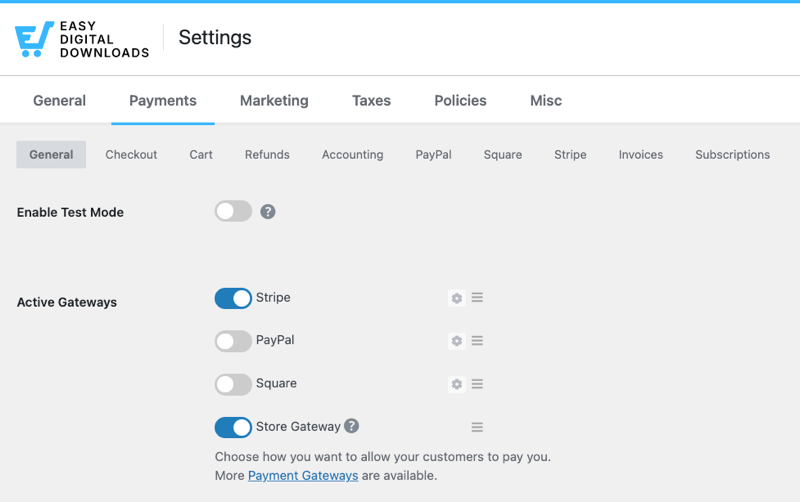
Here, you can easily enable Stripe or PayPal. EDD has seamless integrations for both, allowing your customers to pay with credit cards, Apple Pay, or Google Pay directly on your site.
You’ll have to connect your account under the Stripe tab.
⚙️ Refer to our Stripe doc for step-by-step instructions.
Step 4: Add Your Digital Planner Product
Now comes the fun part: adding your digital planner to your store! In EDD, products are simply called “Downloads.”
To start, go to Downloads » Add Download.
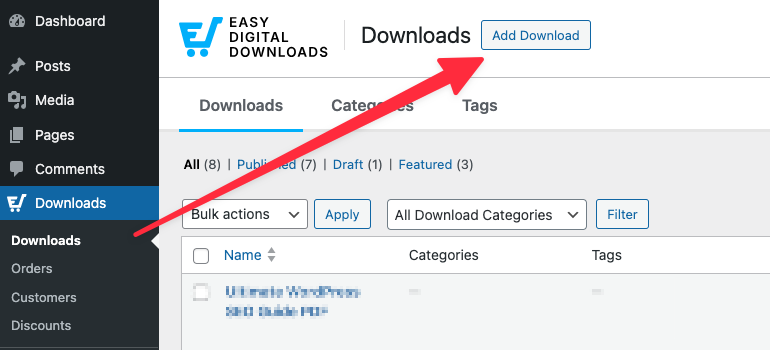
Next, add a title and description.
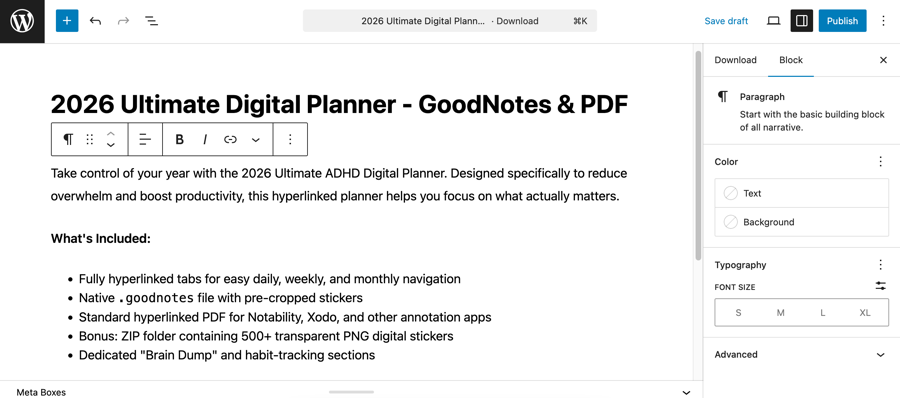
Give your planner a clear, descriptive title (e.g., “2026 Ultimate ADHD Digital Planner – GoodNotes”). In the description box, detail exactly what the customer gets. Be sure to mention compatibility.
Beneath the editor, you’ll find the Download Details section. The Prices field is on the first Details tab.
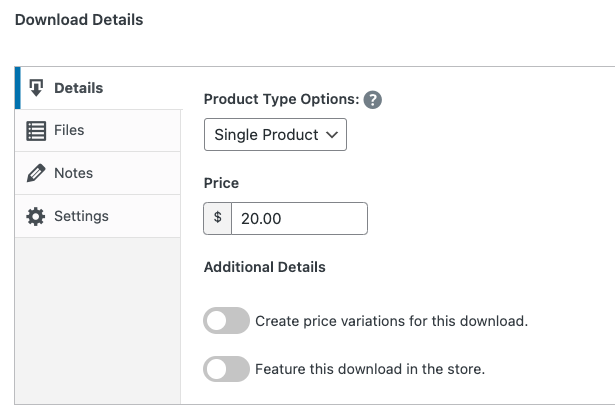
Enter your desired price for the planner. Update the page to save by clicking on Save draft in the top-right corner.
Now you can upload your planner files. Scroll down to the Files tab.
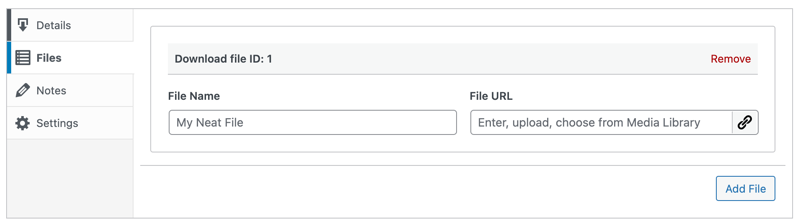
Enter a File Name (like “2026 Planner PDF”) and click Upload a File.
Here, you can upload your actual PDF, your GoodNotes file, or a ZIP folder containing extra digital stickers. EDD will securely store these files and automatically generate a secure, expiring download link for your customers after they pay.
Don’t forget to add a product image. On the right-hand sidebar, click on Set Download Image.
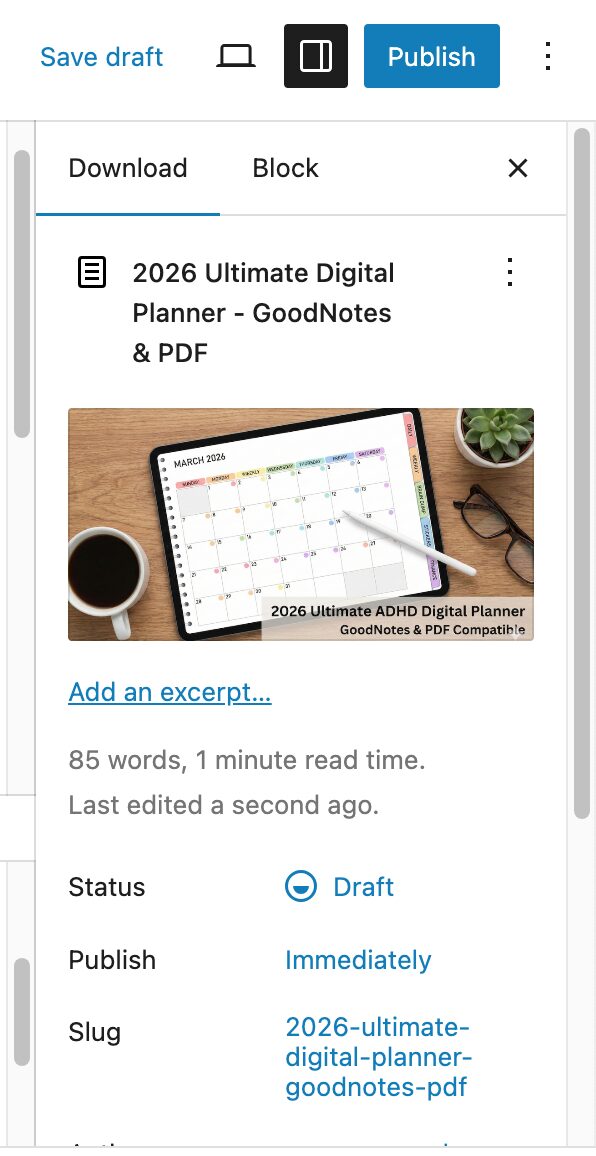
A mockup of your digital planner displayed on an iPad alongside an Apple Pencil works perfectly for this.
When you’re done, select Publish.
Step 5: Test Your Checkout Process
Before driving traffic from your Instagram, TikTok, or Pinterest, always run a test transaction.
Preview your product page from the front of your website.
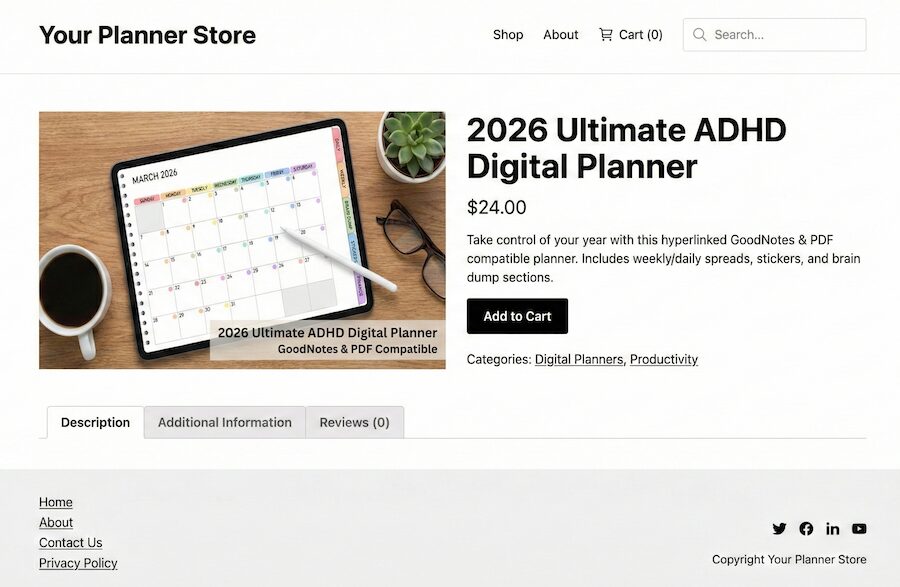
EDD features a built-in “Test Mode” (found in the Payments settings).
Turn this on, navigate to your live planner product page, add it to your cart, and complete the checkout using the dummy credit card numbers provided by Stripe.
Ensure that you receive the purchase receipt email and that the secure download link works perfectly.
⚙️ Learn more about Stripe test payments.
Pro Tips for Managing & Protecting Digital Planner Files
Selling digital planners comes with a few unique technical challenges. Unlike a simple text document, a 365-day hyperlinked digital planner can be a massive file, and digital piracy is a common concern in the planner community.
Here’s how to optimize and protect your products using Easy Digital Downloads.
Digital planners designed for GoodNotes or Notability often contain thousands of internal hyperlinks. When you bundle these massive PDFs with ZIP folders full of digital PNG stickers, your file sizes can easily exceed your WordPress host’s default upload limits.
If you’re selling heavy planner bundles, use the EDD Amazon S3 integration or the Dropbox feature. This allows you to host massive files off-site while EDD still securely handles the checkout.
While you can never prevent all piracy, you can make it significantly harder. By default, EDD protects your files from being accessed by direct search engine indexing.
To go a step further, navigate to Downloads » Settings » Misc » File Downloads. Here, you can set a File Download Limit and a Download Link Expiration. This prevents a single buyer from posting their download link on a public forum.
Some customers want the raw PDF, while others want the native .goodnotes file. You don’t need to create separate product listings
In EDD’s Download Files section, you can click Add File to attach multiple files to a single purchase. Their receipt will give them the option to download all variations in one place.
FAQs on Selling Digital Planners With WordPress
Can I sell Canva planner templates with EDD?
No, you do not need WooCommerce to sell digital planners. While WooCommerce is the most popular eCommerce plugin for WordPress, it is primarily built for physical goods. This means your site gets bloated with shipping extensions, inventory management tools, and complex checkout fields that digital creators don’t need. Easy Digital Downloads (EDD) is explicitly designed for selling digital files, making your site faster and your checkout process significantly smoother for customers.
Do I need WooCommerce to sell a digital planner?
No, you do not need WooCommerce to sell digital planners. While WooCommerce is the most popular eCommerce plugin for WordPress, it is primarily built for physical goods. This means your site gets bloated with shipping extensions, inventory management tools, and complex checkout fields that digital creators don’t need. Easy Digital Downloads (EDD) is explicitly designed for selling digital files, making your site faster and your checkout process significantly smoother for customers.
How do customers get their files after purchase?
EDD lets you automate the delivery of digital products. After purchase, customers immediately receive secure download links to access their files. You can control how long these links remain active and limit the number of downloads to protect your content.
Use EDD to Sell Digital Planners on WordPress
Moving your digital planner business away from third-party marketplaces might feel like a big leap, but the long-term payoff is massive. By hosting your own store on WordPress, you eliminate listing fees, keep 100% of your profits, and finally take ownership of your customer email list.
You don’t need to be a developer to make the switch. With WordPress and Easy Digital Downloads, you can have a professional, automated digital planner store up and running in a single afternoon.
Ready to take control of your digital product business?
📣 P.S. Be sure to subscribe to our newsletter and follow us on Facebook, Twitter/X, or LinkedIn for more WordPress resources!