

Do you want to sell streaming video or audio, but only to people who’ve actually paid for it?
That’s a different challenge than selling downloads. With a download, the file changes hands once and you’re done.
With streaming, your content lives on a page. Anyone with the link could technically view it, unless you lock it down.
The good news? You don’t need to build a whole new platform to do this. If you’re already selling digital products with Easy Digital Downloads (EDD), you can restrict a streaming page to paying customers only, and keep everything in one place.
This guide walks you through exactly how to sell streaming video or audio and restrict access to it, whether you’re gating a single video or an entire library.
Key Takeaways
- No membership plugin needed. Content Restriction adds access-gating directly to your existing EDD store.
- One-time or subscription. Restrict by a single purchase or an active Recurring Payments subscription.
- Any platform, any domain-lock. Vimeo, Wistia, or YouTube all work. Paid tiers add domain-level privacy.
- Customers get access automatically. Delivered through the purchase confirmation page and receipt email, no manual work.
- Why Restrict Access Instead of Building a Membership Site
- How to Sell Streaming Video/Audio with Content Restriction
- Restricting Access by Subscription
- Selling Access to a Whole Streaming Library
- Keeping Your Streaming Content Secure
- FAQs About Selling Streaming Video and Audio
- Start Selling Access to Your Streaming Content
Why Restrict Access Instead of Building a Membership Site
If you search around for how to gate streaming content, you’ll find a lot of advice pointing you toward dedicated membership plugins or standalone streaming platforms.
That’s the right call for some businesses. But it’s overkill for a lot of others.
The distinction that matters is this: if you’re already selling digital products, like ebooks, templates, or software, you don’t need a separate membership system just to add a restricted streaming page. You can add that on top of the store you already have.
Content Restriction, an Easy Digital Downloads feature, lets you restrict specific pages or posts to customers who’ve bought a specific product. Your existing checkout, existing customers, and existing dashboard all just… work.
When does a dedicated membership or course plugin make more sense instead? If gated video or audio courses are the only thing you sell, with no other digital products in the mix, a purpose-built course platform might fit your workflow better. Check out our guide on selling digital courses if that sounds like you.
But if you’re selling products and want to add streaming access on the side (or as a bonus tied to a purchase), keep reading. That’s exactly what Content Restriction is built for.
How to Sell Streaming Video/Audio with Content Restriction
This walk-through assumes you’re already selling digital products, or planning to, and want to add a restricted-access streaming page on top of that.
Step 1: Install Easy Digital Downloads and Content Restriction
Content Restriction is available starting with the Extended Pass, so get that pass first. It also unlocks the subscription and All Access features covered later in this guide, so it’s the right starting point either way.
If you don’t already have Easy Digital Downloads running on your site, install the free core plugin first. Go to Plugins » Add New, search for Easy Digital Downloads, then click Install Now and Activate.
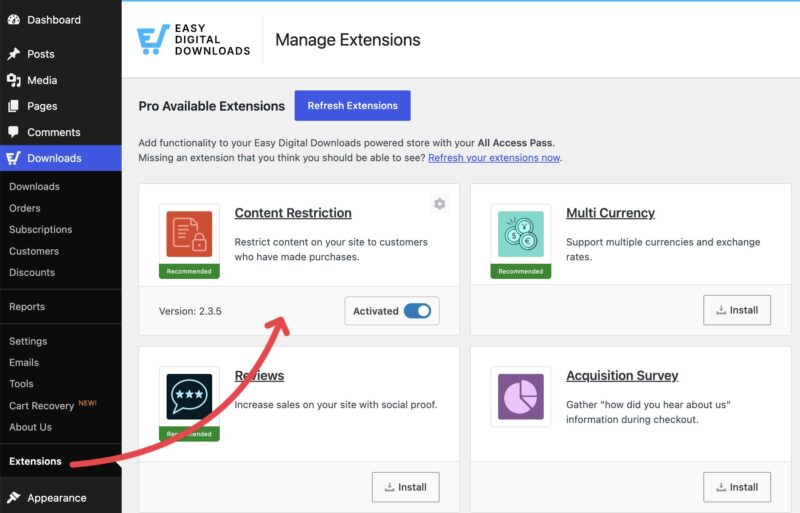
Once your Extended Pass is active, go to Downloads » Extensions in your WordPress dashboard. Find Content Restriction in the list and click Install. EDD installs and activates it for you automatically, no separate download-and-upload step required.
Step 2: Choose and Configure Your Video or Audio Host
You’ll need somewhere to host the actual video or audio file. Vimeo and Wistia are both solid choices for video, and Podbean or SoundCloud work well for audio.
For access control specifically, one setting matters most: free accounts on Vimeo and Wistia don’t include domain-level privacy.That’s the setting that stops your video from being embedded anywhere except your own site.
With a paid account, you can lock playback to your domain only. Without it, someone could technically grab your embed code and use it elsewhere, even if they can’t get past Content Restriction on your actual page.
If domain-locking matters to your business, budget for a paid video hosting tier alongside your Extended Pass.
Selling streaming audio instead? The same idea applies on Podbean. An unlisted episode stays out of podcast directories and search results, but anyone with the direct link can still listen. A secure private podcast, available on paid plans, actually requires login credentials to access, which is the closer equivalent to domain-locking on the video side.
Once your account and privacy settings are ready, copy your embed code. You’ll need it in the next step.
Step 3: Create the Page and Embed Your Content
Go to Pages » Add Page (or Posts » Add Post either works) and give the page a title. Paste your embed code into a new block. Most video hosts, including Vimeo and Wistia, automatically convert a pasted link into an embed block, so you don’t need to touch the HTML.
You don’t have to dedicate an entire page to this. If you’d rather restrict just part of a page, like one section of a larger sales or resource page, Content Restriction includes a [edd_restrict] shortcode for exactly that. Wrap it around the section you want gated, and the rest of the page stays visible to everyone.
Once you’re happy with how it looks, click Publish. Your streaming content is live on the page, though not restricted yet. The next step is making sure only paying customers can actually see it.
Step 4: Restrict the Page to Paying Customers
Now for the core setup. Go back and edit the page you created in Step 3. Below the content editor, you’ll find a Content Restriction section. Check the box for Restrict this page to buyers of one or more downloads.
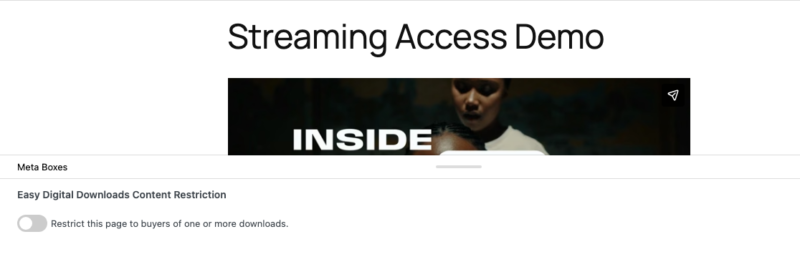
You’ll see a Download field. Start typing to search, and pick either:
- Customers who have purchased any download: any customer who’s bought anything from your store can view the page.
- A specific product by name: only customers who’ve purchased that exact product.
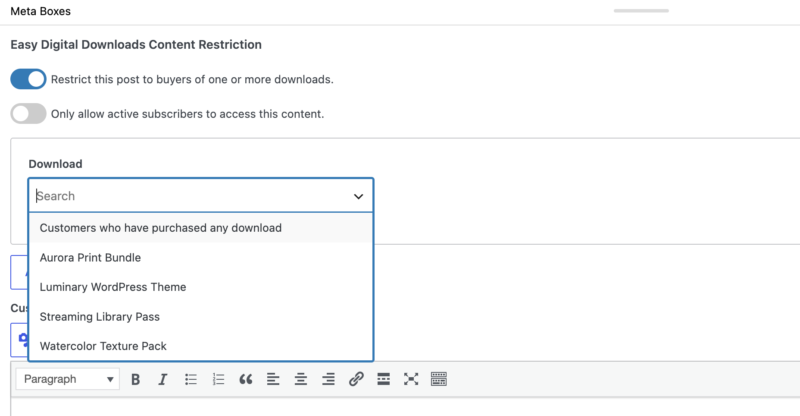
Need to allow more than one qualifying product? Click Add New Download to add another row and select another product. EDD grants access to any customer who’s purchased at least one of the products you’ve selected, so this is how you’d tie access to a course, a bundle, or a handful of individual purchases at once.
That’s it. Click Update, and the page is now restricted.
Step 5: Deliver Access After Purchase
Once a customer buys the qualifying product, they need to actually find the streaming page. EDD handles this two ways.
First, the page link appears automatically on the customer’s purchase confirmation page right after checkout.
Second, you can add it to the purchase receipt email using the {page_list} template tag, added specifically by Content Restriction. Go to Downloads » Emails, click Purchase Receipt, and drop the tag into your receipt text.
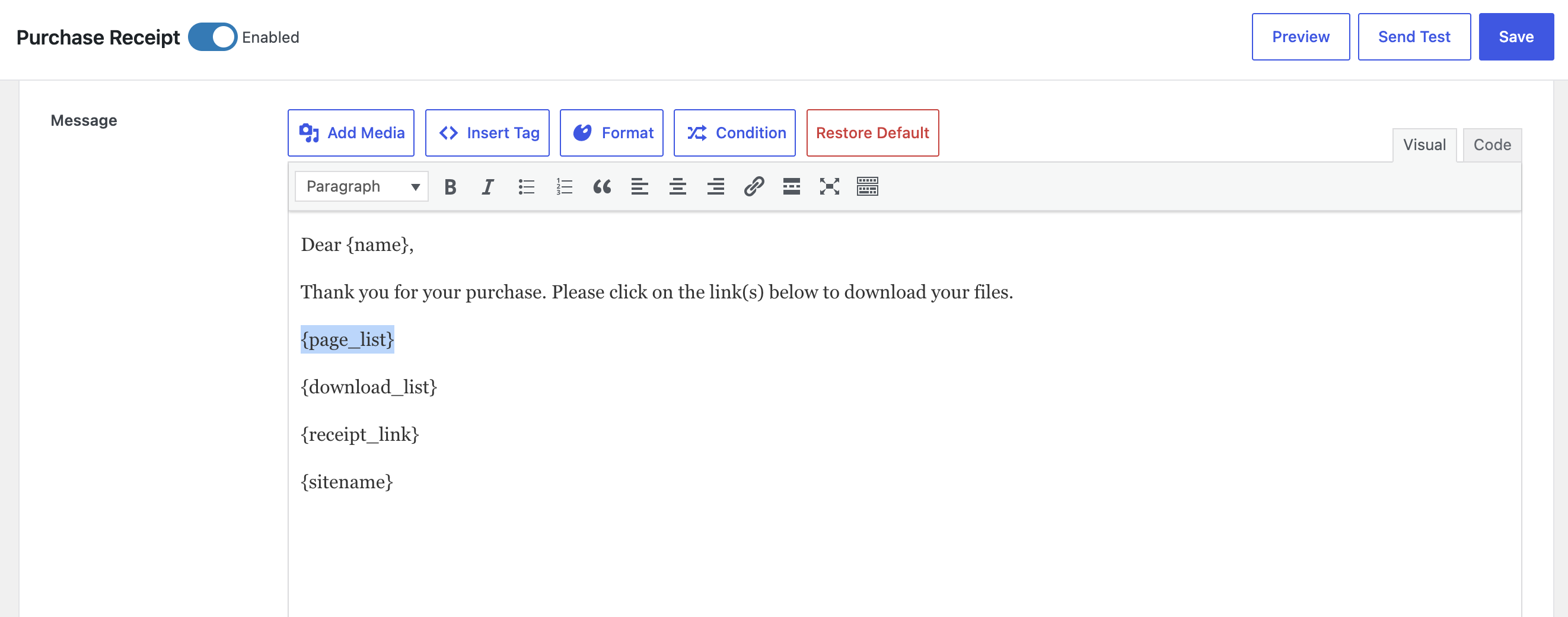
One thing to watch for: if you only sell restricted streaming content some of the time, pasting {page_list} into your one default receipt shows it to every customer, even ones who bought something unrelated.
Use EDD’s Conditional Email Tags instead. Click Condition in the email editor toolbar, set the condition to the specific product that unlocks your streaming page, and only add {page_list} inside that condition. That way, the link only shows up in the receipt for customers who actually bought access to it.
Restricting Access by Subscription
Sometimes a one-time purchase doesn’t fit your business. If you want customers to keep paying to keep watching, subscriptions make more sense.
This is a common fit for streaming content specifically. A downloaded file gets used once and sits on someone’s device forever, so a one-time price makes sense. A streaming page, on the other hand, keeps living on your server every month. Billing for it monthly or yearly lines your revenue up with your actual ongoing cost of hosting it.
That’s where Recurring Payments comes in. It handles automated billing on a schedule you set, daily, weekly, monthly, or yearly, without you lifting a finger after setup.
Once Recurring Payments is active, go back to your Content Restriction settings, select the subscription product in the Download field like you would any other product, then check Only allow active subscribers to access this content.

The difference is simple but important: a one-time purchase grants access forever. With that box checked, access depends on an active subscription instead. If a customer’s subscription lapses, so does their access to the streaming page.
This works well for a single gated item or a small handful of them, like a monthly bonus video or an ongoing audio series. Learn more about setting this up in our guide on how to easily sell subscriptions with WordPress.
Selling Access to a Whole Streaming Library
Everything above works great for gating one video or one audio file. But what if you’re not selling one item? What if you’re selling access to dozens of them?
Think lesson libraries or a growing back-catalog of streaming content. That’s a different shape of business, and Easy Digital Downloads has a feature built specifically for it: All Access.
All Access isn’t a replacement for Content Restriction. It works alongside it. [internal link: All Access feature page] lets you sell a “pass” product that unlocks many downloadable products or restricted pages at once, instead of requiring a separate purchase for each one.
To use it for streaming content, you’d set up an All Access Pass product, return to your Content Restriction settings, and select that pass product in the Download field, the same way you’d select any other product. Customers with an active pass get in. Everyone else sees your standard purchase prompt.
You can also combine All Access with Recurring Payments, so the pass itself renews automatically instead of requiring a one-time purchase.
Setting up an All Access Pass from scratch is its own project, so we won’t repeat the full setup here. Our guide How to Sell All-Access Memberships walks through it in detail.
Keeping Your Streaming Content Secure
Content Restriction handles the access-gating on your WordPress side. But your video or audio host has its own layer of protection worth setting up too.
Domain-locking, available on paid Vimeo and Wistia tiers, stops your embed code from working anywhere except your own domain. That matters because Content Restriction only controls who can view your page. It doesn’t stop someone from copying an unrestricted embed code and using it elsewhere.
Even without domain-locking, a determined visitor can’t just guess or share your streaming page URL to get around Content Restriction. It checks their account and purchase history first, every time.
If you need more than that, most video hosting platforms also offer encryption and geographic restrictions on their paid tiers. Those are platform-level settings, not something Content Restriction controls, so check your host’s privacy or security settings directly.
In plain terms, each one does something different:
- Encryption scrambles your video or audio file in transit, so it can’t be intercepted and viewed by anyone except the intended player.
- Geographic restrictions block playback from specific countries or regions, useful if you have licensing limits or just want to keep your content local to where your customers actually are.
- Referrer restrictions are a lighter version of domain-locking. They check where a video request is coming from and block it if it’s not your site, though a determined visitor can sometimes spoof this.
None of these replace Content Restriction. They’re extra layers on the hosting side, worth turning on if your content is high-value enough to be worth someone’s effort to copy.
FAQs About Selling Streaming Video and Audio
Can I restrict streaming video or audio without a full membership plugin?
Yes. Content Restriction adds access-gating directly to your existing Easy Digital Downloads store, no separate membership plugin required. A dedicated membership or course plugin only makes sense if gated video or audio is the only thing you sell.
Do I need a paid video hosting plan to restrict access?
Not to use Content Restriction itself. But domain-level privacy, which stops your video from playing anywhere except your site, does require a paid Vimeo or Wistia tier.
Can I restrict access by subscription instead of a one-time purchase?
Yes. Set up Recurring Payments, select the subscription product in the Download field, then check Only allow active subscribers to access this content in your Content Restriction settings.
What’s the difference between Content Restriction and an All Access Pass?
Content Restriction is what actually gates the page, either way. An All Access Pass is one type of qualifying purchase, best for selling access to a whole streaming library instead of one item.
Can I sell streaming audio the same way as streaming video?
Yes. The Content Restriction setup is identical. Just host your audio with a platform like Podbean or SoundCloud instead of Vimeo or Wistia.
Will customers need an account to access restricted content?
Yes. EDD creates a customer account automatically during checkout, and that account is what Content Restriction checks before granting access.
Can I restrict just part of a page, or stop non-customers from finding it via a direct URL?
Both, yes. Use the [edd_restrict] shortcode to gate part of a page instead of the whole thing. And Content Restriction blocks non-purchasers even if they have the direct URL, since it checks their account, not just the page’s visibility.
Start Selling Access to Your Streaming Content
Restricting access to streaming video or audio doesn’t have to mean building a second platform.
With Content Restriction on top of your existing Easy Digital Downloads store, you can gate a single item or an entire library, all without leaving WordPress.
If you’d rather sell downloadable video or audio files instead of gated streaming access, check out our guide on how to sell videos for that side of things.
📣 P.S. Be sure to subscribe to our newsletter and follow us on Facebook, Twitter/X, or LinkedIn for more WordPress resources!