

This document explains how the Custom Deliverables feature works with Frontend Submissions in Easy Digital Downloads (EDD).
Together they let your vendors deliver custom files to their own customers. A vendor uploads the finished work from their vendor dashboard and emails the customer directly, and you never have to give them WordPress admin access or handle the delivery yourself.
Both Custom Deliverables and Frontend Submissions require at least the Professional pass.
For general Custom Deliverables setup, including how to attach files as a store admin, see Custom Deliverables Setup and Overview.
[TOC placeholder]
Vendor Dashboard Instructions
Vendors (from Frontend Submissions) can deliver customized files to their customers.
Note: If you want your vendors to be notified when one of their products sells, you need to use the Commissions feature, which also lets you split the profits from a sale with the vendor.
Instructions for Vendors:
- Log into the Vendor Dashboard.
- Click Orders.
- Find the order in question and click View.
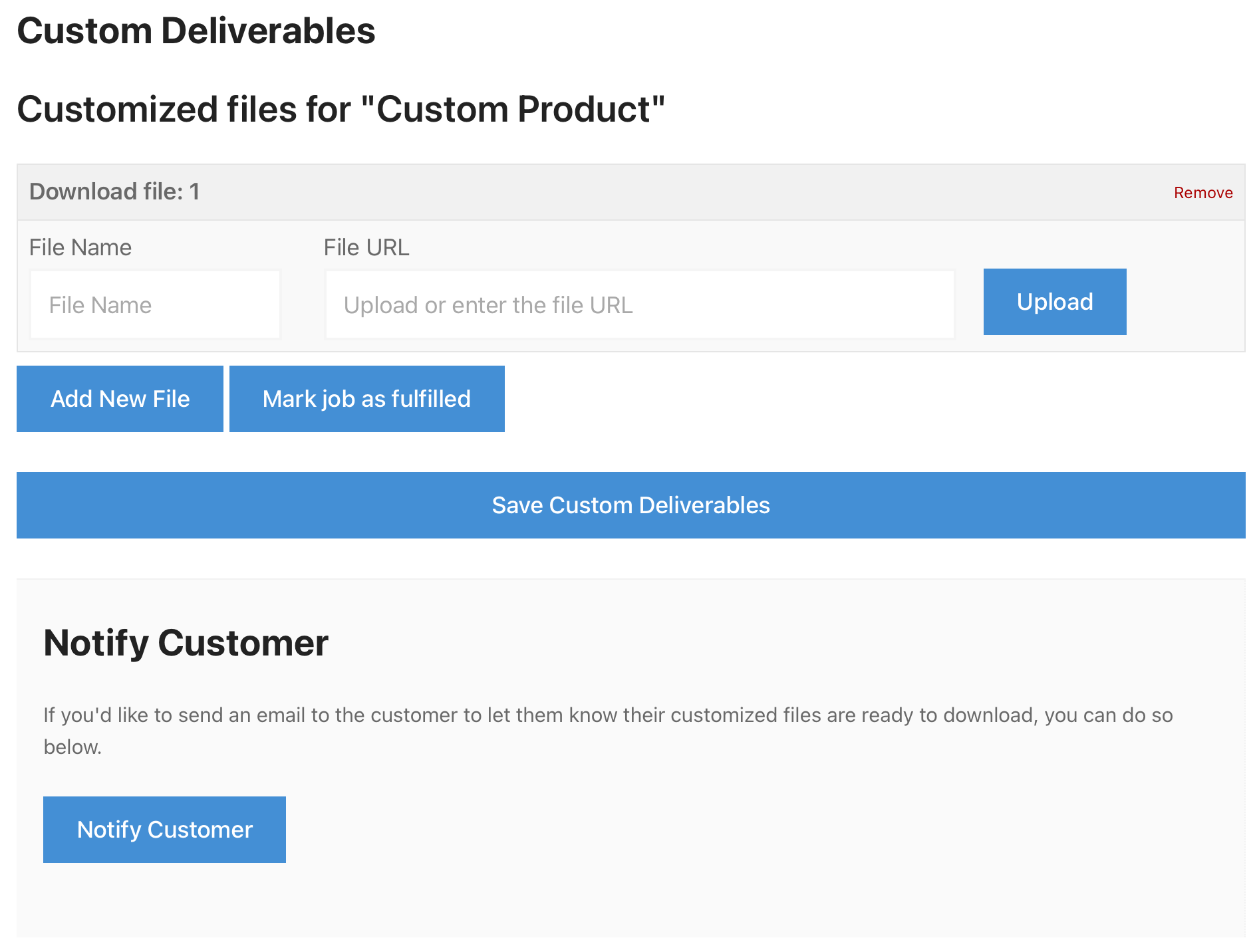
- Under Custom Deliverables, click Upload a File and select the file you’ve customized for the customer. Use Add New File if the order needs more than one.
- Click Mark job as fulfilled once the work for that product is done.
- Click Notify Customer to email the customer that their files are ready to download.
What a vendor can and cannot do
Vendors work only with their own products. A vendor sees an order in their dashboard only if that order contains a product they authored, and can upload custom files only for their own products. On an order containing several vendors’ products, each vendor handles their own piece. This keeps vendors from replacing or withholding another vendor’s deliverables.
Vendors also don’t get the full set of controls a store admin has on the same order:
- Choosing which files the customer can access. The dropdown that switches between custom files, default product files, or both appears only on the admin order screen. Vendors can’t change it, so if your store wants custom files to replace the product’s default files, set that as the admin.
- Seeing notification history. The Email Logs list appears only on the admin order screen. A vendor can’t tell from their dashboard whether a customer was already notified, so on stores where both you and your vendors send notifications, check the log on the admin side before sending again.
Vendors also can’t reach the WordPress admin at all. Frontend Submissions redirects them to the vendor dashboard, which is the whole point of the integration: your vendors deliver files without ever touching your admin.
For store admins, this means a multi vendor order can sit partly fulfilled while one vendor finishes their piece. You can see the overall status in the Fulfilled? column at Downloads » Orders.
The Delivery Notification Email
There’s one delivery notification email, and vendors and store admins both send it. Edit it at Downloads » Emails » Custom File Delivery. Its default subject is “Your files are ready!”
Frontend Submissions does add its own email templates at Downloads » Emails » Frontend Submissions, but those cover vendor applications, approvals, and product submissions. None of them handles file delivery, so that’s not where you go to change what your customers receive.
The {custom_download_list} email tag
The Custom File Delivery template supports a tag the other order emails don’t: {custom_download_list}, described in the tag list as “Show custom files added for the customer.”
Compare it to the standard {download_list} tag, which is “A list of download links for each download purchased.”
- Use
{custom_download_list}when you want the email to show only the custom files you uploaded for this order. - Use
{download_list}when you want the customer’s full set of purchased download links.
The template ships with {download_list} by default, so if you want delivery emails to point only at the custom work, you need to swap the tag yourself.
For the full list of available tags, see Managing Easy Digital Downloads Email Tags.
Frontend Submissions FAQ and Troubleshooting
Why isn’t the “Upload Files” button working for vendors?
Double check that you have set up the Vendor Dashboard correctly. Go to Downloads » Settings » FES » Forms/Pages and make sure the correct page is selected for Vendor Dashboard Page. This should solve the issue.
Why can’t a vendor upload a file for one of the products in an order?
Vendors can only upload custom files for products they authored. If the product belongs to another vendor, no upload option appears for it. This is expected behavior.
Why can’t a vendor choose which group of files the customer sees?
That dropdown is admin only. It appears on the order screen in the WordPress admin, not in the vendor dashboard. If you want custom files to replace a product’s default files, set it yourself on the admin side.
Why doesn’t an order show up in a vendor’s dashboard?
A vendor only sees orders containing products they authored. If the order has no product of theirs in it, it won’t appear in their Orders list at all.
Which email template do vendor delivery notifications use?
The same one store admins use: Downloads » Emails » Custom File Delivery. The templates at Downloads » Emails » Frontend Submissions cover vendor applications, approvals, and product submissions, not file delivery.
Why does a delivery email list files beyond the custom ones?
The template ships using the {download_list} tag, which lists every download link on the order. Swap it for {custom_download_list} to show only the custom files added for that order.
Can vendors mark orders as fulfilled?
Yes, for their own products. Once every product in the order is marked fulfilled, the order shows as fulfilled in the Fulfilled? column at Downloads » Orders. Note that an order with unfulfilled custom deliverables cannot be anonymized until it’s fulfilled.