

This guide explains the Easy Digital Downloads Tax settings, where you set up how your store handles tax. You’ll find the tax rules to configure under Downloads » Settings » Taxes.
The Taxes tab has two main sections: General and Rates. (If enabled, a third EU VAT appears here.)
General
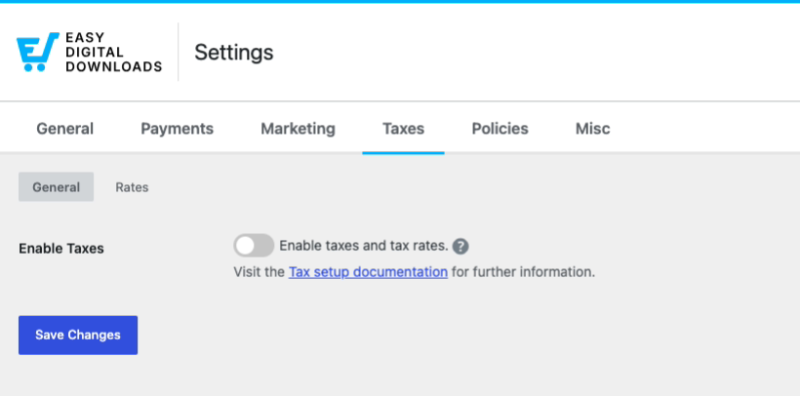
If you don’t need to charge tax, leave Enable Taxes turned off. Toggle it on to charge tax and reveal the rest of the tax settings.
Enable Taxes: Toggle this on to enable taxes and tax rates on your store.
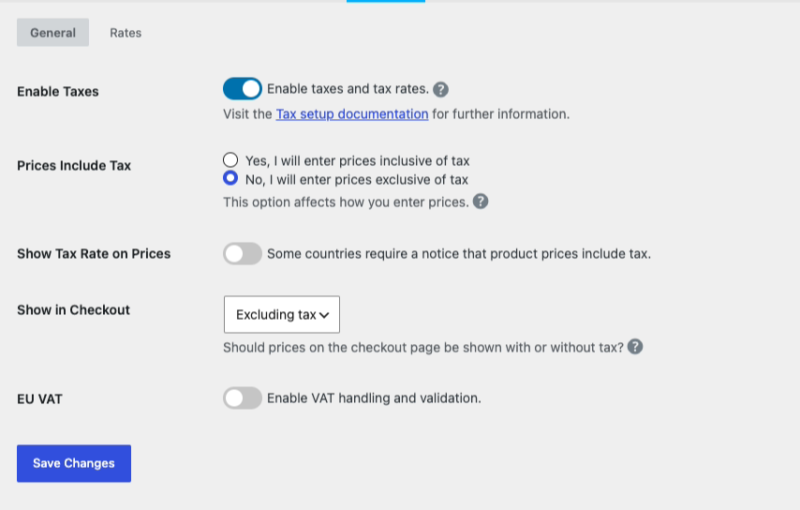
Prices Include Tax: Choose how you enter prices. Select:
- Yes, I will enter prices inclusive of tax if the prices you enter already include tax (the customer pays the price shown, and the tax is calculated within it).
- No, I will enter prices exclusive of tax if your prices are pre-tax and tax is added on top.
Show Tax Rate on Prices: Toggle this on to display a notice that product prices include tax. Some countries require this.
Show in Checkout: Choose whether the checkout prices are shown with or without taxes. If set to Including tax, the item’s price will show the item’s total price which includes tax. If set to Excluding tax, the item’s price will show the pre-tax amount (subtotal).
EU VAT: Toggle this on to enable EU VAT handling and validation. This is a Pro feature built into Easy Digital Downloads (Pro). It applies the correct VAT and validates customer VAT numbers. On the free version, you’ll see an option to upgrade to Pro to enable it.
When you enable EU VAT and save, a new EU VAT tab appears next to General and Rates (see below). (If you also need to give customers downloadable invoices that show VAT numbers, the EDD Invoices feature can generate them.)
Rates
On the Rates tab, you can configure a tax rate for each region where you collect sales tax, including specific countries and/or states/provinces in those countries.
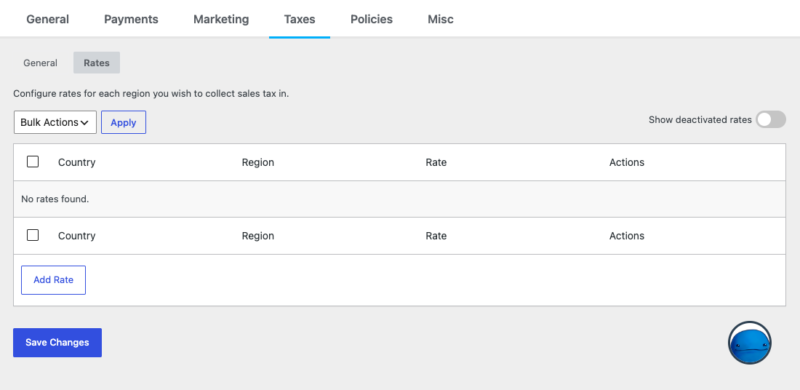
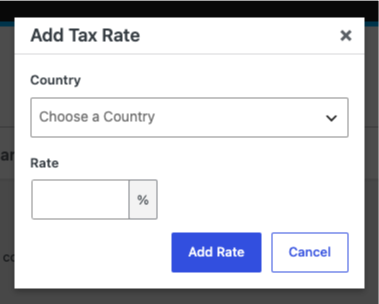
To add a rate, click Add Rate, choose a Country, enter the Rate as a percentage, and save. After you choose a country, you can target a specific state or province, or apply the rate to the whole country.
A few things to know:
- Existing rates can be deactivated rather than deleted.
- Rates cannot be updated. To change an existing rate, deactivate the old one and add a new rate.
- Use Show deactivated rates to view rates you’ve turned off.
- Use Bulk Actions to manage several rates at once.
EU VAT
When you enable EU VAT in the General tab and save, a new EU VAT tab appears next to General and Rates. This is a Pro feature.
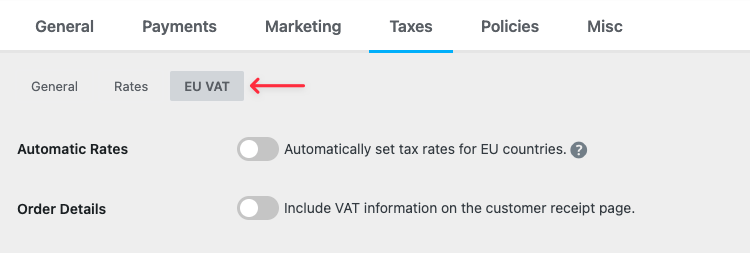
Automatic Rates: Toggle this on to automatically set tax rates for EU countries, so you don’t have to add them manually on the Rates tab.
Order Details: Toggle this on to include VAT information on the customer receipt page.
Reverse Charge in Home Country?: Toggle this on to allow VAT reverse charge for customers who have a valid VAT number and are based in your home country.
The rest of the settings have to do with Company Information.
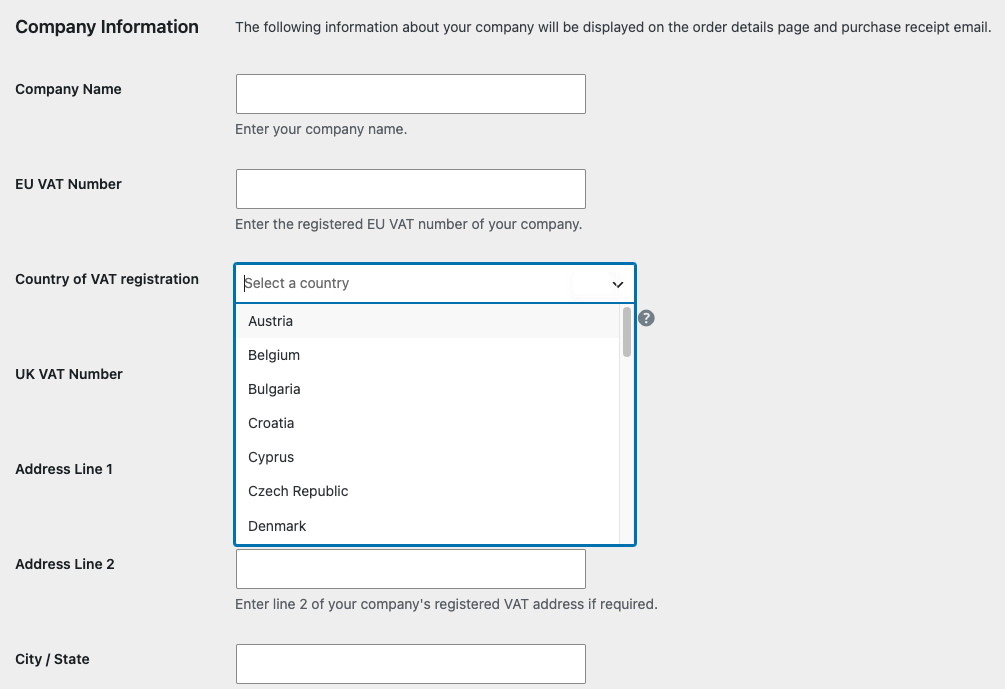
These details appear on the order details page and the purchase receipt email. You can enter details for each field, such as:
- Company Name
- EU VAT Number
- Country of VAT registration
- UK VAT Number
See our full guide on setting up EU VAT.



