
Is your AI assistant unable to reach your store, or is the AI tab not where you expected it? Easy Digital Downloads and its connector each report their own state. That means most of these situations tell you the cause on screen. Working through them in order takes a few minutes.
This guide walks you through each cause and what to check for it.
Requirements: Easy Digital Downloads 3.7.1 or newer, running on WordPress 6.9 or newer. Connecting an assistant also needs a public https address, because WordPress only issues application passwords over a secure connection.
Before you get started, make sure Easy Digital Downloads is installed and activated on your WordPress site.
When the AI Tab Is Not There
The AI tab is where a connection starts. A missing tab is worth ruling out before anything else.
From your WordPress admin sidebar, go to Downloads » Tools. The AI tab sits with the other tabs at the top of the screen, after Import/Export.
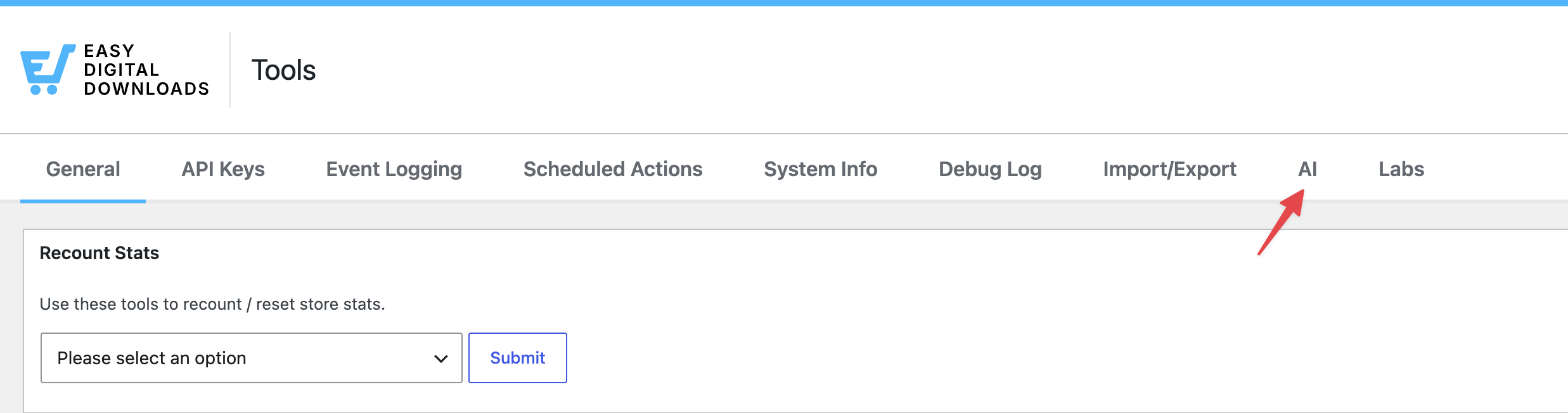
Three things decide whether that tab is added, and each has a quick check:
- Your WordPress version. The tab is built on the WordPress Abilities API, which arrived in WordPress 6.9. On an older version, the tab is not added at all. Your version is at the bottom right of any admin screen. See How to Easily Check Which WordPress Version You Are Using for the other places it appears.
- Your Easy Digital Downloads version. Abilities arrived in 3.7.1. The version also shows at the bottom right of any Easy Digital Downloads admin screen.
- Your account’s permissions. The tab is shown to accounts allowed to manage shop settings. On an account without that permission, the rest of the Tools screen still loads.
Once the tab is there, the connector’s own screen is the next place to look.
Checking Whether Your Store and Connector Can Reach Each Other
Your connector runs a check that reports both directions of the connection.
From your WordPress admin sidebar, go to WPVibe. The check sits in step two of the setup list.
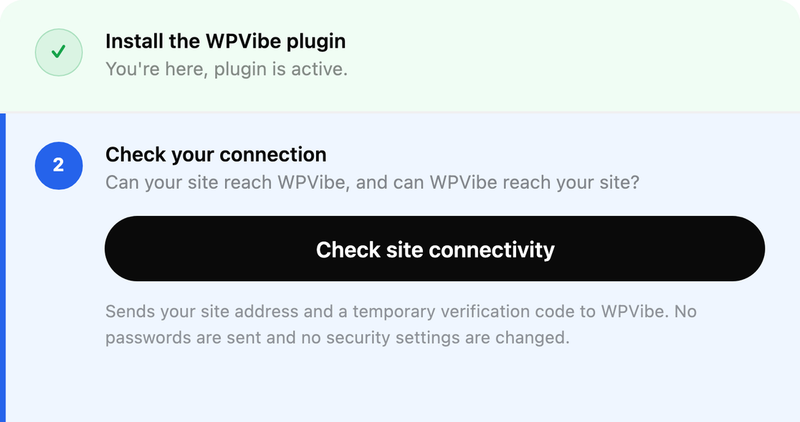
To run it, click Check site connectivity. The check sends your site address and a temporary verification code. It changes no settings.
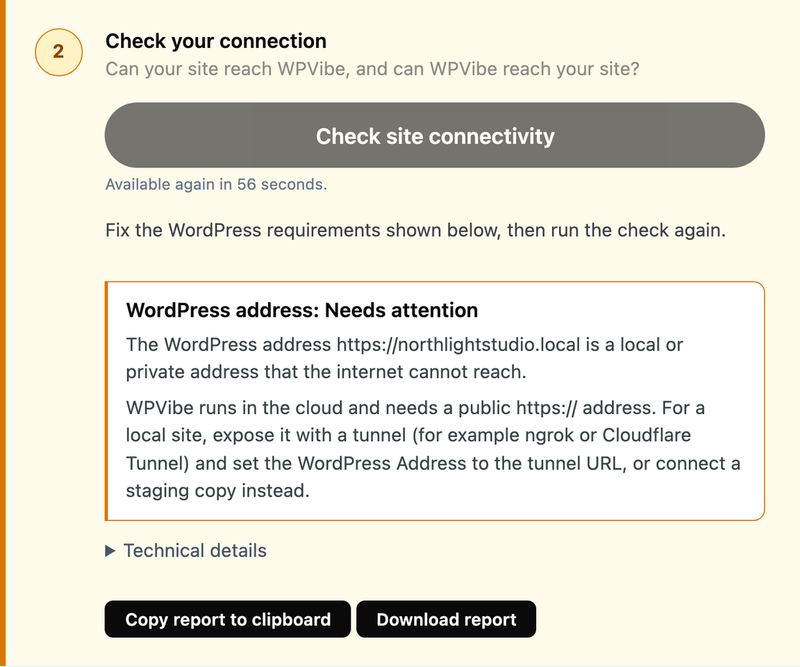
The summary names whatever needs attention. Underneath it, click Technical details to expand the individual checks and see exactly how far the connection got.
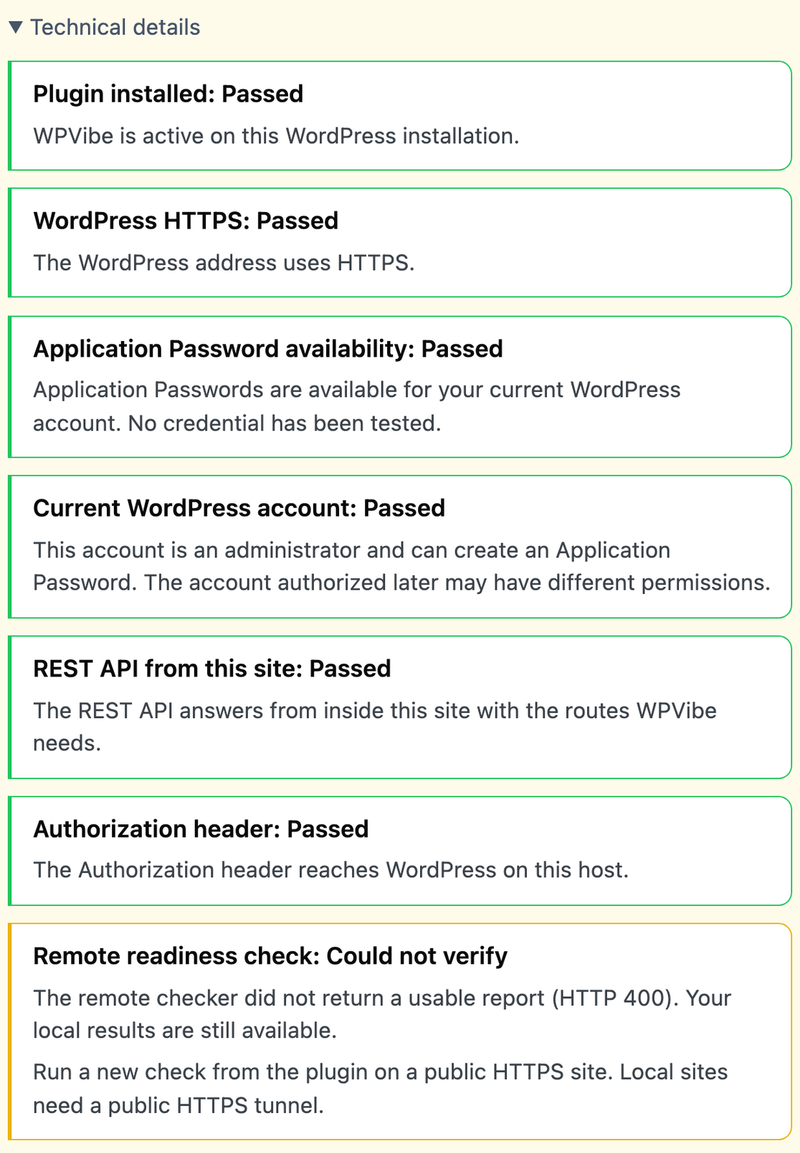
Reading that list top to bottom tells you which side needs the fix. Checks about your site’s own setup point at WordPress. The remote readiness check at the bottom points at whether the connector reached you from outside.
When Your Address Cannot Be Reached From Outside
A report that your address cannot be reached is the most common one on a store that is not live yet. Your connector runs in the cloud. It needs a public https address to reach.
A local development address or a private network address gives it nowhere to connect to. The check says so in those words.
Three ways forward, depending on where the store lives:
- The store is on a public host. Then the address is already reachable. A report like this points at something in front of WordPress instead, such as a firewall or a password-protected staging environment.
- The store is on your own machine. In that case, expose it with a tunnel. Then set the WordPress Address to the tunnel address so your site reports the same address the connector was given. Tunnel addresses from free quick tunnels change each time they restart. The connection needs remaking after each restart.
- You have a staging copy. Connecting that instead is often the simplest route, since it already has a public address. If you do not have one yet, How to Easily Create a Staging Site for WordPress covers the options.
The WordPress Address field sits under Settings » General in WordPress.
For the steps, see How to Change Your WordPress Site URLs.
After changing the address, run the check again so the report reflects the new setup.
Turning the Connector Back On
If the AI tab offers Activate WPVibe, the plugin is installed and currently switched off. To turn it back on, click that button. Because the plugin is already installed, nothing is downloaded.
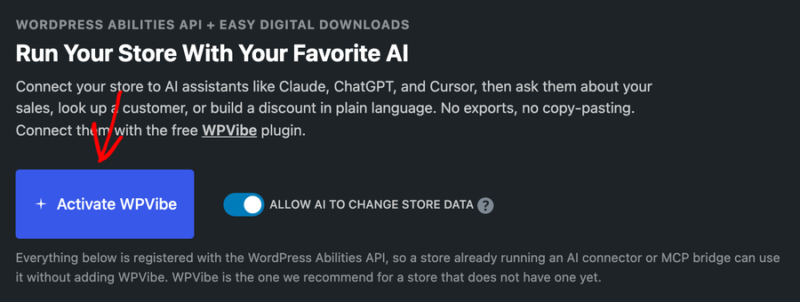
Your earlier authorization survives this, because it lives in a WordPress application password rather than in the plugin. Once the plugin is running again, the tab reads Connected as before.
If the button offers to install rather than activate, the plugin has been removed. In that case, Connecting Your Store to an AI Assistant covers the path from the start.
When an Ability Is Missing From Your Assistant
The AI tab is the reference for what your own store describes. The sentence beside the capability heading counts what an assistant can look up and what it can change. The cards below group them.
Four causes account for a shorter list than expected:
- The feature behind it is off. A handful of abilities only register while their feature is running, such as the abandoned cart reader that comes with Cart Recovery. Turning the feature on adds its ability.
- Your assistant cached the older list. A client that connected before you changed anything may still show what it saw then. Reconnecting, or starting a new conversation, refreshes it.
- The connected account lacks the permission. Abilities check the account against the same permission the matching admin screen uses. A narrower account reaches fewer of them.
- Write access is off. This one does not shorten the list, because the abilities stay registered either way. It stops them running, which the next section covers.
For what each ability does and the permission it needs, see our Guide to AI Abilities in Easy Digital Downloads.
When a Change Is Declined
When an assistant reports that it cannot make a change, the cause is one of four things, in the order worth checking:
- Write access is off. On the AI tab, Allow AI to Change Store Data has to be on before any change runs. It is off by default. Until you turn it on, a connection can look things up but change nothing.
- The connected account cannot do it either. Write access never exceeds what that account can do in the dashboard.
- The action needs your approval first. Creating an order, changing an order’s status, and deleting a discount are labeled destructive. Assistants confirm with you before running them.
- The action belongs to a screen instead. Refunds are the clearest example: you issue them on the order screen in your admin.
Two more declines have a specific cause rather than a permission. A discount with recorded uses cannot be deleted. It is archived instead.
A new customer also cannot be created on an email address that already belongs to one.
If you would rather end access altogether, revoke the application password in your WordPress admin under Users » Profile. Then remove the site from your connector account.

That’s it! You have a path for each of the situations a connection runs into, from a missing tab to a declined change. Next, see What a Connected AI Assistant Can See and Change for the access model behind these checks.
Frequently Asked Questions
Below, we’ve answered some of the most common questions about AI connection problems.
Why does the AI tab not appear on my Tools screen?
The tab needs WordPress 6.9 or newer, Easy Digital Downloads 3.7.1 or newer, and an account allowed to manage shop settings. On older WordPress the tab is not added at all, rather than appearing empty.
Do I have to fix every item in the technical details?
No. Items reported as passed need nothing. The ones naming something to attend to are the list to work through. The summary above them names the main one.
Why does the check say my address cannot be reached when my site loads fine?
Your own browser reaches a local or private address that the cloud connector cannot. The check reports what it can reach from outside, which is why a store on your own machine needs a tunnel or a staging copy.
Does deactivating the connector plugin end my connection?
No. Authorization lives in a WordPress application password. It survives the plugin being switched off and comes back with it. Revoking that password is what ends access.
My tunnel address changed. What do I do?
Start by setting the WordPress Address to the new tunnel address. Then connect again from your assistant so the connector records the new one.
Why does my assistant list fewer abilities than the AI tab shows?
Most often the client is still holding the list it saw when it first connected. Reconnecting or starting a new conversation refreshes it. If the count itself is lower than you expected, a feature behind some abilities is switched off.
Can I see what an assistant did?
Yes, for orders and customers. Each change adds a note to the record naming the ability that ran and the account it acted as.