

If you sell software, you and your support team know this ticket by heart. A customer moved to a new host, and now their license key says it’s hit its activation limit.
Fixing it means logging in, finding the license, and freeing the old site by hand. Now you can manage software licenses with AI instead. Just ask your AI assistant to find the key and free up the old site.
Software Licensing for Easy Digital Downloads (EDD) now works with the WordPress Abilities API. EDD Software Licensing speeds up support, and it really shines when you want answers from your license data, even if you’ve never analyzed data before.
- Key Takeaways
- What's New in EDD Software Licensing
- Turn Your License Data Into Insights With AI
- Ways to Manage Software Licenses With AI
- Built for Your Support Team
- How to Connect Software Licensing to Your AI Assistant
- What Stays in Your Hands
- Also New in This Software Licensing Update
- FAQs About Managing Software Licenses With AI
- Can AI manage software license keys?
- Do I need to buy anything extra to use AI with EDD Software Licensing?
- Can my AI assistant see my customers' full license keys?
- What happens if my AI disables the wrong license?
- Can AI analyze my software license data?
- Can my support team use AI to answer license tickets?
- Does this change how my customers activate their licenses?
- Start Managing Software Licenses With AI
Key Takeaways
| Takeaway | What It Means |
|---|---|
| Ask about any license | Your AI can look up a license by key or customer and see every site it’s active on. |
| Insights without spreadsheets | Ask your AI about renewals or activation limits, and get plain-English answers you can act on. |
| Fix tickets in one step | Free an activation or disable a shared key by asking in plain English. |
| Read-only until you say so | Your AI can only look things up until you turn on changes in the AI tab. |
| Built for support teams | Each agent can connect with their own account, and the AI only sees what that account can see. |
| Every change can be put back | Freed sites can be activated again, and a disabled key can be turned back on. |
What’s New in EDD Software Licensing 🔑
Software Licensing for Easy Digital Downloads now adds five license abilities to your store. Two of them only read your licenses. The other three can make changes, and only after you allow it.
If you’ve already connected your store to an AI assistant, there’s nothing new to set up. Update Software Licensing, and your assistant can start using the license abilities. If you haven’t connected yet, our guide to running Easy Digital Downloads with an AI assistant walks you through it.
What Your AI Can Look Up
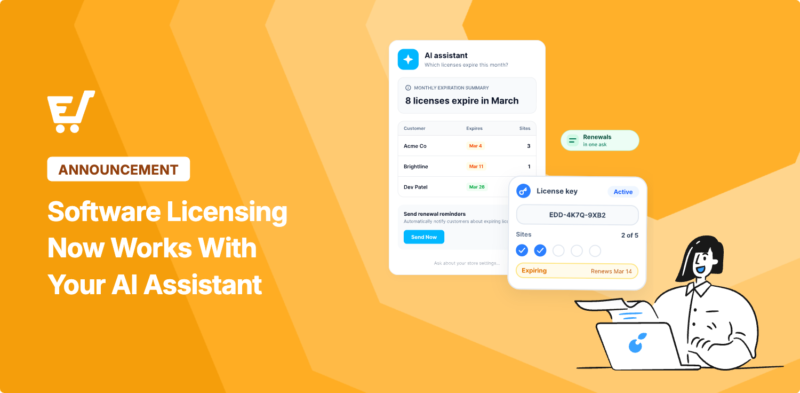
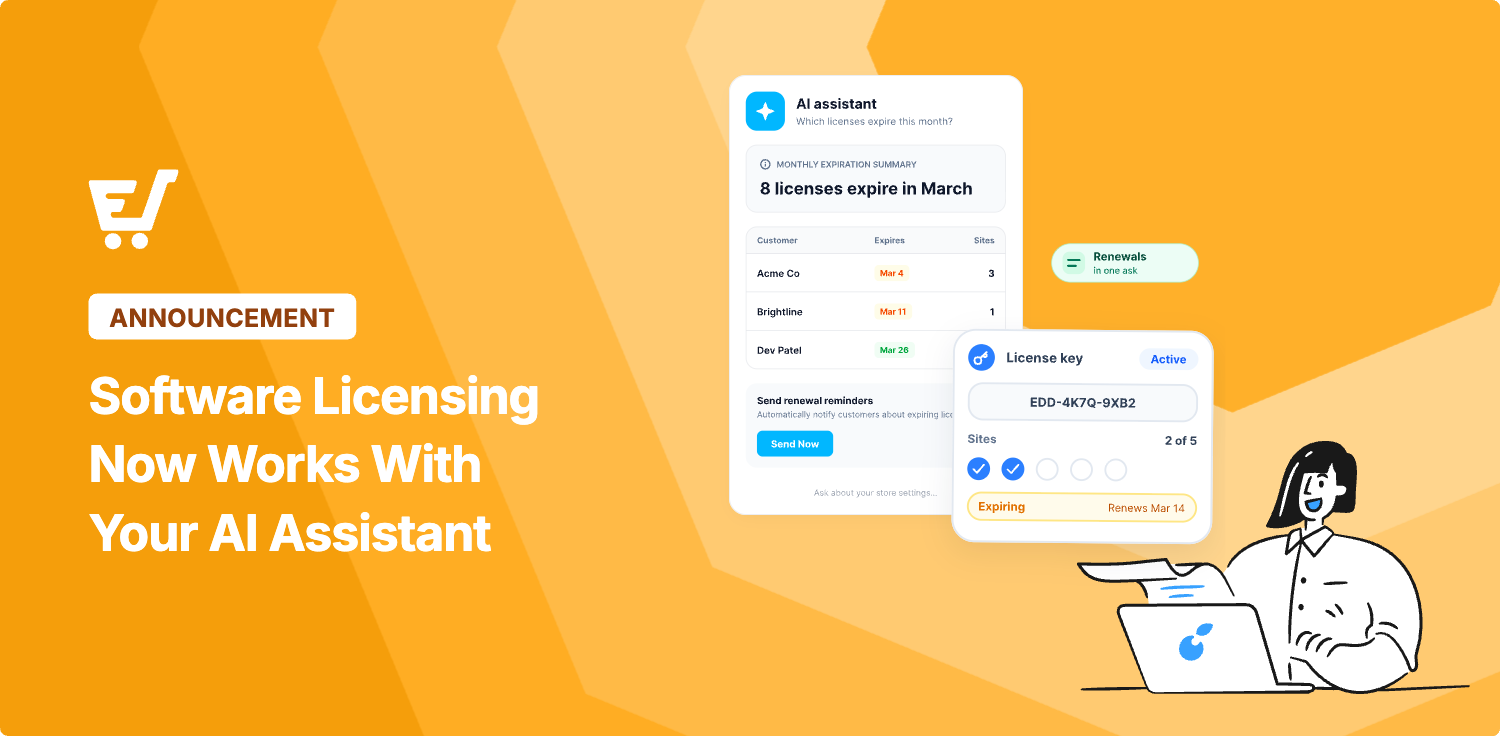
Your AI can find a single license by its key or ID. It can also list licenses filtered by status, customer, product, order, or expiration date.
It can check how many sites a license is active on, what its limit is, and how many activations are left. That’s usually the first thing you need to know when a customer writes in.
To keep your customers’ keys private, license keys come back masked to their last four characters. Only accounts that can view sensitive store data see full keys and the full list of activated sites.
What Your AI Can Change
Once you turn on changes, your AI can do three things:
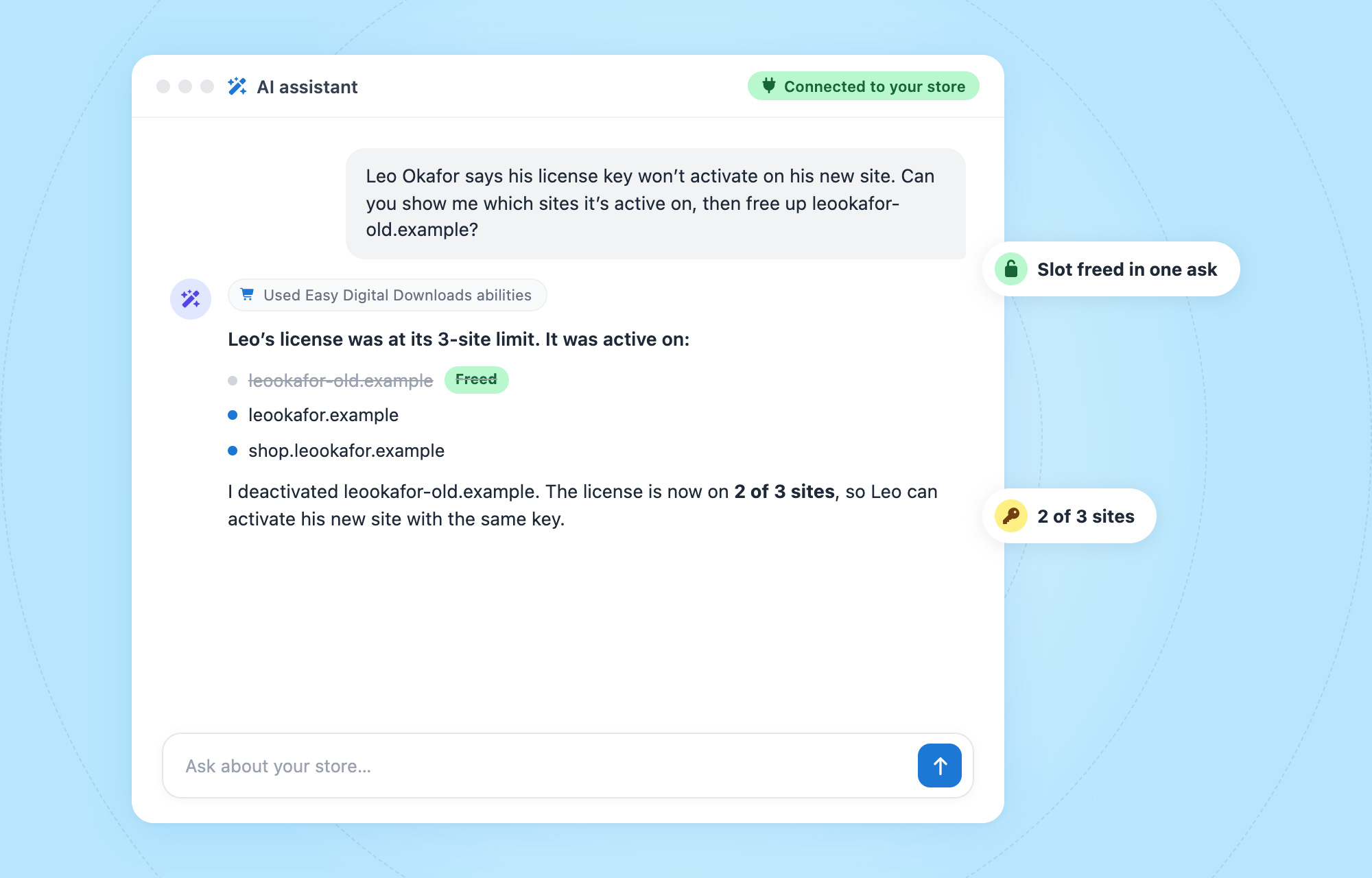
- Free a site: It deactivates one site on a license, so the customer has a slot open again.
- Change the activation limit: It can raise or lower how many sites a license allows, or reset it to the product’s default. A limit of zero means unlimited.
- Turn a license off or on: Disabling a license revokes the key on every site, so none of those sites can get updates. Reactivating it restores the status its expiration date allows, so an expired license stays expired.
Turn Your License Data Into Insights With AI 📈
Software Licensing for Easy Digital Downloads already has solid reports. But some business questions still mean exporting a spreadsheet and reading charts to work out what’s going on.
That’s hard if you don’t have a background in data analysis. Most software sellers don’t, and they shouldn’t need one to understand their own business.
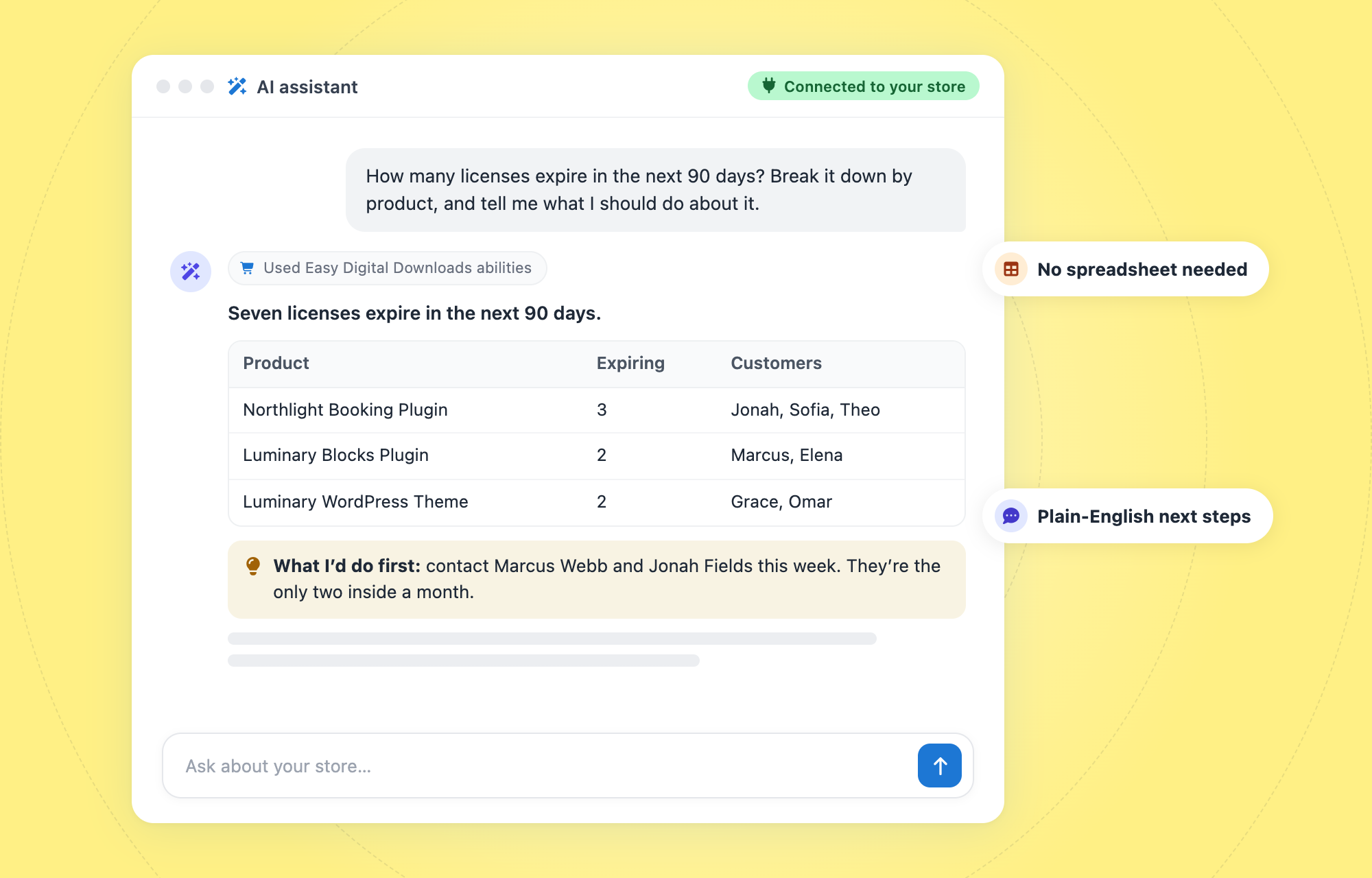
Now your AI can pull your license data and do that work for you. It can combine licenses with your store’s sales reports, then explain what it found in plain English.
Questions Worth Asking Your AI
You don’t need to know any formulas. Just ask the question the way you’d ask a coworker:
- Renewal pipeline: “How many licenses expire in the next 90 days, broken down by product?”
- Lost renewals: “Which licenses expired last month and haven’t been renewed?”
- Upgrade candidates: “Which customers are using every activation on their license?”
- Product health: “Which product has the most expired licenses compared to active ones?”
From Numbers to Next Steps
The real value is the follow-up question. Ask “What should I do about this?” and your AI can suggest where to start, like which customers to contact first.
Say your AI finds a group of customers who’ve used every activation. They might be ready for a license with more sites. Customers whose licenses just expired could be a good fit for automated renewal reminders.
Your AI reads the data, and you make the call. Check its numbers against your reports before you make a big decision.
Ways to Manage Software Licenses With AI 🤖
These are the license jobs that eat up support time. Each one now starts with a single question to your AI. WPVibe has step-by-step recipes for the first three, with prompts you can copy.
Fix “Activation Limit Reached” Tickets
A customer moved hosts or rebuilt their site, and their key won’t activate. Ask your AI to look up the license, list its active sites, and free the one they stopped using.
If the customer really does need more sites, your AI can raise the limit for that one license instead. Follow the Fix License Activation Limit Tickets recipe to try it.
Find Licenses That Are About to Expire
Ask your AI which licenses expire this month, or which ones expired in the last 30 days. You get a list you can use for renewal outreach without building a report.
The Find Expiring and Expired Licenses recipe shows the prompts.
Shut Down a Shared License Key
Sometimes one key shows up on far more sites than it should. Ask your AI to check where the key is active, then disable it if it’s being shared.
Disabling revokes the key on every site at once. If you made a mistake, your AI can turn it back on. See the Disable a Shared License Key recipe for the full steps.
Built for Your Support Team 🎧
License questions make up a big share of support for most software stores. Software Licensing for Easy Digital Downloads lets your support team hand the lookups to AI, so agents spend their time on the reply instead of the research.
Check a License Before You Reply
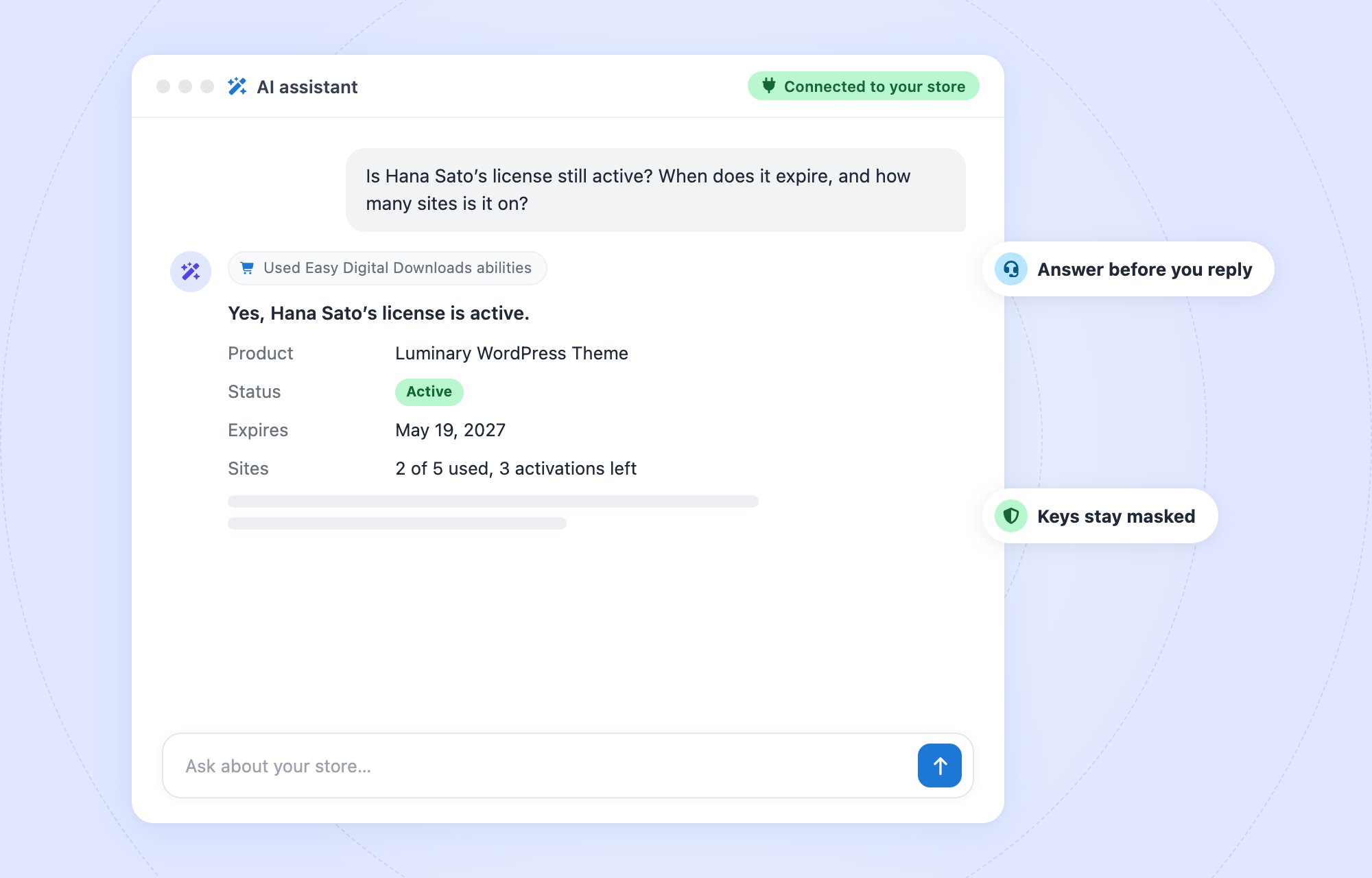
Before you answer a ticket, ask your AI for the license’s status and the sites it’s active on. You’ll know what’s going on before you type a word.
That works for the tickets that aren’t about limits too. “Is my license still active?” and “Which sites is my key on?” both take one question.
Give Each Agent Their Own Connection
Your AI works as the WordPress account it’s connected with. So each support agent can connect their own AI assistant using their own account.
That keeps things tidy. Each connection only sees and does what that agent’s account already can, and you can cut one off without touching the others.
Keep Customer Keys Private
Agents don’t always need a customer’s full license key. Unless an account can view sensitive store data, keys come back masked to their last four characters, and the list of activated sites stays hidden.
Your agents can still check a license’s status and activation count, which covers most tickets.
How to Connect Software Licensing to Your AI Assistant
You’ll need the latest versions of Easy Digital Downloads and Software Licensing, on WordPress 6.9 or newer. Setup takes a few minutes.
Step 1: Update Easy Digital Downloads and Software Licensing
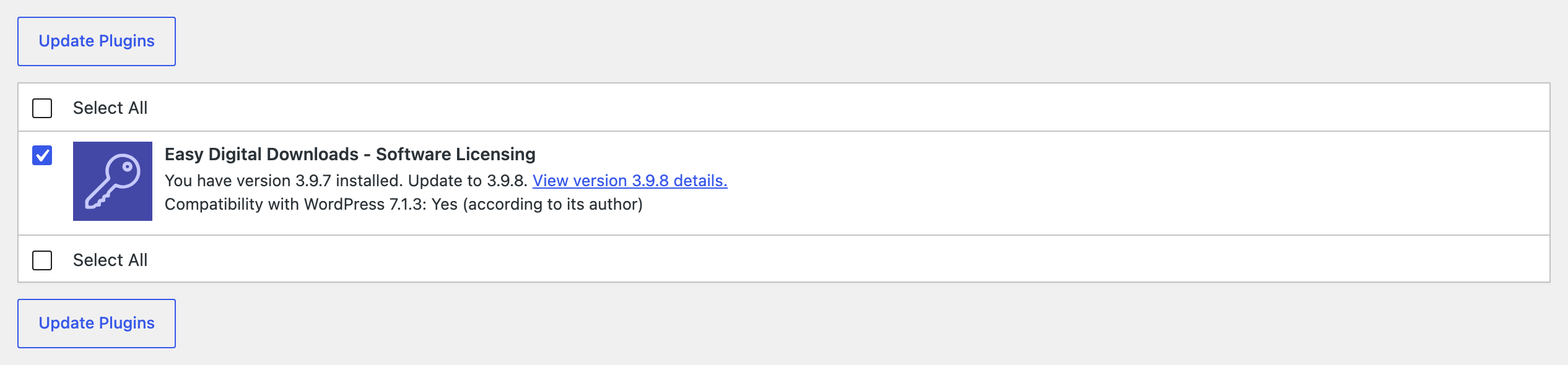
Go to Dashboard » Updates and update both plugins. The license abilities come with the Software Licensing update, so there’s nothing extra to install.
Step 2: Open the AI Tab
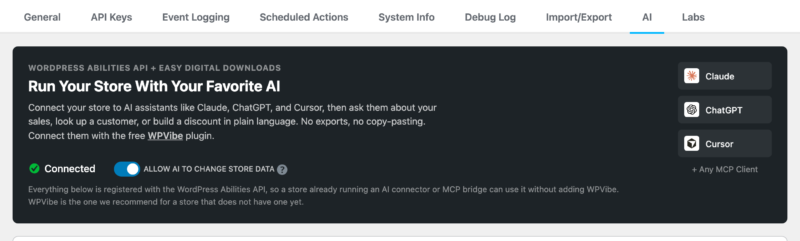
Go to Downloads » Tools » AI. This is where you connect your assistant and choose what it’s allowed to change.
Step 3: Connect Your AI Assistant
Your AI needs a connector to reach your store. We recommend WPVibe, which already covers Software Licensing and has a free plan.
Add the connector to Claude, ChatGPT, Cursor, or another MCP client. Then approve the connection in your WordPress admin. For the full walkthrough, see Connecting an AI Assistant to Easy Digital Downloads.
Step 4: Turn On Changes When You’re Ready
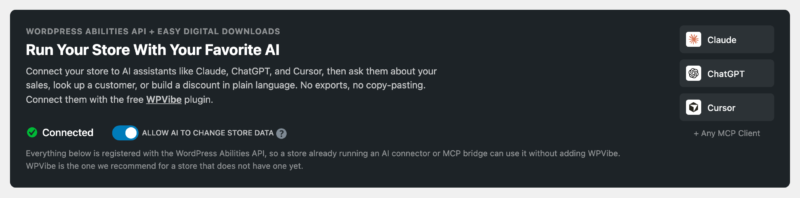
Your AI can look up licenses as soon as it’s connected. To let it make changes, like freeing a site, turn on Allow AI to Change Store Data on the AI tab.
You can turn it back off any time, and your AI goes back to read-only.
What Stays in Your Hands 🛡️
Your AI works as the account you connected it with. It can’t see or do anything that account couldn’t already do in your dashboard.
It also can’t create licenses or delete them.
Every change it can make can be put back. A freed site can be activated again with the same key, and a disabled license can be reactivated. When your AI changes a limit, it also reports the product’s default so you can reset it.
For the full list of what a connected AI can see and change, read What a Connected AI Assistant Can See and Change.
Also New in This Software Licensing Update
This release includes 16 security fixes, so we recommend updating right away. It also changes a few things you’ll want to know about.
- Update links: Package download links now use a new signature. Links created before you update stop working, and they would have expired within your download link window anyway (24 hours by default).
- Changelogs: Product changelogs now allow the same HTML as post content. Scripts and iframes are removed, so embedded videos in a changelog won’t show. See Software Licensing changelogs for how to format them.
- readme.txt location: It must be a public URL. Local and private network addresses aren’t fetched.
- Upgrades: A license needs to be attached to a user account to be upgraded. Licenses from guest purchases can’t be upgraded.
- Renewals: A license attached to an account can only be renewed by that account’s user. A license with no account can still be renewed by anyone with the key.
- Cart: Renewing a license no longer removes the same product from the cart when it’s there as a new purchase.
Software Licensing is part of Easy Digital Downloads Pro. You can also read the full Software Licensing release notes.
FAQs About Managing Software Licenses With AI
Still have questions about using AI with your licenses? These are the ones we hear most.
Can AI manage software license keys?
Yes. With Software Licensing and an AI assistant connected to your store, your AI can look up licenses and their active sites. Once you allow changes, it can also do things like free a site or change an activation limit.
Do I need to buy anything extra to use AI with EDD Software Licensing?
No. The license abilities come with Software Licensing, which is part of Easy Digital Downloads Pro on the Professional Pass or higher. You’ll also need a connector like WPVibe, which has a free plan. Your AI app may have its own pricing.
Can my AI assistant see my customers’ full license keys?
Only if the account you connect can view sensitive store data. Otherwise, keys come back masked to their last four characters, and the list of activated sites stays hidden.
What happens if my AI disables the wrong license?
Ask it to turn the license back on. Turning a license on restores the status its expiration date allows, so an active license goes back to active. An expired one stays expired.
Can AI analyze my software license data?
Yes. Your AI can pull license data, like expiration dates and activation counts, and combine it with your store’s sales reports. Then it explains what it found in plain English, so you don’t need a spreadsheet or a background in data analysis.
Can my support team use AI to answer license tickets?
Yes. Each agent can connect an AI assistant like Claude or ChatGPT with their own WordPress account. Their AI can then look up licenses and active sites, but only within what that agent’s account can already do.
Does this change how my customers activate their licenses?
No. Customers activate and deactivate sites the same way they always have. If your AI frees a site, the customer can activate it again with their key.
Start Managing Software Licenses With AI
The license tickets you answer every week can now start with one question to your AI. So can the business questions you used to need a spreadsheet for. You’ll spend less time clicking through license screens and more time building your software.
Update Software Licensing, then open Downloads » Tools » AI to connect your assistant. To see everything else your AI can do in your store, visit our AI abilities guide.
New to selling software? Our guide on how to sell and license software in WordPress walks you through getting started.
📣 P.S. Want more WordPress resources?
Get tips in your inbox, or follow along on your favorite platform.