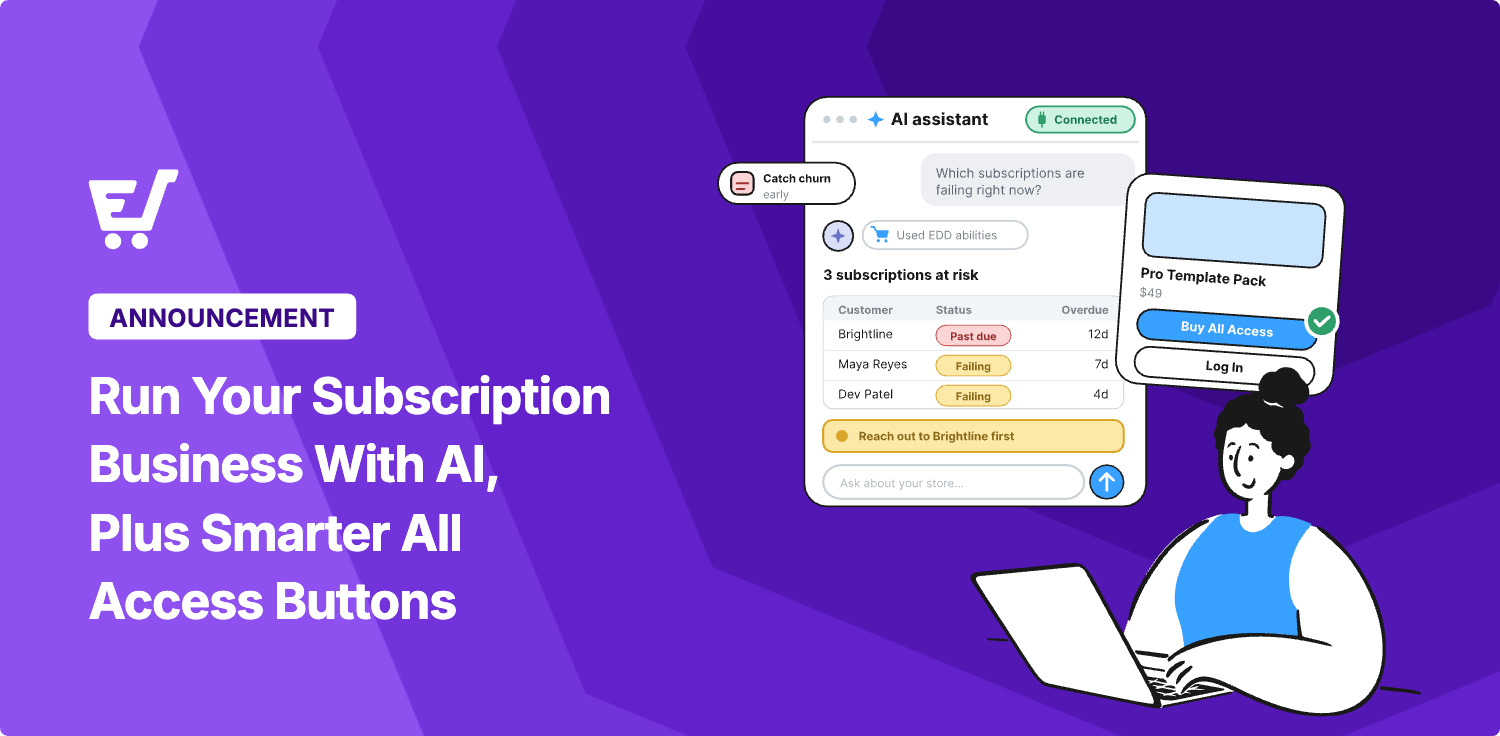


If you sell subscriptions or memberships, two of your favorite features just got better. Recurring Payments now works with your AI assistant, and All Access gives you more control over your buy buttons.
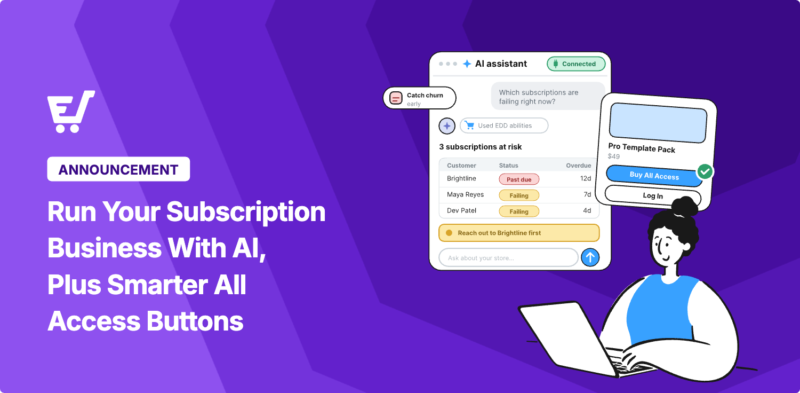
That means you can run your subscription business with AI instead of clicking through renewal screens. Ask your AI why a customer was charged, and you’ll have the answer in seconds.
For Easy Digital Downloads (EDD) stores that sell an All Access pass, each product can now choose its own button style. Below, you’ll see what’s new in both updates and how to set them up.
- Key Takeaways
- Run Your Subscription Business With AI
- Ways to Use AI With the Subscriptions You Sell
- Understand Your Subscription Business With AI
- How to Connect Recurring Payments to Your AI Assistant
- Show Your All Access Pass on the Products You Choose
- How to Set an All Access Pass Button for One Product
- Better All Access Reports and Troubleshooting
- Also New in These Updates
- FAQs About Running Your Subscription Business With AI
- Can I run my subscription business with AI?
- Can my AI cancel or refund a subscription?
- Do I need to buy anything extra to use AI with EDD Recurring Payments?
- Can my AI see my customers' payment details?
- Can I show different All Access buttons on different products?
- How do I see why an All Access pass isn't working?
- Can AI analyze my subscription data?
- Get More From Your Subscription Store
Key Takeaways
| Takeaway | What It Means |
|---|---|
| Ask about any subscription you sell | Your AI can look up a subscription and read its full renewal history. |
| Insights in plain English | Ask your AI how your subscriptions are doing, and get answers without exporting a spreadsheet. |
| Notes, not charges | Your AI can add internal notes. Cancelling and refunding stay in your admin. |
| Buttons per product | Any product can override your store-wide All Access “Add To Cart” display mode. |
| Better pass reports | Filter the All Access report by date range, and see why an invalid pass is invalid. |
Run Your Subscription Business With AI 🤖
EDD Recurring Payments, the subscription billing feature for Easy Digital Downloads, now adds four subscription abilities through the WordPress Abilities API. Three of them only read your subscriptions. The fourth lets your AI add a note, and only after you allow it.
If you’ve already connected your store to an AI assistant, there’s nothing new to set up. Update Recurring Payments, and your assistant can start using the subscription abilities. If you haven’t connected yet, our guide to running Easy Digital Downloads with an AI assistant walks you through it.
What Your AI Can Look Up
Your AI can find a single subscription by its ID. It can also list subscriptions filtered by status, customer, product, payment gateway, or expiration date.
For any subscription, it can read the renewal history and what it has billed so far. It can also read the notes on a subscription.
A subscription lookup returns the customer’s ID, so your AI looks up the customer separately. Their name, email, and gateway payment IDs only show up for accounts that can view sensitive store data.
What Your AI Can Add
Once you turn on changes, your AI can add an internal note to a subscription. Notes stay private, so your customer never sees them.
That’s handy for leaving a record after you’ve handled a billing question. The next person who opens the subscription knows what happened.
Ways to Use AI With the Subscriptions You Sell
These are the subscription questions that take the most clicking. Each one now starts with a single question to your AI. WPVibe has step-by-step recipes for each, with prompts you can copy.
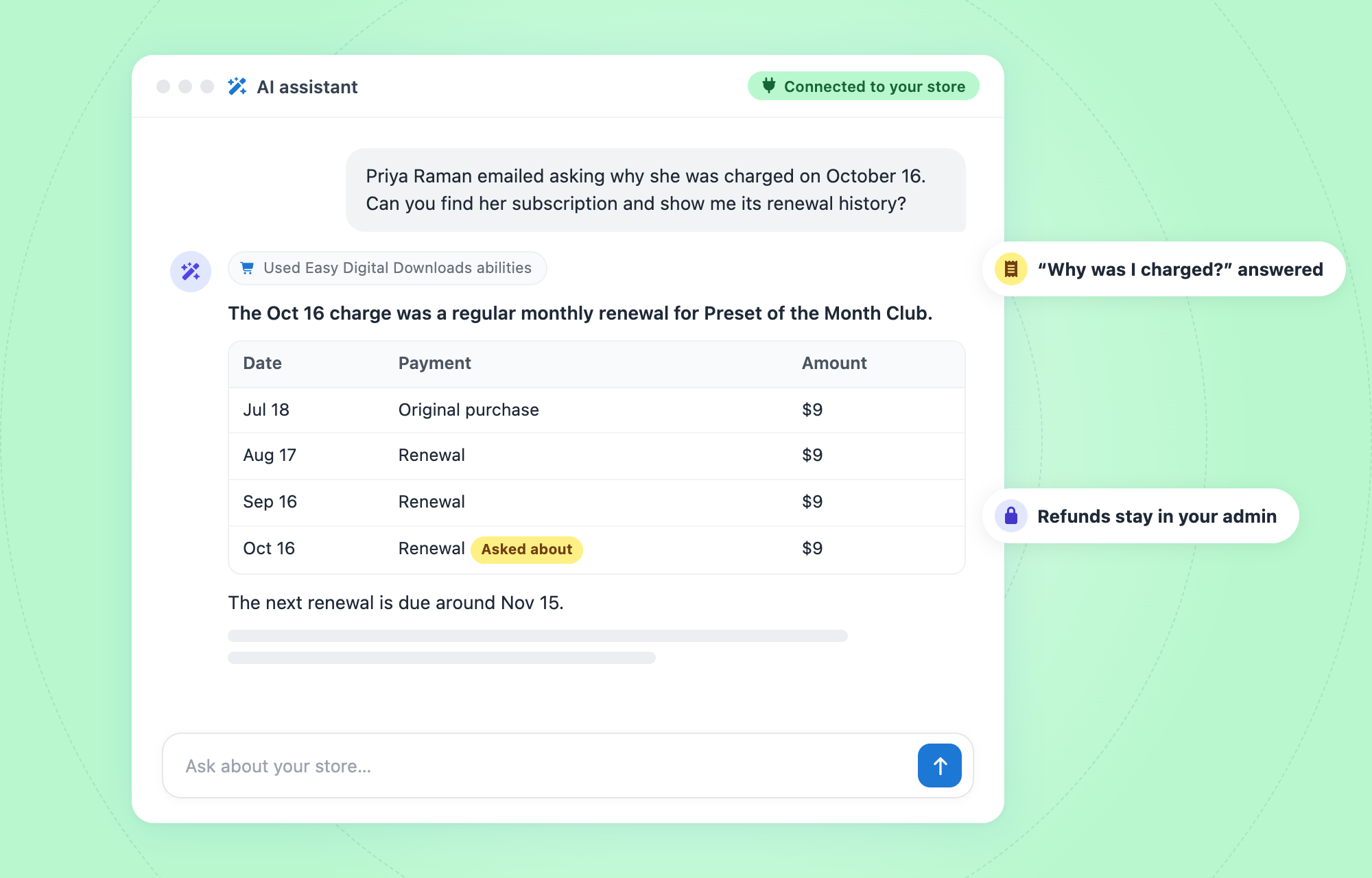
Answer “Why Was I Charged?” Questions
A customer emails about a charge they don’t recognize. Ask your AI to find their subscription and list its renewals, and you’ll see the date and amount right away.
Then you can reply with the details in a minute. The Answer Subscription Charge Questions recipe shows the prompts.
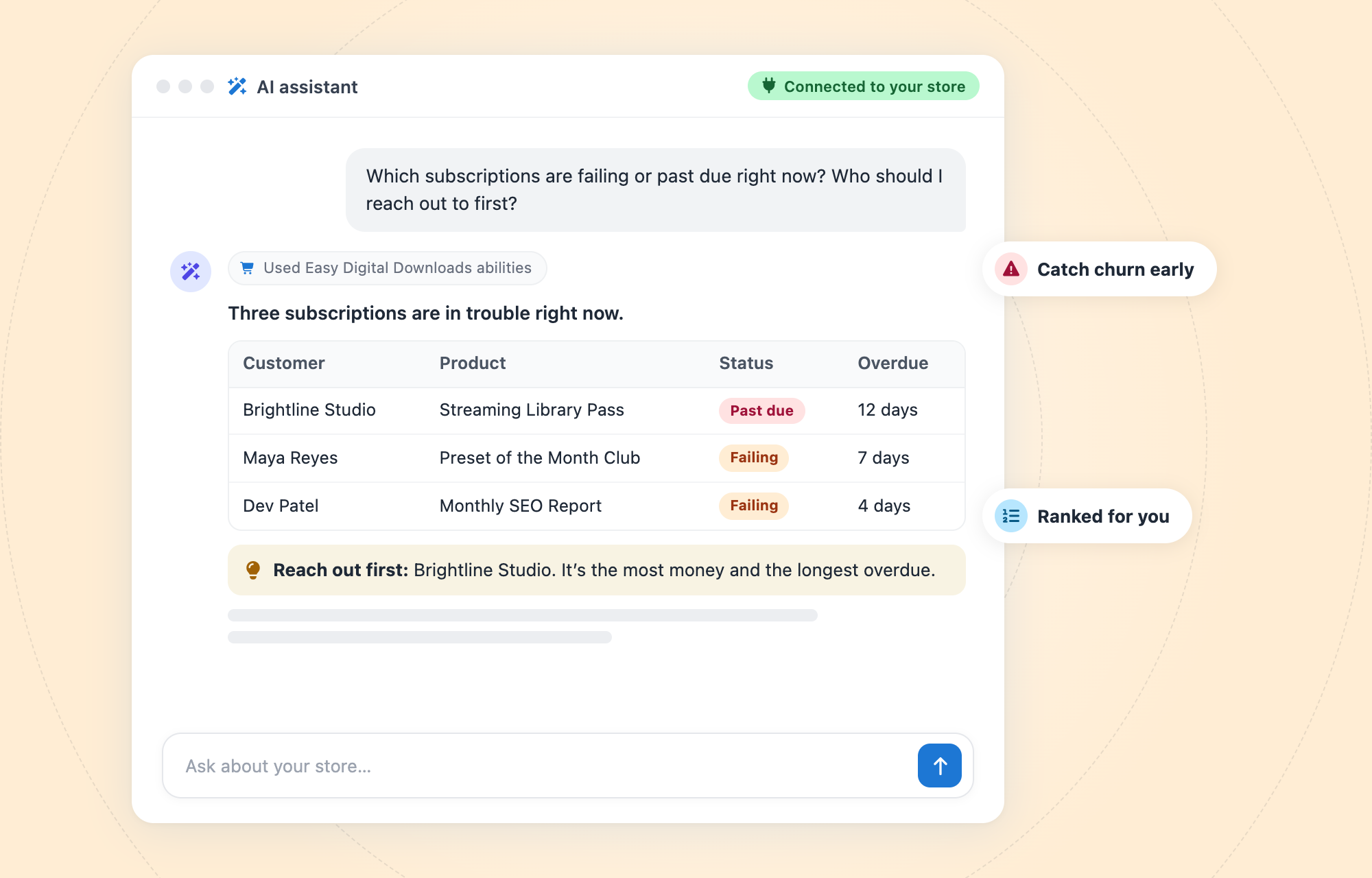
Find Failing and Past-Due Subscriptions
When a card expires, the renewal fails, and the customer might not even know. Ask your AI which subscriptions are failing so you can reach out before they cancel.
Follow the Find Failing and Past-Due Subscriptions recipe to try it. Recurring Payments can also send customers a link to update their payment method in one click.
Forecast Next Month’s Renewals
Ask your AI which subscriptions renew next month and what they’ll bill. You get a quick revenue forecast without opening a report.
The Forecast Subscription Renewals recipe walks through it step by step.
Understand Your Subscription Business With AI 📈
Recurring Payments for Easy Digital Downloads comes with reports. But figuring out why subscribers leave usually means exporting data and making sense of charts.
You don’t need to be a numbers person for that anymore. Your AI can pull your subscription data, combine it with your sales reports, and explain what’s happening in everyday language.
Ask Your Subscriptions a Question
Type the question the way you’d say it out loud. For example:
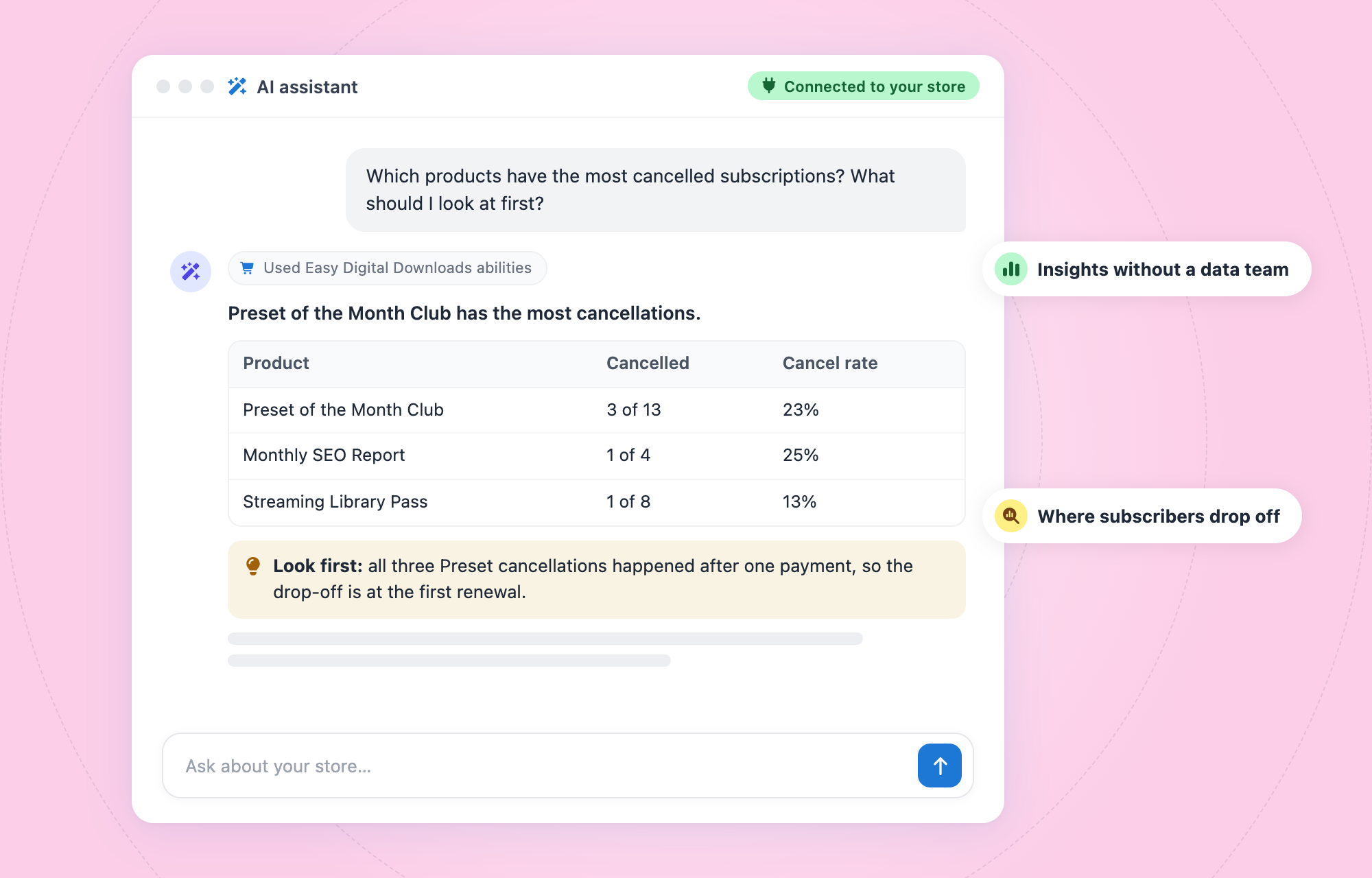
- Where subscribers drop off: “Which products have the most cancelled subscriptions?”
- Payment trouble spots: “Which payment gateway has the most failing subscriptions?”
- Your best subscriptions: “Which subscriptions have billed the most so far?”
- What’s coming up: “How much will renewals bring in over the next 30 days?”
Turn the Answer Into a Plan
Once you have the answer, ask your AI what it would try first. If one product loses more subscribers than the rest, that’s a good place to look at your pricing or onboarding.
You stay in charge of the decision. Treat the AI’s numbers as a starting point, and compare them with your reports before you change anything big.
How to Connect Recurring Payments to Your AI Assistant
You’ll need the latest versions of Easy Digital Downloads and Recurring Payments, on WordPress 6.9 or newer. Setup takes a few minutes.
Step 1: Update Easy Digital Downloads and Recurring Payments
Go to Dashboard » Updates and update both plugins. The subscription abilities come with the Recurring Payments update, so there’s nothing extra to install.
Step 2: Open the AI Tab
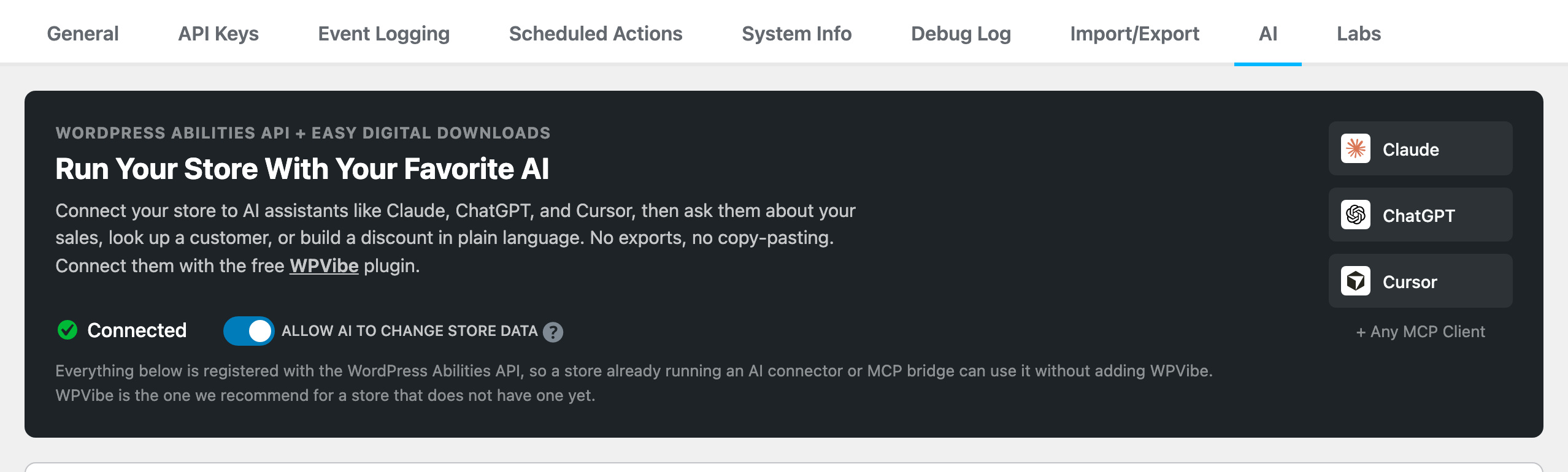
Go to Downloads » Tools » AI. This is where you connect your assistant and choose what it’s allowed to change.
Step 3: Connect Your AI Assistant
Your AI needs a connector to reach your store. We recommend WPVibe, which already covers Recurring Payments and has a free plan.
Add the connector to Claude, ChatGPT, Cursor, or another MCP client. Then approve the connection in your WordPress admin. For the full walkthrough, see Connecting an AI Assistant to Easy Digital Downloads.
Step 4: Turn On Changes if You Want Notes
Your AI can read subscriptions as soon as it’s connected. To let it add notes, turn on Allow AI to Change Store Data on the AI tab. You can turn it back off any time.
What Your AI Can’t Do 🛡️
Your AI works as the account you connected it with. It can’t see or do anything that account couldn’t already do in your dashboard.
It can’t cancel a subscription or issue a refund. Those stay in your admin, and so does retrying a failed payment. For the full picture, read What a Connected AI Assistant Can See and Change.
Show Your All Access Pass on the Products You Choose 🎟️
All Access for Easy Digital Downloads has a store-wide “Add To Cart” display mode. It decides what shoppers see on a product page when that product is part of an All Access pass.
You can show normal “Add To Cart” buttons, swap them for “Buy All Access” and “Login” buttons, or show both. Until now, that one setting applied to every product. Now any product can override it, and your store-wide setting stays the same.
When a Per-Product Setting Helps
Say you sell a big library of design templates, plus a few premium template packs. Most shoppers buy single templates, so you keep normal “Add To Cart” buttons store-wide.
On the premium packs, you’d rather point people to the pass. Set those products to show “Buy All Access” and “Login” buttons, and the rest of your store stays the same.
It works the other way too. If your store is pass-first, you can let one popular product keep its normal “Add To Cart” button.
Clearer Store-Wide Options
The store-wide display mode setting is now a dropdown with clearer labels. You’ll find it under Downloads » Settings » Extensions » All Access.

How to Set an All Access Pass Button for One Product
Setting a product’s display mode only takes a minute.
Step 1: Update All Access
Go to Dashboard » Updates and update All Access. If your store hasn’t updated Easy Digital Downloads in a while, update it too, since All Access now needs a more recent version. You’ll also need WordPress 6.2 or newer.
Step 2: Open the Product
Go to Downloads and click the product you want to change.
Step 3: Choose the Product’s Display Mode
In the Download Details box, stay on the Details section and find All Access “Add To Cart” Display Mode. Pick All Access buttons instead of Add To Cart, Add To Cart and All Access buttons, or Add To Cart only.
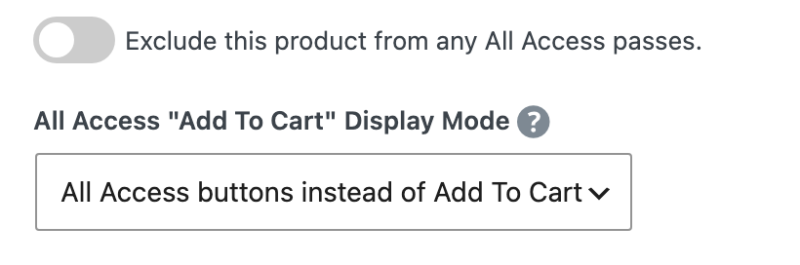
Leave it on Default to keep your store-wide setting.
Step 4: Update and Check the Product Page
Click Update to save the product. Then view the product page to make sure the buttons look the way you want. For more on every option, see the All Access settings guide.
Better All Access Reports and Troubleshooting 📊
The All Access report now has a date range picker, so you can see pass activity for last month or any range you choose. Its product filter now lists only your All Access passes, and downloads made today show up right away.

When a customer says their pass isn’t working, you can now see why. Open the order, and the Pass Details section shows the reason a pass is invalid.
Checkout is clearer for customers too. The “Create an account or log in” message now shows up for an All Access pass every time, even when another All Access product comes before it in the cart.
Also New in These Updates
Recurring Payments includes 8 security fixes and All Access includes 3, so we recommend updating both right away.
Recurring Payments
- Fresh update links: If a customer’s payment method update link stops working, they can now request a new one by email from the update page.
- Correct currency and tax: With Multi-Currency, Stripe subscriptions renew in the currency the customer paid in. PayPal renewals now handle tax correctly.
- No free extensions: A failed renewal payment no longer extends a subscription or its license.
- Fewer missed subscriptions: Stripe now creates subscriptions for orders that were on hold, and for purchases completed offsite, outside the normal checkout flow.
- Easier reactivation: Subscriptions cancelled after failed payments can be reactivated, and payment is collected when they are.
All Access
- Links in your text: The “Buy All Access” and “Log In” instructional text settings keep their links when you save them.
Subscription billing and All Access are both part of Easy Digital Downloads Pro. You can also read the full release notes for Recurring Payments and All Access.
FAQs About Running Your Subscription Business With AI
Still have questions about these updates? These are the ones we expect to hear most.
Can I run my subscription business with AI?
It can help make managing it easier. With EDD Recurring Payments and an AI assistant connected to your store, your AI can look up subscriptions and read their renewal history. Once you allow changes, it can also add internal notes.
Can my AI cancel or refund a subscription?
No. Canceling and refunds stay in your WordPress admin. Your AI can read subscriptions and add notes, but it can’t change what a customer pays.
Do I need to buy anything extra to use AI with EDD Recurring Payments?
No. The subscription abilities come with Recurring Payments, which is part of Easy Digital Downloads Pro. You’ll also need a connector like WPVibe, which has a free plan. Your AI app may have its own pricing.
Can my AI see my customers’ payment details?
None of the subscription abilities return card details. Customer emails and payment IDs from your gateway only show up if the account you connect can view sensitive store data.
How do I see why an All Access pass isn’t working?
Open the customer’s order and look at Pass Details. If the pass is invalid, it now shows the reason.
Can AI analyze my subscription data?
Yes. Your AI can pull subscription and renewal data and combine it with your store’s sales reports. Then it explains what it found in plain English, so you don’t need a spreadsheet or a background in data analysis.
Get More From Your Subscription Store
Billing and business questions can now start with a single message to your AI, and your All Access pass can show up exactly where it sells. You’ll spend less time digging through renewals and more time growing your store.
Update Recurring Payments and All Access, then open Downloads » Tools » AI to connect your assistant. To see everything else your AI can do, visit our EDD and AI abilities guide.
New to selling passes? Our guide on how to sell All Access memberships with EDD covers setup from the start.
📣 P.S. Want more WordPress resources?
Get tips in your inbox, or follow along on your favorite platform.