

Before you open your store to customers, it’s worth making sure the whole buying experience works from start to finish. This guide shows you how to run a test order in Easy Digital Downloads, check that everything works, and switch your store live.
Testing takes just a few minutes, and it’s the best way to catch a broken download link or a missing email before a real customer does.
You can run a test order anytime, even on a store that’s already live. Just remember to switch test mode back off when you’re done so real customers can check out.
Why Test Your Store Before Launching
A test order lets you experience your store exactly as a customer will, without moving any real money. You’ll confirm that checkout works, that the receipt email arrives, and that the download link delivers the right file.
This matters because the moment of purchase is where problems cost you the most. Catching them now means your first real sale goes smoothly.
Step 1: Turn On Test Mode
Go to Downloads » Settings » Payments, and in the General tab, toggle the option for Enable Test Mode. Then click Save Changes.
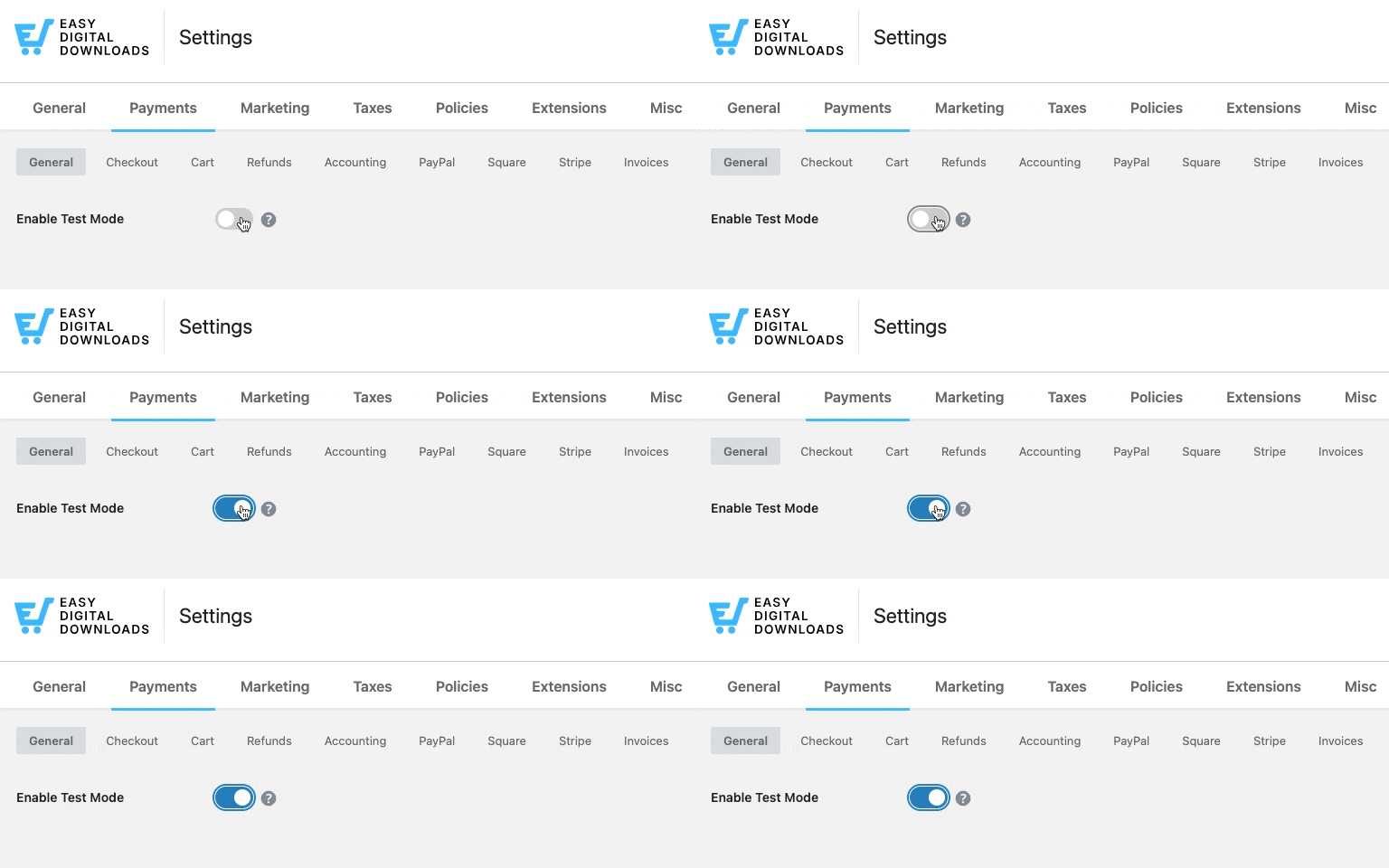
While test mode is on, no live transactions are processed, so you can place orders safely without charging a real card.
Step 2: Connect Stripe in Test Mode
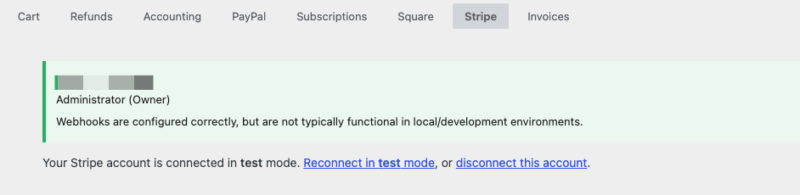
If you use Stripe, there’s one important thing to know: EDD’s test mode and Stripe’s test mode are separate. If you connected Stripe in live mode (for example, during the Setup Wizard), you’ll need to connect again while test mode is on.
Go to Downloads » Settings » Payments » Stripe and click Connect with Stripe to connect in test mode. Once you’ve connected in both test and live modes, EDD remembers both, so you won’t have to reconnect when you switch between them.
Using a different gateway, like PayPal? Each gateway has its own sandbox or test account for testing. See your Payment Settings and the setup guide for your gateway.
Step 3: Place a Test Order
Now go to your store as a customer would, add a product to your cart, and head to checkout.
If you’re paying with Stripe in test mode, use the test card number 4242 4242 4242 4242 with any future expiration date, any CVC, and any ZIP code. Complete the order just like a real customer.
Step 4: Confirm Everything Worked
After completing your test order, check that each part of the experience worked:
- You landed on the purchase confirmation page with a download link.
- You received the receipt email, with a working download link.
- The download link delivers the correct file.
- The order appears under Downloads » Orders, marked as a test order.
- You received the store owner sale notification email.
If anything didn’t work, fix it now and run another test order. For example, if the receipt email didn’t arrive, check your email settings and email deliverability.
Step 5: Turn Off Test Mode and Go Live
Once your test order works end to end, you’re ready to open your store. Go back to Downloads » Settings » Payments » General, switch off Enable Test Mode, and click Save Changes.
If you connected Stripe in both test and live modes earlier, EDD switches back to your live connection automatically. If you only ever connected in test mode, connect Stripe again in live mode before accepting real payments.
Finally, you can delete your test orders from Downloads » Orders for a clean slate. That’s it, your store is live and ready for real customers.
Your Pre-Launch Checklist
Before you flip the switch, make sure you have:
- At least one product created, with a file uploaded and a price set
- A payment gateway connected in live mode
- Your receipt email configured with the right from name and from email
- Your store pages in place (checkout and purchase confirmation)
- A successful test order completed from checkout through download
- Test mode turned off
Test and Launch FAQs
Here are answers to common questions about testing and launching your Easy Digital Downloads store.
Do I have to test my store before launching?
It’s not required, but it’s strongly recommended. A quick test order is the easiest way to catch a problem with checkout, emails, or file delivery before it affects a paying customer.
Will test orders charge real money or count in my reports?
No. While test mode is on, no real payments are processed. Test orders are clearly marked as test orders and don’t count toward your live sales and earnings. You can delete them whenever you like.
Why won’t my Stripe connection work in test mode?
EDD’s test mode and Stripe’s test mode are separate. If you connected Stripe in live mode, you need to connect again while test mode is enabled. Once you’ve connected in both modes, you can switch freely without reconnecting.
What test card should I use?
For Stripe, use 4242 4242 4242 4242 with any future expiration date and any CVC. This simulates a successful payment without charging a real card.
How do I switch my store from test mode to live?
Go to Downloads » Settings » Payments » General, switch off Enable Test Mode, and click Save Changes.
Will test orders send real emails?
Yes. Test mode still sends the receipt email to the address used at checkout, which makes it a great way to confirm your emails are arriving and your download links work.
You’re Ready to Sell
With a successful test order behind you and test mode switched off, your store is open for business. If you need to revisit any part of your setup, head back to the Getting Started guide.



