

This guide explains the Easy Digital Downloads settings area where you can customize all the emails that your store send. You’ll find these settings in your WordPress dashboard under Downloads » Emails.
The email settings are divided into several sections, including Emails, Settings, Email Reports, and Logs.
If you set up your purchase receipt during the Setup Wizard, this screen is where you can refine it and manage your store’s other emails.
Are emails not sending? Consult our FAQ.
Emails
Any email that EDD sends can be managed from this page. Additionally, for any feature that sends emails, the email will appear here as well.
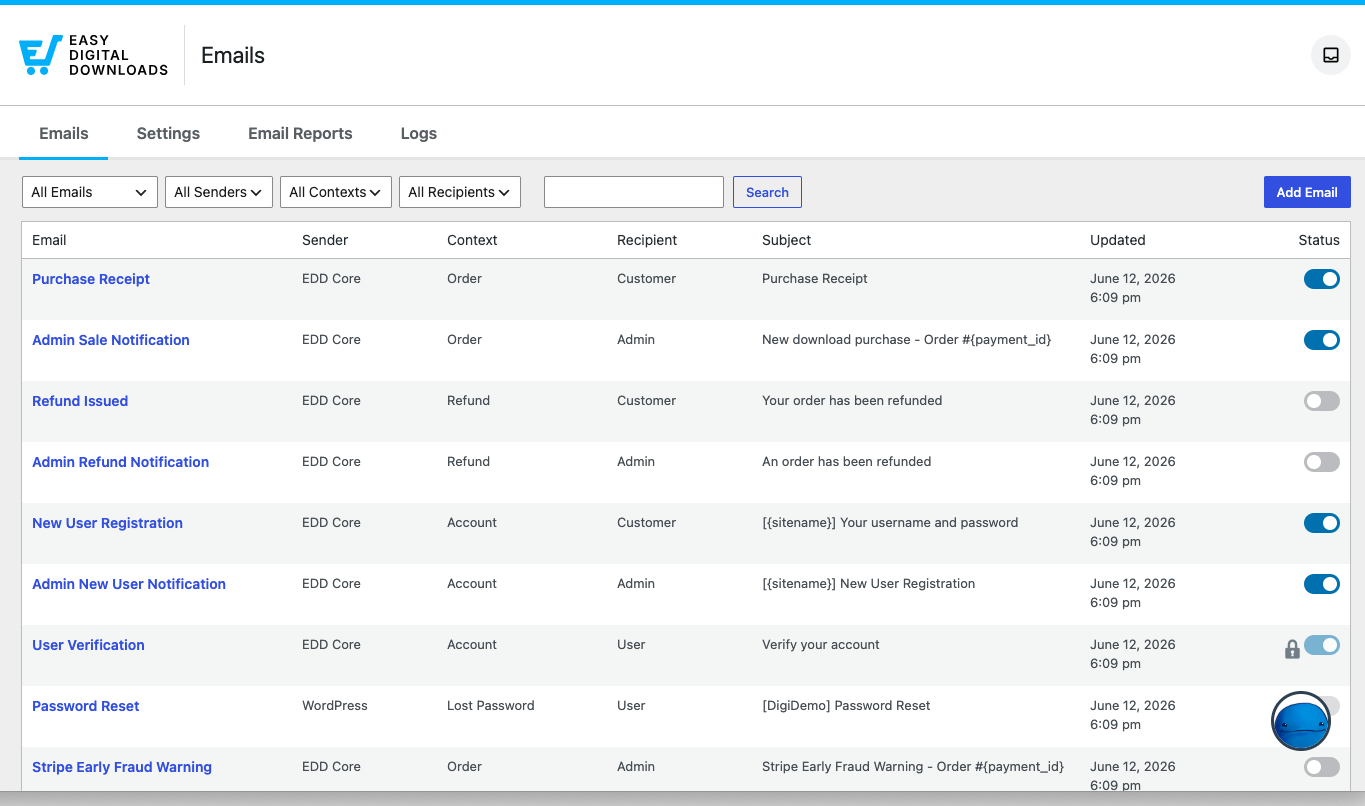
The table shows the following information:
- Sender: Reports what plugin/feature is responsible for the email (EDD Core, WordPress, etc.).
- Context: What triggers the email. For example, the Purchase Receipt is generated for a new order.
- Recipient: Who the email is sent to (Customer, Admin, WordPress User).
- Subject: What the email subject is set to.
- Updated: The last date and time the email was updated.
- Status: Reports whether the email is enabled, and lets you enable or disable most emails quickly. A lock icon means you can’t change the status; it’s either required or managed by another plugin (such as WordPress core settings).
Available Emails
These are the emails available in the Easy Digital Downloads core plugin. Feature-specific emails will be listed in the feature’s documentation. These emails can be edited, but some do require specific tags to work properly.
- Purchase Receipt: Sent to customers after a successful order.
- Admin Sale Notification: Sent to the admin after a successful order.
- Refund Issued: Sent to the customer when a refund is processed.
- Admin Refund Notification: Sent to the WordPress admin when a refund is processed. Helpful for stores with employees who can process refunds and want to be alerted when one is done.
- New User Registration: Sent to a new user when their account is registered via EDD.
- Admin New User Notification: Sent to the store admin when a new user is registered.
- User Verification: Sent to a user when they need to verify their account. Important: the
{verification_url}template tag must remain in this email. Do not delete it. - Password Reset: Sent by WordPress when a user requests a password reset from the EDD Login block. Important: the
{password_reset_link}template tag must remain in this email. Do not delete it. - Stripe Early Fraud Warning: Be alerted when an early fraud warning is detected by Stripe’s machine learning. Avoid disputes before they even happen by reviewing flagged orders to verify them.
Editing Emails
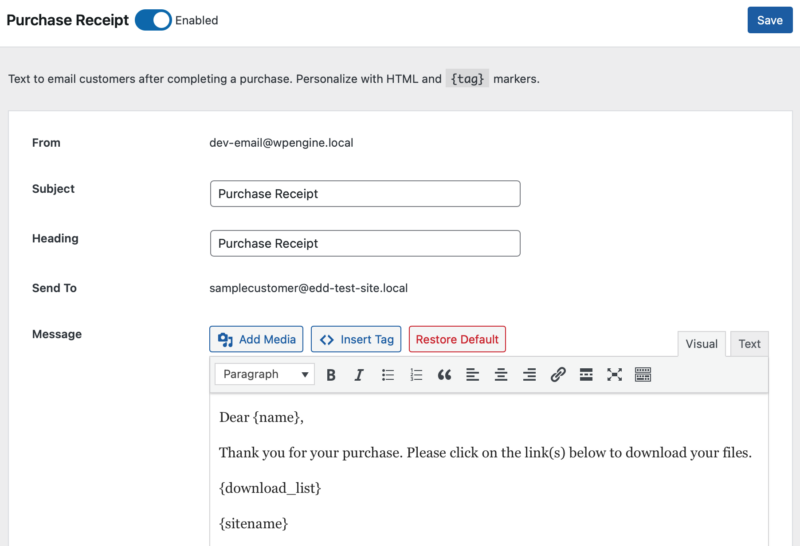
Click the email name to open the editor, where you can edit the Subject, Heading, and Message. Each email shows the default content, which you can customize for your needs. The Insert Tag button presents the available tags for that specific email. Clicking a tag inserts it into the email.
Settings
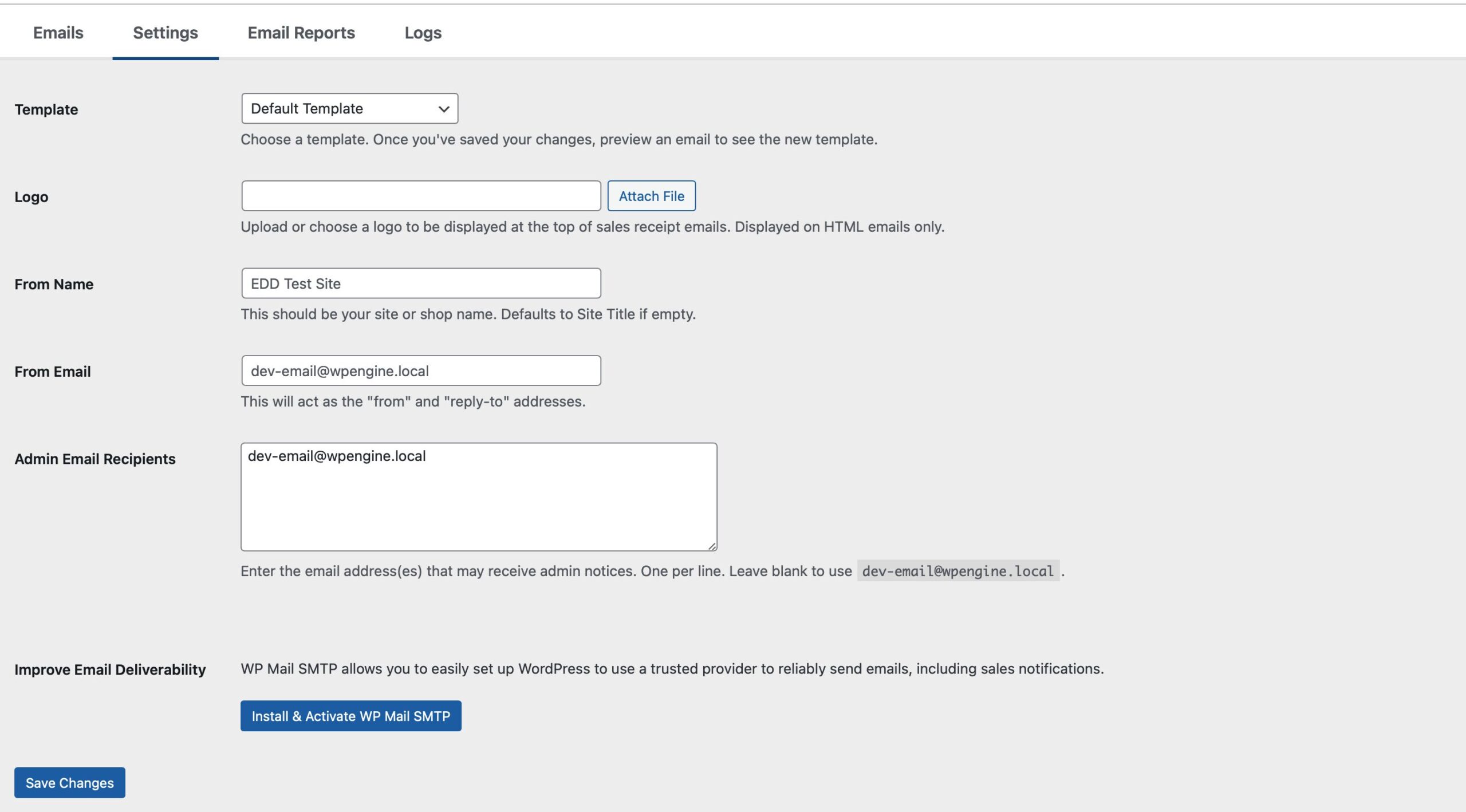
Template: The default EDD template is used. You can also select plain text if you don’t want to send HTML receipts. Developers can create custom templates if desired.
Logo: Upload or choose a logo to be displayed at the top of sales receipt emails. Displayed on HTML emails only.
From Name: This should be your site or shop name. Defaults to Site Title if empty.
From Email: This will act as the “from” and “reply-to” addresses.
Admin Email Receipts: Leave blank to use the WordPress admin email, or enter the email address(es) that may receive admin notices, one per line.
Improve Email Deliverability: WP Mail SMTP lets you easily set up WordPress to use a trusted provider to reliably send emails, including sales notifications.
Email Reports
Email Reports let you receive a weekly or monthly email of your store’s performance, showing your Gross Revenue, Net Revenue, New Customers, Average Order amount, and Top 5 Products by Revenue.
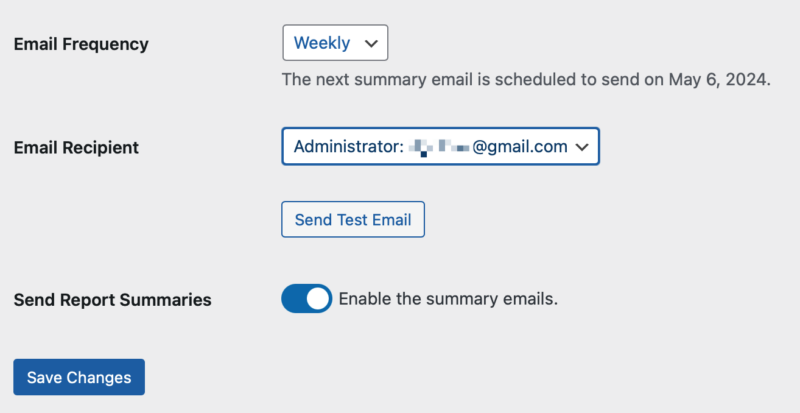
Email Frequency: Choose Weekly or Monthly.
Email Recipient: Defaults to the WordPress Administrator, or select Custom Recipients to input one or more email addresses to send the report to.
Send Report Summaries: Enable this to receive email summaries.
Here is an example of the information provided in the email report:
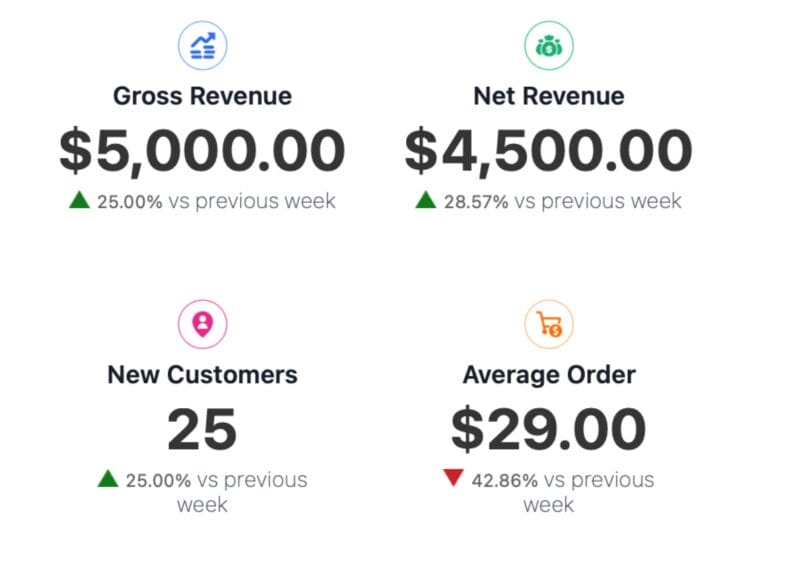
You can preview what the report will look like by clicking the Send Test Email button. The test email will contain sample data.
Logs
Emails sent by EDD are logged here. This can help troubleshoot when customers report not receiving emails. If it’s logged here, EDD has attempted to send it. If customers aren’t receiving emails, it could be that your web server is not sending them. See this guide for details.
The best way to confirm your emails work is to run a test order before you launch. See Testing Your Store.
Bounce Notifications
Recovery emails should include a way for customers to unsubscribe. Some providers also send bounce/complaint notifications to a webhook.
- The webhook endpoint URL for bounce (and related) events.
- A webhook secret for verifying requests.
Configure your email provider (e.g., SendGrid, Mailgun, Amazon SES) to send bounce notifications to this endpoint.
Conditional Email Tags
Conditional email tags are a Pro feature that allows you to add logic to your automated emails using simple if/then statements. Instead of sending the same message to everyone, you can now:
- Personalize messages based on purchase details (payment method, products, discounts used).
- Welcome new customers differently from returning customers.
- Segment content by order value, product category, or other factors.
- Provide context-specific information (e.g., different messaging for guest vs. registered users).
- Create better customer experiences with targeted, relevant communication.
The easiest way to add conditional content is to use the built-in Condition button in the email editor.
Step-by-Step Instructions
- Open your email template for editing in Downloads » Emails » [Your Email Template].
- Click the Condition button in the email editor toolbar (next to Insert Tag).
- A condition builder modal will open with these options:
- Condition: Choose what to check (Payment Method, Product, Category, Guest Purchase, First Purchase, Discount Code, etc.).
- Operator: Select how to compare (is, is not, contains, doesn’t contain, greater than, less than, etc.).
- Value: Enter or select what you’re checking for.
- Configure your condition by selecting options for each field.
- Add more conditions if needed by clicking Add Condition and selecting AND or OR logic.
- Click Insert to add the conditional block to your email.
- In the inserted code, the “content” placeholder will be selected automatically, so you can start typing to add the content users will see.
Example: Welcome Message for First-Time Customers
- Click the Condition button.
- Set Condition:
User's First Purchase. - Leave the operator as default (no value needed — it’s a yes/no condition).
- In the content area, type:
"Welcome! Thank you for your first purchase. We hope you enjoy it!" - Click Insert
When a user receives the email you’re editing, the message appears only if the customer is making their first purchase. When a conditional block evaluates to false, its content is removed. If this leaves an empty paragraph, the paragraph tag is automatically removed to keep your email clean.
Email Conditions Reference Guide
Here’s everything you need to know about each available condition:
1. Payment Method
What it does: Show content based on which payment gateway was used (Stripe, PayPal, Square, etc.).
Use this when you want to send payment-specific instructions, thank customers using specific payment methods, or provide method-specific follow-up information.
2. Download (Product)
What it does: Show content based on which products/downloads are in the order.
Use this when you want to send product-specific instructions or support information, upsell related products, provide download links with specific context, or segment messages by product purchased.
3. Category
What it does: Show content based on product categories in the order.
Use this when you want to send category-specific guides or tutorials, target customers by product type, cross-sell related items, or provide category-relevant support information.
4. Guest Purchase
What it does: Show content based on whether the customer is a guest or registered user.
Use this when you want to invite guests to create an account, send different messaging for guests vs. registered customers, or encourage guest customers to join your community.
5. First Purchase
What it does: Show content only for customers making their first purchase.
Use this when you want to send special welcome messages, offer first-purchase incentives, provide onboarding information for new buyers, or set different expectations for loyal vs. new customers.
6. Order Discount Code
What it does: Show content based on which discount/coupon was applied to the order.
Use this when you want to acknowledge specific promotional codes, send different messaging based on which promotion was used, track marketing campaign effectiveness, or provide code-specific information or restrictions.
Advanced: Dynamic Tag Proxies
What are they? Beyond the six built-in conditions above, you can use numeric comparisons with any EDD email tag that supports conditions. This includes order values, tax amounts, and more.
Common dynamic tags with numeric operators:
subtotal— The order subtotal (before tax and fees)tax— Tax amount for the orderprice— Total order pricefees_total— Total additional fees
Happy personalizing! 🚀



