

Your checkout page is the finish line. It’s the most critical part of your store. If it’s messy or asks too many irrelevant questions, customers might walk away.
But as a store owner, you need information. You might need a VAT number, a business name, or details for a custom order.
How do you balance keeping the form short while still getting the data you need?
We’re thrilled to announce a major update to the Checkout Fields Manager extension: Dynamic Conditional Fields. 🥳
This means you can now show or hide checkout fields based on the value of another field right there in the form. Create smart, conversational forms that adapt in real-time for a much cleaner, professional, and less cluttered checkout experience.
Let’s look at why this is a big deal and how you can use it to boost your sales.
What Are Dynamic Conditional Fields?
Checkout Fields Manager allows you to use conditional logic based on the cart total or the specific items in the cart. For instance, ‘If the cart contains a T-Shirt, show a ‘Size’ drop-down.’
We took this feature and made it even more powerful.
With Dynamic Conditional Fields, your checkout form becomes interactive. It reacts instantly to what the customer types or selects inside the form itself.
Until now, conditional fields were determined at page load based on things like cart contents, order total, or whether the customer was logged in.
With this update, fields react live to what the customer is doing. They can choose “Gift” from a dropdown and immediately see a field for their gift message—no page refresh required.
How This Helps You Sell More
Here is how this update helps:
- A Better Checkout Experience: Your customers only see the fields relevant to them. A shorter-looking form is less intimidating and faster to complete.
- Personalize the Customer Experience: You can drill down and ask specific follow-up questions without cluttering the screen for everyone else. Not only can you collect data specific to a product (e.g., You’re buying a logo design service, so we need you to upload a file), you can also collect data specific to the customer’s preference. (e.g., asking “How did you hear about us?” and only showing a “Please specify” box if they choose “Other”).
- No Code Required: You don’t need to hire a developer to build complex, interactive forms. It’s all drag-and-drop.
Ideas To Get You Started
Unsure how you’d use this? Here are a few examples of how dynamic fields can work for your store.
1. The “Other” Option 📝
You want to know how customers found your store, so you add a dropdown with choices like “Google,” “Twitter,” and “Other.”
If someone picks “Other,” a text field appears asking them to specify. Pick anything else, and that field stays hidden.
2. Business vs. Personal 🏢
You sell software to both hobbyists and companies. Add a simple question: “Is this a business purchase?”
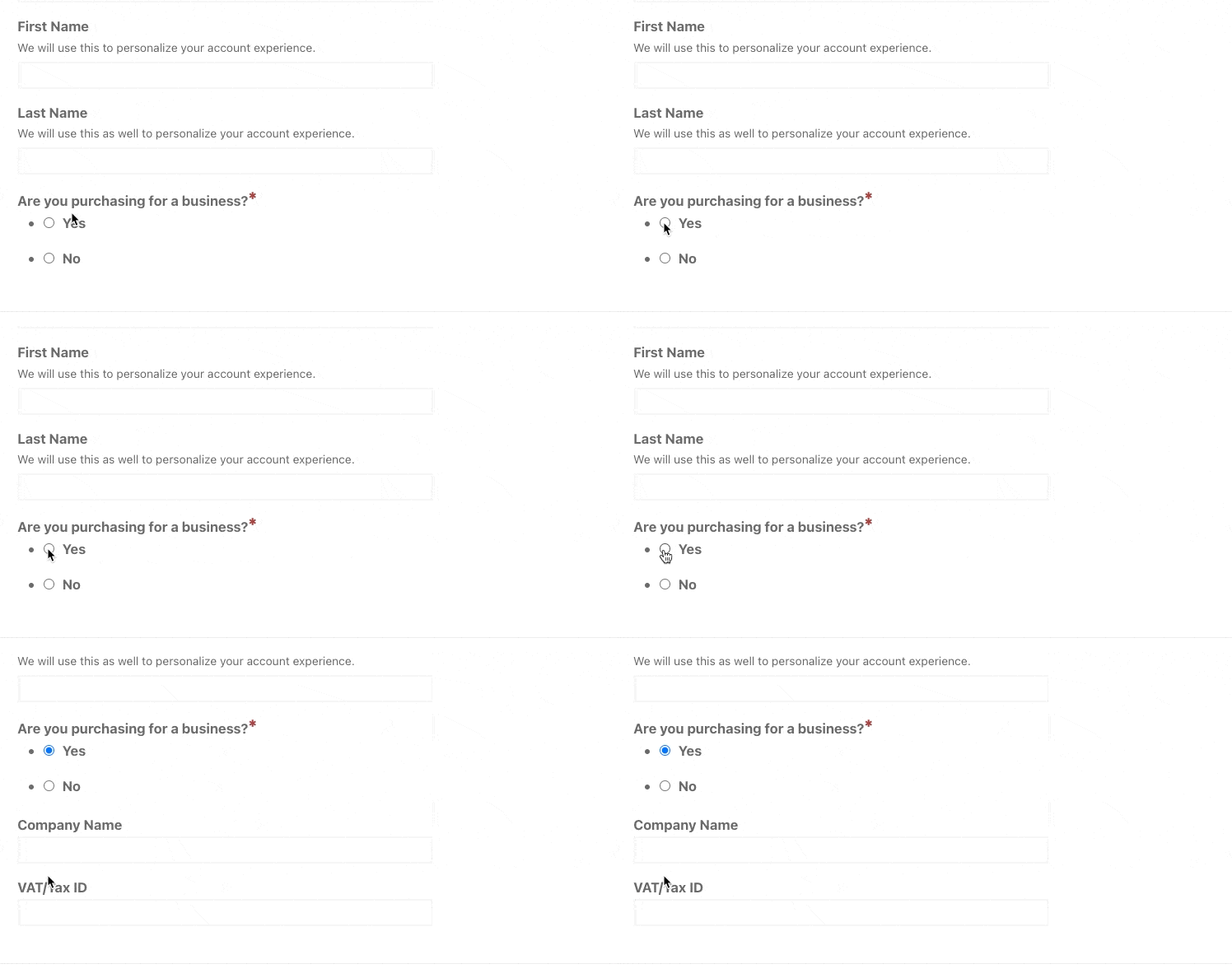
If they say yes, fields for “Company Name” and “VAT/Tax ID” slide into view. If not, checkout stays streamlined.
3. Gift Options 🎁
Selling digital gift cards or downloadable certificates? Ask “Is this a gift?” with a checkbox.
When checked, fields for “Recipient Email” and “Gift Message” appear. When unchecked, they stay out of the way.
How to Set Up Dynamic Conditional Fields
If you have the Professional or All Access EDD pass, you already have access to Checkout Fields Manager.
If not, you can grab an EDD Pass today.
When you upgrade to Pro, you also get access to our recently released Smart Cart Recommendations. 🧠
While Dynamic Fields streamline the form, Smart Recommendations optimize the cart. This feature uses AI to suggest relevant cross-sells inside a sleek slide-out cart drawer.
By combining Dynamic Conditional Fields (to reduce friction) with Smart Cart Recommendations (to boost Average Order Value), you create a checkout experience that’s cleaner for customers and more profitable for you.
Ready to make your checkout smarter? Here’s how to set up dynamic conditional fields using EDD’s Checkout Fields Manager.
1. Update the Extension
From your WordPress dashboard, go to Plugins and make sure Checkout Fields Manager is updated to the latest version.
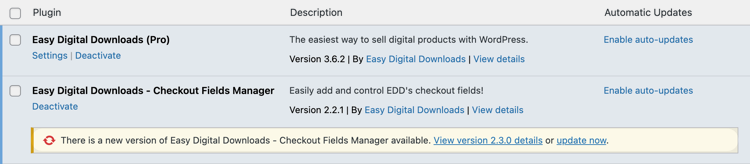
If this is your first time using it, you can install it under Downloads » Extensions.
2. Access the Form Editor
Go to Downloads » Checkout Form. You’ll see the form builder interface.

3. Add Your Trigger Field
First, add the field that starts the logic.
For this example, let’s use a Radio button field.
- Label: “Are you purchasing for a business?”
- Options: Yes, No.

4. Add the Dynamic Conditional Logic Field
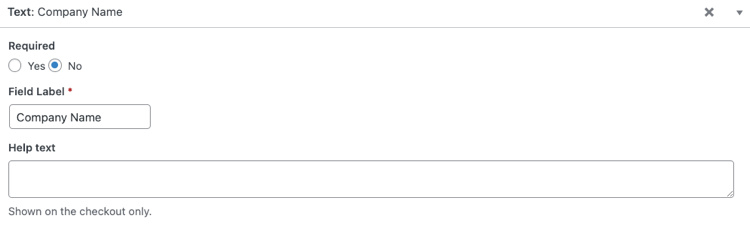
Next, add the field(s) you want to hide initially, like the Text fields for a “Company Name” and/or “VAT/Tax ID”.
5. Apply the Logic
Under the above field(s), scroll to the Conditional Logic section and select the toggle to Enable Conditional Logic.
- Set it to Show this field.
- Select the “Are you purchasing for a business?” field from the dropdown.
- Set the condition to be equal to “Yes.”
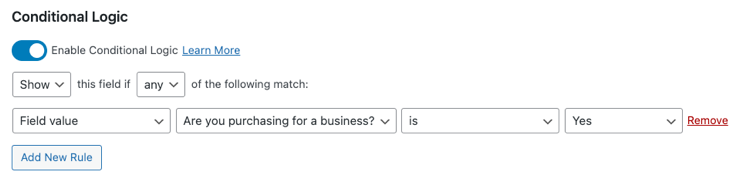
Repeat this step for however many fields you want to appear under the set conditions.
Save your form. That’s it!
Go to your checkout page and test it out. The text boxes will only show up when “Yes” is clicked.
⚙️ For more, refer to the Checkout Fields Manager Setup Doc.
FAQs on Dynamic Conditional Checkout Fields
Does this work with all field types?
Yes, dynamic conditional logic works with almost all standard field types available in Checkout Fields Manager, including text, radio buttons, dropdowns, and checkboxes.
Where is this custom data stored?
You can choose to store data in User Meta (best for customer info like social handles) or Payment Meta (best for order info like gift messages). You select this when creating the field.
Do I need to know how to code PHP?
Not at all. The interface is entirely visual. You drag fields onto the form and configure the logic using simple dropdown menus.
Can I export this data?
Yes. Checkout Fields Manager supports CSV export, so you can pull your customer records and include the values collected from these custom fields.
Get Checkout Fields Manager Today
This feature gives you the power to ask the right questions at the right time. It creates a personalized experience that feels professional and easy.
Already have an EDD Professional or All Access Pass?
You’re all set! Update the extension in your dashboard today to start using dynamic fields.
Using EDD Lite, or a Personal or Extended Pass?
You’re missing out on one of the best ways to customize your store! Upgrading to the Professional pass doesn’t just unlock Checkout Fields Manager; it gives you a complete toolkit for optimizing your checkout.
Other improvements included in this release include updated settings screen for improved UX, custom fields now shown on the Add Order admin screen, and more. See the full CFM 2.3.0 Release Notes.
📣 P.S. Be sure to subscribe to our newsletter and follow us on Facebook, Twitter/X, or LinkedIn for more WordPress resources!