
With the EDD Cross-sell and Upsell Pro feature, you can recommend related products to customers at exactly the right moment: while they’re viewing a product, and again at checkout.
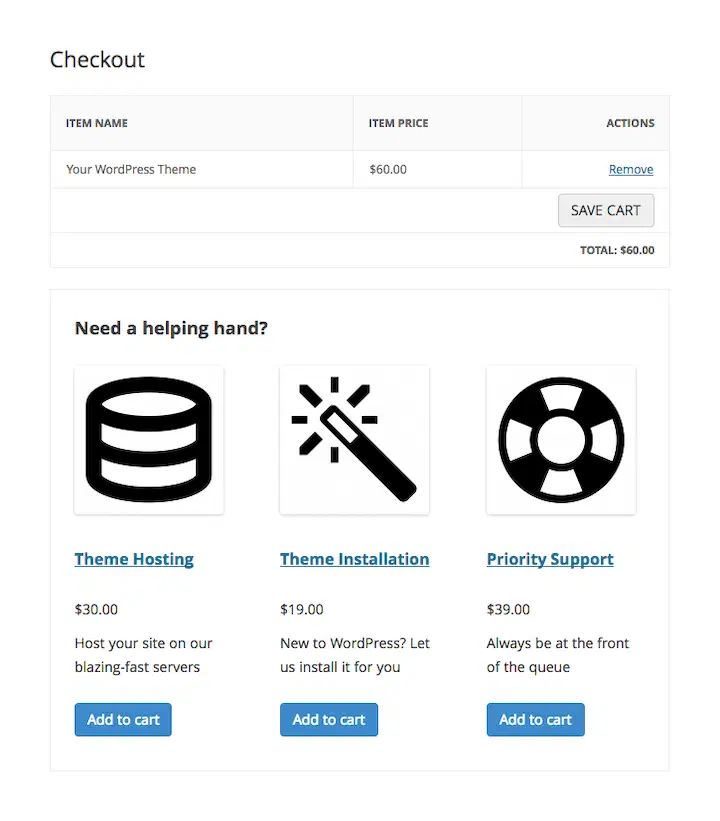
Here’s the distinction that matters most: Upsells appear on your product pages, below the product description. Cross-sells appear on the checkout page, below the cart.
The rest of this doc walks you through setting recommendations up, understanding what your customers see, reading your reports, and troubleshooting common issues.
How Cross-sells and Upsells Look to Customers
Before you set anything up, it helps to know exactly what your customers will see:
- Upsells show up below the product description on the individual product page.
- Cross-sells show up below the cart on the checkout page.
- If a product is already in the customer’s cart, it’s automatically hidden from recommendations. You won’t accidentally recommend something they’ve already added.
- If a customer clicks Add to Cart on a cross-sell recommendation, they stay on the checkout page. They don’t get pulled away from completing their purchase.
Adding Cross-sells and Upsells
To get started, make sure the Cross-sells and Upsells feature is enabled on your site. To do so, go to Downloads » Extensions, search for the feature, then select Install.
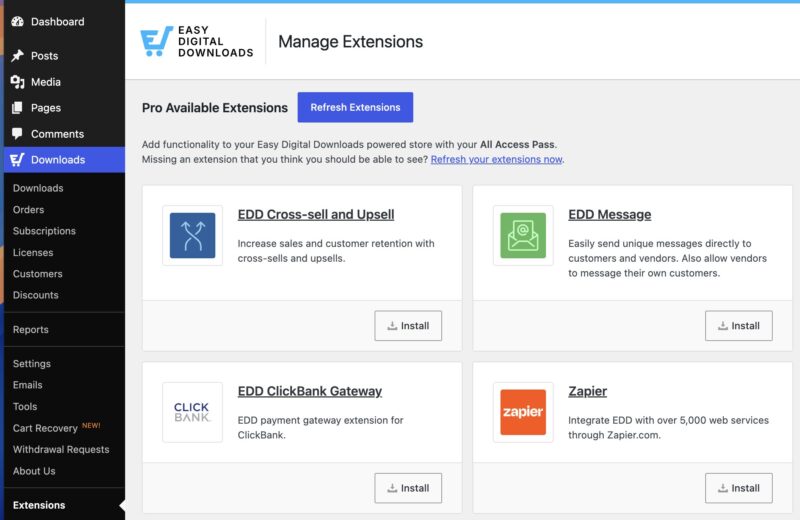
Note: This feature is included in any Pro plan.
Follow these steps to add a cross-sell or upsell to any product:
- Visit the download in your WordPress admin that you want to add cross-sells or upsells to.
- Scroll down to the Cross-Sell & Upsell section on the product edit page.
- Set a custom heading if you want one. Otherwise, the default heading from your main settings will be used.
- Click into the provided fields and select the products you want to recommend as cross-sells or upsells.
- Click Save.
Remember: cross-sells show up on the checkout page, and upsells show up on the individual product page.
Setting Up Cross-sells and Upsells
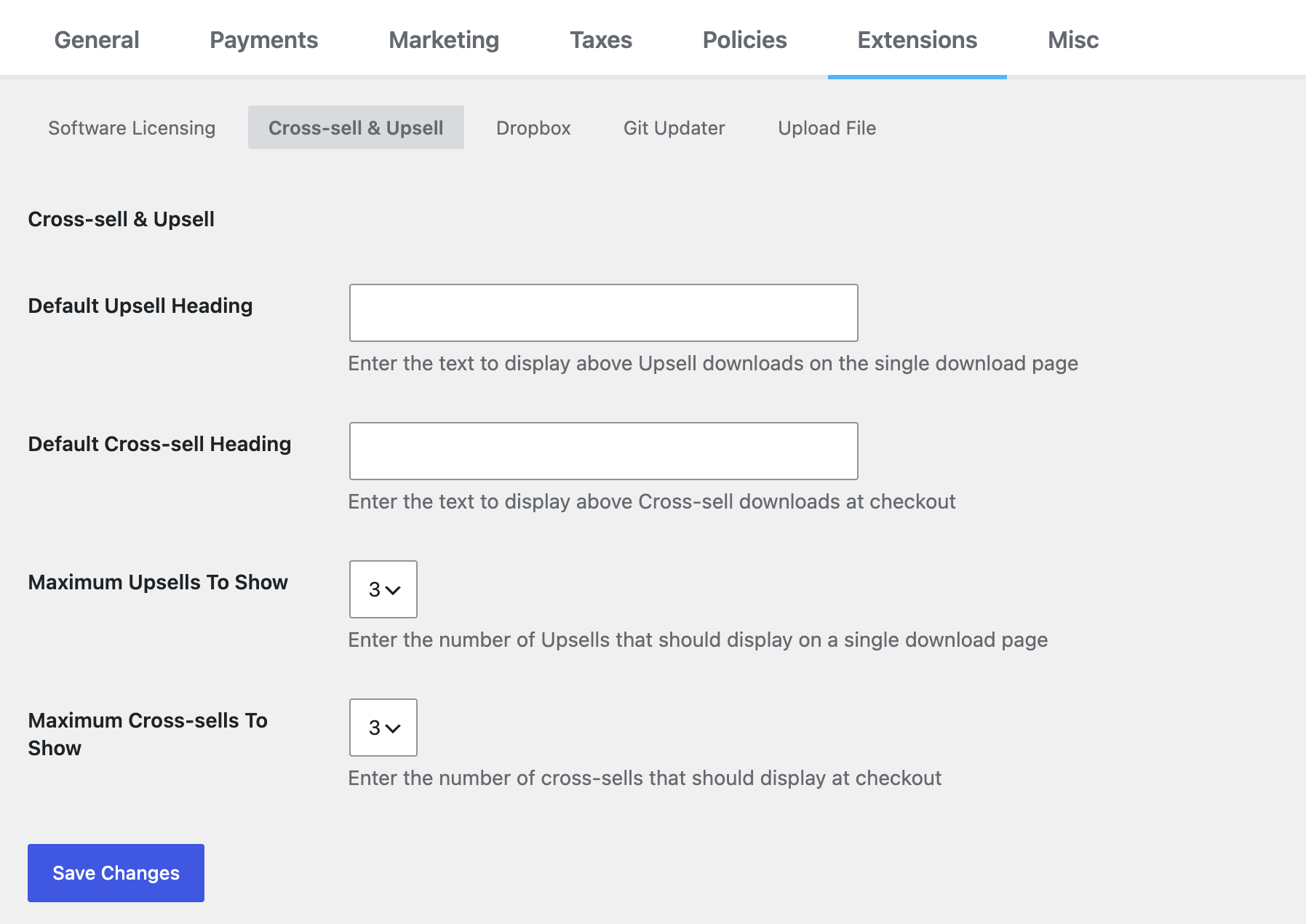
Head to Downloads » Settings » Extensions » Cross-sell & Upsell to manage your default settings.
Default Headings
The Default Upsell Heading is shown on single product pages. You can also customize the heading on a per-product basis from each individual product’s edit page.
The Default Cross-Sell Heading is the default heading shown at checkout for cross-sell products. You can also customize this on a per-product basis. See Custom Headings below for exactly when the default versus custom heading is used.
Maximum to Show
These two options set the maximum number of cross-sells/upsells to show on their respective pages (single product page or the checkout page).
The default maximum for both is set to 3.
If you assign more to either, only the max number will show. The feature selects from the products you’ve assigned, up to the limit you’ve set.
Custom Headings
Custom headings are a great way to increase sales and build a more personal connection with customers.
In addition to adding a default heading to either type of upsell in the feature settings shown above, you can also set a custom heading for specific products in the Cross-sell and Upsell section of each product’s edit page.
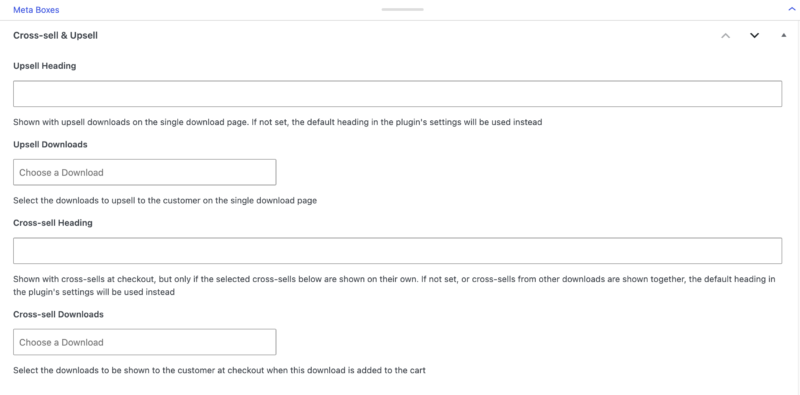
The custom headings you set here show above the upsell products on that product’s page. It’s a great place for a more personal message tied to that specific product.
The custom cross-sell heading is shown on the checkout page. For example, if a customer has a song from a specific artist in their cart, you could set a custom heading that offers more music from that artist.
Here’s exactly when your custom heading shows, and when it doesn’t:
- If only one product in the customer’s cart is triggering cross-sells, and that product has its own custom heading, that custom heading is shown.
- If multiple products in the customer’s cart are triggering cross-sells at the same time, the global heading from your settings is used instead.
This matters because if you’ve set per-product headings, you might notice they don’t always show up. That’s expected. Set your global heading to something general enough to work for any combination of products.
Viewing Cross-sell and Upsell Reports
Beyond setup, the feature also keeps a record of every cross-sell and upsell transaction so you can see whether your recommendations are actually working.
Transaction Logs
Go to Downloads » Tools » Event Logging » Cross-sells / Upsells to see a full history of every cross-sell and upsell transaction. Each log entry shows the product name, payment ID, and date.
This is the fastest way to check whether your cross-sells and upsells are actually being triggered.
Under Downloads » Reports, you’ll also find a dedicated tab for each where you can find even more reports.
Export Cross-sell/Upsell History
Navigate to the Export tab to export your full cross-sell and upsell history to a CSV file. You can filter the export by month, year, or order status.
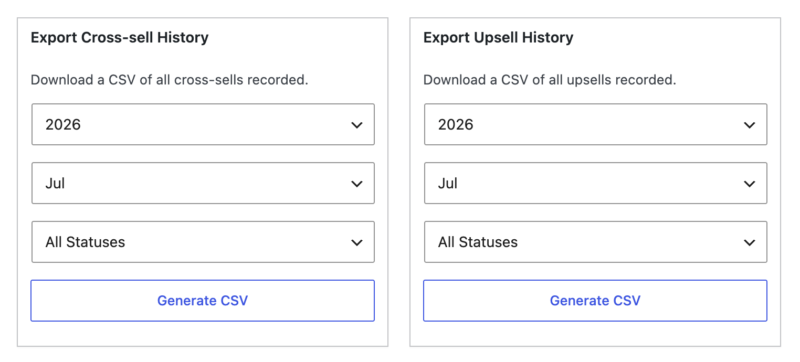
This is useful for monthly reporting or handing data off to your accountant.
Filtering Products in the Admin
Products can be filtered in your WordPress admin from the main Downloads page, using the dropdown menus above your download list. A dedicated dropdown lets you quickly show:
- Downloads with cross-sells
- Downloads with upsells
- Downloads with both cross-sells and upsells
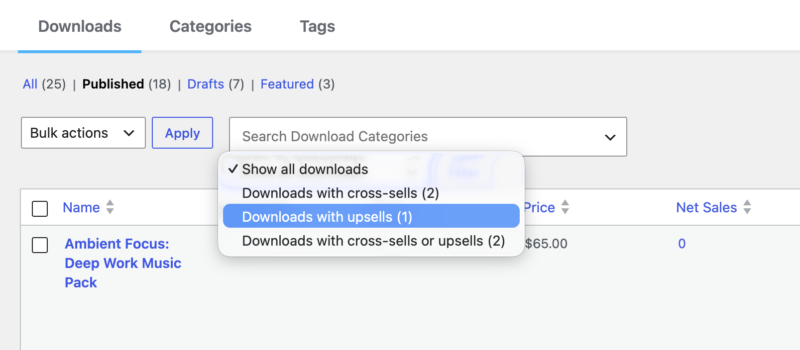
Combined with the standard WordPress filter options, this is a fast way to find all your downloads with cross-sells and upsells set up.
Troubleshooting
My configured recommendations aren’t showing up
This usually comes down to one of two things:
- The product may already be in the customer’s cart. Items already in the cart are automatically hidden from recommendations.
- You may have reached the maximum number of recommendations. Check your limit under Downloads » Settings » Extensions » Cross-sell & Upsell.
My custom heading isn’t showing at checkout
If multiple cart items are triggering cross-sells at the same time, the global heading from your settings is always used instead of any per-product headings. This is expected behavior. Set your global heading to something that works well across all your products.
My earnings totals look wrong in reports
Use the Recount Stats tool to recalculate your totals. Go to Downloads » Tools » Recount Stats and run the Cross-sell & Upsell recount option.
For Developers
The sections below are for developers who want to customize how cross-sells and upsells behave using code. If you’re not comfortable editing your theme’s functions.php file or adding a custom plugin, you can skip this section entirely. Everything you need for day-to-day setup is covered above.
Removing the Excerpt
To remove the excerpt, copy and paste one of the following functions (leave out the opening PHP tag if you’re adding this to an existing PHP file) into your child theme’s functions.php file or a custom plugin.
This example removes the excerpt everywhere:
/**
 * EDD Cross-sell & Upsell - Removing the excerpt
 * https://easydigitaldownloads.com/extensions/cross-sell-and-upsell/?ref=166
*/
function sumobi_edd_csau_show_excerpt() {
	return false;
}
add_filter( 'edd_csau_show_excerpt', 'sumobi_edd_csau_show_excerpt' );
This example removes the excerpt only on single download pages:
/**
 * EDD Cross-sell & Upsell - Removing the excerpt, but only on single download pages
 * https://easydigitaldownloads.com/extensions/cross-sell-and-upsell/?ref=166
*/
function sumobi_edd_csau_show_excerpt() {
	if ( is_singular( 'download' ) ) {
		return false;
	}

	return true;
}
add_filter( 'edd_csau_show_excerpt', 'sumobi_edd_csau_show_excerpt' );
Unhook Upsells From a Single Product Page
If you want to remove upsells from displaying after the content, use the filter below. You might do this if you want to re-hook upsells onto a different action hook.
remove_filter( 'the_content', 'edd_csau_single_download_upsells', 100 );
Moving Cross-sells Above the Product Listing on Checkout
By default, cross-sells show up just below the product listing on the checkout page. To move them above the product listing instead, paste this into your theme’s functions.php file:
	function sumobi_edd_csau_move_cross_sells_at_checkout() {
    // remove cross-sells from after the product listing at checkout
    remove_action( 'edd_after_checkout_cart', 'edd_csau_display_on_checkout_page' );

    // add the cross-sells before the product listing at checkout
    add_action( 'edd_before_checkout_cart', 'edd_csau_display_on_checkout_page' );
}
add_action( 'template_redirect', 'sumobi_edd_csau_move_cross_sells_at_checkout' );
Removing the Stylesheet
The feature comes with styles that affect how suggested downloads are displayed. To remove this stylesheet, add the following code to your theme’s functions.php file or a custom plugin.
	function sumobi_edd_csau_deregister_styles() {
	wp_deregister_style( 'edd-csau-css' );
}
add_action( 'wp_enqueue_scripts', 'sumobi_edd_csau_deregister_styles', 20 );