

Would you like to move a finished checkout form to another site without rebuilding it by hand? Checkout Fields Manager can export your form as a file and import it again anywhere else. All you need is Easy Digital Downloads Pro with the Checkout Fields Manager feature installed.
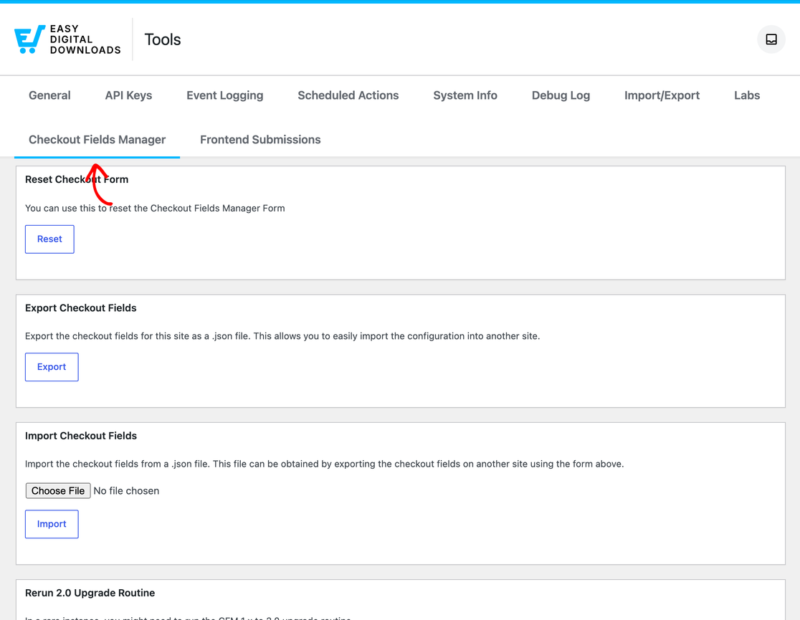
Everything on this page lives in one place. To find it, go to Downloads » Tools » Checkout Fields Manager.
Exporting Your Checkout Fields
Under Export Checkout Fields, click Export. Your whole form downloads as a single JSON file, including every field, its options, and its settings.
Keep the file somewhere safe. It doubles as a backup, so exporting before you make a big change to a live form gives you a way back.
Importing Your Checkout Fields
Under Import Checkout Fields, choose a JSON file you exported earlier, then click Import.
Importing replaces the form currently on the site, so the two most common uses are moving a finished form from a staging site to a live one, and restoring a form after an unwanted change.
Resetting Your Checkout Form
Under Reset Checkout Form, click Reset. Your form returns to the three fields Easy Digital Downloads needs to process an order: First Name, Last Name, and Email Address.
Reset also fixes one specific problem. If your checkout reports that no form is set, resetting rebuilds the default form and clears the warning.
Requirements: Reset removes every custom field on the form. Export first if you might want the form back.
Rerunning the 2.0 Upgrade Routine
Under Rerun 2.0 Upgrade Routine, click Rerun Routine. This re-runs the one-time upgrade that moved checkout field data from Checkout Fields Manager 1.x into the format 2.0 and later use.
You will not normally need this. It exists for the rare case where the original upgrade did not finish, and our support team will tell you if that applies to your store.
That’s it! You can now move a checkout form between sites and reset one when you need a clean start. To build the form in the first place, see the Checkout Fields Manager setup doc.