

Easy Digital Downloads (EDD) has built-in privacy settings that ask customers to agree to your privacy policy or store terms at checkout. They also decide what happens to a customer’s orders when that customer asks you to erase their personal data.
This guide walks through every setting on the Policies tab, plus the WordPress privacy tools those settings work with.
Note: These settings are included in Easy Digital Downloads itself, so there’s nothing extra to install and no pass required. They help your store meet privacy rules like the General Data Protection Regulation (GDPR), but they aren’t legal advice. Check with a lawyer about what your store needs.
- How the Policies Tab Is Organized
- Adding a Privacy Policy Agreement to Checkout
- Adding Terms and Agreements to Checkout
- Choosing What Happens to Orders When Data Is Erased
- Setting Your WordPress Privacy Policy Page
- FAQ About EDD Privacy Settings
- Where did the Privacy tab go?
- Do I need a pass to use these settings?
- Will erasing a customer's data change my sales reports?
- Why wasn't a customer anonymized when I erased their data?
- Can I link to my terms or privacy page from the checkbox label?
- I'm a developer. How do I connect my extension to these privacy tools?
Before you get started, make sure Easy Digital Downloads is installed and activated on your WordPress site.
How the Policies Tab Is Organized
All of EDD’s privacy options live together on one settings tab. To reach it, go to Downloads » Settings in your WordPress dashboard.
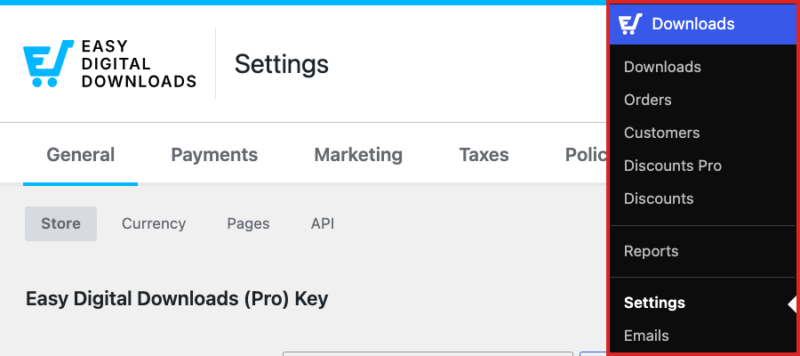
From here, click the Policies tab along the top of the settings screen.
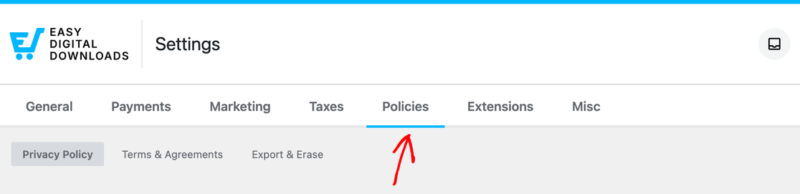
If you’ve used EDD for a while, you may remember this tab being called Privacy. It’s the same set of options, now grouped into 3 sections:
- Privacy Policy: asks customers to agree to your privacy policy at checkout.
- Terms & Agreements: asks customers to agree to your store’s terms at checkout.
- Export & Erase: decides what happens to a customer’s orders when you erase their personal data.
We’ll go through each section in that order.
Adding a Privacy Policy Agreement to Checkout
The Privacy Policy section is the first one on the Policies tab. Its settings add a privacy policy checkbox to your checkout, and they can also show the policy itself.
Agreement
Switch on the Agreement toggle to require customers to agree to your privacy policy before they can complete a purchase. It’s off by default, since whether you need it depends on the legal and regulatory requirements for your store.
Turn it on if the privacy laws that apply to your customers require you to collect that consent.
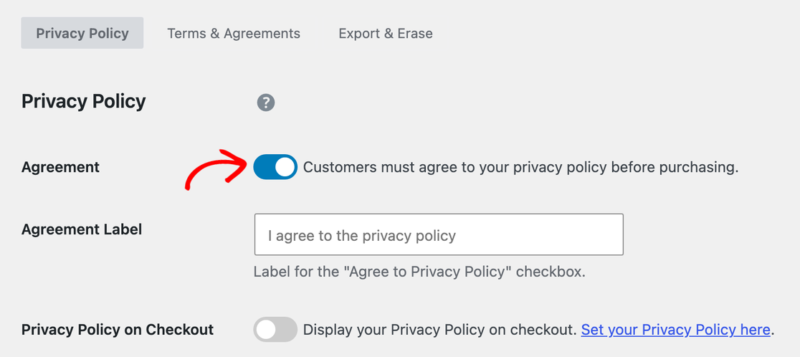
With Agreement on, a required checkbox appears near the purchase button on your checkout page. EDD also records the time each customer agreed, which appears on the customer’s record under Downloads » Customers.
Agreement Label
The Agreement Label is the text shown next to the checkbox. It’s blank by default, and the grey “I agree to the privacy policy” text in the field is only a placeholder.
A blank label shows “Agree to Privacy Policy?” at checkout. To replace it, enter your own wording.
The label accepts links. Linking the words “privacy policy” to your policy page lets customers read it before they agree.
Privacy Policy on Checkout
Your checkbox doesn’t have to display the policy itself, and a short label with a link is often enough. This setting is off by default, so checkout shows only the checkbox and its label.
If you’d rather show the full policy right on the checkout page, switch on Privacy Policy on Checkout.
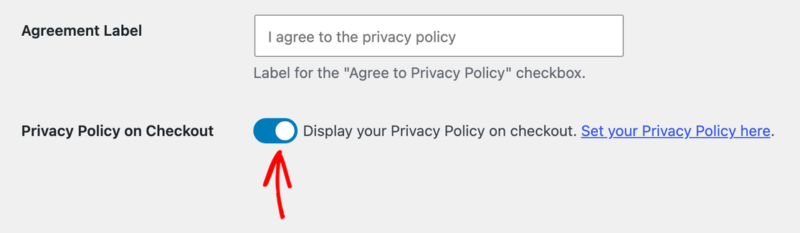
With this on, checkout shows a Show Privacy Policy link. Customers use it to expand and collapse your policy text.
That text comes from the page you’ve chosen as your privacy policy in WordPress. This setting only works once that page is set and has content.
The Set your Privacy Policy here link beside the switch takes you straight to that WordPress setting. We’ll cover it in Setting Your WordPress Privacy Policy Page below.
This toggle works on its own. You can show the policy text without requiring the checkbox, or require the checkbox without showing the text.
The last row in this section, Cookie Management, installs WPConsent, our cookie consent plugin, if you also want a cookie consent banner on your store.
Your privacy policy checkbox is now set up. Next, you’ll add your store terms.
Adding Terms and Agreements to Checkout
Store terms work much like the privacy policy checkbox. They cover your own rules of sale, such as your refund policy or license terms. To find them, click Terms & Agreements at the top of the Policies tab.
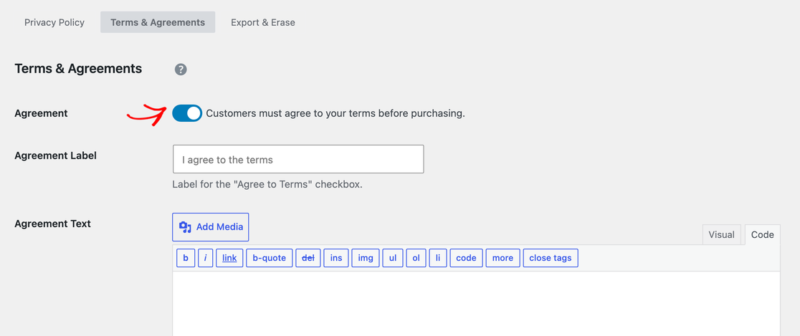
This section has 3 settings:
- Agreement: switch this on to require customers to agree to your terms before purchasing. It’s off by default, so checkout shows no terms checkbox until you turn it on. When it’s on, a required checkbox appears at checkout, and EDD records the time each customer agreed on their customer record.
- Agreement Label: the text beside the checkbox. It’s blank by default, and a blank label shows “Agree to Terms?” at checkout. Like the privacy label, it accepts links, so you can point customers to a separate terms page.
- Agreement Text: the full text of your terms, written in a standard WordPress editor. It’s blank by default, so no Show Terms link appears until you add text. Once you do, checkout shows that link, and customers use it to expand your terms. If you link to a terms page in the label instead, you can leave this blank.
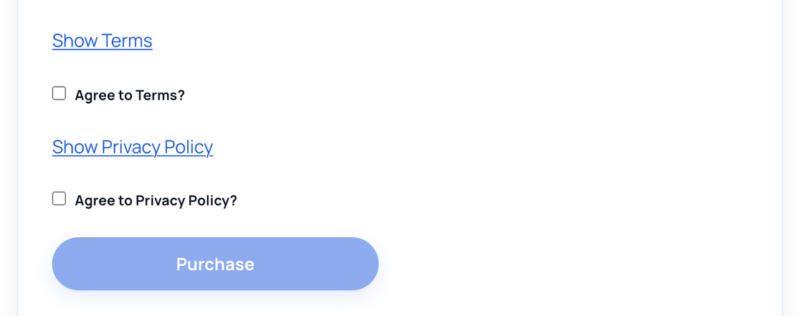
With both agreements and Privacy Policy on Checkout switched on, checkout adds 2 required checkboxes just above the purchase button. Each one comes with a Show Terms or Show Privacy Policy link. The labels shown are the defaults EDD uses when both Agreement Label fields are blank.
Your terms checkbox is now ready. The last section of the tab deals with data requests.
Choosing What Happens to Orders When Data Is Erased
WordPress includes 2 tools for handling privacy requests: Tools » Export Personal Data and Tools » Erase Personal Data. EDD connects to both of them.
When you export a person’s data, EDD adds their customer record, billing information, file download history, and API access logs to the export file. When you erase a person’s data, EDD removes or anonymizes their customer record, their orders, and their logs.
Orders need special care, because you may still need them for your accounting and reports. The Export & Erase section lets you decide what happens to orders in each status.
To open it, click Export & Erase at the top of the Policies tab. After you choose an action for each order status, click Save Changes at the bottom of the section.
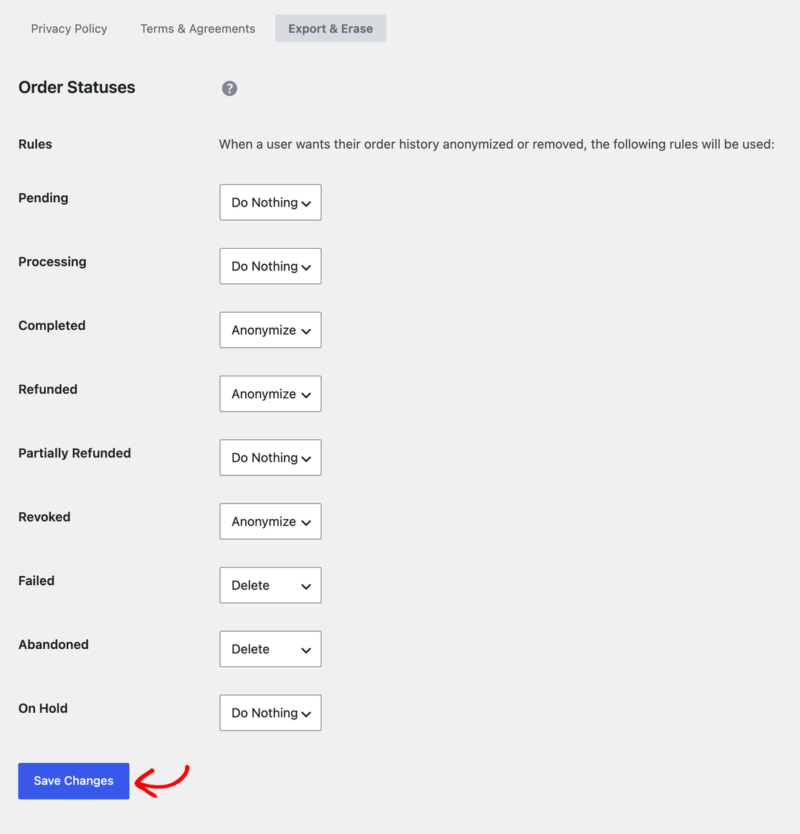
Each order status has a dropdown with 3 choices:
- Do Nothing: orders with this status stay exactly as they are. Choose this for orders you still need to act on, such as a payment that hasn’t gone through yet.
- Anonymize: EDD keeps the order and its amounts but strips the personal details. The customer’s name and street address are removed, the email is swapped for an anonymous one, and the IP address is masked. The city, region, postal code, and country stay, since you may need them for tax records. Choose this to keep your sales reports accurate.
- Delete: EDD removes the order from your store completely. Choose this for orders that never turned into a sale.
EDD sets a recommended action for every status. These defaults suit most stores, so you can leave them as they are if you’re unsure.
| Order status | Default action |
|---|---|
| Pending | Do Nothing |
| Processing | Do Nothing |
| Completed | Anonymize |
| Refunded | Anonymize |
| Partially Refunded | Do Nothing |
| Revoked | Anonymize |
| Failed | Delete |
| Abandoned | Delete |
| On Hold | Do Nothing |
Any status set to Do Nothing also protects the customer record. If a customer has even one order in a Do Nothing status, EDD leaves that customer’s record in place when you run an erase request. This keeps an order you still need to finish tied to a real customer.
When an erase request does anonymize a customer, EDD renames the record to “Anonymized Customer”. It also replaces the email, removes saved addresses and extra email addresses, and disconnects the record from their WordPress user account.
Note: If you use the Recurring Payments feature, anonymizing a customer also tries to cancel their subscriptions. Some payment gateways don’t allow this, so check each of the customer’s subscriptions afterward. Cancel any that are still active by hand.
Once saved, your choices apply to every erase request from then on.
Setting Your WordPress Privacy Policy Page
The privacy policy page itself is a WordPress setting, not an EDD one. EDD reads it for the Privacy Policy on Checkout option. To choose it, go to Settings » Privacy in your WordPress dashboard.
If you already have a privacy policy page, pick it from the Change your Privacy Policy page dropdown. Then, click Use This Page. If you don’t have one yet, click Create and WordPress starts a new page for you.
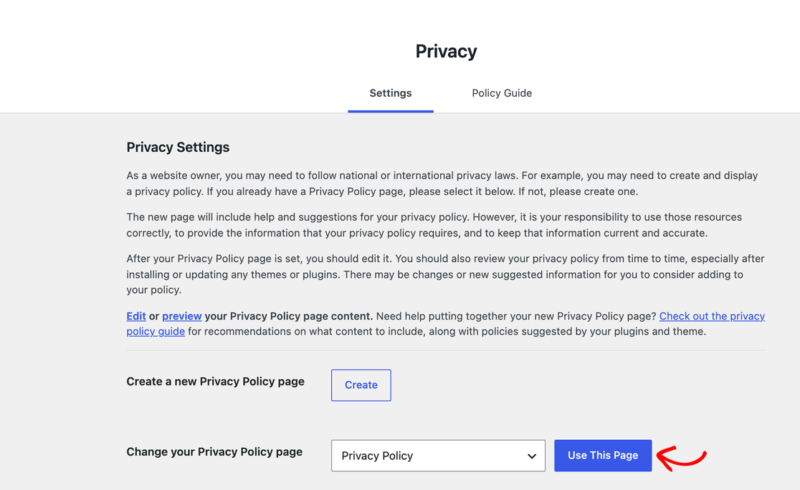
For help writing the policy, click the Policy Guide tab at the top of the same screen. It collects suggested text from WordPress and from the plugins on your site.
Next, open the Easy Digital Downloads section to see the text EDD suggests. To use it, click Copy suggested policy text to clipboard and paste it into your privacy policy page.
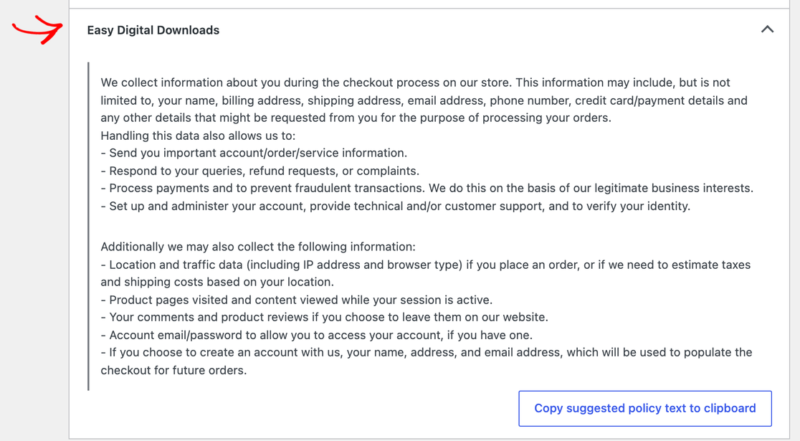
That text explains what EDD collects at checkout and why.
The suggested text is a starting point, not a finished policy. You’re responsible for covering any custom features, extra data you collect, and how you handle it. We recommend having a lawyer review your final policy.
If you’re writing a privacy policy for the first time, WPBeginner’s guide on how to add a privacy policy in WordPress walks through the basics.
That’s it! You now know how to collect privacy and terms consent at checkout and control what happens to orders when a customer’s data is erased. To review the rest of your checkout options, see Payment Settings.
FAQ About EDD Privacy Settings
Below, we’ve answered some of the most common questions about EDD’s privacy settings.
Where did the Privacy tab go?
It’s now called Policies. You’ll find it at Downloads » Settings » Policies, with the same privacy options plus the store terms settings.
Do I need a pass to use these settings?
No. The Policies tab is part of Easy Digital Downloads itself, so every store has it.
Will erasing a customer’s data change my sales reports?
Not with the default settings. Completed, Refunded, and Revoked orders are set to Anonymize, so the orders and their amounts stay in your reports with the personal details removed. Only Failed and Abandoned orders are deleted by default, and those never counted as sales.
Why wasn’t a customer anonymized when I erased their data?
That customer has at least one order in a status set to Do Nothing, such as Pending or On Hold. EDD keeps the customer record while that order is still open. Once the order is finished, or you change that status’s action under Export & Erase, you can run the erase request again.
Can I link to my terms or privacy page from the checkbox label?
Yes. Both Agreement Label fields accept links, so you can point customers to a separate page instead of showing the full text at checkout.
I’m a developer. How do I connect my extension to these privacy tools?
EDD gives you a few filters to work with:
edd_privacy_payment_status_action_{status}: changes the action EDD takes on an order with a given status during an erase request.edd_should_anonymize_customerandedd_should_anonymize_payment: stop a customer or order from being anonymized, with a message explaining why.edd_privacy_policy_content: changes the suggested text EDD adds to the WordPress Policy Guide.
To add your own data to exports and erase requests, register an exporter or eraser with the WordPress core wp_privacy_personal_data_exporters and wp_privacy_personal_data_erasers filters.