
Would you like to ask an AI assistant how your store did this month instead of opening a report screen?
Easy Digital Downloads describes its own store operations to AI assistants, so an assistant you connect can read your real sales, orders, customers, and discounts, and act on them once you say so. It works with Claude, ChatGPT, Cursor, and any other assistant that speaks MCP, which is the open standard assistants use to reach outside tools.
This guide walks you through the steps to connect your store to an AI assistant.
Requirements: Easy Digital Downloads 3.7.1 or newer, running on WordPress 6.9 or newer. Your assistant reaches your store over the web, so the store also needs a public address.
Before you get started, make sure Easy Digital Downloads is installed and activated on your WordPress site.
Installing an AI Connector
Your assistant needs a bridge to reach your store over the web. Easy Digital Downloads recommends our AI connector plugin, WPVibe, which is free on WordPress.org and already verified against your store. Everything below happens on one screen.
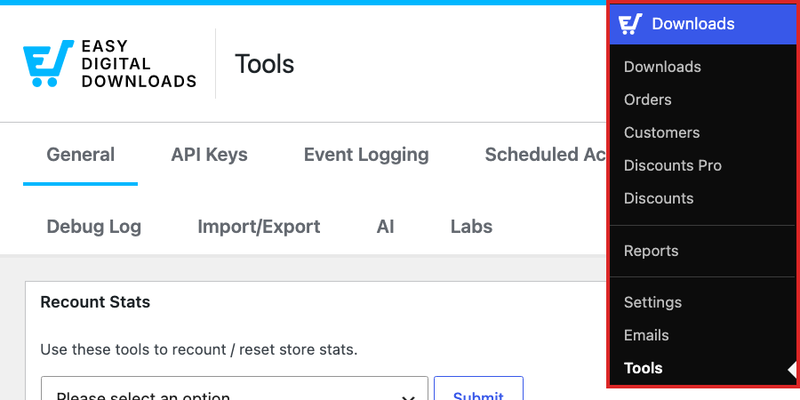
From your WordPress admin sidebar, go to Downloads » Tools.
Across the top of the Tools screen, select the AI tab.
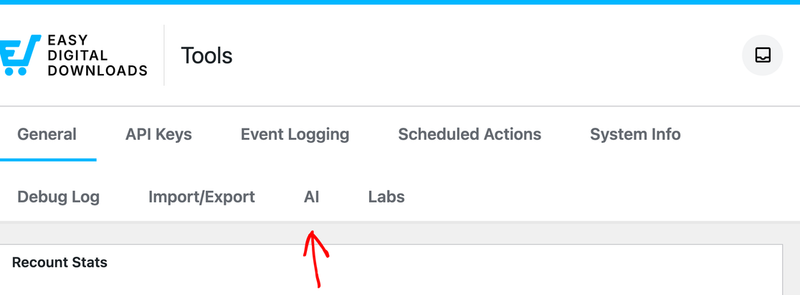
The AI tab is where you connect an assistant and decide what it is allowed to do. Until you connect one here, no outside assistant can reach your store.
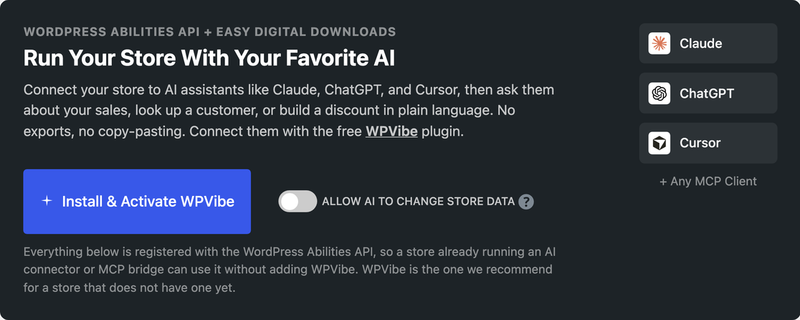
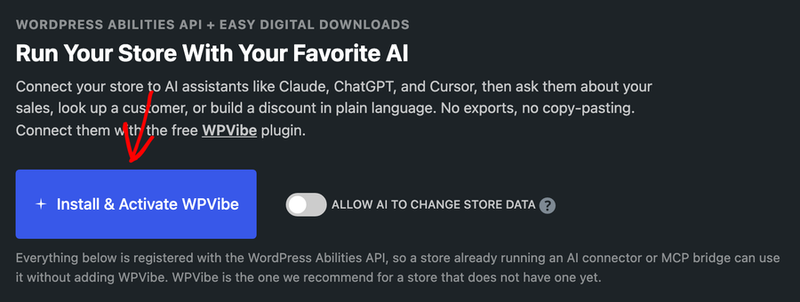
If WPVibe is not on your site yet, click Install & Activate WPVibe. Easy Digital Downloads downloads it from WordPress.org and turns it on for you.
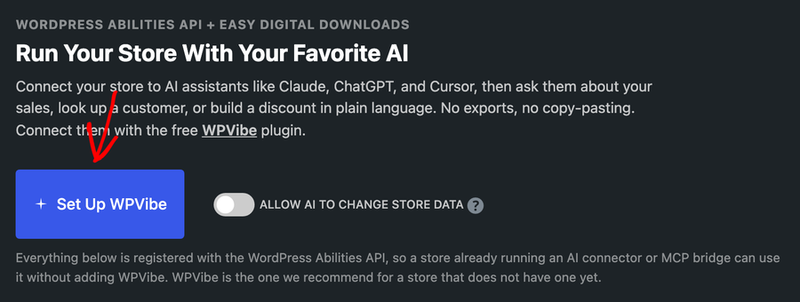
Once WPVibe is active, the same spot offers Set Up WPVibe, which takes you to its own screen to finish connecting.
Note: Some hosts turn off plugin installs from the dashboard. When that is the case, the button reads Get WPVibe and links to WordPress.org so you can add the plugin the way your host allows.
Connecting Your AI Assistant
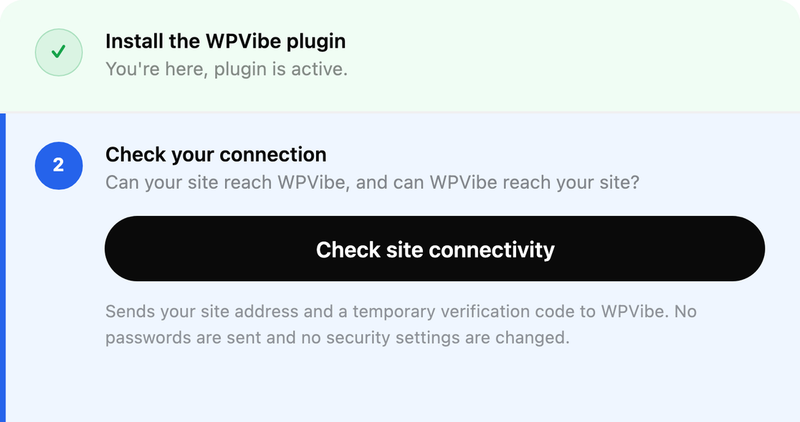
WPVibe tracks the connection in four numbered steps, and the first is already done once the plugin is active. Step two checks that your store and WPVibe can reach each other, which is worth running if a connection ever stops working.
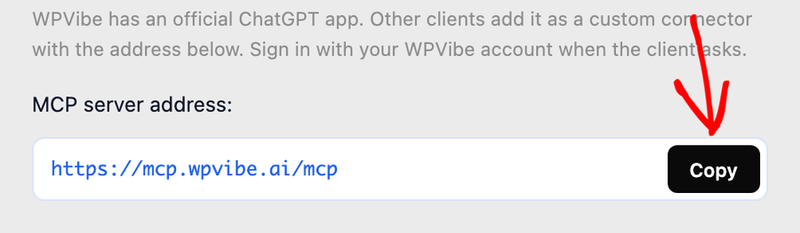
Step three is the part that connects your assistant, and it has two halves. First your assistant needs WPVibe’s address, so next to MCP server address, click Copy and add that address to your assistant as a connector.
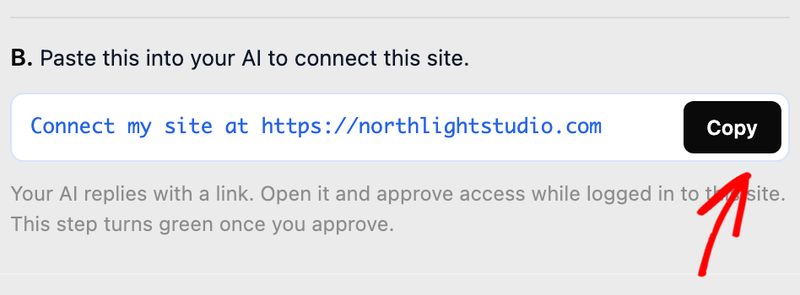
Then your assistant needs to know which site to connect. Under the second half of step three, click Copy to take the ready-made sentence naming your store’s address, and paste it into your assistant’s chat.
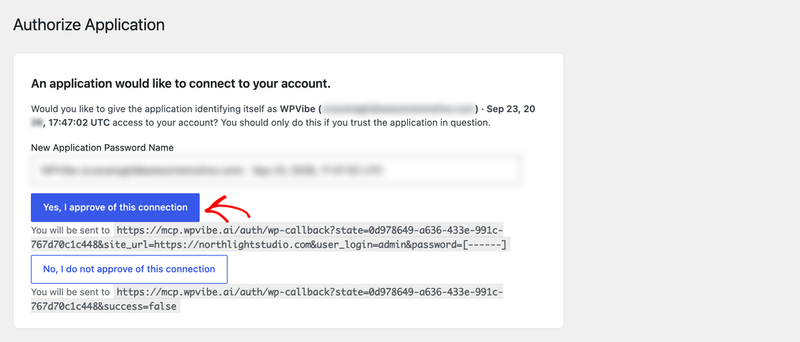
Your assistant answers with a one-click authorization link. Opening that link lands you on WordPress’s own Authorize Application screen, which names the application asking for access and shows where you will be sent afterward. Your password is never handed over: the row below the button shows it masked, because WordPress creates a separate application password for the connection instead.
After reading what is being requested, click Yes, I approve of this connection.
WPVibe then signs in to your store, reads it once to prove the connection works, and reports back.
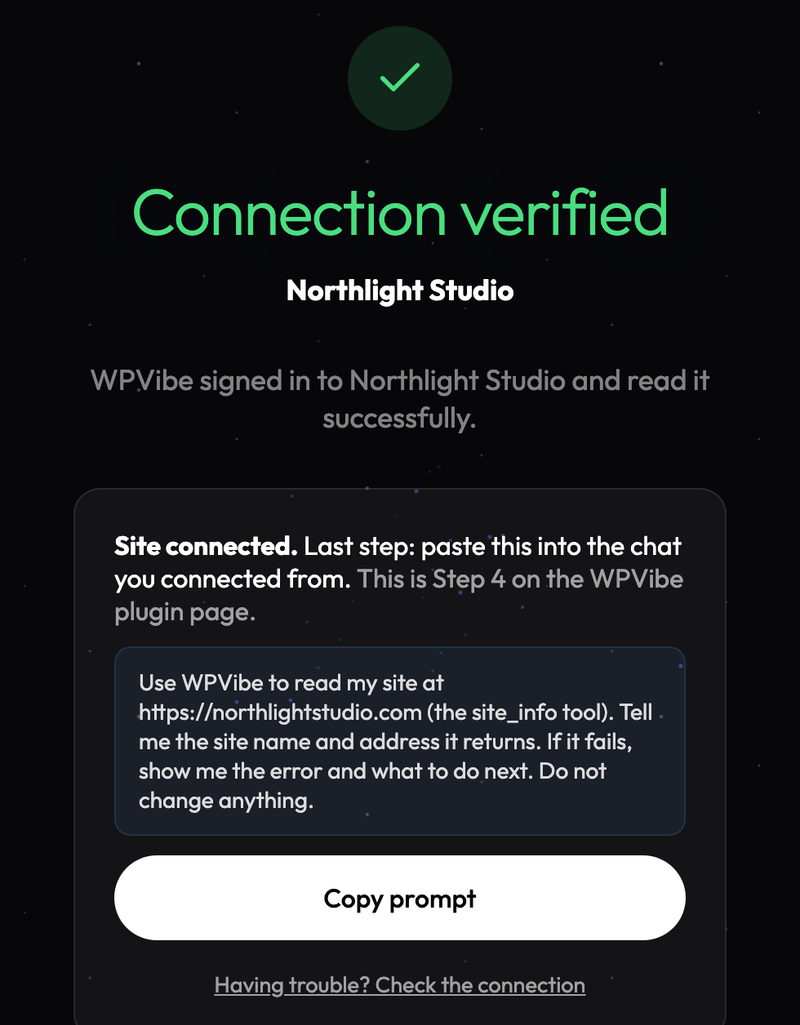
That completes the connection, and your store shows it on the AI tab as well.
Confirming the Connection
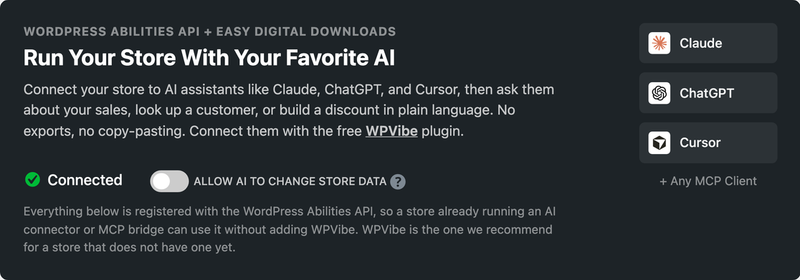
Back on the AI tab, your store now reads Connected. That badge is the quickest way to check the state of things later, since it stays accurate for as long as an assistant keeps using the store.
Now that the connection is in place, you can decide how much your assistant is allowed to do.
Allowing an Assistant to Change Store Data
Out of the box, a connected assistant only looks things up. Reports, order lookups, customer lookups, and discount lists all work right away, and nothing in your store changes.
When you also want your assistant to create and edit orders, customers, products, and discounts, or to send receipts, switch on Allow AI to Change Store Data. The setting saves as soon as you switch it, so there is nothing else to click.
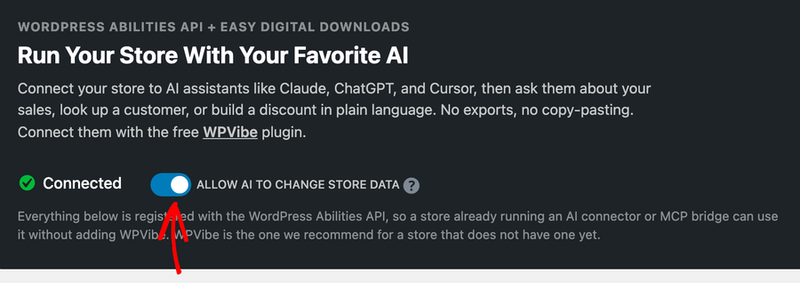
Two limits stay in place even with the toggle on. Your assistant acts as the account you connected it with, so it can only do what that account can already do in the dashboard. And any action that cannot be undone is labelled as destructive, which is the signal assistants use to ask you before running it.
For a fuller picture of the changes this opens up, see What a Connected AI Assistant Can See and Change.
Reviewing What Your Store Shares
The cards further down the AI tab are a live inventory of what your own store exposes, grouped by what they act on. The sentence beside the heading counts them, so you always know how many kinds of information an assistant can look up and how many kinds of change it can make.
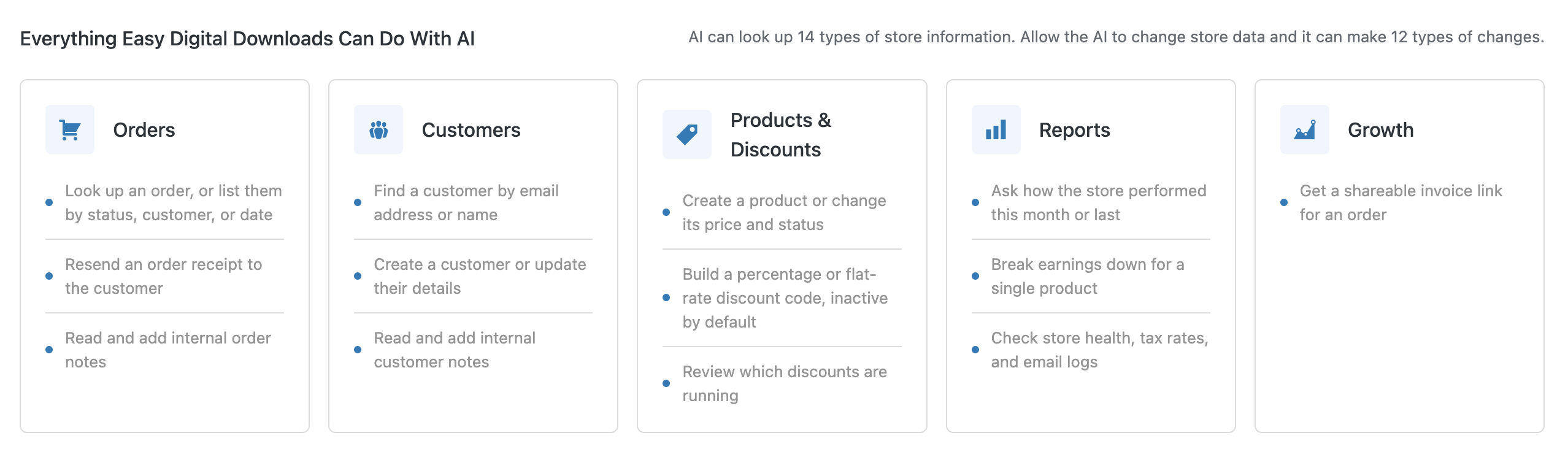
The list reflects the features your store has turned on rather than a fixed set, so a store with more features running describes more to its assistant.
Every one of them is listed individually in A Complete Guide to Store Abilities in Easy Digital Downloads.
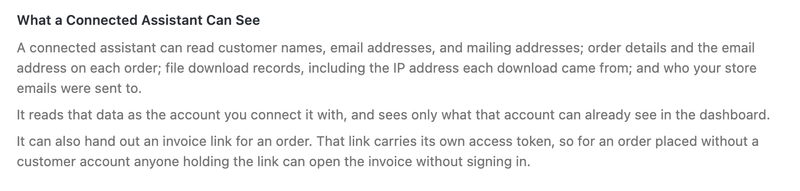
At the bottom of the tab, What a Connected Assistant Can See spells out the data a connection reaches, in plain sentences.
Now that you know what your store shares, you’re ready to try a real request.
Testing Your Connection
A good first request is one you already know the answer to, so you have something to compare against. Ask your assistant for this month’s sales, or for the orders belonging to one customer’s email address, and check the numbers against your own reports.
If your assistant answers with your store’s real figures, the connection is working end to end.
That’s it! Your store is connected to an AI assistant, and you have decided whether it may change anything. Next, see A Complete Guide to Store Abilities in Easy Digital Downloads for everything you can ask for by name. If your assistant ever stops reaching your store, see Troubleshooting Your Store’s AI Connection.
Frequently Asked Questions
Below, we’ve answered some of the most common questions about connecting a store to an AI assistant.
Do I have to use WPVibe?
No. Everything on the AI tab is registered with the WordPress Abilities API, so a store already running an AI connector or MCP bridge can use it without adding WPVibe. WPVibe is the one we recommend for a store that does not have one yet.
Which AI assistants can I connect?
The AI tab lists Claude, ChatGPT, and Cursor, and any other MCP client can connect the same way.
Does connecting an assistant give it my password?
No. Approving the connection creates a separate WordPress application password for it, and the approval screen shows that password masked rather than printing it.
Can an AI assistant issue refunds?
No. Refunds stay on the order screen in your admin, so they are not among the actions an assistant can run.
What if my store is not reachable from the internet yet?
A store on a public host connects as it is. A local development site is not reachable from outside, so it needs a public address first, either through a tunnel or by connecting a staging copy instead.
Will I see a record of what an assistant changed?
Yes, for orders and customers. Each change adds a note to the record naming the ability that made it and the account it acted as.
How do I disconnect an assistant later?
Two steps cut off access. Revoke the WPVibe application password under Users » Profile, then remove the site from your WPVibe account. Deactivating the plugin on its own leaves the connection in place, since assistants reach the store through the WordPress REST API.