

Ready to turn your knowledge into profit? Selling PDFs on WordPress is one of the smartest ways to monetize your expertise in 2026. Whether you’re a coach, designer, educator, or consultant, PDFs offer incredible earning potential with minimal overhead costs.
The digital products market continues to explode. Unlike physical products, PDFs have zero shipping costs, no inventory, and high profit margins.
WordPress gives you complete control over your sales process. You keep 100% of your profits instead of paying hefty marketplace fees to platforms like Etsy or Amazon. The secret to successful PDF sales is using Easy Digital Downloads (EDD), which transforms your WordPress site into a powerful digital storefront designed specifically for selling downloadable files.
In this guide, I’ll walk you through the complete setup process.
Why Sell PDFs on WordPress?
The market for digital PDFs is booming. People are actively searching for solutions, templates, and educational content they can download instantly.
Profitable PDF ideas include:
- Ebooks: Industry guides, how-to manuals, fiction.
- Workbooks: Goal-setting journals, planners.
- Printables: Art prints, calendars, organizational sheets.
- Templates: Business documents, design files, contracts.
- Course materials: Lesson PDFs, resource guides.
Selling on your own WordPress site beats marketplaces like Etsy or Amazon. You avoid 30-70% commission fees, meaning your profit margin is significantly higher.
Consider the profit equation for a digital product.
Profit = (Total Sales × Price) – (Transaction Fees + Hosting Costs)
With marketplaces, that “Transaction Fee” variable is massive. On WordPress, it is minimal.
Choosing the Right WordPress Plugin to Sell PDFs
To sell PDFs effectively, you need a plugin that handles file protection and secure delivery. While you have options, they are not all created equal.
- Easy Digital Downloads (Best for PDFs): Purpose-built for digital files. It handles secure delivery, licensing, and customer accounts out of the box without bloat.
- WooCommerce: Built primarily for physical goods. It requires extensive configuration to disable shipping and inventory features, making it overkill for simple PDF sales.
- Membership Plugins: Great for restricting content access, but often difficult to configure for one-off file purchases.
Easy Digital Downloads (EDD) is the superior choice because it is lightweight and designed specifically for the digital delivery workflow.
What You Need To Get Started
Before setting up your PDF store, gather these essential elements.
Prerequisites Checklist:
- WordPress website: Must be self-hosted (not WordPress.com).
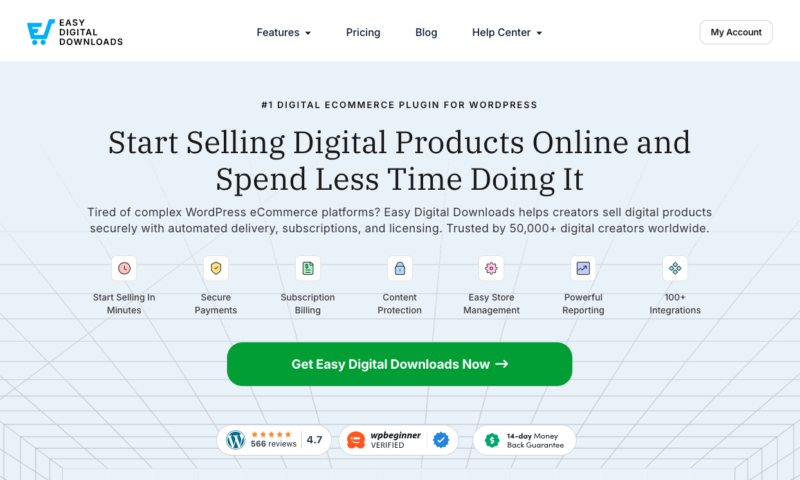
- Easy Digital Downloads: The free Lite version or Pro Pass.
- PDF files: Formatted and ready to sell.
- Payment Gateway: Stripe or PayPal account.
How to Sell PDFs on WordPress With EDD
Ready to build your store? Here is the complete process to set up a professional WordPress PDF store using Easy Digital Downloads.
- Install & Configure Easy Digital Downloads
- Add Your PDF Product
- Set Pricing
- Configure PDF Delivery & Customer Receipts
- Test Your Setup
Step 1. Install & Configure Easy Digital Downloads
Getting your store running takes just a few minutes. EDD is the premier ebook selling plugin because it removes the bloat found in standard eCommerce tools.
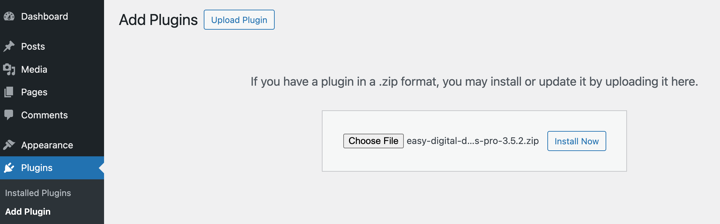
- From your WordPress dashboard, go to Plugins »Add Plugin.
- Search for “Easy Digital Downloads.”
- Click Install Now, then Activate.
If you purchased EDD Pro (recommended), upload the .zip file via the Upload Plugin button instead.
Basic Configuration: Once activated, navigate to Downloads » Settings.
- Currency Settings: Choose your preferred currency (USD, EUR, GBP, etc.). This ensures your pricing displays correctly.
- Store Location: Set your business country and state. This is crucial if you need to calculate tax on digital product sales.
Payment Gateway Setup: Go to the Payments tab within Settings. To sell digital downloads on WordPress effectively, you need a seamless checkout.
- Stripe: I highly recommend using Stripe. It keeps customers on your site during checkout, reducing cart abandonment rates.
- PayPal: A trusted alternative, though it often redirects customers off-site to complete payment. You can avoid this with PayPal Commerce‘s onsite checkout.
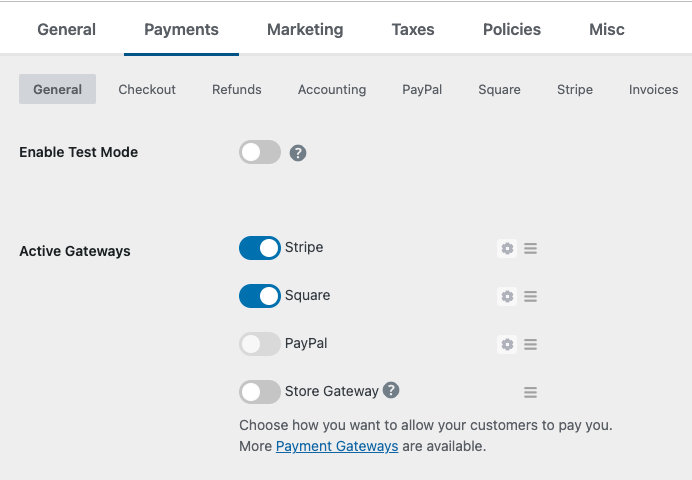
👉 Pro Tip: Always enable Test Mode (found in the Gateway settings) before you launch. This allows you to run test purchases to ensure your WordPress digital downloads system is working without charging a real card.
Step 2. Add Your PDF Product
Now comes the exciting part—creating your first product listing.
Go to Downloads » Add Download.
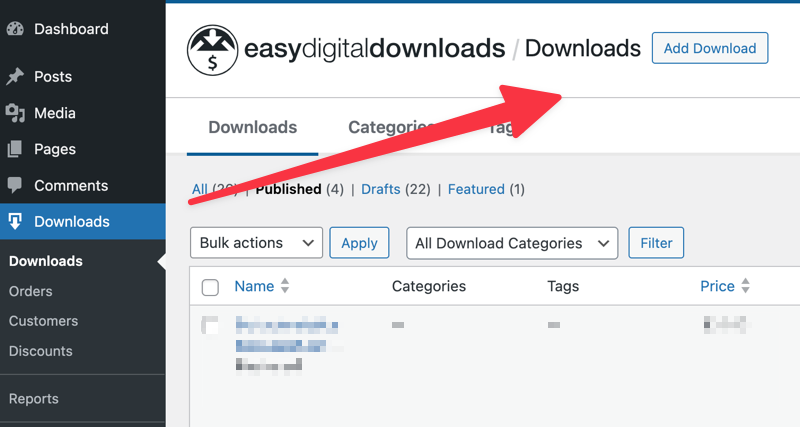
This will open an editor that looks very similar to a standard WordPress post.
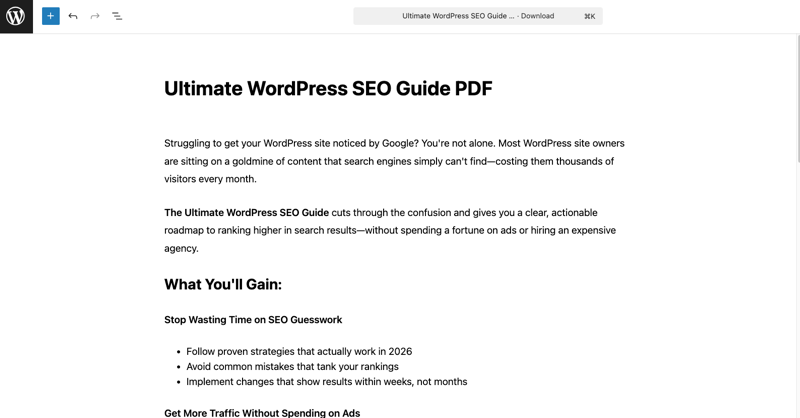
- Title: Enter a clear, benefit-driven title (e.g., “Ultimate WordPress SEO Guide PDF”).
- Description: Use this space to sell the value. Don’t just list contents; explain the problem your PDF solves. Use bullet points to make it scannable.
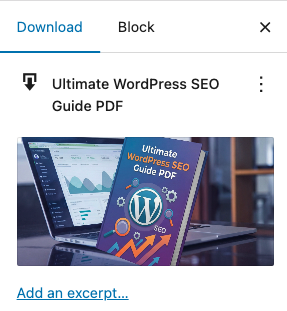
Add a Product Image
To the right, select Set Download Image.
This is where you’ll add your feature image. Upload a high-quality image (minimum 1200x800px).
💡Tip: Use a mockup tool to create a “3D” version of your PDF cover.
This makes the product feel more tangible and valuable.
Upload Your PDF
Now it’s time to add your PDF file.
Scroll down to the Download Details » Files section. This is where the magic happens.
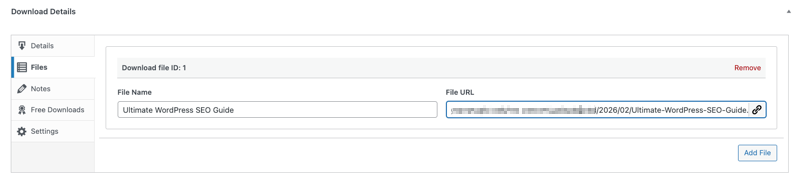
- File Name: Enter the text you want the customer to click on (e.g., “Download Your Guide”).
- File URL: Click Upload a File and select your PDF from the media library.
Note: You can upload multiple files to a single product if you’re selling a bundle (e.g., a PDF guide + an Excel checklist).
Step 3. Set Pricing
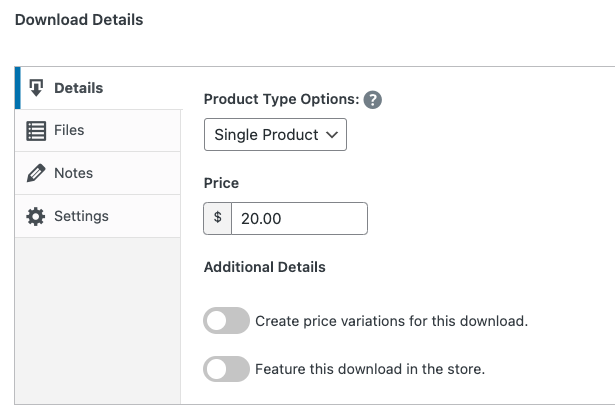
In the same Download Details box, go to the Details tab.
Here, you can enter your price to sell the PDF for (e.g., $20.00).
Maximize Revenue with Variable Pricing
Don’t limit yourself to one price point. If you want to offer different tiers, check the box for Enable Variable Pricing. This allows you to sell options like:
- Basic: PDF Only ($19)
- Bundle: PDF + Worksheets ($29)
When you’re done, save/publish your download.
Step 4. Configure Delivery & Receipts
The customer experience doesn’t end at checkout. You need to ensure smooth PDF download delivery.
Customize the Purchase Receipt
Navigate to Downloads » Emails. Click to edit the Purchase Receipt.
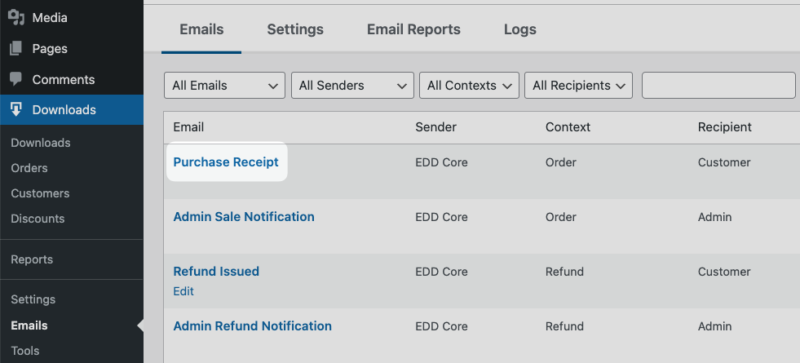
This is the email customers receive immediately after buying. Customize the subject line and heading to match your brand voice.
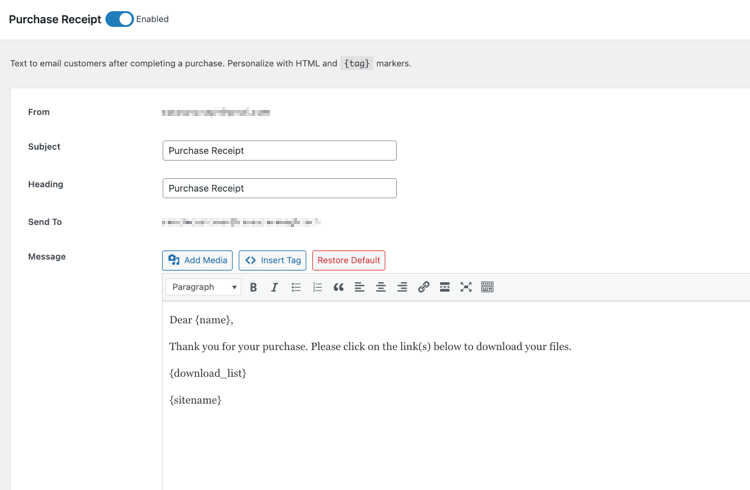
Ensure the {download_list} tag is present—this is the dynamic code that displays the customer’s unique download link.
Save any changes.
Download Configuration
Navigate to Downloads » Settings » Misc » File Downloads to fine-tune how customers get their files.
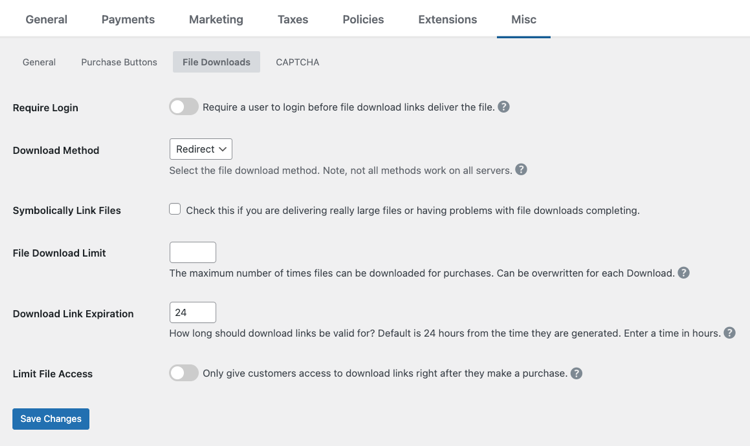
- Download Method: Select Redirect (Most secure method).
- File Download Limit: Set this to 5-10. This allows the customer to download it a few times if they lose the file, but prevents them from sharing the link with 100 friends.
- Link Expiration: Set this to 24 or 48 hours. This creates urgency for the customer to save the file immediately.
Step 5. Test Your Setup
Before you market your product, you must verify the entire flow to ensure your WordPress ecommerce for PDFs setup is flawless.
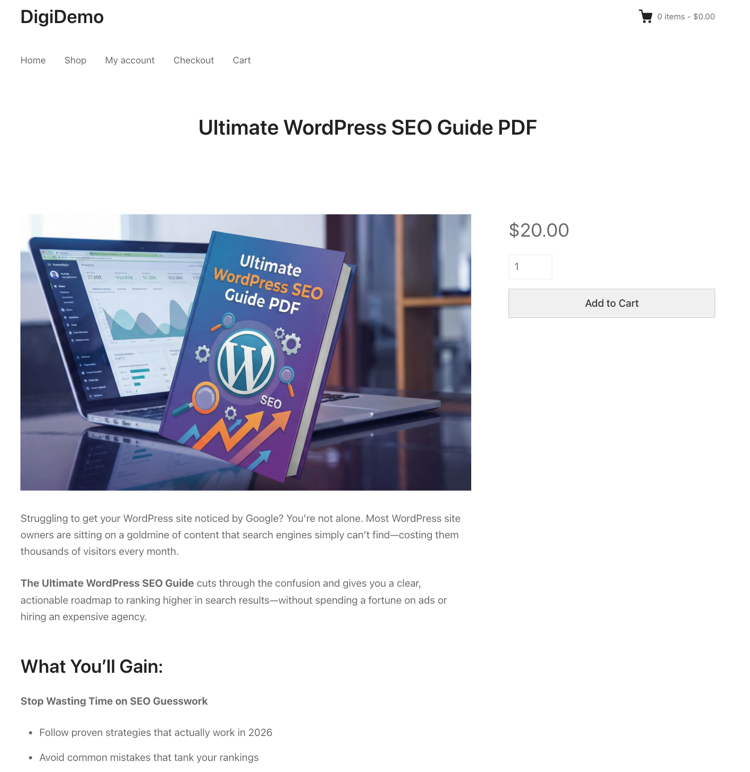
Once you publish your PDF, you can follow these steps.
Pre-Launch Checklist:
- Open your website in a new Incognito/Private browser window.
- Add your PDF product to the cart.
- Complete the checkout process (using Test Mode credentials).
- Verify the Email: Check that you received the purchase receipt email.
- Test the Link: Click the download link in the email and ensure the PDF opens correctly.
If the file downloads successfully and the money (in test mode) goes through, you’re all set!
FAQs on Selling PDFs on WordPress
Let’s wrap up by answering some common questions users have surrounding how to sell PDFs on WordPress.
Can I sell PDF files directly from my WordPress site?
Yes, you can sell PDF files directly from your WordPress site using plugins like Easy Digital Downloads. This approach gives you complete control over pricing, customer data, and the entire sales process while keeping 100% of profits.
What’s the best way to sell PDFs on WordPress?
Easy Digital Downloads is the best way to sell PDFs on WordPress. It’s specifically designed for digital products, includes secure file delivery, automatic customer emails, and built-in payment processing. Unlike general ecommerce plugins, EDD handles digital sales perfectly.
How do I prevent people from sharing my PDF link?
EDD automatically protects your PDF links through secure, encrypted URLs that expire after a set time. You can also limit downloads per purchase, require customer login, and use additional digital product protection methods like watermarking.
Can I sell ebooks as PDFs with Easy Digital Downloads?
Absolutely! Easy Digital Downloads excels at selling ebooks in PDF format. You can add multiple file formats (PDF, ePub, MOBI), create variable pricing for different versions, and include bonus materials with each purchase.
Can I sell multiple PDFs or bundles with Easy Digital Downloads?
Yes, EDD supports both individual PDF sales and bundles. You can create product packages with multiple PDFs, offer variable pricing tiers, and even sell individual files separately or as part of larger collections.
Use EDD to Sell PDFs on WordPress
You now have everything needed to start selling PDFs on WordPress successfully. Easy Digital Downloads provides the perfect foundation for building a profitable digital product business.
Remember the key steps: install EDD, upload your PDFs with compelling descriptions, configure secure delivery, test thoroughly, and focus on marketing to your target audience.
Ready to get started? Download Easy Digital Downloads today and transform your WordPress site into a PDF-selling machine. The Lite version is free and perfect for beginners.
What’s next? Explore our guide on digital downloads to sell for more profitable product ideas beyond PDFs.
📣 P.S. Be sure to subscribe to our newsletter and follow us on Facebook, Twitter/X, or LinkedIn for more WordPress resources!