

Are you interested in building a WordPress eCommerce website? Whether you’re starting a new online shop from your home office or expanding an established business, WordPress is the most powerful, cost-effective solution out there.
WordPress powers over 43% of all websites. While many know it as a blogging platform, it’s also an incredible engine for eCommerce. The beauty of WordPress is that it can handle any type of product: physical goods you ship across the country, digital downloads like eBooks and software, subscriptions, and more.
🚀 TL;DR: 7 Steps to Build Your Store
- Choose Hosting & Domain: Secure your site’s home.
- Install WordPress: Set up your site’s core software.
- Select an eCommerce Plugin: Use EDD (for digital) or Woo (for physical).
- Connect a Payment Gateway: Set up Stripe or PayPal to accept payments.
- Add Your Products: Upload your titles, descriptions, and pricing.
- Design Your Site: Choose a high-performance eCommerce theme.
- Test & Launch: Run a test transaction and go live.
In this guide, I’ll walk you through exactly how to get your store up and running.
- Why I Recommend WordPress for eCommerce
- WordPress eCommerce Website Costs: What to Expect
- How to Build a WordPress eCommerce Website (Step-by-Step)
- Best WordPress Plugins to Grow Your Online Store
- FAQs on Building a WordPress eCommerce Site
- Is WordPress good for eCommerce in 2026?
- What is the best way to build a WordPress eCommerce website?
- How much does it cost to build a WordPress eCommerce website?
- Can I create an eCommerce website without coding?
- How do I get traffic to my new WordPress store?
- What is the difference between WordPress.com and WordPress.org for eCommerce?
Why I Recommend WordPress for eCommerce
Other solutions, like online marketplaces and SaaS platforms, typically charge high fees. Plus, they’re often limited when it comes to customizations and how you communicate with your customers.
Self-hosted WordPress.org sites give you the highest level of control and profitability. Since it’s open-source, the software is free, and it’s known for having a straightforward interface that’s easy for beginners to manage.
- Ownership: You own your data, your customer list, and your store.
- Flexibility: Use plugins to extend functionality (payment gateways, email marketing, and more).
- SEO-Ready: WordPress is built with SEO in mind, ensuring your website is optimized for search engines right out of the box.
- Community: Access an infinite amount of resources and tutorials for troubleshooting.
🔎 Learn more about selling on your own site vs marketplaces.
WordPress eCommerce Website Costs: What to Expect
Before I dive into the steps, let’s talk about the investment. While WordPress itself is free, you’ll have a few essential costs to factor in.
| Expense | Description | Estimated Cost |
|---|---|---|
| Hosting | Reliable servers for performance (e.g., Levamo). | $29-$299/mo |
| Domain Name | Your unique address (e.g., .com, .net, .org). | $10 – $20/yr |
| Theme | Premium themes offer better customization and speed. | $50 – $200 |
| Plugins | Tools for SEO, security, or marketing. | Free to $100+ |
Generally, expect to spend between $100 to $500 for the initial setup and $20 to $100 per month for ongoing costs.
👉 Check out our full eCommerce website cost pricing breakdown.
How to Build a WordPress eCommerce Website (Step-by-Step)
Now that you’ve got an idea of the costs and why WordPress is the best choice, I’ll walk you through the actual build process.
It’s not as technical as it might seem. If you follow these steps in order, you’ll have a fully functioning store ready to accept orders sooner than you think.
Note: If you already have WordPress installed, skip ahead to Step 3.
⚡ The Expert WordPress Store Stack
If you’re in a hurry, here is the essential stack for a high-performance WordPress store:
- WordPress Hosting: Levamo (Managed hosting built for WordPress)
- Platform: WordPress.org (Self-hosted).
- Sales Engine: Easy Digital Downloads or WooCommerce.
- Payments: Stripe (supports Credit Cards, Apple Pay, Google Pay).
- Theme: GeneratePress (Fast and mobile-responsive).
- Total Setup Time: Approx. 45–60 minutes.
Step 1: Get Your Hosting and Domain
Before you can start designing your store, you’ve got to secure two things: a web hosting plan and a domain name. Think of hosting as the physical space where your store’s files live, and the domain name as your store’s street address (like www.yourstore.com).
Your WordPress host is the single most important factor for your site’s speed and security. Since you’re building an eCommerce site, you need a host that can handle the extra weight of a shopping cart and secure transactions.
I recommend Levamo for managed WordPress hosting. It’s built specifically for stores, memberships, and communities on WordPress, which makes it a natural fit for an eCommerce site.
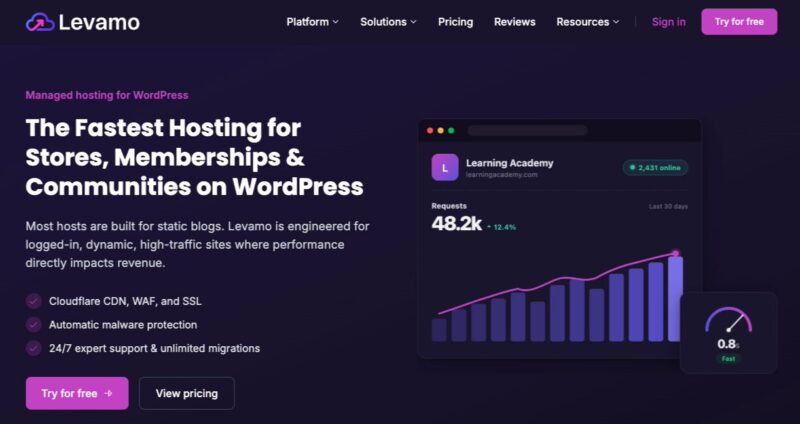
Key features include:
- Cloudflare CDN, WAF, and SSL.
- Automatic malware protection to keep your store and your customers’ data secure.
- 24/7 expert support and unlimited site migrations.
Your domain name is your brand’s digital identity. It’s how people will find you and, more importantly, how they’ll remember you.
When you’re brainstorming your domain, keep these tips in mind:
- Stick with .com: It’s still the gold standard.
- Keep it Short and Sweet: Aim for 2-3 words max.
- Avoid Hyphens and Numbers: These are “verbal speed bumps.”
How to register it: You can buy a domain from a registrar like Namecheap, but it’s often easier to get it through your web host. Many hosting plans include domain registration for free for the first year, which means you won’t have to worry about pointing DNS records from one company to another.
✅ Step 1 Checklist:
- Pick a Managed WordPress host like Levamo for speed and security.
- Ensure your host provides a Free SSL Certificate (HTTPS).
- Register a .com domain that’s short, easy to spell, and hyphen-free.
Step 2: Install WordPress
Once you’ve got your hosting and domain, the next step is to install the WordPress software. This is the “engine” that’ll power everything from your product pages to your blog posts.
Back in the day, this was a manual process that involved moving files via FTP, but nowadays, it’s much simpler.
Using One-Click Installations
Most managed WordPress hosts offer a simple installation tool right in their dashboard.
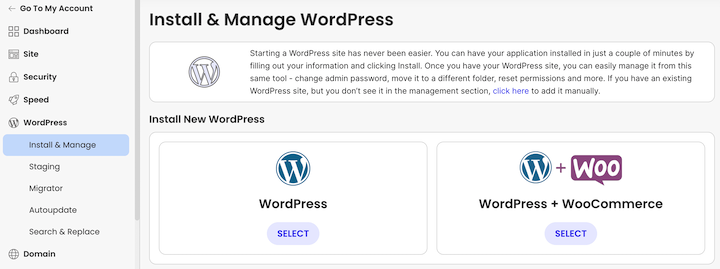
Here’s the general flow:
- Log in to your hosting account.
- Find the “WordPress” or “Autoinstaller” section.
- Select your domain and click Install.
- The Admin Credentials: This part is important. You’ll be asked to create a username and password. Don’t use “admin” as your username. It’s the first thing hackers try. Use something unique and a strong, complex password.
Alternative Manual Method
If your host doesn’t offer a one-click tool, don’t worry—you can still install it manually. You’ll need to download the WordPress core files from WordPress.org and upload them to your server using a tool like FileZilla. It takes a few more minutes, but it’s a great way to understand exactly how your site is built.
Your WordPress Dashboard: The Engine Room
After the installation is finished, you’ll be able to access your site’s backend by going to yourdomain.com/wp-admin.
I recommend taking a quick minute here to go to Settings » Permalinks and ensure it’s set to Post Name.
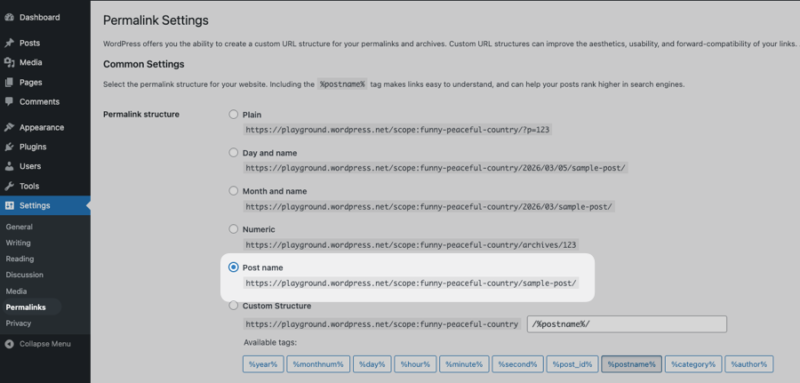
This is a small technical tweak that makes your URLs look like yourstore.com/product-name/ instead of yourstore.com/?p=123. It’s a huge win for SEO and makes your links much more clickable in search results.
✅ Step 2 Checklist:
- Use a one-click installer to save time and avoid technical errors.
- Create a unique admin username (avoid using “admin”) for better security.
- Set your Permalinks to “Post Name” so your URLs are clean and SEO-friendly.
Step 3: Choose and Configure Your eCommerce Plugin
Once you have a WordPress site, it’s time to give it the ability to actually sell things. To do this, you’ll need an eCommerce plugin. I like to think of this as installing the “shelves and cash register” in your digital shop.
There are dozens of options, but you really only need to look at two. The right choice depends entirely on what you’re planning to sell:
- Easy Digital Downloads (EDD): If you’re selling digital products—like eBooks, software, PDFs, or digital art—this is the top pick. It’s lightweight, fast, and specifically built to handle secure file delivery without the “bloat” of shipping and inventory tools you don’t need.
- WooCommerce: This is the industry standard if you’re selling physical goods that require shipping, weight calculations, and warehouse tracking.
- Learn more about EDD vs Woo.
To get started, go to your WordPress dashboard and navigate to Plugins » Add Plugin.
Type “Easy Digital Downloads” into the search bar. Then click Install Now followed by Activate.
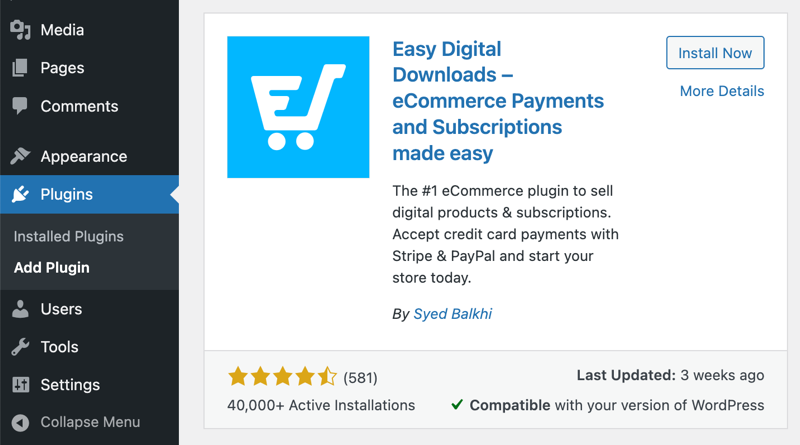
A Downloads menu item appears in your admin area.
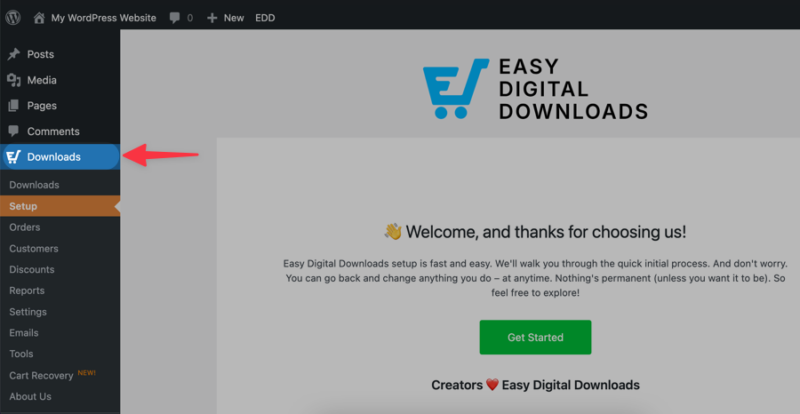
Select Get Started under the Setup tab to launch the Setup Wizard.
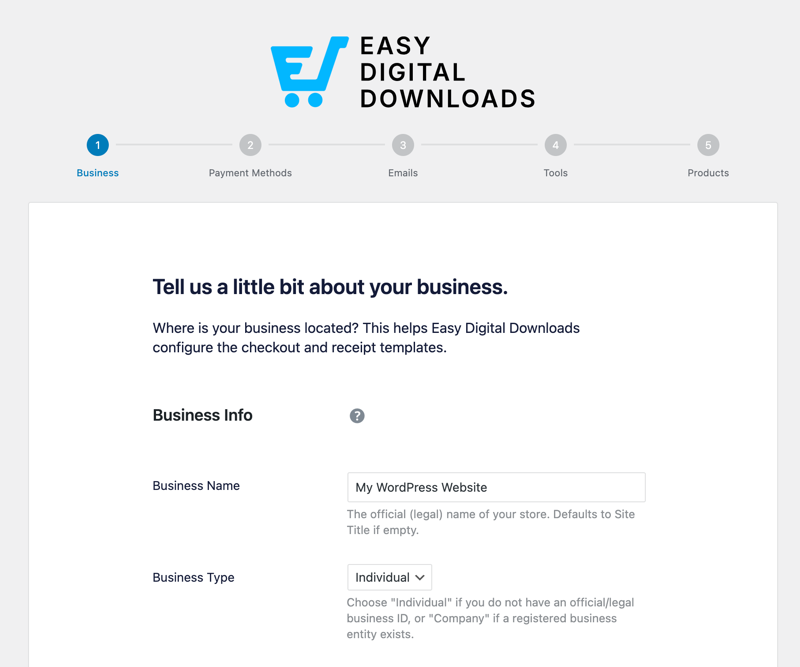
You can use this to enter information about your online business, select payment methods, etc. We’ll go over the settings in more depth in the next step.
✅ Step 3 Checklist:
- Use Easy Digital Downloads if you’re selling files (eBooks, software, music).
- Use WooCommerce if you’re selling physical goods that need shipping.
- Let the Setup Wizard automatically create your Checkout and Success pages
Step 4: Set Up Your Online Store
Once you’ve activated your eCommerce plugin, it’s time to dial in the settings, including anything you skipped during the Setup Wizard.
General Settings: The Basics
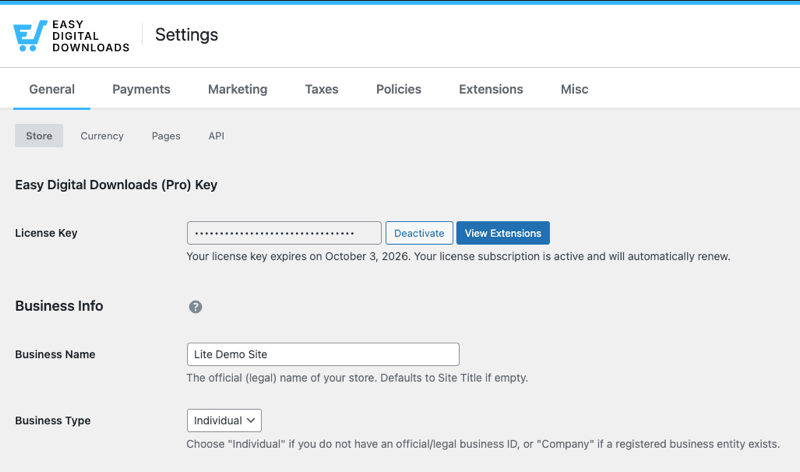
First, head over to Downloads » Settings. Under the General tab, fill out your business details.
- Business Info: Enter your store’s name and physical address.
- Currency: Choose your primary currency (like USD or GBP).
- Tax Rates: If you’re required to collect sales tax or VAT, this is where you’ll configure those rates.
Connecting a Payment Gateway
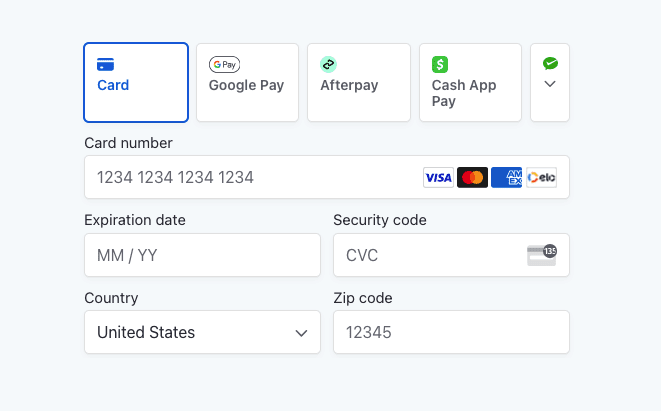
This is the most important technical step. A payment gateway is the “bridge” between your store and the bank. It allows your customers to pay securely.
I recommend Stripe. It’s incredibly reliable, works globally, and offers a seamless checkout experience.
To set it up:
- Go to Downloads » Settings » Payments.
- Navigate to the Stripe tab and select Connect with Stripe. You’ll be redirected to Stripe’s site to log in and authorize the connection. Save your changes.
- Go to the Payments » General tab and select Stripe as your active gateway. Save your changes.
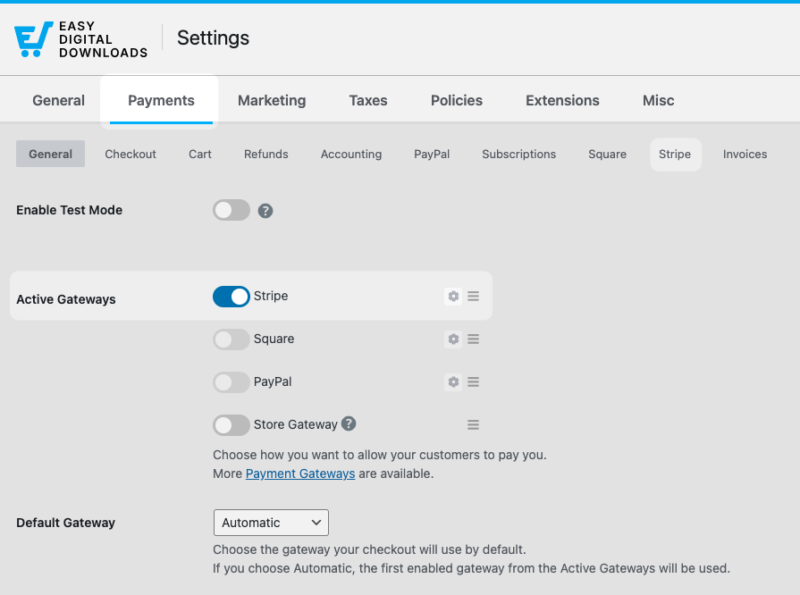
You’re officially ready to accept credit cards, Apple Pay, and Google Pay.
⚙️ For detailed guidance, check out our Stripe setup documentation.
✅ Step 4 Checklist:
- Connect Stripe to easily accept credit cards, Apple Pay, and Google Pay.
- Double-check your Currency and Business Address in the General settings.
Step 5: Add Your Products
Now for the fun part: stocking your digital shelves. This is where you’ll create individual listings for the things you’re selling.
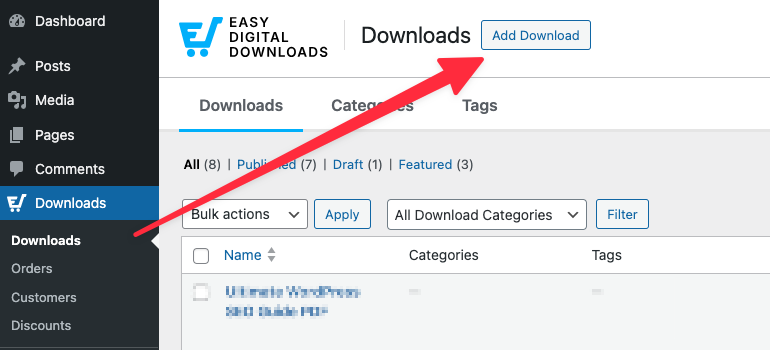
Go to Downloads » Add Download to create your first product listing.
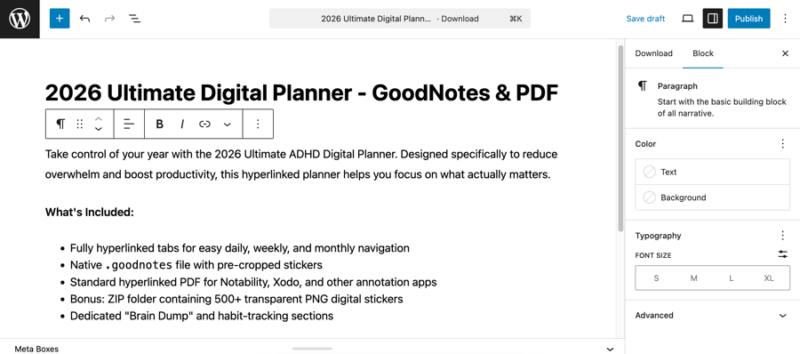
- Product Name: Use a keyword-rich, descriptive title. For example, instead of just “Budget Tracker,” try “Monthly Personal Budget Spreadsheet for Excel.”
- Detailed Product Description: Don’t just list the technical specs. Explain the features and benefits clearly. Avoid technical jargon. Explain the problem your product solves and bullet-list the benefits so they’re scannable.
Setting Your Price and Files
Scroll down to the Download Details metabox beneath the editor.
Within the Type tab, you have a few options for setting your product price. Choose between fixed (simple, one-time cost) or variable pricing. You can also configure subscription billing.
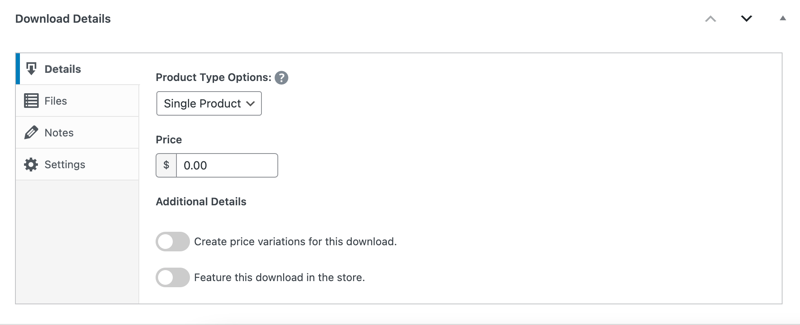
Enter the amount you want to sell your product for.
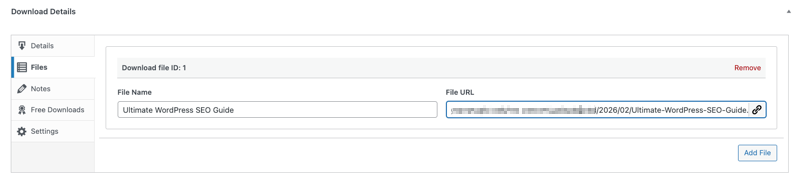
Then move to the Files tab. Upload your digital product file(s) under File URL. In the File Name field, add a descriptive and concise name (e.g., ‘Download Your Guide’). This is what the customer sees post-purchase.
Choosing a “High-Click” Product Image
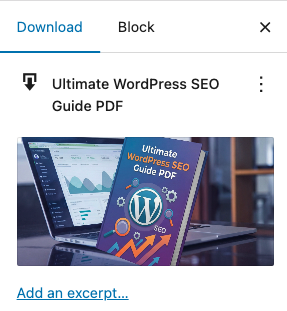
Even if you’re selling a digital file, you need a visual. In EDD, you can click on Set Download Image to upload one.
Use a high-quality, optimized feature image to represent your product.
SEO Tip: Before you upload your image, name the file something relevant (like budget-spreadsheet-preview.jpg) and make sure to fill out the Alt Text in WordPress. This helps your products show up in Google Image search.
✅ Step 5 Checklist:
- Use a keyword-rich title (e.g., “Budget Spreadsheet” vs. “File 1”).
- Write engaging product descriptions focusing on benefits, not just features.
- Name your image files and add Alt Text for Google Image SEO.
- Bonus: Follow AI search and discovery best practices.
Step 6: Choose and Customize Your Theme
Your theme is the “face” of your business. But in eCommerce, a pretty site that’s slow will cost you money. Choose a theme for speed first, then customize it for style.
Finding an eCommerce-Ready Theme
WordPress has thousands of WordPress themes, but you want one that’s “eCommerce-aware.” This means it already has built-in styling for things like shopping carts, checkout buttons, and product grids.
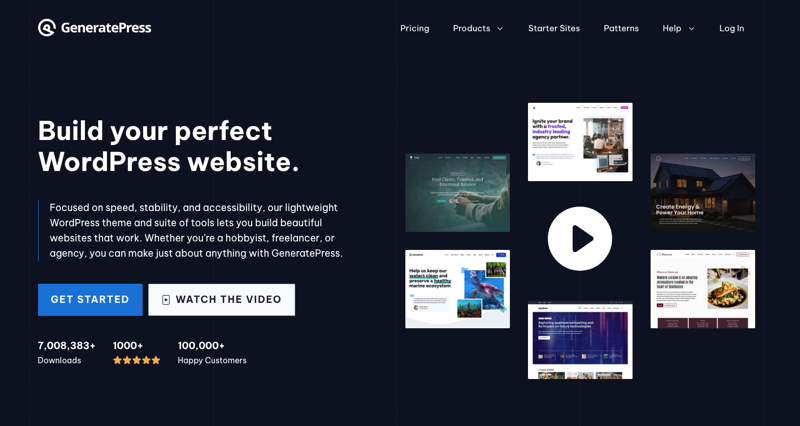
I recommend starting with a WordPress theme specifically built for eCommerce like GeneratePress (great for both EDD and WooCommerce). These are lightweight, meaning they don’t have a bunch of extra code that’ll slow your site down.
To find these:
- Go to Appearance » Themes » Add New.
- Click the Feature Filter button.
- Check the E-Commerce box and hit Apply Filters.
🔎 Learn how to customize your EDD online store.
Customizing Your Branding
Once you’ve installed and activated a theme, head to Appearance » Customize. This is the “Live Preview” area where you can see your changes in real-time. To start, you can focus on:
- Header and Logo
- Colors
- Typography
Don’t forget to optimize for mobile. At the bottom of the Customizer, you’ll see small icons for a tablet and a phone. Click the phone icon.
Over half of your customers are likely on a mobile device, so make sure your Add to Cart and Purchase buttons are big enough to tap with a thumb and your text is easy to read on a small screen.
✅ Step 6 Checklist:
- Pick a lightweight theme (like GeneratePress) to keep your speed high.
- Use a high-contrast “Action Color” for your checkout buttons.
- Always check your design in the “Mobile” preview mode.
Step 7: Preview/Test Your WordPress eCommerce Website
Now that everything is styled and your products are uploaded, you’ve got to make sure it actually works from the front end.
Running a Test Transaction
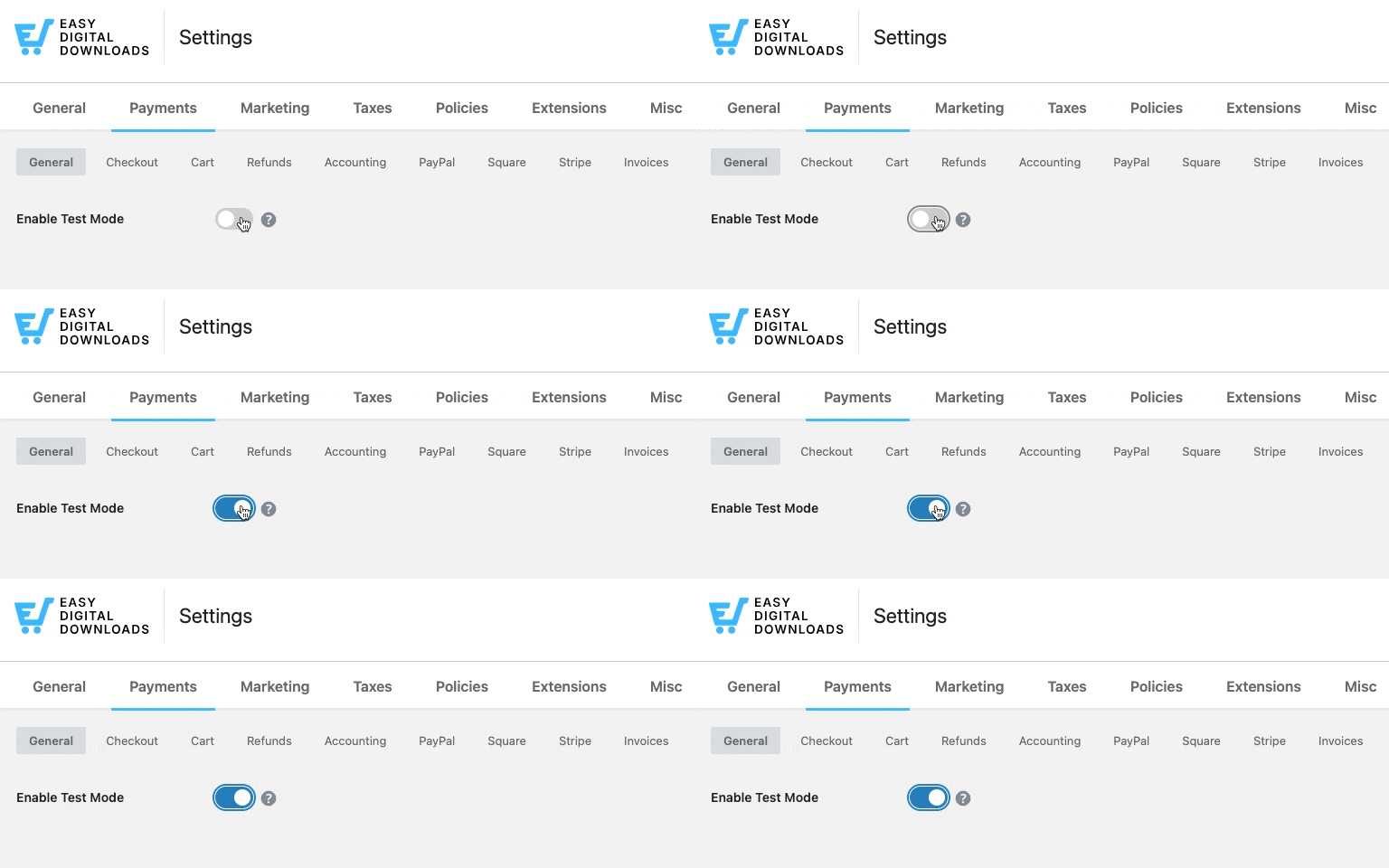
Most payment gateways (like Stripe and PayPal) have a “Test Mode” or “Sandbox Mode.” I highly suggest turning this on in your plugin settings before you go live.
Enable this in EDD under Settings » Payments » Enable Test Mode.
Visit the frontend of your website Incognito or Private window so you can see exactly what a visitor sees (without being logged in as the admin).
Go through the process as a shopper would to confirm the following:
- Add to Cart: Does the item show up in the Cart Preview immediately?
- Checkout Flow: Is the checkout page easy to read? Does it look secure?
- The “Thank You” Page: After you “buy” the item with a test card, are you redirected to a success page?
- The Delivery: If you’re selling a digital product, check your email. Did the receipt arrive? Does the download link work?

If everything looks good, performs fast, and the test payment goes through, you’re ready to start selling.
✅ Step 7 Checklist:
- Complete a full purchase in “Test Mode” to verify the checkout process.
- Check your automated emails to ensure customers get their receipts and links.
- Test your site on a mobile phone to ensure the buttons are easy to tap.
Best WordPress Plugins to Grow Your Online Store
One of the best things about WordPress is how easy it is to add new features as your business grows. But don’t go overboard. Installing too many individual third-party plugins can slow down your site and create security “holes.”
Instead, start with a core “Growth Stack” that’s designed to work together.
The Power of Easy Digital Downloads Pro
While the free version of Easy Digital Downloads is an excellent tool to get started, an EDD Pro pass is the most logical move once you’re serious about sales.
Instead of hunting for a dozen different third-party tools, an EDD pass gives you instant access to a massive library of premium features.
You can easily add:
- Recurring Payments: Turn one-time downloads into a steady stream of monthly revenue.
- AI-Powered Smart Cart Recommendations: Showcase relevant product recommendations after they add an item to their cart.
- Email Marketing Integrations: Connect your store to tools like Mailchimp or ConvertKit so you can follow up with customers automatically.
- Global Payments and Multi-Currency Support: Sell to customers around the world and make currency conversion seamless.
Other Essential WordPress Plugins
Once you’ve got your core sales engine dialed in, there are a few “must-have” WordPress plugins for eCommerce:
- All in One SEO (AIOSEO): You can build a beautiful store, but people have to find it first. AIOSEO handles the technical heavy lifting, like setting up “Product Schema” so your prices and star ratings show up directly in Google search results.
- MonsterInsights: Never guess when it comes to data. MonsterInsights connects your store to Google Analytics and shows you exactly which products are your best sellers and where your traffic is coming from.
- AffiliateWP: If you want to grow your sales without spending a fortune on ads, launch an affiliate program. AffiliateWP lets you have other people promote your products for you, and you only pay them when they refer a successful sale.
✅ Extension Quick Check:
- Start Lean: Focus on your sales engine first (EDD Pro) and add marketing tools as you grow.
- Consistency is Key: Use “First-Party” extensions whenever possible to keep your site speed high.
- Track Everything: Never spend money on a marketing plugin unless you’re using MonsterInsights to track if it’s actually working.
FAQs on Building a WordPress eCommerce Site
There are a lot of questions about the strategies of how to build a WordPress eCommerce website and the specifics of running a WordPress store. Here are the most common ones from beginners, along with the answers you need to stay ahead of the curve.
Is WordPress good for eCommerce in 2026?
Yes, WordPress remains one of the best platforms for eCommerce because it offers total ownership of your data and zero “per-transaction” platform fees. Unlike closed systems, WordPress allows you to scale your SEO and customize your checkout experience using a vast library of plugins like Easy Digital Downloads or WooCommerce.
What is the best way to build a WordPress eCommerce website?
The best way to build a WordPress eCommerce website is to use a platform that matches your specific product type to avoid unnecessary “plugin bloat.” Use Easy Digital Downloads if you’re selling digital products (like eBooks or software) because it’s lightweight, secure, and specifically optimized for fast file delivery.
For physical goods, WooCommerce is the industry standard. By choosing a dedicated sales engine, you’ll ensure your site stays fast, ranks higher in search results, and provides a better checkout experience for your customers.
How much does it cost to build a WordPress eCommerce website?
You can start a basic WordPress store for about $100 to $150. This covers your domain name ($15/year), professional managed hosting ($35–$100/year), and a core eCommerce plugin. While the WordPress software is free, you may choose to invest more in premium themes or advanced marketing extensions as your revenue grows.
Can I create an eCommerce website without coding?
Absolutely. Modern WordPress uses “Block Editors” and drag-and-drop page builders like Elementor or SeedProd that require zero coding knowledge. Most eCommerce plugins, including Easy Digital Downloads, come with built-in setup wizards that handle the technical configuration for you, making it very beginner-friendly.
How do I get traffic to my new WordPress store?
The best way to get traffic is through a combination of SEO (Search Engine Optimization) and content marketing. By using a plugin like AIOSEO, you can ensure your products show up in Google’s “Shopping” results and AI Overviews. I also recommend starting an email list and using social media to drive initial interest.
What is the difference between WordPress.com and WordPress.org for eCommerce?
For a professional store, self-hosted WordPress.org gives you full freedom to install eCommerce plugins and customize your code. WordPress.com is a hosted service that is much more restrictive and often more expensive if you want to unlock full eCommerce features.
Build Your WordPress eCommerce Website Today
Congrats! You’ve got the roadmap, the toolset, and the strategy to build a successful store. Building a WordPress eCommerce website is one of the best ways to create a sustainable income online while maintaining 100% control over your business.
If you’re planning to sell digital products, the best way to start is with the leading digital eCommerce plugin.
📣 P.S. Be sure to subscribe to our newsletter and follow us on Facebook, Twitter/X, or LinkedIn for more WordPress resources!