

Your store works. Orders come through, files deliver, and the money lands in your account.
Then you look at your product page next to a store you admire, and yours feels unfinished. The product image is small. The price sits in plain text. There’s nothing between the title and the buy button that makes someone want to click it.
Easy Digital Downloads themes are a big part of the answer, and picking a good one matters more than most people expect. But a theme controls your site’s frame, not what sits inside your store pages. That’s why two people can run the same theme and get very different-looking stores.
Three things shape how yours looks, and knowing which one owns which problem is what turns this from guesswork into a short list of fixes.
This guide walks through each one.
- Key Takeaways
- What Actually Controls How Your EDD Store Looks
- Easy Digital Downloads Themes: What to Look For
- Style Your Store Pages With EDD Blocks
- Design Product Pages That Sell
- Clean Up Your Checkout Page
- Make a Small Catalog Look Like a Real Store
- FAQs: Easy Digital Downloads Themes and Store Design
- Does Easy Digital Downloads work with any WordPress theme?
- Do I need coding skills to customize my Easy Digital Downloads store?
- Where do I go to edit my EDD store pages in WordPress?
- What is the best theme to use with Easy Digital Downloads?
- Can I change the checkout page design without a page builder?
- How do I make my store look full when I only sell a few products?
- Start Making Your Store Look Like Yours
Key Takeaways
| Takeaway | What it means |
|---|---|
| Theme sets the frame | Your theme controls fonts, colors, and page width across your whole site, not your store layout. |
| Blocks do the store work | Easy Digital Downloads ships blocks that build your product grids, buy buttons, and cart. |
| You already have a shop page | EDD creates one on activation, already wired to the Products block. |
| Small catalogs need layout help | Two products can look intentional or unfinished. Layout decides which. |
What Actually Controls How Your EDD Store Looks
Your store’s appearance comes from three separate layers. Knowing which layer owns which problem saves you from replacing a WordPress theme that was never the issue.
Those layers are:
- Your WordPress theme. Fonts, colors, page width, header, footer. Everything site-wide.
- Easy Digital Downloads blocks. What actually appears on your store pages, like product grids, prices, and buy buttons.
- Your checkout page. Its own design, on its own path, with options your theme doesn’t touch.
Say your product page shows a tiny image and a plain price with no space around it. That’s the block layer, not the theme. Swapping themes will change the font and leave the layout exactly as cramped as it was.
Or maybe your fonts clash and your header feels dated. That’s the theme, and a digital ecommerce theme built for stores will fix more of it out of the box than a general blog theme will.
Easy Digital Downloads Themes: What to Look For
Easy Digital Downloads works with almost any WordPress theme, so you’re never locked into a short list. But there’s a real difference between a theme that simply doesn’t get in your way and one built with digital selling in mind.
The second kind earns its place. It ships product-focused layouts, room for trust signals like badges and guarantees, and components designed to convert rather than just display.
When you’re comparing options, look for clean typography, control over page width, and full block editor support.
Themes built heavily around WooCommerce are worth a closer look before you commit. They style product elements a digital store won’t use, and that extra weight sometimes competes with your store pages.
Does Easy Digital Downloads need a special theme?
No, and that’s worth knowing before you spend anything. Easy Digital Downloads works with most WordPress themes, including the default ones that ship with WordPress.
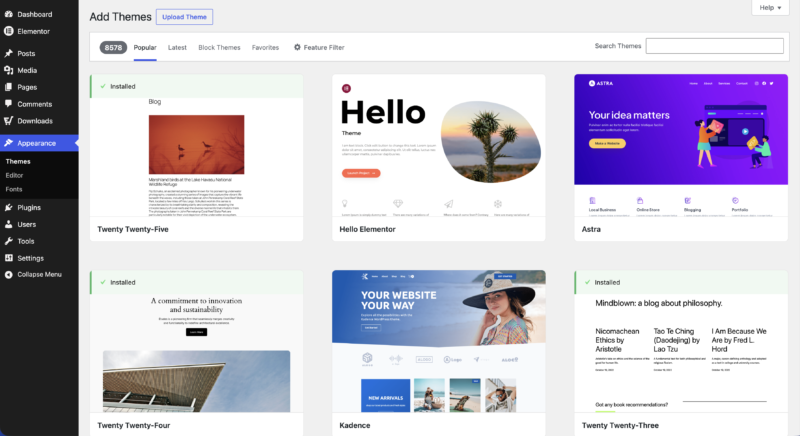
“Works with” and “built for” aren’t the same thing, though. A general-purpose theme will render your store correctly. A theme designed for digital selling goes further: product-focused layouts, space for trust badges and guarantees, and page templates that give your storefront room to breathe.
You’ll see the same idea in EDD’s Checkout Templates, which are designed around how people actually buy digital products rather than being generic checkout styling.
Either path works. The first gets you live quickly. The second gives you more to work with as you grow.
Where to find Easy Digital Downloads themes
EDD keeps a themes directory of options that work well with digital stores, which is the fastest place to start. Two worth naming:
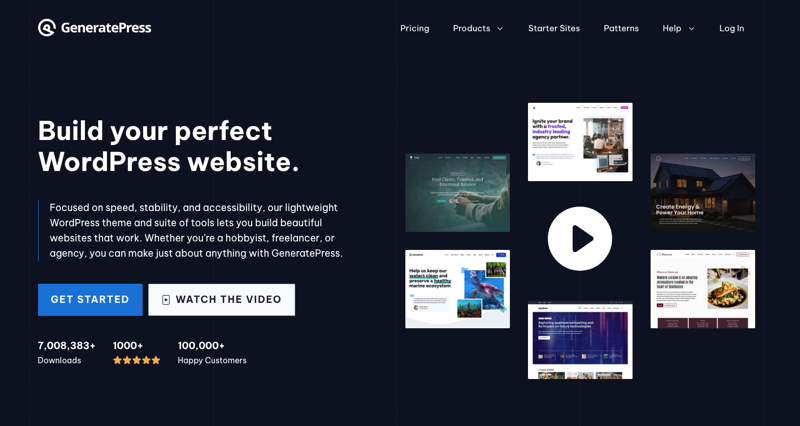
GeneratePress keeps its code minimal, which helps your product pages load quickly. It gives you direct control over page widths and typography without a page builder, and EDD lists it on its themes directory.
Sydney from aThemes leans the other way, with more built-in visual controls for headers, footers, and menus if you’d rather adjust things by clicking than by choosing settings. It’s also listed on EDD’s themes directory.

Either one gives you a clean base. If you want a wider comparison, we’ve rounded up more WordPress ecommerce themes separately.
Style Your Store Pages With EDD Blocks
This is the layer many store owners never touch, and it’s where the biggest visual gains are.
Easy Digital Downloads ships its own set of blocks for the WordPress block editor. They handle everything your store needs to display: products, prices, buttons, carts, receipts, and account pages.
Because they’re regular blocks, you place and arrange them like any other content. No template files, no code.
The pages EDD builds for you automatically
Activating Easy Digital Downloads creates your whole store flow before you touch anything. You’ll find every assignment under Downloads » Settings » General » Pages.
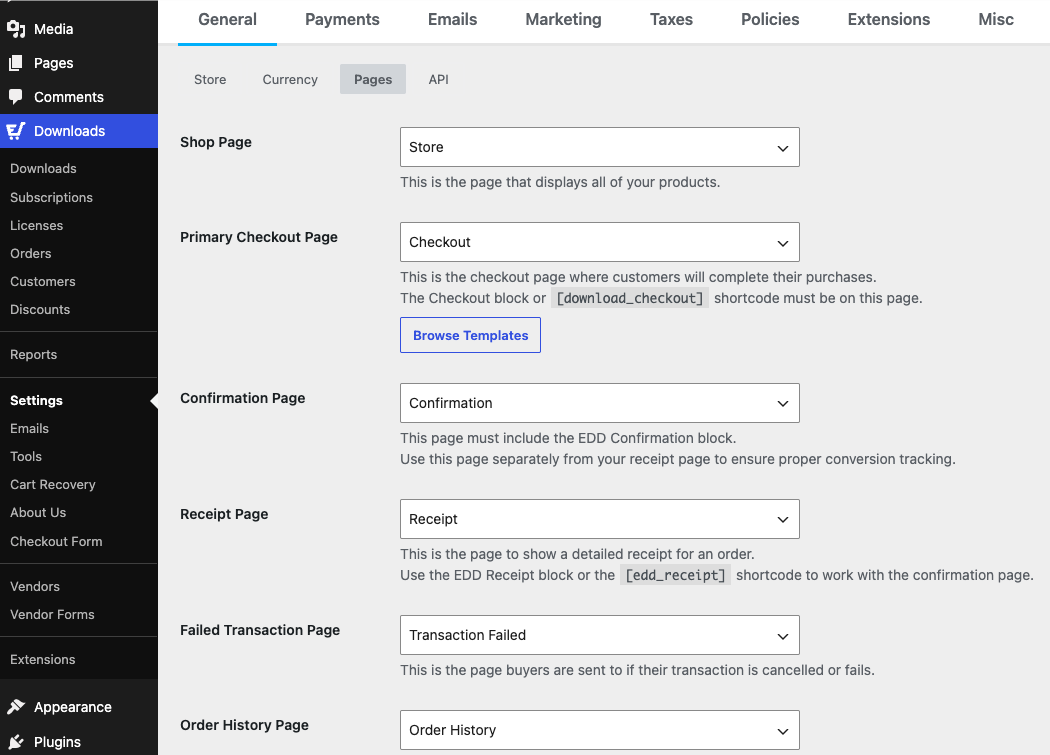
| Page | What it does | Block used |
|---|---|---|
| Shop | Displays all of your products | Products |
| Primary Checkout | Where buyers enter details and pay | Checkout |
| Confirmation | The thank-you page shown right after purchase | Confirmation |
| Receipt | A detailed receipt with download links | Receipt |
| Failed Transaction | Where buyers land if payment is cancelled or fails | none |
| Order History | A returning customer’s full purchase list | Order History |
That means you already have a storefront. A lot of store owners build a second products page by hand without realizing the Shop page exists and is already wired to the Products block.
Receipt and Order History are worth styling early, because they’re the pages customers come back to. A receipt that matches the rest of your site tells a buyer their purchase went somewhere real.
The settings screen matters more than it looks. If your checkout ever renders blank or your receipts stop displaying, a wrong page assignment here is a common cause. It’s also the first place to check after migrating a site, since page IDs don’t always survive the move.
EDD documents the flow in The Plugin Pages.
Every EDD block and what it does
There are 12+ Easy Digital Downloads blocks, each prefixed with “EDD” in the block inserter. Many stores only need three or four, but it helps to know what’s available before you go looking for a plugin to do something EDD already does.
| Block | What it does | Used on |
|---|---|---|
| Products | Displays a grid or list of your products | Shop page |
| Checkout | Renders your checkout form | Primary Checkout page |
| Confirmation | Shows the order summary after a purchase | Confirmation page |
| Receipt | Displays a single order receipt | Receipt page |
| Order History | Lists a customer’s past orders | Order History page |
| Buy Button | Places a purchase button for one product | Anywhere you choose |
| Cart (Widget) | Shows a cart, with mini cart and item count options | Anywhere you choose |
| User Downloads | Shows a customer’s purchased files, with optional search | An account page you build |
| Profile Editor | Lets customers update their own details | An account page you build |
| Login | Adds a customer login form | A login page you assign |
| Registration | Adds a customer registration form | Any page you choose |
| Download Terms | Shows your product categories or tags | Any page you choose |
The first five are already placed for you on the pages EDD created. The rest are yours to position.
The account blocks matter once you have repeat customers. Order History and User Downloads together make a customer account page, which cuts down the “where’s my file” emails considerably.
Login and Registration are worth adding only if you require accounts. If you sell single downloads with guest checkout, they add friction without adding much.
A few of these have settings worth opening. The Cart block can run as a mini cart, hide itself when empty, hide on the checkout page, and show an item count or total. User Downloads can include a search form, which is genuinely useful once a customer owns more than a handful of files.
The EDD blocks documentation covers every option.
Build a storefront grid with the EDD Products block
Your Shop page already runs this block, so start by opening that page rather than building a new one. Most “my store has no storefront” problems are really an unstyled Shop page nobody has opened since activation.
Open it, select the EDD Products block, then set the number of columns and how many products to show. You can filter by category, which lets you build extra pages for different product types without touching a template.
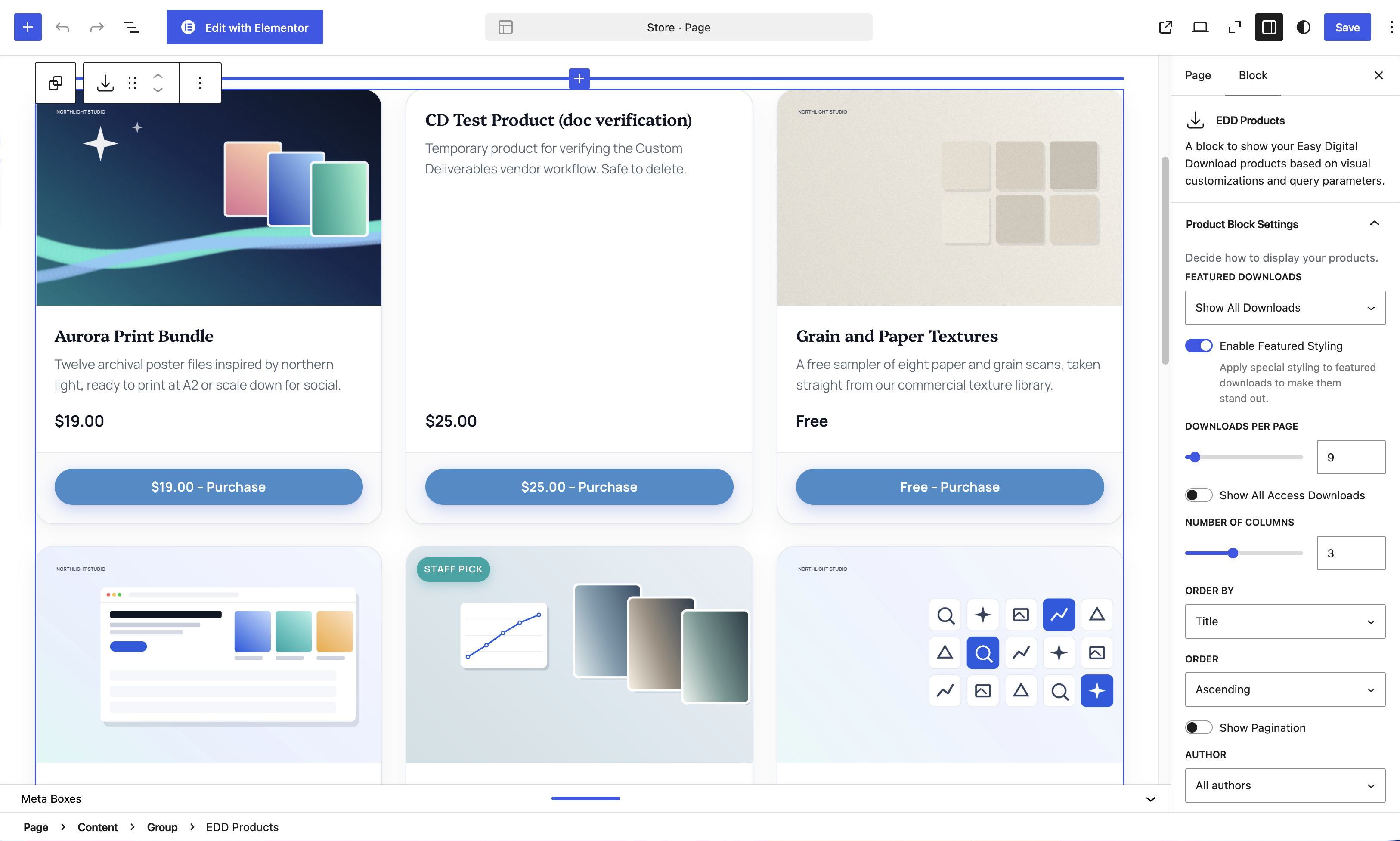
Two columns tend to look better than three when you have few products. Wide cards with generous spacing read as deliberate. Narrow cards with gaps read as empty.
Set your page to a full-width template if your theme offers one. A storefront squeezed into a blog-post column is one of the most common reasons a store feels small.
Design Product Pages That Sell
Your product page is where the decision happens, and for digital products it’s doing extra work. Nobody can pick up a PDF or flip through a course, so the page has to substitute for handling the thing.
That means showing more than a title and a price.
Each product you add becomes its own page. Go to Downloads » Add Download, and the title, description, featured image, price, and files you enter there build the page buyers land on. So most product page design happens while you’re creating the product, not afterward in a separate template.
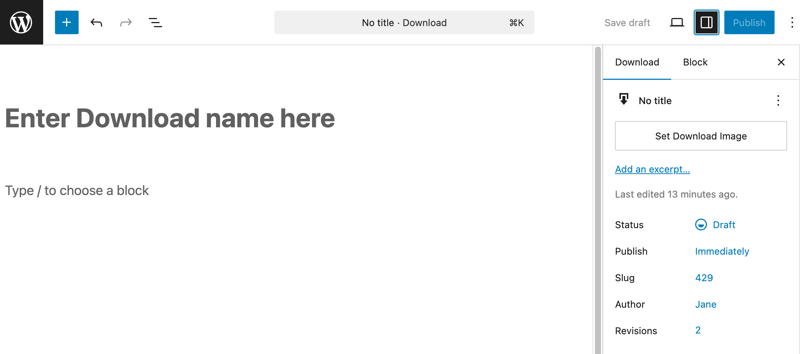
What belongs on a digital product page
Order matters here. Put these in front of the buyer before they scroll:
- A real product image or mock-up, not a generic icon
- The price, stated plainly
- The buy button, visible without scrolling
- One or two sentences on what the buyer actually gets
Below that, give them the details: what’s included, file formats, page or track counts, licensing terms, and who it’s for.
Specifics do the persuading. “A 40-page workbook with 12 printable exercises” answers more questions than “a comprehensive guide,” and it does it faster.
Add a preview if your product allows one. A sample chapter, a watermarked page, or a short audio clip removes more doubt than another paragraph of copy.
There’s more on this in our guide to optimizing ecommerce product pages for digital downloads.
Adding a buy button anywhere on your site
The EDD Buy Button block places a working purchase button on any page or post, not just product pages.
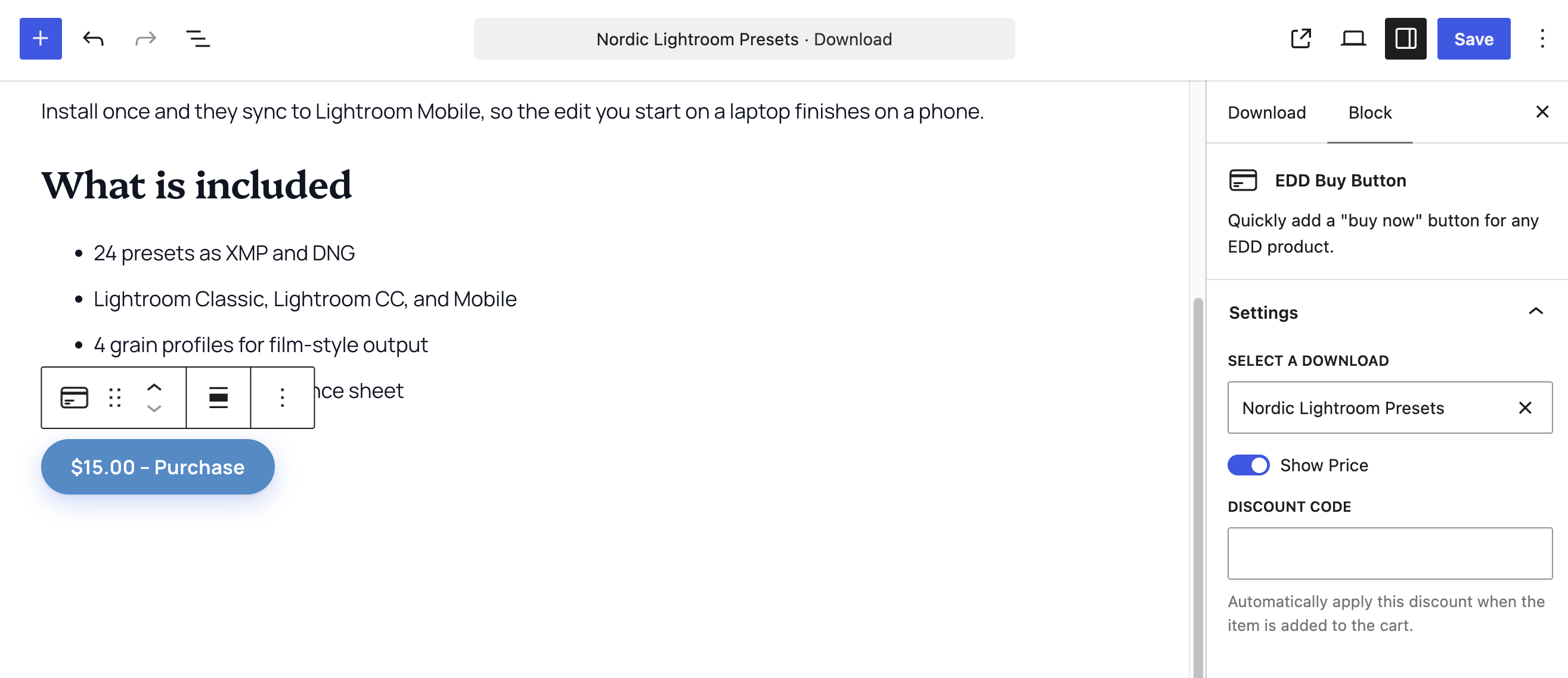
That opens up sales paths your storefront can’t reach. Drop a button at the end of a relevant blog post. Put one on your about page next to the thing you’re known for. Add one to a landing page built for a single product.
Each button is tied to a specific product, so pricing and checkout stay accurate wherever it lives.
For most creators this is more valuable than the storefront itself, because readers who already trust your writing don’t need to browse a shop first.
Clean Up Your Checkout Page
Checkout is the page where hesitation costs you money, and it’s also the page most store owners never look at after setup.
Open yours and buy something. Whatever, if anything, feels awkward is what to fix first.
Two ways to restyle checkout
You have two separate routes, and which one you can use depends on your setup.
- The EDD Checkout block. Available to everyone. It renders your checkout form and gives you a cleaner default than the old shortcode. Combine it with a full-width page template and generous spacing, and you get a checkout that looks intentional without extra tools.
- Checkout Templates. Easy Digital Downloads includes a library of 10+ ready-made checkout designs you can import onto your existing checkout page. Using them requires any Easy Digital Downloads Pro pass with an active license, plus the Elementor plugin at version 3.35.0 or higher with Flexbox Container turned on. You’ll find the library under Downloads » Settings » General » Pages by clicking Browse Templates.
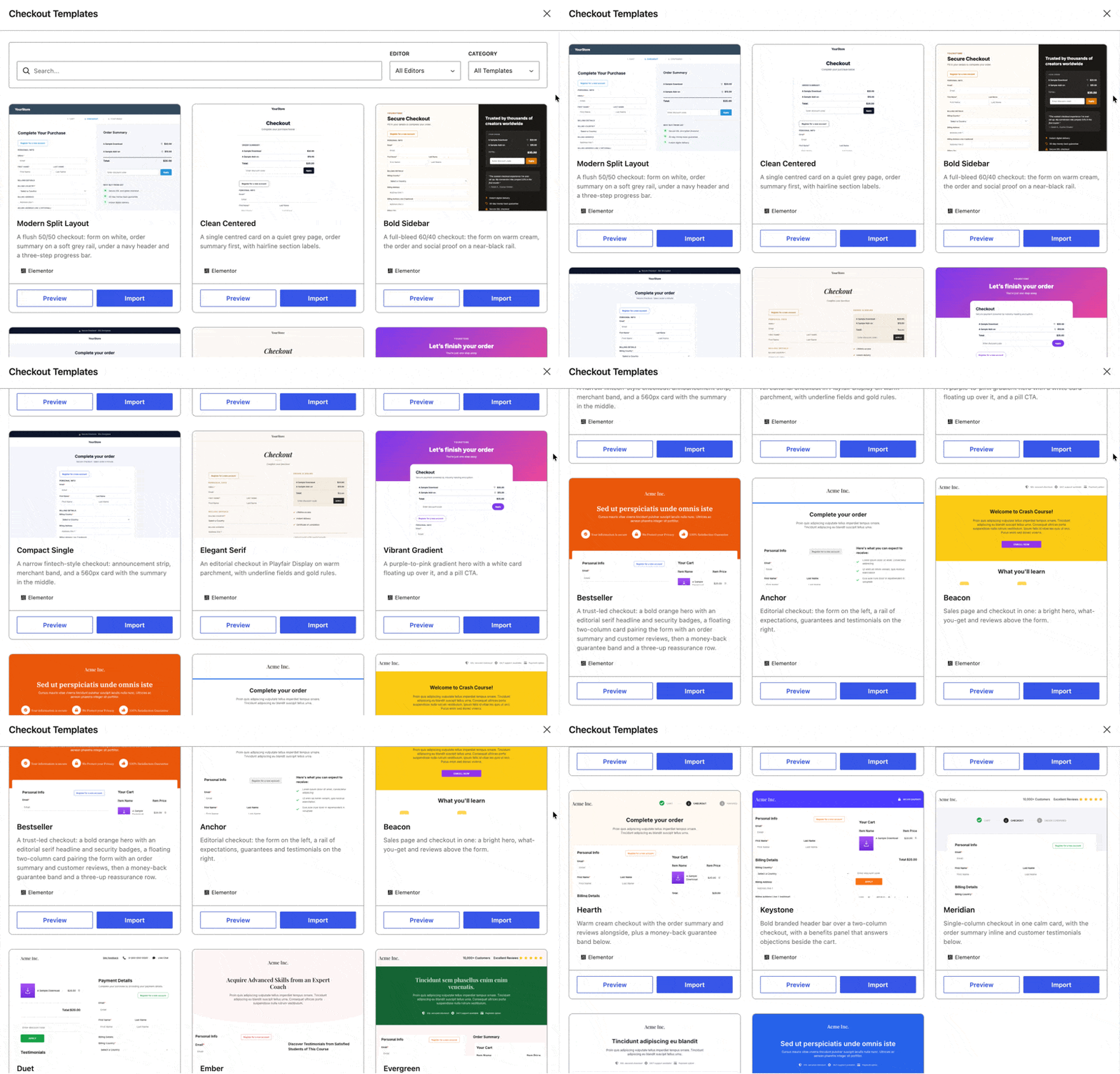
We have a full walkthrough of using EDD checkout templates, so this post won’t repeat it.
Whichever route you take, keep the checkout page free of navigation, sidebars, and anything else that invites a click away.
Make a Small Catalog Look Like a Real Store
Most digital sellers launch with one to three products. Nearly every store design guide assumes you have twenty, which is why their advice makes small catalogs look worse.
A small catalog isn’t a problem to hide. It just needs different layout choices.
Layouts that work with only a few products
Stop trying to fill a grid. Grids are built to show volume, and a three-column grid holding two items announces the gap.
Do this instead:
- Give each product a wide, full-width row with the image on one side and the description on the other
- Use one or two columns, never three, until you have at least six products
- Skip the shop page entirely if you sell one thing, and send people straight to the product page
- Lead your homepage with the product rather than a storefront link
A single product presented confidently outperforms a sparse shop every time. Think of a well-designed sales page, not a catalog with empty shelves.
Trust signals that fill space honestly
Empty space on a small store is best filled with reasons to buy, not filler.
Real options include customer reviews or testimonials, a clear refund policy, what happens after purchase, an FAQ answering genuine pre-sale questions, and visible payment security.
Each of these earns its space because it answers something a buyer is already wondering. Stock photos and padded copy don’t.
Our list of digital product store features that customers love has more ideas.
Skip anything you can’t back up. Invented review counts and fake urgency read as suspicious, and buyers of digital products are especially alert to it.
Check it on mobile before you launch
Most of your buyers will see your store on a phone, and mobile is where layout problems get obvious.
Check three things: whether your buy button is visible without scrolling, whether your product images stay sharp when they stretch full width, and whether your checkout fields are large enough to tap.
Your theme handles most of this if it’s reasonably modern. Product page layout is where it tends to break, especially if you’ve built columns that stack in an order that doesn’t make sense on a narrow screen.
FAQs: Easy Digital Downloads Themes and Store Design
Does Easy Digital Downloads work with any WordPress theme?
Easy Digital Downloads works with most WordPress themes, including the default ones. Your store pages are built from blocks and normal page content, so any theme that renders standard WordPress pages well will render your store. Themes built heavily around WooCommerce are worth testing first.
Do I need coding skills to customize my Easy Digital Downloads store?
No. You can build your whole store layout with EDD’s blocks in the standard WordPress editor, and theme settings handle fonts and colors. Coding only matters if you want to change how a template renders.
Where do I go to edit my EDD store pages in WordPress?
Your store pages live under Pages in your WordPress dashboard, and you edit them like any other page. To see which page is assigned to which role, go to Downloads » Settings » General » Pages.
What is the best theme to use with Easy Digital Downloads?
There isn’t one universal answer, but a theme built with digital selling in mind gives you more than a general-purpose one: product-focused layouts and room for trust signals. GeneratePress and Sydney are both on EDD’s themes directory.
Can I change the checkout page design without a page builder?
Yes. The EDD Checkout block gives you a cleaner checkout than the older shortcode, and a full-width page template removes most of the clutter. Checkout Templates is the page builder route, needing Elementor plus an Easy Digital Downloads Pro pass.
How do I make my store look full when I only sell a few products?
Use wide, full-width product rows instead of a multi-column grid, since grids highlight empty space. Stay at one or two columns until you have six or more products. Fill the rest with reviews and pre-sale FAQs.
Start Making Your Store Look Like Yours
Your theme was never the whole story. Once you separate the three layers, most of what bothers you about your store turns out to be a block setting or a page width, and those take minutes.
Start with your product page, because that’s where buying decisions happen. Add a real image, put the price and button above the fold, and say specifically what the buyer gets. Then open your Shop page and style the grid that’s already there.
If you want the checkout template library and the rest of EDD’s premium features, a pass gets you there.
📣 P.S. Be sure to subscribe to our newsletter and follow us on Facebook, Twitter/X, or LinkedIn for more WordPress resources!