

WooCommerce was built for stores that ship boxes. If you only sell digital products like ebooks or software, you’re still carrying shipping settings and a stack of extensions you never asked for.
Switching sounds great until you think about your order history. Nobody wants to lose sales records or leave a customer unable to find their files.
The good news? You can migrate WooCommerce to Easy Digital Downloads (EDD) with tools that are already built into EDD.
We ran the whole migration on a test store first. So this guide also covers the CSV fixes that keep your import from going sideways.
- Key Takeaways
- Why Digital Sellers Switch from WooCommerce to EDD
- What Transfers When You Migrate WooCommerce to Easy Digital Downloads
- Which WooCommerce to EDD Migration Method Should You Use?
- What You'll Need Before You Start
- How to Migrate WooCommerce to Easy Digital Downloads (Step by Step)
- Step 1: Export Your Products from WooCommerce
- Step 2: Reshape Your Product CSV for EDD
- Step 3: Import Your Products into EDD
- Step 4: Recreate Your Discount Codes
- Step 5: Export Your WooCommerce Orders
- Step 6: Format and Import Your Orders into EDD
- Step 7: Recount Your Store Stats
- Step 8: Connect Payments and Make a Test Purchase
- Step 9: Switch Off WooCommerce and Redirect Old Product URLs
- What to Tell Your Customers After You Switch
- How to Handle Subscriptions and Software Licenses
- FAQs About Migrating from WooCommerce to EDD
Key Takeaways
| Free importers do the work | EDD’s built-in Product and Order Importers move your catalog and sales history without paid migration tools. |
| Reshape before you import | Raw WooCommerce CSV files split variable products apart and can crash the order import. A few column fixes prevent this. |
| Products, discounts, then orders | Import products first, recreate discount codes second, then import orders so every sale matches the right product. |
| Test before you switch | Run the migration on a staging copy, make a test purchase, then deactivate WooCommerce on your live site. |
Why Digital Sellers Switch from WooCommerce to EDD
WooCommerce is a general-purpose store builder. It’s great if you sell T-shirts and coffee mugs.
For digital products, though, a lot of it just gets in the way. Shipping zones and stock levels sit in your settings whether you need them or not.
The costs add up too. Selling subscriptions or software license keys in WooCommerce usually means buying extra extensions on top of the core plugin.
Easy Digital Downloads takes the opposite approach. It’s built only for digital products, so the basics come ready to go:
- Secure file delivery: customers get a download link the moment they pay.
- Download limits: you decide how many times each file can be downloaded.
- Customer purchase history: buyers can log in and grab their files again later.
As your store grows, EDD features like Recurring Payments and Software Licensing are designed for digital sellers from day one.
Still deciding? Our EDD vs. WooCommerce comparison goes deeper.
This roundup of WooCommerce alternatives for WordPress covers other options, too.
What Transfers When You Migrate WooCommerce to Easy Digital Downloads
Before you move your store to Easy Digital Downloads, it helps to know what comes across on its own and what needs a little hands-on work. We tested every row in this table on a WooCommerce test store.
| Moves with EDD’s importers | Needs a quick manual fix |
|---|---|
| Products, prices, files, categories, tags | Variable products (reshape the CSV) |
| Order history, dates, statuses | Discount codes (recreate in EDD) |
| Customer records | Per-price file assignments |
| Refund status | Customer lifetime stats (Recount Stats) |
Most of the work lives in the right-hand column. None of it is hard once you know it’s coming.
Selling subscriptions or software licenses? Those don’t move with the importers, so read the subscriptions and licenses section before you begin. Your theme and page layouts also stay separate from your store data.
Which WooCommerce to EDD Migration Method Should You Use?
You’ve got a few ways to handle a WooCommerce to EDD migration. The right one depends on how complex your store is, and every option ends with your products in Easy Digital Downloads.
1. EDD’s free importers (this guide). This is the best fit for most digital stores.
You export from WooCommerce, tidy up two CSV files, and import them into EDD.
2. Ask the EDD team for help. Running a large store, or one with active subscriptions and license keys?
Fill out the Switch to Easy Digital Downloads form, and the team will reply with recommendations for your setup.
3. Skip the old migration script. You might find a WooCommerce to EDD PHP script from 2014 linked around the web.
When we tested it on a current store, it migrated zero orders.
That’s because WooCommerce now stores orders in its own tables by default.
This is called High-Performance Order Storage (HPOS), and it’s been the default for new stores since WooCommerce 8.2 in October 2023. The script still looks for orders in the old place.
It also won’t run at all unless the EDD Software Licensing feature is active. For most stores, the importers are the safer path.
For a quick reference version of the process, see the EDD docs page on migrating from WooCommerce.
What You’ll Need Before You Start
A little prep now saves a lot of cleanup later. Gather these before you touch any data:
- A full backup. If something goes wrong, you want a one-click way back. Duplicator makes it easy to back up your whole site and restore it.
- A staging or local copy of your store. Run the full migration there first. You can fix mistakes without your customers ever seeing them.
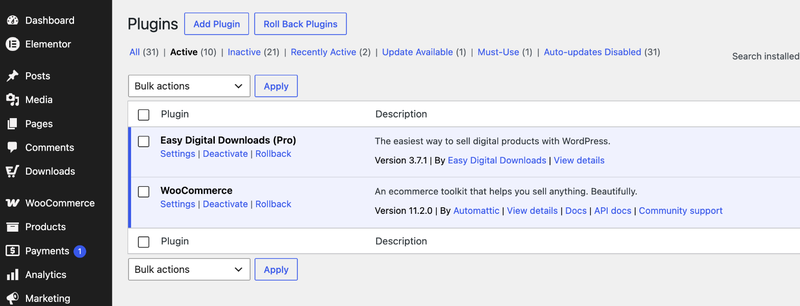
- Easy Digital Downloads installed. Install the free Easy Digital Downloads plugin alongside WooCommerce. Keep WooCommerce active for now, since you’ll export from it.
- An order export plugin. WooCommerce can’t export orders with customer emails on its own, and EDD needs those emails to match orders to customers. We tested the free Advanced Order Export For WooCommerce plugin, and it works well for this.
- A list of your WooCommerce extensions. Write down what each one does, then check for an EDD equivalent. Not every extension has a direct match, so it’s better to know early.
How to Migrate WooCommerce to Easy Digital Downloads (Step by Step)
Ready to move your store to Easy Digital Downloads? Work through these steps in order on your staging site first.
The order matters most for your imports. Products go in before discounts, and discounts go in before orders.
Step 1: Export Your Products from WooCommerce
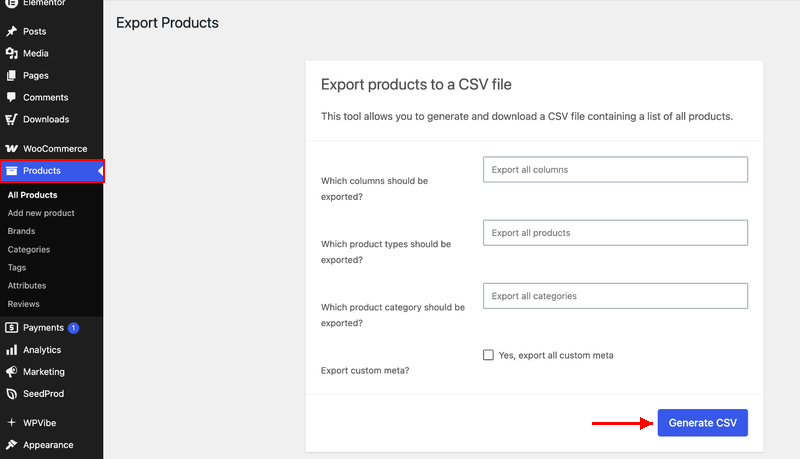
Start with your product catalog. In your WordPress dashboard, go to Products » All Products and click Export at the top of the page.
On the Export Products screen, leave every column selected and click Generate CSV. WooCommerce downloads a CSV file of your whole catalog.
Open the file in a spreadsheet app like Google Sheets or Excel. You’ll notice something about variable products right away.
A product with two license options doesn’t show up as one row. It shows up as three: one “parent” row with no price or file, plus one row for each variation.
Easy Digital Downloads stores variable pricing differently, so that’s the first thing you’ll fix.
Step 2: Reshape Your Product CSV for EDD
This step is where most WooCommerce to EDD imports succeed or fail. When we imported a raw WooCommerce CSV, each variable product turned into three separate Easy Digital Downloads products, including an empty $0 one.
Make these changes in your spreadsheet:
- One row per product. Delete the parent and variation rows. Replace them with a single row and put every price in one cell, like this:
Personal: 29.00 | Commercial: 79.00 - Files in one column. List every file for a product in a single cell, separated by
|. - Leave the download limit blank for unlimited. WooCommerce uses
-1to mean unlimited, but EDD reads it as a limit of 1 download. - Add a Status column set to “publish.” Without it, every product imports as a draft.
- Keep your product names the same. EDD builds each product’s URL from its name. Matching names help your old WooCommerce links redirect on their own later.
| Price column | Download limit | |
|---|---|---|
| WooCommerce export | Three rows: blank, 29.00, 79.00 | -1 |
| EDD-ready | One row: Personal: 29.00 | Commercial: 79.00 | (blank) |
Want a head start? Download our sample EDD product import CSV and copy your products into it.
The format matches what imported cleanly in our tests.
For the full list of supported columns, see the Importing / Exporting Products doc.
Step 3: Import Your Products into EDD
Now bring your catalog into Easy Digital Downloads. Go to Downloads » Tools » Import/Export.
In the Import Download Products box, choose your CSV file and click Import CSV.
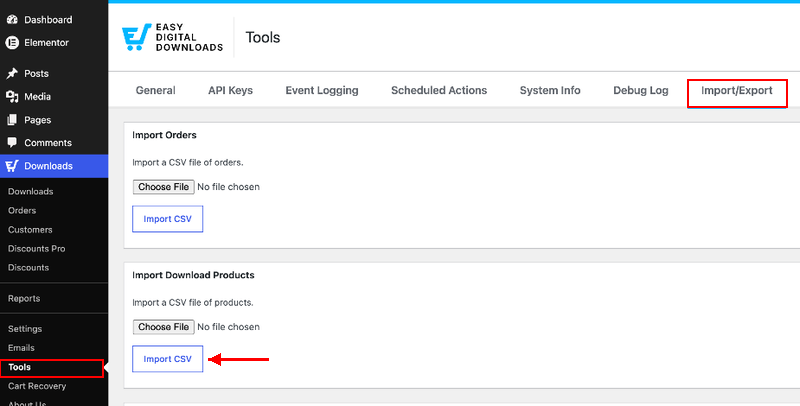
EDD then shows a mapping screen.
Match each Product Field to the right CSV Column, such as Product Title, Product Price(s), Download Files, and Product Status. Click Process Import when you’re done.
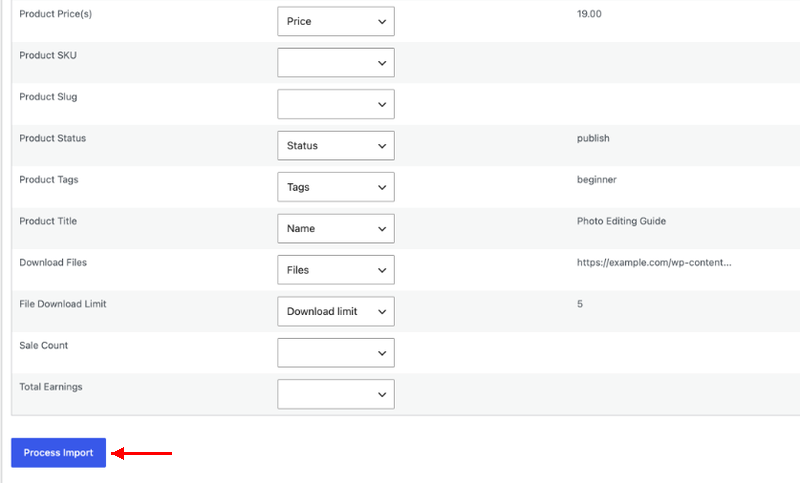
Pro tip: test with one or two products first. If something looks off, it’s much easier to fix two products than two hundred.
Once your products are in, open each variable product and check its files. The importer attaches every file to every price option.
In WooCommerce, each variation had its own file. In EDD, edit the product and set which file goes with which price option, so a Personal buyer doesn’t also get the Commercial file.
Step 4: Recreate Your Discount Codes
Discount codes don’t come across to Easy Digital Downloads with the importers, so you’ll set them up by hand. Go to Downloads » Discounts and add each code you still want to offer.
Do this before you import orders. In our test, an order that used a coupon code EDD didn’t recognize stopped the import partway through.
Every order after that one was skipped.
If you have a lot of codes, focus on the ones that appear in your order history. Expired promos you’ll never run again can stay retired.
Need a refresher on the settings? This guide on creating discount codes for digital products walks through each option.
Step 5: Export Your WooCommerce Orders
Time for your sales history.
WooCommerce’s built-in Analytics » Orders download doesn’t include customer email addresses. Easy Digital Downloads needs those to match each order to the right customer.
That’s where the free Advanced Order Export For WooCommerce plugin comes in. Install it, then go to WooCommerce » Export Orders.
Its default fields already include everything EDD needs, from billing email and order status to item names and coupon codes.
Change two settings before you export:
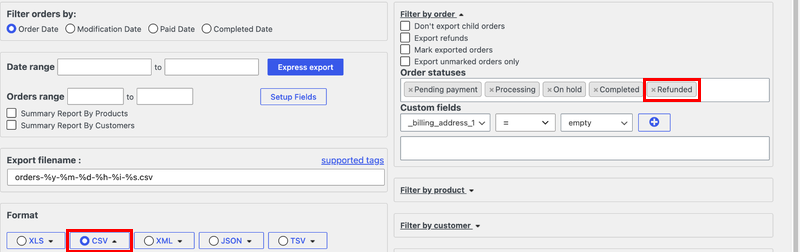
- Add refunded orders. Under Order statuses, add Refunded. By default, the plugin only exports pending, processing, on-hold, and completed orders, so refunds get left out.
- Keep each order on one row. Set the Products option from rows to one row. Otherwise, an order with two items exports as two rows, and EDD would import it as two separate orders.
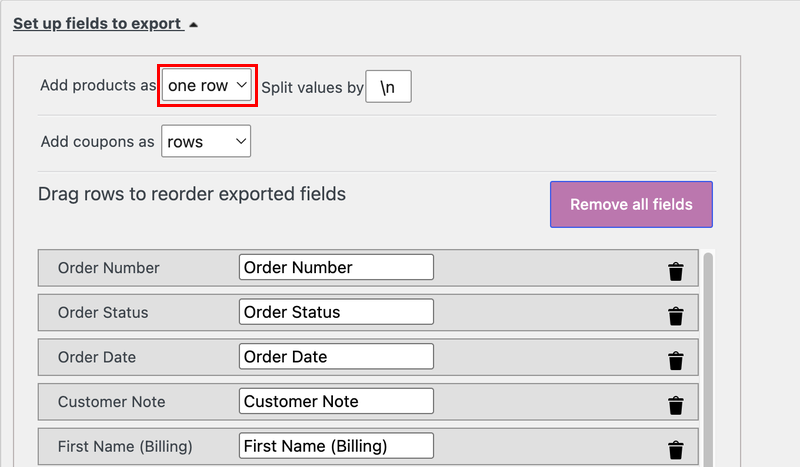
Choose CSV as the format and click Express export.
Step 6: Format and Import Your Orders into EDD
Your order CSV needs a few tweaks before Easy Digital Downloads can read it. When we imported raw WooCommerce values, variation names like “Lightroom Preset Pack – Commercial” didn’t match anything, so EDD created empty $0 products for them.
| Column | WooCommerce value | EDD value |
|---|---|---|
| Status | Completed | complete (refunds stay refunded) |
| Payment method | Credit Card (Stripe) | stripe (or paypal_commerce for PayPal) |
| Products | Lightroom Preset Pack – Commercial | Lightroom Preset Pack|79.00{0}{2} |
| User | (not exported) | the customer’s email, for registered customers |
The products column needs a header named exactly Products (Raw). Each item follows the format Product Name|price{tax}{price option number}.
Separate multiple items with /. The price option number matches the order of the prices on the product, starting at 1.
Don’t skip the User column for customers who have an account. Without it, EDD links the order to their account itself and emails them a “Verify your account” link.
Until they click that link, they can’t see their purchase history. With the User column filled in, no email goes out.
Our sample EDD order import CSV shows every format.
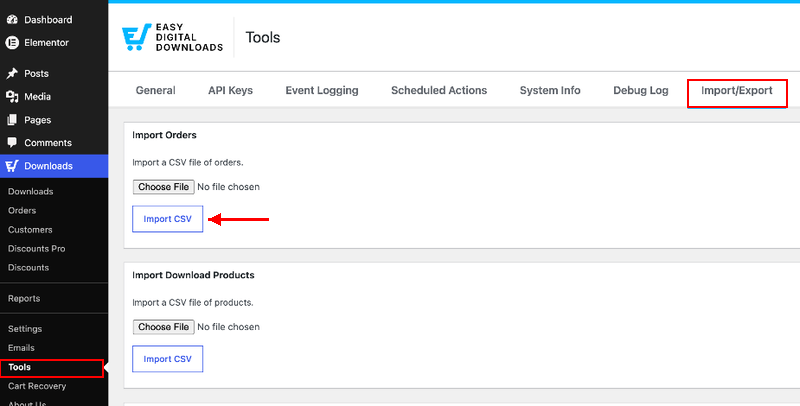
Go to Downloads » Tools » Import/Export, upload the file in the Import Orders box, map the fields, and click Process Import.
Import each file only once, since EDD doesn’t check for duplicates. The Importing / Exporting Orders doc has the details.
Step 7: Recount Your Store Stats
Your orders are in Easy Digital Downloads, but your customer and sales numbers aren’t caught up yet. Right after import, every customer shows $0 spent and zero purchases.
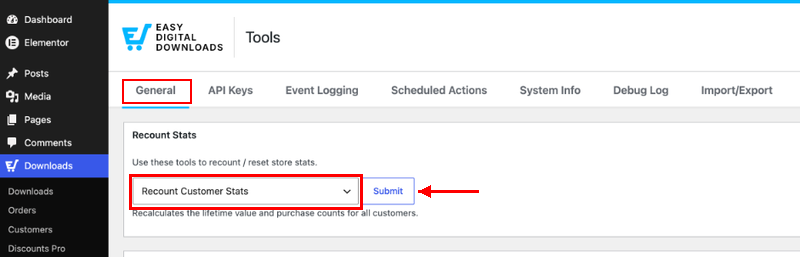
Go to Downloads » Tools » General. In the Recount Stats box, choose Recount Customer Stats and click Submit.
Then run it again with Recount Earnings and Sales for All Downloads selected. Your customer lifetime values and product sales counts fill right in.
Step 8: Connect Payments and Make a Test Purchase
Before customers can buy from your new store, Easy Digital Downloads needs a payment gateway. Connect Stripe or PayPal from Downloads » Settings » Payments.
Then turn on test mode. Go to Downloads » Settings » Payments » General and switch on Enable Test Mode.
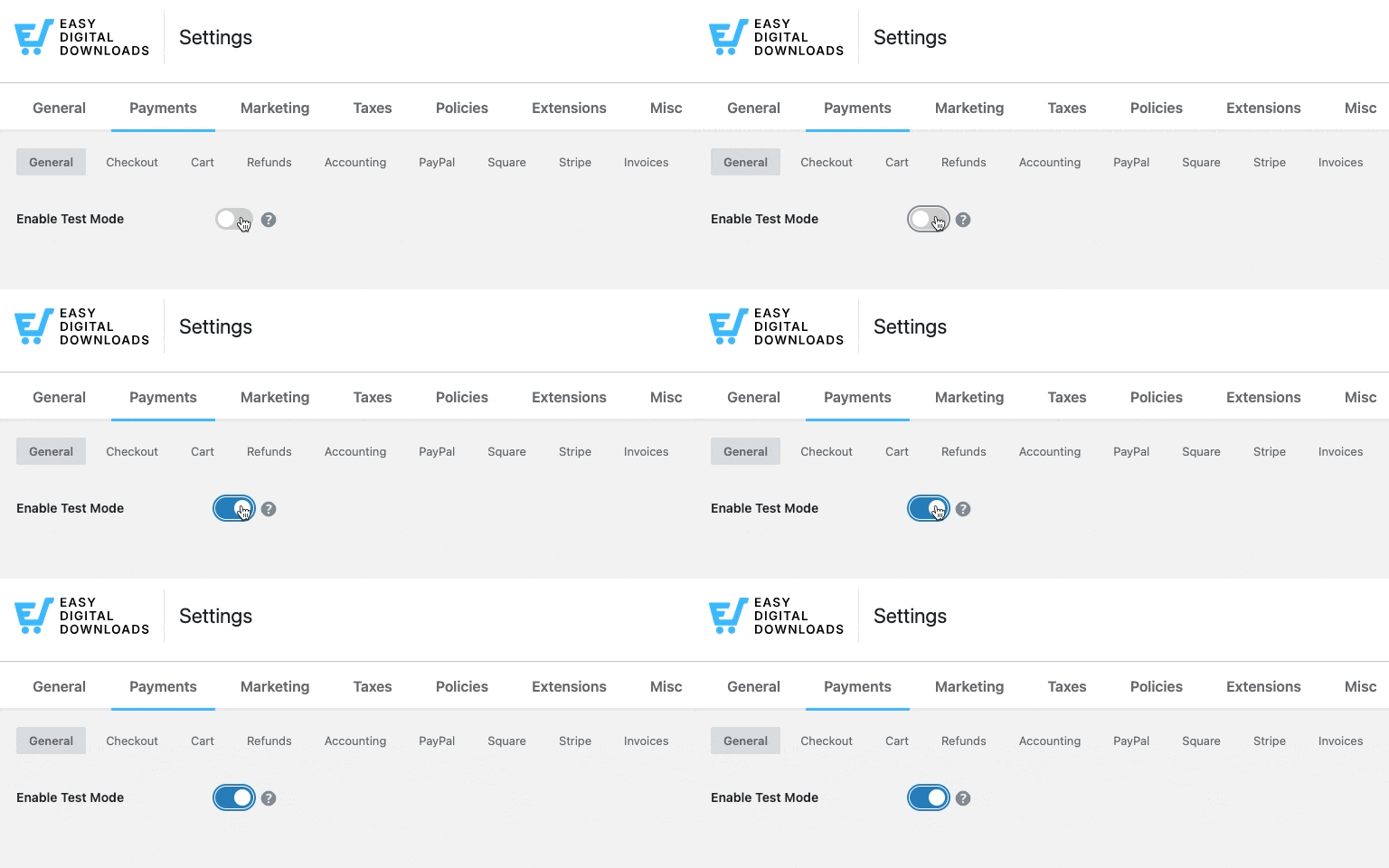
Now buy one of your products like a real customer would. Check three things:
- The checkout completes without errors.
- The purchase receipt lands in your inbox.
- The download link delivers the right file.
If any of those fail, fix them now while you’re still on staging. Switch test mode off once everything works.
New to the payment setup? This guide on how to sell digital products in WordPress covers connecting Stripe and testing your checkout.
Step 9: Switch Off WooCommerce and Redirect Old Product URLs
Happy with your staging store? Repeat the migration on your live site, or push your staging copy live.
Then deactivate WooCommerce.
Next, think about your old links. Once WooCommerce was off in our test, this is what we found:
- Product pages usually redirect on their own.
/product/photo-editing-guide/sent visitors straight to/downloads/photo-editing-guide/. WordPress guesses the new address when the names match, but it can’t guess if a product name changed. - Category pages don’t.
/product-category/ebooks/showed a “page not found” error. The Easy Digital Downloads version lives at/downloads/category/ebooks/. - The old Shop page stays live, but empty. Point it at your EDD store page instead.
Don’t rely on WordPress guessing right. Set up your redirects on purpose so old bookmarks and search rankings keep working.
The Redirection Manager in AIOSEO Pro makes this simple. You can add redirects one at a time, bulk import them from a CSV file, or use wildcard rules to catch whole groups of URLs.
What to Tell Your Customers After You Switch
Your customers don’t need to do much, but a heads-up goes a long way. A few things change for them when you move to Easy Digital Downloads.
- Registered customers keep their logins. You’re still on the same WordPress site, so their accounts stay put. Their imported orders link to those accounts.
- Guest buyers get customer records. Anyone who checked out as a guest gets an EDD customer record without a WordPress account, just like before.
- Old download links stop working. This one’s important. In our test, a WooCommerce download link served the file perfectly before the switch.
After we deactivated WooCommerce, the same link just loaded the homepage. It showed nothing to tell the customer what went wrong.
The fix is to send fresh links. In EDD, you can open any order and click Resend Receipt.
To reach everyone at once, select orders in your orders list and use the Resend Receipts bulk action. Each receipt includes working EDD download links.
Pair it with a short “we’ve moved” email. Let customers know their purchases are safe and fresh download links are on the way.
How to Handle Subscriptions and Software Licenses
If you sell WooCommerce Subscriptions or license keys, slow down here. This guide doesn’t cover moving them.
Active subscriptions depend on stored payment details and renewal dates, and license keys are tied to the activations your customers already use. Moving them takes more than a CSV import.
The good news is that Easy Digital Downloads supports both. Recurring Payments handles subscription billing, and Software Licensing manages license keys and activations.
Before you migrate, reach out through the Switch to Easy Digital Downloads form. Describe your setup, and the EDD team will reply with a recommended plan.
If you’re getting familiar with subscriptions in EDD, the Recurring Payments setup overview is a great place to start.
FAQs About Migrating from WooCommerce to EDD
Still have questions about making the switch? These are the ones we hear most often.
Is it hard to switch from WooCommerce to EDD?
Not if you prepare your CSV files first. Most of the work is formatting, like putting variable prices on one row and matching order statuses to EDD’s values. The imports themselves only take a few clicks.
Can I run WooCommerce and Easy Digital Downloads at the same time?
Yes. You need both active during the migration, since you export from WooCommerce and import into EDD. Just don’t run two live checkouts, and deactivate WooCommerce once your EDD store is tested.
Will my customers lose access to their past purchases?
No. Their accounts and order history move to EDD. Their old WooCommerce download links stop working, though, so use EDD’s Resend Receipts bulk action to send them fresh links.
Does the WooCommerce to EDD migration script still work?
Not on most current stores. In our test, the older PHP script moved zero orders from a store using WooCommerce’s default order storage, and it won’t run without the EDD Software Licensing feature. EDD’s built-in importers are the more reliable choice.
Do I need EDD Pro to migrate my store?
No. The Product and Order Importers are part of the free Easy Digital Downloads plugin, and the order export plugin we used is free too. You’ll only need EDD Pro if your store relies on features like subscriptions or software licensing.
What are the downsides of using WooCommerce for digital products?
WooCommerce works for digital products, but it’s built for physical goods first. Digital sellers often end up paying for extra extensions and managing settings like shipping that they never use. EDD focuses only on digital products, so the setup stays lighter.
Can EDD help me migrate my store?
Yes. If your store is large or uses subscriptions and license keys, fill out the Switch to Easy Digital Downloads form. The team will review your setup and reply with recommendations.
Start Selling Digital Products Without the Extra Weight
Once you migrate WooCommerce to Easy Digital Downloads, your catalog and sales history live in a store built just for digital products. You stop paying for features you never use.
Ready to grow from here? Get an EDD Pro pass to unlock features like Recurring Payments and Software Licensing.
Moving from another platform instead? Check out our guide on migrating from Gumroad to WordPress.
📣 P.S. Be sure to subscribe to our newsletter and follow us on Facebook, Twitter/X, or LinkedIn for more WordPress resources!