

Once you’ve installed and activated Easy Digital Downloads (EDD), the Setup Wizard helps you configure the essentials of your store in five quick steps. Instead of hunting through settings screens, you’ll set up your business details, payments, emails, recommended tools, and your first product, all in one guided flow.
This guide walks through each step of the Onboarding Setup Wizard so you know exactly what to expect and how to make the right choices for your store.
Launching the Setup Wizard
When you first activate the Easy Digital Downloads Pro plugin, the wizard is ready to go. Go to Setup » Get Started in your WordPress dashboard to launch it.
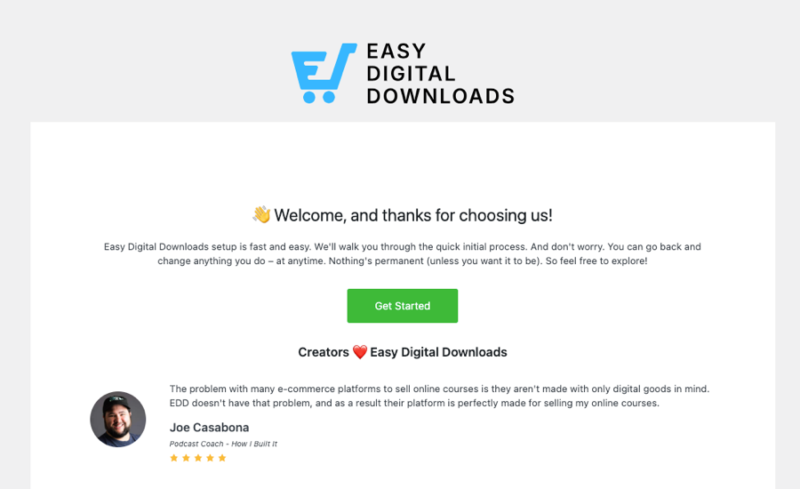
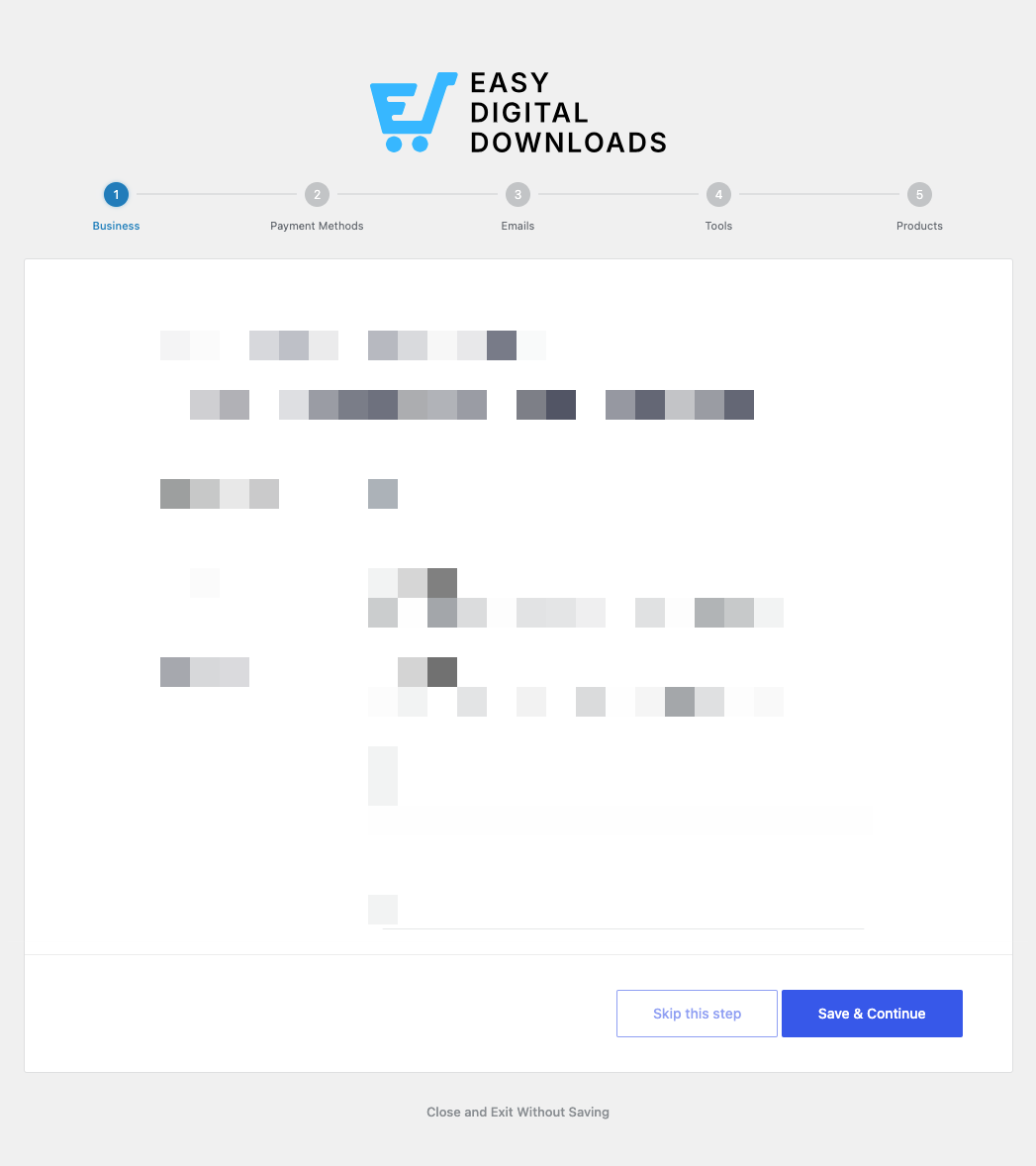
You can move through the wizard at your own pace. Each step has a Save & Continue button to move forward and a Skip this step link if you’d rather come back to it later. You can also select Close and Exit Without Saving at any time.
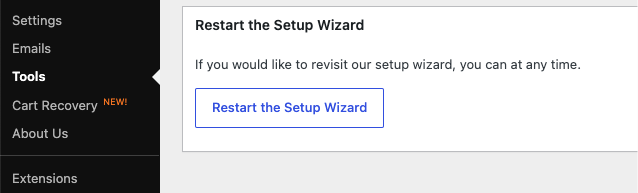
If you exited the wizard earlier and the Setup menu is no longer there, you can restart it anytime. Go to Downloads » Tools and select Restart the Setup Wizard.
Step 1: Business Information
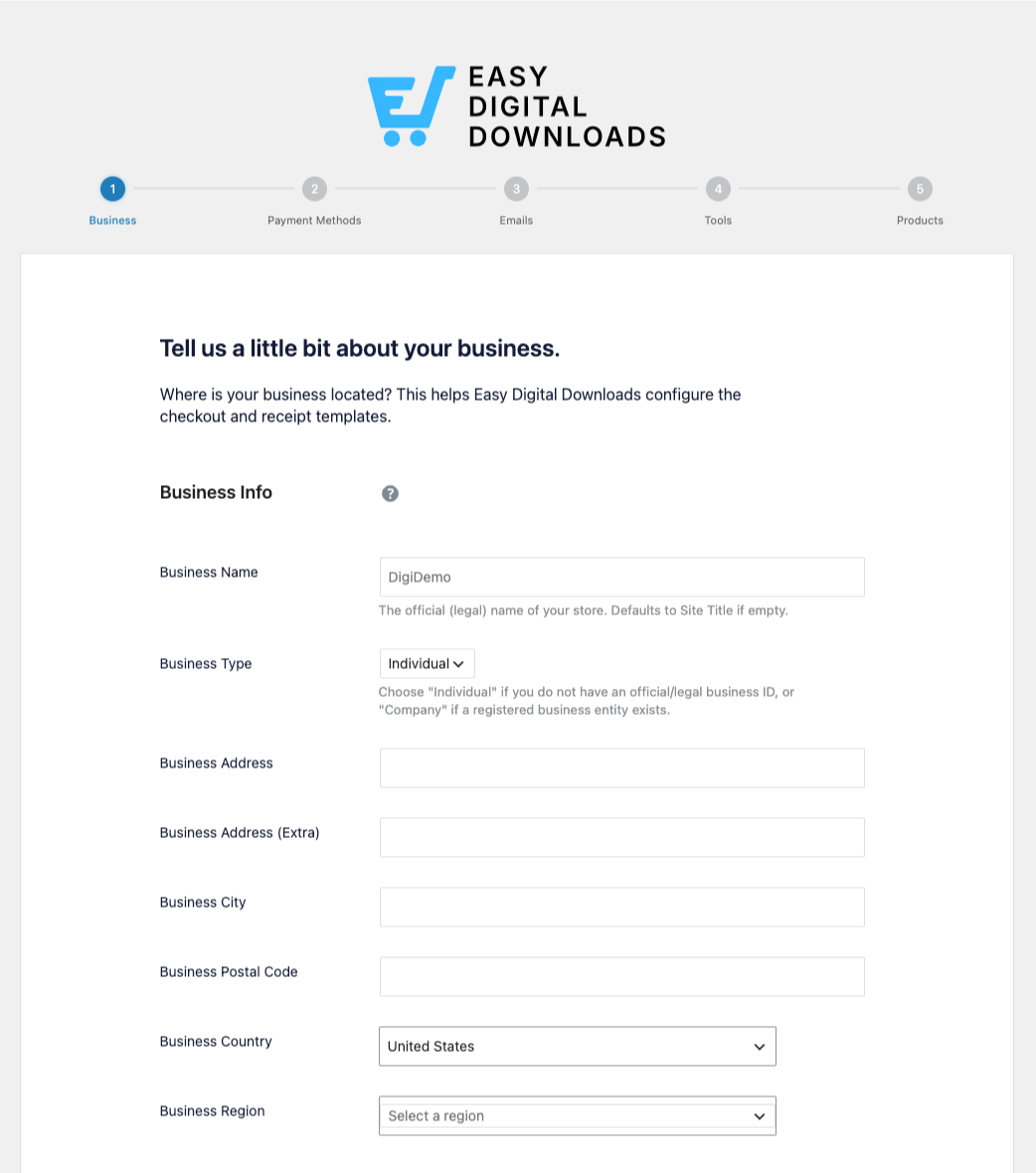
The Wizard opens by asking about your business. This tells EDD where you’re located so it can set up your checkout and receipt templates correctly.
Under Business Info, you’ll fill in:
- Business Name: your store’s official or legal name. If you leave it blank, it defaults to your site title.
- Business Type: choose Individual if you don’t have a registered business entity, or Company if you do.
- Business Address, City, Postal Code, Country, and Region: your store’s location.
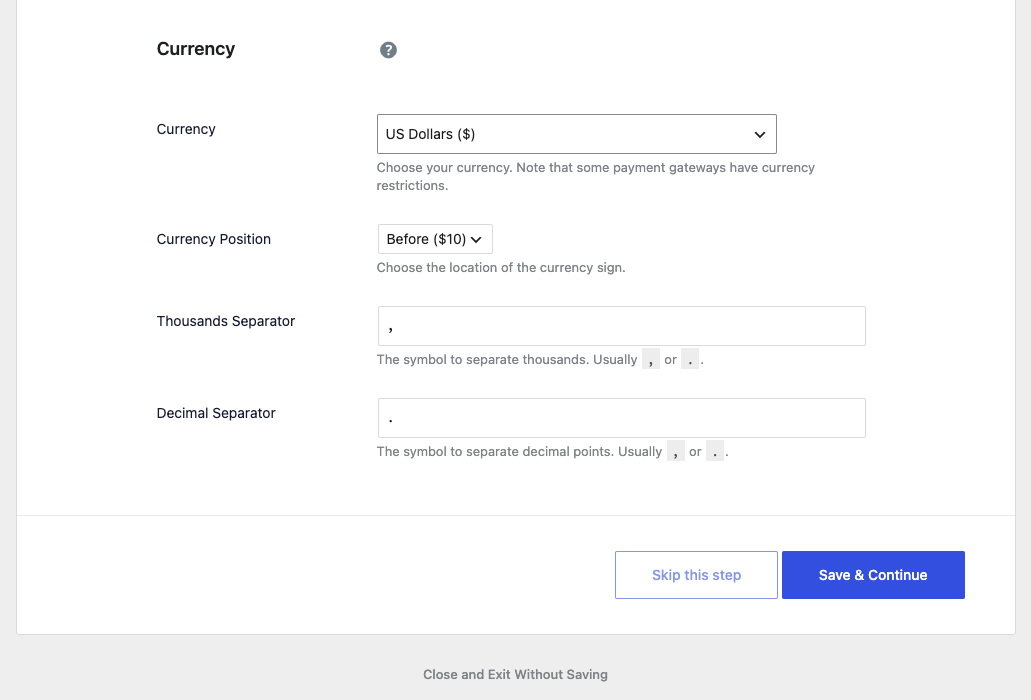
Under Currency, you’ll set:
- Currency: the currency your store charges in. Note that some payment gateways have currency restrictions.
- Currency Position: where the currency symbol sits, like $10 or 10$.
- Thousands Separator and Decimal Separator: the symbols used to format your prices.
Click Save & Continue when you’re done.
Step 2: Payment Methods
Next, connect a way to get paid. The wizard walks you through connecting Stripe, which lets your customers pay with all major credit cards, Apple Pay, Google Pay, and more.
Click Connect with Stripe and follow the prompts to link your Stripe account. Stripe Connect handles the secure connection for you, so there’s no need to copy API keys.
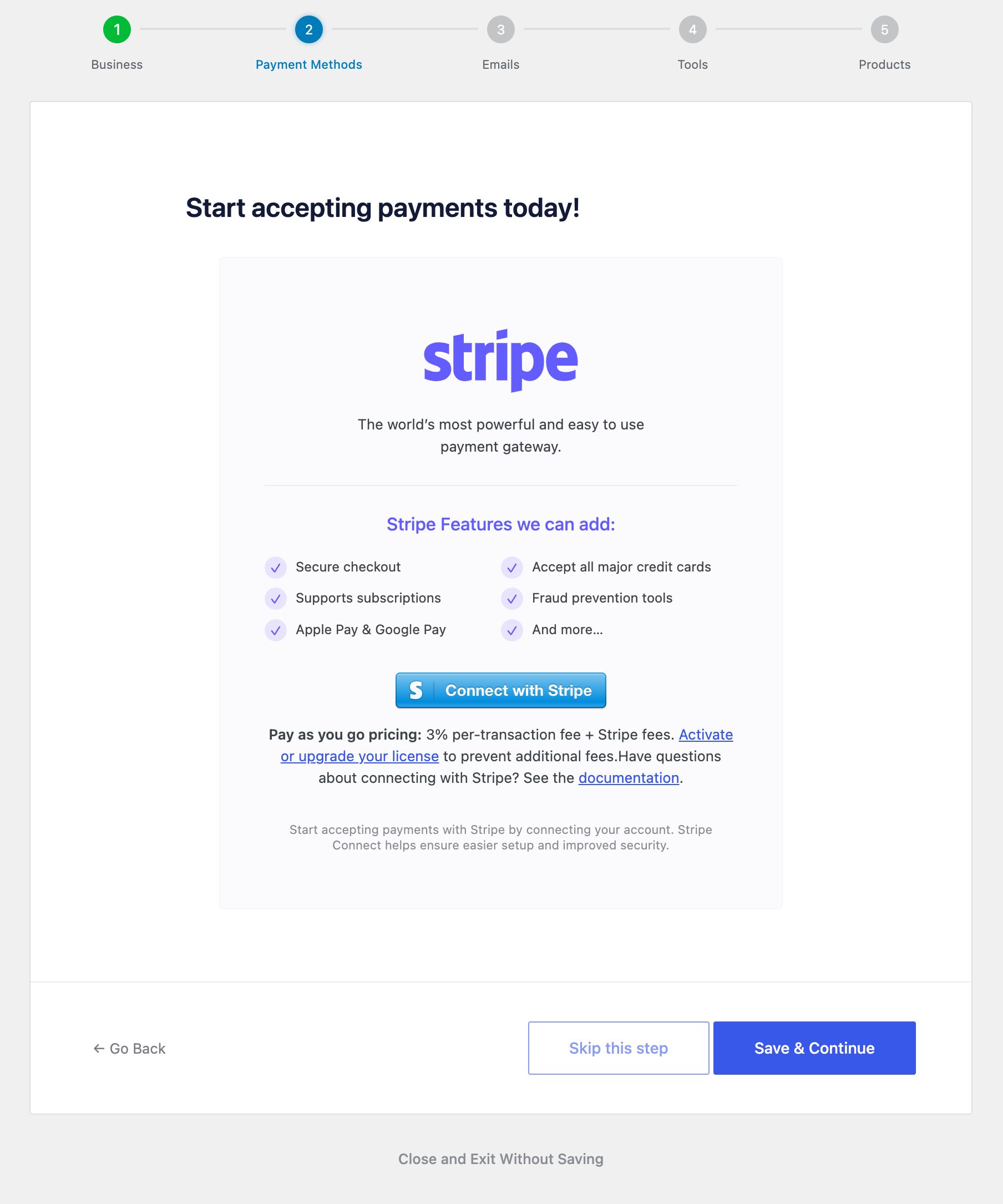
On the free version of EDD, Stripe payments include a small additional processing fee on top of Stripe’s own fees. Activating a paid license removes that extra fee.
You don’t have to finish this now. You can Skip this step and connect a gateway later, or add other gateways like PayPal and Square from Downloads » Settings » Payments after setup.
Learn more in Payment Settings.
Step 3: Emails
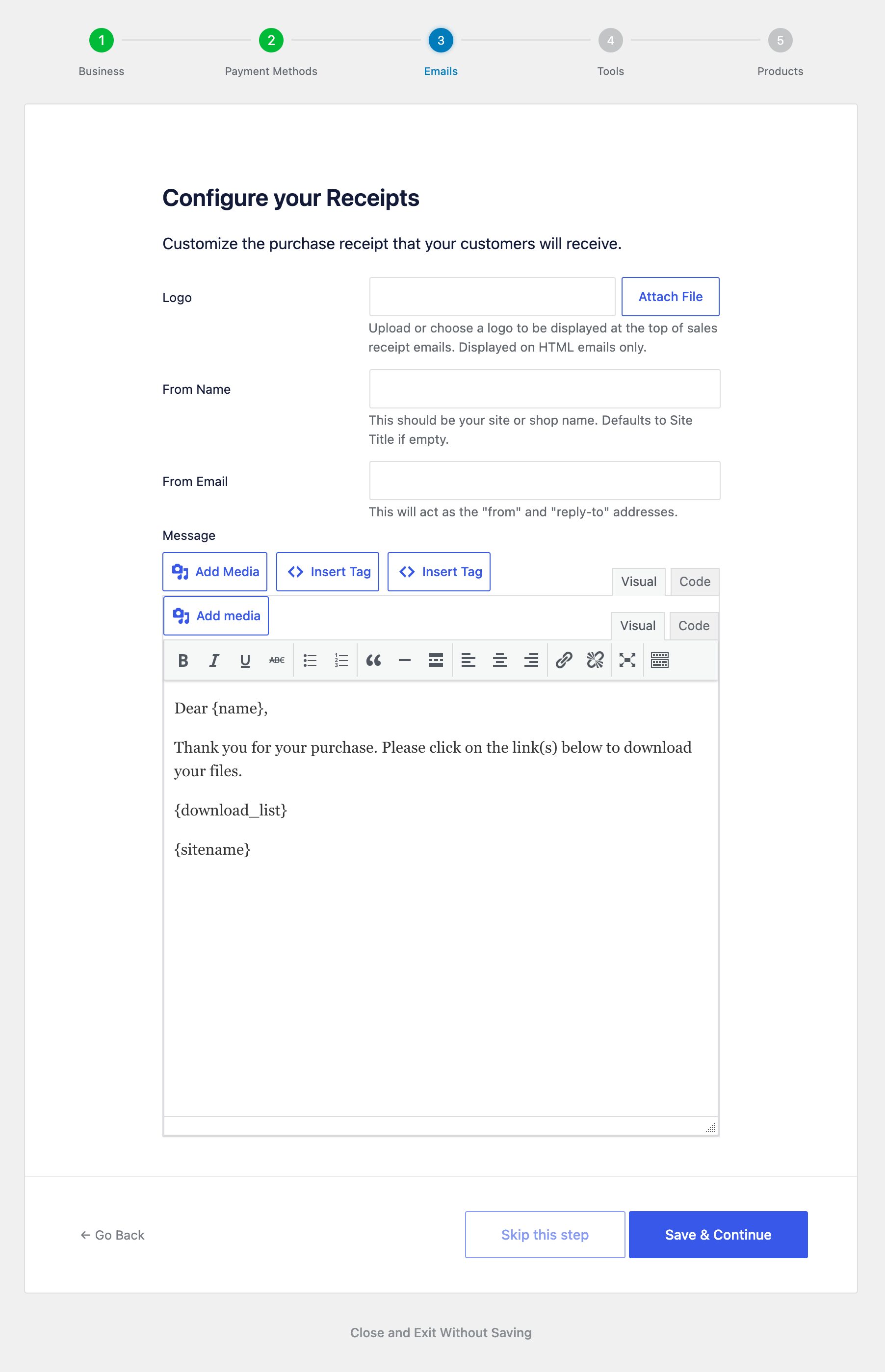
This step sets up the purchase receipt your customers receive after they buy.
- Logo: upload a logo to display at the top of receipt emails. This shows on HTML emails only.
- From Name: usually your store or site name. Defaults to your site title if left blank.
- From Email: the address your emails are sent from, and where customer replies go.
- Message: customize the receipt text. Use the Insert Tag buttons to add dynamic content like
{name}and{download_list}, which automatically fill in each customer’s details and download links.
Click Save & Continue to save your receipt.
Step 4: Tools
EDD recommends a handful of free tools to help your store run smoothly and grow. Each one is optional, so uncheck any you don’t want before continuing.
- Essential eCommerce Features: the core features for selling digital products with WordPress.
- Reliable Email Delivery: installs WP Mail SMTP, which helps your receipts and notifications reliably reach inboxes.
- Analytics Tools: installs MonsterInsights to show visitor data right in your dashboard.
- SEO Tools: installs All in One SEO to help optimize your store’s traffic.
- Conversion Tools: installs OptinMonster to help turn visitors into subscribers and customers.
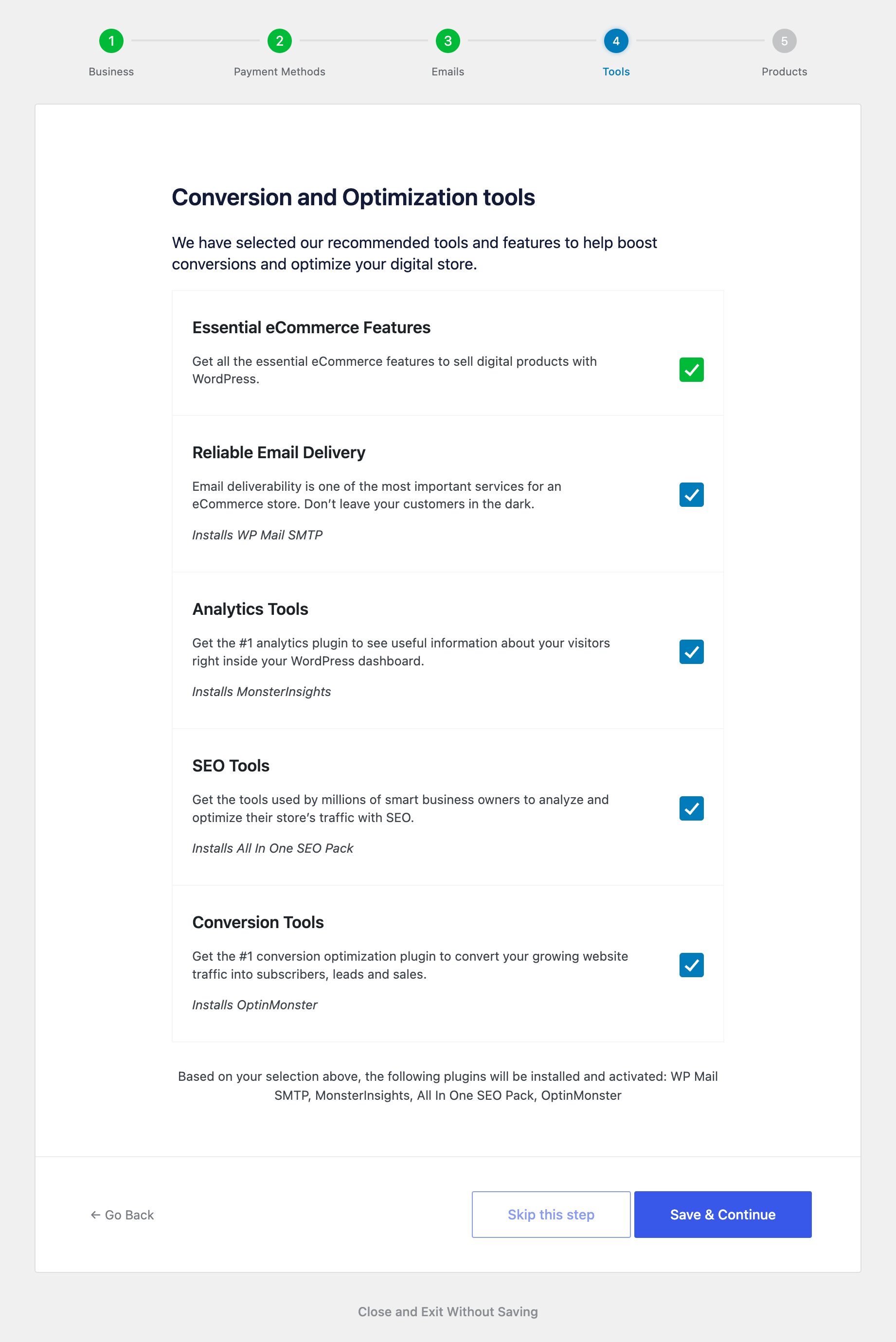
Whatever you leave checked will be installed and activated when you continue.
Step 5: Products
Finally, create your first product right inside the wizard.
- Product Name: what you’re selling.
- Product Image: click Set Image to add a featured image.
- Pricing Options: choose Single price for one fixed price, or Variable price to offer multiple options.
- Product Price: what the product costs.
- Add your first file: toggle this on to upload the file your customers will download after purchase.
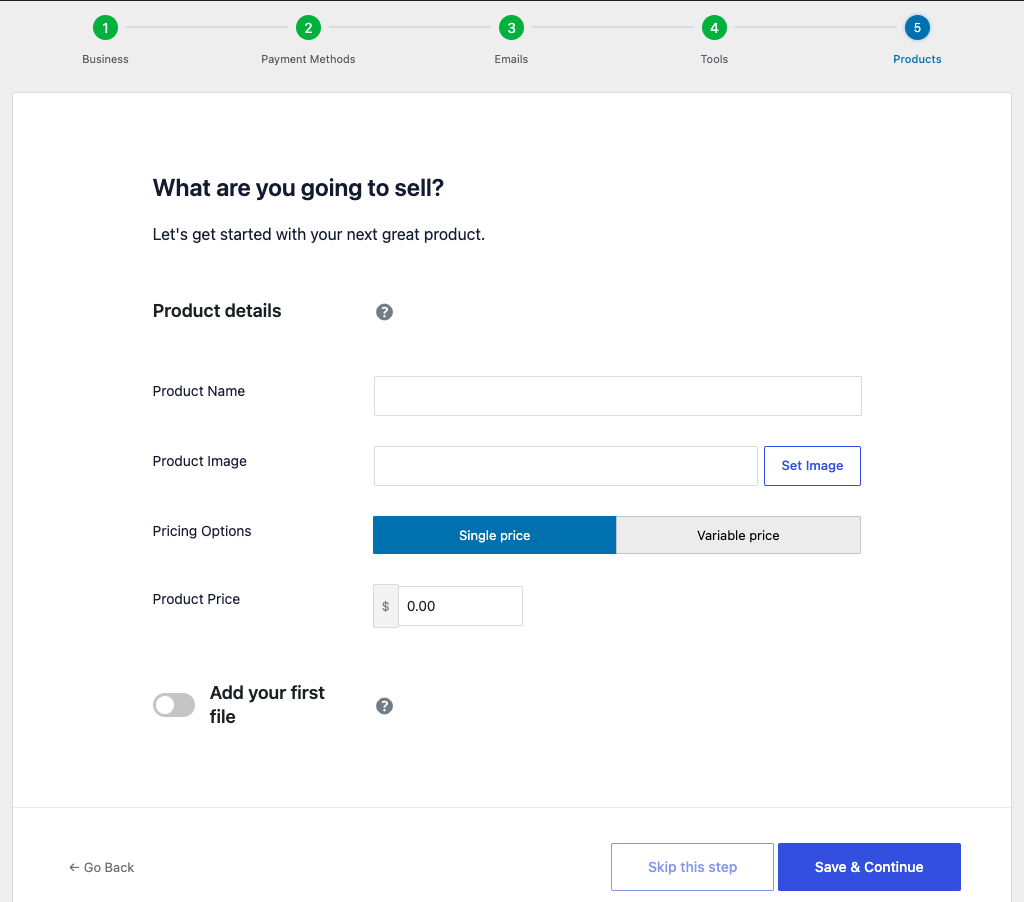
Click Save & Continue to create your first download. You can refine it anytime from the Downloads screen.
What Happens After the Setup Wizard
Once you finish, your store’s foundation is in place. From here, you can create more products, fine-tune your payment settings, and customize how your store looks.
EDD created your essential pages, like your checkout and purchase confirmation pages, automatically when you installed it. To learn what each one does, see Your Store Pages.
Before you open for business, it’s worth running a test order.
You can also head back to the Getting Started guide to see the full path from install to first sale.
FAQs on Easy Digital Downloads’ Setup Wizard
Here are answers to common questions about the Easy Digital Downloads Setup Wizard.
How do I restart the EDD Setup Wizard?
Go to Downloads » Tools and select Restart the Setup Wizard. This is helpful if you exited early and the Setup menu is no longer showing.
Do I have to complete every step?
No. You can select Skip this step on any screen and come back to it later. Every setting in the wizard can also be configured from Downloads » Settings at any time.
Does the Setup Wizard create my store pages?
No. EDD creates your store pages (like checkout and purchase confirmation) automatically when you install the plugin. You can view and change them anytime under Downloads » Settings » Pages.
Can I change these settings after finishing the wizard?
Yes. Everything you set in the wizard lives in your store settings afterward, so you can update your business info, payments, emails, and products whenever you need to.
Do I need a paid license to use the Setup Wizard?
No. The Setup Wizard works on both the free version and EDD Pro. A paid license removes the additional Stripe processing fee and unlocks Pro features.



