You can cancel your Easy Digital Downloads subscription at any time to stop your pass from renewing automatically. Canceling doesn’t remove the time you’ve already paid for.
This guide shows you how to cancel from your account, what happens after you cancel, and how to restart your pass later.
Before you get started, make sure you can log in to your Easy Digital Downloads account.
Canceling Automatic Renewal From Your Billing Tab
To get started, we’ll find your subscription in your account. Every pass purchase creates a subscription. That subscription is what renews your license key each year.
First, log in to your Easy Digital Downloads account. Then, open the Billing tab.
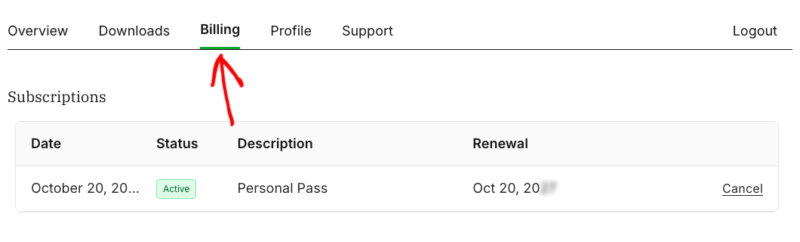
The Subscriptions table lists each subscription with its date, status, description, and renewal date. In that table, find the active pass you want to stop renewing. Next, click Cancel at the end of that row.
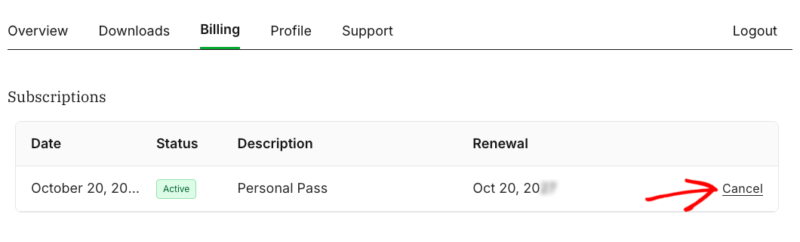
This opens a short cancellation page with a few screens. We’ll ask a couple of questions before your cancellation goes through.
Ask for Help or Continue
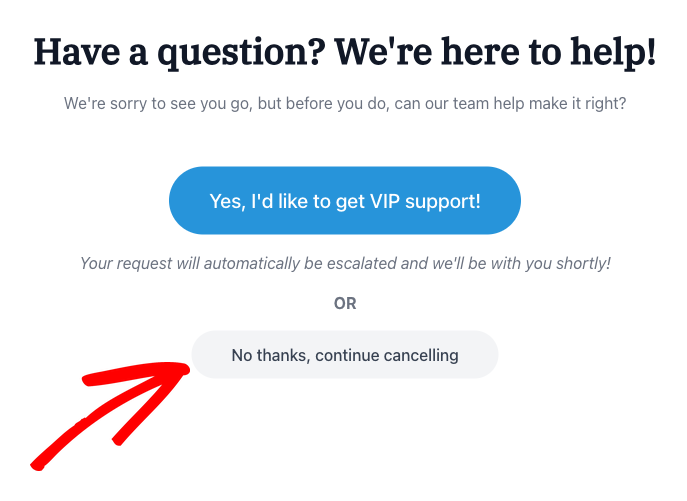
The first screen asks if our team can help make things right before you go. If you’d rather get help, click Yes, I’d like to get VIP support! Your request is escalated to our support team.
To keep canceling, click No thanks, continue cancelling.
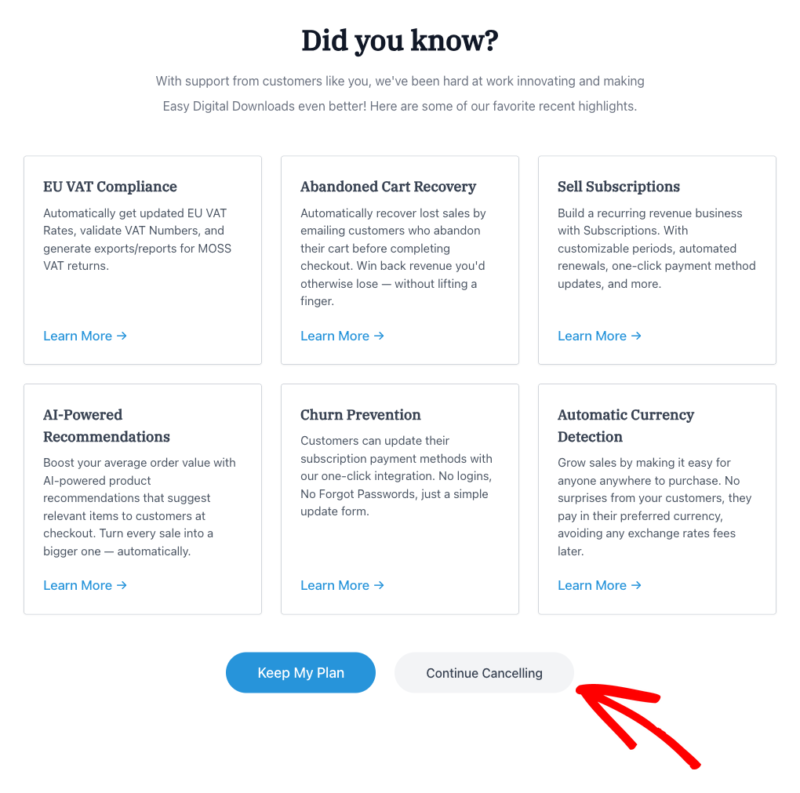
Next, you’ll see some of our recent highlights, such as EU VAT Compliance and Abandoned Cart Recovery. Each screen from here on has a Keep My Plan button if you’d rather keep your subscription. To move on, click Continue Cancelling.
After that, we’ll ask for some quick feedback.
Tell Us Why You’re Canceling
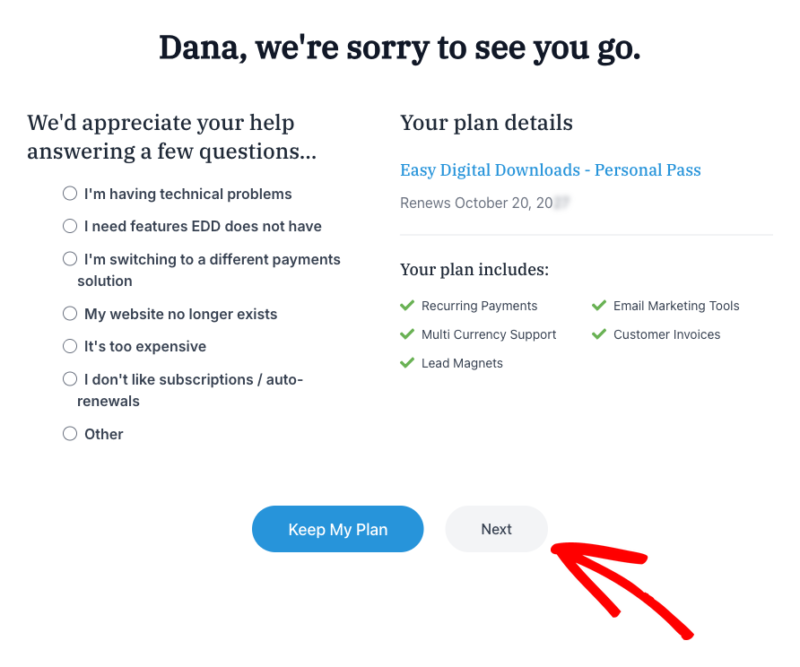
The next screen asks why you want to cancel. From the list, choose the reason that fits best, such as “It’s too expensive” or “My website no longer exists.”
Your plan details show on the right. That includes your pass, its renewal date, and the features it includes. When you’re ready, click Next.
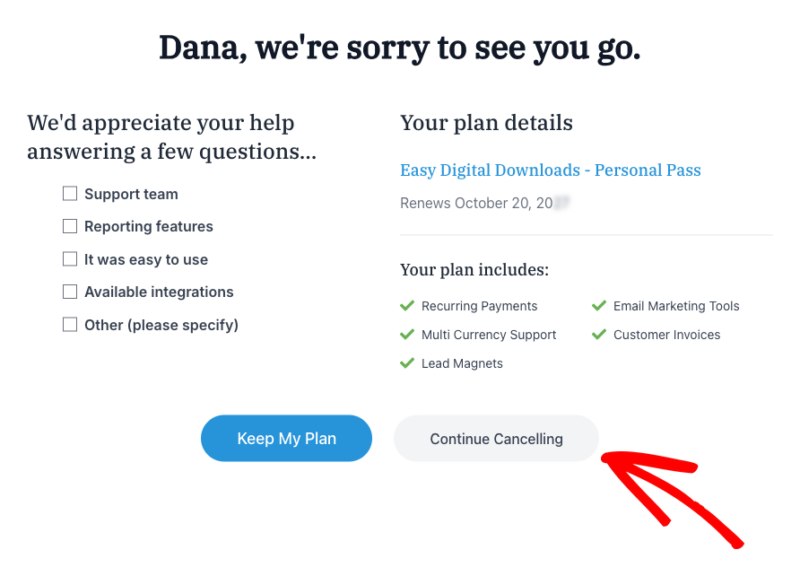
After that, we’ll ask what you like about Easy Digital Downloads. From there, check any options that apply, such as Support team or Easy to use. Then, click Continue Cancelling.
Now you’re ready to confirm your cancellation.
Confirm Your Cancellation
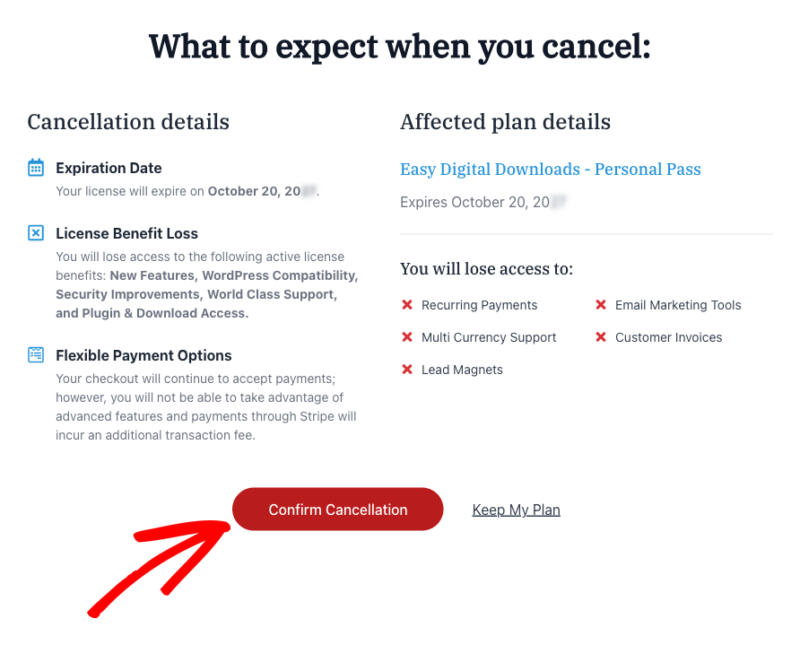
The last screen shows what to expect when you cancel. It lists the date your license expires and the license benefits that end on that date.
Those benefits are new features, WordPress compatibility, security improvements, support, and plugin and download access. The screen also notes that your checkout keeps accepting payments, but advanced features turn off. Payments through Stripe also come with an additional transaction fee.
To finish, click Confirm Cancellation.
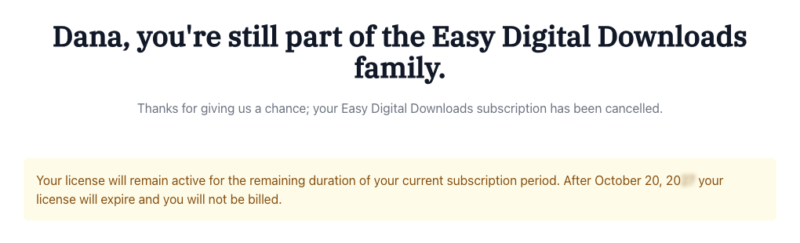
A confirmation page lets you know your subscription has been cancelled. It also shows the date your license expires. You won’t be billed after that date.
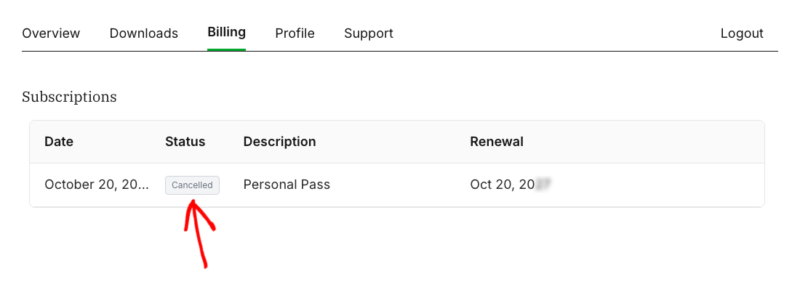
Back on your Billing tab, the status for that subscription now reads Cancelled. The renewal date stays in the table, but your card won’t be charged on that date.
Note: If you can’t find the cancel option on your Billing tab, open the Support tab of your account. Our support team can cancel the subscription for you.
Now that your subscription is canceled, here’s what that means for your license.
What Happens After You Cancel?
Canceling only stops the automatic renewal. Your license stays active for the rest of your current subscription period.
Until then, you keep your plugin updates, support, and downloads from your account. Your store keeps working the same way it does today.
Because your pass won’t renew on its own anymore, we’ll remind you before your license runs out. We send license reminders 30 days, 7 days, and 48 hours before your license expires.
You’ll also get a subscription expiration notice about a month before. Each reminder includes a link to renew if you change your mind.
Note: An active subscription keeps your renewal pricing. If you cancel and renew later, your renewal isn’t guaranteed to be at the same price.
When your license expires, updates and support stop. Pro features that need a valid license key also turn off.
Easy Digital Downloads keeps running, and your checkout still accepts payments. Your products and orders stay in place. Payments through Stripe include an additional transaction fee.
For the full list of changes, see our guide to license renewal.
Restarting Your Pass Later
You can restart your pass at any time by renewing your license. You don’t need to buy a new pass. Your license key stays the same.
If you change your mind before your license expires, contact our support team from the Support tab. We’ll help you turn automatic renewal back on.
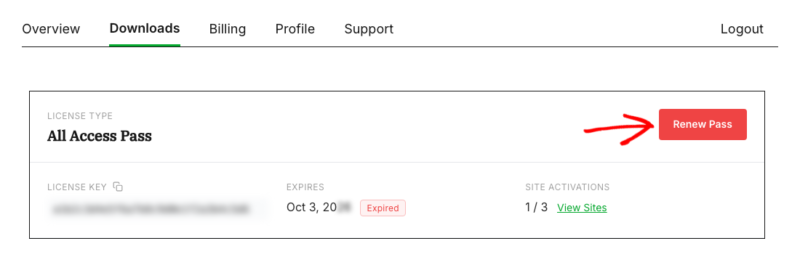
Once your license has expired, log in to your account and open the Downloads tab. Then, click Renew Pass on your license card.
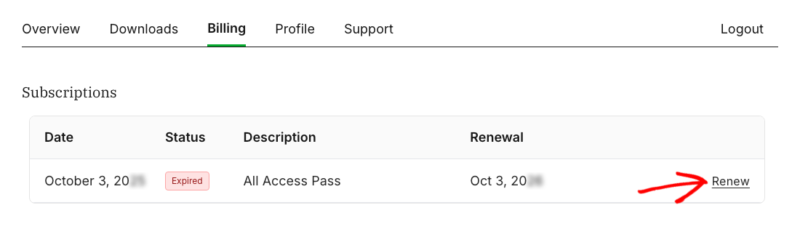
The Billing tab gives you a second way in. In the Subscriptions table, click the Renew link next to your expired pass.
Both options take you to checkout with your pass and license key already in the cart. Because your license has expired, your new year starts on the day you renew.
After you renew, check the Subscriptions table on your Billing tab. That’s where you can see your pass’s status and its next renewal date.
For a full walkthrough of checkout, see Renewing Your License Key.
That’s it! Now you know how to cancel automatic renewal for your pass, what happens next, and how to restart your pass later.
Next, you may want to read our guide on upgrading your pass if you’d rather move to a different pass level than cancel.
FAQ
Below, we’ve answered some of the most common questions about canceling your subscription.
When do I need to cancel to avoid my next renewal charge?
Your subscription renews automatically unless you cancel before the current period ends. To avoid the next charge, cancel before the date in the Renewal column of your Subscriptions table. While your subscription is active, we also email you 2 days before the renewal charge.
Do I get a refund when I cancel?
Canceling stops future renewals. It doesn’t refund what you’ve already paid. If you bought a new pass in the last 14 days, you can ask for a refund under our money-back guarantee instead. Renewals and upgrades aren’t refundable. Refunds on automatic renewals are subject to our Terms and Conditions. For refund steps, see our Refund Requests guide.
If I get a refund, do I also need to cancel?
No. When a refund is approved, your license key is disabled and your subscription’s automatic renewal is turned off for you.
Does my store keep running after my license expires?
Yes. Easy Digital Downloads keeps running on your site, and your checkout keeps accepting payments. Your products and orders stay in place. Updates and support stop, and Pro features that need a valid license key turn off until you renew.
Can I get help with a problem instead of canceling?
Yes. On the first cancellation screen, click Yes, I’d like to get VIP support! Your request is escalated to our support team. You can also reach us anytime from the Support tab of your account.
Can I switch to a different pass instead of canceling?
Yes, you can move up to a higher pass at any time. For upgrade steps, see Upgrading Your Pass.