

Software Licensing lets you sell license keys with your software. Each key controls how many sites it can be activated on, how long it stays valid, and whether your customer gets automatic updates. This guide walks through every Software Licensing setting in Easy Digital Downloads from turning on licenses for a product to managing the keys you’ve sold.
Software Licensing is built for WordPress plugin and theme authors. It also includes an API, so you can use it with most other kinds of software too.
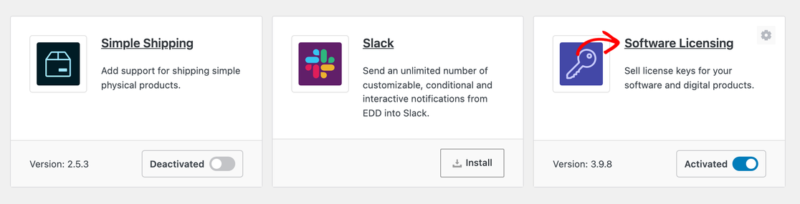
Software Licensing requires a Professional Pass license or higher. To turn it on, go to Downloads » Extensions, find the Software Licensing card, and click Install. EDD installs and activates the feature for you. See how to install an extension for more help.
- Choosing Your Software Licensing Settings
- Turning On Licenses for a Product
- Sending License Keys to Customers
- Offering License Upgrades
- Managing License Renewals
- Managing Sold License Keys
- Generating Licenses for Past Orders
- Viewing Reports and Exporting Licenses
- Adding Licensing to Your Software
- Software Licensing Setup FAQs
- Do local development sites use up a customer's activations?
- What's the difference between a deactivated site and a disabled license?
- How do I sell a license that works on unlimited sites?
- Why didn't my customer get their license key by email?
- What happens when my preset keys run out?
- Do licenses renew automatically with a subscription?
Choosing Your Software Licensing Settings
Store-wide Software Licensing settings live in one place. In your WordPress dashboard, go to Downloads » Settings.
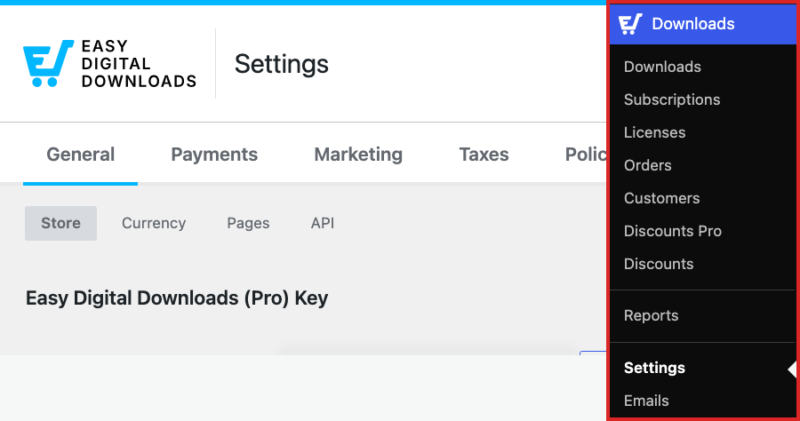
Click the Extensions tab, then click Software Licensing.
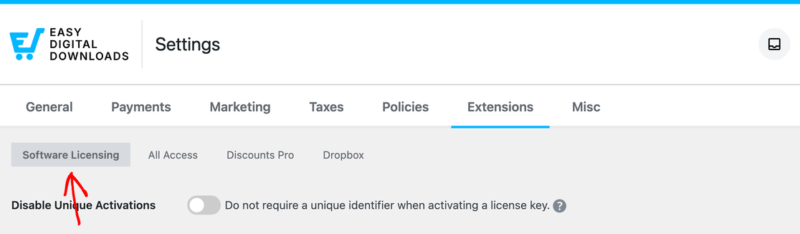
The settings on this screen fall into four groups. We’ll go through them in the order they appear.
Activation and Plugin Settings
Disable Unique Activations: Turn this on if you don’t need a unique identifier, like a site URL, when a key is activated. Every activation then counts against the limit, and deactivating doesn’t give the slot back. Leave it off so customers can deactivate one site and activate another without using up an extra activation. Turning it on also removes the Manage Sites option from your customers’ order history.
Ignore Local Host URLs?: Turn this on so local development sites and IP addresses don’t count toward a key’s activation limit. The URL is still logged. See how to ignore local host URLs for activation for details.
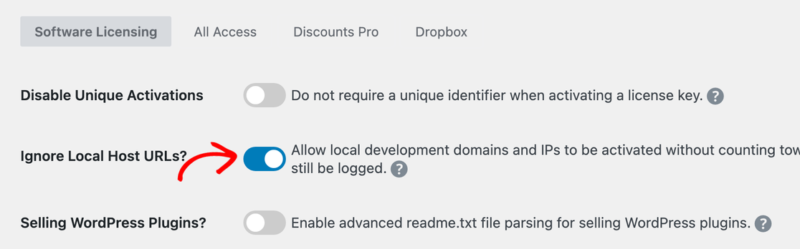
Selling WordPress Plugins?: Turn this on to have EDD read the readme.txt file inside your plugin’s zip. It adds a Readme Info section to each product’s Licensing Settings, so plugin details fill in from your readme. This is optional, even if you sell WordPress plugins.
Upgrade Settings
Display Inline Upgrade Links: Turn this on to show upgrade links under the Add to Cart button, in product lists and on product pages, for customers who have a license they can upgrade.
Proration Method: Choose how EDD prices a license upgrade.

Cost-Based Calculation charges the price difference between the two licenses. Time-Based Calculation also accounts for how much time is left on the current license. You’ll find examples of both in the upgrades section below.
Renewal Settings
Allow Renewals: Turn this on so customers can renew their license keys. They’ll get renewal reminder emails and can renew from their account page. If the product is also a subscription and the subscription is still active, the license renews automatically, even with this setting off.
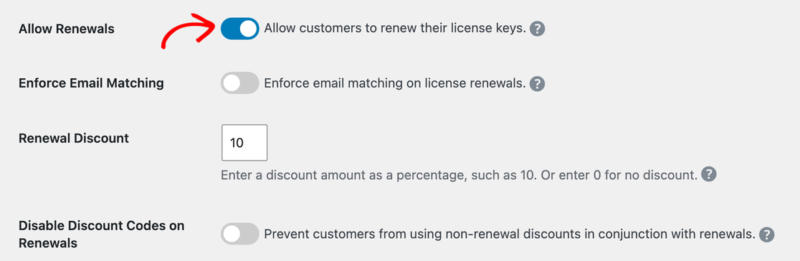
Enforce Email Matching: Turn this on so only the email address that bought a license can renew it.
Renewal Discount: Enter a percentage, like 10, to discount every renewal automatically at checkout. Enter 0 or leave it blank for no discount. You can override this for a single product, which we’ll cover below.
Disable Discount Codes on Renewals: Turn this on to stop customers from adding other discount codes when their cart has a renewal in it.
Checkout and Tracking Settings
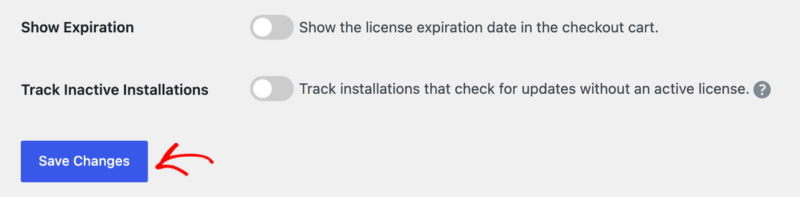
Show Expiration: Turn this on to show each license’s expiration date in the checkout cart.
Track Inactive Installations: Turn this on to see where your software is installed without an active license. When an installation without a valid license checks for updates, it’s added to your Activations list with an inactive status. This can help you spot incomplete activations or misuse.
When you’re done, click Save Changes.
Turning On Licenses for a Product
You turn on license keys product by product, so only the products you choose generate keys. Go to Downloads and click the product you want to license, or click Add Download to create a new one.
In the Download Details box, turn on the Create licenses for this product toggle.
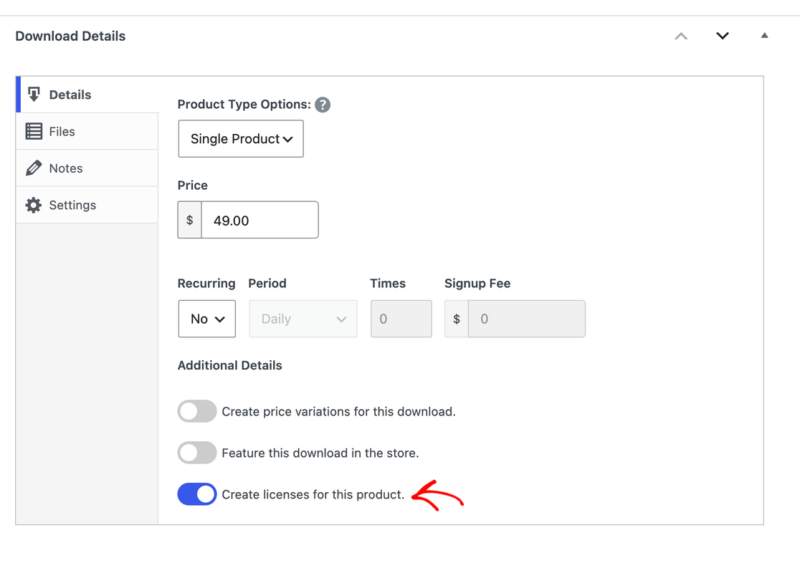
A new Licensing Settings box appears below it. Its options are split into sections: General, Versions, Betas, Requirements, Upgrades, and Preset Keys. Bundles have slightly different options. See product bundle licensing for those.
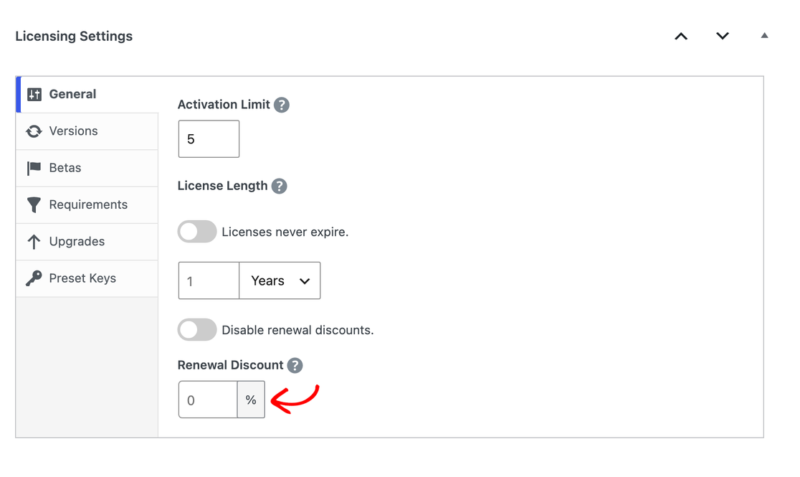
General
Activation Limit: The number of sites each key can be activated on. To limit a key to 10 sites, enter 10. For unlimited activations, leave it empty or enter 0.
License Length: How long each key stays valid. Enter a number and choose Days, Weeks, Months, or Years, or turn on Licenses never expire. Once a key expires, it can’t be activated again until it’s renewed.
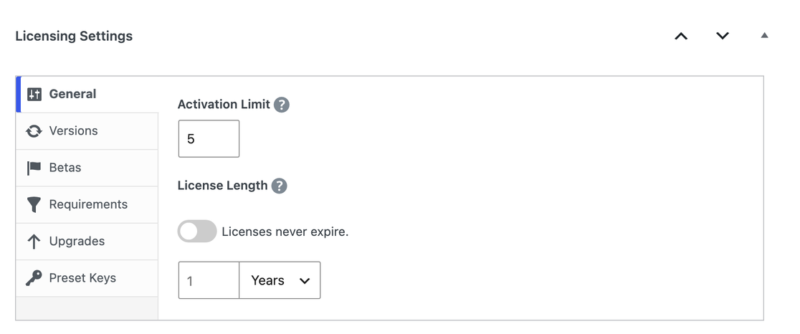
When Allow Renewals is on in your store settings, this section also shows Renewal Discount. Enter a percentage to give this product its own renewal discount instead of the store-wide one. Or turn on Disable renewal discounts. so this product never gets one.
Versions
The Versions section powers automatic updates for WordPress plugins and themes. Other software can use the same details through the Software Licensing API.
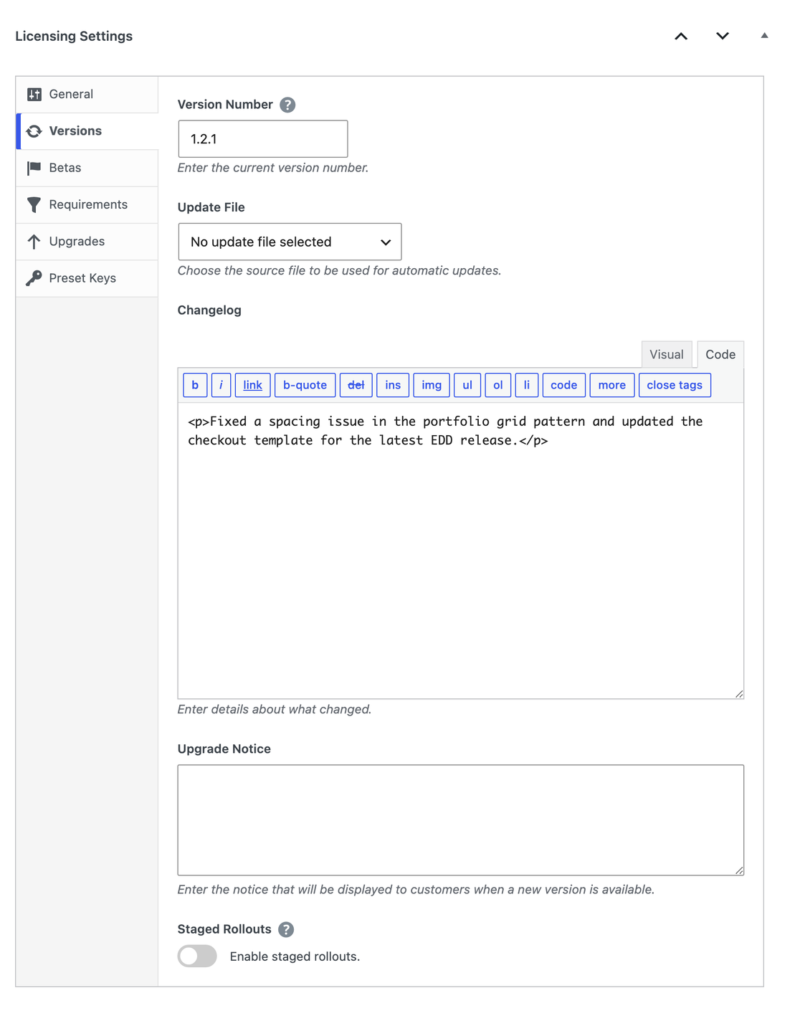
Version Number: The current version of your software, like 1.0.0. Use Semantic Versioning (SemVer) numbers.
Update File: The file customers get when they update. Choose it from the files you added on the product’s Files tab. For a WordPress plugin or theme, use a zip that holds only the plugin or theme files.
Changelog: Notes about what changed in each version. They show in the “What’s New” notice when customers update. See Software Licensing changelogs for formatting tips.
Upgrade Notice: A short message customers see when a new version is available.
Staged Rollouts: Release a new version to a percentage of sites, or only to sites on certain versions, before everyone gets it. See staged rollouts to set this up.
Betas and Requirements
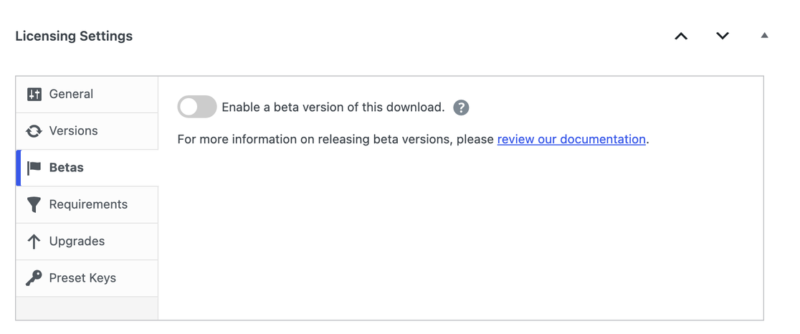
The Betas section lets you send beta versions to customers who opt in. See releasing beta versions for the full setup.
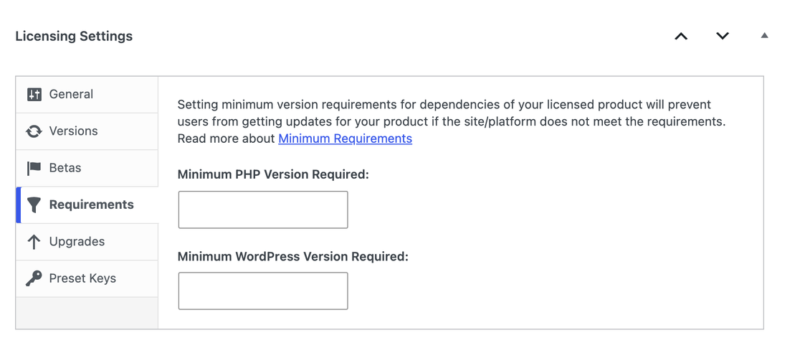
The Requirements section limits updates to sites that meet a minimum version, such as a minimum WordPress or PHP version. See minimum requirements for details.
Upgrades
The Upgrades section is where you set up upgrade paths, like moving from a 1-site license to a 5-site license. For each path, choose the Download customers can upgrade to. It can be this product or another licensed product. If that product has variable prices, pick the Price Option too.
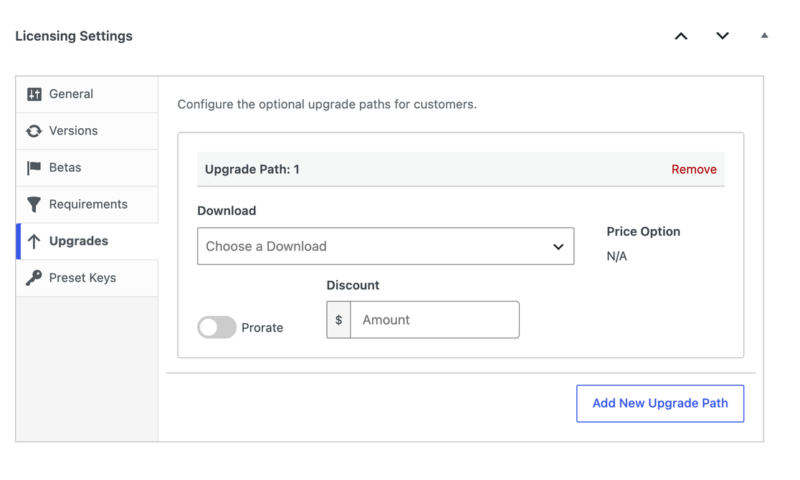
Then decide whether to Prorate the upgrade and whether to add an extra Discount. Click Add New Upgrade Path to add more.
Preset Keys
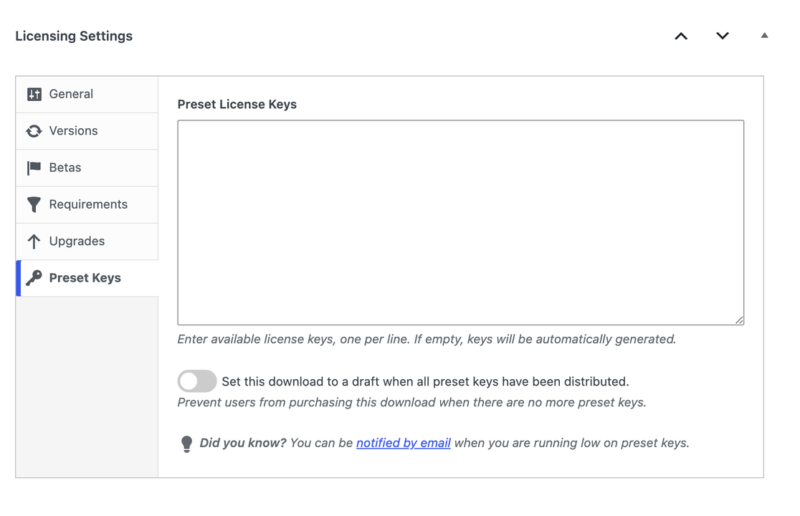
Want to sell keys you’ve already made? Enter them in Preset License Keys, one per line. Each sale takes the next key from the top of the list. When the list runs out, EDD goes back to generating its own keys.
To stop that from happening, turn on Prevent users from purchasing this download when there are no more preset keys. You can also turn on Set this download to a draft when all preset keys have been distributed.
EDD can email you when you’re running low. That’s the Preset License Keys Warning email, under Downloads » Emails.
When your product is set up, click Save.
Sending License Keys to Customers
Once a product has licensing turned on, the key shows on the purchase confirmation page automatically. Your purchase receipt email doesn’t include it by default, so add it there too.
Go to Downloads » Emails. Hover over Purchase Receipt and click Edit.
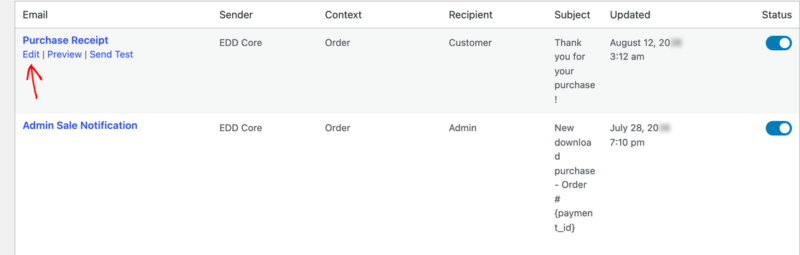
Click where you want the keys in the Message box, then click Insert Tag. Search for “license” and click License Keys to add the {license_keys} tag.
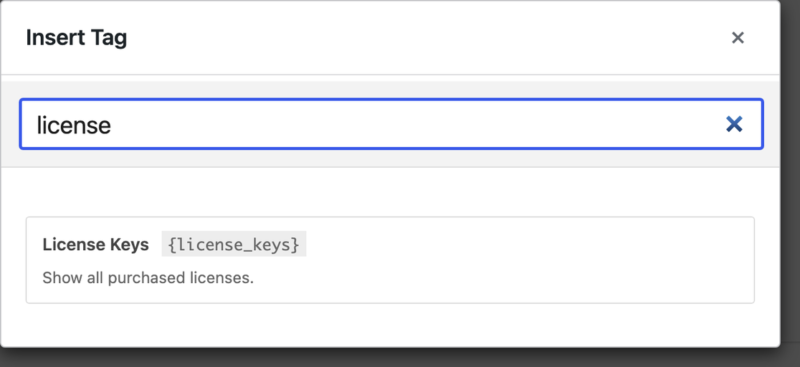
The tag lists every key from the order, with each product’s name.
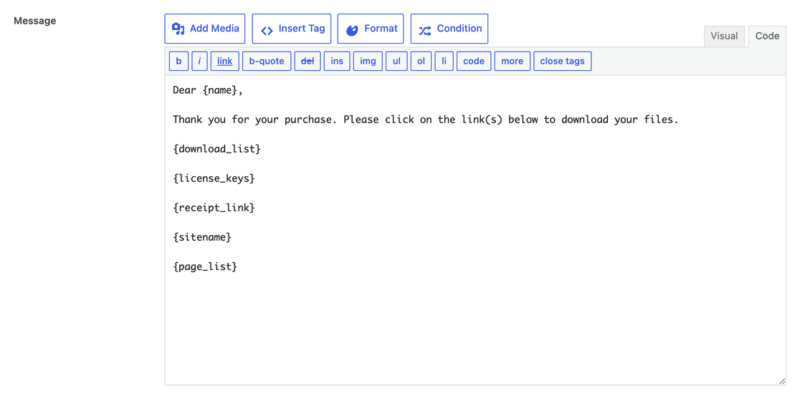
Click Save at the top of the screen.
Customers can also see all their keys on their account page. Add the [edd_license_keys] shortcode to that page. It shows each key with its expiration date, status, renewal and upgrade options, and a link to the order. Customers need to be logged in to see it. See the customer account page for setup help.
Offering License Upgrades
Upgrade paths let customers move to a bigger license and pay only the difference. You set the paths on each product’s Upgrades section, and the pricing method in your upgrade settings.
How Proration Works
Say a customer bought a 1-site license for $89 on October 1, 2025. On March 1, 2026, they upgrade to a 2 to 5 site license, which costs $129.
- Cost-Based Calculation: The customer pays the $40 difference.
- Time-Based Calculation: The difference is $40, and 6 months are left on the license, so the customer pays $20.
Either way, on October 1, 2026, the license renews at $129 and stays active until October 1, 2027.
Upgrading to a lifetime license works a little differently. Cost-Based Calculation takes the full price of the original license off the lifetime price. Time-Based Calculation takes off a prorated amount based on the time left.
What Customers See When They Upgrade
Customers need a user account to upgrade. They log in and go to the Order History page. Next to the order, they click View Licenses, then View Upgrades next to the key. That page lists each upgrade with its cost and expiration date. Clicking Upgrade License takes them to checkout.
An upgrade keeps the license’s original expiration date. The only exception is an upgrade to a different license length, which changes it.
To see what upgrades have earned you, go to Downloads » Reports » License Upgrades.
Managing License Renewals
Renewals need Allow Renewals turned on in your renewal settings. Customers can then renew from a reminder email, at checkout, or with a renewal form.
Renewal Reminder Emails
EDD can email customers automatically when a key is close to expiring. See license renewal and expiration reminder emails to set up when they go out.
You can also send a reminder yourself. On Downloads » Licenses, check the keys you want, choose Send Renewal Notice from the Bulk actions dropdown, and click Apply. This option only shows when renewals are allowed.
Renewing at Checkout
With renewals allowed, your checkout page shows a Renew An Existing License button.
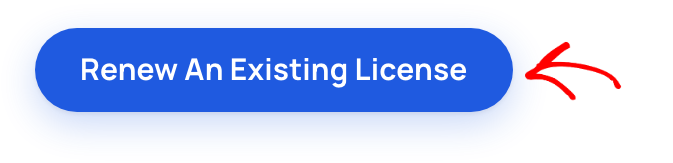
Customers click it, enter their key, and click Add Renewal to Cart.
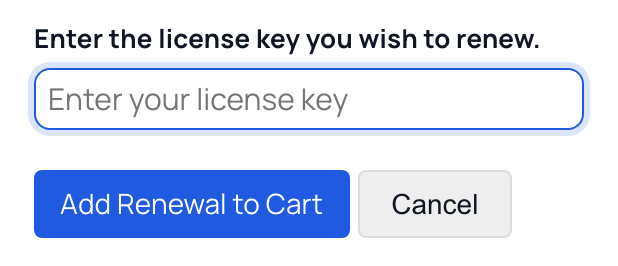
To put that same form on any page, add the [edd_renewal_form] shortcode. Submitting it adds the renewal to the customer’s cart.
Managing Sold License Keys
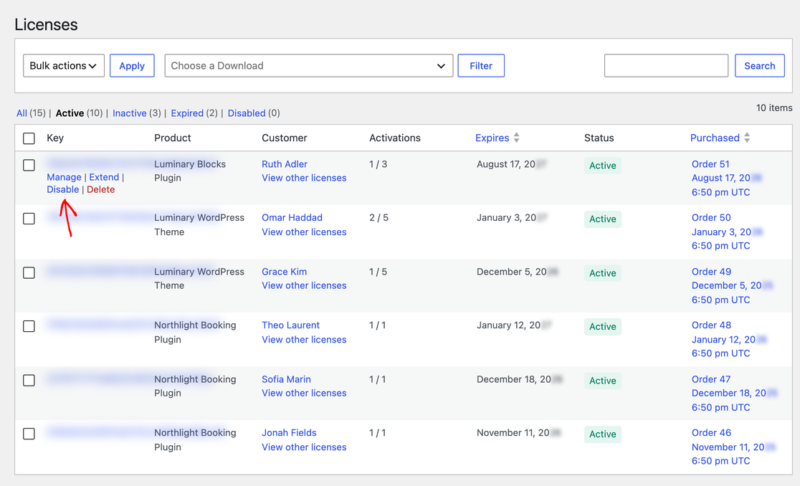
Every key you’ve sold is listed under Downloads » Licenses.
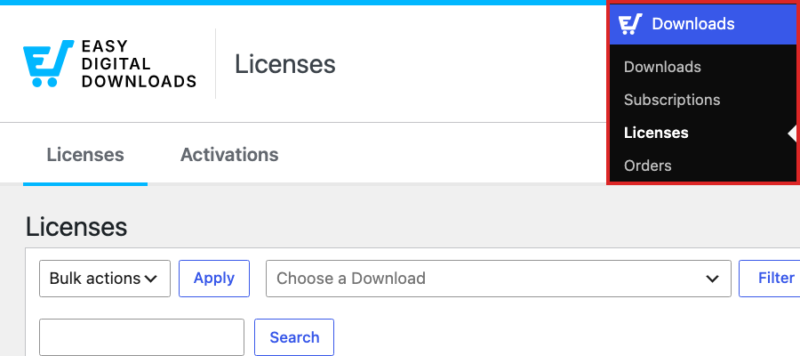
Each row shows the key, product, customer, activations used, expiration date, status, and order. Use the links above the table to filter by status, or choose a product and click Filter. You can also search for a key.
Hover over a key to see its actions: Manage, Extend, Disable, and Delete. Deleting a key can’t be undone. The Bulk actions dropdown lets you enable, disable, renew, or delete many keys at once.
License Statuses
- Inactive: The key hasn’t been activated on any site yet. Every new key starts here.
- Active: The key is activated on at least one site. A key only becomes active when a customer activates it. If every site is deactivated, it goes back to Inactive.
- Expired: The key’s expiration date has passed. It needs to be renewed before it can be activated again.
- Disabled: The key was turned off, either by you or because its order was refunded or revoked.
Deactivating a site is different from disabling a key. Deactivating only frees up one of the key’s activations, and the key itself stays valid. Disabling turns off the whole key.
Viewing a License’s Details
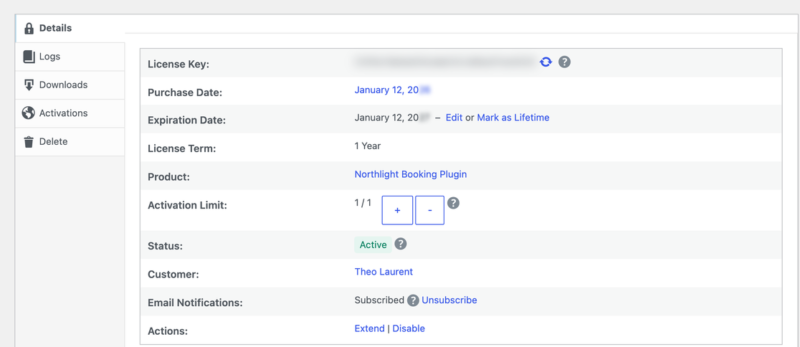
Click Manage on any key to open its details. The Details tab shows the key, its dates and length, product, activation limit, status, and customer. It also lists related orders, upgrade paths, and the key’s renewal and unsubscribe links.
From here, you can add or remove activations with the + and – buttons, change the expiration date, mark the license as lifetime, or extend or disable it. To give the customer a new key, click the refresh icon next to the key.
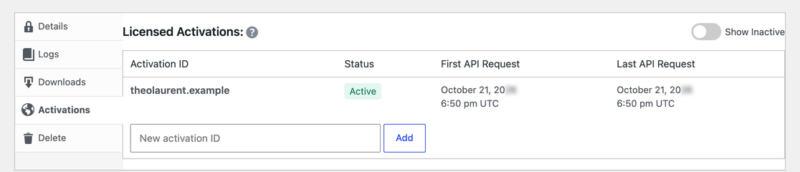
The Logs tab shows every activation request for the key. The Downloads tab lists file downloads made through the Software Licensing API, such as updates. The Activations tab lists every site the key is active on. You can add a site by hand or deactivate one. Customers can manage their own sites from their account page, too.
Generating Licenses for Past Orders
Did you sell a product before turning on licensing for it? You can create keys for those older orders. Go to Downloads » Tools. In the Software Licensing – Fix Missing Licenses box, choose a product or keep All Downloads, then click Process Licenses. When it’s done, you can download a CSV of the orders it processed.
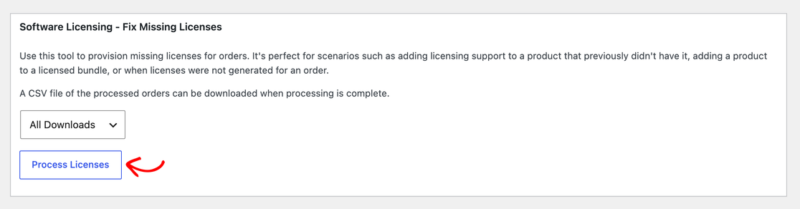
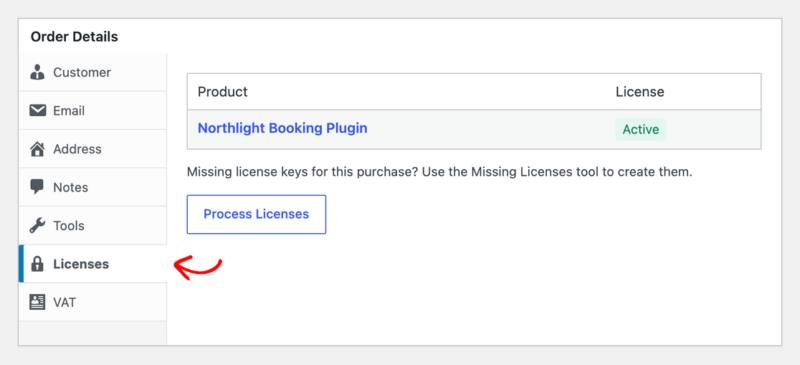
To fix a single order, open it under Downloads » Orders and click the Licenses tab. Click Process Licenses to create any missing keys for that order.
Viewing Reports and Exporting Licenses
Software Licensing adds three reports under Downloads » Reports:
- License Renewals: renewal sales over time.
- License Upgrades: upgrade sales over time.
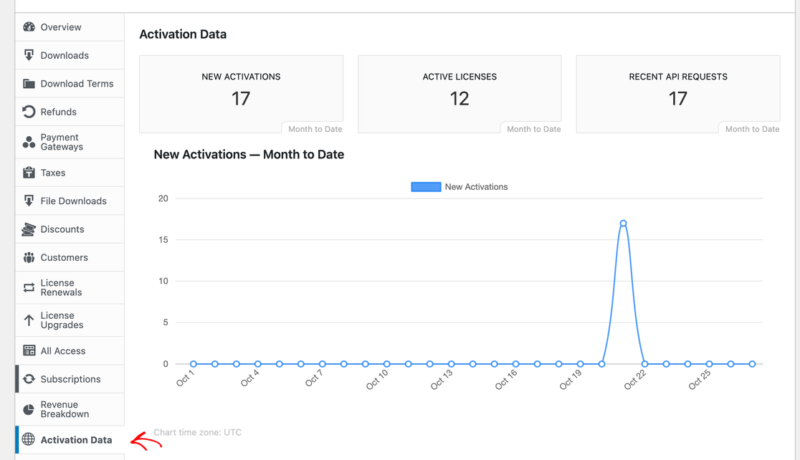
- Activation Data: new activations, active licenses, and recent API requests.
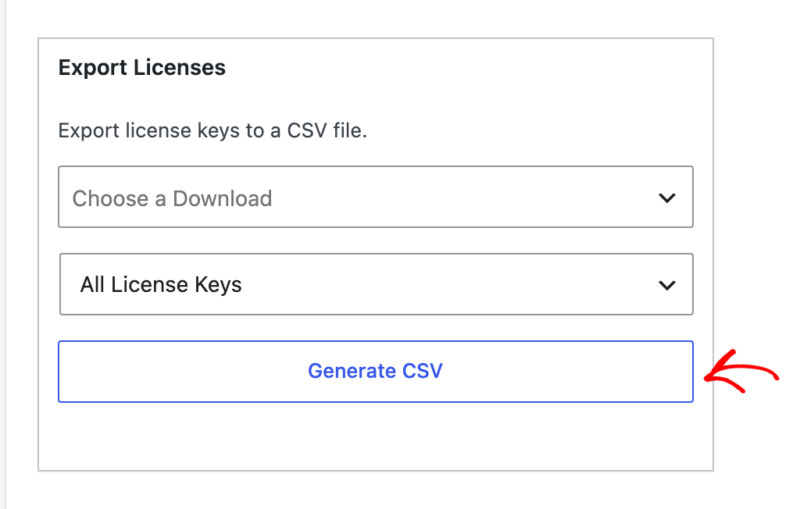
To export your keys, go to Downloads » Reports and click the Export tab. In the Export Licenses box, choose a product and a status, or keep the defaults to export everything. Then click Generate CSV. The file includes each key, its status, customer details, product, dates, and activations.
Adding Licensing to Your Software
Your software needs a little code to check keys and get updates. Follow the guide for what you sell:
- Adding automatic updates to WordPress plugins
- Adding automatic updates to WordPress themes
- The Software Licensing API, for other kinds of software. It can activate and check keys, look for new versions, and download the latest files.
Selling a WordPress plugin with a readme.txt file? See parsing readme.txt files in WordPress plugins.
Releasing a New Version
When you have an update ready, open the product and follow these steps:
- On the Files tab, upload the new file.
- In Licensing Settings » Versions, enter the new Version Number.
- Add notes about the changes in Changelog.
- Make sure Update File points to the new file.
- Click Save.
Your customers’ sites will then see the new version, and they can click Update.
That’s it! You now know how to set up Software Licensing, license your products, and manage the keys you sell. Next, set up renewal reminder emails so customers renew before their keys expire.
Software Licensing Setup FAQs
These are the questions we hear most about Software Licensing. If yours isn’t here, reach out to our support team.
Do local development sites use up a customer’s activations?
Not if you turn on Ignore Local Host URLs? under Downloads » Settings » Extensions » Software Licensing. Local domains and IP addresses can then activate a key without counting toward its limit.
What’s the difference between a deactivated site and a disabled license?
Deactivating a site frees up one activation on the key, and the key keeps working. Disabling a license turns off the whole key. A license is also disabled when its order is refunded or revoked.
How do I sell a license that works on unlimited sites?
In the product’s Licensing Settings » General section, leave Activation Limit empty or enter 0.
Why didn’t my customer get their license key by email?
The default purchase receipt doesn’t include license keys. Add the {license_keys} tag to your Purchase Receipt email under Downloads » Emails. The key still shows on the purchase confirmation page either way.
What happens when my preset keys run out?
EDD starts generating its own keys again. To stop sales instead, turn on Prevent users from purchasing this download when there are no more preset keys. in the product’s Preset Keys section.
Do licenses renew automatically with a subscription?
Yes. If the product is also a subscription and the subscription is active, the license renews with each payment, even when Allow Renewals is off.