


Stock photo platforms can take anywhere from 15% to 85% of every sale you make. That means if you sell a $50 photo, you might keep as little as $7.50.
There’s a better way. When you sell photos online with WordPress, you own your store, you set your own prices, and you keep the revenue your work actually earns.
In this guide, you’ll learn how to set up a WordPress photo store using Easy Digital Downloads (EDD). We’ll cover everything from installation and product setup to pricing, photo bundles, and promoting your store once it’s live.
- Key Takeaways
- Where Should You Sell Photos Online?
- What You'll Need to Get Started
- How to Sell Photos Online With WordPress
- How to Price Your Photos for Sale Online
- How to Sell Photo Bundles and Collections
- Tips for Promoting Your WordPress Photo Store
- FAQs About Selling Photos Online With WordPress
- How much money can you make selling photos online?
- How should I price photos for online sale?
- What photo file formats should I offer for download?
- Do I need a model or property release to sell photos online?
- How do I protect my photos from being downloaded without paying?
- Can I sell photo subscriptions or memberships with WordPress?
- Start Selling Your Photos Online Today
Key Takeaways
| Keep your revenue | Selling on your own WordPress site means no listing fees, no commission cuts, and no middleman between you and your buyers. |
| Built for digital products | Easy Digital Downloads is purpose-built for selling digital files, not a physical-goods plugin with digital selling bolted on. |
| Price on your terms | Variable pricing lets you sell the same photo at different resolutions or license tiers, all from a single product page. |
| Automatic delivery | EDD delivers secure, time-limited download links to buyers instantly after purchase. No manual work. |
| Grow your business | Add subscription billing for photo libraries, cloud storage for large files, and content restriction as your store grows. |
Where Should You Sell Photos Online?
You have two main options, and they’re not really comparable once you run the numbers.
Stock Photo Marketplaces
Sites like Shutterstock, iStock, and Adobe Stock give you visibility, but at a steep cost. Royalty rates typically range from 15% to 40%. Payouts are delayed. You have no control over pricing, branding, or your relationship with buyers. And if the platform changes its terms, your income changes with it.
Your Own WordPress Store: Why EDD Is the Right Plugin for It
Selling on your own WordPress site flips all of that. But the plugin you choose matters. The default assumption for most WordPress users is WooCommerce. And WooCommerce is a capable platform, but it’s built around physical products. Selling digital files with WooCommerce means adding plugins to handle what should already be there: secure file delivery, download limits, and a checkout flow designed for instant digital access rather than shipping and inventory.
Easy Digital Downloads is built exclusively for digital products. Everything in the plugin is designed for exactly what photographers selling online actually need: the product setup, the checkout, the delivery system, and the pricing options. There’s no physical product overhead, no shipping fields cluttering your checkout, and no workarounds needed for file delivery.
You also keep more of what you earn. There are no marketplace commissions. And with the Extended Pass or higher, EDD doesn’t charge additional platform fees on top of your gateway’s standard processing fee. Neither WooCommerce nor stock platforms offer the same.
🔎 Explore EDD’s features for selling digital art and photos.
What You’ll Need to Get Started
Before setting up your photo store, here’s what you need in place:
- A domain name and WordPress hosting. Your domain is your store’s address on the web. For hosting, Levamo (previously Rapyd Cloud) is the recommended host for EDD stores. If you don’t have WordPress installed yet, WPBeginner’s step-by-step guide to creating a WordPress website walks you through the full process. Come back here once WordPress is live.
- Easy Digital Downloads. The free plugin handles basic photo selling. For cloud storage for large RAW and TIFF files and content restriction, the Extended Pass has everything you need. Easy Digital Downloads Pro also adds subscription billing if you want to sell a monthly photo club.
- A gallery plugin (optional but recommended). EDD creates individual product pages for each photo you sell. If you want buyers to browse your full portfolio before they reach a product page, a gallery plugin like Envira Gallery handles the display side beautifully.
Our creating a photography website guide covers gallery setup in detail.
How to Sell Photos Online With WordPress
Here’s how to get your photo store set up from scratch.
Step 1: Install Easy Digital Downloads
Easy Digital Downloads is available as a free plugin in the WordPress plugin directory. For the full feature set covered in this guide, you’ll want the Extended Pass.
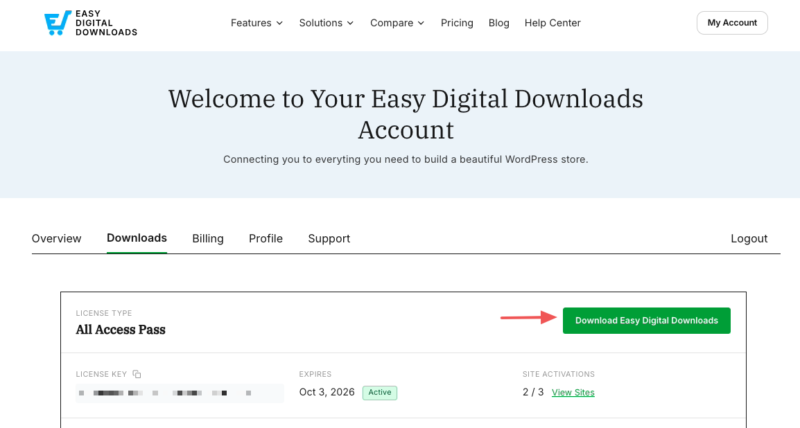
Purchase your plan and create your EDD account. Then go to your EDD account dashboard and click the Downloads tab. Download the Easy Digital Downloads .zip file to your computer.
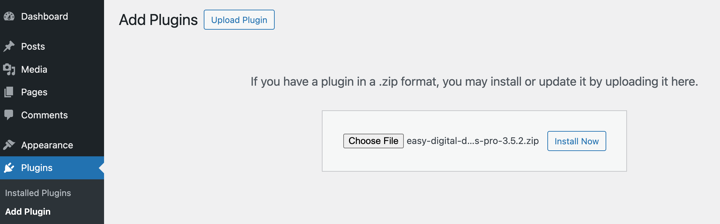
In your WordPress dashboard, go to Plugins » Add Plugin and click Upload Plugin. Select the .zip file you downloaded, then click Install Now and Activate.
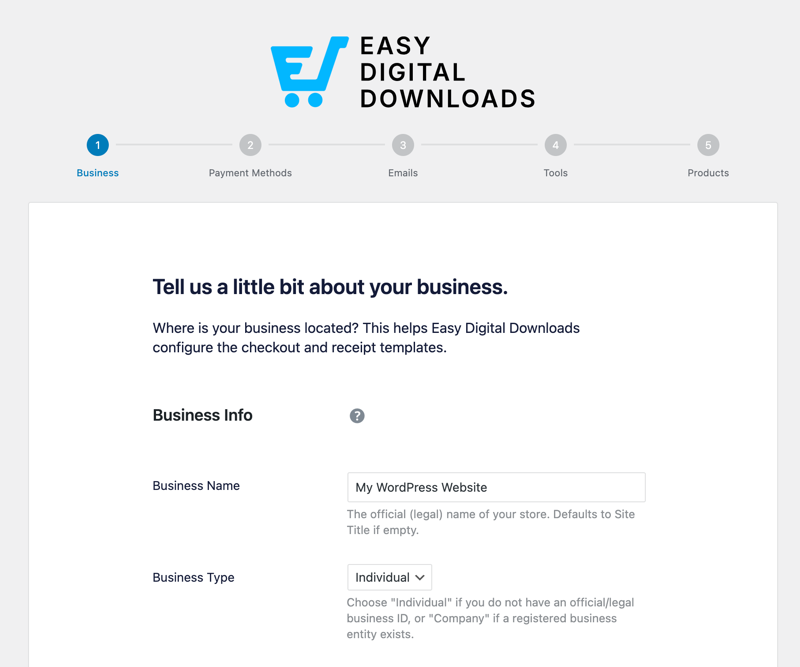
Once activated, enter your license key when prompted. Easy Digital Downloads will launch the Setup Wizard to walk you through your initial store configuration, including connecting a payment gateway, which you’ll verify in Step 3.
Step 2: Add Your Photos for Sale
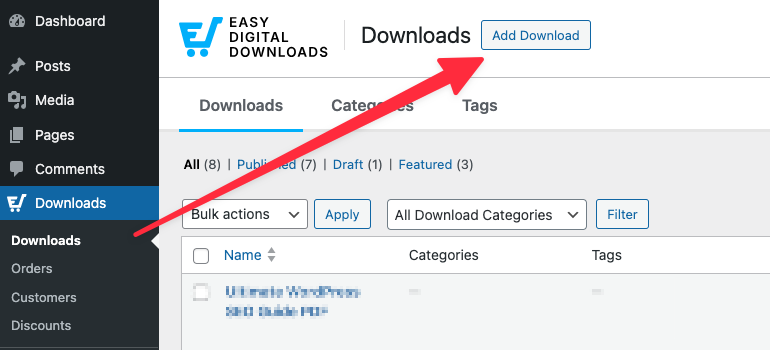
Go to Downloads » Add Download.
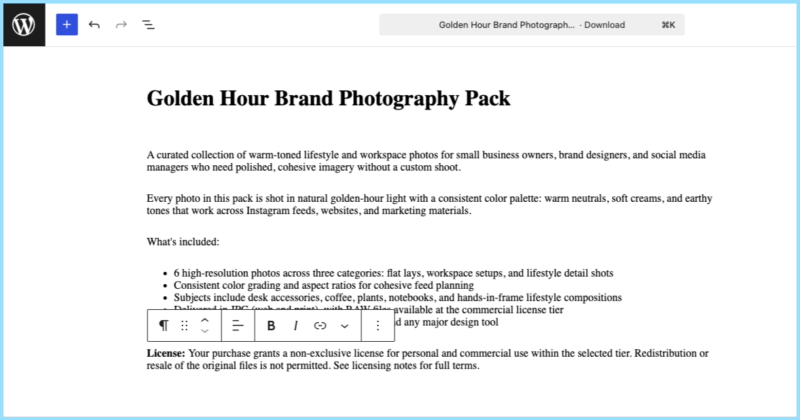
Give your photo a descriptive title. Think about what a buyer would search for, not just the filename.
Then write an engaging product description. Describe the photo: subject, mood, setting, resolution, and intended use. The more specific you are, the more confident buyers feel before purchasing.
From here, work through the key sections within the Download Downloads box beneath the editor.
Pricing. If you’re selling a single product, you can simply enter the price you want to sell it for into the field.
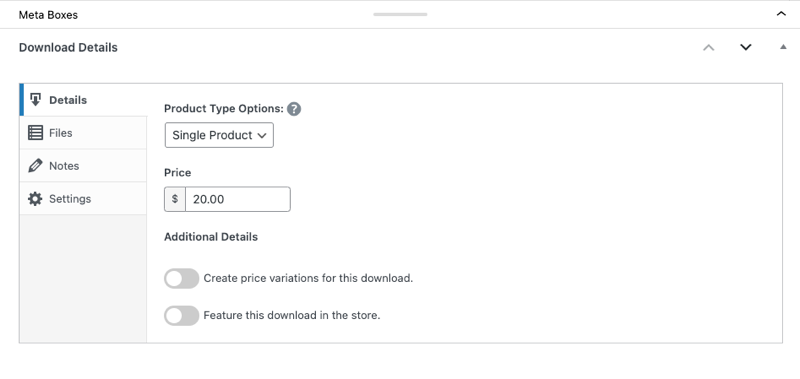
Alternatively, EDD’s variable pricing lets you offer multiple tiers on a single product page at no extra cost. For example: a web-resolution JPG at one price, a print-ready file at a higher price, and a RAW file with a commercial license at a premium. Buyers choose the option that fits their needs; you maximize revenue from each photo in your library.
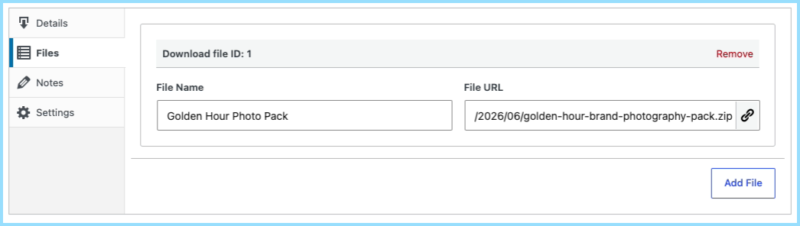
Files. Upload the full-resolution file(s) here, clean and watermark-free. This is what the buyer receives after purchase. You can also set download limits (under the Settings tab) to control how many times a purchased file can be accessed.
Notes. Use this field for licensing information. Spell out clearly what the buyer can and can’t do with the photo after purchase: commercial use, editorial only, number of permitted uses. This protects you and sets accurate expectations.
To the right, select Set Download Image to upload your feature image. For instance, you might choose a watermarked version of the photo. This is the preview buyers see on your store. Show the image clearly while protecting the full-resolution file.


Click Save draft (or Publish) when you’re ready. Easy Digital Downloads creates the product page automatically.
Step 3: Set Up a Payment Method
If you connected a payment gateway during the Setup Wizard, you can verify or update your settings at Downloads » Settings » Payments. If you skipped it during setup, this is where to connect one now.
Stripe is the recommended option. It supports credit and debit cards, Apple Pay, and Google Pay. EDD’s Stripe integration also includes the Payments Element, a modern checkout UI that adapts to your customers’ preferred payment methods, and Link, which lets returning Stripe customers check out faster with saved payment details.
To connect Stripe, head to the Stripe tab and select Connect With Stripe.
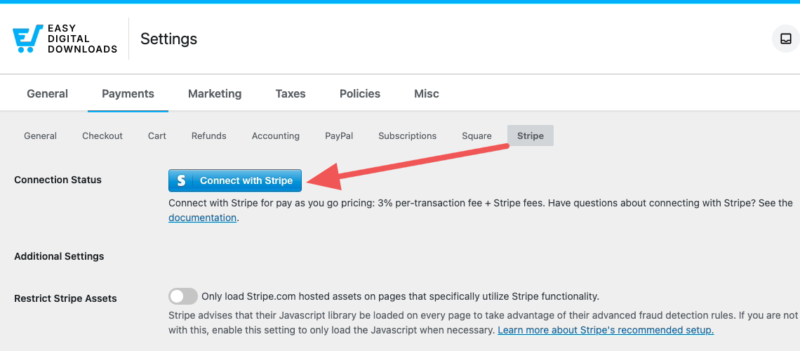
The connection options appear once it’s selected. Follow the prompts to link your Stripe account, then click Save Changes.
Go back to the Payments » General tab, and enable Stripe as an Active Gateway.
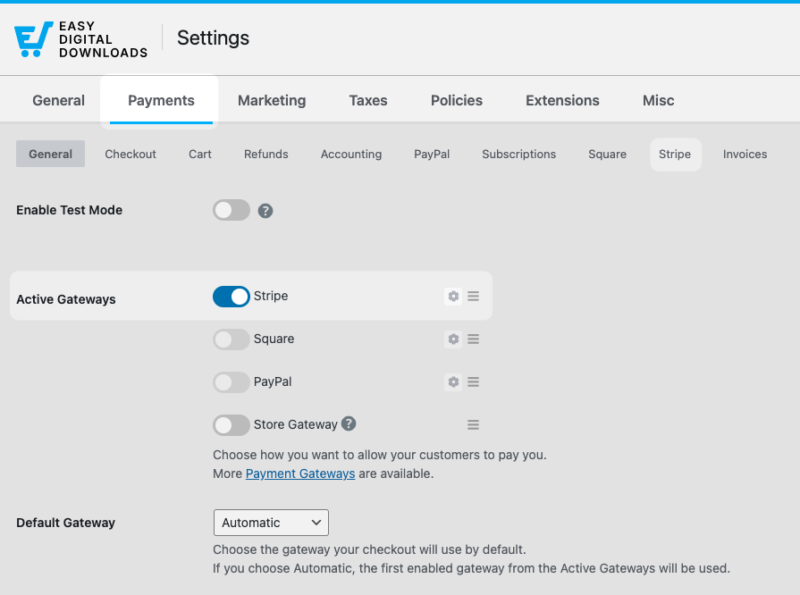
PayPal is a solid alternative and connects using the same process from the same screen.
⚙️ Refer to our Stripe Setup doc for a step-by-step walkthrough.
Step 4: Test Your Store Before Going Live
Before your first real customer reaches checkout, walk through the full purchase experience yourself.
Go to Downloads » Settings » Payments and turn on Test Mode.
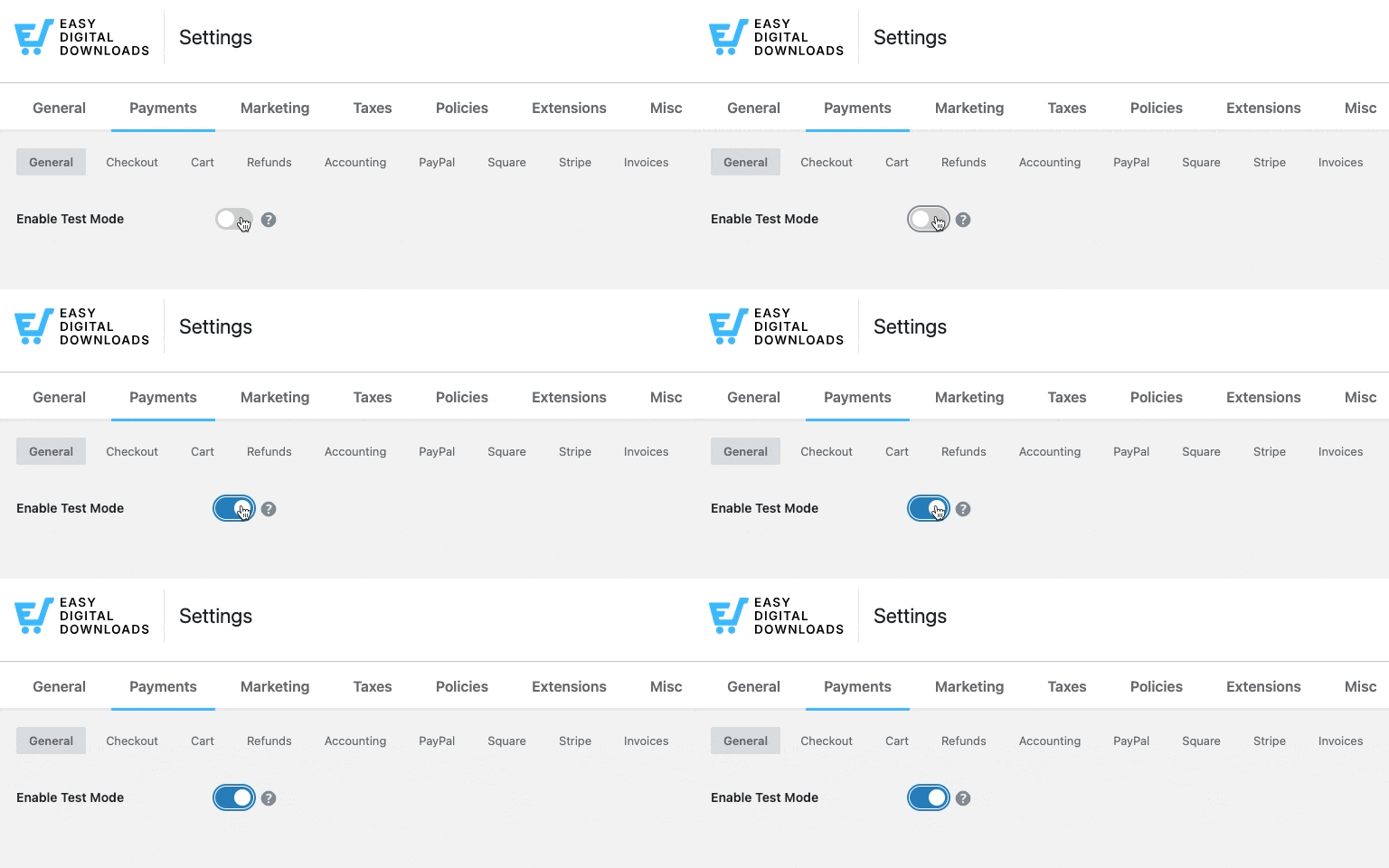
Visit your store, add a photo product, and complete a purchase using a test card number. Walk through it exactly as a customer would.

Check each of these before switching to live mode:
- The checkout URL loads on HTTPS (padlock visible in your browser)
- The payment processes without errors
- The download link arrives and the file opens correctly
- Variable pricing options display as expected on the product page
Once everything passes, disable test mode and your store is ready.
For a full walkthrough of the testing process, see our guide on how to test Stripe payments in WordPress.
How to Price Your Photos for Sale Online
Pricing is one of the most common questions photographers have when they start selling online. The good news: owning your own store means you can charge what your work is actually worth. EDD’s variable pricing (available in all versions of the plugin) makes it easy to offer multiple tiers without needing separate product listings.
A practical starting framework based on resolution and usage rights:
- Low-resolution web JPGs: $10–$30
- High-resolution or print-ready files: $50–$250+
- RAW files: $100–$500+, depending on exclusivity
License type also affects price. A royalty-free license lets a buyer use the image multiple times without additional fees. It’s the most common model for stock photography. A restricted license limits how and where they can use it and typically justifies a higher price.
With variable pricing, you can offer all of these tiers on the same product page:
- Web JPG (1,200px): $15
- Print JPG (5,000px): $75
- RAW file + commercial license: $200
Buyers choose the option that fits their needs. You earn more from every image in your library.
For photographers selling large RAW or TIFF files, see our guide on how to sell large files in WordPress for tips on cloud storage and delivery.
How to Sell Photo Bundles and Collections
Bundles are one of the most effective ways to increase your average order value. Instead of selling one photo at a time, you group related images into a themed collection and price the pack lower than buying each image separately, but still higher than a single photo.
A few bundle ideas that work well for photographers:
- Themed collections: nature packs, urban street photography, wedding stock photos
- File format bundles: JPG + RAW + commercial license in one purchase
- Seasonal packs: holiday backgrounds, seasonal landscapes, event coverage sets
In Easy Digital Downloads, create a new Download product and add multiple files under Download Files. Set a bundle price, describe what’s included, and publish.
You can also use variable pricing to offer a “single photo” tier and a “full pack” tier on the same product page, giving buyers the choice without needing separate listings.
Tips for Promoting Your WordPress Photo Store
Getting your store set up is step one. Getting buyers to it is the next challenge. You don’t need a big budget to make progress.
Optimize your product pages for search. Use descriptive titles and accurate alt text on every photo. The more specific your product copy, the more likely buyers are to find your work through search.
Build an email list. A simple opt-in form lets you capture visitor emails and promote new work directly to people who are already interested. OptinMonster is a strong option for WordPress lead capture that works alongside EDD.
Watermark your preview images. The watermarked image in the Download Image field protects your work while still showing buyers exactly what they’re purchasing. Keep the full-res file in Download Files clean. That’s what they’re paying for.
Share on social media. Pinterest and Instagram drive strong photo discovery. Adding social sharing to your product pages makes it easy for buyers to spread the word after purchase.
FAQs About Selling Photos Online With WordPress
Here are answers to the most common questions photographers ask about how to sell photographs online and what to expect from running your own WordPress store.
How much money can you make selling photos online?
Income varies widely. Some photographers earn a few hundred dollars a month as a side income; others build full-time businesses. When you sell on your own WordPress site, you keep the revenue from every sale. Even modest volume is more valuable than a larger number of sales split with a stock platform.
How should I price photos for online sale?
A useful baseline: low-resolution web JPGs at $10–$30, high-resolution print-ready files at $50–$250+, and RAW files at $100–$500+ depending on exclusivity. Price based on resolution, usage rights, and licensing type. Easy Digital Downloads includes variable pricing in all versions of the plugin, so you can offer multiple tiers on a single product page.
What photo file formats should I offer for download?
JPEG is the most common format for web and print buyers. If your audience includes designers or other photographers, offering RAW or TIFF files alongside standard JPGs gives them more flexibility and justifies a higher price point. For large file delivery, see our guide on how to sell large files in WordPress.
Do I need a model or property release to sell photos online?
If recognizable people or privately owned properties appear in your photos, you may need a signed release before selling them for commercial use, especially if buyers plan to use images in advertising. For editorial use, releases are often not required. When in doubt, consult a legal professional familiar with photography licensing in your region.
How do I protect my photos from being downloaded without paying?
Easy Digital Downloads delivers photos through secure, time-limited download links. Buyers only get access after a confirmed payment. You can set download limits so links expire after a set number of uses. For preview images on your store, watermarking makes unauthorized copies far less useful.
Can I sell photo subscriptions or memberships with WordPress?
Yes. EDD includes subscription billing that lets you sell recurring access to your photo library. For example, a monthly plan that gives members access to new photos each month. It’s a strong model for stock photographers who publish new work regularly.
Start Selling Your Photos Online Today
Selling on stock platforms means accepting their commission rates, payout schedules, and terms. When you sell photos online with WordPress and Easy Digital Downloads, you own the store, you control the pricing, and you keep the revenue your work earns.
The setup is straightforward. Once your store is running, EDD handles checkout, delivery, and payment processing automatically.
Ready to get started?
📣 P.S. Be sure to subscribe to our newsletter and follow us on Facebook, Twitter/X, or LinkedIn for more WordPress resources!