

Running a sale means offering your products for less, or with a bonus, for a set time. Done well, it brings a wave of orders and new customers in just a few days.
Done badly, it gives money away. The discount eats your margin, or a popup gets in the way right as someone tries to pay.
This guide shows you how to run a sale on your website from start to finish. You’ll plan the offer, set it up in Easy Digital Downloads (EDD), promote it and read the results. It works for a Black Friday sale or a quiet-month flash sale.
- Key Takeaways
- Why Run a Sale on Your eCommerce Website?
- How to Run a Sale on Your Website: Before the Sale
- Step 1: Define Your Sale Goal
- Step 2: Choose a Sale Type
- Step 3: Set Your Sale Schedule
- Step 4: Create Your Sale Offer in Easy Digital Downloads
- Step 5: Offer Past Buyers an Upgrade, Not Just a Discount
- Step 6: Spell Out the Sale Details
- Step 7: Test Your Site and Checkout
- Step 8: Promote Your Sale
- Step 9: Build a Sale Funnel and Keep Popups Off Checkout
- During the Sale
- After the Sale
- Questions to Answer Before Your Next Sale
- Plan Your Next Sale This Week
Key Takeaways
| One goal first | Pick one goal, like new buyers or upgrades, so you know which offer to build and what to measure. |
| Match the sale type | A flash sale and early access suit different goals. Choose the type of sale before you set a price. |
| Upgrade past buyers | People who already bought often want a bigger tier more than money off. Offer them the step up. |
| Keep checkout clear | Keep popups off checkout, login and thank-you pages so nothing gets between a buyer and the payment form. |
| Compare after | Measure the sale against the same number of normal days, not just the total order count. |
Why Run a Sale on Your eCommerce Website?
An eCommerce sale gives people a reason to buy now instead of someday. For a digital seller, it’s also one of the cheapest promotions you can run.
Bring In More Orders in a Short Window
A sale packs a lot of buying into a few days. That extra cash can fund your next product or buy you a little time back.
Seasonal events like Black Friday make this easier, because shoppers are already hunting for deals. If that’s the sale you’re planning, our Black Friday prep checklist covers the timing.

Reward Past Buyers and Win New Ones
A sale is a simple way to thank people who already bought from you. A small, exclusive offer shows them you noticed.
It also lowers the risk for someone who’s never bought. A first-order deal can be the nudge that gets them through checkout.
Give a Quiet Product a Push
Got a product that sells slowly? A sale puts it back in front of buyers.
Digital products make this easy. There’s no stock to clear or shipping to plan, and buyers get their files the moment they pay. With the right tools, you can sell digital products on autopilot, sale or not.
How to Run a Sale on Your Website: Before the Sale
Most of the work happens before the sale starts. Get these nine steps done first, and the sale mostly runs itself. Then we’ll cover what to do during and after.
Step 1: Define Your Sale Goal
Start with one clear goal. It shapes the offer, and it tells you how you’ll know the sale worked.
Common goals for digital sellers:
- Bring in new customers
- Get past buyers to buy again
- Get current customers onto a bigger tier or license
- Fill a quiet month
- Get a slow product selling again
Write the goal down. You’ll use it to pick the offer in Step 2 and to read the results after the sale.
Step 2: Choose a Sale Type
The sale type is the shape of your offer. Pick the one that fits your goal before you settle on a price.
| Sale type | How it works | Good for |
|---|---|---|
| Sitewide sale | Everything is discounted | Big seasonal events |
| Category sale | One group of products, like templates or courses | Pushing one product line |
| Flash sale | A deeper cut for 24 to 48 hours | Quick bursts of urgency |
| Bundle deal | Several products for one lower price | Raising the order size |
| Buy one, get one | A second product free or discounted | Getting buyers to try more |
| Early access | Your list gets the sale first | Rewarding past buyers |
Any of these can use a percentage off (20% off) or a fixed amount off ($10 off).
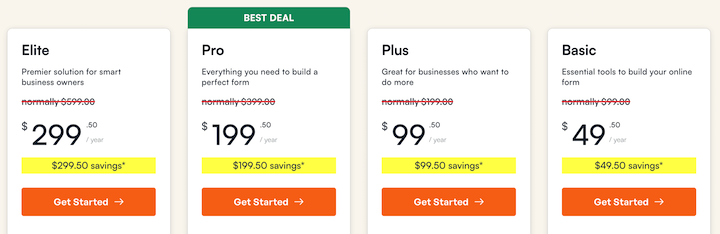
Then size the discount. It has to feel worth it to the buyer, but you still need to make money on every order.
The deeper the cut, the more extra orders you need just to break even. Our Black Friday guide walks through that math. If the numbers don’t work, add something instead of cutting more, like a bonus template or a bundle.
Step 3: Set Your Sale Schedule
Next, pick the dates and how long the sale runs.
You can ride a busy season, when shoppers are already looking for deals. Or pick a quiet month, when there’s less noise and your offer stands out.
Choose a start and end time, too. Use the time zone where most of your customers live, and say which one on your sale page.
Want to thank your email list? Open the sale to them a day before everyone else. It costs you nothing, and it makes them feel like insiders.
Step 4: Create Your Sale Offer in Easy Digital Downloads
How buyers get the deal matters as much as the deal itself. Easy Digital Downloads gives you three ways to deliver it.
A discount code. Buyers enter it at checkout. Go to Downloads » Discounts and click Add Discount. Set the amount, the products it covers, and a Start date and Expiration date so the sale opens and closes on its own. Our guide to creating and managing discount codes explains every setting.
A link that applies the code. Add ?discount=YOURCODE to the end of any link on your site. EDD saves the code and applies it when the buyer reaches checkout. Use it on your sale page buttons and in your emails, so nobody has to remember or type anything.
An automatic deal. With the Discounts Pro feature, the discount applies by itself once the cart qualifies. You set it up under Downloads » Discounts Pro. It handles deals like a free second product, or $20 off any order over $100.
Selling subscriptions? Discounts Pro deals also apply to renewal payments, so try a deal on a test subscription first.
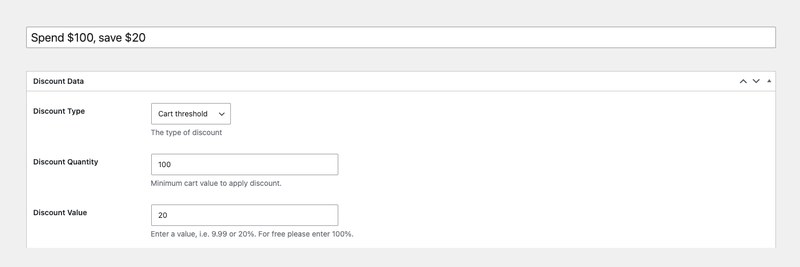
Whichever you choose, show the sale price on your pricing page so buyers see the savings. Our guide to consumer psychology in eCommerce covers why that works.
Step 5: Offer Past Buyers an Upgrade, Not Just a Discount
People who already own your product often don’t need it cheaper. They want more, like a bigger tier or the full version.
An upgrade offer gives them that, and it usually keeps more of your price than a discount does.
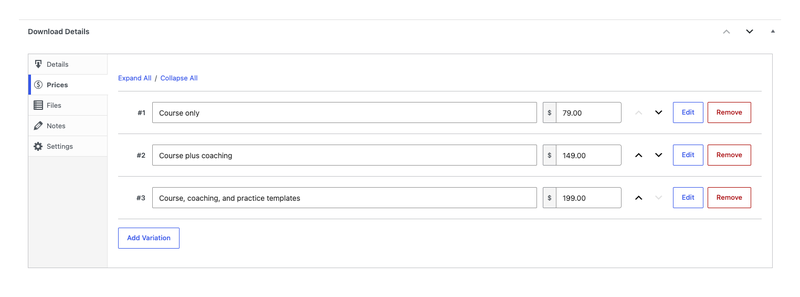
Price tiers (any product). Turn on variable pricing for a product and add a price option for each tier. A course might have “Course only” and “Course plus coaching.” A template pack might have “Personal” and “Commercial.” During the sale, email past buyers a deal on the next tier up. The variable pricing docs cover setup, and our guide to upsells and cross-sells has more ways to suggest the next step.
License upgrades (software). With Software Licensing, a customer can move from one license level to another, like from one site to unlimited sites. Upgrade paths can credit what they already paid and take a set amount off. The Software Licensing docs cover each setting.
Subscription upgrades. If those licenses renew through Recurring Payments, upgrades carry over to the subscription. Buyers can even move up to a lifetime license. See how Recurring Payments and Software Licensing work together.
Step 6: Spell Out the Sale Details
Keep your sale message short and clear. Put the end date and the discount amount where people will see them.
Then check your terms. Are there rules, limits or exclusions for this sale? Common ones include:
- “Some products are excluded.” List which ones.
- “To qualify, you must…” if buyers need to do something first.
- “Licenses are not transferable.”
- “This code can’t be combined with other codes.”
- “Sale purchases are final.”
Put these on your sale page, in the fine print of your emails or near checkout.
Write them down once in a short doc. Then you, or whoever helps with support, can answer the same question the same way all week.
Step 7: Test Your Site and Checkout
Before you announce anything, test your store the way a buyer would.
Shoppers get impatient fast. If pages crawl or checkout lags, many will leave before they pay. Make sure your site is ready for mobile and your checkout only asks for what you need.
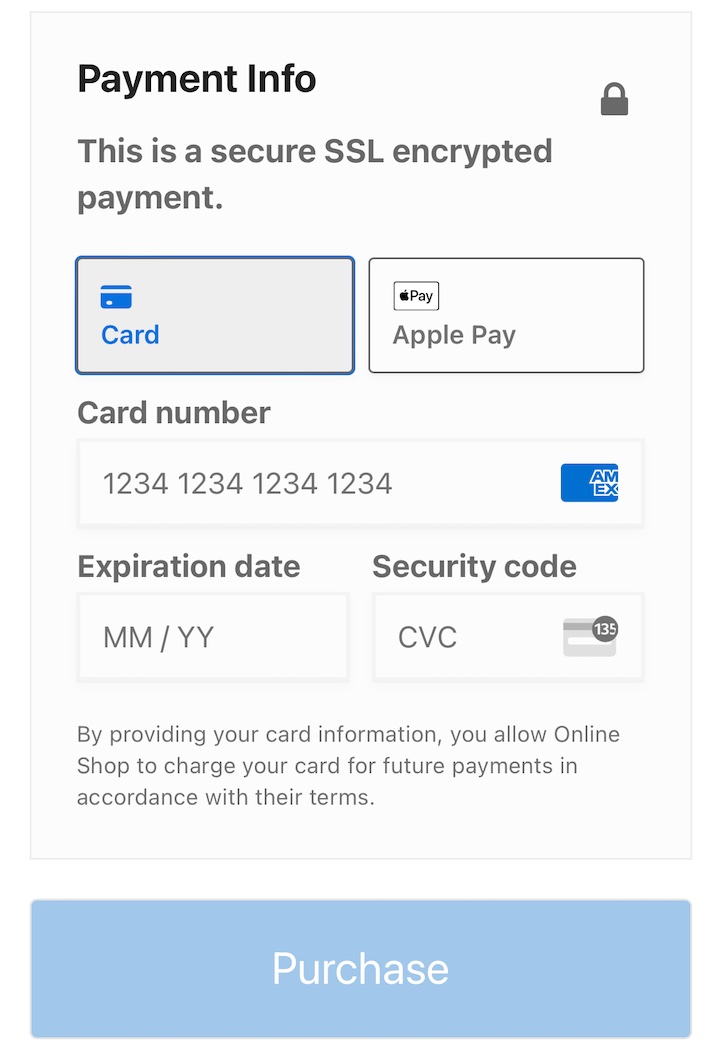
Then run a test purchase with your sale code and check that:
- The code applies to the right products, and only those
- The sale price shows on your pricing page
- An expired code really stops working (make a test code that ended yesterday)
- The buyer gets their file and their receipt
It’s hard to know how many visitors a sale will bring. If your site goes down, your sales go with it, so check that your hosting plan can handle a spike. Not sure? Ask your host before the sale starts.
Step 8: Promote Your Sale
An online sale only works if people know about it. Plan where you’ll announce it before it starts.
Your email list comes first, because these people already know you. Three emails usually do the job:
- The day before: a heads-up, plus early access if you’re offering it
- Launch day: the offer, the end date and a button with the code built in
- Last call: a short reminder a few hours before it ends
Smart tags add each buyer’s name or past product to the email. To send the sequence on a schedule, set up automated emails.
Then share the sale on social media and anywhere your buyers spend time. Affiliates and partners can help you reach people who’ve never heard of you.
Keep the copy specific. Say what buyers get and when the offer ends. Urgency helps when it’s true, so “Ends Friday at midnight” beats “Hurry!”
Step 9: Build a Sale Funnel and Keep Popups Off Checkout
A sale funnel is the path from “I saw your sale” to “I bought.” For most digital sellers, it has three parts:
- A sale page: one page with the offer, the end date and a buy button. Every email and post links here. SeedProd builds one without code.
- A sale bar: a slim banner across the top of your site, so visitors who land anywhere else still see the deal.
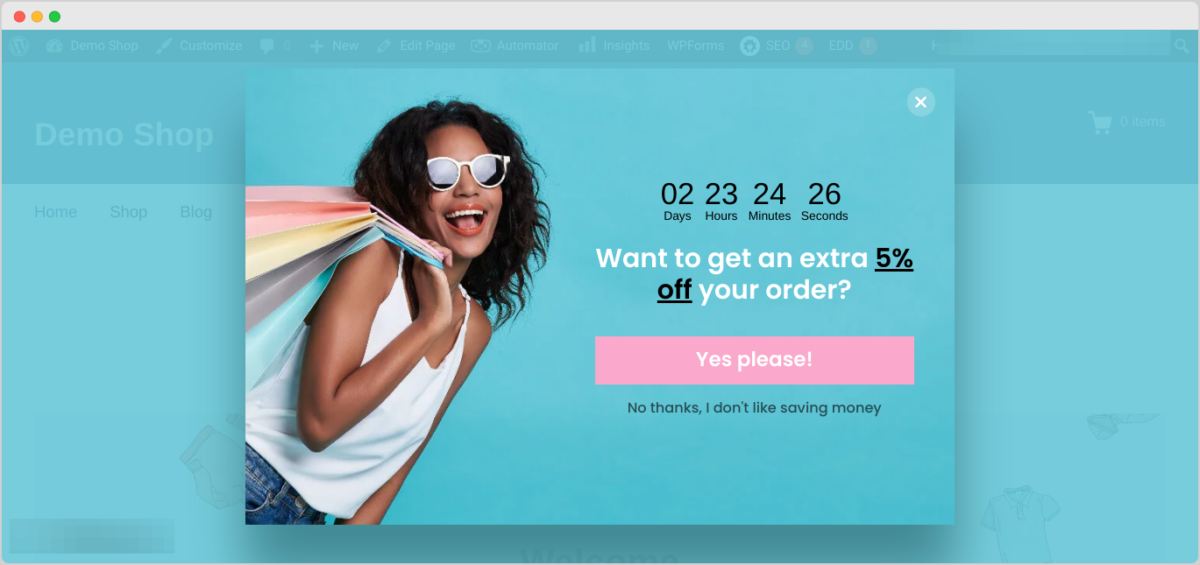
- A popup: a countdown or exit-intent popup that catches people before they leave. OptinMonster handles both the bar and the popup.
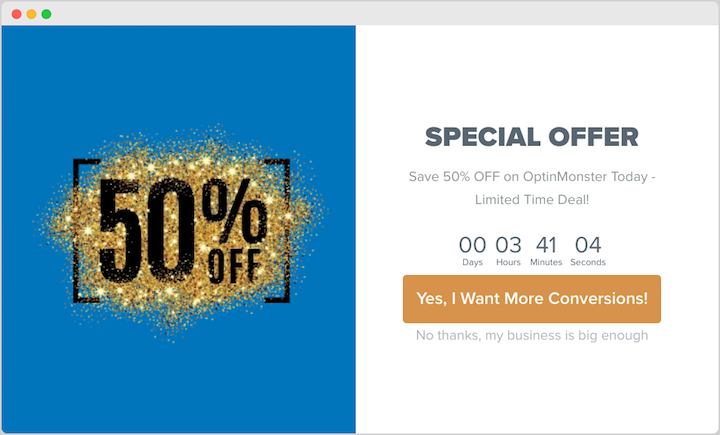
Now the part most sellers miss: keep those popups off your checkout page.
Someone on your checkout page is already buying. A popup there covers the payment form, and it can cost you the sale it’s promoting. The same goes for login and thank-you pages.
In OptinMonster, open the campaign’s Display Rules and use Page Targeting to hide it on any page whose URL contains your checkout page’s address. OptinMonster’s guide to showing or hiding campaigns on specific pages walks through it.
Want AI to do the setup? The Build a Sale Funnel recipe creates the page and campaigns and leaves them paused. The Keep Popups Off Checkout recipe adds the checkout, login and thank-you page exclusions for you.
During the Sale
Your sale is live. Now keep an eye on it.
- Check your orders a few times a day so you spot problems early.
- Answer support questions quickly. A sale brings more of them.
- Reply to comments and messages on social media.
- Keep promoting right up to the last hour.
If something breaks, find the cause before you change anything. You can always pause the sale. Set the code to Inactive and pause your popups and ads. Then fix the problem and make it right with anyone affected.
After the Sale
Once the sale ends, work through this short checklist.
- Switch off your sale code, or let the expiration date do it, and pause your popups and sale bar.
- Take down sale banners and stop any ads that are still running.
- Put your sale days next to an equal stretch of regular days. Look at earnings and the average order, not just the order count. Our Black Friday guide shows how to run that comparison.
- Use MonsterInsights to see where buyers came from and which pages they visited.
- Ask a few buyers for feedback. A short email works.
Expect sales to dip for a little while afterward. Some buyers moved a purchase into the sale, so a quieter week after is normal.
Last, write down what you’d change next time while it’s still fresh.
Questions to Answer Before Your Next Sale
Still planning? These quick answers cover the questions sellers ask most before a sale.
What does running a sale mean?
Running a sale means offering your products at a lower price, or with a bonus, for a limited time. The goal is to give people a reason to buy now. Online, that usually means a discount code or an automatic deal at checkout, promoted for a set number of days.
When is the best time to run a sale on your website?
Pick a time that fits your goal. Seasonal events like Black Friday bring shoppers who are already looking for deals. A quiet month has less competition, so your offer stands out more. Check your store’s reports to see when your buyers usually purchase, and plan around that.
How big should a sale discount be?
Big enough to matter to the buyer, and small enough that you still profit on every order. Decide your floor first, meaning the least you’ll take for each product, then choose a discount above it. A deeper cut needs more extra orders to break even, so a bundle or bonus can beat a bigger discount.
Should existing customers get the sale price?
They can, but they often value something else more. Try early access to the sale, or a deal on the next tier up. If you sell subscriptions, check that your sale code or automatic deal won’t lower their renewal price by accident.
How do I stop people sharing or reusing a sale code?
Use the limits in your discount settings. In Easy Digital Downloads, set Max Uses to cap how many times the code works, and turn on Use Once Per Customer. Add an Expiration date so the code stops when the sale ends. For a private offer, give each group its own code.
How often should I run a sale?
There’s no magic number. Too many sales teach buyers to wait for the next one, so space them out. Start with one or two a year, compare each with your normal weeks and add more only if the numbers hold up.
Plan Your Next Sale This Week
To run a sale on your website that pays off, start with one goal and a little prep. Pick the goal, choose the offer, set up the code with an end date and keep your checkout clear. Then promote it, and compare the results with a normal week once it’s over.
If you sell digital products, Easy Digital Downloads gives you discount codes, automatic deals and upgrade paths in one place.
📣 P.S. Want more WordPress resources?
Get tips in your inbox, or follow along on your favorite platform.